

Think of that yellowed CD case you forgot in a corner at home. You open the lid and find disks with colorful prints and silver surfaces. Ballpoint pen notes cover them: “Wedding 1999,” “Graduation,” “Ahmet’s Ceremony.” Your heart aches at that moment. These VCD disks are not just plastic and aluminum. They carry the most precious moments of your life.
Now you face the real problem: How will you play these disks? Your laptop has no CD drive. Your smart TV only knows USB and HDMI ports. In short, your phone cannot read optical disks at all. Plus, some disks have scratches. Others show strange spots on the surface. Right at this moment of despair, I step in.
I have worked on optical media recovery for over 20 years. Additionally, I have also focused on digital archiving and video restoration. I will show you more than just a basic definition. Instead, I will teach you how to revive this old format with today’s tech.
Moreover, I will explain how to bring those low-res images close to 4K quality. We will use AI-powered upscaling tools.
This piece is a full digitizing guide. You may want to transfer old wedding CDs to a computer. You may try to save a broken disk as a last resort. Or you may simply want to learn the history of this format for a nostalgic enjoyment. I will explain it all step by step. My tone stays warm but covers every fine technical detail.
Take a deep breath if you feel ready. Freshen up your coffee and place that old CD case on your desk. I am truly happy to guide you through this nostalgic video media journey. Let’s begin!
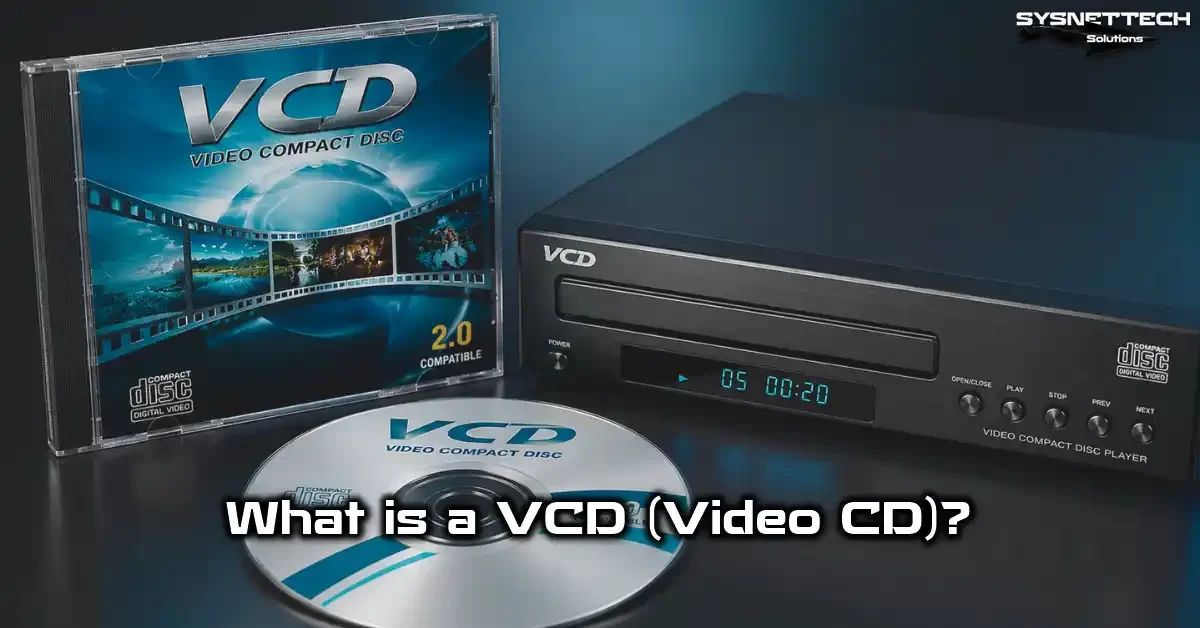
What is VCD? Basic Definition, Technical Foundations, and Historical Context
This optical disk format marks the first major leap of digital video onto compact discs. Born as a 1993 video format, this standard changed the home cinema experience at its core. We could finally say goodbye to the magnetic tapes of VHS cassettes.
Suddenly, films lived on plastic surfaces that did not scratch or jam. Additionally, the production cost was so low that it soon swept the entire Asian video market. It also conquered developing countries at great speed. First, let’s start with the basic definition.
What Does VCD Stand For? The White Book Standard and MPEG-1 Compression
Let’s start with the question many people ask: What does VCD stand for? The full name is “Video Compact Disc.” This format was the first consumer standard to record moving images and sound onto a regular CD. We can simply call it Video Compact Disc.
The White Book standard defines everything from the physical disk structure to the ISO 9660 file system. It also covers the compression algorithm and playback control (PBC) details.
Thanks to this White Book standard, all makers could produce compatible devices. The joint development process between Philips, Sony, and JVC actually started in the late 1980s.
MPEG-1 compression technology lies at its core. The system encodes video at a constant bit rate of 1150 kilobits per second. It processes audio with MPEG-1 Layer II compression at 224 kbit/s. Stereo sound channel support comes standard. As a result, video recording onto a 650 MB CD became possible.
Moreover, they designed this format to match the CD-i bridge format. Thus, it worked on both special players and CD-i devices.
Developers used Mode 2 Form 2 recording to sacrifice some error correction data. This let the device store more video data. This clever engineering is a great example of using limited space at maximum efficiency.
When Did VCD Come Out and Who Invented It? The Digital Video Revolution of 1993
This format’s official birth date is 1993. Philips and Sony sought a compact solution to replace LaserDisc. The first commercial player hit the shelves in 1993. Then it spread fast as a film distribution format.
Interestingly, the 1993 video format did not get the expected attention in the US and Europe. Yet it exploded across Asia. China and India stayed loyal to this format for many years due to slow digital shifts. This tech-history turning point gave millions their first digital video experience.
The mix of low-cost media and cheap players sped up the shift from analog to digital. It was a true blessing for anyone seeking a VHS tape alternative back then.
Having no region code limits also made global sales much easier. This freedom was one of the format’s biggest strengths.
VCD Technical Specs: Resolution, Capacity, Sound, and File Structure
Now I want you to stay with me through the details. These technical points will form the base for your future recovery work.
If you know this format’s limits, you will also know what you can improve. You will also grasp what is impossible.
This information is extremely valuable for picture quality enhancement work. Let’s dive into the technical details if you feel ready.
What Is VCD Resolution? How Many Pixels? PAL vs. NTSC and Macroblocks
One of the most common questions I get is this: What is VCD resolution and how many pixels does it have? Let me answer: For PAL video systems, it is 352×288 pixels. For NTSC video systems, it is 352×240 pixels. The gap comes entirely from TV broadcast standards.
| Feature | PAL | NTSC |
|---|---|---|
| Resolution | 352×288 pixels | 352×240 pixels |
| Frames Per Second | 25 fps | 29.97 fps |
| Regions Used | Europe, Asia, Africa | North America, Japan |
| Active Scan Lines | 288 active lines | 240 active lines |
This resolution comparison may seem quaint in today’s 4K world. Still, it gave a decent viewing experience on CRT TVs of that era.
Additionally, there is the macroblock issue. As the compression ratio rises, blocky squares form in the image. These blocks become very clear, mainly in fast-moving scenes.
You can partly solve this problem with FFmpeg filters I will explain later. Those filters include hqdn3d and unsharp. Plus, this format uses hard-coded subtitles.
In other words, subtitles are baked into the image. You cannot turn them off. This creates an extra challenge during conversion. Luckily, today’s format conversion tools help us clear this hurdle.
How Many Minutes of Video Does a VCD Hold? 74 vs. 80 Minute Capacity
They set the standard disk capacity at 74 minutes of video. This length actually comes from a CD’s maximum audio capacity.
One of Philips’ legendary managers said Beethoven’s 9th Symphony must fit on a single disk. So, this 74-minute capacity was not enough for most films.
Later, 80-minute CDs hit the market. If you ask about the gap between VCD 74 minutes and 80 minutes, the answer is simple: exactly 6 minutes.
However, even those 6 minutes let some short films fit on a single disk. You can gain an advantage by using 80-minute blank CDs when burning a VCD onto CD-R.
Keep this time limit in mind when converting old archives today. If a disk holds more than 74 minutes of content, it likely uses 80-minute media.
This can also affect your conversion settings. Particularly, KVCD variants can push this time up to 120 minutes.
VCD File Extension and Disk Structure: The MPEGAV Folder and AVSEQ01.DAT
Let’s get to the most critical topic: What is the VCD file extension and how does the disk structure work? When you insert a disk into your computer, you see these folders: Segment, MPEGAV, VCD, CDDA, and Karaoke. The MPEGAV folder stores the actual video data.
- MPEGAV folder: It holds video files like AVSEQ01.DAT and AVSEQ02.DAT. Each .dat file contains a part of the movie.
- Segment folder: This holds the playback control menu and PBC info.
- VCD folder: This keeps metadata about the disk.
- CDDA folder: Reserved for audio CD tracks.
Here is the key point: The operating system does not recognize this DAT extension. So you cannot open the file directly.
VLC media player is the most effective tool for the DAT extension. It plays the file even if you just drag and drop it. If you ask how to open AVSEQ01.DAT, the answer is simple: Use VLC.
This DAT file is actually in MPEG-1 format. Only the extension differs. You can make the file playable anywhere by doing a DAT to MPEG conversion.
The system offers a standard disk layout because this format uses the ISO 9660 file system. The VCD player mechanism reads the disk with ease thanks to this. Also, you can connect to old TVs via composite video output and a SCART adapter.
VCD vs. DVD: A Full Technical Comparison
We now dive into the most curious topic in this section. People keep asking: Which one is better? The answer is always clear: DVD wins on a technical level. Still, there are nuances to this. Let’s check our table right away.
VCD vs. DVD: Technical Specs Comparison Table
| Feature | VCD | DVD |
|---|---|---|
| Resolution (PAL) | 352×288 pixels | 720×576 pixels |
| Resolution (NTSC) | 352×240 pixels | 720×480 pixels |
| Compression | MPEG-1 | MPEG-2 |
| Bit Rate (Video) | 1150 kbit/s (constant) | 9800 kbit/s (variable) |
| Audio Format | MPEG-1 Layer II (224 kbit/s) | Dolby Digital, DTS, PCM |
| Disk Capacity | 650-700 MB (CD) | 4.7 GB (single layer) |
| Video Length | 74-80 minutes | 120-240 minutes |
| Subtitles | Fixed (hard-sub) | Selectable (soft-sub) |
| Menu System | Basic PBC | Advanced interactive menu |
| Region Code | None | Yes (6 regions) |
The numbers speak for themselves. DVD’s predecessor has lower technical specs across the board. Yet the interesting part is this: those lower specs turn into an edge in some cases. I will explain this in the very next section.
Which Is Better: VCD or DVD? Advantages Based on Use Cases
The question “which is better, VCD or DVD” is actually missing a piece. The right question should be: For what purpose will you use it?
If you seek a throwback vibe in 2026, the answer shifts. That old grainy picture and those classic compression marks give a feel DVD cannot match.
Also, having no region code limits was a huge plus. You could not play a DVD bought in the US on your player back home.
But this format had no such issue. You popped the film in and watched it. It was that simple. It offered freedom in digital video storage.
It still has an edge in terms of production cost. Still, objectively speaking, nobody can argue against DVD’s technical lead. It gives higher resolution, better sound, and more content. SVCD offers improved resolution but cannot match DVD.
VCD’s One Edge Over DVD: Low-Cost Copying and the Pirate Effect
Let’s get to the most crucial point. What was this format’s one clear advantage over DVD? The VCD duplication cost edge.
Copying a CD was always cheaper and faster than copying a DVD. You could make a copy in minutes with a basic CD burner.
Moreover, blank CD prices were half of blank DVD prices. This created a perfect storm for the pirated film economy. Film sales exploded in side streets, flea markets, and street stalls.
People built the pirate film era exactly on this cost advantage. Quality also rose as video copying technology improved.
However, I must also say this. This format let millions of people in low-income countries experience cinema for the first time. Pirate film copying was wrong, of course. Yet it played a key role in cultural access. I still carry this conflict inside me.
How to Make a VCD: Burning, ISO Creation, and Disk Duplication Guide
You have old video files and want to make a physical disk from them. Maybe you will prepare a throwback gift. Or you need a disk to watch on an old player. Let’s go step by step.
How to Burn a Movie to VCD? Step-by-Step with Nero and ImgBurn
First, here is what you need: a blank CD-R, a CD burner, and the right software. I highly recommend two programs: Nero Burning ROM and ImgBurn.
Nero is a paid program, but a free trial works. ImgBurn is completely free. CDBurnerXP is also a good alternative.
- Open the program: In Nero, pick the “Video CD” project. In ImgBurn, click “Write files/folders to disc.”
- Add your files: Drag your MPEG-1 format video files into the project. The program checks compatibility automatically.
- Build a menu: Add chapter points, design a simple playback menu.
- Set the write speed: Choose the lowest speed you can. I often use 4x or 8x.
- Insert the disk: Insert the blank CD-R and start burning.
Creating a VCD ISO and Mounting It to a Virtual Drive
If you don’t want to deal with a physical disk, building an ISO image is a great solution. With a disk image file, you can consolidate the content into a single file. You can mount it with a virtual drive anytime you want. Plus, doing this with ImgBurn is very easy.
- Open ImgBurn. Click “Create image file from disc.”
- Pick your physical disk or the MPEGAV folder as the source.
- Set the target as an ISO extension. The system automatically includes the recording format information into the ISO.
- Mount the ISO you made directly in Windows 11. Right-click the file and choose “Mount.”
- A virtual drive appears right away. Then you can play the disk with VLC.
Additionally, there is a great command line tool called vcdimager. It lets you build XML-based menus. It is especially useful in batch conversion and archive projects. I use this tool often when sorting large archives.
How to Open a VCD: Playing on Computers, Phones, and Modern Devices (2026)
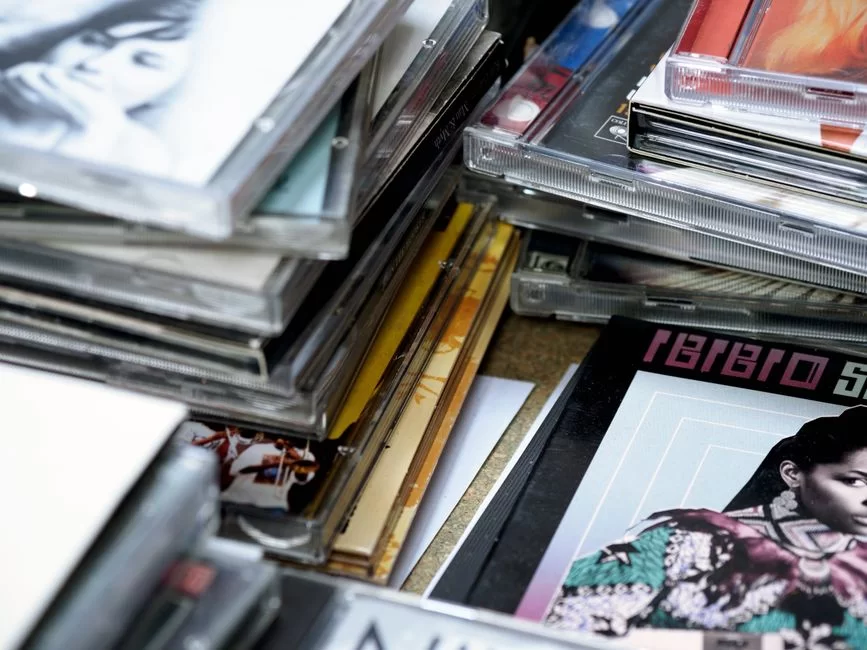
We are in 2026 and most computers lack an optical drive. In fact, the phrase “no optical drive” is now quite common. Still, there is more than one way to play these disks. Let me tell you right away.
Playing VCD on Windows 11 and macOS: Step-by-Step with VLC Player
Windows 11 offers no built-in solution for playing VCDs. Luckily, VLC media player handles this task alone. Plus, it is free and open-source. Here is what you need to do step by step:
- Download VLC from its official site and install it.
- Insert the physical disk or mount the ISO.
- In VLC, click “Open Disc” from the “Media” menu.
- Check the “Video CD” option and pick the drive letter.
- Press play and enjoy.
Alternatively, you can go into the MPEGAV folder and drag the AVSEQ01.DAT file directly into VLC. This method works well, especially when disks have read errors.
For those asking how to open a VCD on a MacBook, the same steps apply. VLC runs perfectly on macOS too.
Watching VCD Without a CD-ROM: External Reader, Virtual Drive, and USB Transfer
Most modern laptops lack a CD-ROM drive. In this case, the first solution is to watch VCDs with an external CD reader. These USB-connected devices are quite cheap. VCD player prices today range from $6 to $12.
A second choice is to copy the content to a flash drive first. To transfer a VCD to a flash drive, copy the MPEGAV folder as is.
Then play the DAT files with VLC. This way, you never need an optical drive at all. You get the full experience of watching VCDs without a CD-ROM.
How to Open VCD on Phone and Tablet? Mobile Playback Solutions
The question “how to open VCD on a phone” has come up frequently lately. Since you cannot directly insert a disk, you must first move the content to a computer. Then convert the DAT files to MP4. Copy the videos now in MP4 format to your phone.
- For Android: VLC, MX Player, or KMPlayer work great.
- For iOS: I suggest VLC for Mobile or Infuse.
- For tablets: The same apps offer a better feel on a big screen.
You can connect an external CD reader to Android phones with an OTG cable. However, you may face many compatibility issues in practice. Therefore, the convert-and-copy method is the most reliable. You save battery life and can watch anywhere.
VCD File Conversion: Turning VCD into MP4, DVD, and Other Formats
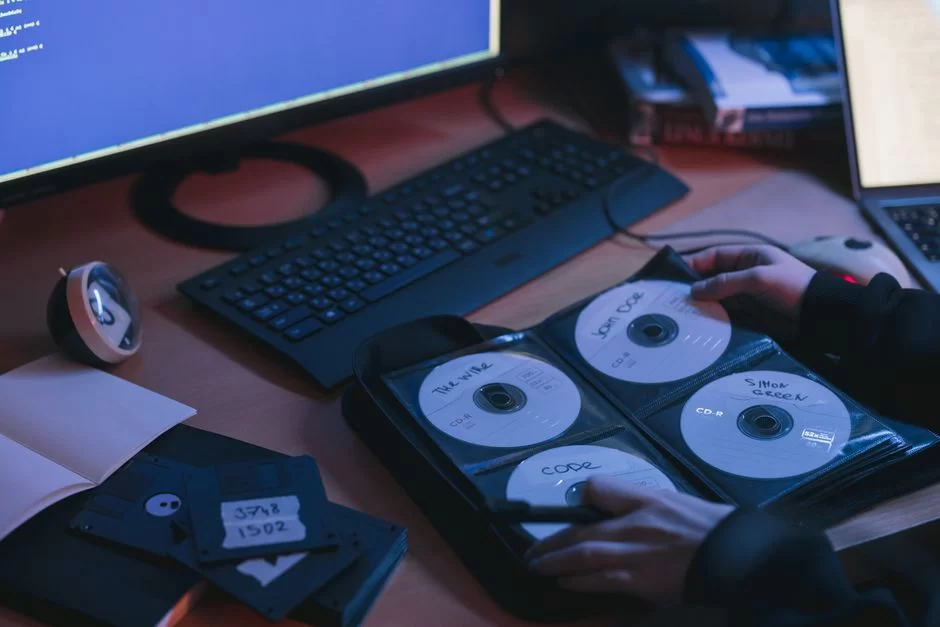
We have now reached the most critical part. Conversion is the key to bringing this old format into the modern era. If you pick the wrong method, you waste time and lose quality. So read with care.
How to Convert VCD DAT Files to MP4? Using HandBrake and VLC
Let’s start with the two most popular tools: HandBrake video converter and VLC. HandBrake is a legend in the video conversion world. Follow these steps for DAT to MP4 conversion with HandBrake:
- Open HandBrake and pick the AVSEQ01.DAT file as the source.
- Set the output format to MP4.
- Choose H.264 or H.265 as the video codec. H.265 gives a smaller file size.
- Leave the resolution at its original value. You can upscale later.
- Pick AAC as the audio codec and 192 kbit/s as the bit rate.
- Make sure to turn on the deinterlace filter.
- Start the conversion.
The answer to whether VLC can open a VCD file is yes. Moreover, VLC does not just play; it also converts.
Go to “Convert/Save” from the “Media” menu. Add the source DAT file. Pick MP4 as the profile. If you ask how to convert a VCD file with VLC, it is just that simple.
Batch VCD Conversion with FFmpeg and DAT to MPEG
If you feel at home on the command line, FFmpeg is your best friend. You can do a DAT to MPEG conversion with a single command. You can process dozens of files in a batch. Here is my favorite command:
ffmpeg -i AVSEQ01.DAT -c:v libx264 -crf 18 -c:a aac -b:a 192k output.mp4This command takes the DAT file and turns it into MP4 with the H.264 codec. A CRF value of 18 gives a near-lossless conversion. It also converts the sound to AAC format. For MPEG format conversion, use this command:
ffmpeg -i AVSEQ01.DAT -c copy output.mpgThis command only changes the container, keeping the video and sound data as is. VCDGear conversion software also does a similar job. However, FFmpeg is far more flexible and powerful. I always use FFmpeg for my archive projects.
Can You Convert VCD to DVD? VCD2DVD and VCDImager Guide
Converting VCD to DVD is technically possible. But let me say this upfront: Do not expect a quality miracle. If you upscale a 352×288 image to 720×576, details fade away. Still, it is useful for watching on old players.
- Download and install the VCD2DVD software.
- Add all DAT files from the MPEGAV folder to the program.
- Pick a template to build a DVD menu.
- Choose a DVD folder structure or ISO as the output.
- Start the conversion.
If you seek a pro-grade alternative, use vcdimager. This tool supports XML-based menus. It also lets you merge multiple disks onto a single DVD. Moreover, it is a great choice for merging your wedding videos onto one DVD.
Digitizing Old VCDs: Archiving, Data Recovery, and Picture Improvement
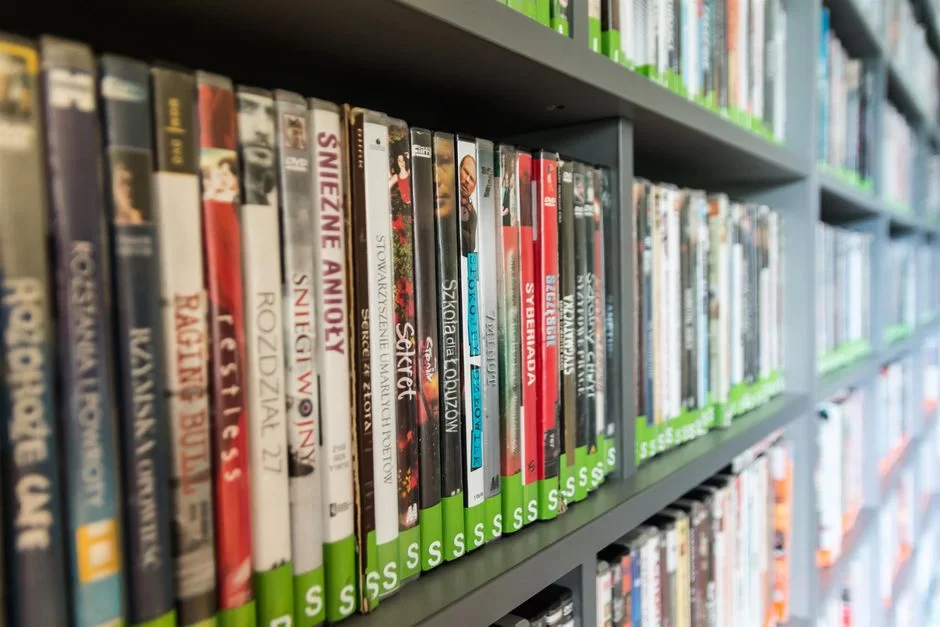
This is the heart of the guide. Most of you read this piece just for this section. Your old wedding videos, childhood moments, and maybe the voices of elders who have passed—they all wait on those faded disks. It is time to save them.
Steps to Transfer Old Wedding CDs and Family VCDs to a Computer
The first task is to insert the disk into a computer and copy the content. But do not rush. Gently wipe the disk surface with a soft microfiber cloth. Clean in straight lines from the center outward. Never make circular motions, as they cause scratches.
- Insert the disk into an external CD reader.
- Right-click the disk in Windows Explorer and click “Open.”
- Find the MPEGAV folder.
- Copy all content to a new folder on your computer.
- Name this folder with a date and content description.
- Move the copied files to a backup disk or cloud storage right away.
Don’t panic if you hit an error during the copy. You can still save some files even if you get a cyclic redundancy check error.
At this point, the IsoBuster data recovery software steps in. I know the deep emotional weight of digitizing old family VCDs. So take your time. Process each disk one by one, with patience.
How to Save Scratched and Unreadable VCDs: Toothpaste, Freezer, and IsoBuster
We have now reached the web’s most debated topic. Let’s first talk about odd methods for saving a scratched VCD. Does the toothpaste cleaning method really work? Partially, yes, but you must be very careful.
- Get a white, grain-free, gel-free toothpaste.
- Put a tiny amount on your fingertip.
- Gently apply it to the scratched area from the center outward.
- Rinse with warm water and dry with a microfiber cloth.
The safest fix is always software-based recovery. IsoBuster is the undisputed leader in this field. The program reads the disk’s raw data sector by sector. It skips bad sectors and saves the healthy data. For those asking whether broken VCD data recovery is possible, this is the only real answer.
Improving VCD Picture Quality: 4K Upscale with FFmpeg and Topaz Video AI
We have now reached the most thrilling part. The idea of doing a VCD 4K upscale may sound crazy. But in 2026, AI makes this truly possible.
AI video upscaling technology checks each frame one by one. It fills in missing details with artificial intelligence.
I suggest this profile for Topaz Video AI VCD settings:
- Model: Artemis or Gaia
- Upscale factor: 4x
- Output resolution: 1440×1152 (for PAL)
- Noise reduction: Medium level
- Sharpening: Low to medium
For the FFmpeg VCD improvement command, use this combination:
ffmpeg -i input.dat -vf "hqdn3d=4:3:6:4,unsharp=5:5:1.0:5:5:0.0,scale=1440:1152:flags=lanczos" -c:v libx264 -crf 16 output.mp4Why Do VCDs Degrade and Get Moldy? Disc Rot and Chemical Protection
Disc rot is this format’s biggest enemy. Over time, moisture seeps between the disk layers. Oxidation begins. The reflective aluminum layer breaks down. The result: an unreadable, stained, dead disk. Low moisture tolerance in production flaws speeds up this process.
Take these steps for protection: Keep disks in a cool and dry place. Keep them away from direct sunlight. Store them upright in high-quality sleeves. Use polypropylene CD sleeves instead of original cardboard boxes. Cardboard releases acid over time and harms the disk.
Sadly, you cannot repair VCD disc rot. Once it starts, you cannot stop it. But you can slow it down. This is why digital preservation and data recovery methods are vital.
Do not wait. Start the archiving process today. Secure your memories with digital and cloud-based archiving solutions.
VCD History and Cultural Impact: The Asian Market, Pirate Films, and the US
This optical disk format was not just a technical standard. It was also a global cultural event. Its impact, mainly in Asia, ran far deeper than today’s streaming giants. Let’s explore this story together.
Why Did VCD Stay So Popular in Asia for So Long?
The question of why the VCD Asian market stayed popular so long is gripping from a media archaeology angle. The answer has many layers.
First, there was the cost factor. People in China, India, and Indonesia saw DVD players as luxury goods. Yet firms sold VCD players for $20 to $30.
A second factor involved regional video format uptake. Consumers in Asia grew tired of Hollywood’s DVD region code limits.
This format had no region code. Every disk from the US or Europe worked without issues. Also, local film industries embraced this format quickly. Bollywood and Hong Kong cinema pressed millions of copies.
China and India went through a slow digital shift. For this reason, people actively used this format well into the 2010s. Why did VCD become so popular in Asia? The answer lies in these four factors: price, access, freedom, and local content.
Pirate Film Culture: Blockbuster Rental Shops and Street Sellers
The VCD pirate film culture in the US tells a unique story. In the late 90s, every neighborhood had at least one video rental store.
Shelves overflowed with these disks. You could rent a film for a few dollars and watch it with family on the weekend. Pirate film copying spread so wide that mobile sellers set up stalls at flea markets.
How did VCD link to pirate film copying? The answer partly lies in this unchecked growth. The format’s easy-to-copy nature made it the top tool for piracy. Newly released films appeared on discs within a week. This shook the local film industry to its core.
Still, I don’t recall those days with bad feelings. The CD shops in the neighborhood were our generation’s film school. The nostalgia of video rentals holds a special spot in the hearts of many people like me. In short, the concept of digital nostalgia describes exactly this feeling.
Why Did Rental Shops Close? The Streaming Revolution and the Format’s End
Why did VCD rental stores close? This question actually sums up tech history. The answer has three stages. First came DVD, offering better quality. People slowly started renting DVDs. Next, the internet got faster. People began downloading films from the web.
The final blow came from streaming services. With Netflix, Amazon Prime, and Hulu, physical media became obsolete. The answers to why VCD is no longer used and why the format was dropped lie in this chain reaction. If you ask what tech replaced VCD, the order is DVD, then Blu-ray, then streaming.
Today, this format survives only as nostalgic video media. Collectors, fans, and old media recovery experts like me still value these disks.
If you ask whether people still use VCD today, the answer is yes, but only in a very niche space.
VCD Variants: SVCD, KVCD, XVCD, CVD, and the Technical Differences
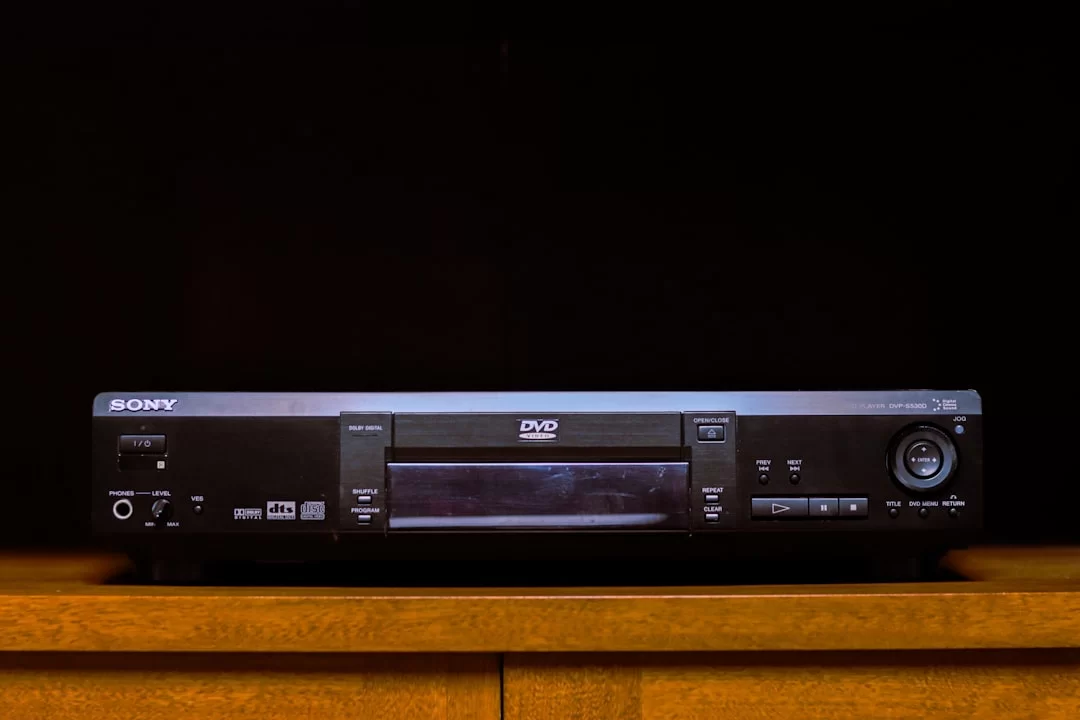
When the standard format fell short, people made variants. These formats, promising better quality and longer run times, were quite popular in the early 2000s. Let’s now examine them.
What Is SVCD? Advantages and Drawbacks Compared to VCD
SVCD is the favorite of technology enthusiasts. They developed Super Video CD in 1998. Its biggest difference is that it uses MPEG-2 compression. This format offers improved resolution: 480×576 PAL or 480×480 NTSC.
| Feature | VCD | SVCD |
|---|---|---|
| Compression | MPEG-1 | MPEG-2 |
| Resolution (PAL) | 352×288 | 480×576 |
| Bit Rate | 1150 kbit/s | 2600 kbit/s |
| Audio | Stereo MP2 | Stereo MP2 |
| Video Length | 74-80 minutes | 35-40 minutes |
If you ask what the gap is between VCD and SVCD, in short, quality rises but length drops. It needed MPEG-2 decoding, so it did not work on old players. The technical differences are these: resolution, bit rate, and the compression method are all completely different.
What Are KVCD, XVCD, and CVD? Non-Standard VCD Formats
For those asking what KVCD is, let me explain right away: It is a non-standard format developed by K Video Compression Dynamics. It promises extended recording time. You can fit up to 120 minutes of video on a single CD. It uses variable bit rate and a special matrix.
XVCD is the general name for disks with non-standard resolution and bit rates. For example, a 720×576 resolution XVCD is actually an MPEG-1 file at DVD resolution. CVD, meanwhile, stands for China Video Disc. They developed this format in China as a low-cost alternative to SVCD.
The summary of the differences between SVCD, KVCD, XVCD, and CVD is this: They all step outside the White Book standard. Companies made these in different countries for different needs. You may run into these formats if you are saving an old archive. You will often find the CVD format on disks from the Far East.
Niche VCD Uses: Game Consoles and Digital Forensics
This format has two more uses you would never think of. One lives in the retro gaming world. The other lives in the world of law and criminology.
Can a Game Console Play VCDs? PlayStation and Dreamcast Compatibility
PlayStation fans often ask whether a game console can play VCDs. The original PlayStation 1 cannot play this format on its own. Sony did not put an MPEG-1 decoder chip in the console to cut costs. However, an external Video CD player add-on did exist.
The Sega Dreamcast was far more capable here. The MPEG-1 codec was already loaded in the system for full motion video (FMV) and game cutscenes.
Dreamcast played these disks without any issues. In fact, developers had even recorded some game cutscenes directly in this format. On the other hand, the PlayStation 2 offers limited support through its DVD drive.
Digital Forensics: Examination and Forensic Copying
This topic may surprise most people. However, VCD examination in digital forensics is still an active area of expertise. They store evidence disks from old cases and records of cold cases in this format. Forensic copying is very different from regular copying.
Over my career, I have served as a consultant on a few digital forensics cases. A 20-year-old trial held a security camera recording from the crime scene on an old VCD. Half of the disk had rotted. We saved 70% of the recording with IsoBuster and custom methods. I understood once again at that moment how critical this format can be.
Further Reading Resources for VCD
Want to learn more about these topics? So, I suggest these top sources. Experts trust all of these tools. In fact, they come from schools or top groups.
- Library of Congress: MPEG-1 Video Encoding Format — The Library of Congress’s sustainable digital formats archive. In this file, the Library of Congress logs all tech facts for MPEG-1. Moreover, you will find the tech quality factors here. You will also see its history.
- ISO/IEC 11172-1:1993: MPEG-1 Systems Coding Standard — The current and official MPEG-1 standard page published by the International Organization for Standardization (ISO). This guide shows how the Video CD format stores audio and video data. It serves as the main source to see how the system syncs them.
- University of Illinois PSAP: Optical Media Preservation Guide — The academic “Preservation Self-Assessment Program” (PSAP) project by the University of Illinois. This study examines the technical features of VCD and similar optical formats. Frankly, it is a wonderful resource that presents data layers and long-term archiving standards.
The 10 Most Asked Questions About Video Compact Disc
Is VCD still in use and can you still buy a player today?
How do you fix a player and why doesn’t it read?
Where can I find a VCD movie archive?
How do I transfer old tapes to a computer? (For those mixing up VHS)
What is Playback Control (PBC)?
How do you put a movie on VCD and which program do you use?
How do you create a VCD ISO image?
Why convert VCD to DVD and what is the benefit?
Is data recovery from a broken VCD possible?
What technology replaced VCD?
Conclusion: Preserving the Digital Legacy of VCD in 2026
We have reached the end of the road. Over a cup of coffee, we talked through a 30-year-old tech from start to finish. I hope this guide not only gave you information but also revived those old memories.
Take Action Today for Digital Preservation
My final tip to you is this: Do not put it off. Start the task of moving those old wedding CDs to a computer this weekend. Disc rot moves forward each passing day. This, of course, erases your memories.
Buy an external CD reader, install VLC, and download HandBrake. Start the old media format digitizing process today.
Make sure to back up the files you convert. Cloud-based archiving is the safest method. Open a special folder in your Google Drive, OneDrive, or Dropbox account.
Upload all converted videos there. Even if physical disks degrade, your memories stay safe. Don’t let video archiving hurdles discourage you. Technology is more helpful today than ever before.
This format was the pioneer of the digital video age. If you ask what tech replaced VCD, the answer is DVD, then Blu-ray, then streaming.
But none of them gave that first thrill or that first digital feel. That is why I hold deep respect for this humble format. You should too. Now roll up your sleeves and open that old box.

Be the first to share your comment