

You double-click a video file. The screen goes black. Or you only hear sound. Sound familiar? Enter AVI. Microsoft launched this classic format back in 1992.
Today, you see this structure in CCTV and old home videos. You also use this tech in pro video workflows. This format holds much more layered tech than you think.
After years in the field, I can say this. Most user issues do not come from AVI itself. They stem from wrong codec packs or a lack of data.
In this guide, I will not just give theory. I will show you how to fix a broken file in depth. I will also explain why your TV can’t open this format. Finally, I will show you how to play it smoothly on modern gear.
I will also share vital safety tips. This helps you avoid fake codec traps on the web. We will dive deep into codecs. You will find tricks for pro editing apps. Ready? Let’s step into the stunning world of digital video.
What is AVI? The Up-to-Date Definition for 2026
Microsoft built this media container. It entered our lives as a video wrapper. Its goal was to hold audio and video data under one roof.
This format you still see today has a much more flexible build than you think. However, this same flexible build brings major playback issues.
Let’s fix a false belief right away. Users see the file extension and think it’s just one type of video.
But the truth is the opposite. AVI is just a box. You can place dozens of codec parts inside it. So, two .avi files might use totally different tech for encoding.
What Does AVI Mean and What Is It on a Tech Level?
AVI stands for “Audio Video Interleave.” As the name hints, the system stores sound and video in turn.
That is, it loads one video frame. Right after, the matching audio data arrives. The developers designed this interleave method on purpose. It aims to let old hardware run with low CPU load. As a result, even old devices play video in sync with audio.
But this design is a significant challenge for modern compression tools. For example, you must reach the index at the file’s end. You need this for web streaming. Otherwise, the video simply won’t play.
When Microsoft launched this, watching video online was not yet common. So, the developers ignored this flaw back then.
On a technical level, this Microsoft format uses a RIFF file structure. It organizes everything into chunks. It splits data into a header, a body, and an index.
You still open files from old cameras today. So, knowing this core structure helps you solve issues faster.
- Core Logic: The system lines up video and audio chunks one after another. So, the player reads data from the disk without stressing the CPU.
- Tech Structure: This Microsoft video format uses a RIFF file structure. The system sorts all parts into chunks. In short, it splits this structure into a header, data, and an index.
- Today’s Problem: If you can’t reach the index at the file’s end, the system fails to play the video. This is why streaming protocol issues clash with modern tech like HLS and DASH.
History of the AVI File: From Video for Windows to OpenDML and the DivX Revolution
It all started in 1992. Microsoft launched “Video for Windows” for Windows 3.1. Back then, digital video norms were just in their early stages.
Early tools like Cinepak and Indeo produced quite poor quality. You likely can’t watch those videos today. But at that time, it was a true breakthrough.
By 1996, a significant issue emerged: the 2GB file size cap. People back then couldn’t even dream of such sizes. But as technology advanced, they wanted to record longer clips.
At that point, they built the OpenDML standard. In short, this update, also known as AVI 2.0, broke the file size cap. However, backward compatibility was always unreliable.
The real boom came in the early 2000s. We saw the DivX revolution and the nostalgia around it. Thanks to the DivX codec, you could fit a whole movie on one CD. This sparked the era of pirated films and the warez scene.
In those days, everyone had .avi films on their drive. What’s more, DivX 3.11 Alpha had a wild origin. A hacker reverse-engineered the MPEG-4 codec from Microsoft. That is quite a wild backstory.
Deep Technical Specs and the Internal Structure

It’s time to dive into the tech details. Users often think this is just a file icon. But you must grasp the inner workings, because sometimes, it is the only way to know why a video plays or not. I will share details that even many technical professionals don’t know.
First, let’s accept a truth. Mixing up the container and the codec is a common error in the market.
Someone might say, “My PC won’t open AVI files.” In truth, the OS just cannot identify that specific codec. Let’s clarify this key difference.
Furthermore, if you check this structure with a hex editor, you see the header data. This data is the key to fixing a broken file. The moment you see the first 4-byte “RIFF” mark, you look at the start of a treasure map.
Container vs. Codec: The Golden Rule to Know AVI
Never forget this key difference. A container is a cargo box. A codec is how you pack the contents inside that box. This media box can, in theory, hold hundreds of video and audio types.
For example, picture a CCTV clip compressed with MJPEG. A film using H.264 has the same file extension too.
MJPEG is just a string of JPEG photos. Each frame is a stand-alone image file. The logic here works like this: you just need a JPEG decoder to unpack the image.
But when it comes to playback, the situation changes completely. Media player compatibility comes into the picture right here.
If that codec is not on your system, the container illusion misleads you. You click the icon, but nothing appears. So, scan the file with a tool like MediaInfo before you open it. Naturally, this is the best way.
| Concept | Definition | Role in AVI |
|---|---|---|
| Container | Data wrapper (box) | AVI itself is a container. It merges sound and picture. |
| Codec | Compression algorithm | Encodes the data inside (DivX, Xvid, MJPEG, H.264). |
| FourCC | Codec identifier | Tells the OS which encoder to use. |
| RIFF | File skeleton | The template that sets how to organize the data. |
RIFF Structure, Hex Header Analysis, and FourCC Identifiers
Let’s do some digital archeology now. This format rests on the Resource Interchange File Format. The file starts with “RIFF.” Right after come the file size and the “AVI ” tag.
I stop and think each time I see this in a hex editor. The early Microsoft engineers did a truly smart job.
The file consists of HDRL (header), MOVI (data), and IDX1 (index) layers. Fixing index errors here is the core of repairing broken files.
If the data chunks in MOVI don’t match the pointers in IDX1, a sync issue is sure to happen. In half-finished records, this index was never written. Then the file becomes useless.
- Header: The first 4 bytes are “RIFF”. This marks the file type. It appears as “52 49 46 46” in a hex editor.
- FourCC Identifiers: Four-letter codes like “DIVX”, “XVID”, or “MJPG” indicate which codec was used. This way, the DirectShow codec system calls the right decoder.
- Index (IDX1): You see this at the file’s end. If this part is missing, using FFmpeg is necessary to fix the index error.
- MOVI Block: The main section holding raw audio and video data. It is made of sub-chunks like “00dc” (video) and “01wb” (audio).
Opening AVI on Any Device: The Best Player Software and Codec Packs of 2026
Let’s get to the key topic. How do we play these files without trouble? The most common complaint I hear is about Windows Media Player not opening the file.
But the fix is often much simpler than you think. However, first, you must know which tool to use and when.
My own pick has always been VLC Media Player. This open-source video format helper holds almost all decoders within itself.
It plays most files right out of the box. You do not need an external codec pack. Moreover, it can even display a broken file up to a point.
But some niche cases exist. For instance, you might face an old CCTV record format. That is when you bring in comprehensive packs like K-Lite Codec Pack. These packs embed key components like ffdshow decoder and Media Foundation into your system.
Can’t Open AVI in Windows 11/10 and the 0xc00d36b4 Error Fix
This error code is a significant problem for Windows users. Some apps from the Microsoft Store can break the system’s codec database.
If you get this error on Windows 11 or 10, follow these steps in order.
- Reset Default Settings: Go to “Settings > Apps > Default Apps” and reset the video player. This step clears broken registry keys.
- Check Optional Codecs: Remove and reinstall packs like HEVC Video Extensions from the Microsoft Store. Sometimes these packs conflict and break the DirectShow codec chain.
- Install K-Lite Codec Pack: If that fails too, install the K-Lite Codec Pack Full version as a last resort. Check the “Set Windows Media Player as default” box. Also, activate the LAV Filters components.
- System File Repair: Open the command prompt as an admin. Run the
DISM /Online /Cleanup-Image /RestoreHealthcommand. This fix mends broken system files. As a result, you solve the media technology issues at the root.
Playback on Mac: The Solid Fix with QuickTime, VLC, and IINA
The situation is a bit more complex for Mac users. Apple’s QuickTime does not support this old video format by default.
That’s because Apple favors its own ecosystem with MOV and modern containers like MP4. But no need to panic. Quite handy fixes exist.
- IINA: Thanks to its modern look and mpv core, it plays almost all files flawlessly. It uses hardware acceleration effectively and conserves battery life.
- VLC Media Player: The classic VLC option is just as capable on a Mac as it is on Windows. It holds almost all codecs within itself.
- QuickTime + Perian: If you truly insist on using QuickTime, you must turn to third-party plugins like Perian. However, in 2026, I do not advise this path due to security vulnerabilities.
Opening AVI on Phones and Tablets: Best Apps for Android and iPhone
Opening these files on mobile is a bit tougher than on a desktop. On the iPhone, direct playback is almost impossible. This is due to strict iOS file system rules. But still, it’s not hopeless.
- VLC for Android: Its simple look, strong decoder core, and lack of ads make it peerless. It plays most files encoded with DivX and Xvid codecs smoothly.
- MX Player (Android): Very capable at hardware-accelerated playback. Its HW+ decoder mode plays even high-res videos smoothly.
- VLC for iOS: You must move the file to the app via iTunes file sharing or Wi-Fi transfer. As a second choice, PlayerXtreme Media Player is also a good pick.
- Key Note: iOS limits software decoders to save battery. So, performance might drop on high-bitrate videos.
Why Won’t AVI Files Play? Codec-Based Fix for All Sound and Picture Issues
This is perhaps the most vital point. A large part of users think the file is broken and just delete it.
But a missing decoder is often the root cause. These issues are inevitable, mainly when you need old hardware video support.
You might face old codecs in files from the early 2000s. For instance, manufacturers no longer build Indeo or Cinepak codecs.
At this point, the ffdshow decoder steps in. It emulates old codecs to render the picture. But sometimes, it is not that simple. A deeper fix is needed.
Sound but No Picture, Black Screen Issue, and the MJPEG/VP6 Fix
The sound-but-no-picture issue is the clearest sign of a missing video codec. CCTV cameras and dash cameras often record in MJPEG.
In this format, each frame stands on its own. So, it runs with low CPU use. But the default Windows MJPEG decoder can fall short.
- MJPEG Issue: Open the Codec Tweak Tool inside K-Lite Codec Pack. Set the MJPEG decoder to ffdshow. This forces the image codec to switch. It solves the black screen.
- VP6 Codec Issue: If the file uses the VP6 codec, get the “vp6_decoder.ax” file from a safe source. Then, register it with the system with the
regsvr32 vp6_decoder.axcommand. - Render Setting Change: In VLC, go to “Tools > Preferences > Video > Output.” Try the “DirectX (DirectDraw)” or “OpenGL” modes. This easy fix clears up hardware acceleration conflicts.
- Alternate Player: If the issue persists, try the MPV player. This player is less known but peerless in its compatibility.
AVI File Picture but No Sound: AC3, DTS, and Vorbis Codec Gaps
The picture-but-no-sound issue is an entirely different issue. Here, the fault is often multi-channel audio types like AC3 or DTS.
In films ripped from DVDs, the audio track is encoded with a licensed codec. Windows does not offer these decoders by default due to license costs.
- AC3/DTS Fix: Install lightweight and free tools like AC3Filter or LAV Filters. These add the missing audio decoders to the system.
- Vorbis Fix: Some open-source projects or game records encode audio with Ogg Vorbis. In this case, installing the official “oggcodecs” pack is the right step.
- Sample Rate Mismatch: A non-standard audio sample rate can also cause a mismatch. For instance, 44.1kHz instead of 48kHz. In this case, resampling the audio is needed. Use the command:
ffmpeg -i input.avi -ar 48000 output.avi. - VBR Audio Issue: An MP3 audio layer encoded with a variable bit rate (VBR) often creates a sync issue in this container. So, you must convert the audio to a constant bit rate (CBR) to fix this.
AVI vs MP4 vs MKV vs MOV vs WMV: A Full Format Showdown

Now let’s see how this format stands against its rivals. To be frank, picking this format for daily use in 2026 makes little sense.
But in some special cases, it still has no peer. I will lay out each option with its pros and cons in this section.
The biggest confusion often lies in the AVI vs MP4 battle. I always reply to this with one question: “What will you use it for?” because the answer relies fully on the use case. For the web, pick MP4. For professional editing, I sometimes suggest AVI.
Is AVI or MP4 Better? A Quality, Size, and Compatibility Showdown
The core split is this: MP4 is a modern container. AVI is old. MP4 natively supports advanced codecs like H.264 and HEVC. We cannot say the same for the old container format.
On top of that, MP4’s moov atom enables seamless web-based streaming and fast startup.
But when it comes to quality, in theory, both can store lossless video, because both are just boxes.
However, this old format has a VBR compatibility issue. This leads to sync issues in long videos. In short, MP4 is much more compatible with VBR.
| Feature | AVI | MP4 |
|---|---|---|
| Year | 1992 | 2001 |
| Streaming Support | Weak (issue with progressive download) | Flawless (HLS/DASH friendly) |
| Modern Codec Support | Limited (H.264 in part, HEVC faulty) | Full (H.264, HEVC, AV1) |
| File Size Limit | No limit with OpenDML | No limit |
| Subtitle Support | Forced hard-coded subs | Embedded, multi-language support |
| Fault Tolerance | Low (file dies if index breaks) | High (Moov atom can be saved) |
| Metadata | Very limited | Rich (EXIF, GPS, chapter marks) |
As you can see, picking MP4 on a modern device is almost always the better choice. But if you deal with old tech, the AVI format still holds its ground.
AVI vs MKV vs MOV: Which is Best for Pro Workflows and Archiving?
When it comes to professional video work, the situation changes completely. MKV is the most advanced of the three. It supports almost endless audio, video, and sub tracks.
But being this flexible means it can conflict with software. Programs like Premiere Pro cannot import MKV files directly.
MOV is Apple’s castle in the professional world. It pairs flawlessly with high-grade interim codecs like ProRes.
In an odd twist, manufacturers still use this old Microsoft format in some factory cameras. We even see it in medical gear.
That’s because this hardware has low processing power. So, it can only handle this basic RIFF structure.
| Format | Pros | Cons | Ideal Use |
|---|---|---|---|
| AVI | Broad old hardware support, simple build, low CPU use | Weak streaming, VBR issue, metadata gaps | Old systems, CCTV |
| MKV | Multi-track, strong metadata, chapter help | Clashes with editing apps | Archiving, media servers |
| MOV | Flawless Apple world link, ProRes support | Limited help on Windows | Pro video editing (Mac) |
| WMV | Built-in Windows fit, good output at low bitrate | Cross-platform clashes, not current | PowerPoint shows, old Windows devices |
AVI in Pro Video Editing: Premiere Pro, DaVinci Resolve, and More
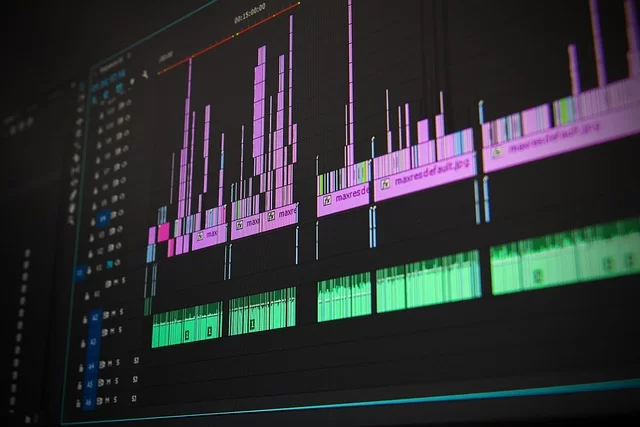
When you step into the video editing world, you meet a new side of this format. This AVI is very distinct from the compressed files you see day to day.
Editors often pick this format for a lossless mid-work stage, because you must access each frame quickly while editing. In fact, this simple RIFF structure is just right for the task.
Old DJI drones or professional photo cameras give us nice examples. We see raw AVI use on these devices.
These files are huge. But they give maximum flexibility for color grading and VFX work. However, it is smart to make proxy files before you start your workflow.
Premiere Pro AVI Import/Export Errors and the Fixes
Adobe Premiere Pro can throw stubborn errors with this format. The AVI export failure in Premiere Pro has caused many a headache for editors.
The top cause is a mismatch. So, the codec you pick in the project settings conflicts with the output container.
- Configure Export Correctly: First, set the format to AVI. Then, open the “Video Codec” menu. Pick a standard choice like None, DV PAL, or NTSC format. While using VFW codecs, check00 advanced settings like “Keyframe Distance.”
- Run Media Encoder as Admin: The Adobe Dynamic Link service can freeze. Restart this service from the Task Manager to fix the issue.
- Watch the 4GB Cap: If your project is large, you must pick an OpenDML 2.0-compatible codec. Good choices are Lagarith or UT Video. Otherwise, the render gets stuck at 99%.
- Clear Temp Files: Deleting Media Cache files fixes bugs from broken preview files.
Rendering AVI in DaVinci Resolve and Working with RAW AVI
DaVinci Resolve is a bit more selective than Premiere when it comes to this format. Codec support is limited, mainly on Linux-based setups.
But Blackmagic Design has greatly improved this in recent builds. Still, you must check your project settings before you render.
- Render Path: On the “Deliver” page, set the format to AVI. For codecs, the system will offer professional choices. These often include “Uncompressed RGB 8-bit” or “DNxHR.” Check the “Bypass re-encode when possible” box for a lossless output.
- RAW Workflow: If you work with raw RAW AVI, perform some preparation first. You must set the bit depth and color space right before adding the file to the media pool. If not, Resolve misreads the clips, and the picture clips.
- Delivery Strategy: If AVI is your delivery type, treat it as a master copy. You must convert the copy for the end user to MP4 or MOV.
- Linux Note: The Linux build of DaVinci Resolve is less accommodating than Windows or Mac for container support. Do a pre-convert with FFmpeg if needed.
AVI Conversion and Compression: Switch to MP4 and More With No Quality Loss
We now reach the most useful part: conversion. You must change the format of your old files to play them on modern devices.
But a key point exists here. Conversion does not always mean quality loss. You save the picture data in full if you use the right tools and settings.
The “AVI to MP4 no quality loss” trick is a popular topic. The answer is clear. You can just swap the box without re-encoding the video.
This path is ideal for those who need an archive-grade video type for editing. But the file size will not drop. Only the shape of the box shifts.
Best Free AVI Converter Software (2026 Showdown)
Dozens of converters are available. But I will only point to the ones that work and are safe. HandBrake tops the list.
This open-source, constantly updated, and virus-free tool is a lifesaver with its batch processing support. However, its interface might seem a bit complex for new users.
| Software | Pros | Cons | Best For |
|---|---|---|---|
| HandBrake | Optimal profiles for H.264/H.265, open-source | The look can be complex for new folks. | Batch conversion, size cuts |
| Shutter Encoder | FFmpeg base, vast flex, lossless cuts | Too many choices can confuse. | Pro workflows, analysis |
| CloudConvert | No setup, fast | Poses a privacy risk for sensitive files. | Small, urgent tasks |
| FFmpeg (CLI) | Total control, batch work, top quality | No visual UI, requires command skill. | Server-side auto work, repair |
Convert AVI with FFmpeg: Switch to MP4 With No Loss (CRF 0) and Batch Work
Now for my primary tool: FFmpeg. This command-line tool is a must-have for streaming professionals and system admins. If you do not want to sacrifice quality, use these commands.
- Lossless Conversion (CRF 0):
ffmpeg -i file.avi -c:v libx264 -crf 0 -c:a aac output.mp4. This line re-encodes the video with no loss. But a CRF of 0 makes the file size huge. Use it just for archive master copies. - Just Box Swap (Stream Copy):
ffmpeg -i file.avi -c copy output.mp4. This copies the streams and just changes the box. It is super fast with zero quality loss. But a codec clash can sometimes cause playback issues in MP4. - Batch Work (Windows):
for %i in (*.avi) do ffmpeg -i "%i" -c copy "%~ni.mp4". This line converts all files in one go. - Audio Sync Fix:
ffmpeg -i file.avi -c:v copy -c:a aac -af "aresample=async=1:min_hard_comp=0.1" output.mp4. This line fixes drift issues.
How to Fix a Broken or Half-Finished AVI File (2026)
This part is perhaps the most heartfelt one. Fixing a broken file is like saving a memory you thought was gone.
You might have a half-finished record. Or a file from a damaged disk. You will often succeed with the right method. I will lay out the steps I built over the years.
First, know this: this format’s fault tolerance is low. So, the smallest amount of bad data can crash the whole file.
The main cause is that the RIFF header and index sit at the file’s end. If this part is corrupted, the player has no clue where to start.
Fix a Broken AVI File with VLC Media Player
VLC is a much more capable tool than you think. Its built-in fix tool can patch many broken files on its own. The steps you need to take are quite simple.
- Fix via Conversion: Open VLC. Go to “Media” and click “Convert / Save.” Add the broken file. Click “Convert.” Pick the “Video – H.264 + MP3 (MP4)” profile. Then save the target file. While it works, VLC will skip the broken frames on its own.
- Fix via Advanced Open: If the VLC player can’t open the file at all, use the “Media” menu. Click “Open File (Advanced).” Then check the “Repair file” box. People call this the VLC AVI repair tool. It works effectively for index breaks.
- Boost Cache Time: Go to VLC settings and find “Input / Codecs.” Set the “File cache (ms)” value to 10000. This cuts down on stuttering when reading from slow or damaged storage.
AVI Index Rebuild, Header Fix, and Skip Broken Frames with FFmpeg
FFmpeg is the expert’s tool. You can bring files back to life that appear completely corrupted by rebuilding the index.
- Index Fix (Most Common):
ffmpeg -i broken.avi -c copy -map 0 repaired.avi. This line copies all streams and builds a new index. It is the fastest and safest way. - Header Fix (Advanced): Copy the RIFF header from a healthy sample file. Use a hex tool like HxD. Then write this header to the top of the broken file. This is the most potent way to fix video header metadata. It is a lifesaver if the file size shows 0KB.
- Recover by Skipping Bad Frames:
ffmpeg -i broken.avi -c:v libx264 -preset ultrafast -crf 18 saved.mp4. This re-encodes the video and drops unreadable frames. Although those frames are lost, the rest of the clip is saved. - Advanced Error Handling:
ffmpeg -err_detect ignore_err -i broken.avi -c copy output.avi. This line copies the data while ignoring small bit errors.
How to Share, Cloud Backup, and Archive AVI Files for the Long Haul
You fixed and converted your files. Now what? Now, I will show you how to keep and share this data safely. A smart plan is key, mainly for home video clips. It ensures you can watch them again years from now.
Most people just upload files to the cloud and think they are stored. But cloud sites may not play this format. Or they may block it due to size. Worse, if the format becomes obsolete fully in the future, your data turns into a digital tomb.
Sending Large Files on WhatsApp and Telegram: Limits and Fixes
WhatsApp is quite strict on sending large AVI files. As of 2026, it offers a media file cap of about 2GB.
But even if your file fits, the app will compress your video on its own. This compression ruins the quality of a file that already uses an old codec.
- WhatsApp Fix: First, upload the video to Google Drive or OneDrive. Then, share the link. This completely prevents the compression issue.
- Telegram Edge: Telegram can send files up to 4GB. It does not compress by default. But the person on the other end might not be able to play it. I advise converting to MP4 before you send.
- Shared Fix: The best method on both apps is to just send a cloud storage link. This way, you avoid both the size cap and the compression.
AVI Won’t Play on Google Drive, iCloud, or Dropbox: The Fix
When you try to play a file on these sites from your web app, you will likely see “This video format is not supported.”
The reason is that their web players are built for modern codecs. They work with H.264 and VP9. The MJPEG or DivX inside your file will not run in those players.
The fix is easy: switch the file to MP4 before you upload. If that is not an option, just use the cloud for pure storage. It is always safer to download and open it with a local player.
Also, if you sync the file with your PC via the Google Drive desktop app, you can play it directly in VLC.
How to Prepare Video Files for Home Archives and Long-Term Digital Care
This topic holds a personal place for me. Years ago, I digitized my grandmother’s old tapes. I stored them as AVI files.
If I did it today, I would certainly use MP4. The format lifespan of this type is sadly near its end. No one can promise a PC 30 years from now will open this file.
- Convert: Switch all files to MP4 with no loss. A CRF of 18 is a good choice. This is a stake in the future.
- Multiply (3-2-1 Rule): Keep three copies of the data. Store them on two kinds of physical media. Plus, keep one copy in the cloud.
- Update the Format: Every ten years, shift your archive to the new norm of the day. Move from AVI to MP4. Then from MP4 to AV1.
- Add Metadata: Build descriptive file names and folder trees. A name like “tape_01_1998_grandfather.avi” helps you find the right clip years later.
AVI Issues and Fixes on Niche Gear (DVR, Medical, Dashcam)

So far, we focused more on PC and phone use cases. But we still see this format frequently in factory and medical equipment.
These devices aim to cut build costs. So, they pick a royalty-free setup over complex licensed containers. Now, I will focus on special issues in niche equipment. I’ll use some unusual cases I faced as a guide.
Trust me, you feel deep disappointment when a CCTV clip won’t play. This stress is far worse than just failing to open a movie.
How to Open CCTV (DVR) and Dashcam Footage on a PC
“CCTV AVI file won’t open” is a complaint I hear frequently. Most DVR units use the H.264 codec. But they pack it inside this container with a proprietary modification.
Hence, a standard media player cannot identify the file. You might need the special player the manufacturer gives you.
- Convert with FFmpeg:
ffmpeg -i camera_feed.avi -c:v libx264 -preset medium -crf 20 -c:a aac output.mp4. This line makes most custom H.264 types standard. - Dash Cam: Cheap dash cameras use PCM audio and MJPEG. VLC or KMPlayer often plays this mix without issues. If not, run:
ffmpeg -i dashcam.avi -c copy output.mkv. - Find DVR Player: If the manufacturer’s app is gone, look for safe alternatives with terms like “H.264 CCTV Player.” But always scan the file on VirusTotal before you launch it.
How to View Files from Medical Equipment and Ultrasound Devices
Viewing medical equipment AVI files is a whole new domain. Ultrasound units and endoscopy towers often use a raw, uncompressed format.
Plus, old X-ray storage setups also rely on this low-compression format. These files hold patient data. So, they are sensitive in both law and ethics.
- Special FourCC IDs: GE ultrasound gear uses a custom code like “GEDV.” To open this file, you must set up the gear’s own DICOM viewer app. Or you need the manufacturer’s codec pack.
- Metadata Sensitivity: These files often hold metadata with patient data. Standard converters can erase this info. So, never convert a medical record. Just view it with the source player.
- Digital Pathology: Experts store high-res lab scans in this format at times. These files are very large (100GB+). You need a special server setup to open them.
Playing AVI via USB on a Smart TV (LG, Samsung)
TVs from major manufacturers like LG and Samsung say they support this format in their specifications. But in real life, it’s a different matter.
Your TV only plays files packed with certain codecs. It often handles DivX and Xvid. But MJPEG or H.264 inside this box are not supported.
If you seek a fix for “smart TV won’t play AVI,” the best path is to switch the file to MP4. You can use HandBrake for this task.
If you don’t want to convert files, connect an Android TV box to your screen. Also, you can use a Raspberry Pi to stream the content directly with VLC.
This solution is far more powerful than your TV’s built-in chip. As a last step, check your TV’s firmware for a new version. But to be frank, the odds are low, and it’s likely ineffective.
Security: Virus, Ransomware, and Fake Codec Risks
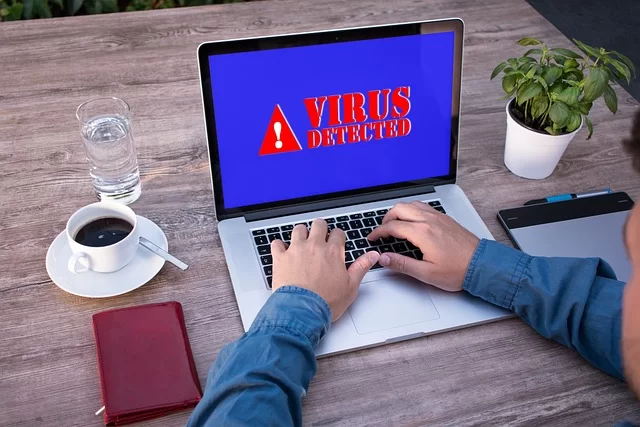
My goal here is not to scare you. It is to make you aware. This old format stays a common attack vector for cybercriminals.
AI-backed attacks have increased significantly in 2026. So, it is vital to know the risks of an old file structure.
The biggest risk is the user’s false sense of safety. They think, “It’s just a video, how can it hurt me?” But the truth is very far from that. Cybercriminals still use codec exploits and social engineering through these files.
How the .avi.exe Malware and Codec Download Traps Work
The attack setup is alarming in how plain and potent it is. A user thinks they download a pirated film or adult content.
The file name shows as “film.avi.exe.” Since Windows hides known file types by default, the user only sees “film.avi.” A double-click is all it takes. The malware then spreads in the background.
More sophisticated attacks use exploits embedded into a real video file. The attackers strike at a weak point in the media player’s codec. They cause a memory overflow in the player this way.
This gives the attacker the power to run any code they want on the victim’s machine. The codec scam works like this: When you try to play the file, a note pops up. It says, “You need a special codec to watch this.”
Highly dangerous malicious software isn’t limited to viruses. Ransomware can spread the same way. Based on my own experience, I can say keeping your OS up to date is your best protection.
The user clicks the given link and falls right into the fake codec trap. The file they download is not a codec. It is ransomware or a keylogger.
Safe Codec Sources in 2026: Where to Download and What to Avoid
I will draw a clear road map for this. If you need a codec, trust just these three sources:
- Official Developer Sites: For example, xvid.com for Xvid. The home page of the team that built the codec is always the safest place.
- K-Lite Codec Pack: The official download page is at codecguide.com. This site has proven it is safe over many years.
- VLC’s Official Site: If VLC is on your PC, you almost never need an external codec. VLC uses its own decoders in a separate space. It does not interfere with your system.
Sites you must stay far from: spam sites like “codecindir.com” or “ucretsizcodec.net.”
Also, 90% of the links in the comments of “AVI codec download” videos on YouTube are harmful. No official codec pack will ask for payment. It also won’t force you to set up a “special download tool.”
Further Reading Sources for the AVI Video Format
You might want to explore further into the topics from this guide. I also urge you to look at the key sources below. These links help you grasp the theoretical and technical foundation of the subject.
- You can reach the true AVI RIFF docs from Microsoft at the Microsoft RIFF Docs. This source is the prime spot to learn the format’s build.
- Also, the FFmpeg Official Docs page holds deep notes on all the convert and fix lines.
- Finally, VideoLAN’s wiki page stands out. It gives vast tech data on VLC’s codec help and its inner design.
The Top 10 Confusing Questions About AVI Files
What is an AVI file?
How to open an AVI file?
Windows Media Player won’t open AVI. What should I do?
How to convert AVI to MP4 with no quality loss?
How to fix the “sound but no picture” issue in AVI?
How to repair a broken AVI file?
Is AVI or MP4 better?
Can this file contain a virus?
How to open an AVI file on a Mac?
Why are AVI files so big?
Conclusion: The Fate of This Format in 2026 – Should I Still Use AVI?
We reached the end of this guide. I know this is the biggest question on your mind. I will give a clear reply. Yes, people still use this format. But it is like a dying titan.
Just like VHS tapes from the past, it holds a nostalgic spot. But if you start a new project, picking this format makes no sense.
You should make this decision with a basic understanding of multimedia. The standards have shifted by now. New technology like HLS and DASH streaming fully excludes this old build.
You might want to share clips on the web. Or play them on cloud drives and social feeds. In these cases, you must use MP4 or WebM.
When to Use It and When to Let It Go
I want to give you an AVI choice guide for this. Read the cases below with care. Pick the one that fits your own situation.
| When You Must Use It | When You Must Let It Go |
|---|---|
| To pull clips off old CCTV systems. | To stream on the web or use HLS/DASH live feeds. |
| As a mid-step in an raw video edit flow. | When you aim for smooth play on phones (iOS/Android). |
| On systems that need legacy tech (Windows 95/98/XP). | If you plan a long-term digital save or home archive. |
| When niche factory or medical gear forces its use. | To post on social spots like TikTok, Instagram, or YouTube. |
Final Tips for a Safe, Modern Video Library
As a last step, I’ll give you a road map that sums up all my expertise. First of all, you must have VLC Media Player on your PC. This tool is a lifesaver. It will save you from any kind of format issues you encounter.
Second, slowly change all your old files to MP4. This is even enjoyable as a weekend project.
Third, never download a codec pack from an untrustworthy source. Trust just well-known packs like K-Lite.
Fourth, use the 3-2-1 backup rule for your home video collection. And at last, never forget that formats have a life span. A format that is popular now may not be read 20 years from now. In short, move your precious data to a new format every ten years.

Be the first to share your comment