

We always needed physical copies of digital documents. Hybrid work and remote learning reshaped that need. So which printer technology really works for you today?
Hundreds of models and various consumable options fill the market. This variety can feel confusing. But you can clear that clutter with the right approach. Plus, this guide does not just give you definitions. It also shows the engineering facts behind the scenes.
I have tested various printer models in the field for years. I’ve done countless setups in offices, home offices, and creative studios. Now I’ll share all that know-how with you. Our goal is to help you pick the best output device without wasting money.
We start with the differences between laser and inkjet tech. We cover everything up to total cost of ownership math. Plus, we back it up with fresh 2026 market data. So, if you’re ready, let’s explore this essential peripheral device together.
Most online guides provide only shallow definitions. As a result, you’ll find real-world examples in every line. Plus, technical depth awaits you. Keep reading to pick the right printer.
What Is a Printer? Basic Definition and Historical Development
What Is a Printer and What Does It Do in a Computer?
This device is an output unit that transfers digital text or visuals onto physical paper. In other words, its main job is to turn processed data into real documents. It also uses pixel map and vector graphics processing techniques.
A modern peripheral device no longer just prints. It’s a full-fledged office tool with an integrated scanner, fax module, and cloud printing. So, it sits at the center of your document management workflows.
When you think of its computer role, document output comes to mind first. Yet this hardware unit serves a wide range—from barcode printing to photo production.
Additionally, its link with the operating system turns user commands into physical results at once. In short, every printer works on this basic principle.
The print spooler service manages data flow between the output device and the computer. It queues multiple jobs by building a print queue. As a result, you get document output with a single click.
Today’s all-in-one models also include a copier function. So you don’t need a separate machine.
Additionally, this integration gives a critical efficiency boost to workflow automation. Ultimately, a good printer choice directly impacts your office productivity.
Historical Development of the Printer: From Gutenberg to 3D Printing
Print technology evolved continuously throughout the history of digital transformation. Gutenberg’s printing press launched a revolution with movable type in the 15th century. In other words, this invention was the first big step toward mass-scale duplication of knowledge.
Centuries passed. In the 20th century, electrophotography entered the scene. Chester Carlson performed the first xerographic print in 1938. This invention later laid the groundwork for offset and digital printing technologies.
The first computer-controlled hardware appeared in the 1950s. This device connected to a UNIVAC computer could print 600 lines per second. For that era, that speed was incredible. This technology deeply influenced the corporate world. The first commercial printer models emerged this way.
Before computer printing, teleprinter devices transmitted text over long distances. Teletype machines worked with punched tape.
| Date | Milestone | Technology |
|---|---|---|
| 1440 | Gutenberg Printing Press | Movable Type System |
| 1938 | First Xerography Experiment | Electrostatic Printing Method |
| 1953 | First Computer Printer | UNIVAC High-Speed Printer |
| 1976 | First Inkjet Model | IBM 4640 (Continuous Ink System) |
| 1984 | First Laser Model (HP LaserJet) | Laser Technology |
| 2010 | Tank Systems Become Widespread | CISS (Continuous Ink Supply) |
| 2024 | AI-Powered Models | AI-Integrated Print Infrastructure |
The Age of Personal Computers, Mobile Connectivity, and 3D Printing
In the 1990s, the spread of personal computers changed this peripheral market entirely. The idea of having an output device in every home was no longer a luxury. Additionally, parallel port and USB connections became standard.
After 2010, wireless communication protocols entered the picture. Thanks to technologies like Wi-Fi Direct and AirPrint, mobile printing became possible. Today you can print from anywhere in the world with cloud printing solutions.
As of 2026, 3D printing and AI-powered print systems define the new era. Additive manufacturing techniques are fundamentally changing industrial production. In short, the digital-to-physical shift is happening faster than ever.
Do We Still Need Printers in the Digital Age?
Dozens of people ask me this every year. My answer is clear: Yes, more than ever. The idea of a paperless office looks nice in theory, but practice differs. Especially the legal, healthcare, and education sectors depend on physical documents. So a reliable printer is a cornerstone of every office.
A court file requires a wet-signed printout just as much as a digital copy. Likewise, wide-format prints remain essential for architectural projects. This output unit keeps its importance despite digital transformation.
2026 data shows that global print volume keeps growing by 1.2% annually. The work-from-home model sent home printer sales soaring. As a result, people bring office equipment needs into their homes. In short, having a printer in every home is now standard.
The need for secure printing makes this peripheral even more critical. Instead of storing sensitive documents in the cloud, you can produce physical copies. This practice can be better for data privacy. Thus, it adds an extra layer of defense against cyber attacks.
This office equipment will not leave our desks in the next decade. But its role is changing. Now it works as a smart document processing hub, not just a print engine. Ultimately, modern printer solutions sit at the heart of this transformation.
Printer Operating Logic & Basic Hardware Components
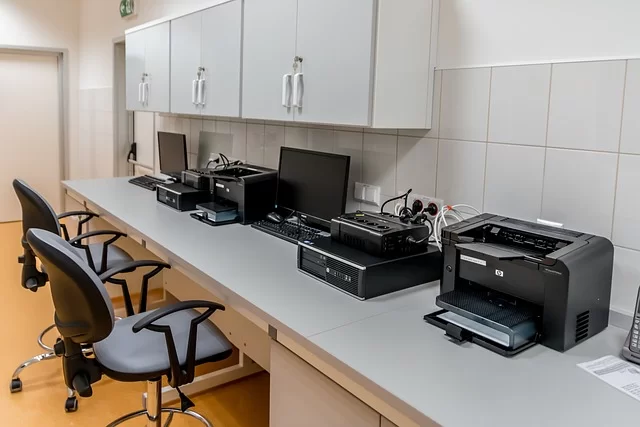
What Are Printer Hardware Components?
Every printing device consists of many hardware components that work in harmony. Understanding these parts helps you react correctly during a breakdown. Here are the layers of basic hardware architecture:
- Logic Board (Formatter Board): Processes data from the computer and sends commands to the print engine. It stores temporary data on ROM/RAM memory. The PCL driver and PostScript interpreter run on this board.
- Power Supply Unit: Converts mains electricity to different voltage levels. It provides power to high-draw components like the fuser unit and laser scanning unit.
- Paper Feed Mechanism: The pick-up roller, separation pad, and paper sensor are parts of this system. It manages the flow between the paper tray and the print engine.
- Imaging System: The drum unit, laser scanning unit, magnetic roller, and corona wire belong to this group. It creates the image using electrostatic charge.
- Toner or Ink System: The toner cartridge or ink cartridge holds the consumable that transfers the image to paper. The print head controls the ejection process.
Fixing, Control and Model Configurations
- Fusing Unit (Fuser): It fuses toner powder onto the paper with high heat and pressure. The pressure roller and thermistor are critical parts of this unit.
- Control Panel: It is a touch screen or physical keypad for user interaction. Error codes and diagnostic test results appear here.
Each of these components must work in sync with one another. DC motors and stepper motors provide precise movements. Moreover, actuators and solenoids control mechanical transitions. Every printer model offers these parts in different configurations.
Even the letters in printer model numbers relate to these components. The letter ‘D’ indicates a duplex unit, while ‘W’ shows wireless network support. So, pay attention to these codes when making a choice.
How Laser and Inkjet Technologies Work
Understanding the difference between the two basic print technologies is key to making the right choice. In systems using a laser beam, the electrophotography principle takes effect. This process consists of six main stages.
Six-Stage Process in Laser Technology:
- Charging: The corona wire or PCR coats the OPC drum surface evenly with a negative electrostatic charge.
- Exposure: The laser scanning unit draws the image onto the drum using a polygon mirror. Then, the charge dissipates where the light hits.
- Developing: The magnetic roller brings toner powder close to the drum. Toner sticks only to the areas where the charge has dissipated.
- Transfer: The toner moves from the drum to the paper. It does so via a transfer belt or a direct electric field.
- Fusing: The paper passes through the pressure roller and heater inside the fuser unit. As a result, the toner melts and permanently adheres to the paper.
- Cleaning: The system sweeps leftover waste toner from the drum into the waste toner container. Thus, the cycle is ready for a new page.
On the other hand, inkjet technology takes a completely different approach. Here, two main ejection methods appear. The first is the thermal transfer approach. This technology revolutionized early printer models.
Thermal Inkjet Method:
Heaters inside the print head suddenly boil the ink. The resulting vapor bubble fires an ink droplet through the nozzle onto the paper. HP and Canon extensively use this method.
Piezoelectric Method:
In this technology developed by Epson, piezoelectric crystals vibrate with an electrical signal. This vibration creates a pump-like effect. The damper and ink pump provide precise ejection control. So, you produce millions of color tones with the CMYK color model.
What Do the Drum, Fuser, and Transfer Belt Do?
These three components are the heart of laser-based systems. The OPC drum is the cylinder that carries the image electrostatically. Its surface is coated with a light-sensitive organic layer. Drum life typically ranges from 10,000 to 40,000 pages.
As the drum unit wears, print quality drops. Shadow print issues or vertical lines signal the end of drum life. Luckily, you can replace the drum unit independently on most models. This way, the printer lifespan extends significantly.
Meanwhile, the fuser unit is the critical part that makes prints permanent. The paper, passing between two rollers, is subjected to about 200°C of heat. Toner powder melts at this temperature and penetrates the paper fibers. At the same time, the thermistor continuously measures the temperature.
The transfer belt is vital in color models. It collects four color toners from separate drums. Then, it transfers them to the paper in one pass. However, if you don’t clean it regularly, smudges appear.
When these three parts fail, they show symptoms that mimic mainboard failure signs. Yet, most of the time, the issue is natural wear of these mechanical parts. Still, experienced users can even replace the fuser unit at home.
Printer Types: A Comprehensive Classification by Technology
What Is a Laser Printer, How Does It Work? Advantages and Disadvantages
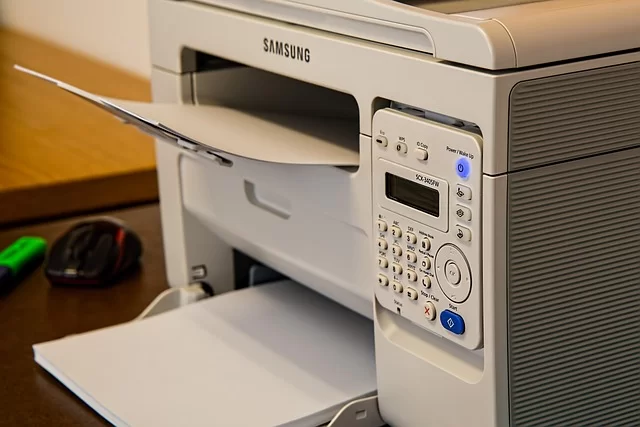
Laser beam technology is the go-to print solution for office settings. This system, working on electrophotography, produces prints at high speed and low cost per page. Monochrome models are unbeatable for text-heavy tasks. Many professional printer users choose this tech.
In its operating principle, toner powder is the main consumable. Tiny plastic particles and iron oxide make up this powder. Heat melts it and fuses it onto the paper. Because you use no liquid ink, prints dry instantly and won’t smudge.
Advantages:
- High Print Speed: PPM print speed ranges from 20 to 100 pages. Even a model printing 20 pages per minute is more than enough for home use.
- Low Cost Per Page: You can get 2,000 to 10,000 pages per toner cartridge. Cost per page can drop below one cent.
- Sharp Text Quality: Even at the standard 600×600 DPI resolution, laser prints are crisp. In short, ink absolutely won’t bleed on small font text.
- Long Shelf Life: Toner does not dry out. Systems unused for months work without issues. There is no need to print once a week.
Disadvantages:
- High Initial Purchase Cost: Color laser models start at $240. Even entry-level monochrome ones cost around $75.
- Limited Photo Quality: Color transitions are not as smooth as inkjet. It is not ideal for professional photo printing.
- Energy Consumption: The fusing unit needs high heat. Therefore, it draws 300–500 watts while running.
In 2026, corporate print policies especially favor laser technology. Managed Print Services (MPS) have become standard equipment in large offices. In short, enterprise printer infrastructures are built on this foundation.
What Is an Inkjet Printer? Tank vs. Cartridge Difference

Inkjet technology transfers liquid ink onto paper through microscopic nozzles. This output device has a clear edge in color print quality over laser models. Models used as photo printers can reach 9,600 DPI resolution.
Cartridge models carry ink in small reservoirs that are replaced along with the integrated print head. The advantage of this system is a low initial purchase cost. However, you only get 200-400 pages per cartridge. This raises the cost per page.
The tank system offers a completely different economy. These models, working on the Continuous Ink Supply System (CISS) principle, have external ink tanks. The ink pump and damper continuously feed the print head. As a result, you can print 6,000 to 14,000 pages per fill. This printer type is ideal for low-volume use.
| Feature | Cartridge Inkjet | Tank Inkjet |
|---|---|---|
| Initial Purchase Cost | $30 – $75 | $60 – $150 |
| Cost Per Page | $0.01 – $0.03 | below $0.01 |
| Pages Per Fill | 200 – 400 | 6,000 – 14,000 |
| Print Head Life | Replaced with cartridge | 50,000+ pages |
| Maintenance Need | Low | Medium (nozzle cleaning) |
Cost Advantage and Institutional Prevention Routine
Among the advantages of ink tank printers, the most striking is low operating cost. Even a home user printing 10 pages a week clearly feels this difference over a year. The payback period for a tank printer is usually 8–12 months.
But note: An inkjet print head dries out if left unused for a long time. If you wonder how to prevent ink tank printer dry-out, the answer is simple. Print at least one color and one black-and-white page per week. This routine keeps the nozzles open.
Differences Between Laser and Inkjet Printers
| Comparison Criterion | Laser Technology | Inkjet Technology |
|---|---|---|
| Print Technology | Electrophotography, toner powder | Inkjet, liquid ink |
| Text Quality | Excellent, sharp edges | Good, slight bleeding possible |
| Photo Quality | Average, grainy look | Excellent, smooth transitions |
| Print Speed (PPM) | 20-100 ppm | 10-35 ppm |
| Cost Per Page | under $0.01 | $0.01 – $0.03 |
| Initial Purchase Cost | High | Low – Medium |
| Drying Risk | None | Yes (nozzle clogging) |
| Monthly Print Volume | 500-10,000+ pages | 50-2,000 pages |
| Energy Consumption | High (300-500W) | Low (15-30W) |
| Duty Cycle (Monthly) | 5,000-100,000 pages | 1,000-30,000 pages |
There is no single answer to whether laser or inkjet is more advantageous. If you mainly print text and exceed 300 pages a month, laser is definitely ahead. On the other hand, if you print photos or are a low-volume home user, a tank inkjet makes more sense.
What Is a 3D Printer, How Does It Work? Filament Types
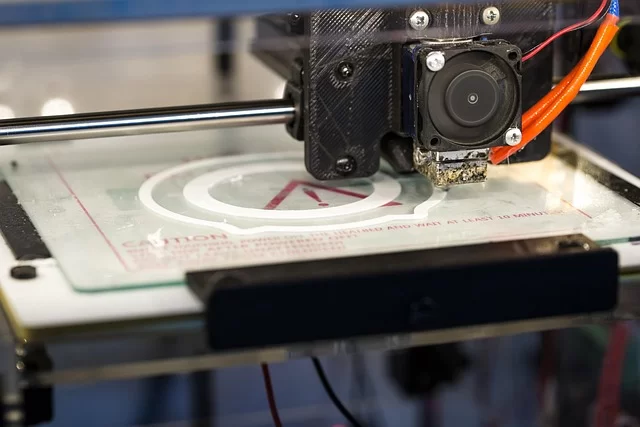
Also known as additive manufacturing, this technology turns a digital model into a physical object. Unlike traditional print machines, it builds by adding material. In 2026, these devices are no longer just a hobby but part of industrial production. 3D printer models now cater to every budget.
In FDM (Fused Deposition Modeling), a plastic wire called filament melts as it passes through a nozzle. Then, it lays down the melted material layer by layer. Each layer is about 0.1-0.3 mm thick. This way, you can create complex geometries.
In resin-based (SLA/DLP) systems, UV light cures the photopolymer liquid resin. This method provides much smoother surfaces than FDM. However, material cost is higher. Additionally, it requires chemical safety measures.
Main filament types:
- PLA Filament: Corn starch-based; also biodegradable. It is odorless and the easiest material to print. However, it softens above 60°C.
- ABS Filament: Petroleum-based, durable. It is preferred for automotive and Lego production. It offers high heat resistance but smells during printing.
- PETG Filament: Combines PLA’s ease with ABS’s durability. Some models are food-contact safe. It provides nearly odorless printing.
- TPU Filament: Ideal for producing flexible, rubber-like parts. It is ideal for phone cases and vibration dampeners.
- Nylon Material: Offers industrial durability. It is used for mechanical parts like gears and bearings. However, it tends to absorb moisture easily.
In the 3D printing process, cloud slicing software has become standard. Thanks to platforms like Bambu Cloud, you can slice and print models remotely. In short, this is revolutionary for workflow automation.
Thermal Printer, Dot Matrix Printer, and Barcode Printer
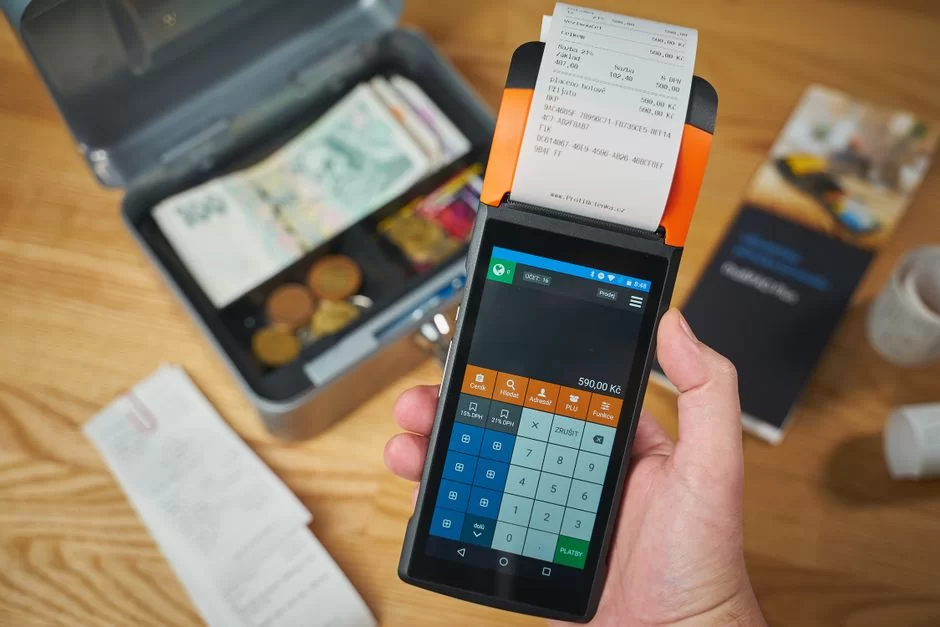
These three types serve niche areas and rarely appear in daily office use. Yet they remain active in critical sectors.
Thermal transfer printing works on heat-sensitive paper. It’s common for receipts and tickets. Every thermal printer you see in supermarkets works on this principle.
The most common example of this printer type is retail POS receipts. These devices use no ink or toner. Instead, they change the paper’s color by heating it. The only consumable is a thermal paper roll.
The dot matrix printer belongs to the impact printing group. It transfers pixel map output through needles onto a ribbon to the paper. As for where it’s used, invoice and waybill printing come first. Its ability to print carbon-copy forms in multiple copies at once is a unique advantage.
The barcode printer is the backbone of the logistics and retail sectors. Also known as label printers, these devices specialize in barcode and QR code printing. RFID printer models print labels and program chips at the same time. In short, it is the most critical among industrial printer solutions.
These industrial printer types stand out with high duty cycle values. A barcode printer can output 10,000 labels a day. It is resistant to dust and moisture in industrial settings. In short, these output unit types are designed with a completely different engineering approach from office models.
What Is a Multifunction Printer (MFP)?
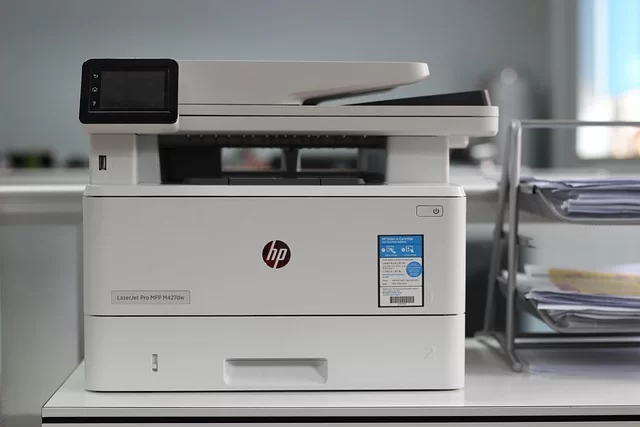
A multifunction device or all-in-one MFP combines four core functions in a single body. Print, scan, copy, and fax come together. This integration saves significant desk space, especially for small offices. A compact MFP printer is essential for every home.
The scanner integration often comes with an ADF (automatic document feeder). This way, you can scan multi-page documents without placing them one by one. Additionally, the scan-to-OCR feature turns scanned documents into editable text.
You may wonder what the difference is between a printer and a copier. The copy function happens when the scanner and print engine work at the same time. The scanner unit digitizes the document, then the print engine produces the copy. Moreover, the MFP links these two processes automatically.
Extra features like a duplex unit, network connectivity, and NFC technology are becoming standard in MFPs. Along with that, they now mostly offer the fax feature as software-based virtual fax. This eliminates the need for a physical phone line.
10 Critical Factors to Consider When Buying a Printer
What Do DPI and PPM Values Mean?
DPI (Dots Per Inch) is the measure of print resolution. The higher this value, the sharper and more detailed the output. But not every scenario needs high DPI.
For everyday text printing, 300×300 DPI is enough. For office documents and graphics, 600×600 DPI is ideal.
On the other hand, if you want professional photo print quality, aim for at least 4,800 x 1,200 DPI. As pixel density increases, file size and processing time also grow.
PPM (Pages Per Minute) shows print speed. This value is measured according to the ISO/IEC 24711 standard. Monochrome and color PPM values usually differ. You should assess print speed together with the first page out time.
- For home users: 10–20 PPM is sufficient.
- For small offices: aim for 20–35 PPM.
- For corporate environments: 40+ PPM is needed.
You should also examine the duty cycle, i.e., the monthly print volume. This number shows the maximum pages the device can handle without issues. The recommended monthly page volume (RMPV) indicates the ideal usage range. So, always choose a printer based on the RMPV value.
Print resolution values are not just about DPI. Color depth, ink droplet size, and paper weight compatibility also affect final quality. As for photo printing, special paper is essential—coated paper is the solution.
Toner or Cartridge? Which Is More Economical?
This question is perhaps the most critical point of the purchase decision. The difference between toner and cartridge lies not only in physical form but in total operating economy. Toner powder is the dry consumable used in laser models. In contrast, an ink cartridge contains liquid ink.
To answer which is more economical, you must calculate three variables. The first is the consumable price. The second is the consumable’s page capacity. Finally, the third is the idle capacity cost.
| Cost Item | Toner (Laser) | Cartridge (Inkjet) | Tank (Inkjet) |
|---|---|---|---|
| Unit Consumable Price | $12-$75 | $4.50-$18 | $2.40-$9 (bottle) |
| Page Capacity | 2,000-10,000 pages | 200-400 pages | 6,000-14,000 pages |
| Cost Per Page | under $0.01 | $0.01-$0.03 | under $0.01 |
| 5-Year Consumable Cost (200 pages/mo) | $36 | $252 | $15 |
| Drying/Idle Risk | Zero | High | Medium |
Clearly, the most economical printer depends on your usage volume. If you print fewer than 50 pages a month, a cartridge inkjet is fine. But if you print between 50–300 pages a month, a tank inkjet wins hands down. On the other hand, above 300 pages, a laser printer takes over.
Best Printer Brands and Models
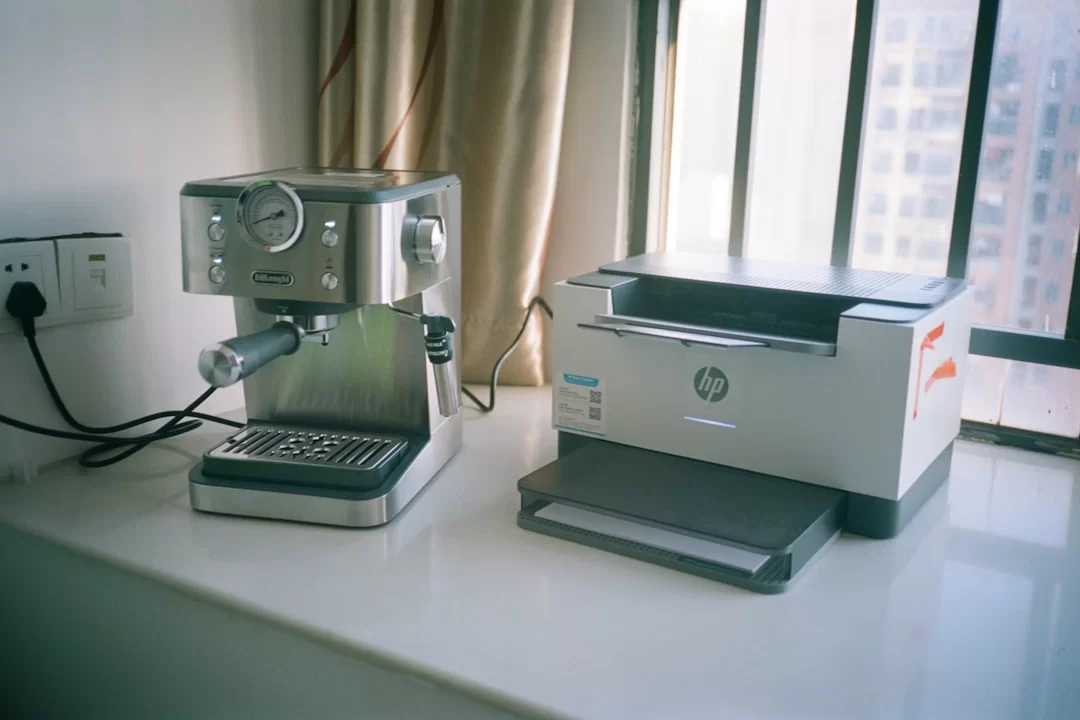
I’ve compiled the standout brands and current models in the US market for you. I have built this list based on service network coverage, spare parts access, and user satisfaction. If you’re looking for the best printer brands, you’re in the right place.
- HP (Hewlett-Packard): Offers a wide product range in laser and inkjet segments. The HP Smart Tank 7000 series caters to home users with tank models. The HP LaserJet Pro M400 series is ideal for small offices. HP’s biggest advantage is its widespread technical service network.
- Canon: Unrivaled in the photo printer segment. Its PIXMA G series tank models rank among the top sellers in 2026. The imageCLASS LBP series laser models stand out for durability.
- Epson: Pioneered piezoelectric print head technology. Moreover, the EcoTank series is the market reference for ink tank models. It has optimized the WorkForce series for office use.
- Brother: Always ranks high on the list of least-faulty printer brands. The DCP and MFC series MFP models are the choice for durability seekers. Toner replacement and drum unit access are quite easy.
- Xerox: Specializes in enterprise print solutions. It is an industry leader in Managed Print Services (MPS). It designed the Phaser and WorkCentre series for high-volume offices.
Model Recommendations for Home and Office Use
My answer to those asking for the best home printer is the Epson EcoTank L3250 or Canon PIXMA G3415. Both models are WiFi-enabled, tank-based, and offer low cost per page. In short, definitely consider these models in your home printer search.
Which printer should you choose for the office? Brother MFC-L3750CDW or HP Color LaserJet Pro 4301fdw stand out. These models offer high PPM, low TCO, and reliable network connectivity.
The 5 Biggest Mistakes When Buying a Printer
Throughout my years of experience, I’ve spotted five big mistakes users make repeatedly. Avoiding these saves you both money and frustration. In short, keep this list in mind for the right printer purchase decision.
- Focusing Only on the Initial Price: Buying a cheap model and ignoring cartridge cost is the most frequent mistake. A $45 device’s annual consumable expense can reach $90. Don’t purchase without calculating the total cost of ownership (TCO).
- Ignoring the Duty Cycle Value: Buying a home-type model with a duty cycle of 2,000 pages per month for an office that prints 1,000 pages a month wrecks the device in three months. Determine your monthly print volume correctly.
- Not Checking Connection Options: You might buy a model with only a USB Type-B port, only to later need wireless connectivity, which will frustrate you. Definitely check for Ethernet and Wi-Fi Direct support.
- Not Researching the Third-Party Product Lock (DRM) Risk: Some manufacturers block compatible product use with firmware updates. Don’t buy without learning what a printer cartridge DRM lock is. HP’s Dynamic Security system is the best-known example.
- Not Questioning Service and Spare Part Access: Little-known brands cause trouble even for small repairs. Therefore, you can’t find service for simple operations. Choose brands with a wide service network.
How to Calculate Printer Total Cost of Ownership (TCO) in the US

How to Calculate Cost Per Page
Cost per page or CPP (Cost Per Page) is the most critical economic indicator. To calculate it, divide the consumable price by the stated page capacity. But this calculation alone is not enough.
The ISO/IEC 19752 standard is used to measure toner cartridge yield. ISO/IEC 24711 determines ink cartridge efficiency. These standards allow you to compare across manufacturers. Always base your choice on the page capacity stated per ISO standards.
Let’s do a real-life calculation. Suppose a toner costs $24 and yields 4,000 pages. Then, CPP = $24 / 4,000 = $0.006.
But you must also add the cost of periodic replacement parts like the drum unit. This is critical for accurately calculating your printer operating costs.
The full formula is:
- Cost per Page = (Toner/Cartridge Price / Page Capacity) + (Drum Price / Drum Life) + (Maintenance Kit Price / Kit Life) + (Waste Toner Container Price / Container Life)
For a laser model: Toner CPP = $0.005, Drum CPP = $0.001, Maintenance Kit CPP = $0.0006. Total cost per page = $0.006. In short, calling a model cheap without this math is misleading.
You must also include energy consumption in the operational cost. The printer energy consumption formula is simple: Operating power (kW) × Daily hours × Electricity unit price. Laser models are at a disadvantage here.
Laser vs. Tank: 5-Year TCO Comparison
Let’s compare the two technologies over five years with the same usage scenario. Our scenario is a small office printing 200 monochrome and 50 color pages a month. Total monthly prints: 250 pages.
In this calculation, we sum the initial purchase cost, five-year consumable expense, maintenance cost, and energy use. You also factor in depreciation and maintenance. Here is the comparative simulation:
| Cost Item | Laser (Brother MFC-L3750CDW) | Tank (Epson EcoTank L6260) |
|---|---|---|
| Initial Purchase (2026) | $375 | $216 |
| 5-Year Toner/Ink | $144 | $36 |
| Drum Replacement (5 years) | $72 | $0 (built-in) |
| Maintenance Kit/Waste Pad | $54 | $18 |
| 5-Year Energy Use | $45 | $12 |
| Total 5-Year TCO | $690 | $282 |
5-Year TCO Comparison and Volume Analysis
This table reveals a very clear fact. For an office printing 250 pages a month, a tank inkjet saves about $408 over five years. But remember: The laser model’s duty cycle is much higher. Print speed doubles. So, base your printer investment decision on this data.
If your monthly print volume exceeds 1,000 pages, laser becomes more sensible. The recommended monthly page count for tank models is usually 800-1,500. Above that limit, the print head wears out quickly.
Hidden Costs: Energy Consumption, Maintenance Kit, and Waste Toner
Most users only consider toner or ink costs. Yet three more hidden cost items await you behind the scenes. Ignoring them completely throws off your TCO calculation.
The first is energy consumption. A laser model draws 350–500 watts while running. That’s twice a desktop computer. Office hardware running 2 hours a day consumes about $10 to $15 of electricity per year. Choose energy-efficient models with an Energy Star rating.
Second, consider maintenance kits and waste. Parts like the fuser unit, transfer belt, and pick-up roller need replacement at intervals. Additionally, the service fee for maintenance kit reset and part change runs $24–$60. You must also replace the waste toner container regularly.
The third hidden cost is idle capacity and unplanned downtime. Printer offline errors, paper jams, or firmware issues halt workflow. These interruptions lead to labor loss. Therefore, investing in a reliable brand pays off in the long term. In network printer setups, security and stability come first.
Printer Setup: Step-by-Step Connection, Driver, and Sharing Guide
Wireless Printer Setup and Wi-Fi Direct Connection
A modern peripheral setup no longer needs a CD drive or USB flash drive. On most models, you complete the wireless network connection in a few minutes. Here’s the step-by-step path to follow:
- Provide Power Connection: Plug the power supply unit into the outlet and turn on the device. Select the language from the control panel. At first startup, the carriage shaft and print head leave the parked position.
- Start the Wi-Fi Setup: Enter the network settings menu from the control panel. Launch the wireless setup wizard. This way, the device scans for nearby networks.
- Network Selection and Password: Select your Wi-Fi network from the list. Make sure you enter the password correctly. Also, if WPS connection is supported, you can use that method.
- Wi-Fi Direct Alternative: If no existing network exists, activate the Wi-Fi Direct feature. You can directly connect with a computer or phone.
- Print a Test Page: After establishing the connection, have the printer print a self-test page. The page shows the IP address and connection status.
- Pair Mobile Device: From your phone, automatically find and add the device via AirPrint or Mopria Print Service. Now you’re ready to print wirelessly.
Mobile Connectivity Methods and Common Problems
The most practical way to connect a Wi-Fi printer to a phone is using the manufacturer’s mobile app. HP Smart, Epson Smart Panel, or Canon PRINT apps simplify setup. Moreover, these apps simplify the process considerably. If you wonder how to print via NFC, just tap your phone on the device’s tag.
What Is a Printer Driver? PCL, PostScript, and GDI Differences
Printer driver software acts as a translator between the operating system and the hardware. It turns the document on the computer into command sequences the device understands. The system uses different languages and protocols for this translation process.
The PCL driver (Printer Command Language) is the most common standard developed by HP. It defines page content in an object-based manner, not pixel by pixel. This means faster processing and smaller data size. In office settings, the PCL driver meets most needs.
PostScript language, developed by Adobe, is a standard focused on professional graphics and publishing. It excels at vector graphics processing. CMYK color model management is far more precise. Therefore, PostScript support is essential in graphic design and printing industries.
If you ask what a GDI host-based printer means: In this system, the processor handles the print job on the computer’s CPU. The device’s own ROM/RAM memory only receives raw data. This method lowers cost but consumes computer resources.
- PCL: Fast, ideal for office, cross-platform compatible
- PostScript: Professional graphics, high quality, CMYK precision
- GDI (Host-Based): Low cost, computer-dependent, entry-level models
You may wonder if a printer can work without a driver. Today, driverless printing is possible thanks to standards like IPP Everywhere and Mopria Print Service. The operating system provides basic functions via universal drivers. However, for full use of features, the manufacturer’s driver is essential.
Network Printer Sharing and Alternative Solutions
In an office setting, a single peripheral can serve multiple users. The most practical solution for network printer sharing is to use models with an Ethernet port or Wi-Fi. However, you can also connect an old USB-based model to the network.
The sharing steps on Windows are as follows:
- Go to Devices and Printers in the Control Panel.
- Right-click the hardware unit you want to share.
- Open the Sharing tab under Printer properties.
- Check “Share this printer” and give it a share name.
- Use the IP address or computer name to connect to this share from other computers on the network.
Among the methods to make an old printer wireless, the most popular is setting up a Raspberry Pi print server. You install CUPS (Common Unix Printing System) on a small Raspberry Pi. This way, you turn your old USB printer into a modern network printer. With this method, you can even add AirPrint support.
Google Cloud Print shut down. As alternatives, solutions like ezeep Hub, Star CloudPRNT, and PaperCut Mobility Print stand out. PaperCut enforces corporate print policies in large offices. It also provides printer management software integration. Pull printing, i.e., authentication-based printing, meets the need for secure printing.
Printer Security: Protection Against Cyber Threats & Network Attacks
Can a Printer Be Hacked? Network Printer Security Vulnerabilities

Most people see this peripheral as just an innocent box that outputs paper. Yet a modern network printer is a full-fledged IoT device. It has its own operating system, ROM/RAM memory, and network interface. This makes it a potential target for cyber attacks.
Unfortunately, the answer to the question ‘Can a printer be hacked?’ is yes. In 2024, a security researcher found that over 28,000 network-connected devices still had unchanged default passwords.
Moreover, you could access those devices’ management panels from the internet. Critical flaws like remote code execution and heap-based buffer overflow remain common. In short, every network printer is a potential target.
Security Vulnerabilities in Network Printers
Main network printer security vulnerabilities:
- Default Credentials: Most models come with “admin/admin” and nobody changes it.
- Unnecessary Open Protocols: Old protocols like SNMP, FTP, and Telnet expand the attack surface.
- Firmware Vulnerabilities: Outdated firmware hosts known exploits.
- Passback Vulnerability: An attacker can infiltrate the internal network through the device.
- WSD-Scan Vulnerability: It carries the risk of information leakage via network scanning.
The most striking example of printer security risks is that attackers can capture printed documents from network traffic. They can intercept data sent over the unencrypted IPP protocol by network sniffing. Luckily, the IPPS secure printing protocol eliminates this risk.
How to Ensure Printer Security? Step-by-Step Protection Guide
You must fully implement the steps below for print infrastructure security. Each step is critical for reducing the attack surface. ISO 27001 and NIST security standards also recommend this approach.
- Change the Default Admin Password: At first setup, set a strong password to counter the risk of printer admin password cracking. Make it at least 12 characters with upper/lower case, numbers, and special characters.
- Perform Firmware Updates: Download the latest firmware version from the manufacturer’s website. Repeat the printer firmware update process regularly. Firmware patches close known vulnerabilities.
- Disable Unnecessary Protocols: Turn off unused services like network printer SNMP settings, FTP, Telnet, and WSD. Leave only IPPS and the necessary standard print protocol open.
- Limit Network Access: Inside the printer firewall settings, allow only authorized IP ranges. Add an extra security layer with MAC address filtering. The method for blocking remote printer access lies in these settings.
Data Privacy and Regular Audit Methods
- Use Encrypted Printing: Enforce the IPPS protocol. With pull printing, ensure users cannot print without authenticating via card or PIN.
- Perform Regular Port Scanning: Periodically audit open services with printer open port scanning. Ensure your devices in the private IP address range are not reachable from outside.
- Protect Printed Documents: Activate biometric authentication or PIN-coded print feature for sensitive documents.
The most effective method for closing network printer vulnerabilities is conducting regular penetration tests. In a corporate environment, a security audit is essential every quarter. Remember: You cannot consider network printer security separate from your overall cybersecurity strategy.
Printer Maintenance & Solutions to Common Problems
Printer Paper Jam and Paper Feed Problem Solution
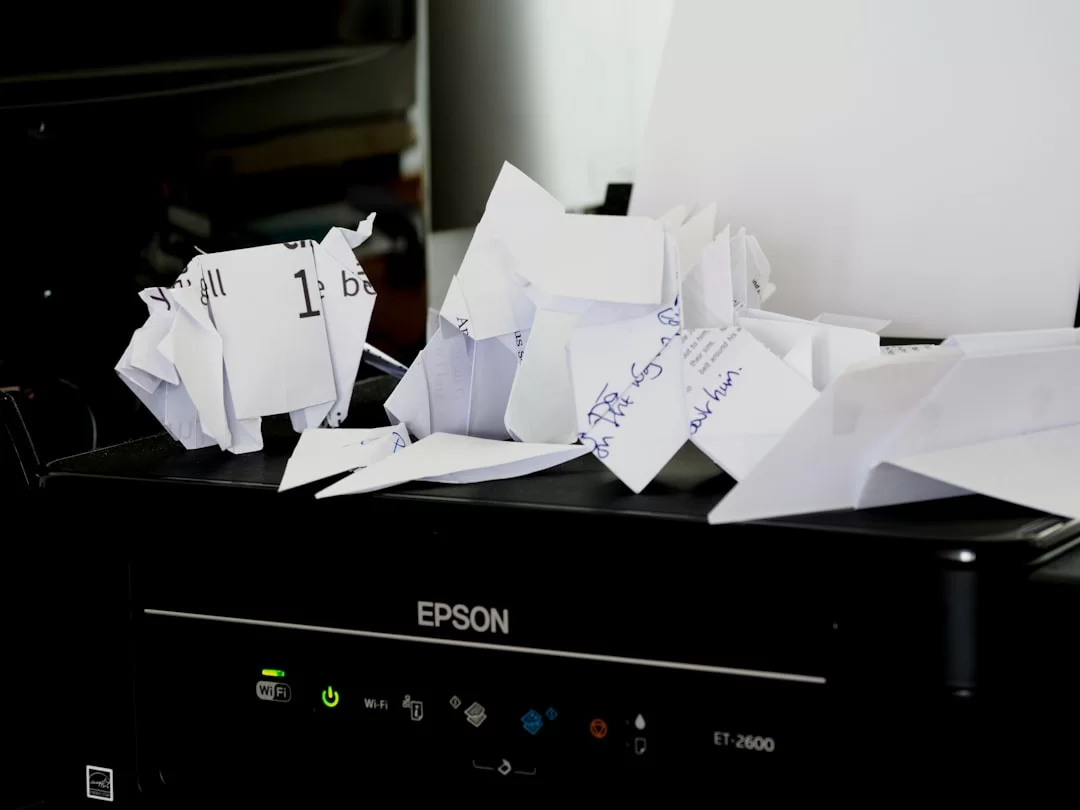
Paper jams are the most frequent and annoying issue. Usually, wrong paper loading or worn feed parts cause them. Without panicking, intervene in this order:
- Turn Off and Unplug: Never reach inside without cutting the power. The fuser unit can be very hot.
- Paper Tray Check: Remove the tray completely. Pull the jammed paper carefully with both hands without tearing. Make sure no paper fragments remain.
- Rear Cover and Fuser Access: On most models, you access the fusing unit area by opening the rear cover. Check for jammed paper there as well.
- Pick-up Roller Cleaning: If paper dust builds up on the separation pad and pick-up roller, they become slippery. Therefore, wipe them with a damp cloth.
- Review Paper Quality: Don’t use damp, curled, or wrong-weight paper. Fan the paper before placing it in the tray.
Printer paper feed problems usually stem from a worn pick-up roller or solenoid failure. If it constantly pulls multiple sheets, it’s time to replace the separation pad. You can get support from authorized service for pick-up roller replacement.
How to Fix Ink Drying and Print Head Clogging
In inkjet models, nozzle clogging is inevitable, especially in devices unused for a long time. Luckily, there are a few effective methods to clear a clogged print head.
First, try the software-based cleaning:
- Enter the maintenance menu on the control panel or driver software.
- Start the print head cleaning cycle. This process uses ink but usually resolves minor clogs.
- Print a nozzle check pattern to verify the cleaning result.
- If necessary, repeat the process 2–3 times. You will see the pattern improve each time.
If software cleaning doesn’t work, switch to the manual method:
- Distilled Water Method: Remove the print head. Put distilled water in a shallow container. Let only the nozzle surface touch the water and wait 30 minutes.
- Isopropyl Alcohol Method: 90% or higher isopropyl alcohol opens stubborn clogs. Gently wipe the nozzle surface with a cotton swab.
- Ultrasonic Cleaner: You can use an ultrasonic cleaner as a professional solution. However, this method may damage piezoelectric crystals.
If you wonder why printer ink dries, the answer is simple: the ink solvent evaporates. Printing at least once a week fills the nozzles with fresh ink and prevents drying. In short, regular use is the simplest way to prevent ink drying. That’s why establishing a printer maintenance routine solves this issue at the root.
Printer Offline Issue, Sleep Mode, and Other Common Errors
I’ve listed other common issues and their practical solutions below:
- Why Does the Printer Offline Error Occur? The most common reason is an IP address change or network disconnect. Learn how to find the printer IP address. Verify that the device and computer are on the same network. Then restart the print queue service. Usually, printer offline issues are network-related.
- Printer Won’t Wake from Sleep Mode Solution: Check the energy-saving settings. On some models, deep sleep mode cuts the network connection entirely. Manually wake it by pressing the power button on the control panel. Meanwhile, a firmware update often fixes this issue.
- Printer Spooler Stopped Error: The Print Spooler service may have stopped on Windows. Restart Print Spooler from the Services panel. Additionally, clear any stuck jobs from the print queue.
- Can You Print in Black and White When the Color Cartridge Is Empty? On most inkjet models, you can print in black and white even with an empty color cartridge. But some models require all cartridges to be full. This is a manufacturer’s sales strategy.
- Wi-Fi Printer Constantly Offline Issue: This could be an IP conflict, weak signal, or DHCP lease time problem. Assign a static IP address to the device. If possible, use an Ethernet connection.
Error Codes and Color Issues
Each manufacturer has its own system for printer error codes and their meanings. On Brother models, “Drum Error” points to a drum unit problem. On Epson, “E-01” indicates a paper jam. You can reach the error code guide on the manufacturer’s website.
Why does a yellow tint in prints occur? Usually, a blockage in the toner channel causes it. Also, magnetic roller contamination triggers this. In the CMYK color model, yellow is the lightest tone. Therefore, you immediately see even the slightest contamination in prints.
Eco-Friendly Printing: Sustainability and E-Waste Management

How to Recycle Printer E-Waste
Every year, more than 500 million empty cartridges and toners end up in the trash worldwide. This waste takes 450 to 1,000 years to break down in nature. The answer to why printer e-waste matters lies right in those numbers.
Luckily, both manufacturers and third-party companies have taken significant steps in recycling. You can follow these paths to recycle printer waste:
- Manufacturer Take-Back Programs: Initiatives like HP Planet Partners and Canon Recycling Program take back empty cartridges for free. You can request a recycling box from the manufacturer’s website.
- Authorized Collection Points: Large tech stores and office supply retailers have waste collection bins. You can drop off your empty toner cartridges at these points.
- Remanufacturing: Remanufacturers clean empty cartridges, replace worn parts, and refill them. However, the difference between remanufactured and compatible cartridges matters. Remanufacturing offers the closest quality to the original.
- Municipal Electronic Waste Collection: Many municipalities organize periodic e-waste collection days. You can send the entire device for recycling this way.
The circular economy and zero-waste approach are spreading in the printing sector. Using recycled paper is also an effective way to reduce the carbon footprint. Choosing green technology certified products is the most tangible step you can take for environmental sustainability. In short, a responsible printer user cares about recycling.
Planned Obsolescence and Cartridge DRM Locks: What You Need to Know
Planned obsolescence is when manufacturers deliberately limit a device’s lifespan. The most controversial practice in this area is the waste ink pad counter. After a certain number of cleaning cycles, the device gives a ‘waste pad full’ error and stops working. Therefore, a savvy printer owner should know these traps.
You can reset the printer waste ink pad counter using service mode entry codes. The pad is physically full. But in this case, you reset it. As a result, ink overflows and the device gets damaged. First, you must replace or clean the pad.
The printer cartridge DRM lock is an entirely different issue. Manufacturers embed serial numbers and region codes into cartridge chips. When you insert a compatible or refilled cartridge, the device may reject it. You have two options for solving third-party cartridge errors: Downgrade firmware or use a chip resetter.
- Cartridge Chip Reset Methods: You can reset the cartridge chip using special chip resetting devices. However, you may not find a compatible solution for every model.
- Postpone Firmware Updates: Manufacturer updates often increase DRM restrictions. Read the update notes and decide.
- Dangers of Refilling Printer Cartridges: Poor-quality ink or improper refilling can permanently damage the print head. Choose professional refill centers.
Waste pad and EEPROM reset procedures extend the device’s life. Moreover, these methods make your job easier. But these interventions void the warranty. The choice is yours: Longer use or warranty protection?
Eco Mode and Energy Efficiency: Printer Energy Consumption Calculation
Paper and consumables alone are not enough for eco-friendly printing. Moreover, energy consumption directly impacts the process. Models with an Energy Star rating drop below 1 watt in sleep mode. This creates a noticeable difference on your annual electricity bill.
Let’s do a simple printer energy consumption calculation. Your laser model draws 400 watts while running and 5 watts in sleep mode. Assume it’s active 2 hours a day and sleeping 22 hours:
- Daily active consumption: 0.4 kW × 2 hours = 0.8 kWh
- Daily sleep consumption: 0.005 kW × 22 hours = 0.11 kWh
- Monthly consumption: (0.8 + 0.11) × 30 = 27.3 kWh
- 2026 US electricity rate ~$0.08/kWh → Monthly cost: ~$2.18
When you activate eco mode and duplex printing, paper consumption drops by up to 40%. That’s the essence of sustainable printing and eco mode: Doing the same job with fewer resources. As an eco-conscious printer user, you should definitely activate the toner-saving mode too.
Select Resources to Explore Printer Hardware
- Wikipedia Guide: Explains the essence of devices that transfer electronic data to paper. Additionally, it covers their historical development and basic types.
- Consumer NZ – Buying Guide: Compares ink and laser models with comprehensive tests. Provides info on connection types and cost savings.
- Best Buy – Inkjet vs Laser Guide: Shows the differences between the two main technologies with clear tables. Explains which model suits which user.
- Toshiba – Inkjet vs Laser Guide: Offers an evaluation based on total cost of ownership. Contains solid data for long-term investment decisions.
- HP Tech Takes – Guide: Examines Inkjet, LaserJet, and OfficeJet models comparatively. Details the strengths of each technology.
Frequently Asked Questions About Laser, Ink, and Tank Models
Which is more advantageous, a laser printer or an inkjet printer?
What is a tank printer, and what are its advantages?
What should you pay attention to when buying a printer?
How do you fix a printer paper jam?
How do you connect a wireless printer to a phone?
Which is more economical, cartridge or toner?
What is a 3D printer, and what does it do?
Why is printer security important, and can a printer be hacked?
Which is the best home printer?
What do DPI and PPM values mean on a printer?
Conclusion: Final Recommendations for Choosing the Right Printer for Your Needs
Best Printer Advice Based on Your Usage Scenario
Now, in light of all this information, I’ll list my recommendations based on concrete scenarios. These scenarios will serve as a compass in your data-driven decision-making.
- Home User Printing 10 Pages a Week: The best choice for you is a tank inkjet model. The ideal printer recommendation is Epson EcoTank L1210 or Canon PIXMA G1411. Stay away from cartridge models. Since you print little, the cartridges will constantly dry out. Whereas, ink stays fresh in tank models. Don’t skip this point in home printer selection.
- Small Office Printing 300–500 Pages a Month: The Brother MFC-L3750CDW color laser MFP is ideal. The device has strong capacity and low cost. Plus, its sturdy build never lets you down in the office. Alternatively, you can consider Epson WorkForce Pro WF-4830.
- Photo Enthusiast or Graphic Designer: Canon PIXMA PRO-200 or Epson SureColor P700 professional photo printer models are just for you. With 9,600 DPI resolution and a wide color gamut, you get gallery-quality prints. Is special paper essential for photo printing? Yes, coated paper or cotton art paper is essential.
- High-Volume Corporate Environment: HP Color LaserJet Enterprise 6700dn or Xerox VersaLink C7120 models are designed for 10,000+ pages a month. Under MPS, MPS providers offer these devices as a hardware and maintenance package.
Technological Lifecycle and Investment Assessment
If you ask which printer technology lasts the longest, my answer is laser. You can replace parts like the fuser unit and OPC drum. This way, devices can serve well over 10 years.
In contrast, the print head in tank models has a limited lifespan. Replacement cost sometimes exceeds the device price. So, prioritize laser models for a long-lasting printer investment.
Printers of the Future: Artificial Intelligence and Managed Print Services (MPS)
In 2026 and beyond, AI-powered printer models are changing the face of the industry. These devices no longer just print. Thanks to AI-driven automation, they learn your usage habits. They predict toner levels and warn of failures in advance.
Thanks to smart document processing capabilities, they automatically classify scanned documents. Machine learning algorithms recognize the document type and start the appropriate workflow. Additionally, biometric authentication ensures only authorized people can print sensitive documents.
Managed Print Services (MPS) is a model where an external expert manages the total print infrastructure of corporate firms. The MPS provider monitors the entire fleet of peripherals, handles maintenance, and supplies consumables. In summary, you pay only for the pages you print. This model completely removes the burden of TCO calculation. The printer ecosystem of the future will be built around this service model.
In the future, the MQTT protocol and IoT security standards will ensure secure cloud-based management of all devices. IoT integration makes this office equipment an essential node in the smart office ecosystem. I advise you to prepare for this transformation now.

Be the first to share your comment