

Your system boots slowly, games stutter, or your PC freezes when you open dozens of browser tabs. The usual cause is low RAM. Why is RAM so critical? A CPU cannot read every task directly from disk. It needs a fast bridge.
As of 2026, DDR5 is mainstream. DDR4 still lives on in budget systems. AI workloads have also pushed RAM demand higher than ever.
By the end of this guide, you will know which capacity fits your needs. You will see the clear gap between DDR4 and DDR5. You will also learn RAM compatibility checks and safe speed profiles.
First, let’s be clear: without RAM, your PC will not even boot. The modules you place in motherboard slots form the entire work area for the operating system. Even a simple mouse move uses memory.
So the right RAM choice is vital. A wrong frequency makes the system unstable. Low capacity kills productivity. The good news? You can avoid these traps with the right knowledge.
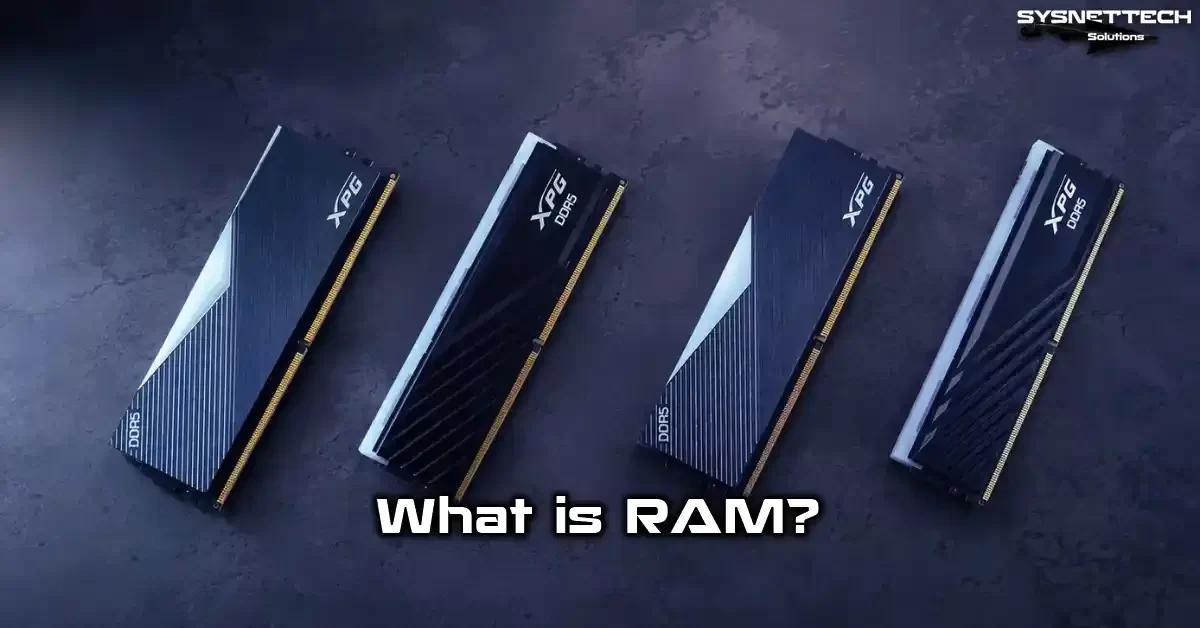
What Is RAM? Definition, Meaning, and Core Importance
RAM Stands For: Random Access Memory—What Does It Mean?
RAM stands for Random Access Memory. The word random confuses many people. The system does not pull data at random. Actually, it can reach any memory cell directly.
This trait sets RAM apart from sequential storage. Old tape drives read data in order. Memory reaches every address at equal speed. Cell 1 and cell 1000 feel the same.
This design lets the OS run multiple tasks smoothly. You play a game while music plays in the background. Dozens of browser tabs stay open at the same time. RAM manages all of it.
Technically, RAM belongs to the DRAM family. It works as dynamic random access memory. Data disappears when power cuts out. That is why you use an SSD or an older HDD for long-term storage.
What Is RAM? The Volatile Memory Concept
RAM falls into the volatile memory class. Power off means all data in it vanishes. This is not a flaw. It is the natural result of the design. You get speed only this way.
Permanent storage keeps data in magnetic or electronic cells. Access times there sit in milliseconds. RAM responds in nanoseconds. The gap is thousands of times wide.
So the OS loads core files into RAM at boot. Apps also live in RAM while they run. When you save a file, the system writes it to permanent storage.
Why can’t permanent memory do every job? Current storage tech is not fast enough. Even the fastest NVMe SSD cannot match RAM bandwidth. So both work together in system design.
Why Is RAM Important? Its Role in System Performance
Without RAM, a PC cannot pass POST (power-on self-test). The motherboard beeps or the screen stays black. The CPU must write its first commands to memory. Basic boot depends on it.
In daily use, RAM directly shapes performance. Low capacity forces the system to write to disk. We call this pagefile usage. Everything slows down. Even the mouse cursor stutters.
In games, RAM is the main factor behind 1% low FPS. High frame rate alone is not enough. Frame times must stay consistent. Low latency gives you that consistency.
AI apps also process huge datasets. The system loads model parameters into RAM. If capacity runs short, the job fails or the system crashes.
How Does RAM Work? Technical Foundation and Working Principle
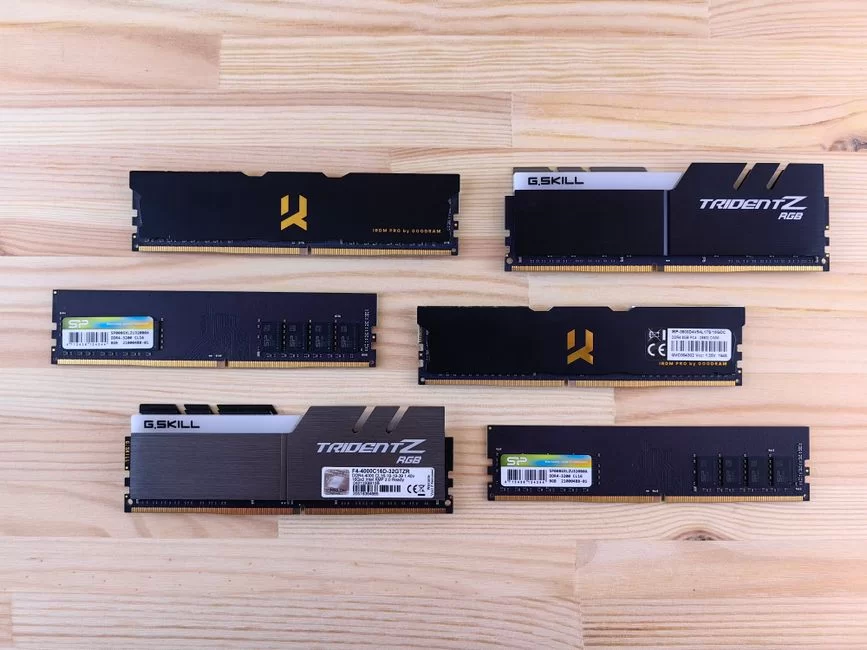
How Does a DRAM Cell Work? Transistor and Capacitor Structure
Modern main memory modules use DRAM technology. Each memory cell contains one transistor and one capacitor. The transistor acts as a switch. The capacitor stores charge. In short, the design is quite simple.
A full capacitor means a logical 1. An empty one means 0. But a capacitor loses charge over time. So RAM refreshes itself constantly. We call this memory refresh.
During refresh, the system briefly reads cells and writes them back. This process increases power use. It also adds a small amount of access delay. Still, DRAM manages this balance well.
An SRAM cell uses six transistors. It is faster and needs no refresh. But production cost and die area are large. So you only find it in CPU cache.
Memory Controller and RAM Relationship
Modern CPUs embed the memory controller inside the chip. We call it the integrated memory controller, or IMC. This unit manages all traffic between the CPU and RAM modules. In the past, this job sat in the chipset on the motherboard.
IMC sets bus width and clock speed. It also decides which RAM frequencies the system supports.
So CPU architecture plays a key role in RAM compatibility. For example, AMD Ryzen CPUs use Infinity Fabric.
In this design, FCLK, UCLK, and MCLK clocks run in sync. Their ratio directly affects performance. There is an ideal value we call the sweet spot. Move past it and latency climbs.
So just buying fast RAM is not enough. IMC quality matters too. A weak IMC cannot hold a high frequency stable. The system crashes or shows a blue screen.
Addressing and Data Bus: How Random Access Happens
Every memory cell has a unique address. The CPU sends this address over the address bus. Then data moves over the data bus for a read or write. The whole process takes a few nanoseconds.
The address decoder circuit picks a row and a column. First, the system activates the row. Then column access follows. We call these steps RAS and CAS. RAM latency values come from these steps.
Data bus width is usually 64 bits. That means 8 bytes per clock tick. DDR technology transfers data on both rising and falling edges. This doubles RAM bandwidth.
Channel configuration also affects the data bus. Dual channel doubles bandwidth compared to single channel. Server platforms often give you four channels. So slot choice is vital.
RAM Types and Technologies: DDR Generations, Form Factors, and Special Types
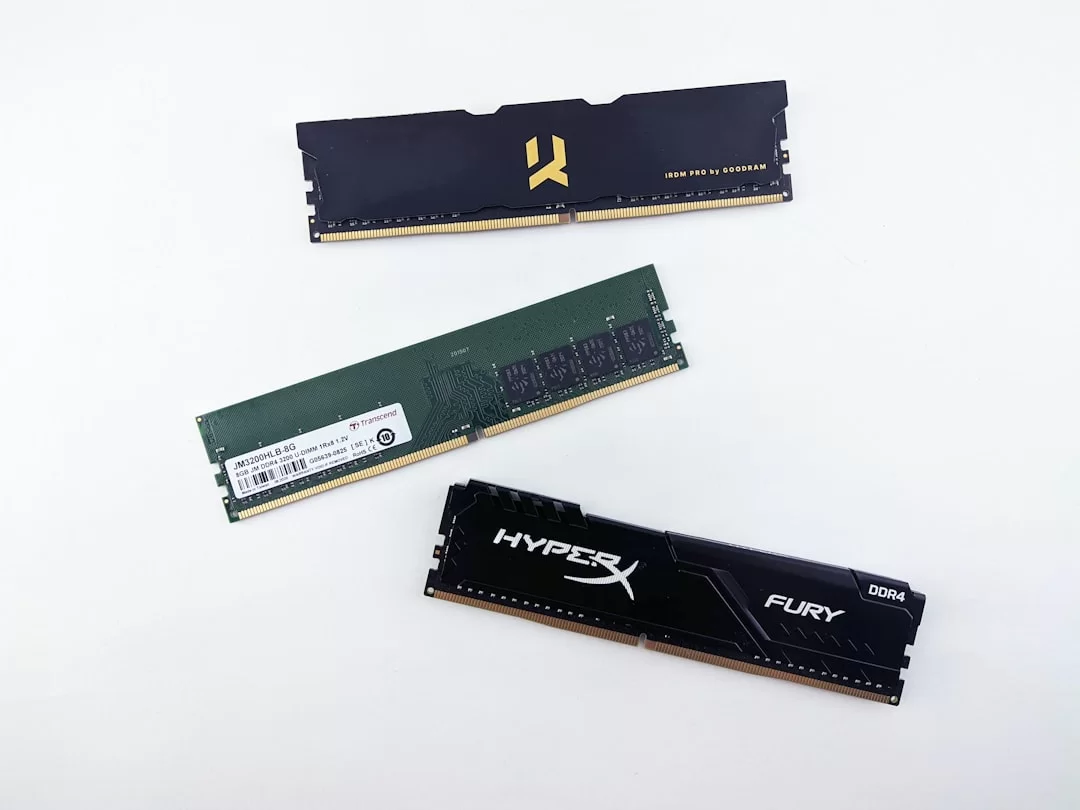
DDR Generations: SDRAM, DDR, DDR2, DDR3, DDR4, and DDR5
We know SDRAM as the first modern RAM type. This architecture ran in sync with the system bus.
Then came DDR, short for Double Data Rate. Next, this tech began moving two data bits per clock tick.
DDR2 and DDR3 raised frequencies and cut voltage. DDR4 brought the real leap. It started at 2133 MT/s and used less power. It also allowed higher-density modules.
As of 2026, DDR5 is mainstream. Base speed sits at 4800 MT/s. On-die ECC improves signal integrity. Makers also place the PMIC onto the module itself.
| Generation | Starting Speed | Voltage | Max Capacity (DIMM) |
|---|---|---|---|
| DDR3 | 800 MT/s | 1.5V | 8 GB |
| DDR4 | 2133 MT/s | 1.2V | 32 GB |
| DDR5 | 4800 MT/s | 1.1V | 128 GB |
Generations are physically incompatible. The notch sits in a different spot. You cannot fit a DDR4 module into a DDR5 slot. So motherboard choice comes first.
DIMM vs SO-DIMM: Desktop and Laptop RAM Form Factors
Desktop PCs use DIMM modules. They are long and wide. A typical one measures 133 mm. Laptops use SO-DIMM instead. That module is shorter and more compact.
SO-DIMM slots fit thin laptop designs. Mini PCs and some servers also use them. There is no electrical difference between the two. Only physical size changes.
Pin counts also differ. DIMM uses 288 pins. SO-DIMM works with 260 pins. So you cannot physically swap these modules.
Recently, the CAMM2 standard has also appeared. This new form factor enables thinner designs. But it has not gone mainstream yet. As of 2026, it is still a niche technology.
What Are ECC RAM, Registered RAM, and CUDIMM? Server and Workstation Memory
ECC memory carries error correction code. It detects and fixes single-bit errors on its own. It reports double-bit errors. This feature is required on servers where data integrity is critical.
Registered RAM, or RDIMM, adds signal buffering. This lets you connect more modules per channel. Server boards often provide many slots. So users pick RDIMM.
CUDIMM is a newer standard. This module regenerates the clock signal internally. Signal integrity improves at high frequencies. It matters for DDR5 speeds above 8000 MT/s.
Desktop users usually get UDIMM. It has no buffering and costs less. But server workloads require RDIMM. You cannot swap these two RAM types.
Mobile and Graphics RAM: What Are LPDDR5X, GDDR6, and HBM2E?
Phones and tablets use LPDDR5X. Makers optimize this memory for low power. They also solder it to the board. So you cannot upgrade it later.
LPDDR5X reaches 8533 MT/s. It also runs at very low voltage. That extends battery life in mobile devices. Phone RAM leads in power savings.
Graphics cards use GDDR6. Makers build this memory for high bandwidth. It fits gaming and pro graphics workloads. GDDR6X offers even higher speeds.
Then there is HBM2E. Makers stack it close to the processor. It provides a very wide data bus. You usually see it in data center GPUs and AI accelerators. But it costs a lot.
RAM Capacity: How Many GB Do You Need? Use Cases
RAM for Office and Daily Use: Is 8 GB Enough?
8 GB still works for office apps, web browsing, and email. But Windows 11 now wants more memory. The system uses 4–5 GB even for basic tasks. So the margin is thin.
Browsers have become hungrier in 2026. Opening dozens of tabs in Chrome or Edge pushes memory use past 6 GB. Then the system pushes 8 GB into the pagefile. You feel clear slowdowns.

If you multitask, 8 GB fails quickly. Editing a document during a video call is difficult. Antivirus and cloud sync also run in the background. With those demands, 16 GB makes sense.
How Much RAM for Gaming? 16 GB or 32 GB?
16 GB is no longer enough for modern games. AAA titles from late 2025 can require over 20 GB. Open-world games and sims consume significant memory. 32 GB is becoming the standard.
On a 16 GB system, games stutter with Discord open in the background. In-game textures load late. You also see micro stuttering. It badly hurts 1% low FPS.

| Scenario | Recommended Capacity | Note |
|---|---|---|
| Gaming only | 16 GB | Minimum, background closed |
| Gaming + streaming | 32 GB | Runs comfortably |
| Gaming + rendering | 64 GB | For content creators |
So start with 32 GB in a new build. DDR5 prices have dropped. Capacity upgrades now cost less. That investment gives you 3–4 years of comfort.
RAM Needs for Video Editing, 3D Modeling, and Productivity
Video editing tools load huge projects into memory. 4K or 8K timelines consume 32 GB quickly. Tools like After Effects use a large amount of RAM for previews. So I suggest 64 GB.
3D modeling and rendering are just as hungry. Blender, Maya, or 3ds Max keep scenes in memory. Complex scenes push past 32 GB. Render time depends directly on capacity.
Graphic design tools also consume RAM. Photoshop layers, Illustrator vectors, and InDesign layouts pile up.
With multiple apps open, 32 GB is just enough. So keep capacity high on productivity systems.
RAM Needs for AI and Running LLM Models
Running a large language model locally needs serious RAM. A 7-billion-parameter model in quantized form uses 6–8 GB.
A 13-billion-parameter model requires over 16 GB. Plus, a 70-billion-parameter model passes the 64 GB mark.
So 32 GB is the minimum for AI experiments. The OS and other apps also require memory. 64 GB gives you far more room to work.
Machine learning training is also memory-heavy. The system keeps batch datasets in RAM. Low RAM stretches training time or halts it. Even 128 GB makes sense for AI workstations.
DDR5 bandwidth also helps these workloads significantly. Large matrix multiplications lean on RAM bandwidth. DDR5’s high data rate shortens processing time.
NOTE: More RAM means better virtualization performance. If memory runs low, your entire system will lag or freeze.
RAM Speed, Frequency, and Latency: MHz, MT/s, CL Value, and Timings

What Is RAM MHz? The Difference Between MHz and MT/s
MHz shows clock cycles per second. But DDR RAM moves data on both clock edges. That doubles the effective data rate. We call this effective rate MT/s.
So DDR4 sold as 3600 MHz actually runs at 1800 MHz. It still performs 3.6 billion transfers per second. The correct unit should be MT/s. Yet the industry still widely uses MHz.
You can also use Task Manager to check RAM frequency. But the value shown there can mislead. So use tools like CPU-Z or HWiNFO to verify.
RAM CL Value and Timings: How Do You Calculate Latency?
CL, or CAS latency, is the cycle count from a read command to ready data. A lower CL value means faster response. We express this value in clock cycles.
To find real latency, use this formula: latency in nanoseconds = (CL / MT/s) × 2000. For example, 3200 MT/s CL16 gives (16 / 3200) × 2000 = 10 ns. This math matters.
| Speed | CL | Latency (ns) |
|---|---|---|
| 3200 MT/s | CL16 | 10.0 ns |
| 3600 MT/s | CL18 | 10.0 ns |
| 6000 MT/s | CL30 | 10.0 ns |
As you see, different speed and CL combos can give equal latency. Looking at frequency alone misleads you. You must weigh both. Timings like tRCD, tRP, and tRAS also exist.
What Is Bandwidth and How Do You Calculate It?
Bandwidth is the maximum data you can move per second. Use this formula: bus width × effective speed / 8. Bus width is usually 64 bits, or 8 bytes.
For a DDR5-6000 module: 8 bytes × 6000 MT/s = 48,000 MB/s, or 48 GB/s. That value is for one channel. Dual channel doubles it to 96 GB/s.
So channel setup multiplies RAM bandwidth. It heavily affects FPS on iGPU or APU systems. High bandwidth eases the processor’s hunger for data.
The bandwidth gap between DDR4 and DDR5 is large. DDR4-3200 gives about 25.6 GB/s. DDR5-6000 delivers 48 GB/s. You feel that gap in games and work tasks.
RAM Channels and Configuration: Single Channel, Dual Channel, Quad Channel
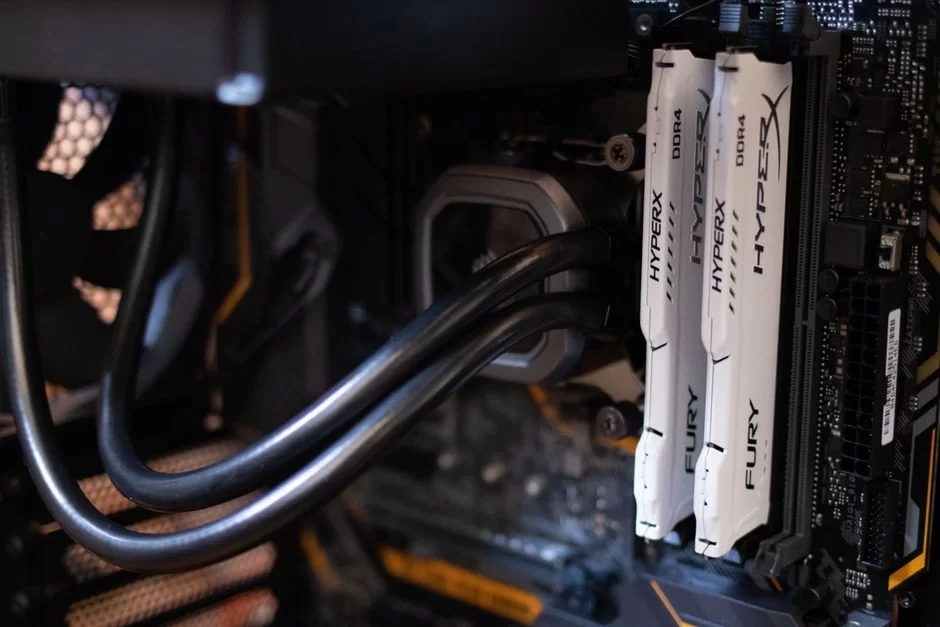
What Is the Difference Between Single Channel and Dual Channel RAM?
Single channel gives a 64-bit data bus. Dual channel provides 128 bits. So RAM bandwidth doubles. In games, that often means a 10–30 percent performance boost.
APU systems with integrated graphics show the biggest gap. The APU uses system RAM as its own memory. Single channel creates a serious bottleneck. Dual channel smooths things out.
Multitasking power also improves. With a browser and streaming apps open, dual channel keeps the system stable. So I always suggest two RAM modules.
How Do You Set Up Dual Channel RAM? Motherboard Slot Placement
For dual channel, place two identical modules in the right slots. Makers often label them A1, A2, B1, B2. The correct setup is usually A2 and B2. Still, check the motherboard manual.
Wrong placement still lets the system boot. But you fall back to single channel and lose RAM performance. So read the slot table in the manual before installation. Makers always list the right combo.
- Power off the PC and unplug the power cord.
- Find the recommended slot pair in the motherboard manual.
- Align RAM modules at a 45-degree angle to the slot.
- Push until clips on both sides lock.
- Boot the system and confirm channel config in BIOS.
Mixing different capacities also causes issues. An 8 GB plus 16 GB pair creates asymmetric channels. Always buy a matched RAM kit with equal speed and size.
How Does RAM Speed Affect FPS in Ryzen and APU Systems?
AMD Ryzen CPUs use Infinity Fabric. This architecture syncs directly with memory speed. Sweet spot frequency matters greatly on Zen 3 and Zen 4. For DDR4, that value is around 3600 MT/s.
On DDR5 systems, the sweet spot sits at 6000 MT/s. Push past it and the FCLK-to-UCLK ratio breaks. Latency climbs and performance drops. So do not always chase maximum RAM speed.
In APU systems, RAM speed directly sets graphics performance. The integrated GPU has no dedicated memory. It shares system RAM. So faster memory means higher frame rates.
So take extra care with RAM choice on Ryzen or APU builds. The right speed plus low latency gives the best result.
What Should You Check When Buying RAM? Compatibility and Buying Guide (2026)
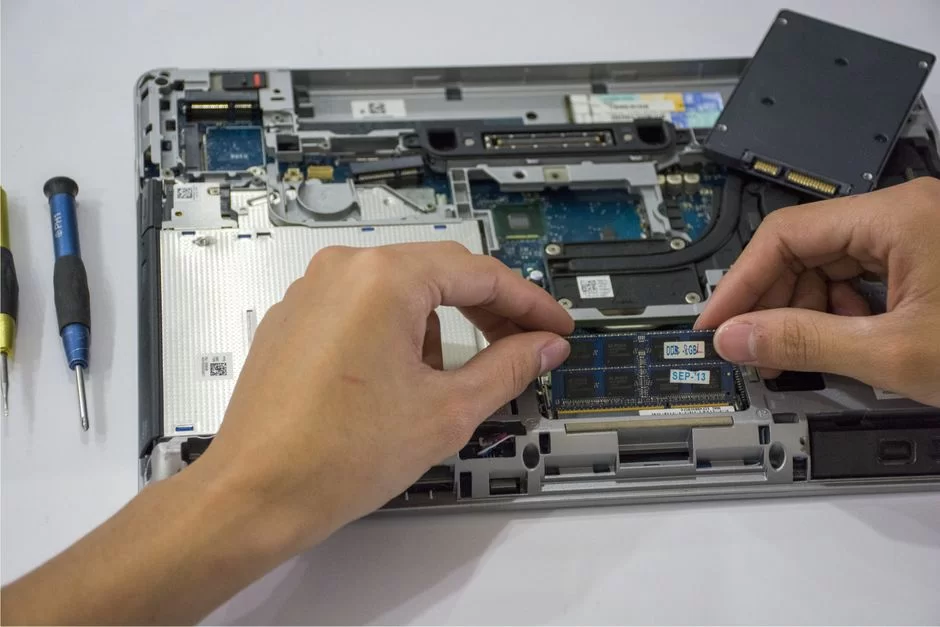
How Do You Check Motherboard RAM Compatibility? What Is the QVL List?
Before you buy, know which RAM modules your board supports. Makers publish a QVL, or Qualified Vendor List. This list contains modules they tested and approved. You can download it from the board maker’s site.
Modules outside the QVL may still work. But you might lose warranty coverage. High-frequency stability issues can also appear. So staying within the QVL is smart.
- Learn your motherboard model.
- Go to the maker’s support page.
- Download the QVL list.
- Confirm the RAM you want is on the list.
- Update your BIOS version.
Check CPU compatibility too. Some processors do not officially support high RAM speeds. For example, some Intel Core i5 chips have limits. AMD Ryzen is usually more flexible.
DDR4 or DDR5? Which Generation Should You Pick in 2026?
For a new build, DDR5 is now the clear choice. The price gap has closed considerably. DDR5 also wins on bandwidth and energy efficiency. AM5 and LGA1700 platforms support it.
But upgrading an existing DDR4 system makes no sense. You cannot move to DDR5 without swapping board and CPU. In that case, a DDR4 kit is the cheaper upgrade path.
| Criteria | DDR4 | DDR5 |
|---|---|---|
| Bandwidth | Low | High |
| Latency | Low (same ns) | Similar |
| Price | Cheap | Mid |
| Future | EOL near | Standard |
So if you have the budget, buy DDR5. It helps with gaming, streaming, and work tasks. DDR5 also gives better power management thanks to PMIC.
RAM Brand Comparison and Price-Performance Picks (2026 in the US)
Corsair, G.Skill, Kingston, Crucial, and TeamGroup lead the market. They all offer quality products. But price-to-performance ratios vary. So pick based on your needs.
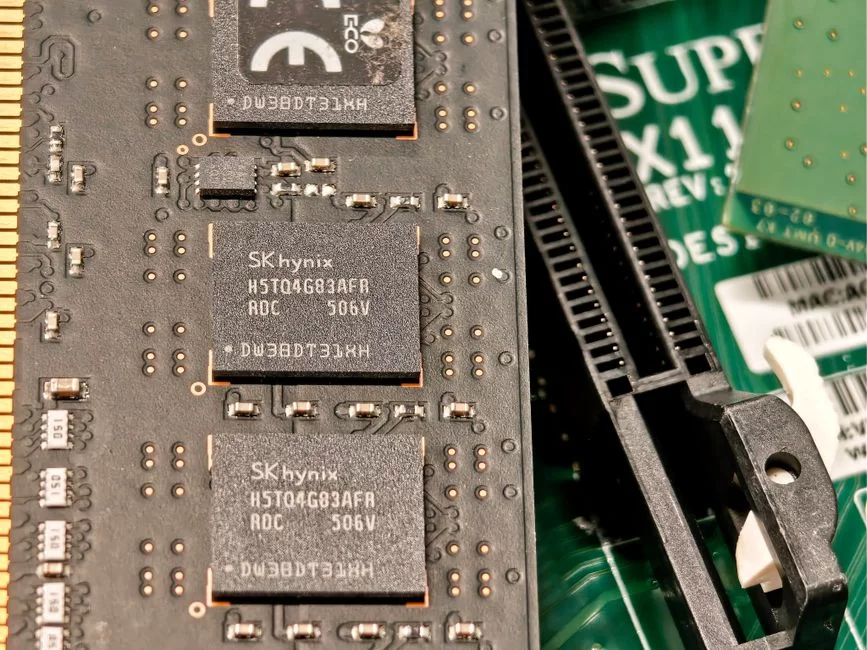
Memory chip makers include Samsung, Micron, and SK Hynix. These three firms control most of the market. Module brands use their chips. Real quality depends on the chip maker.
Prices fluctuated in early 2026. But the overall trend points down. 32 GB DDR5 kits now sit at reachable prices. So skip 16 GB and go straight to 32 GB.
RAM Speed Profiles, XMP, and EXPO: How Do You Boost Performance?
What Is XMP and How Do You Enable It in BIOS?
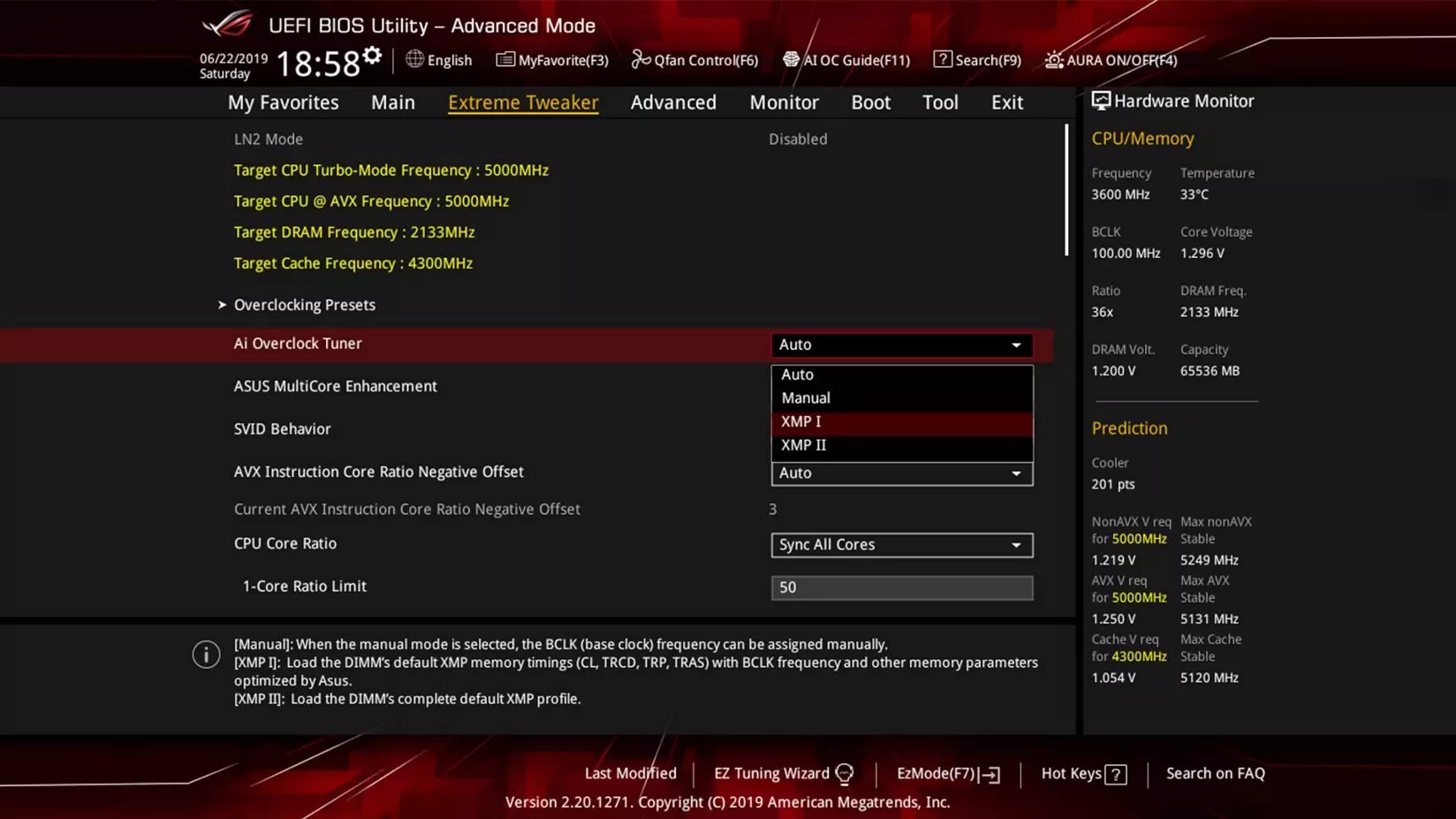
XMP, or Extreme Memory Profile, is Intel’s RAM speed profile standard. Module makers write this profile onto the SPD chip. Enable it in BIOS and the RAM runs at the maker’s rated speed. You do this with one click.
How do you enable XMP? Enter BIOS and find RAM settings. Then turn on the XMP option. Finally, save and exit.
- Restart the PC and enter BIOS (usually DEL or F2).
- Go to the memory or overclocking tab.
- Pick the XMP profile (usually Profile 1).
- Save settings and reboot.
- Confirm RAM speed with CPU-Z.
Remember: XMP is a speed boost. Makers test these profiles, but they may affect warranty. XMP 3.0 arrived with DDR5 and offers more profiles.
What Is EXPO? AMD’s Memory Speed Profile
EXPO is AMD’s RAM speed profile standard for DDR5. It works like XMP. Module makers write the EXPO profile to the SPD chip. AMD boards enable it easily in BIOS.
The main gap between XMP and EXPO is platform support. XMP is common on Intel systems. EXPO is optimized for AMD. But many DDR5 kits include both profiles. So RAM compatibility issues are rare.
What is an EXPO profile? It is AMD’s official RAM speed profile standard. It goes beyond JEDEC specs. You get the module’s full potential. But stability is never guaranteed.
Is RAM Speed Boosting Safe? Risks and Stability Testing
Mild RAM speed boosting is usually safe. Makers already test XMP and EXPO profiles. Manual speed tuning is riskier. Wrong voltage settings can cause permanent damage.
Extreme speed settings create system instability. You see blue screens, file corruption, and sudden shutdowns. Heat is also a problem. DDR5 PMIC temperature needs special care.
Before changing speeds, check the board QVL list. Also update your BIOS. Then raise RAM frequency in small steps. Test stability at each step. This discipline saves you from trouble.
RAM Testing and Failure Symptoms
What Are the Signs of RAM Failure? Blue Screen and System Crashes
A faulty RAM module shows itself in many ways. The most common sign is a blue screen error. Random freezes and reboots also happen. These issues appear mainly under heavy RAM use.
Other signs include file corruption and app crashes. Sometimes the system shows no display at boot. The RAM module is fully dead in that case. POST error codes may also appear.
- Constant blue screen errors (Memory Management, IRQL_NOT_LESS_OR_EQUAL)
- Random freezing or locking up
- File and folder corruption
- No display at boot
- Apps closing without warning
These symptoms can come from other hardware problems too. Still, RAM is always the first suspect. So testing is a must.
How Do You Run a RAM Test with MemTest86?
MemTest86 is a free tool that tests RAM modules. You boot it from a USB flash drive. It runs before the OS loads. It scans every memory address and reports errors clearly.
- Download the ISO from the MemTest86 website.
- Write it to a USB drive with a tool like Rufus.
- Boot the PC from the USB interface.
- The test starts on its own.
- Wait for at least 4 full passes.
If errors appear, test RAM modules one by one. That way you find the faulty one. Try different slots too. Some errors come from the slot, not the module.
How Do You Fix PC Memory Incompatibility and Overheating?
Mixing different brands or speeds creates RAM incompatibility. The system may boot but run unstably. The fix is to use a matched kit. Also pick modules from the QVL list.
Overheating often hits modules running high voltage. A passive heatsink, or heat spreader, eases the issue. But poor case airflow still traps heat. Add more case fans if needed.
Check heat with tools like HWiNFO. PMIC temperature should stay under 85°C. Otherwise, thermal throttling kicks in and RAM performance drops. Long-term module life also shortens.
RAM and AI: Memory Needs for LLM Models and Machine Learning
How Much RAM Do You Need to Run an LLM Model?
RAM capacity is the key factor for running local LLMs. A 7B parameter model in 4-bit quantized form uses 4–6 GB. So, a 13B model requires 8–12 GB. A 70B model demands 40–50 GB.
So 16 GB systems can only run small models. 32 GB opens the door to mid-size models.
64 GB and above handles large models with ease. Model load time also depends on RAM speed.
Context window also affects RAM. Long contexts consume more memory. A 32K context window may add 8 GB of extra RAM use. So keep capacity generous.
RAM Suggestions for Machine Learning and Deep Learning
Machine learning training keeps datasets in RAM. Large datasets take up tens of GB. Low memory makes training impossible or very slow. So 64 GB is the minimum.
You load deep learning models into GPU memory. You also use system RAM for data preprocessing. In CPU-based training, RAM is the main factor. 128 GB workstations are common.
Virtual machine RAM allocation works the same way. Docker containers also share memory. Plan capacity with these environments in mind.
DDR5’s Edge in AI Workloads: Bandwidth and Energy Efficiency
DDR5’s high bandwidth gives a clear edge in AI workloads. Matrix multiplications and tensor ops are sensitive to RAM bandwidth. DDR5-6000 offers about twice the data rate of DDR4-3200.
DDR5 is also more energy efficient. It hits higher speeds at lower voltage. That matters for servers running 24/7. On-die ECC also boosts signal integrity.
So DDR5 is now a must for AI-focused systems. Capacity and memory speed both matter. Pick a balance of both.
Memory Upgrades and Installation: Laptop & Desktop
Where Do You Find RAM in a PC and How Do You Install It?
On a desktop PC, memory slots sit on the motherboard, right next to the CPU. Usually there are 2 or 4 slots. On laptops, they sit under the bottom cover.
To install, first discharge static electricity. Then align the RAM module in the right direction. The notch prevents wrong placement. Seat the module and press until clips lock.
- Power off the PC and unplug the cord.
- Open the case or remove the laptop bottom cover.
- Find an empty DIMM slot.
- Place the module according to the notch.
- Press until clips on both sides lock.
- Boot the system and confirm RAM capacity in BIOS.
If you replace an existing module, remove the old one first. Push the clips outward to release it. Then insert the new module. The job takes a few minutes.
How Do You Replace Laptop RAM? SO-DIMM Module Upgrade
Laptop RAM upgrades need more care. First, confirm the device supports upgrades. Some ultrabooks use soldered memory. You cannot swap modules on those models.
On upgradeable models, remove the bottom cover screws. Then remove the battery or unplug it. Find the SO-DIMM slot. Insert the module at 45 degrees and press down.
After the upgrade, confirm new capacity in BIOS. The OS should also detect it on its own. If you hit problems, reseat the module. Sometimes it is just a simple contact issue.
RAM Cleaning, Virtual Memory, and Windows Memory Management
Do Cleaning Programs Work?
Many programs claim to clean RAM. Most of them do harm. Windows already manages memory quite well. Free memory is actually wasted memory.
Windows keeps frequently used data in an area we call the standby list. That lets apps open fast. Cleaning tools flush this cache. The system slows down as a result.
Some cleaning tools act aggressively and kill critical processes. That leads to system crashes. So stay away from these programs.
What Is Virtual Memory (Pagefile) and How Do You Configure It?
Virtual memory is disk space you set aside. The system writes there when physical memory fills up. We call this the pagefile or swap file. Disk is far slower. Performance drops.
Leaving pagefile size on automatic is usually best. Windows manages it based on demand. But a fixed size can improve stability in some cases. This helps on systems with low RAM.
- Go to Control Panel > System > Advanced system settings.
- Click Settings under Performance.
- Find Virtual memory on the Advanced tab.
- Click Change and set the size.
- Set initial and max size to the same value (for 16 GB RAM: 24576 MB).
Caution: do not fully disable the pagefile. Some apps and games require a pagefile. Turning it off can make the system unstable.
A Deeper Journey into Memory Technology
To go deeper, you can check the authoritative sources below. JEDEC standards form the official base for RAM technology. Intel and AMD memory compatibility pages provide practical validation.
- JEDEC – Main Memory (DDR SDRAM, HBM) Focus Area — JEDEC’s official documents and updates on DDR5, HBM4, and future memory standards.
- Intel – Overclocking and XMP Guide — Step-by-step basics of memory overclocking with Intel XMP profiles and compatibility tips.
- AMD – Ryzen Compatible Memory List — Memory modules tested with AMD Ryzen processors, including EXPO and XMP support.
All Your Questions About RAM
In the simplest terms, what is RAM?
What does RAM do?
Is 8 GB RAM enough?
What does 16 GB RAM do?
Is 32 GB RAM overkill?
What should you check when buying RAM?
What is the difference between DDR4 and DDR5?
How do you test RAM?
What is the difference between single and dual channel RAM?
Is RAM speed boosting safe?
Conclusion: Final RAM Picks and 2026 Trends
Memory Suggestions by User Profile
For office users, 16 GB DDR4 or DDR5 works. Gamers should pick 32 GB DDR5-6000 CL30. Content creators need a 64 GB DDR5 kit. AI users should think about at least 64 GB.
| Profile | Recommended Capacity | Recommended Speed |
|---|---|---|
| Office / Daily | 16 GB | 3200 MT/s DDR4 or 5200 MT/s DDR5 |
| Gaming | 32 GB | 6000 MT/s DDR5 CL30 |
| Video / 3D | 64 GB | 6000 MT/s DDR5 CL30 |
| AI / ML | 64–128 GB | 6000+ MT/s DDR5 |
Remember: always use dual channel. That means two identical memory modules. Also check the QVL list. These two rules protect you from most problems.
The Future of Memory Tech: DDR6, HBM3, and MRAM
Work on the DDR6 standard continues. We expect first modules in 2027–2028. DDR6 will offer higher speeds and lower voltage. Signal integrity will also improve.
HBM3 is already in use in data center GPUs. This stacked memory tech gives massive bandwidth. But costs stay high. It will not reach desktops easily.
MRAM and ReRAM are also developing. They are fast and non-volatile. But they are still early-stage. We may see commercial products within ten years.
Final word: do not fear extra RAM capacity. But do not ignore speed and compatibility either. The right pick gives years of trouble-free use.

Be the first to share your comment