

In this article, we examine a clean Microsoft Windows 10 installation. Then, we explain it step by step on a new PC or laptop.

How to Install Windows 10 Enterprise 1809 LTSC
Windows 10 is an operating system. Microsoft designed and developed it for personal computers, tablets, and embedded devices. Additionally, Microsoft released Windows 10 first after Windows 8.
Let’s examine the basic system requirements before starting to install it.
What are Windows 10 Versions?
You can review the Windows 10 versions in the following table.
- Home Version
- Home N Version
- Home Single Language Version
- Pro Version
- Pro N Version
- Enterprise Version
- Enterprise N Version
- Enterprise LTSB Version
- Enterprise LTSB N Version
- Enterprise LTSC Version
- Enterprise LTSC N Version
- Education Version
- Education N Version
- Mobile Version
- Mobile Enterprise Version
What are Windows 10 Build Versions?
You can review the Windows 10 build versions in the following table.
Which is the Latest Windows 10 Version?
Microsoft released the latest Windows version, Windows 2004, on May 27, 2020. Furthermore, the latest Build version is 19041.388.
How to Build Windows 10 on a Laptop or Desktop Computer
To install Windows 10 cleanly, you need the ISO file first. You can use it on a new or existing computer.
After downloading the ISO, you need a flash drive with at least 8 GB. You must burn the downloaded operating system to a bootable flash drive.
You can download Windows with Microsoft’s Media Creation Tool. Then, you can prepare a bootable flash memory. You can also burn a Windows ISO file to flash memory using Rufus.
You do not need a flash drive for this. Otherwise, you can install it from your computer’s CD/DVD drive. For example, you can burn the Windows ISO file to a DVD. Use a program such as Nero. Then, start the installation.
How to Configure Windows 10 Enterprise
Before you begin, prepare a bootable flash memory. Use Microsoft’s Media Creation Tool. You can download only Home and Pro versions. Use the Media Creation Tool for this.
Download the Windows 10 Enterprise LTSC ISO file. We published it in the previous article. Then, burn the ISO file to flash memory.
BIOS and Bootable Media Setup
Then, follow the steps below. Install the Windows 10 operating system step by step on a PC.
Step 1
Restart your computer after creating a UEFI-supported USB media. While the computer restarts, press a key on the keyboard. Use one of these: Del, F2, F11, F12, ESC, or F10. Then switch to the BIOS configuration screen.
On the BIOS screen, go to Boot settings. Then configure the following settings to enable UEFI.
Note: Don’t forget to save your settings!
- OS Type: Windows UEFI Mode
- Secure Boot State: Enabled
- Fast Boot: Disabled
After configuring the UEFI settings, insert your flash drive or DVD. Then restart your computer.
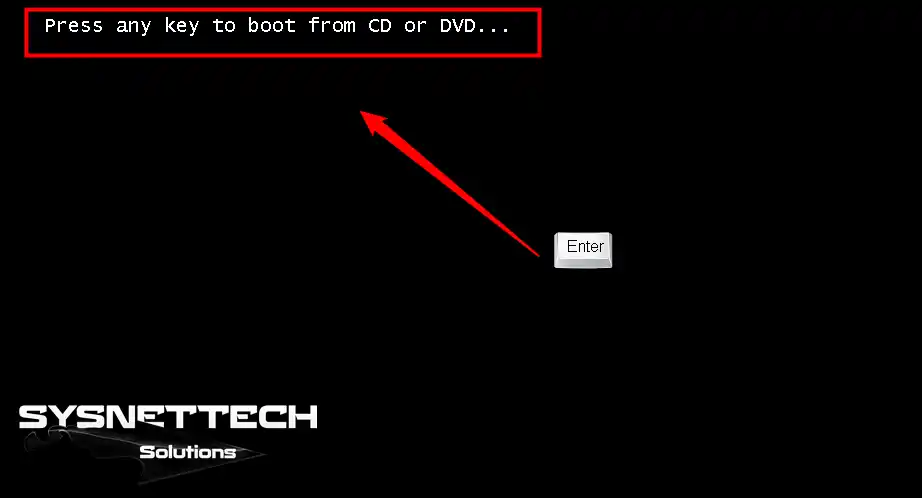
After you see the message below, press any key. This starts the installation.
Step 2
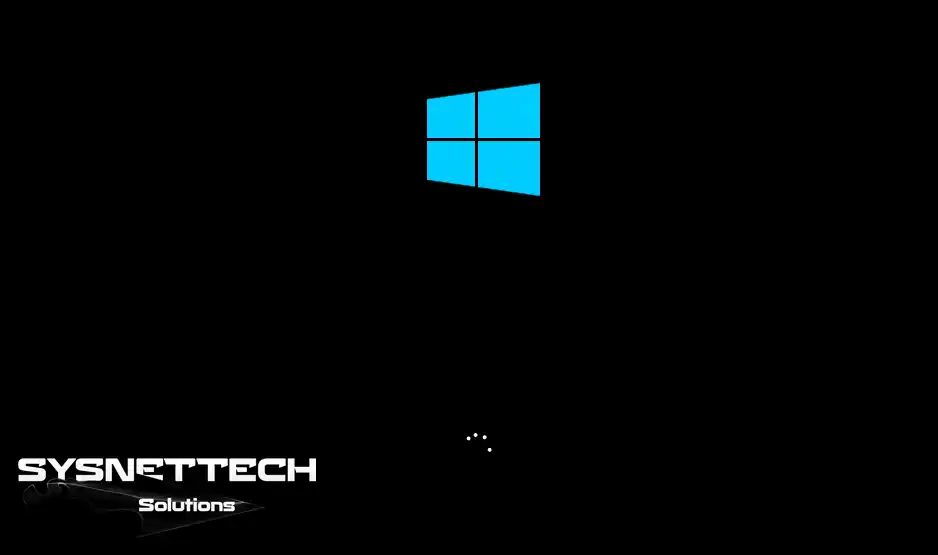
We are preparing the installation of Microsoft Windows 10.
Step 3
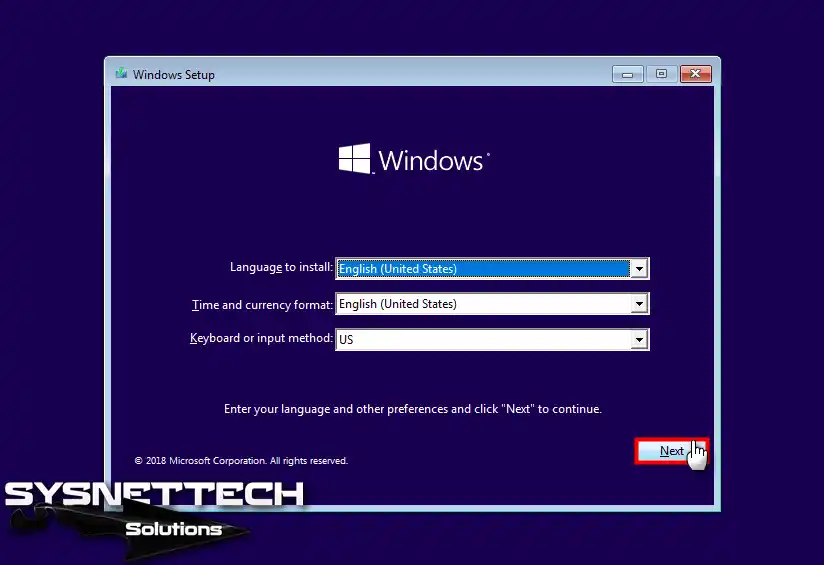
In the Windows Setup window, configure the language and time. Also set the currency and keyboard layout. Then click Next.
If you want a different language, configure it here. You can set your system language in this step.
Step 4
Click Install Now to start the system setup.

Step 5
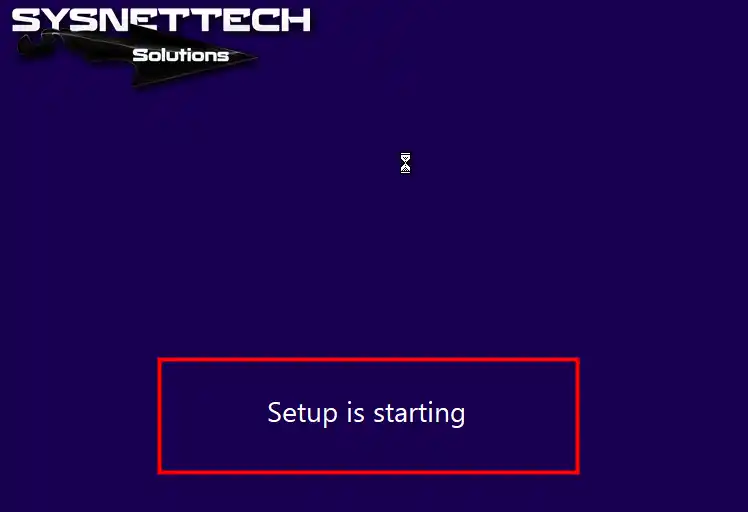
Wait while your computer starts Windows. Do not turn off your computer!
Windows Setup and Disk Configuration
Step 1
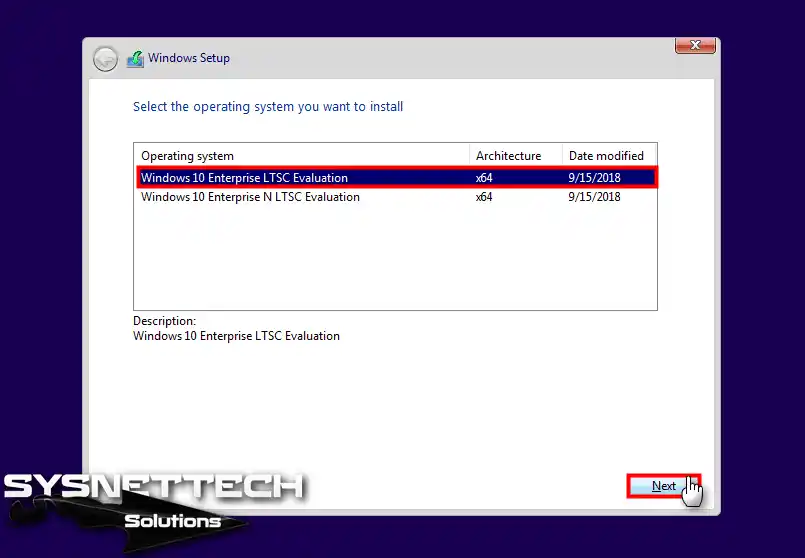
You will see the versions in the Select operating system window. Choose the version you want to install. In this article, we do not install Home or Pro versions. Therefore, the following window has no options.
Select the Enterprise LTSC version and click Next.
Step 2
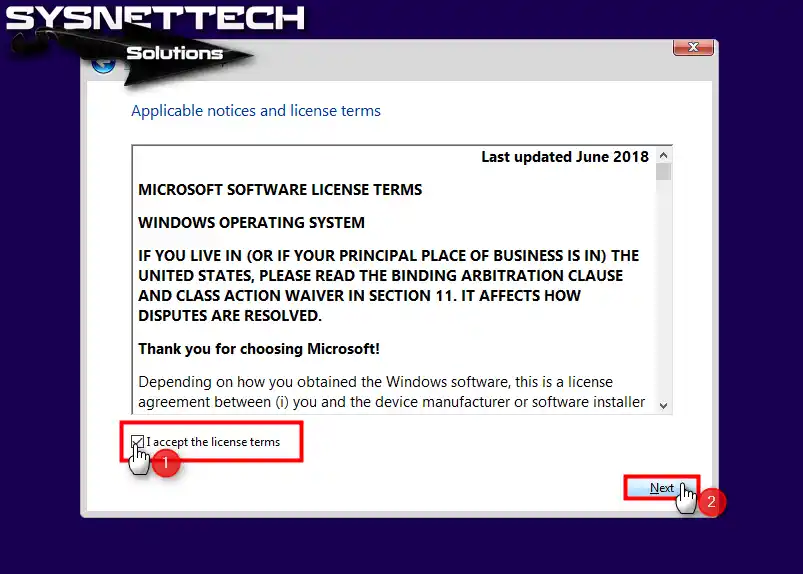
To accept the Win 10 license, select I accept the license terms. Then click Next.
Step 3
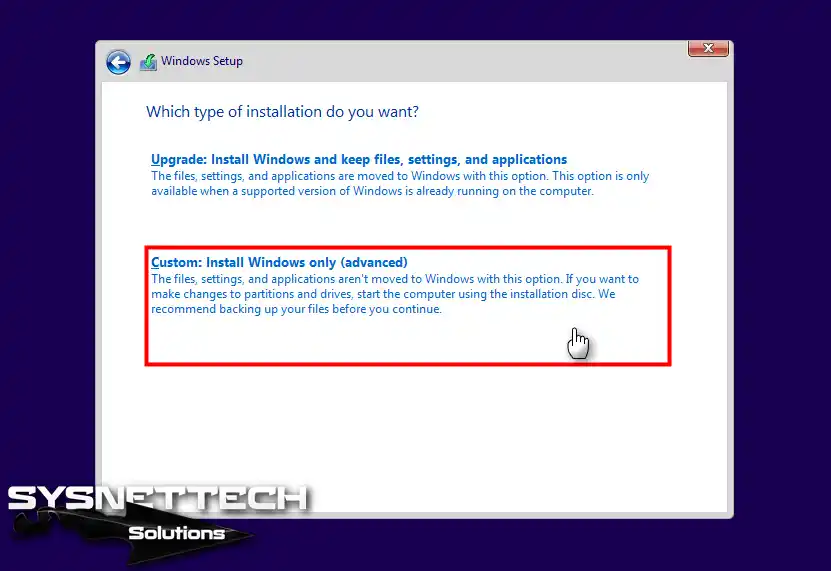
If you use Windows 7, 8, or 8.1, you can install Windows. You can choose a clean install or an upgrade.
To install a clean Win 10, click Custom: Install Windows only (advanced).
Step 4
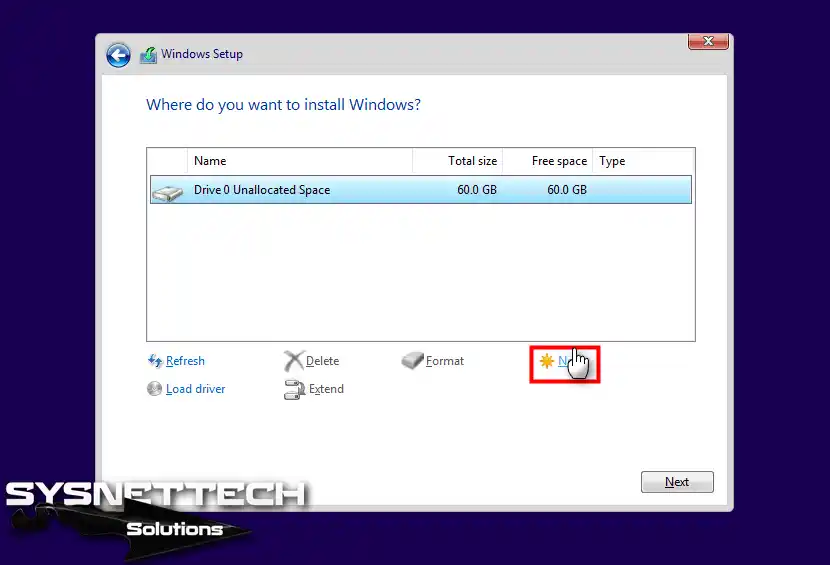
You will see your hard disk or SSD in your computer. To configure the disk you want, click on it and then click New.
Step 5
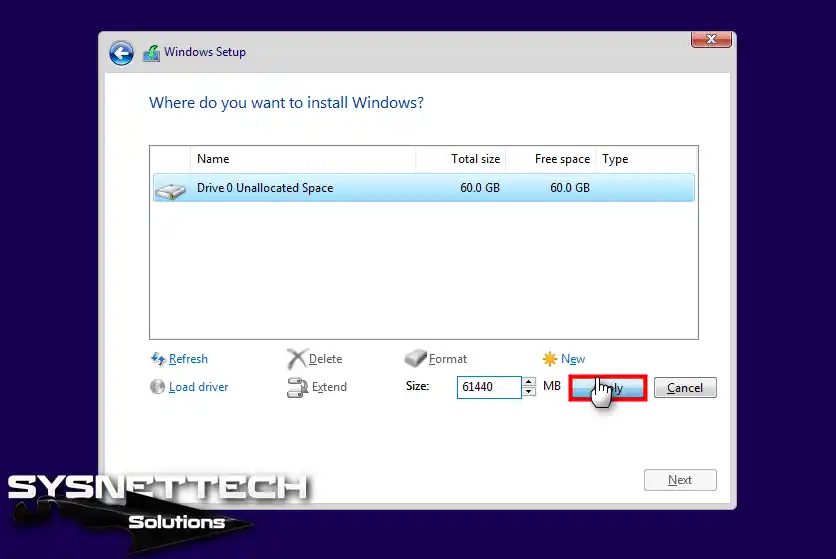
If you want to use the entire disk, click Apply. Do not change the Size section. If you do not want all disk space, type a smaller size in Size. Then create a new partition.
Step 6
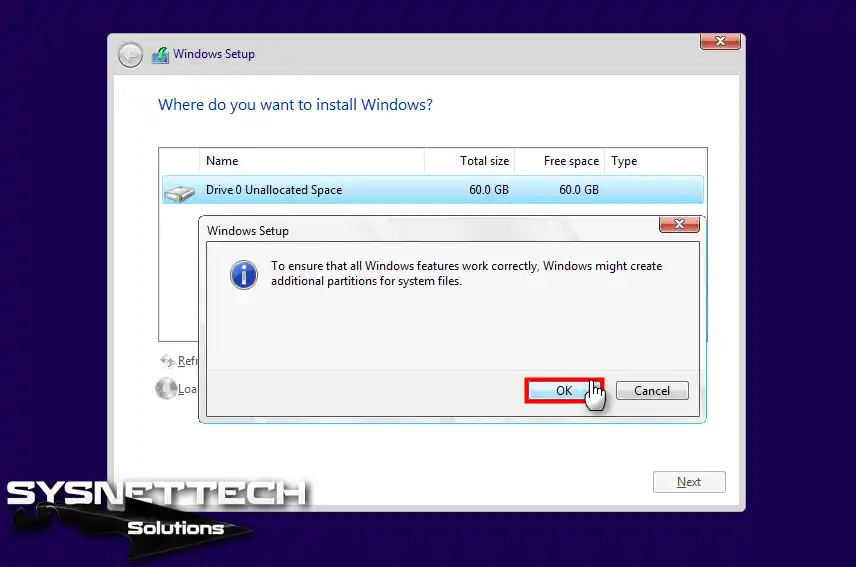
Click OK in the “to ensure that all Windows features work correctly” window.
Step 7
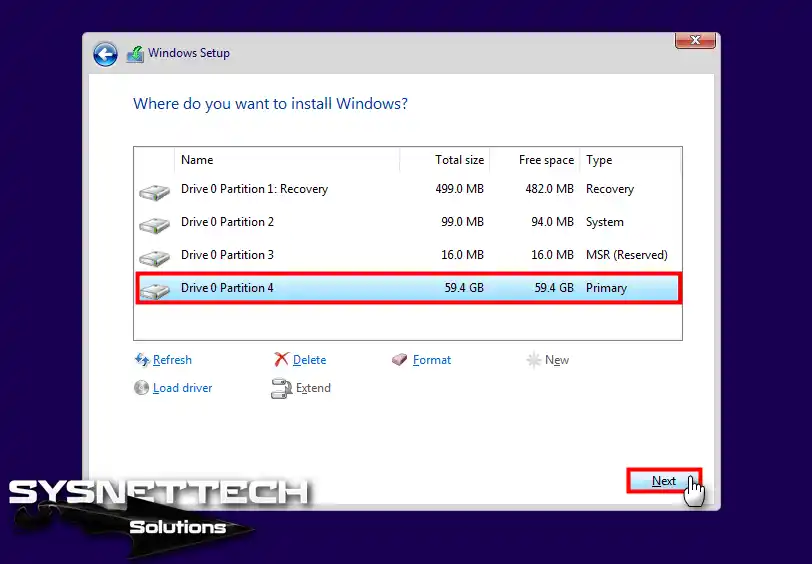
After you click OK, you create partitions on your hard drive. These partitions support Windows UEFI setup.
Step 8
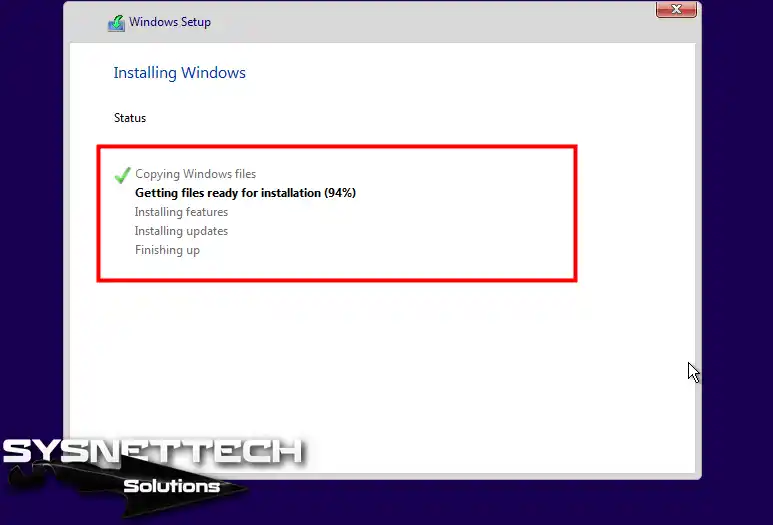
We are preparing files for the installation of Microsoft Windows.
Step 9
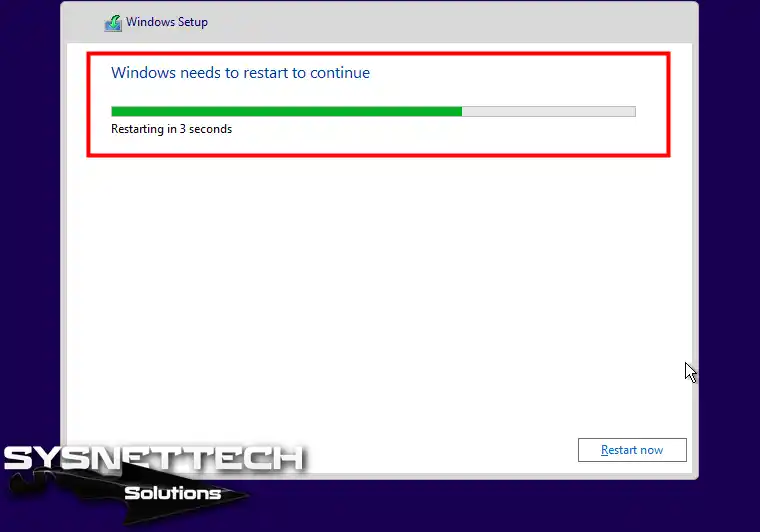
The setup wizard will reboot your system after copying the necessary files for Windows. If you do not want to wait, click Restart Now.
Regional Settings and Privacy Configuration
Step 1
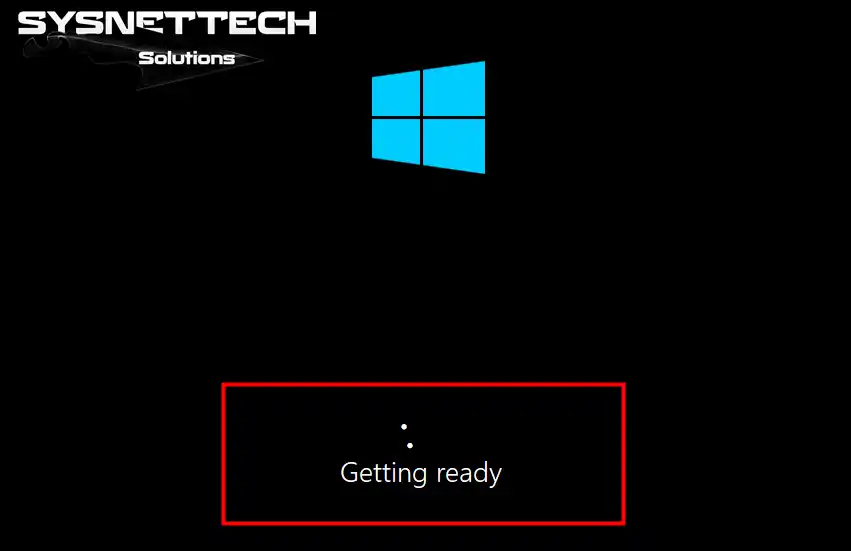
Preparing Microsoft Windows 10.
Step 2
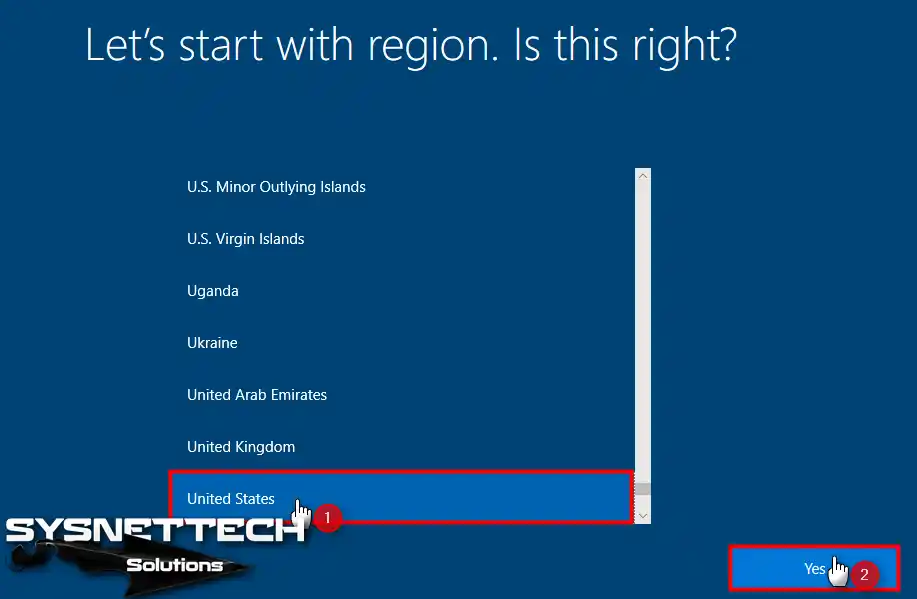
Select the location where you live and click Yes.
Step 3
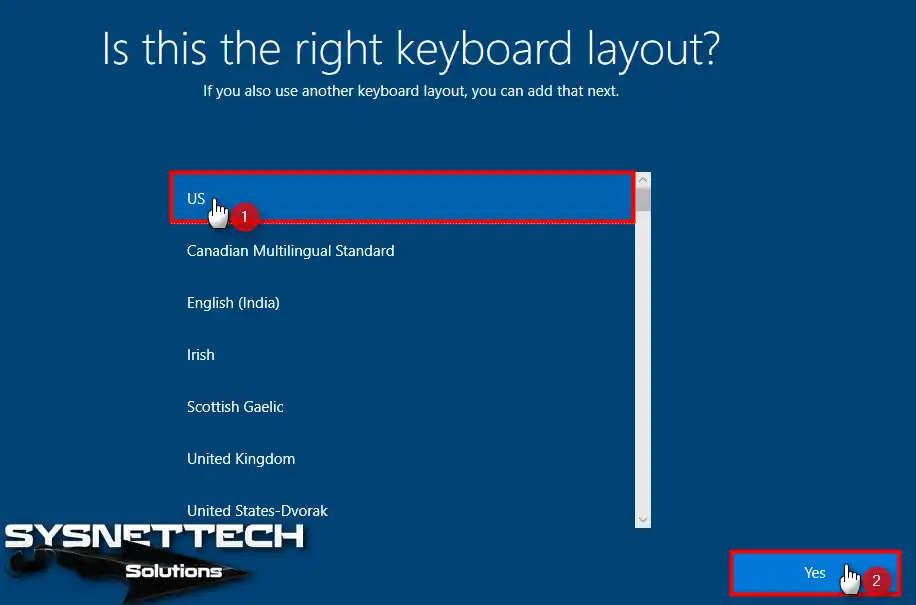
Select your keyboard layout and click Yes.
Step 4
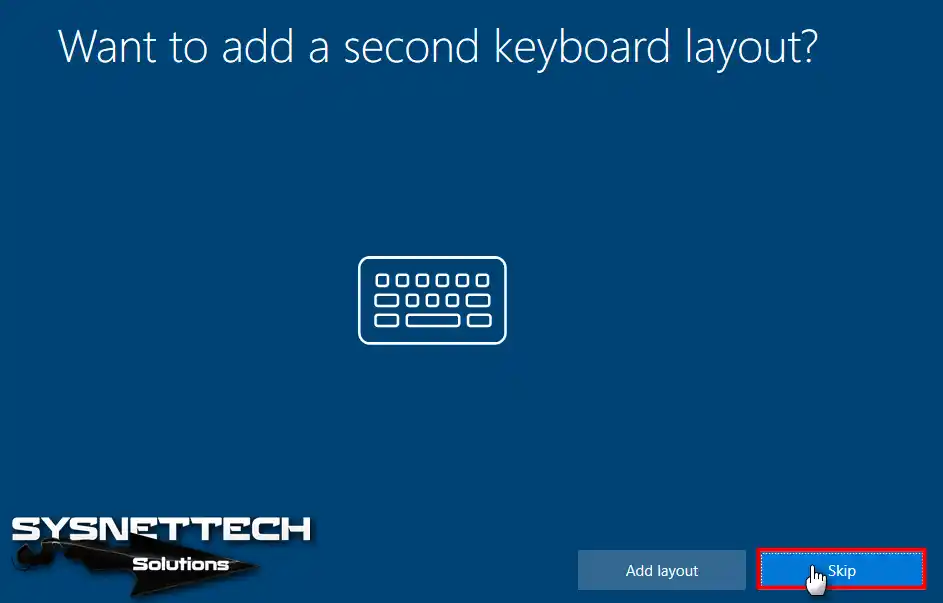
Click Skip in the “Want to add a second keyboard layout?” window.
Step 5
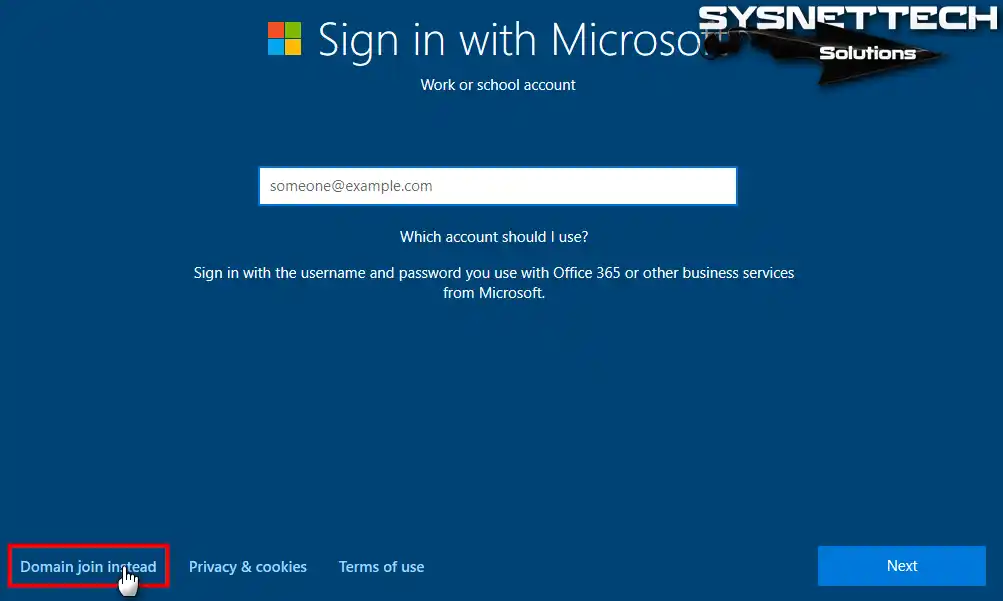
In this step, you can sign in to Microsoft. If you have a Microsoft account, sign in here. Or, if you want a local account, click Domain join instead.
Step 6
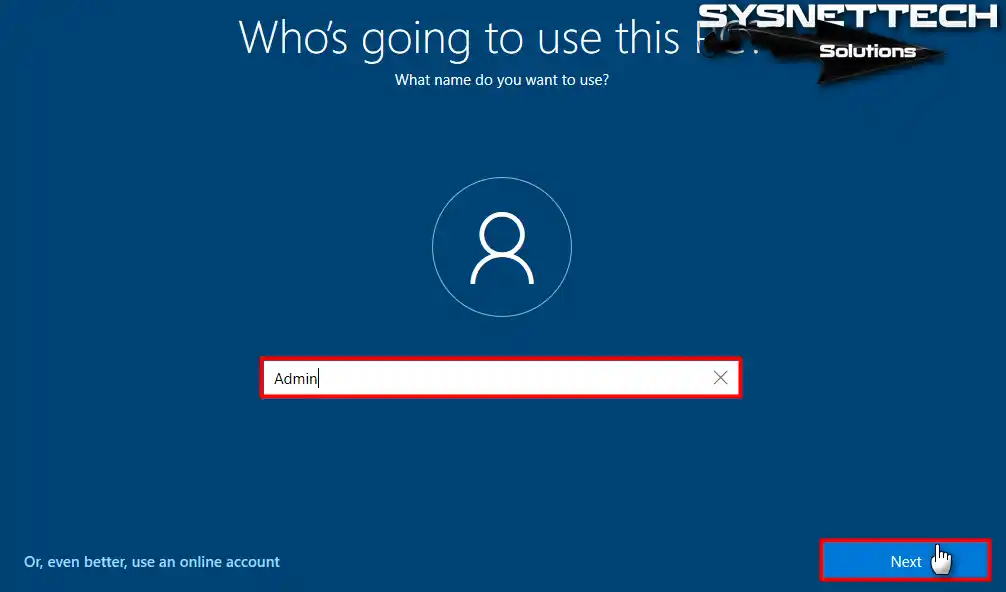
Type your Win10 user name and click Next.
Step 7
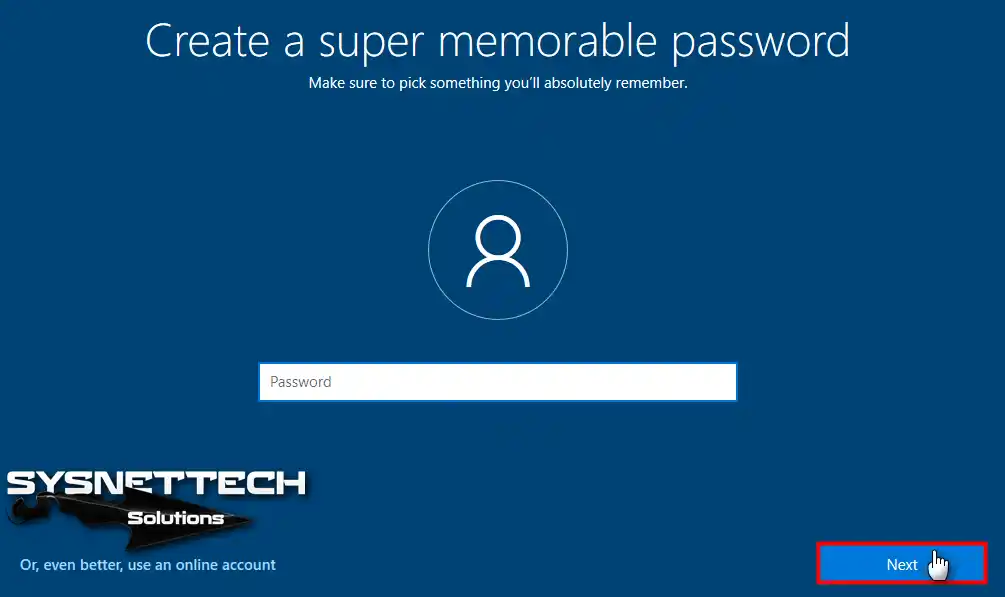
If you wish to set a password, enter it and click Next. If you do not want a password, leave the box blank. Then click Next.
Step 8
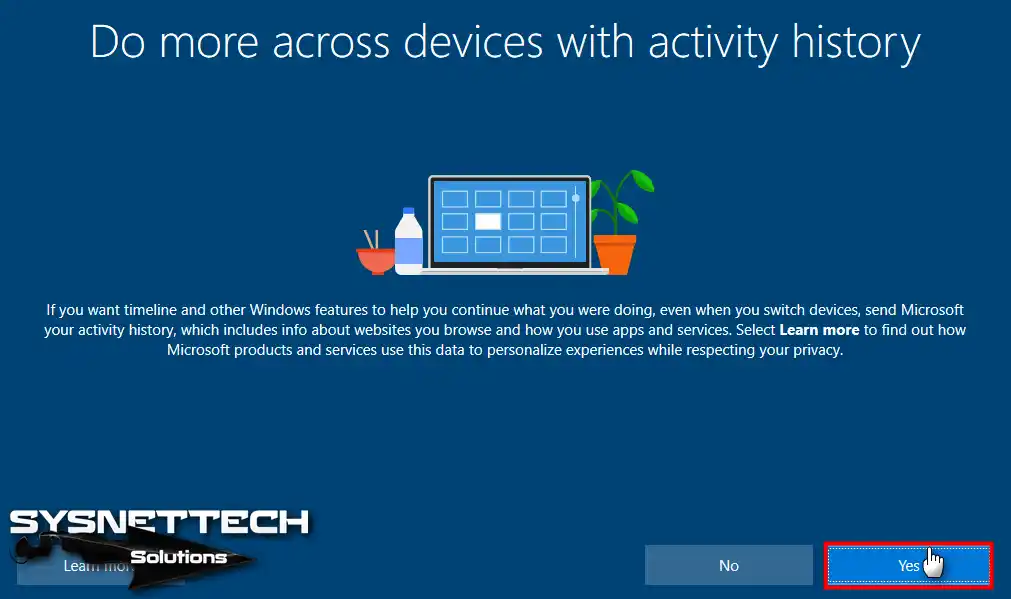
If you want to send your user data to Microsoft, click Yes.
Step 9
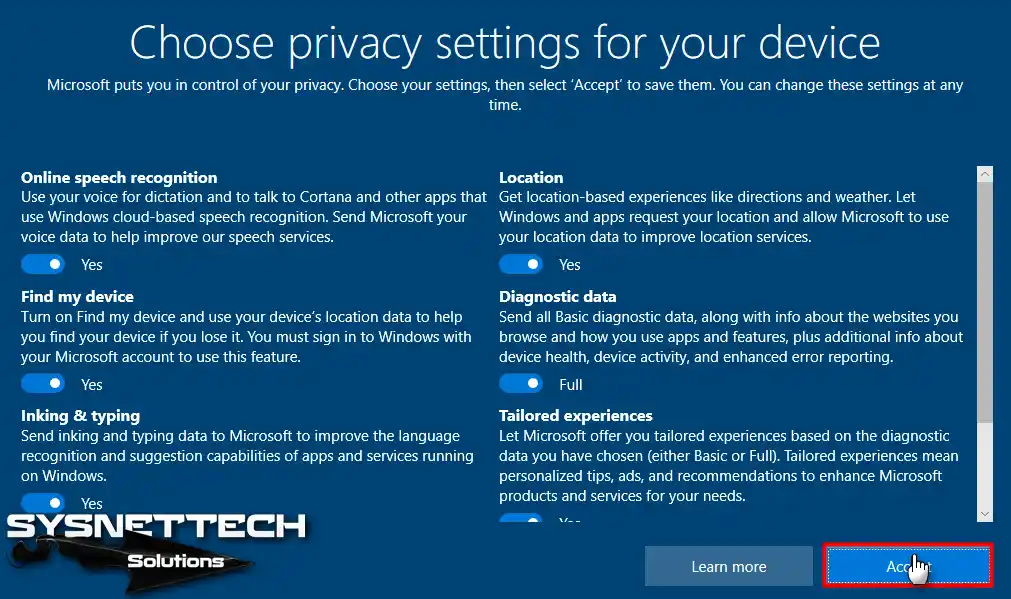
Read your computer’s privacy settings carefully. Then make a decision. After configuring the privacy settings, click Accept.
Finalizing Windows 10 Installation
Step 1
Preparing your Windows 10 desktop…

Step 2
You have completed the Windows 10 installation steps on a desktop/laptop! You can find your system features easily. Right-click This PC. Then click Properties.

Video
Frequently Asked Questions About Windows 10 Installation
Why should I prefer the LTSC edition? How is it different from normal Windows 10?
Can I download the LTSC ISO using the Media Creation Tool?
What is the difference between UEFI and Legacy? Which should I choose during installation?
During setup, I see extra partitions like ‘System Reserved’ and ‘MSR’. What are they? Should I delete them?
Should I use a Microsoft account or a local account? Which one is more advantageous?
Setup is complete, and now I see privacy settings. How should I configure them?
Conclusion
In this article, we discussed Windows 10 system requirements, versions, and build versions. Then, we prepared the installation media. We made a clean Windows 10 UEFI installation on a PC or laptop. Thanks for following us!

Be the first to share your comment