

Microsoft lets you easily download the Windows 10 operating system as an ISO file. To do this, use Microsoft’s Media Creation tool.
How to Get Windows 10 20H2 ISO 32/64 Bit File
The Windows 10 system you use can become unusable for any reason. If you cannot recover it, you need a clean install on your computer.
If you don’t have the ISO file, you need the Media Creation Tool (MCT). This tool downloads the original Windows ISO file from Microsoft.
You can download the ISO file to your computer via Microsoft MCT. Alternatively, burn it directly to a USB stick. This way, you create Windows installation media.
Also, the Media Creation Tool updates old operating systems to Windows 10 for free. For example, you can upgrade Windows 7, 8, and 8.1 to Windows 10.
If you are a system administrator, create a virtual machine with virtualization software. For example, use VMware or VirtualBox. Then, test your downloaded Windows 10 system without a license.
How to Use the Microsoft Media Creation Tool
The Media Creation Tool is straightforward to use. Microsoft designed this tool so anyone can use it easily. Now, follow the steps below in order.
Step 1
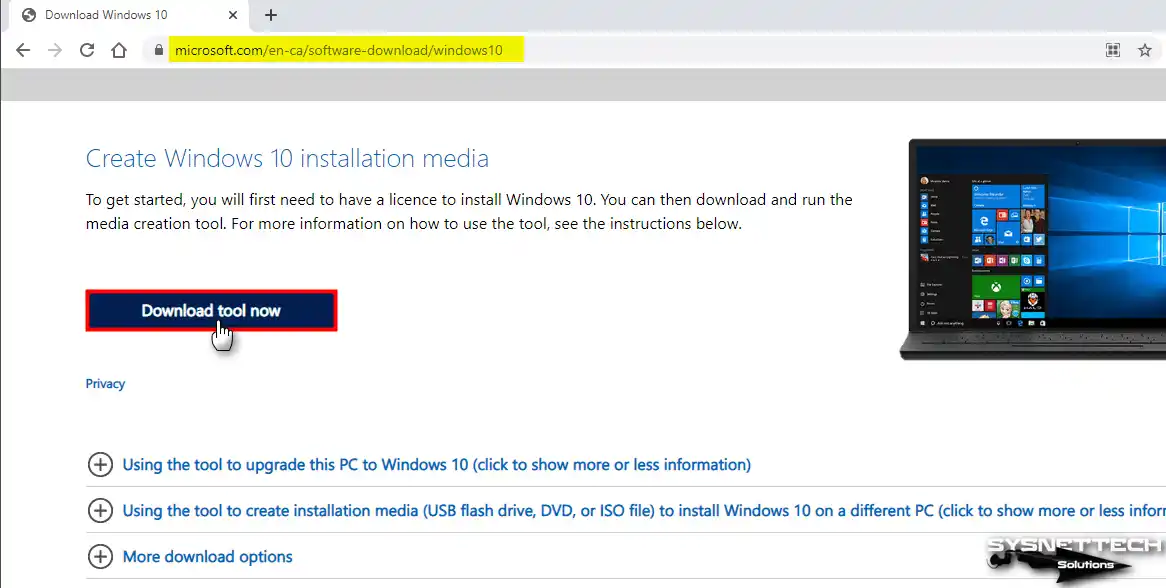
First of all, you need to download the original & official Windows 10 image file. The easiest way is the Media Creation Tool. This tool downloads the ISO directly to your PC.
Step 2
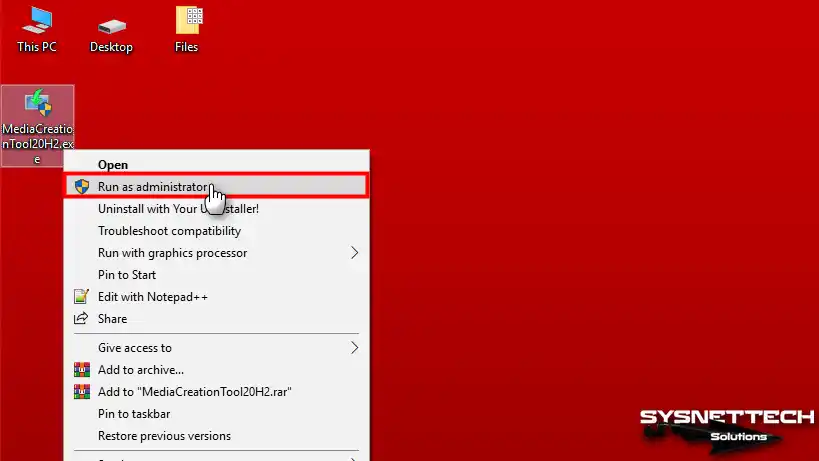
After you click the download tool button, the save file window opens. Next, select the location where you want to save the file. Then, click the Save button. After that, right-click the MediaCreationTool.exe file and select Run as Administrator.
Step 3
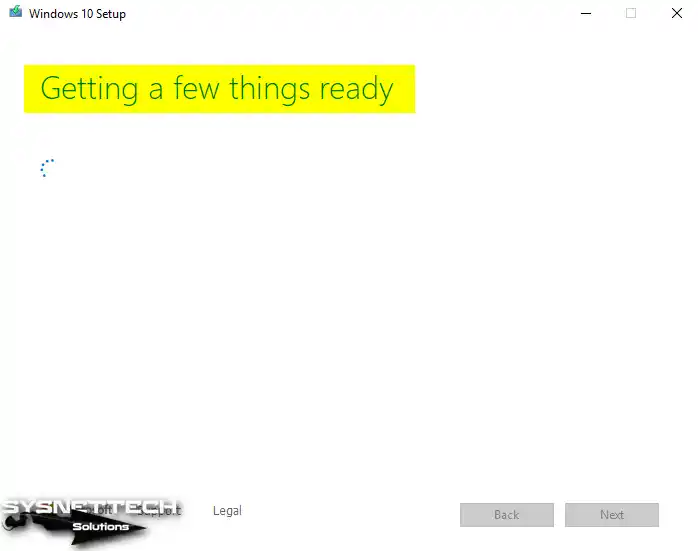
The Windows 10 Media Creation Tool is getting a few things ready.
Step 4
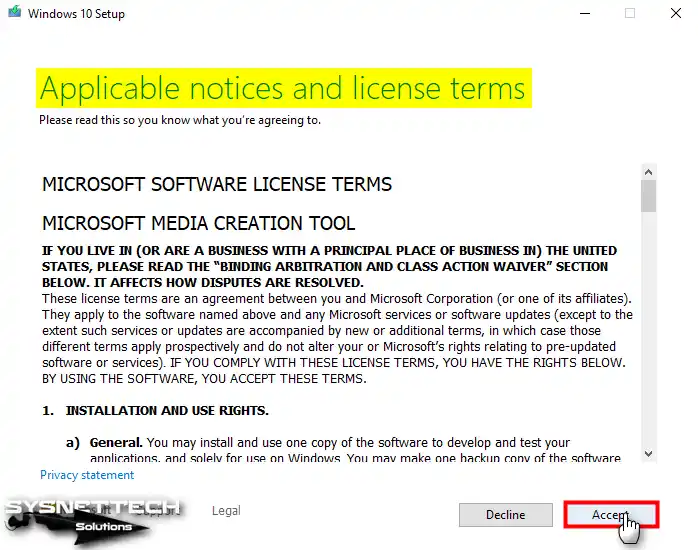
First, read the notice and license terms of the MCT tool. Then, click the Accept button.
Step 5
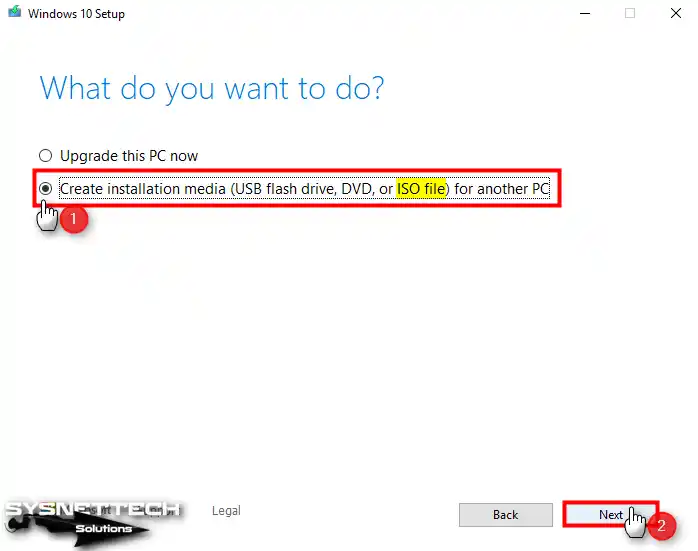
You will download the Windows 10 ISO file to your computer. Also, you will create installation media with Flash memory. Therefore, check Create installation media (USB flash drive, DVD, or ISO file) for another PC. Then, click the Next button.
Step 6
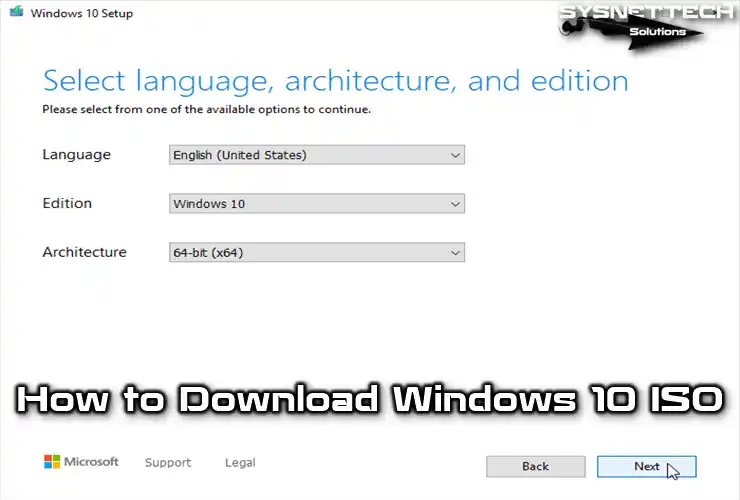
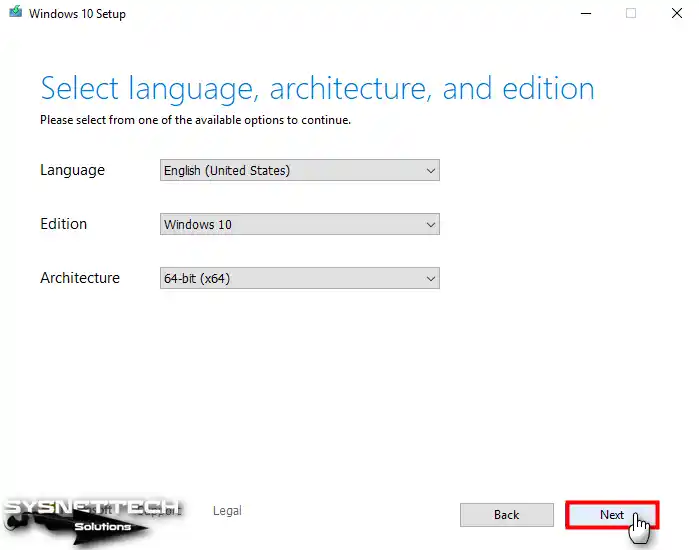
In this step, select the Windows 10 system type, language, and architecture. Then, click the Next button.
Downloading the Windows 10 ISO and Creating Installation Media
Step 1
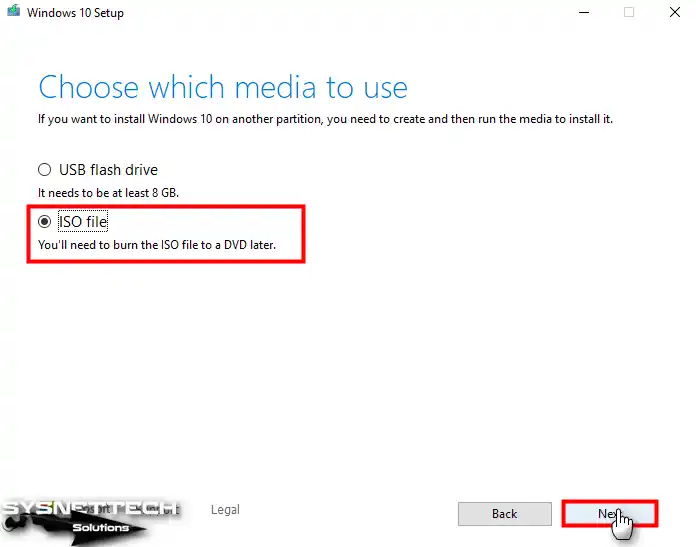
In this window, specify the type of media you want to use. To prepare installation media directly with a USB Flash Drive, select the option above. Also, your flash memory must hold at least 8 GB.
Our suggestion is to download the ISO file first. Then, burn it to a DVD or USB with the Rufus program. Finally, specify your media type and click the Next button.
Step 2
Select the location for the Microsoft operating system ISO setup file. Then, click the Save button.
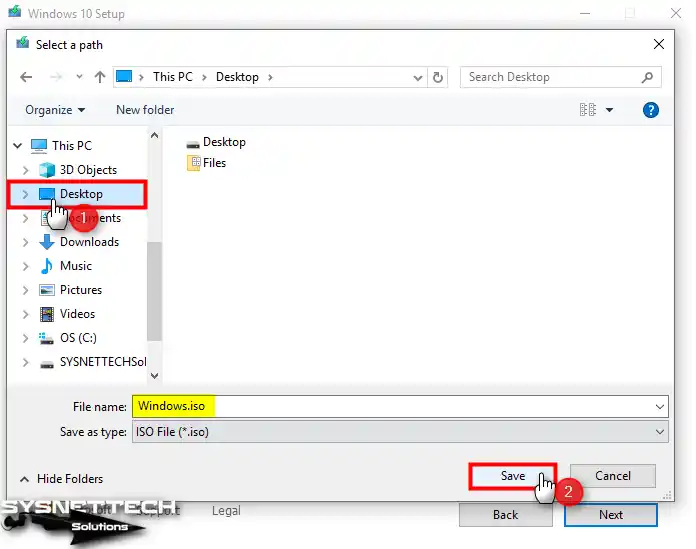
Step 3
The MCT tool is downloading the Windows ISO file from Microsoft.
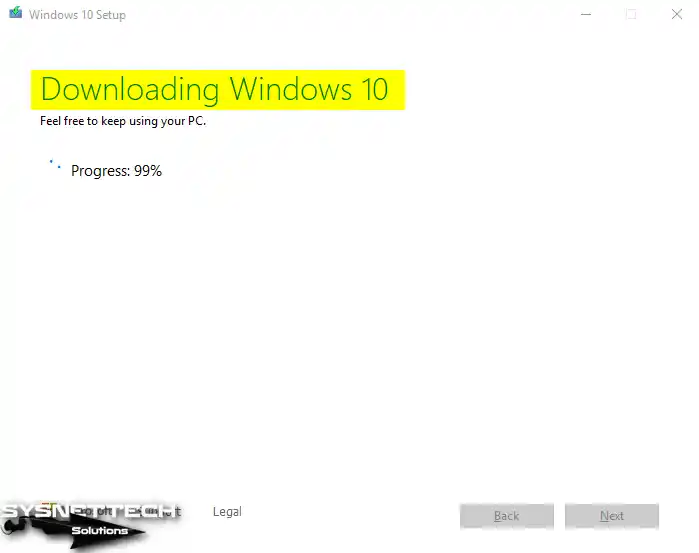
Step 4
MCT downloads the Windows 10 installation files first. Then, the tool creates the image file.
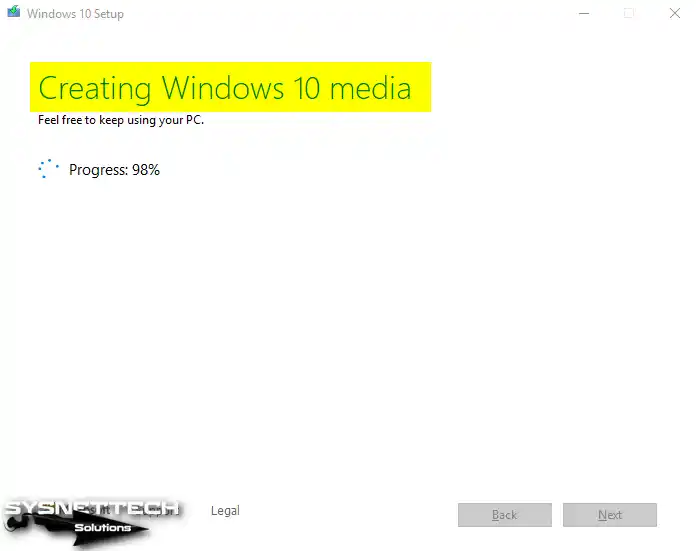
Step 5
The ISO file is now ready for use! From this step, you can burn the Windows 10 image file to a DVD. Alternatively, use the Rufus program to burn it to your Flash memory.
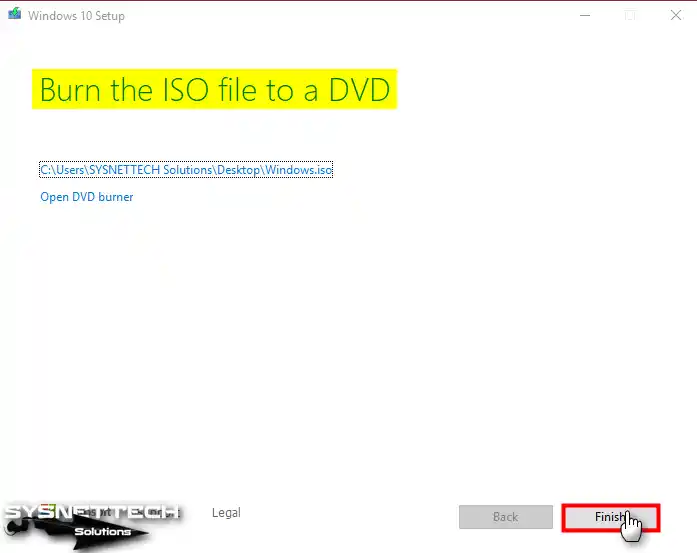
Step 6
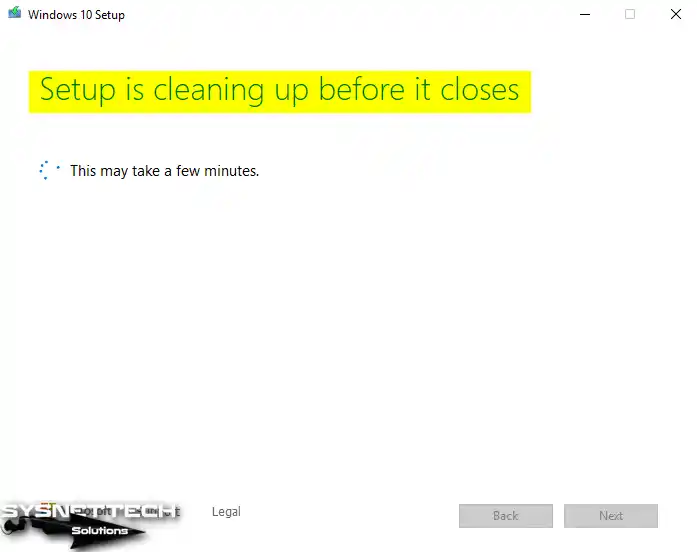
The media tool removes temporary files from your computer before closing. Therefore, please wait until this process finishes.
Step 7
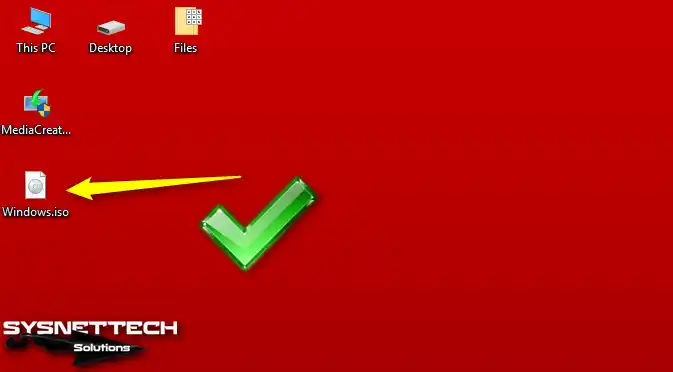
You can find the Windows.iso file in the location where you downloaded it. Also, you can rename this image file to avoid confusion.
How to Install a System with Windows ISO ⇒ Video
You can watch the Windows 10 Pro 64-bit installation on VMware Workstation. Also, subscribe to our YouTube channel.
Frequently Asked Questions About Windows Media
What is the Media Creation Tool for downloading ISO files, and what does it do?
Is it safe to download an ISO using Microsoft’s tool?
Can I do it directly through my browser?
Can I upgrade my old Windows version for free?
How many GB minimum do I need to create a Windows 10 installation media on a USB drive?
Is the ISO media free, and is a license required for installation?
Conclusion
Download this popular operating system from Microsoft and prepare your installation media. Then, you can install it on your PC. I would like to emphasize one point. Do not forget to activate your system after installing Windows 10!

Be the first to share your comment