

Win 10 1809 version reached users after October 2, 2018. Users know Win 10 1809 update as Redstone 5.
Download Windows 10 Enterprise 1809 ISO
You can download the ISO file as Evaluation or MSDN. The Evaluation version gives you a 90-day trial. MSDN gives you the full operating system.
After you install MSDN, buy a new license key. If you do not want to buy Windows 10, use the Evaluation version. It gives a 90-day trial.
How to Get Windows 10 1809 LTSC
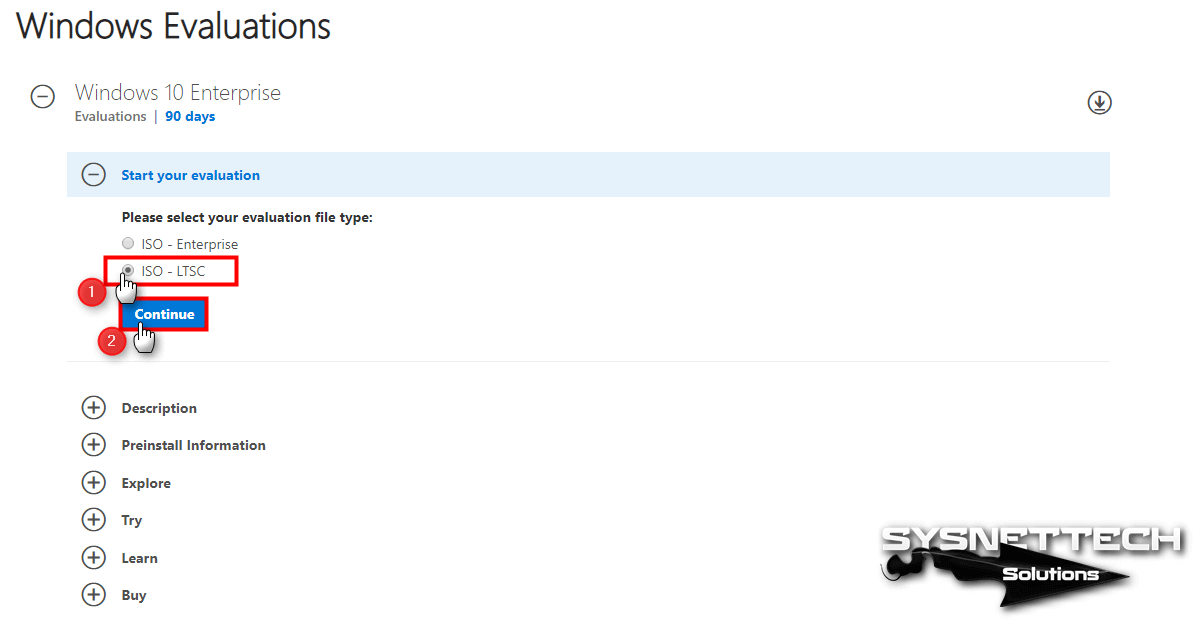
To download the LTSC ISO file, visit https://www.microsoft.com/en-us/evalcenter/evaluate-windows-10-enterprise in your browser. Then, you will see a screen like the image below. Next, select the LTSC version and click Continue.
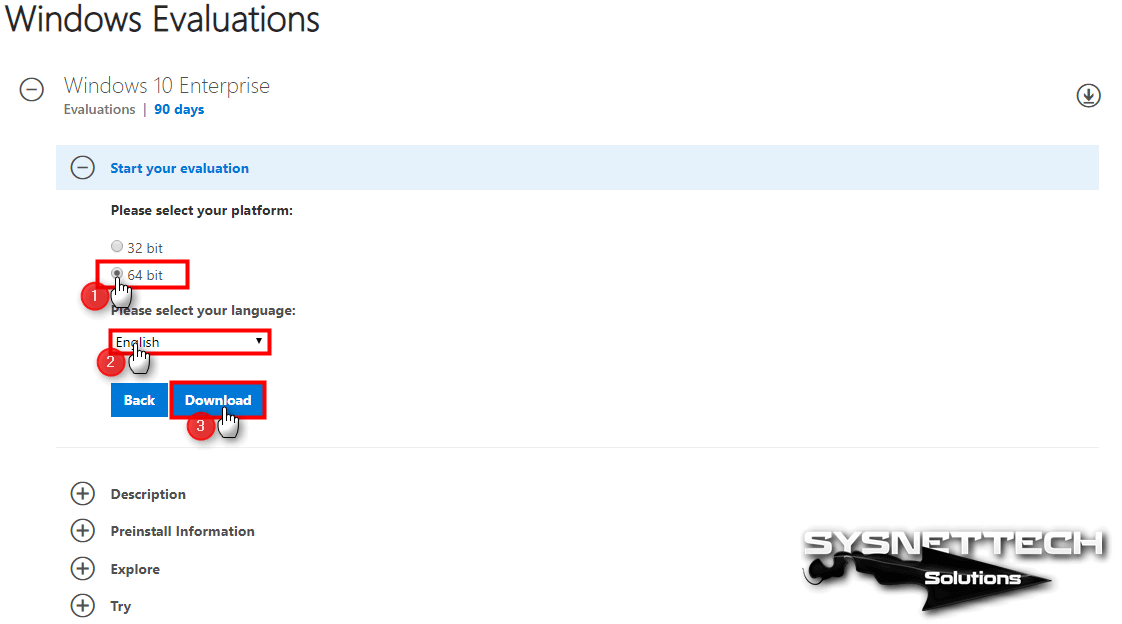
First, choose the operating system platform and language. Then, click the Download button. The LTSC version supports nine languages. You can use English, Chinese, French, German, Italian, Japanese, Korean, Portuguese, or Spanish.
Download and install Windows 10 Enterprise LTSC Evaluation ISO. Then, you can use it free for 90 days.
How to Download Windows 10 1809 Home/Pro Versions
After the October 10, 2018 update, you can download Home and Pro ISO files. Use Microsoft’s Media Creation Tool for this. You can also create a bootable flash drive with this tool.
Download the Media Creation Tool from https://www.microsoft.com/en-us/software-download/windows10. Then, choose Windows 10 1809 Pro or Home. Save the ISO file to your computer.
Also, don’t forget to check out our guide. It is How to Use Media Creation Tool to Download Windows 10!
Windows 10 1809 LTSC 2019
You can download MSDN ISO files for 32-bit and 64-bit platforms. Click the buttons below. They save the files to your computer.
After you install Win 10 Build 17763.107, download the KB4467708 update. Find it in the Microsoft Update Catalog. Then, install the update. It upgrades your system to OS Build 17763.134.
How is LTSC Licensed?
Use the slmgr.vbs /rearm command. It extends Windows 10 LTSC 2019 evaluation time. You can do this three times. Then, use your evaluation version for 4 × 90 = 360 days!
Slmgr.vbs /rearmHow to Fix Windows 10 LTSB/LTSC Auto Shutdown/Reboot Problem
LTSB and LTSC versions are performance systems. But they can shut down or restart automatically. The main reason is the Evaluation license. You see this term when you download image files from Microsoft.
You downloaded your preferred version from Microsoft. After that, you did a clean installation. If you see an auto shutdown issue, follow these steps:
- Open Regedit.
- Click “HKEY_LOCAL_MACHINE\SYSTEM\CurrentControlSet\Services\sppsvc.”
- In Sppsvc folder, right-click the “Start” value. Choose Modify.
- Replace the default value of 4 with 2. (Value Data: 2)
- Restart your computer. Then, check if the problem disappears.
Video Tutorial
Watch the video below. It shows Windows 10 LTSC installation with VMware. Also, subscribe to our YouTube channel. This supports us!
Frequently Asked Questions About the LTSC Edition
What is the difference between the Evaluation and MSDN versions of Windows 10 1809 LTSC?
How can I extend the 90-day trial period?
I am experiencing automatic shutdown issues with the LTSC edition. What should I do?
The build number of the LTSC version I downloaded is 17763.107. How can I update it?
Conclusion
We shared the latest Windows 10 version: 1809. Its OS Build is 17763.107. Thanks for following us!

5 People Shared Their Experience
link broken for x64 version
Thanks for your feedback.
can you pls share windows 10 ltsc 1809 build 17763.1 please
Hello! I need to download te ISO Windows 10 Enterprise LTSC version 1089, however the given link is unavailable. I have the license and I need to do a new installation. Would it be possible to help me? Thanks.
Hello! Thank you for reaching out. 😊 I’ve updated the download link for the Windows 10 Enterprise LTSC version 1089. You can now access it directly from the article. If you have any issues or need further assistance during the installation process, feel free to let me know. Good luck with your setup!