

Think of a computer’s most critical parts. You likely picture the processor chip or RAM (memory). Yet you often overlook the true hero. It stores your whole digital life, memories, and projects. That is where the Hard Disk Drive (HDD) steps in.
I have built storage setups for hundreds of systems. In reality, HDD tech still stands tall. Even in the cloud era, hard disk solutions form the backbone of data centers.
This article is no dull definition page. I bring you real field experience, test results, and practical tips to help you decide. Additionally, I cover current tech and price-performance trends as of 2026.
Whether you are a home user or an IT manager, picking the right storage involves more detail than you think. Let’s begin.
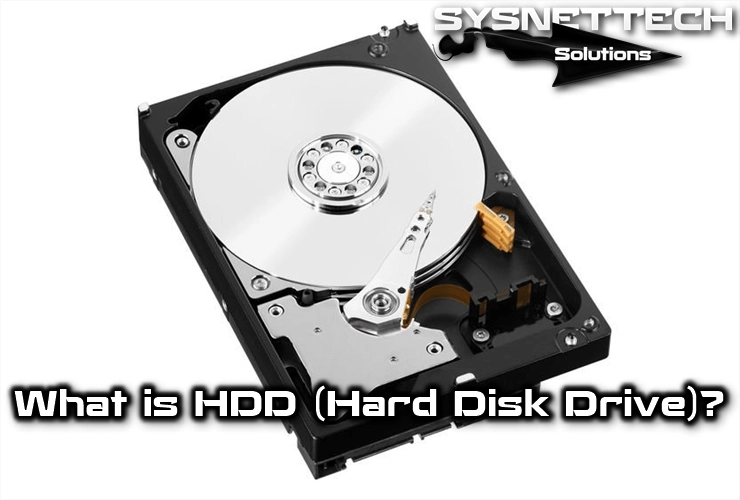
What Is a Hard Disk (HDD)? – Full Definition and Modern Role
A hard disk is an electromechanical unit that stores your data forever. It works thanks to spinning platters and a fine read/write head. Even if you cut power, all information stays right there.
In today’s computer design, HDD forms the secondary storage layer. The CPU and RAM are volatile; they process data now. But this magnetic medium handles all your permanent storage needs. Your OS, photo archive, and everything else live here.
A modern system cannot boot without this hardware part because it acts as the boot drive. The BIOS firmware or UEFI on the motherboard loads the OS from this drive, so it is a vital link in the computer hardware chain.
Hard Disk, Fixed Disk, and HDD: Origin of Terms and Correct Usage
In the industry, we use three different terms for the same device. “Hard disk drive” is the full English name. Technical docs usually stick to that. Meanwhile, users simply say “hard disk” or “fixed disk.”
Why do we use “fixed”? Because you mount this magnetic storage device inside the computer case. Unlike portable floppy disks, it is for permanent installation. Though external models are common now, the name comes from that logic.
The acronym HDD comes straight from “Hard Disk Drive.” Among industry professionals, it is the most common technical term.
The Hard Disk’s Place and Importance in Data Storage Evolution
From punch cards to floppy disks, the hard disk sparked a true revolution. At first, it offered just a few megabytes. But its random data access set it apart from rivals. This allowed users to reach data directly, not sequentially.
In the 1990s, personal computers spread, and this electromechanical device entered every home. Capacities grew fast, and prices dropped. Moreover, read and write speeds improved greatly over the years. Today, a single 3.5-inch desktop form factor can hold up to 22 TB.
As you will see later, this device’s journey is far from over. Manufacturers are working on energy-assisted recording technologies like HAMR and MAMR.
Thanks to these new methods, 50 TB drives now appear on the horizon. That means magnetic recording technology will stay with us for many more years.
The Fascinating History of the Hard Disk: From IBM RAMAC to Today
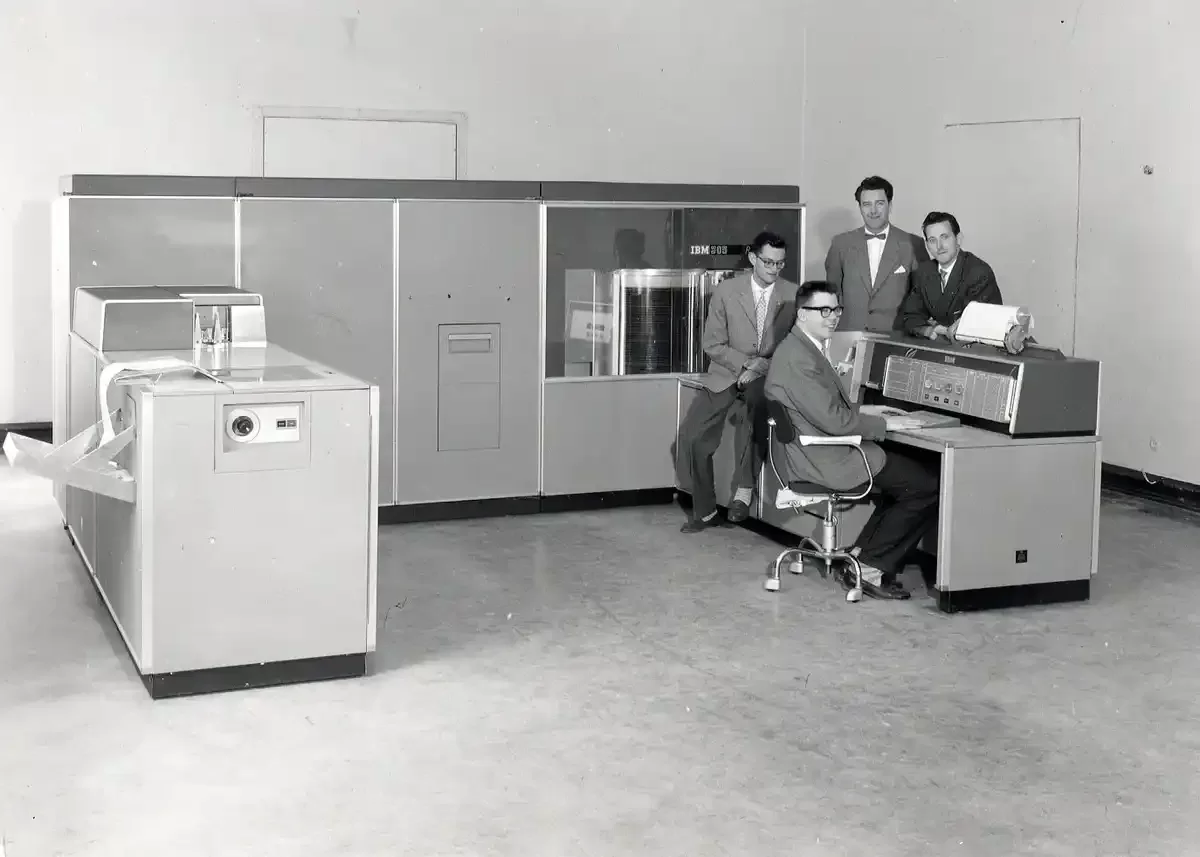
The hard disk story began in 1956 at an IBM lab in San Jose. That day, engineers did not just build a new storage unit. They also laid the foundation for the modern information age.
The first system was a true engineering marvel. However, by today’s standards, it was huge.
Imagine, we are talking about a machine the size of two refrigerators. Its total capacity was just 5 million characters, about 3.75 MB.
Today, a single smartphone carries a hundred thousand times more data in your pocket. Truly, that first step changed computing history forever.
In the nearly 70 years since, we have seen remarkable progress. Capacities have grown from megabytes to terabytes.
Physical sizes shrank from giant cabinets to a 2.5-inch laptop form factor. Below, I will detail the turning points of this journey.
Who Invented the HDD? IBM 350 RAMAC and Its Engineering Legacy
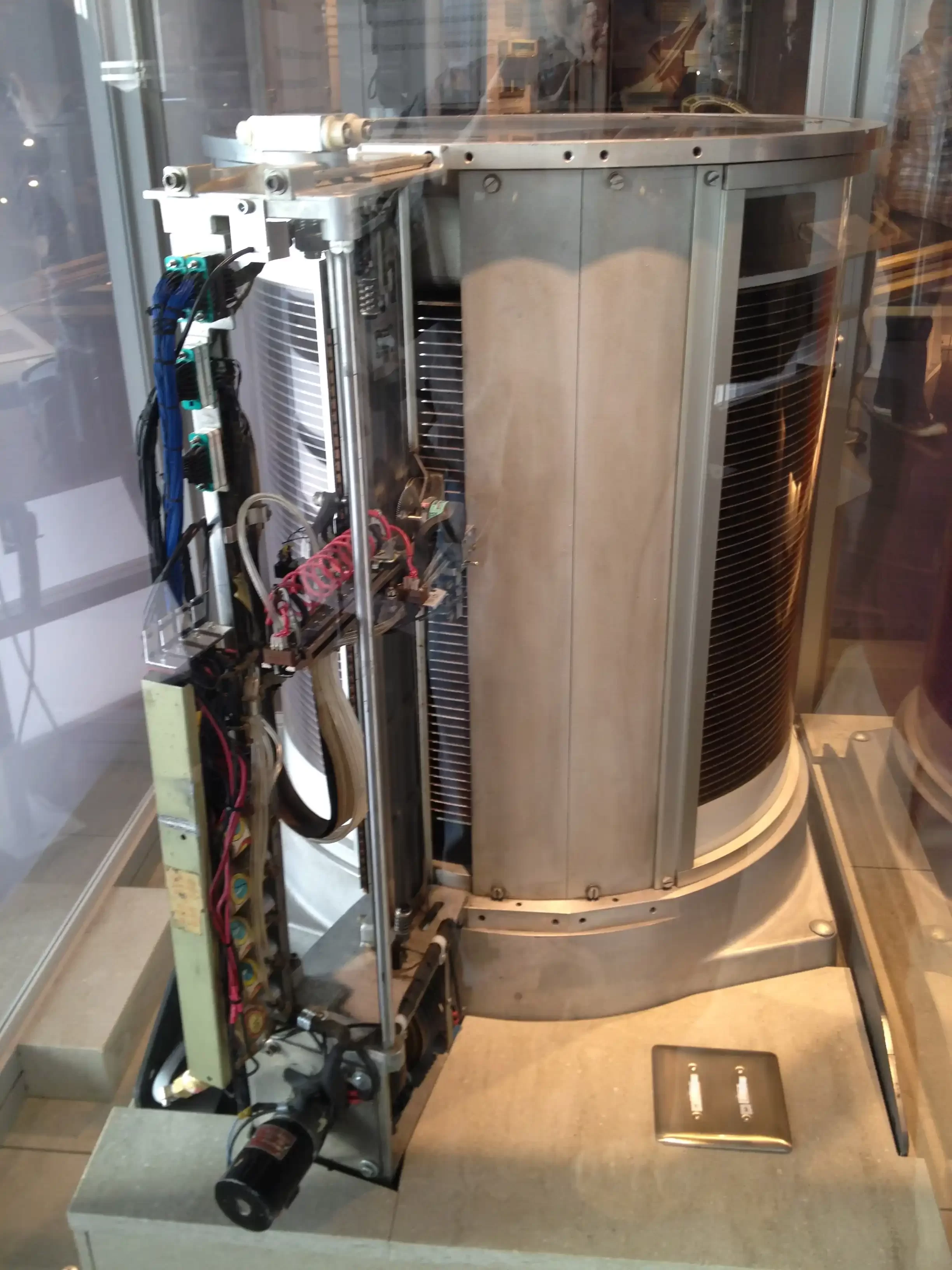
A team led by Reynold B. Johnson developed this legendary machine, the IBM 350 RAMAC. The team had earlier worked on punch card technology. Johnson’s genius was mixing the magnetic remnant idea with spinning platters. That made random data access possible.
The name RAMAC stands for “Random Access Method of Accounting and Control.” This name summed up the machine’s core innovation. With earlier tape-based systems, you read data in sequence. But this new electromechanical device could reach any record in seconds.
The system had exactly 50 aluminum platters, each 24 inches across. These spinning platter surfaces had an iron oxide coat. Two read/write heads moved between platters via a pneumatic system. It spun at 1200 RPM. Additionally, the data transfer rate was just 8,800 characters per second.
This engineering heritage is the ancestor of all today’s hard disk drives. Even the servo data and head placement method we use now relies on the same core ideas.
IBM 350 RAMAC sits in the Computer History Museum in Silicon Valley. Moreover, people can see this key machine up close today.
Milestones in Hard Disk History: The Journey from MB to TB
1980 marked a turning point with Seagate releasing the ST-506 model. This 5.25-inch model offered a full 5 MB.
Additionally, it became the first affordable storage device for personal computers. Its price was about $1,500.
| Year | Model | Capacity | Key Innovation |
|---|---|---|---|
| 1956 | IBM 350 RAMAC | 3.75 MB | First hard disk drive |
| 1980 | Seagate ST-506 | 5 MB | First PC-compatible HDD |
| 1997 | IBM Deskstar 16GP | 16.8 GB | Transition to PMR technology |
| 2007 | Hitachi Deskstar 7K1000 | 1 TB | First 1 TB hard disk |
| 2013 | HGST Ultrastar He6 | 6 TB | First helium-filled HDD |
| 2023 | Seagate IronWolf Pro | 22 TB | Last PMR before HAMR |
| 2026 | Seagate Exos Mozaic 3+ | 32 TB | HAMR technology commercial |
1997 saw a revolutionary IBM breakthrough. Researchers announced perpendicular magnetic recording. This let data density increase significantly. The era of longitudinal magnetic recording was slowly ending.
The 2000s brought a capacity boom. We broke the 1 TB mark in 2007. Shortly after, we hit 3 TB, 6 TB, and finally 20 TB levels in the 2020s. Helium-filled drive technology played a significant role in that.
How a Hard Disk Works: A Deep Look at Mechanics and Magnetism
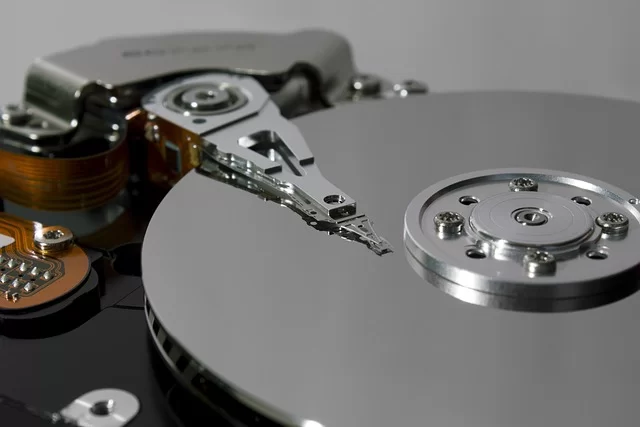
To grasp how a hard disk works, we first need to talk about basic physics. We use magnetism. Tiny magnetic fields on the platter surface stand for data bits. The read/write head senses and changes these fields.
Magnetic recording technology is an elegant engineering feat. Think of a head that works at nanometer precision over a spinning platter.
Additionally, this head repositions hundreds of times a second. All the while, data must stay intact.
Magnetic Platters and the Physics of Data Recording
The platter forms the heart of a hard disk. Manufacturers usually coat an aluminum or glass base with a thin magnetic layer. Billions of tiny magnetic regions sit on this layer. Also, each region stands for one data bit.
Coercivity is a key factor in platter quality. High coercivity cuts the risk of magnetic field decay. It also gives a more stable recording medium. Additionally, modern platters use cobalt-based alloys.
During data writing, the read/write head creates a strong electromagnetic field. This field magnetizes the target spot on the platter surface.
That magnetization direction represents a “0” or “1” bit. The hysteresis loop makes this state permanent.
Data on a platter is arranged in tracks, sectors, and cylinders. So, the table below shows this layered structure clearly.
| Structure Unit | Definition | Function |
|---|---|---|
| Platter | Magnetic-coated circular disk | Stores data magnetically |
| Track | Concentric rings | Sets the circular spot of data |
| Sector | Slice on a track | Smallest addressable unit |
| Cylinder | Vertically aligned tracks | Speeds up access in multi-platter HDDs |
| Cluster | Group of several sectors | Smallest file system unit |
The Nanometer Dance of the Read/Write Head and Actuator Arm
The read/write head is perhaps the most vital part of the whole system. It flies just a few nanometers above the platter surface. This fly height is a thousand times thinner than a human hair. Moreover, this fine gap must stay constant as the platter spins.
A voice coil motor moves the actuator arm. It works much like a speaker diaphragm mechanism. Current through a coil in a magnetic field shifts its position. That allows the head to reach the right track on the platter in nanoseconds.
The rotary actuator design is the most common layout today. The arm swings around a pivot point in a curved path.
A servo tracking system keeps the head exactly on the target track. Pre-written servo information on the platter makes this positioning possible.
Head crash is the HDD’s worst nightmare. Any shock or vibration can cause the head to touch the platter.
If that happens, both head and platter suffer physical harm. Fixing that damage is very difficult, even in a data recovery lab.
Spindle Motor, RPM, and Its Real Impact on Access Times
The spindle motor spins the platters at a steady speed. We measure rotation speed in RPM. Common values are 5400 RPM and 7200 RPM. Enterprise-class drives can reach 10,000 or 15,000 RPM.
The RPM directly affects access time and data transfer rate. A faster spinning platter brings the target sector under the head sooner. We call this rotational delay.
The table below shows the real impact of different RPM values.
| RPM Value | Average Latency | Typical Use | Power Use |
|---|---|---|---|
| 5400 RPM | ~5.5 ms | Laptop, external HDD | Low |
| 7200 RPM | ~4.16 ms | Desktop, gamer | Medium |
| 10000 RPM | ~3.0 ms | Server, workstation | High |
| 15000 RPM | ~2.0 ms | Enterprise SAS | Very high |
The 5400 RPM vs. 7200 RPM dilemma matters mostly to laptop users. 7200 RPM gives more speed, but it uses more power and creates more heat.
5400 RPM runs quieter and uses less energy. I always suggest 7200 RPM for desktop systems.
Hard Disk Basic Hardware Components & Their Roles
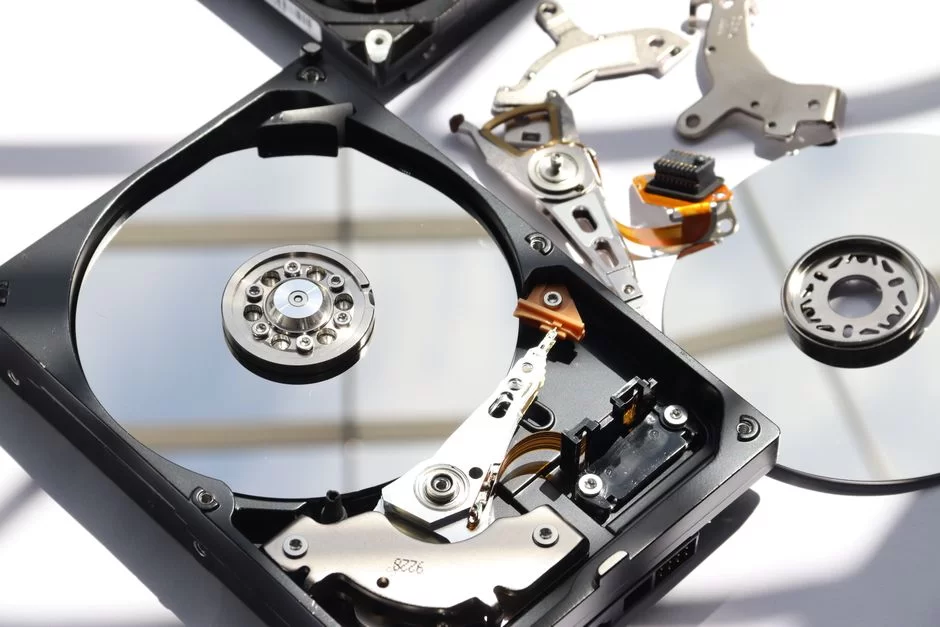
So far, we have examined the mechanical parts in detail. Yet a hard disk is more than platters and a motor.
The electronic control circuits are just as important as the mechanical parts. Without them, the magnetic storage device becomes a metal brick.
The control board holds a processor, memory chips, and motor drivers. Additionally, interface circuits for communicating with the host computer sit there. Firmware manages all these electronic parts. In short, firmware acts like the drive’s brain.
Below, I will break these electronic parts into two main groups. First, the control board, cache, and firmware that make up the internal structure. Then, the connection interfaces that communicate with the outside world.
Internal Structure: Control Board, Cache, and Firmware
The control board is the green printed circuit on the bottom of the drive. It holds a microcontroller, DRAM cache chip, and motor control circuits.
The disk controller decodes commands from the host computer. It also finely controls the read/write head and spindle motor.
Cache memory is a key part that directly affects performance. Manufacturers usually install between 64 MB and 512 MB of DRAM. They keep frequently used data in this fast memory.
That reduces slowdowns caused by mechanical delays. It works much like a CPU cache.
Write caching greatly boosts write speed. The system stores incoming write commands in the cache first. When the drive is idle, it writes this data to the platter in order. However, a sudden power loss can wipe cached data.
Firmware is the embedded software that runs all HDD hardware. It handles error correction code routines and bad sector mapping tables.
Moreover, S.M.A.R.T. monitoring technology also falls under its control. You can boost drive speed and stability with a firmware update.
Connection Interfaces: SATA, SAS, IDE, and Converters
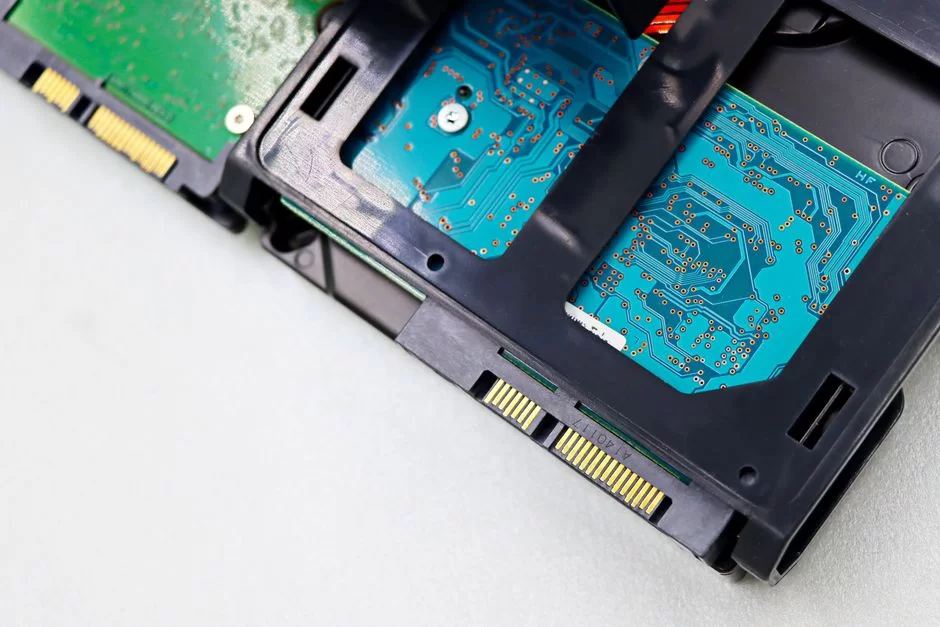
Today, SATA is the most common interface in the consumer market. SATA 3 has a theoretical speed of 6 Gbps. This speed is more than enough for most mechanical hard disks because the drive’s internal transfer rate is already around 200-250 MB/s.
We use the SAS interface for enterprise-class drives. Its dual-port design offers a redundant link. Additionally, it supports longer cable runs. Thus, SAS dominates data center storage setups.
IDE, also called PATA, is now obsolete. The IDE port and wide ribbon cables were standard until the early 2000s. Today, you only see this interface in retro systems or old industrial equipment.
Key Differences Between HDD and SSD: A 2026 Comparison
This comparison is perhaps what users wonder about most. I have tested both technologies for years. Honestly, each offers the best solution for different use cases. What matters is to correctly assess your needs.
No one can deny the lightning speed of SSDs. Yet they still lag far behind mechanical hard disk technology in cost per gigabyte.
As of 2026, the gap has shrunk but not closed. For that reason, both technologies continue to coexist.
Now, I will first compare these technologies in terms of how they work. Then, we will look at real data like speed, durability, and cost.
Working Principles: Electromechanical System vs. Flash Memory Architecture
These two technologies work on totally different physical ideas. The magnetic storage device uses spinning platters and moving heads. In contrast, an SSD, or solid-state drive, consists entirely of electronic NAND flash chips, so it has no moving parts at all.
This basic difference creates a huge gap in access times. In a mechanical system, the head takes milliseconds to reach the target track.
Meanwhile, reaching flash memory cells takes microseconds. Clearly, this gap is very stark in random data access scenarios.
However, the story changes a bit for sequential access. When reading or writing large files, mechanical drives also give good speed.
A modern 7200 RPM HDD can hit 250 MB/s sequential read speed. That speed suits daily use and media archiving well.
Performance, Durability, and Economy: TBW, MTBF, and $/TB Comparison
Now let’s get to the part where numbers speak plainly. The table below looks at a typical hard disk.
Additionally, I compare a mid-range NVMe SSD with 2026 data. Values are based on average market information.
| Feature | HDD (4 TB, 7200 RPM) | SSD (2 TB, NVMe) |
|---|---|---|
| Sequential Read | ~250 MB/s | ~7,000 MB/s |
| Sequential Write | ~240 MB/s | ~5,000 MB/s |
| Random Read (4K) | ~1 MB/s (low IOPS) | ~1,000 MB/s (high IOPS) |
| Access Time | ~5-10 ms | ~0.05 ms |
| TBW Endurance | Unlimited (mechanical wear) | ~1,200 TBW (2 TB model) |
| MTBF | ~1-2.5 million hours | ~1.5-2 million hours |
| $/TB Cost | ~$15-20/TB | ~$50-70/TB |
| Power Use | ~6-8 W (active) | ~3-5 W (active) |
As you can see, the $/TB cost edge is the mechanical side’s biggest advantage. A 4 TB hard disk starts around $80-100. A same-capacity SSD still sits above $200.
The durability picture is a bit more complex. SSDs have a TBW limit. However, under normal use, hitting that limit takes years.
Mechanical drives always face shock and vibration risk. In terms of physical durability, SSDs are clearly superior.
Hard Disk Types: Pick the Right HDD for Your Use Case
Dozens of different models and series exist on the market. I would not be surprised if you feel confused, because manufacturers offer tailored products for every use scenario. To choose correctly, you must first clarify your own needs.
A gamer’s expectations differ completely from a video editor’s needs. Similarly, you buy a drive for your NAS system. That drive must have very different specs from your desktop one. A wrong pick means you either lose speed or waste money.
HDDs for Desktop and Laptop: 2.5 vs. 3.5 Inch
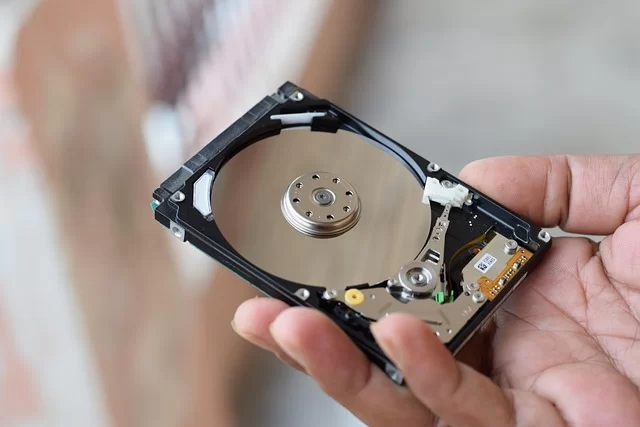
Form factor choice depends fully on your case type. Desktop systems use the 3.5-inch desktop form factor. These drives offer more capacity and better speed. Additionally, their price is more affordable than 2.5-inch models.
Laptops, on the other hand, need a 2.5-inch laptop form factor. These drives use less power and handle shock better. Most models run at 5400 RPM to save battery life. Yet 7200 RPM laptop models also exist.
The gap between a desktop HDD and a laptop HDD is not just size. The table below sums up the key differences.
| Feature | 3.5 inch (Desktop) | 2.5 inch (Laptop) |
|---|---|---|
| Max Capacity | 22 TB | 5 TB |
| Typical RPM | 7200 RPM | 5400 RPM |
| Power Use | 6-8 W | 2-3 W |
| Noise Level | Medium-high | Low |
| Shock Resistance | Low | High |
NAS and Server HDDs: CMR, SMR, and Enterprise Durability
Drives built just for NAS systems are vital. If you use normal desktop drives in a RAID setup, you will experience problems.
This is because they lack TLER or ERC features. During error recovery, the RAID controller may think the drive is dead and drop it.
This is where the CMR vs. SMR technology difference comes in. Conventional Magnetic Recording writes tracks side by side with gaps.
Shingled Magnetic Recording writes tracks that overlap like roof tiles. That fits more data in the same space.
Enterprise-class drives come with higher MTBF values. Additionally, their workload rate rating in TB/year is far above consumer models. Moreover, features like RVFFS and advanced vibration sensors are standard in the Enterprise HDD class.
Special-Purpose HDDs: Surveillance, Gaming, and Digital Archive
Surveillance systems are special setups that write continuously. The drive you use here must handle 24/7 work. It must also have high vibration tolerance and work in a wide heat range.
People often ask if I would suggest an HDD for a gaming PC. Moreover, people wonder about this a lot.
Honestly, for today’s games, a hard disk alone falls short. Load times become quite frustrating. Additionally, open-world games suffer from texture loading delays.
In digital archive and cold storage scenarios, this device still has no rival. The list below shows the best HDD types for each use case.
- Surveillance: WD Purple or Seagate SkyHawk series. Special firmware built for 24/7 writing.
- Game archive: 7200 RPM 4 TB and larger desktop models. Also, make sure they have CMR technology.
- Video editing: 7200 RPM high-capacity models. Keep project files on an SSD, raw footage on an HDD.
- Digital archive: Low-cost 5400 RPM models. On the other hand, we can accept SMR for cold storage.
What Should You Watch for When Buying a Hard Disk (HDD)?
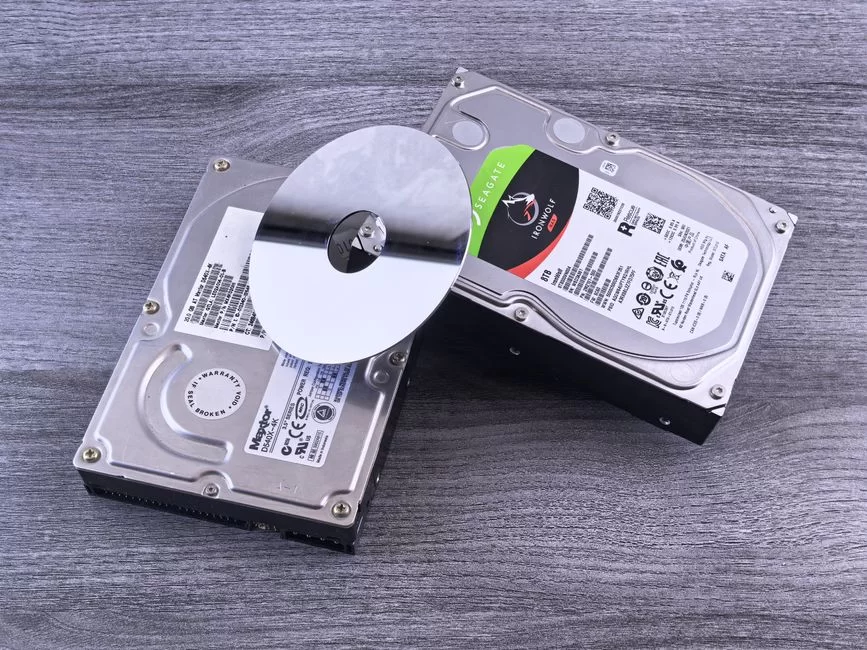
Most buyers only look at capacity during the purchase process. That is a big mistake. Many factors affect speed, reliability, and long life. Let me tell you what to watch for, point by point.
When you choose correctly, a hard disk serves you well for years. A wrong choice leads to serious consequences, even data loss. Especially, buying without knowing the SMR vs. CMR gap causes major disappointments.
Capacity, RPM, and Cache: Their Direct Impact on Performance
These three factors form the core of your buying choice. Now let’s examine each one.
- Capacity choice: Determine your real need. Set aside at least 250 GB for the OS and apps. Aim for twice your current size for a photo and video archive. Also, account for growth over the next 2-3 years. In fact, 4 TB is a good starting point for most users.
- RPM choice: For a desktop, definitely go with 7200 RPM. You feel the gap most in large file moves and game loads. Laptop users may think of 5400 RPM for battery life. However, if you want speed, choose 7200 RPM laptop models.
- Cache size: 256 MB or more cache is standard for modern drives. A bigger cache gives clear gains for frequently opened files. However, its effect on sequential write speed is limited. Focus more on whether the drive uses CMR, not just cache size.
- Recording technology: This is the most critical choice. Always make CMR your top choice. SMR only suits archive and backup storage. If the product description does not clearly say CMR, that drive is likely SMR.
Reliability and Warranty: The Best HDD Brands from Backblaze Data
Backblaze publishes failure rates for thousands of drives each quarter. This data is invaluable for your buying choice. The annual failure rate stays below 1% for some models but tops 3% for others.
The 2026 Backblaze report shows the models with the lowest failure rates:
| Brand/Series | Capacity | Annual Failure Rate (AFR) | Standout Feature |
|---|---|---|---|
| Seagate IronWolf Pro | 16-22 TB | ~0.8% | CMR, 24/7, RVFFS |
| Western Digital Red Pro | 16-22 TB | ~0.9% | CMR, NAS optimized |
| HGST Ultrastar DC | 14-20 TB | ~0.7% | Enterprise, Helium |
| Toshiba N300 | 12-18 TB | ~1.2% | CMR, Fair price |
| Seagate Barracuda Pro | 8-14 TB | ~1.1% | 7200 RPM, Desktop |
Warranty length also gives an indirect clue about reliability. Enterprise-class drives usually come with a 5-year warranty. Consumer hard disks are limited to 2-3 years. Personally, I have used Seagate IronWolf and WD Red series for years without trouble.
HDD Installation, Formatting, and Partitioning Guide
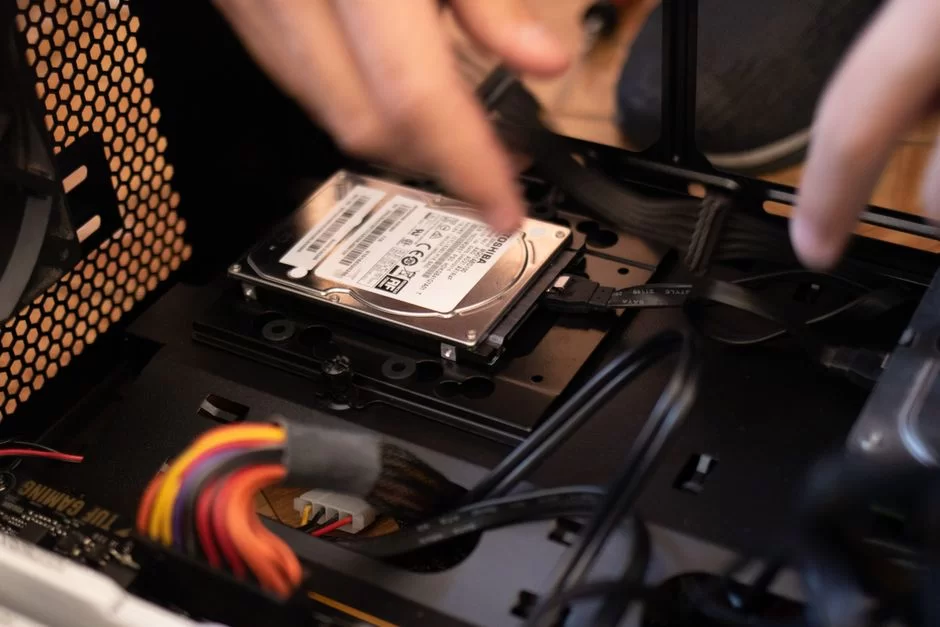
You bought your new drive, and now setup is next. Do not let this step intimidate you. You can make a hard disk ready for use in a few simple steps. Additionally, you can handle it alone without professional help.
The setup process has two main stages. First, do the physical mount and connect the cables. Then, finish the partitioning and formatting steps inside Windows. I will explain both stages step by step.
Mounting the HDD in the Case and Plugging the Cables
First, fully shut down your computer and unplug the power cord. Touch a metal surface to ground yourself against static. After opening the case, find the drive bay. You usually use screw trays for 3.5-inch drives.
- Place the drive in the right bay. Line up the screw holes on the sides with the case holes.
- Fix the drive with four screws. However, pick screws with rubber grommets to cut vibration.
- Plug one end of the SATA cable into the drive and the other end into a SATA port on the motherboard.
- Connect the power supply cable to the drive’s power input. Remember: the PSU plug is the wider connector.
GPT/MBR Partitioning and Formatting with Windows Disk Management
After the physical link is done, turn on the computer. Windows will spot the new drive on its own. However, the drive is not ready for use yet. Now you must finish the disk partitioning and formatting steps.
- Right-click the Start menu and open “Disk Management.” Or run the
diskmgmt.msccommand. - Your new drive will show as “Unallocated.” Right-click it and pick “New Simple Volume.”
- Set the partition size. If you want a single partition, keep the default value.
- Assign a drive letter. At this point, Windows will suggest a fitting letter on its own.
- Choose NTFS as the file system. For drives over 4 TB, you must use a GPT partition table.
- Check “Quick Format” and start the process.
The GPT vs. MBR partition table choice is critical. MBR supports disks up to 2 TB at most. For larger capacities, you must use GPT. For file system choice, NTFS is the best choice for Windows.
HDD Performance Metrics and Test Tools
If you want to know your drive’s real speed, you must test it. Manufacturers get their stated values in ideal lab settings. Real-world speed often differs. Therefore, I suggest running your own tests.
Knowing these speed metrics also helps during troubleshooting. If the hard disk runs slower than expected, a test can spot the bottleneck. Perhaps the trouble is not the drive but the SATA cable or motherboard port.
What Are Sequential and Random Access (IOPS)? A Test Guide with HD Tune Pro
Sequential access means reading or writing big, continuous files. In this scenario, a hard disk does quite well because the read/write head handles long data blocks with minimal moves. A typical 7200 RPM drive hits 200-250 MB/s sequential speeds.
Random access applies when working with small, scattered files. The IOPS value measures this speed. A mechanical drive can do only 100-200 random read ops per second. In contrast, SSDs reach hundreds of thousands of IOPS.
HD Tune Pro is one of the most useful tools to measure these metrics. Even the free trial version works for basic tests. Follow these steps to use it:
- Run HD Tune Pro as an administrator.
- Select the drive you want to test from the drop-down menu at the top.
- Click the Benchmark tab and click the “Start” button.
- The test result will show minimum, maximum, and average transfer speed values.
- You can also see access time and burst speed below the graph.
Hardware Settings That Affect Performance: AHCI, IDE, and NCQ
The storage mode setting in BIOS directly affects speed. AHCI mode is standard for modern operating systems. We use IDE mode only for compatibility with old operating systems. If you turn on AHCI, NCQ and hot-plug features become active.
NCQ, or command queuing, makes the read/write head movement smoother. It sorts incoming commands in the most efficient order. That cuts mechanical delays and raises overall speed. NCQ helps significantly in multitasking scenarios.
HDD Health, Failure Signs, and Data Recovery Guide
No storage device lasts forever. Yet a hard disk usually fails with warning signs, not all at once. If you learn to read these signs, you cut data loss risk to a minimum. Proactive monitoring protects your data.
In my experience, I can say this: you can see most failures coming. When you check S.M.A.R.T. health data often, you clearly see signs of an impending breakdown. You just need to know how to read that data.
S.M.A.R.T. Data and HDD Health Check with CrystalDiskInfo
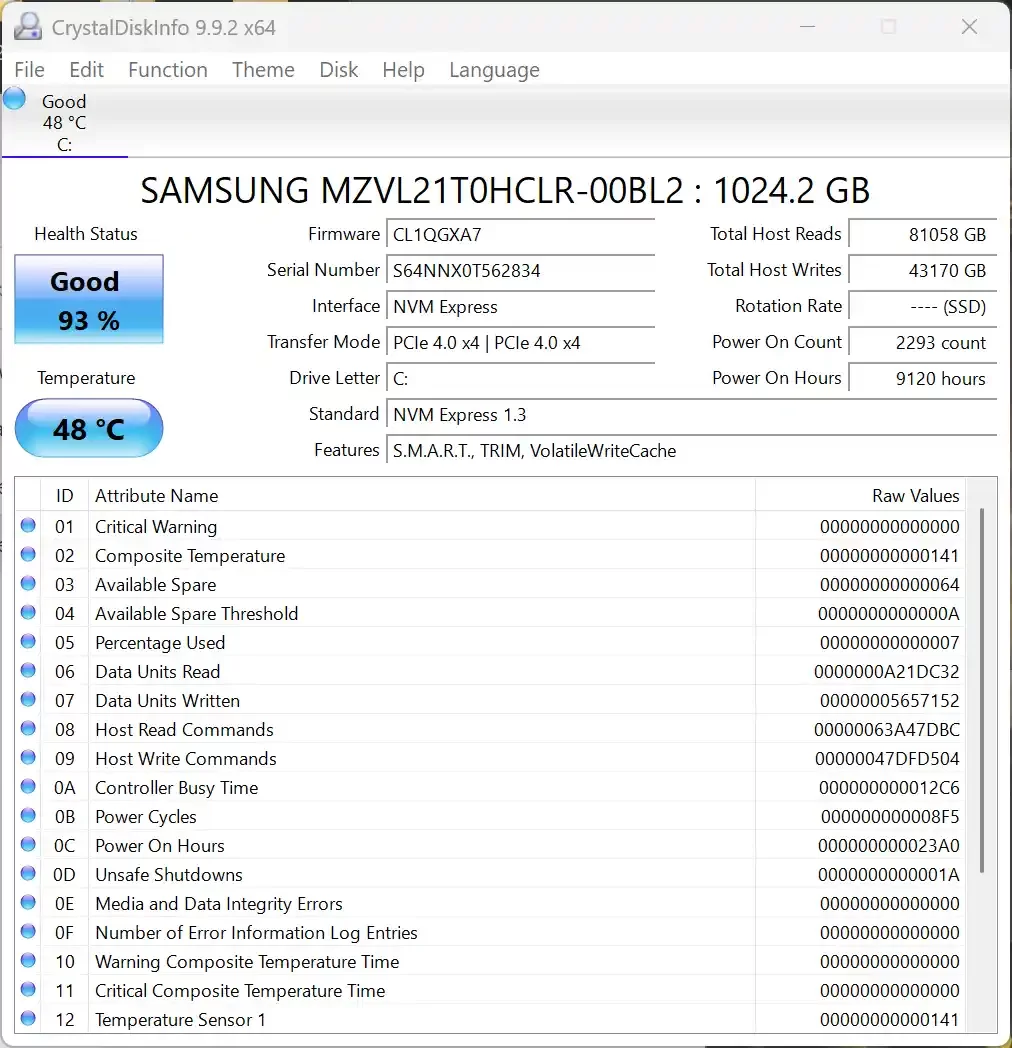
S.M.A.R.T. monitoring allows the drive to monitor itself. It stands for “Self-Monitoring, Analysis and Reporting Technology.” Sensors inside the drive keep measuring various values. These serve as an early warning system for hardware faults.
CrystalDiskInfo is the most user-friendly tool to read this S.M.A.R.T. data. When you open it, health status shows as a colored bar. Blue means “Good,” yellow “Caution,” and red “Bad.” Below, find the most critical S.M.A.R.T. values and what they mean.
- Reallocated Sectors Count (05): Shows the count of remapped sectors. In short, if the raw value is above zero, physical platter damage has begun.
- Current Pending Sector Count (C5): The count of suspect sectors. If this value rises, the drive may soon get lasting harm.
- Uncorrectable Sector Count (C6): Bad sectors that cannot be fixed. If this value is above zero, back up now.
- Power-On Hours (09): Shows the drive’s total run time in hours. Drives past 50,000 hours enter a risky class.
- Spin Retry Count (0A): The count of times the spindle motor retried spinning. A rise hints at a motor fault.
Failure Sounds and Bad Sectors: When Your Disk’s Life Ends
A failing hard disk makes unique sounds. The best-known is the “clicking sound.” This repeating click means the read/write head cannot find its spot. We often call it the “click of death” among users.
HDD clicking noise usually points to a head knock issue. The actuator arm keeps going back to its park spot and then moving to the platter again. You hear this cycle as a clear click. If you hear this sound, shut down the drive right away and get professional help.
Squealing or scraping sounds mean an even worse state. These can signal a physical head crash or spindle motor fault. If you keep running the drive, lasting scratches form on the platter surface.
A bad sector is a permanently damaged spot on the platter. There are two types. The table below compares both types and repair methods.
| Bad Sector Type | Cause | Can it be fixed? | Suggested Action |
|---|---|---|---|
| Logical Error | Software fault, sudden shutdown | Yes, with CHKDSK | Run the chkdsk /r command |
| Physical Error | Dust, shock, wear | No, it is permanent | Back up data, swap the drive |
Hard disk drives write data onto magnetic platters. Over time, these platters age and sectors go bad. Then one morning, did your drive suddenly show up as RAW? Do not panic, because your data is often still there. You can check out our custom RAW disk recovery guide.
Data Recovery Logic: Why Deleted Files Come Back and the Professional Recovery Process
When you delete a file, you do not erase its data right away. The system removes the index entry in file systems like FAT and marks the space as free. However, the magnetic trace stays on the platter. Because of this, you can recover erased files as long as new data does not overwrite them.
Acting fast raises your recovery chance. After deleting, do not write new data to the drive. If you do, you write over the old data and recovery becomes impossible. For this reason, run the recovery tool from another drive.
Physical damage changes the situation completely. In this scenario, never try to open the drive. A clean-room data recovery lab is a must. Professional recovery can start at $500 and reach thousands of dollars.
HDD Care, Extending Its Life, and Advanced Usage Tips
A hard disk’s life depends on how you use it and the room conditions. With good care, it can work well for 5-7 years. If you neglect it, a failure within 2 years is not surprising. Below, I share practical tips from the field.
When you think of care, do not just picture software steps. Physical factors matter as much as software. Heat, vibration, and power quality directly affect drive life.
Why Is HDD Defragmentation Still Important?
Over time, your files split into pieces across the platter. Different parts of one file spread to different drive zones. We call this disk fragmentation. As it grows, the read/write head must move more.
Defragmentation rearranges these scattered pieces. It places related data next to each other. As a result, sequential read speed goes up and mechanical wear drops. Especially on busy HDDs, defragmentation makes a clear difference.
On Windows 10 and 11, you perform defragmentation with these steps:
- Type “Defragment and Optimize Drives” in the Start menu and open the app.
- Select the target drive from the list.
- Click the “Optimize” button. The process takes a few minutes, based on drive size.
Secure Your Data with the 3-2-1 Backup Rule
No matter how good the PC hardware component is, it can fail one day. You must face this truth and take steps. The 3-2-1 backup rule is the gold standard in the industry. When you apply this rule, your data loss risk drops close to zero.
The rule is simple to state. Keep at least three copies of your data. Store those copies on two different media types. One copy must reside in a physically different location. For instance, one copy on your computer, one on an external drive, and one in the cloud.
In this plan, a hard disk plays a key role. An external 4 TB drive can hold a backup of all your vital data. Additionally, it is ideal for regular cold storage backups. Automating the backup job ensures you keep doing it.
Physical and Software Steps to Extend Your HDD’s Working Life
To maximize your drive’s life, take these steps:
- Heat control: The ideal working temperature is 30-45°C. Temperatures above 50°C sharply shorten life. Proper case airflow and regular dust cleaning are a must.
- Vibration isolation: Watch out for vibration, especially with more than one drive. Use rubber mount screws and vibration-damping bays.
- Quality power supply: Noisy and unstable power can harm the control board. For this reason, use a good PSU and, if possible, a UPS.
- Avoid sudden shutdowns: Do not turn off the computer by holding the power button. A sudden cut can cause the read/write head to hit the platter.
- Regular S.M.A.R.T. checks: Check health status with CrystalDiskInfo once a month. If values start to get worse, back up right away.
The Future of the Hard Disk: HAMR, MAMR, and Helium Technologies
Many think mechanical storage is obsolete. However, the truth is the opposite. Hyperscale data centers still pour billions into this technology. The reason is simple: no other technology can fill its role yet.
Manufacturers run remarkable R&D work to push capacity. Thanks to HAMR, MAMR, and helium technologies, 50 TB and larger drives will soon hit shelves. These innovations boost not just capacity, but also reliability and energy efficiency.
Helium-Filled HDDs: More Capacity, Less Energy
Traditional drives have normal air inside. Air molecules create drag and turbulence as platters spin. This raises power use and limits the platter count. A helium-filled drive solves this at the source.
Helium is a gas seven times less dense than air. Platters face far less resistance in helium. That lets you fit more platters in the same space. Today, 10-platter helium models already sit on the market.
This technology’s advantages do not end there. Below, I summarize the gains of helium-filled HDDs.
- Less drag means less heat output.
- Power use drops 20-30% compared to air models.
- The acoustic profile clearly improves, and disk noise goes down.
- More platters fit in the same physical space, so capacity rises.
- Special laser-welded seals keep the helium from leaking.
HAMR and MAMR: Technologies Changing Magnetic Recording
HAMR, or Heat-Assisted Magnetic Recording, is the next major step in the capacity race. Current PMR technology has nearly hit its physical limits.
To achieve greater data density, you must raise the coercivity of the platter material. However, current heads can then no longer write the data.
HAMR fixes this with a clever trick. Right before writing, it heats a tiny spot on the platter with a laser.
The heated spot’s coercivity drops for a moment. That lets you write data onto an otherwise too-stable medium.
MAMR stands for Microwave-Assisted Magnetic Recording. It uses a microwave field instead of heat to achieve a similar effect.
Among energy-assisted recording methods, it stands out for using less power. Additionally, since it produces less heat, it offers a reliability advantage.
| Technology | Method | Advantage | Commercial Status (2026) |
|---|---|---|---|
| HAMR | Laser heating | Very high density | Limited commercial (32 TB) |
| MAMR | Microwave field | Less energy | In R&D phase |
Explore HDD Technology in Depth
It is crucial to grasp the magnetic working principles and internal structure of hard disks. At the same time, knowing the differences between HDD and SSD is vital for making the right choice. Additionally, speed and care tips also extend device life.
- Wikipedia – HDD drive: Offers trustworthy and encyclopedic information on HDD history, physical sizes, and electromechanical design.
- Computer Hope – What Is a HDD?: Explains the hard disk’s definition, its internal platters, and how data is written magnetically.
- PCMag – SSD vs. HDD: What’s the Difference?: Tells the core differences between spinning platters and flash memory, and which to choose when.
- CNET – SSD vs. HDD: How low will HDDs go?: Shows the cost advantage of HDDs and the price gap with SSDs through examples.
- Backblaze – Drive Stats for 2025: Gives the yearly failure rates and reliability statistics of over 340,000 HDDs.
Hard Disk Guide: Clear Answers to Every Question on Your Mind
What Is a Hard Disk (HDD)?
Which Is Better: HDD or SSD?
How Long Does an HDD Last?
What Does a Clicking Noise from an HDD Mean?
Should I Get a 5400 RPM or 7200 RPM HDD?
What Is the Difference Between SMR and CMR HDDs?
The HDD Doesn’t Show Up in BIOS, What Should I Do?
How Can I Fix a Bad Sector on an HDD?
Is It Still Worth Buying an HDD Today?
Will an External HDD Break If It Falls?
Conclusion: The Lasting Importance of the Hard Disk in the Digital Age and Its Future Vision
At the end of the HDD journey, a clear picture emerges. SSDs excel in speed. However, the hard disk competes with capacity and cost. Especially in big data and archiving, it yields its throne to no one. It will surely stay in our lives for many more years.
In my own system, I use both technologies together. My OS and active projects sit on an NVMe SSD.
Meanwhile, my 4 TB HDD holds my photo archive, VM backups, and video library. This hybrid approach gives me both speed and space.
You can now make a smart choice too. Determine your capacity need, go for CMR models, and do not skip regular S.M.A.R.T. checks.
Make the 3-2-1 backup rule a part of your life. Remember, what matters is not the hardware but the data it carries!

Be the first to share your comment