

The must-have pen testing tool arrives in a new 2026 version. Kali Linux 2026 delivers a big update. It boosts both visuals and tech. This guide covers all key details of this powerful OS.
We will cover everything: setup, use, new tools, and legal status. Our goal is to fully introduce Kali to beginners and experts alike. Ready? Let’s start this cybersecurity journey.
This system, known as a pen testing distro, helps ethical hackers and security pros the most. The 2026 release includes a special mode. It celebrates BackTrack’s 20th anniversary. Plus, they upgraded the kernel to 6.18. They also added 8 new tools.
This article shares all the new features and tips. Use it on a virtual machine or bare metal. Our guide will make your work easy. Now, let’s dive into this unique cybersecurity tool!
What is Kali Linux? — The Top Choice for Pen Testers
Let’s answer this right away: Kali Linux is a Debian-based operating system. It is built for professional pen tests and security audits.
Offensive Security developed this Kali distro. It bundles over 600 security tools.
These tools range from vulnerability analysis to digital forensics. Actually, they cover reverse engineering and wireless security testing. So, it remains the top choice for security pros and ethical hackers.
What Is Kali Used For?
This OS helps companies and people find security holes early. Pen testers use Kali to spot weak points in networks.
Also, security researchers analyze new threats. They test defense mechanisms. Digital forensics experts collect digital evidence from crime scenes using this distro.
In short, this tool works in red team attack scenarios. Moreover, it plays a key role in blue team defense too. For instance, you can run an Nmap port scan to audit a company’s network security.
What’s New in Kali 2026
As always, the 2026 release brings a full theme refresh. They redesigned everything. That covers the boot menu and desktop wallpapers.
- New Theme: A modern, sleek look made just for 2026.
- BackTrack Mode: A special mode inside Kali-Undercover. It brings back the BackTrack 5 visual theme.
- 8 New Tools: AdaptixC2, Atomic-Operator, Fluxion, GEF, MetasploitMCP, SSTImap, WPProbe, and XSStrike.
- Kernel 6.18: Better hardware support and performance upgrades.
- NetHunter Improvements: They fixed a WPS scan bug. They also added HID permission checks.
Staying current is vital in cybersecurity. You must update the system often. That gives you new tools and security patches. Our Kali update guide shows you how. You can do it with just a few commands.
Key Features of Kali OS
Many powerful features set this distro apart from other operating systems. Its most obvious trait is the ready-to-use set of over 600 security tools. These tools are grouped by category. You can access them easily from the menu.
Another key feature: it runs with root privileges by default. This gives you full control over the system. It also lets tools run without issues. Plus, the rolling release model keeps you always up to date.
Kali also stands out with broad hardware and platform support. It works on x86_64, ARM, Raspberry Pi, and even Android. So, this flexibility lets you use it anywhere.
Security and privacy also matter. Kali Undercover mode turns your desktop into a Windows 10 or BackTrack look. This helps you stay unnoticed. Plus, full disk encryption (LUKS) secures your data.
Where is The Kali Operating System Used? (Use Cases)

This tool has a wide range of uses. It touches almost every branch of cybersecurity. The most common use is corporate pen testing and security auditing. Companies choose this distro to find weak spots in their networks.
Forensics experts use Kali to collect digital evidence during incident response. Security researchers also actively use this system. They do reverse engineering and vulnerability research.
Meanwhile, schools and certification programs (OSCP, CEH) have adopted this distro as their lab environment.
With this system, you can easily run wireless and web app security tests. Moreover, it provides a great platform for social engineering simulations.
Kali Purple gives strong support to defense-focused teams. Also, you can do threat hunting and incident response with this version.
Kali Linux History: From BackTrack to the 2026 Release
This platform’s roots go back to BackTrack Linux, released in 2006. BackTrack was the most popular pen testing distro of its time. It truly changed the security community.
In 2013, the Kali distribution replaced BackTrack. This shift brought a new Debian-based design. It also gave users a much wider set of tools.
Since then, developers have kept improving this distro. As a result, it became the gold standard in cybersecurity.
From BackTrack to Kali Linux
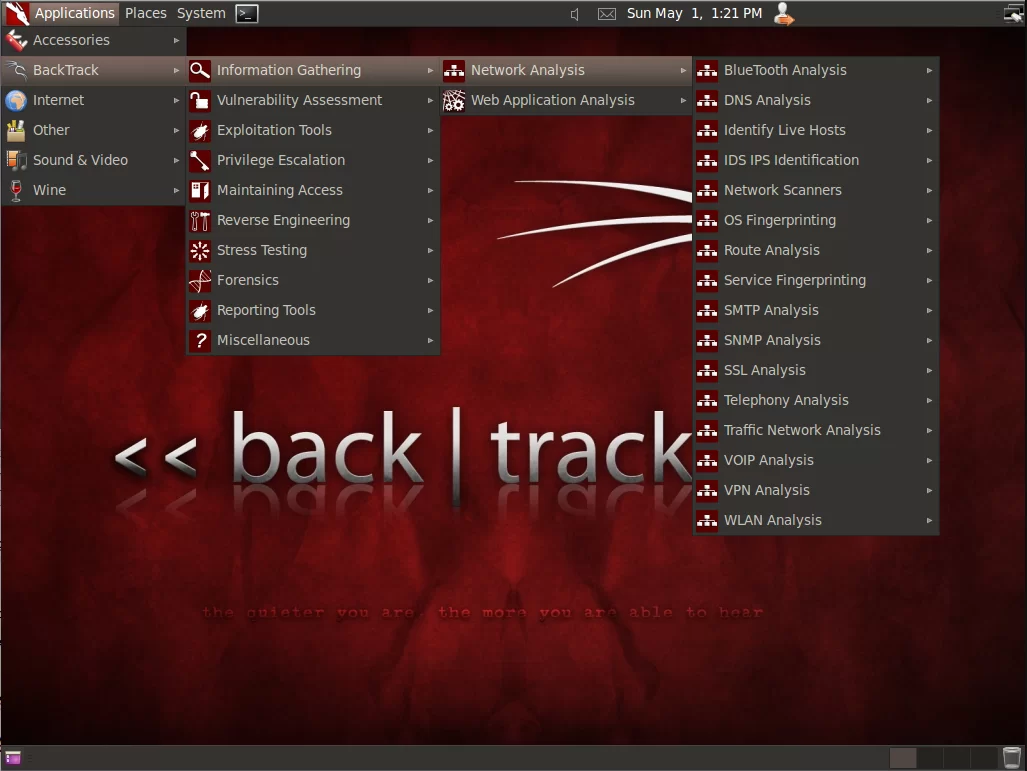
BackTrack was Slax-based and started to struggle with updates and package management. Kali Linux solved these issues by using Debian’s stability.
This change was more than just a new name. It meant a stronger foundation, regular updates, and broader hardware support.
Today, this system is essential for cybersecurity training and certifications (OSCP, CEH).
The BackTrack Mode Returning in Kali 2026
2026 marks BackTrack’s 20th anniversary. To celebrate, developers added a “BackTrack mode” to Kali-Undercover.
Just type kali-undercover --backtrack in a terminal. Your desktop instantly changes to BackTrack 5’s iconic theme.
Run the same command again to switch back to the default Kali look. This feature offers a unique nostalgic experience for old users.
Kali Linux System Requirements & Supported Platforms
You don’t need a very powerful computer to run this OS. Still, you should meet some minimum requirements for a smooth experience.
Also, this distro supports a wide variety of platforms. You can run Kali on an old PC or a Raspberry Pi. You can even set it up on a cloud server easily.
Kali Minimum System Requirements
- Processor: At least a 1 GHz CPU. We recommend an x86_64 design.
- RAM: You need at least 2 GB. However, I suggest 4 GB or more.
- Storage: Minimum 20 GB free disk space.
- Display: 1024×768 resolution or higher.
- USB: An 8 GB or larger USB drive for live boot.
Which Devices Run Kali Linux?
This distro supports x86_64 and ARM-based devices. That makes it ideal for single-board computers like the Raspberry Pi.
Furthermore, you can run it on Android via Kali NetHunter. You can also use it on cloud platforms (AWS, Azure) or Docker containers.
This flexibility makes it usable everywhere. Whether you test your home network or audit a corporate setup, you will find the right platform.
How to Install Kali Linux
There are a few different ways to install this tool. The most common methods are a virtual machine, live USB, and WSL.
No matter which way you pick, the process is quite simple. Let’s examine these three methods carefully.
To get to the point, setup is much easier than you think. If you follow the right steps, you can prepare the system in half an hour. Our Kali Linux installation guide will walk you through every stage.
Method 1: Running Kali with VirtualBox
VirtualBox is one of the most popular and safe ways to run this distro. It provides a fully isolated space from your main OS.
- Download and Install VirtualBox: Get the latest version from Oracle’s official site.
- Download Kali ISO: Obtain the 2026.1 ISO file from Kali.org.
- Create a New VM: Click “New” in VirtualBox. Give it a name, choose “Linux” as type, and “Debian (64-bit)” as version.
- Allocate Resources: Provide at least 4 GB RAM and 2 CPU cores.
- Create a Virtual Disk: Make a dynamically allocated disk of at least 20 GB.
- Mount the ISO: Go to the VM’s Storage settings and attach the ISO file.
- Start Installation: Boot the VM and follow the on-screen instructions.
Method 2: Running Kali via Live USB (Persistence)
A live USB is the best way to run Kali without leaving any permanent trace. You can also keep your settings and files on the USB with persistence.
- Download ISO: Get the 2026.1 ISO from Kali.org.
- Prepare USB: Use a USB drive of at least 8 GB.
- Create Bootable USB: Write the ISO to USB using Rufus, Etcher, or the
ddcommand. - BIOS/UEFI Settings: Set your computer to boot from USB.
- Start Live Mode: Select “Live (amd64)” from the boot menu.
- Persistence (Optional): Create a separate partition on the USB and label it
persistence.
Method 3: Using Kali with WSL (For Windows Users)
Windows users can run Kali directly on top of Windows using WSL (Windows Subsystem for Linux). This method is much lighter and faster than a virtual machine.
- Enable WSL: Open PowerShell as admin and run
wsl --install. - Restart Your PC: Reboot your system if needed.
- Install Kali: Install the “Kali” app from the Microsoft Store, or use
wsl --install -d kali-linuxin PowerShell. - First Run: Open Kali from the Start menu. Create a username and password.
- Run Updates: In the terminal, run
sudo apt update && sudo apt upgrade -y.
5 Common Kali Installation Errors and Fixes
- Error 1: Boot Failure — Make sure the ISO file is not corrupt. Check the SHA256 checksum.
- Error 2: Display Resolution Issue — Install the VM tools. For VirtualBox, install Guest Additions.
- Error 3: Wi-Fi Adapter Not Detected — Use a compatible adapter. Update drivers with
sudo apt update && sudo apt upgrade. - Error 4: Offline Installer Error (2026.1rc3) — This is a release candidate, not the official version. Use the official ISO.
- Error 5: Root Terminal Won’t Open — Try
sudo su. You might face issues related to polkitd.
Kali Linux Tools — Over 600 Security Utilities
The biggest strength of this distro is its massive tool collection. You get tools for vulnerability scanning, exploitation, forensics, and wireless attacks.
Developers grouped these tools into different categories. You can reach all of them easily through the menu. Let’s check out the most popular ones and the new additions in 2026.
Most Popular Kali Tools
- Nmap: A must-have for network discovery and security scanning.
- Wireshark: Use it to capture and analyze network traffic.
- Metasploit: The most powerful framework for exploitation and pen testing.
- Burp Suite: A professional proxy tool for web app security testing.
- Aircrack-ng: You can experience wireless security testing (WEP/WPA cracking) with it.
- John the Ripper: A strong password cracking (hash cracking) tool.
8 New Tools in Kali 2026.1
This release adds 8 new toys to the toolkit. These tools expand defense and attack capabilities against current threats.
- AdaptixC2: Post-exploitation framework.
- Atomic-Operator: Atomic Red Team tests.
- Fluxion: Social engineering tool.
- GEF: Advanced GDB plugin.
- MetasploitMCP: MCP server for Metasploit.
- SSTImap: Automatic SSTI detection.
- WPProbe: WordPress plugin enumeration.
- XSStrike: Advanced XSS scanner.
Deep Dive: 8 New Tools in Kali 2026
The new tools greatly expand this platform’s capabilities. Developers built each one to solve specific challenges that cybersecurity pros face.
Let’s examine each tool in detail. This way, you will better understand which tool to use in which scenario.
AdaptixC2: A Post-Exploitation and Adversary Emulation Framework
AdaptixC2 is an extensible framework for post-exploitation operations. It automates tasks after you breach a system.
Thanks to its adversary emulation abilities, you can simulate real attacker tactics. This lets you test your defenses with realistic scenarios.
AdaptixC2 stands out with its modular design. You can add new modules or customize existing ones as needed.
Atomic-Operator: Multi-Platform Atomic Red Team Tests
Atomic-Operator lets you run Atomic Red Team tests across multiple operating systems. It is perfect for checking the strength of security controls in corporate settings.
This tool automates tests based on the MITRE ATT&CK framework. So, you can systematically find security gaps and weak spots.
Atomic-Operator is especially valuable for blue teams. By running tests often, you keep improving your security posture.
Fluxion: A Security Audit and Social Engineering Tool
Fluxion is built for wireless security audits and social engineering research.
Cybersecurity experts mainly use this software to capture WPA/WPA2 handshakes. Frankly, they also use it for attack simulations.
This tool helps network admins spot weak points. You can also use it in training scenarios. That way, you boost employee awareness against social engineering attacks.
Fluxion’s key feature is its automated attack vectors. Thus, you can run full tests without any manual work.
GEF: An Advanced Debugging Plugin for GDB
GEF (GDB Enhanced Features) offers a modern experience for GNU Debugger (GDB). This plugin makes vulnerability analysis and reverse engineering much easier.
GEF provides advanced debugging tools, memory dump analysis, and aids for exploit development. That makes it essential for security researchers.
When analyzing zero-day flaws, GEF offers great convenience. Honestly, we can all see this truth clearly. You can quickly check memory regions and track execution flow from the command line.
MetasploitMCP: A New MCP Server for Metasploit
MetasploitMCP is an MCP (Model Context Protocol) server for the Metasploit framework. This integration expands Metasploit’s power, giving you more modular and scalable pen testing workflows.
This tool makes it easier to connect Metasploit with other tools and automation systems. For example, you can feed results from a vulnerability scanner straight into Metasploit.
MetasploitMCP saves time, mainly in large-scale pen testing projects. It cuts down the need for manual work, so you test faster and better.
SSTImap: Automatic Server-Side Template Injection (SSTI) Detection Tool
SSTImap automatically finds Server-Side Template Injection (SSTI) vulnerabilities in web apps. SSTI is a common critical security flaw in modern web frameworks.
This tool offers an interactive interface. It tries various payloads to confirm the flaw. That way, it keeps false positives to a minimum.
SSTImap is a huge help during OWASP Top 10 tests. Web security pros can use it to quickly scan their apps for this threat.
WPProbe: A Fast WordPress Plugin Enumeration Tool
Developers designed WPProbe to quickly list installed plugins on WordPress sites. This is one of the first and most important steps in a vulnerability scan.
This tool pulls the plugin list from the target site. It helps you spot potential weak points. After that, you can look up known flaws in those plugins.
WPProbe is vital for security audits of large-scale WordPress sites. Its quick and reliable results save you time.
XSStrike: An Advanced Cross-Site Scripting (XSS) Scanner
XSStrike is an advanced scanner for finding Cross-Site Scripting (XSS) flaws. Unlike classic XSS scanners, it can also spot DOM-based XSS.
This tool uses smart payloads to verify the flaw and cut down false positives. It also tests WAF (Web Application Firewall) bypass methods.
XSStrike helps web security experts detect XSS flaws fast and effectively. It plays a key role, especially in modern JavaScript apps.
Kali Linux Performance Tuning: ZRAM, Swappiness, and GPU Settings
This distro can run slowly, especially on low-resource devices. Luckily, you can apply a few simple tweaks to boost speed.
These tweaks range from memory management to VM settings. Let’s go through the most effective methods step by step.
Creating a Compressed RAM Disk with ZRAM
ZRAM lets you use part of your RAM as a compressed swap area. This gives a big speed boost, mainly on systems with little RAM.
- Install ZRAM: Run
sudo apt install zram-config. - Edit Config: Create or edit
/etc/systemd/zram-generator.conf. - Set Size: Define a value like
zram-size = ram / 2(half your RAM). - Reboot: Restart the system to turn on ZRAM.
- Check: Run
zramctlto see if ZRAM is active.
Optimizing Swap Usage with Swappiness Value
Swappiness is a kernel parameter. It controls when the system starts using swap space. The default value of 60 is often too high.
- Check Current Value: Run
cat /proc/sys/vm/swappiness. - Change Temporarily: Set it to 10 with
sudo sysctl vm.swappiness=10. - Make It Permanent: Add
vm.swappiness=10to/etc/sysctl.conf. - Apply: Run
sudo sysctl -p.
Specific Performance Tips for Virtual Machines (VirtualBox/VMware)
- Install Guest Additions: This improves display resolution and mouse integration.
- Enable VT-x/AMD-V: Turn on these features in your BIOS.
- Give Enough RAM and CPU: Assign at least 4 GB RAM and 2 cores.
- Enable 3D Acceleration: Turn on 3D speed in the VM settings.
- Set Storage Controller to SATA: SATA gives better performance than IDE.
Common Kali Errors and Fixes
Like any software, you may run into errors with this distro from time to time. In this section, we will cover common issues in recent versions and how to fix them.
You can solve most of these problems with simple commands or config changes. Let’s look at the most frequent ones.
APT Update Errors and Signing Key Problems
You might get signing errors during APT updates. This usually happens because the repo keys are out of date.
- Update Keys: Run
sudo apt update && sudo apt install kali-archive-keyring. - Check Existing Keys: View them with
sudo apt-key list. - Add Missing Keys: Use
wget -q -O - https://archive.kali.org/archive-key.asc | sudo apt-key add. - Verify Sources List: Make sure
/etc/apt/sources.listis correct.
Root Terminal Not Opening (polkitd Related)
Some users face polkitd (PolicyKit) issues when opening the root terminal. This often stems from a flaw in privilege management.
- Use sudo su: Run
sudo suin a terminal to get root rights. - Restart polkitd: Try
sudo systemctl restart polkit. - Check User Groups: Ensure your user is in the
sudogroup. - Try a Fresh Install: If the issue persists, consider a clean setup.
Wi-Fi Hotspot and Tethering Not Working
On some devices, Wi-Fi hotspot and tethering may fail. This is a known issue, especially affecting NetHunter users.
- Check for Updates: Run
sudo apt update && sudo apt upgrade -y. - Check Kernel Modules: Confirm the needed Wi-Fi modules are loaded.
- Restart NetworkManager: Try
sudo systemctl restart NetworkManager. - Workaround: Until it is fixed, think about using an older release (2025.4).
Offline Installer (2026.1rc3) Setup Error and Fix
Some users reported setup errors with the 2026.1rc3 release candidate. These errors appear during debootstrap and package fetching stages.
- Use the Official ISO: Download the officially released ISO, not the RC.
- Re-write USB: Rewrite the USB drive with the
ddcommand. - Check Hardware: The USB or target disk might have a hardware fault.
- Try an Older Version: Attempt setup with an older release like 2024.2.
Mouse Cursor Mismatch in a Virtual Machine (spice-vdagent)
In VMs, you may face a mouse cursor mismatch, especially using the SPICE protocol. Frankly, we see this often. It is a problem with spice-vdagent.
- Install spice-vdagent: Run
sudo apt install spice-vdagent. - Start the Service: Use
sudo systemctl start spice-vdagent. - Enable Auto-Start: Run
sudo systemctl enable spice-vdagentto launch on boot. - Reboot the VM: Restart the VM for the changes to take effect.
Kali Linux vs Ubuntu vs Parrot OS vs BlackArch — A Comparison
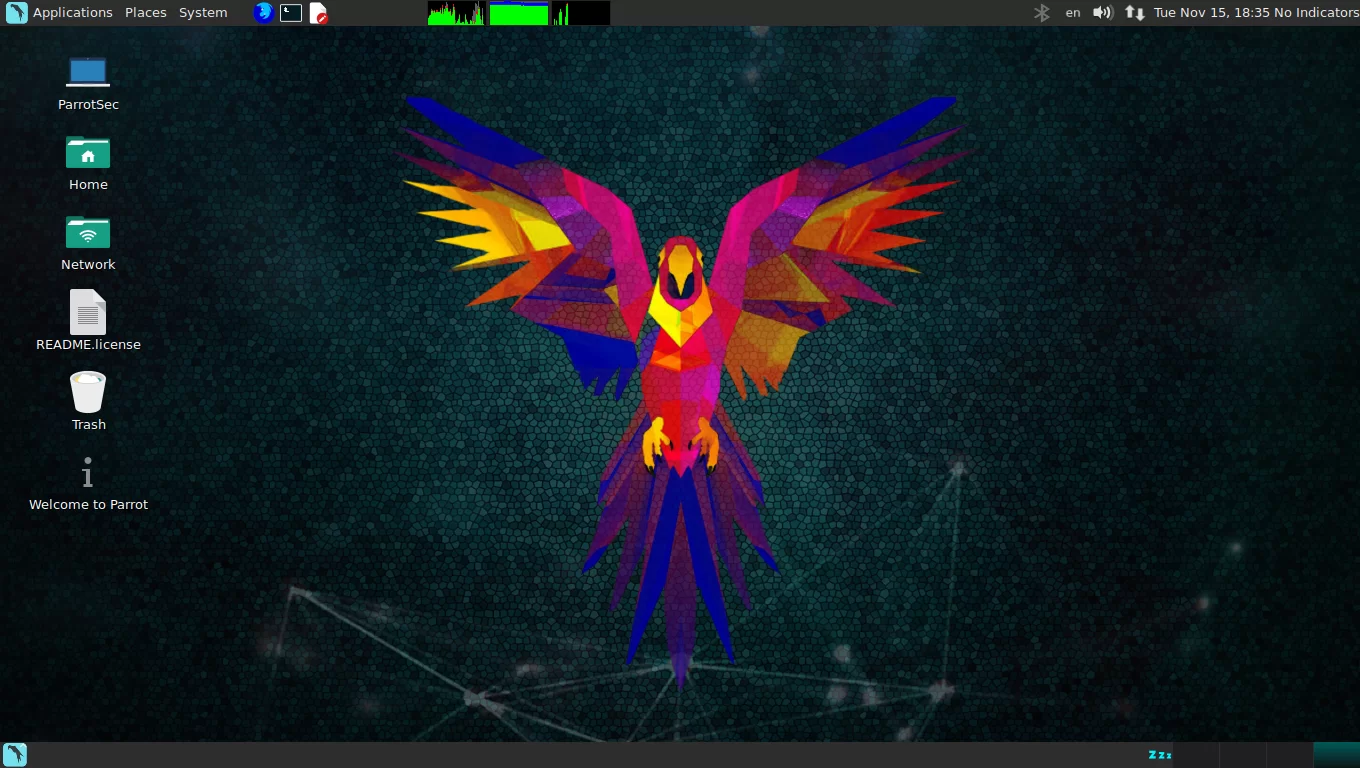
Many security distros exist on the market. Ubuntu, Parrot OS, and BlackArch are the top alternatives to this tool.
Which distro you choose depends on your needs and goals. Let’s compare them to help you make the right call.
Kali vs Ubuntu — What Is Each Used For?
The popular Linux distro Ubuntu is a general-purpose OS. It is great for daily use, office tasks, and software development.
Kali, on the other hand, was built just for pen testing and security research. With Ubuntu, you must install security tools by hand. With Kali, all the tools are ready to go.
In short, think of Ubuntu as a daily driver. This distro is a special cybersecurity tool you turn to when needed.
While we do not suggest Kali as a daily driver, sometimes Windows tools are a must. Configuring Wine on Kali fills that gap. The truth is, its speed won’t match a native setup. Still, it is perfect for urgent needs.
Kali vs Parrot OS vs BlackArch — Which Pen Testing Distro Is Better?
Parrot OS offers a similar toolset to Kali but is lighter and more privacy-focused. BlackArch is Arch Linux-based and has a much larger tool collection (2000+ tools).
This distro stands out with its stability and vast community support. Parrot OS is strong in forensics and privacy. BlackArch is perfect for enthusiasts who want the latest tools.
Which one is better? It totally depends on your needs. If you want a stable and widely used platform, Kali is the best pick. If you prefer the newest tools and a rolling release, try BlackArch.
Is Using Kali OS Legal? — Legal Status in the US
Using Kali itself is neither legal nor illegal. Its legality depends on how and why you use it.
Testing on your own network or with permission is legal. However, breaking into systems without consent is a crime. Accessing data without permission is also a crime.
Computer Fraud and Abuse Act (CFAA) — Cybercrime Laws
Under US federal law, the CFAA makes unauthorized access a crime. Penalties can include up to 10 years in prison.
The CFAA also covers destroying, altering, or blocking data. These laws clearly show you must be careful when using this system.
So, use Kali only on authorized systems and within the law. Otherwise, you could face serious legal consequences.
5 Golden Rules for Ethical and Legal Use of Kali Linux
- Get Permission: Obtain clear written consent from the system owner.
- Test Your Own System: Practice on your own networks and devices first.
- Know the Law: Learn the CFAA and other relevant regulations.
- Report Findings: Share any vulnerabilities you find with the authorized people.
- Use It for Education: Improve your cybersecurity skills ethically.
Advanced Kali Linux Tips — Practical Advice from Experts
In this section, I will share some advanced tips. These will help you use this distro more effectively and safely. They sum up years of expert experience.
By applying these tricks, you can work better and cut down potential risks.
What Are the Risks of Working with Root Privileges?
This distro runs as the root user by default. This gives you full system control, but it also carries big risks.
With root rights, you could accidentally break the system or delete key files. Also, if malware runs as root, it can take over the whole machine.
So, work as a standard user whenever you can. Use sudo only when truly needed. This is one of the best security practices.
Turkish Language and Keyboard Settings in Kali Linux (Permanent Fix)
To use Kali in Turkish, you need to change the language and keyboard settings. Follow these steps to make the changes permanent.
- Install Language Packs: Run
sudo apt install language-pack-tr. - Set Locale: Run
sudo dpkg-reconfigure localesand marktr_TR.UTF-8. - Change Keyboard Layout: Use
sudo setxkbmap trfor a quick fix. For a permanent one, setXKBLAYOUT="tr"in/etc/default/keyboard. - Reboot System: Restart to fully apply the changes.
Kali Known Issues — SDR (kali-tools-sdr) Bug
There is a known issue in the 2026 release for users of the kali-tools-sdr meta-package. The GNU Radio ecosystem is broken in this version.
Tools like gr-air-modes and gqrx-sdr do not work in this release. The Kali team says this will be fixed in the next version.
If you need these tools, you might temporarily use an older release (2025.4). Or you could try to install the SDR tools by hand.
Kali Linux Daily Use Guide — Why It’s Not Ideal
Developers did not design Kali for daily use. Because of the rolling release model, updates come nonstop, which can hurt stability.
Also, running as root by default creates security risks for daily tasks. It is dangerous to browse the web or check email with root rights.
Therefore, use this tool only for pen testing and security research. Pick a stable distro like Linux Mint or Ubuntu for your daily work.
We do not suggest Kali as a daily OS, but running Windows apps is sometimes a must. You can even meet your gaming needs with PlayOnLinux. Check our PlayOnLinux setup guide on Kali to learn step by step.
Kali Linux Special Editions — NetHunter, Purple, and ARM
This distro has a few special editions for different needs. NetHunter for mobile devices and the defense-focused Purple stand out.
These special versions show Kali’s flexibility and wide use. Let’s get to know them better.

Kali NetHunter — Pen Testing on Android Devices
Kali NetHunter is a version of Kali made just for Android devices. It is the first open-source Android pen testing platform.
NetHunter turns your Android device into a portable pen testing tool. It supports Wi-Fi adapters, HID attacks, and various wireless attack methods.
They made fixes like the WPS scan bug fix and HID permission checks in the NetHunter app. Also, this release includes the first working wireless injection patch for QCACLD 3.0 hardware.
Kali Purple — Defense-Focused (Blue Team) Security
Kali Purple is the defense-focused (blue team) version of this distro. Besides attack tools, it also bundles defense and threat intel tools.
Developers built Purple for security operations centers (SOC) and blue teams. You mainly use it for tasks like threat hunting, vulnerability management, and incident response.
In the new Kali release, they also updated Purple with the new theme and added special wallpapers. This lets defense teams enjoy the visual refresh too.
Kali Linux Community and Resources: Where to Learn and Get Help
A large community and many resources exist to learn this tool and fix problems. Official docs, forums, and training platforms can help you.
By using these resources well, you can get the most out of this distro’s power.
Official Kali Linux Documentation and Forums
- Official Documentation: Kali.org/docs offers full setup and usage guides.
- Kali Forums: Forums.kali.org is where the community actively discusses issues.
- Discord Server: Discord.kali.org is great for live help and events.
- Bug Tracker: Use Bugs.kali.org to follow known bugs and their fixes.
- Kali Tools Page: Kali.org/tools has detailed descriptions of all tools.
Preparing for OSCP, CEH, and Other Certs with Kali Linux
This distro is the official environment for the OSCP (Offensive Security Certified Professional) exam. OSCP is one of the most prestigious certs in ethical hacking. You use this tool during the exam.
You can also practice for other certs like CEH (Certified Ethical Hacker) using Kali. This distro lets you experience the tools and scenarios you will face in exams ahead of time.
So, if you are studying for a cert, learning this distro well is crucial. To practice, you can build your own virtual lab using Kali.
Customizing Kali Linux: Desktop, Themes, and Personalization
You can also tweak Kali Linux visually. That means you can change the desktop environment, themes, and other visual elements to your liking.
These tweaks make your work space more fun. They also help in special situations, like Undercover mode.
Customizing Xfce, GNOME, and KDE Plasma Desktops
- Xfce: The default desktop. It is light and fast. You can change panel settings, themes, and the window manager.
- GNOME: A more modern and touch-friendly interface. Use GNOME Tweaks to change themes, extensions, and settings.
- KDE Plasma: One of the most customizable desktops. You can change almost anything through System Settings.
Switching to Windows 10 or BackTrack 5 Look with Kali Undercover
Undercover mode makes Kali look like another OS. This is perfect for staying low-key while working in public.
- Start Undercover Mode: Run
kali-undercoverin a terminal. - Activate BackTrack Mode: Run
kali-undercover --backtrackto switch to the BackTrack 5 theme. - Revert to Default: Run the same commands again to go back.
Real-World Pen Testing Scenarios with Kali
The best way to turn theory into practice is to simulate real-world scenarios. Now, we will cover four basic pen testing scenarios you can do with Kali Linux.
These range from home network security to web app tests. By doing each step by step, you can unlock this distro’s power.
Scenario 1: Home Network Vulnerability Scan (Nmap + OpenVAS)
Use Nmap to find devices and open ports on your home network. Then, scan those devices for vulnerabilities with OpenVAS.
- Network Discovery: Run
nmap -sn 192.168.1.0/24to find live hosts. - Port Scan: Run
nmap -sV 192.168.1.1-254to list open ports and services. - Vulnerability Scan: Start OpenVAS and scan the target IP range.
- Reporting: Check the report OpenVAS creates and assess the flaws.
Scenario 2: Web Application Security Test (OWASP Top 10, Burp Suite, XSStrike)
Test a web app against the OWASP Top 10. Capture and analyze traffic with Burp Suite, and scan for XSS flaws with XSStrike.
- Proxy Setup: Set Burp Suite as a proxy and route your browser through it.
- Manual Discovery: Browse the app while Burp Suite captures and shows requests.
- Automatic Scan: Use Burp Suite’s active and passive scan features.
- XSS Test: Run
xsstrike -u "http://target.com/?param=test"to scan for XSS flaws.
Scenario 3: Wireless Network Security Test (Aircrack-ng, Fluxion, QCACLD-3.0)
Use Aircrack-ng and Fluxion to test wireless network security. The QCACLD-3.0 patch enables packet injection on Qualcomm chipsets.
- Monitor Mode: Run
airmon-ng start wlan0to set your Wi-Fi adapter to monitor mode. - Network Scan: Scan nearby networks with
airodump-ng wlan0mon. - Capture Handshake: Attack the target with
aireplay-ng -0 0 -a BSSID wlan0monto grab a handshake. - Social Engineering: Use Fluxion to create a fake access point and lure users in.
Scenario 4: Social Engineering Simulation (SEToolkit)
Use SEToolkit (Social-Engineer Toolkit) to simulate social engineering attacks. This tool lets you create phishing attacks and fake websites.
- Launch SEToolkit: Run
setoolkitin a terminal. - Pick Attack Vector: From the menu, choose “Social-Engineering Attacks,” then “Website Attack Vectors.”
- Phishing Template: Use “Credential Harvester Attack Method” to build a fake login page.
- Start Server: Host the fake site on a server and send the link to target users.
Authoritative Resources for Kali Linux
To learn more about this topic, check out the authoritative resources below. They will give you both theory and hands-on knowledge.
- Official Kali Linux Documentation — Visit the official docs for the most current and accurate info.
- Offensive Security — The company behind Kali Linux. Find info about OSCP and other training.
- SANS Institute — One of the world’s leading institutions for cybersecurity training and certs.
Top 10 Questions Ethical Hackers Ask About Kali
What is Kali Linux and what does it do?
Is Kali Linux good for daily use?
Is using Kali Linux a crime?
What new tools come with Kali 2026.1?
What is the difference between Kali and Parrot OS?
What is the difference between Kali and BackTrack?
How many tools does Kali have and which are the most popular?
What is Kali’s default username and password?
What is the best way to install Kali?
How do I test Wi-Fi passwords with Kali?
Conclusion — Start Your Cybersecurity Journey with Kali Linux
In this guide, we explored the powerful pen testing Kali distro and its 2026 release in full detail. We covered everything from setup to new tools, performance tuning, and legal status.
You now have all the knowledge you need to start using this tool. Remember, this is power, and using that power responsibly is in your hands.
Set up your own lab, practice, and keep learning. The world of cybersecurity is exciting, and this distro will be your greatest helper on that journey. Now, open a terminal and start exploring!

Be the first to share your comment