

In this guide, I will tell you how to install Wine software on openSUSE Leap 15 for Windows programs. First of all, Wine is one of the leading programs. WineHQ is behind its popularity.
Also, Wine allows you to run old or new EXE files. So, you do not need a virtual machine or dual boot. Now, let’s see the process of downloading and installing WineHQ on your SUSE Linux system!
How to Use Wine 9.0 to Run Windows Program or Game on openSUSE Leap 15.5
The most common way to run Windows programs on Linux-based systems is Wine. In addition, you can use Windows programs or games on Linux with this software. However, this software is an effective solution for ensuring Windows compatibility. In other words, you can work with this software without any problems on both systems.
If you haven’t installed the system yet, don’t worry. Installing openSUSE Leap 15 is a really simple process. You can follow the step-by-step instructions using a bootable USB drive. Once that’s done, we can easily move on to our main topic: installing Wine.
After installing WineHQ 32-bit and 64-bit versions on your SUSE computer, you can run EXE programs. Plus, this method is valid for old and new programs.
As a result, you do not need to install Windows with a virtual machine or dual boot method. In other words, you can quickly run your Windows applications on Linux with it.
At this point, you can use both 32-bit and 64-bit applications on your computer with WineHQ. In addition, WineHQ helps you continue your work without interruption.
Before you start the setup, you might wonder what this version brings. Wine’s new stable version offers many better compatibility fixes. Speed gains are most clear in games. In simple words, this update has made the Windows feel on Linux much better.
How to Download and Install Wine
According to your openSUSE version, you should add the correct repository address for WineHQ. Also, with this step, you can install the latest version of WineHQ. So, you can easily download the updated software and install it on your PC without any problems.
Step 1
Open the terminal on your desktop location on your SUSE system. Then, type the command “wget https://download.opensuse.org/repositories/Emulators:/Wine/15.5/repodata/repomd.xml.key” to identify the repo source. Finally, make sure you execute the command correctly.
wget https://download.opensuse.org/repositories/Emulators:/Wine/15.5/repodata/repomd.xml.key
sudo rpm --import repomd.xml.key
sudo zypper addrepo https://download.opensuse.org/repositories/Emulators:/Wine/15.5/Emulators:Wine.repo
Step 2
You have defined the source of the SUSE Emulators repository. Now, in the same way, run the “sudo zypper refresh” command in the terminal to update your system’s software list. Don’t forget to confirm that you trust the subkey you added afterward.
sudo zypper refresh
Step 3
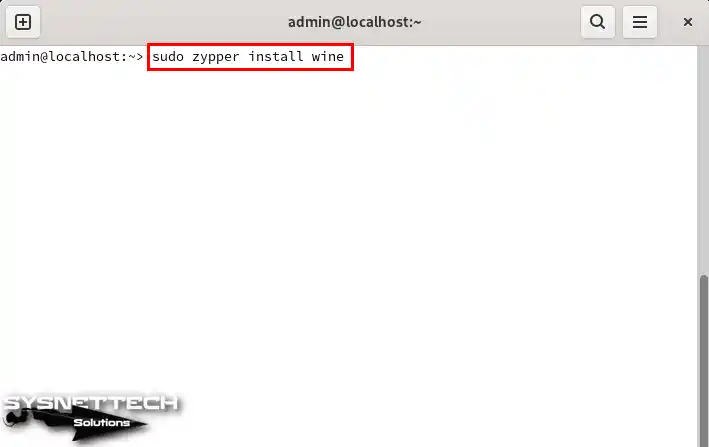
You have prepared your SUSE system for WineHQ. Then, execute the command “sudo zypper install wine” to start the installation process. However, press Y to confirm the packages to be installed on your PC. Then, press Enter to install additional components.
sudo zypper install wineThe process is specific to openSUSE. But what if you use a different distribution? For example, the steps for setting up Wine on Linux Mint take a slightly different route. Based on my experience, I can say that the package manager commands are fully different. Still, the logic works on the same ideas.
Step 4
As soon as you install this application, use the “winecfg” command. This command will open the program’s settings. In this way, you can adjust the settings and enhance your WineHQ experience.
winecfg
Step 5
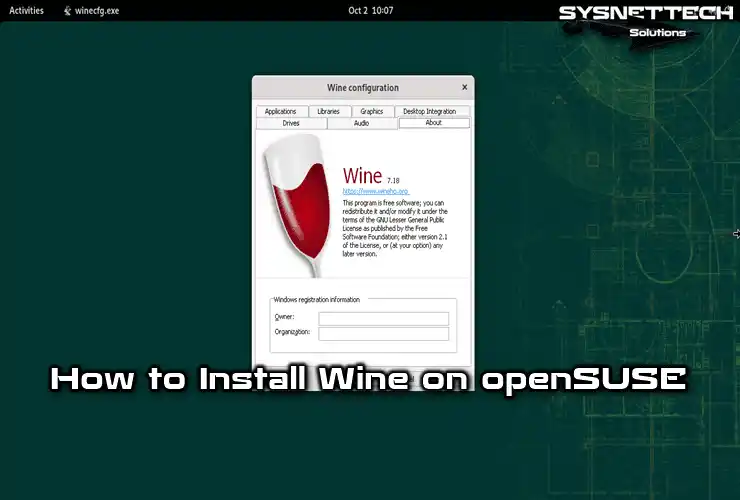
Once the Configuration window opens, you can set the graphics options. You can also set the system version and library settings. Finally, check the installed version in the About section.

How to Install Windows Software
After installing Wine on your openSUSE PC, you can test the software. First, download the Windows software you want to run. Then, you can install it on your system and start using it without any problems.
Step 1
A popular note application for Windows is EditPad Lite. If you want to install it on your Linux PC, you can do so easily. First, use the following command: wget https://download.jgsoft.com/editpad/SetupEditPadLite.exe. This command will download the setup (EXE) file to the terminal. Then, you can start and complete its installation.
You can use the “wine SetupEditPadLite.exe” command in the terminal to install the EXE program you downloaded.
wget https://download.jgsoft.com/editpad/SetupEditPadLite.exewine SetupEditPadLite.exe
Step 2
When the EditPad Lite installation wizard starts, click “Install Now.” This option will perform a quick installation. It will also save you time and effort.

Step 3
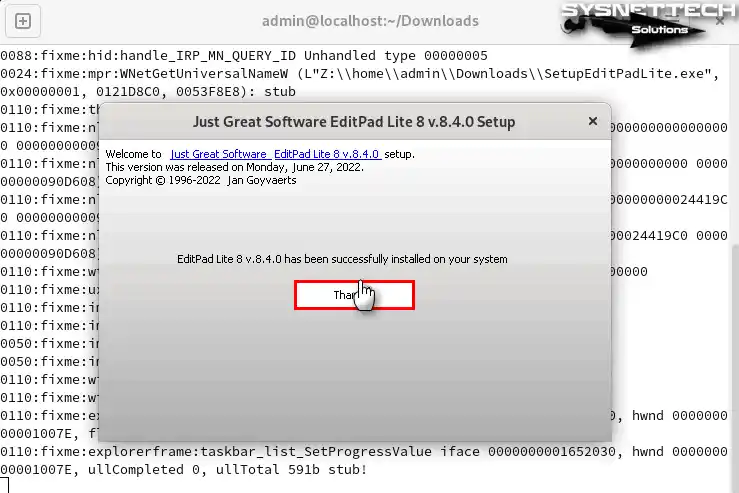
When you have completed the installation, click on the Thanks button. After this step, you can close the wizard and return to your desktop.
Step 4
You can check the version when the EditPad Lite app opens. Click “Help” from the tool menu and then “About”. You can also start taking notes for your work.

Step 5
If you want to run the Notes app later, use the following command: In Terminal, type wine “C:\Program Files\Just Great Software\EditPad Lite 8\EditPadLite8.exe.” Plus, this will give you quick access to EditPad Lite again.
wine "C:\Program Files\Just Great Software\EditPad Lite 8\EditPadLite8.exe"
How to Uninstall Wine from openSUSE PC
If you no longer want to use Windows apps & games, you can uninstall WineHQ. First of all, you can altogether remove all related packages from your SUSE computer. This will clean up unnecessary files on your system.
Step 1
To remove all related packages altogether, you need to use a few commands. First, type sudo zypper remove wine* in the terminal. Check the packages you want to remove before confirming, and then confirm the operation with “Y.”
sudo zypper remove wine*
Step 2
You have removed it from your SUSE PC. But to verify, use the command sudo zypper info wine in the console. This command will check if WineHQ is still installed. In addition, you will get relevant information about the package.
sudo zypper info wine
If you use a different system for security testing instead of openSUSE, the process stays the same. Setting up Wine on a Kali Linux system also uses a similar terminal process. The key point is that the basic rules always stay the same. Only the repo addresses and a few dependencies change.
Video
Installing Old Versions
FAQ About Wine for openSUSE Leap
Is installing Wine on openSUSE Leap really so easy that it finishes in 5 steps?
I got stuck while adding the WineHQ repo to the system. What should I do if I get a ‘repomd.xml.key’ error?
Do I need to make a special setting to run 32-bit and 64-bit Windows programs at the same time?
Can I open the Windows program I installed from the desktop with an icon, as in the EditPad Lite example?
How is game performance with Wine 9.0? Can I play Counter Strike 2 or old games?
I changed my mind about trying it. How do I completely remove Wine from my openSUSE system?
Conclusion
Obviously, you can quickly run your Windows programs on your openSUSE PC with Wine. Plus, you don’t need a VM or dual-boot system. By following the installation and usage stages, you can integrate Windows software into your Linux environment.
Moreover, you can quickly remove this software from your OS when you don’t want to use it. In short, you can increase your productivity and accessibility through this middleware app.

1 Reader Comment
Hi,
Thank you for posting this tutorial.
I am attempting to install Wine on OpenSuSe Leap 15.1, so here I deviate a bit from your tutorial. In consequence I changed the repository to: …/openSUSE_Leap_15.1/…
After refresh and install, I get the following error:
Problem: nothing provides wine-32bit = 5.11 needed by wine-5.11-lp150.1177.1.x86_64
Solution 1: do not install wine-5.11-lp150.1177.1.x86_64
Solution 2: break wine-5.11-lp150.1177.1.x86_64 by ignoring some of its dependencies
I do not like any of the options. Do you have any thoughts on how to install it properly?
Looking forward for your answer.
Best regards,
Sebastian