

Every second online is part of a silent chat. You have this chat with a web page. That page on your screen comes from packets sent across thousands of miles.
What journey does this cool structure take behind the scenes? On the surface, it contains only text and images. However, engineering weaves this world into a marvel, layer by layer. We will go beyond the usual ‘digital document’ term. Plus, we will start a tech trip from DNS queries to the render tree.
We will move from static HTML files to progressive web apps (PWAs). We will lay out setup costs and the right tool choices. I will share the secrets of keeping Google’s Core Web Vitals in the green zone.
Moreover, I will tell all this through real-world cases I faced in the field. I will share real insights from problems I solved. Ready to find the most basic building block of the internet?
What is a Web Page? Basic Definition & Concepts
So what exactly is a web page, and what does it do? In its simplest form, it is a digital file called by a URL. The browser interprets it. Then it turns into a visual feast on our screen. It holds text, images, and media.
This digital document comes from the server in a site page format. The browser engine receives raw code and shows it after render. The result is the modern interface we use.
A web document can hold form elements for user interaction. Likewise, you can design it as a read-only content page. The key is to offer a clear UX to the visitor.
When I start a new project, I first question the page’s purpose. This questioning clarifies the choice: an info page or a task page. The right choice directly affects conversion funnel success.
A Brief History of Web Pages
Tim Berners-Lee published the first web page at CERN in 1991. Back then, only hypertext-based, plain text existed. No one could think of this concept without hyperlinks.
Initially, static page logic ruled. The server sent each file as-is. The UI concept was still young.
During the browser wars, JavaScript entered our lives. Thus, running client-side scripts became possible. Naturally, this opened the door to live pages.
Later, CSS separated content from design. This split laid the groundwork for responsive design. Today, developers discuss PWAs and modern structures like SPAs.
Innovations like WebAssembly (Wasm) promise near-native app speed. This evolution takes the concept of a web document to very different dimensions. The future will take shape around web speed and security.
Difference Between a Web Page and a Website

People often confuse a website with a single document. However, a website is a structure made of multiple pages. An internet page, on the other hand, is just one unit of this structure.
Let’s make a technical analogy. If a website is a book, each document is an independent page in that book. You need to tune both to attract organic traffic.
The table below clearly shows the basic differences. Knowing this split gives you a big edge. Because with this knowledge, you manage on-page SEO and crawl budget better. Here are the details:
| Feature | Web Page | Website |
|---|---|---|
| Definition | A single digital file | A set of related files |
| Addressing | Only a URL | A main domain name |
| Scope | A specific topic or task | A wide knowledge network |
A single document can exist independently. However, today it is usually part of a larger silo. Therefore, internal linking strategy is crucial.
The indexing process runs separately for each file. Search engines perform this task based on quality. Quality links send valuable backlink signals.
Web Page Types and Varieties
What is a Static Web Document?
Static type refers to files that sit on the server with fixed content. No matter when a visitor comes, they see the same data. This setup doesn’t need server-side code to run.
Creating an HTML page and putting it on the server was enough. This method kept source code very clean. Also, page load speed was incredibly fast.
I built my first personal portfolio site with this logic. It consisted of only a few flat HTML files. To make changes, I edited code by hand.
Static design has become popular again with site builders. These tools make editing easy. End users need almost no coding skills.
This type of file does not establish an instant database connection. This makes it tougher against cyberattacks. You don’t need an extra layer beyond HTTPS.
What is a Live Internet Page?
A live page has content that changes. It reacts to user actions or time. Server-side code instantly creates a database query result. This is the backbone.
Almost every e-commerce page you visit today is live. The system updates your cart info, stock status, or prices instantly. Technologies like PHP, Python, or Node.js handle this job.
Live content management becomes easier with CMS platforms. Thus, even an editor with little tech knowledge can update the site. However, a faulty query can crash the entire structure.

This type of setup is great for fighting bounce rate. It keeps attention alive with tailored content. Thus, the UI gets more tailored.
As a live setup gets more complex, caching becomes more critical. Otherwise, each HTTP request causes serious delay. This delay badly affects LCP (largest contentful paint).
Single Page Application (SPA) and Modern Web Document Types
We call this structure SPA, which breaks the traditional page refresh logic. A SPA runs on a single HTML file. Content loads live via async JS calls.
This approach eliminates that annoying white screen between page transitions. When you click a button, the system updates the DOM. It does not re-render the entire screen.
In modern development, libraries like React, Vue, or Angular lead the way. These tools break complex UI tasks into components. Thus, the dev process gets much simpler.
However, SPA architecture creates a big issue for on-page SEO. Search engines sometimes miss content rendered with JavaScript. Therefore, server-side rendering (SSR) comes into play.
A PWA, or progressive web app, is a higher level of this type. It offers native features like offline work and push alerts. A site page can now even sit on your phone’s home screen.
W3C standards closely follow the evolution of these new types. Following standards is the key to cross-browser compatibility. Also, you must not ignore web accessibility (a11y) principles.
Anatomy of a Web Page: Components and Structure

The Roles of HTML, CSS, and JavaScript
Any web content page stands on three basic pillars. HTML is the skeleton; it forms the semantic structure. CSS provides the aesthetic look of this skeleton.
JavaScript brings this structure to life. It manages the chain of live events that react to user actions. Without this trio, you cannot build a modern structure.
Years ago, we used only tables for design without CSS. Those days were a nightmare for UX. Code bloated, and web speed crawled on the ground.
Now, developers use HTML semantic tags much more wisely. Tags like <header>, <footer>, or <nav> make our work easier. These tags clearly explain the document’s meaning to the browser and search engines.
When building a web page, you need to follow this order. First, set up a proper site page skeleton. Then position and color the layers with CSS.
As the last layer, add functionality with JavaScript. People know this work method as progressive enhancement. This approach ensures low-end devices access basic content.
Components: Header, Nav, Main, Article, Aside, Footer
The standard web page anatomy divides into exact semantic regions. Each region has its own unique task. Using these regions correctly is as important as heading hierarchy.
Below, I listed the functions of these basic building blocks. This list forms the skeleton of any internet document template. Now let’s examine these components:
- Header (Top Section): It holds the logo, site name, and slogan. It usually includes the home page link.
- Nav (Navigation): This is the primary navigation area with menus. It directs users to other content page options.
- Main (Main Content): This is the heart of the document. All unique content resides here.
- Article: This is a self-contained content block. A blog page or FAQ page can be wrapped with this tag.
- Aside (Side Section): This section holds secondary info, ads, or related links. It must not distract the user from the main focus.
- Footer (Bottom Section): It covers copyright, contact, and privacy policy texts.
Using semantic structure is not just a cosmetic choice. It is the most natural way to send structured data signals to search engines. A proper anatomy also boosts core web vitals.
When designing, I always wireframe these regions. Eye-tracking tools show that the header and nav area get the most clicks. You can’t ignore these areas’ role in the funnel.
What Happens After You Type a URL in the Browser?
A user types an address into the browser and presses enter. A very complex lifecycle begins. The system completes this process in milliseconds.
Here is the step-by-step cool HTML page lifecycle and behind-the-scenes action:
1. Network and Communication Stages (Request and Server Processes)
- DNS Lookup: The browser asks the DNS server to convert the domain to an IP address. If the info is cached, the browser skips this step.
- TCP Connection: The browser performs a three-way handshake with the target server. This process includes SYN, SYN-ACK, and ACK packets. Also, you perform a TLS handshake to set up a secure link.
- HTTP Request: The browser sends a GET request to the server asking for the relevant file. This request includes HTTP headers and cookie info.
- Server Response: The server processes the request. If needed, it runs server-side code. It then responds with status codes like 200, 404, or 301. Next, the system puts the HTML document in the body.
2. Scanning and Visualization Stages (Rendering Processes)
- DOM Construction: The browser engine starts parsing the HTML. It reads characters in order and builds the Document Object Model (DOM) tree.
- CSSOM Construction: The browser downloads CSS files simultaneously. Then it quickly parses these files. The result is the CSSOM (CSS Object Model) tree.
- Render Tree: The browser combines the DOM and CSSOM structures. Thus, it creates a comprehensive render tree. This tree holds the style info of visible elements.
- Layout: The browser calculates the exact position and size of each element on the screen. This process varies based on how complex the responsive design is.
- First Paint: The first pixel change happens on the screen. This is the first tangible step. It signals that something is happening.
- Interactivity: The system measures the First Input Delay (FID) exactly at this point. When JavaScript loading finishes, the document becomes fully functional.
Understanding this lifecycle is the key to web speed tuning. For example, the CLS issue comes from shifts during layout. So never skip setting sizes for assets.
How to Create a Web Page

Creating a Web Page with Coding: HTML, CSS, JavaScript Basics
Coding a internat page from scratch gives you unlimited control. In its simplest form, a text editor and a browser are enough. This method is key, mainly in the learning phase.
To build a basic skeleton, first create the site page structure. Open a file with the .html extension and start with !DOCTYPE html. Then define the <head> and <body> sections.
The meta tags and the title tag are the brain of this file. They tell search engines what the page is about. I always build a semantic skeleton first, then move to visuals.
It’s time to work your magic with CSS. Creating an external .css file is the key to clean code. In this file, you define color palettes, fonts, and grid systems.
Finally, JavaScript comes into play. This language manages user clicks, form validations, or animations. But don’t drown everything in scripts just to look cool.
Especially avoid loading unnecessary libraries. This is a big block to source code tuning. Clean and functional code means the best UX.
Setting Up a Web Page Using Site Builders and CMS
If you lack technical knowledge, site builder tools come to the rescue. With drag-and-drop logic, you can prepare a digital paper in minutes. These tools are great for fast builds.
Platforms like Wix and Squarespace offer hosting included. This option eliminates the hassle of server management. However, platform dependency can create migration problems in the long run.
Content management systems (CMS) are a more pro path. Especially WordPress powers over 40% of the web. This system is like a Swiss Army knife with plugins and themes.
The most critical step in setup is security. If you choose a CMS, never skip updates. An outdated plugin is the biggest security protocol gap.
Personally, I prefer CMS freedom for certain projects. Because the independence it offers to the content creator is very valuable. Still, for speed, I always avoid heavy themes.
Cost and Free Tools
For those starting from scratch, cost calculation is a must. Owning a site page now offers options for every budget. Moreover, starting with zero cost is also possible.
Monthly or yearly expenses shape up based on the project type. Here is a table comparing the basic items. We prepared this table based on average market values.
| Need | Free / Cheapest Option | Paid Option (Entry Level) |
|---|---|---|
| Domain Name | Free with hosting plan (Hostinger, etc.) | Namecheap (.com) ~$6.79/yr |
| Hosting | GitHub Pages, Netlify (100 GB bandwidth) | Hostinger ~$2.99/mo |
| Site Builder | Google Sites | Wix (Mini Plan) ~$14/mo |
| SSL Certificate | Let’s Encrypt (90 days) | Premium SSL (Corporate) |
| Content Management (CMS) | WordPress.org (Software) | WordPress.com (Business Plan) ~$34/mo |
GitHub Pages is a great free tool for publishing static documents. You can even set up a blog page with systems like Jekyll. Moreover, it is quite generous with bandwidth.
On the paid side, the biggest item is always effort. The hours spent coding a quality internet page pay off well. So those who set the work on solid foundations always win.
Web Page Use Cases and Real Examples
Info and Content Pages: Blog, FAQ, Multimedia
An HTML page is the most effective tool for spreading info. Content page types satisfy the need for knowledge. These pages are often text-heavy, with readability upfront.
A blog page is a live area listing time-based entries. I think blogging is the steadiest way for organic traffic. Regular updates draw search engines.
The FAQ page groups often-asked questions in one place. Thus, your support load clearly drops. It also fits new trends like voice search.
A multimedia page centers on visual and auditory elements. High-res images and video need special tuning for page speed. Lazy loading is your biggest savior here.
When creating an info page, stick to the heading hierarchy. A well-planned structure ensures smart crawl budget use. The UI also becomes more clear.
Action and Conversion Pages: Payment, Signup Form, Landing Page
Some pages exist more for action than for providing info. A web page is a critical node in the conversion funnel. These page types are the backbone of businesses.
The payment page is where security must be at the highest level. PCI DSS and SSL are a must here. If you cause the slightest doubt, they leave the cart.
The signup form page is ideal for collecting user data. However, I have seen in the field that long forms with dozens of fields kill conversion. Just use the most needed form fields.
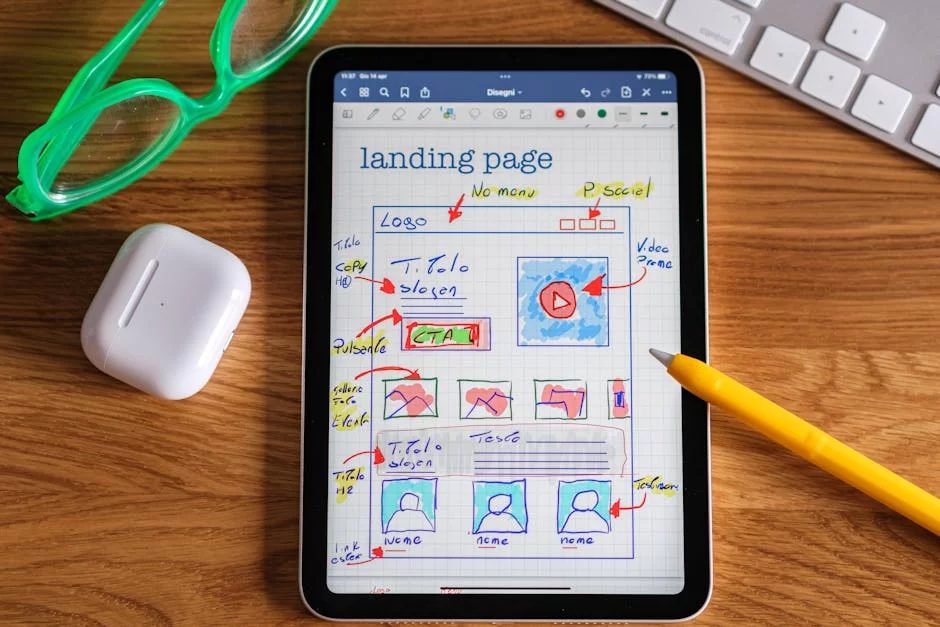
The landing page is the atomic bomb of marketing. It focuses only on the goal and cuts all noise. I never put exit points like outbound links on these pages.
On these action page types, you must always tune CTR via A/B tests. Believe me, even a button color change can boost metrics. Deciding with data is your top superpower.
E-Commerce Page and Live Use Cases
Your digital storefront, the e-commerce page, is a complex structure. This type of digital page includes everything from product lists to cart handling. Never forget that strong server-side code runs in the background.
Stock sync is the biggest test in e-commerce. The moment a product sells, it must instantly drop from stock. If this process does not happen within seconds, customer loss is certain.
You must add structured data to your product pages with Schema.org. Showing price, stock status, and star ratings boosts your CTR. This directly impacts the semantic web in business.
Accelerated Mobile Pages (AMP) are still an effective trump card for catching mobile users. Though debated, I still use them in news feeds. Users have no patience for a slow screen.
Each document in a storefront page acts as a conversion funnel. Good UX writing and trust badges greatly cut the bounce rate.
Modern Web Page Features and Speed Tips

Mobile Compatibility and Responsive Design
The world now flows in the palm of our hands. Therefore, a site page is worthless if it does not look right on mobile. Mobile compatibility is no longer a luxury but a must.
Responsive design philosophy is the art of fitting a single codebase to every screen. Thanks to Flexbox and Grid systems, you can do this art well. Media queries are the spice of the work.
Never forget to define the viewport meta tag in your HTML document. Without this small tag, mobile browsers render content at desktop scale. The result is an unreadable and tiny screen.
Mobile-first design is a strategy I apply in every project. I first code the interface for narrow screens, then expand. This method also prevents extra code bloat.
Google’s mobile-first indexing proves this rule is key. A mobile-struggling file loses rank, however good on desktop.
Web Performance: Core Web Vitals (LCP, FID, CLS) and Page Speed
As a document owner, you don’t just write code. You also dance with milliseconds. Core web vitals are the notes of this dance, very key for Google.
LCP measures the load time of the main content. Our target is always to stay under 2.5 seconds. Large images are the biggest enemy of the LCP value.
FID shows how quickly the page responds to interaction. If the user feels delay on a click, this metric gets worse. Breaking up heavy JS tasks is the best fix.
CLS is the most annoying issue. A sudden page shift while reading text drives users crazy. Always set fixed sizes for ad spaces and embedded content.
Consider using a CDN for page load speed tuning. Trim every extra byte for source code tuning. Also, use browser cache heavily.
Security (HTTPS), Accessibility (A11y), and Semantic Web (Schema.org)
When building a modern web page, you must lay solid foundations. Security comes first among these foundations. Browsers directly mark documents without HTTPS as unsafe. This creates a serious risk for users.
Regularly check the expiry of your SSL certificate. Thanks to authorities like Let’s Encrypt, this process is now free. You cannot exist on the modern web without a security protocol.
Web accessibility (a11y) is an ethical duty. Blind users browse your site with screen readers. To guide them, alt text for images is a must.
Add aria-label to buttons and nav items. These labels boost UX to the max. Remember, a good UI works for all.
The semantic web vision makes data clear for machines. Adding structured data via Schema.org gives you rich results. Thus, you become more than a simple blue link.
The semantic web is very important in the evolution of the World Wide Web. Therefore, be careful when tweaking meta tags and heading order. Search engines do not forgive semantic gaps.
Further Reading Resources on Internet Pages
Skill in this field needs constant learning. I shared basics here. For deeper knowledge, check these reliable sources.
W3C published a key doc: Web Design Principles and Applications. It is a bedside guide for tech standards. It explains how browser engines work and why standards matter. You can track current specs from here.
- W3C Web Architecture Document: Defines the basic architectural principles of the Web.
- Google Developers: Core Web Vitals: Offers technical details of Page Experience signals.
- Schema.org Official Documentation: Contains the most up-to-date schema vocabulary for structured data.
Reviewing these resources will help you bridge theory and practice. Moreover, it will help you get one step ahead in modern development.
Digital Asset Guide for the Curious: FAQ About Web Pages
What is the difference between a web page and a website?
What do static and live internet pages mean?
What tech do you need to make a web page?
How much does a internet page cost?
What should I pay attention to for fast page loading?
What should I do for my web page to appear on Google?
Why is a mobile-friendly (responsive) page important?
What basic precautions should I take for web page security?
What is the difference between a web page and a landing page?
Do I have to know coding to create my own page?
Conclusion: Your Gateway to the Digital Future and Strategic Outlook
Throughout this guide, we covered the web document concept in all its layers. We moved from a simple digital page to complex e-commerce structures. The goal was to share the real know-how behind the scenes.
You learned the vital choice between static and live types. You also saw how to breathe life into this structure with CSS and JavaScript. For modern touches, you discovered next-gen technologies like SPAs and PWAs.
You grasped how we measure quality with tuning tips and core web vitals. We discussed how vital accessibility and speed are for a good user experience. Now you know well that this job is not just coding.
Now you can make cost and tool choices more wisely in a project setup. I explained how to choose between free tools or pro systems. I shared key tips for finding the best fit for your needs. Now it’s time to implement.
Tech moves nonstop, and user needs grow each day. This knowledge you hold will be your biggest trump card for building a solid structure. Come on, now sit at the keyboard and work your magic.

Be the first to share your comment