

Open your web browser and go to any site. You see text, images, and buttons. Behind all of that is just one basic technology. We call that technology HTML. In 2026, it still powers the web.
Many people think HTML is an old tool. But the truth is the opposite. Modern frameworks, AI tools, and dynamic apps all need HTML as their final output.
What’s more, Google’s Core Web Vitals updates changed this. As a result, they made your properly structured source code more critical than ever.
Today I will explain this topic from the ground up to the most advanced level. I will mix years of my own project experience with current 2026 data. Ready? Let’s start!
What is HTML (HyperText Markup Language)? Basic Definition and Its Importance in 2026
In 1990, Tim Berners‑Lee started with a simple idea while working at CERN. Scientists should be able to link their documents together. That idea gave birth to the hypertext concept. And it laid the foundation of the web page structure we use today.
Today, the situation is much more exciting. AI assistants can generate code, but the basic structure is still the same. That is why grasping this topic solidly is more valuable than ever.
What Does HyperText Markup Language Mean?
The full name is HyperText Markup Language. Each word in the name actually sums up what it does. HyperText refers to the links between pages. Markup Language structures content with tags.
Let me make this clear: It is not a programming language. You cannot do math, run conditions, or build loops. You simply tell the browser which part is a heading and which part is a paragraph.
Think of a text document. You highlight some sentences with a marker. HTML works the same way. You tell the browser, “This part is a heading, that part is a list.”
Is HTML a Programming Language? The Clear Answer to the Most Asked Question

I have heard this question countless times over the years. The answer is very clear: No, it is not.
Why? Because programming languages can define variables, run conditional statements, and build loops. HTML only creates a static page skeleton.
However, that does not make it worthless. On the contrary, it makes it indispensable. Just as a building’s columns bear the load, HTML is the web’s load‑bearing columns.
Without CSS, a site looks ugly. Without JavaScript, it has no interaction. But without HTML, there is nothing at all.
In fact, frameworks like React, Angular, and Vue compile into HTML through JSX. So even in modern web development, the foundation is always the same.
| Feature | Programming Language | HTML Markup Language |
|---|---|---|
| Variable Definition | Yes | No |
| Conditional Statements | Yes | No |
| Looping | Yes | No |
| Content Structuring | Limited | Full |
| Rendering in Browser | Indirect | Direct |
What Does HTML Do? 10 Areas Where It Is Used
Let me give examples from daily life to understand what this technology does. When you wake up and go to a news site, everything you see is built on HTML.
You will find it everywhere: from e‑commerce sites to social media, from banking apps to email templates.
Also, its use is not limited to browsers. Mobile app development tools, desktop software, and even game engines use HTML. Now let’s examine all these use cases in detail.
The Skeleton of Websites: Building Page Structure with HTML
Developers build every web page on a skeleton. That skeleton uses heading tags, paragraph tags, and image‑placement elements.
A basic page has three main sections: a header, a content area, and a footer.
In my own projects, I always take care to set up the page skeleton properly first. If the base is not solid, everything you put on top collapses. That is why the semantic web approach has gained so much importance in recent years.
Search engines look at tags like header, nav, and footer. This helps them understand what each part of your page does. That directly affects your SEO performance.
Where Is HTML Used? A Full List from the Web to Email
The use cases for HTML are really broad. Let’s look at the main ones together:
- Static Web Pages: Corporate brochure sites, portfolio pages, and landing pages.
- Dynamic Web Apps: Interactive platforms enhanced with JavaScript.
- Email Templates: Developers code newsletters and marketing emails with HTML.
- Mobile Apps: Frameworks like React Native and Ionic use this foundation.
- Desktop Apps: Apps like Slack and VS Code built with Electron.
- Game Development: Browser‑based games using the Canvas element.
- Digital Marketing: Landing pages and conversion‑focused pages.
- E‑commerce: Product pages, cart, and checkout screens.
- Blog Platforms: CMS systems like WordPress.
- PWAs: Progressive Web Apps that work offline.
The History of HTML: A Journey from 1990 to 2026
The history of this technology is as old as the internet itself. When Tim Berners‑Lee wrote the first version in 1990, his goal was very simple. Researchers at CERN should link documents and share information faster.
It has gone through an incredible evolution since then. Browser wars, standard setting, and the mobile revolution became milestones of this evolution. At each stage, it gained new capabilities.
Today in 2026, with HTML5.3, it works integrated with technologies like local storage, service workers, and webAssembly. AI tools can also generate this structure automatically.
HTML Versions: A Timeline from HTML 1.0 to HTML5.3
Let’s briefly look at the important stops on this long journey:
- HTML 1.0 (1993): The first official version. It offered only basic text formatting and link support.
- HTML 2.0 (1995): Developers added form elements to the system with this version. Also, they provided table‑creation support.
- HTML 3.2 (1997): This was the first version standardized by W3C.
- HTML 4.01 (1999): CSS support and accessibility features arrived.
- XHTML 1.0 (2000): A stricter syntax based on XML rules.
- HTML5 (2014): Revolutionary. Developers added video and audio tags to the system with this version. What’s more, they brought canvas and semantic tags.
- HTML5.1 – 5.2 (2016‑2017): Developers made major improvements in security and accessibility during this period.
- HTML5.3 (2024‑present): The most current version. It includes modern API integrations.
HTML Page Structure: Build Your First Web Page from Scratch
We have talked enough about theory. Now let’s roll up our sleeves and build our first page. If you follow this section step by step, you will have a working web page in 10 minutes.
First, all you need is a code editor and a web browser. I personally use Visual Studio Code and recommend it to you. You can also choose alternatives like Notepad++ or Sublime Text.
How to Create an HTML File? First Steps with VS Code
First, open VS Code and create a new file. Save the file as index.html. Then write the basic structure below:
<!DOCTYPE html>
<html lang="en">
<head>
    <meta charset="UTF-8">
    <meta name="viewport" content="width=device-width, initial-scale=1.0">
    <title>My First Page</title>
</head>
<body>
    <h1>Hello World!</h1>
    <p>This is my first HTML page.</p>
</body>
</html>
After saving the file, open it in your browser. You will see a big “Hello World!” message. It is that simple! Now you have a working web page too.
I understand your excitement at this point. Building your first page is truly a magical moment. Plus, you have laid a solid foundation for everything you will build on top.
Basic HTML Structure: DOCTYPE, Head, and Body Tags
Every line you see in the code above has a specific job. The DOCTYPE declaration tells the browser what type of document this is. Without it, the browser goes into quirks mode and your page may look strange.
The head section holds meta data about the page. The charset definition ensures Turkish characters display correctly. Viewport is critical for mobile compatibility.
The body section contains everything the user sees. Headings, paragraphs, images, and buttons go here. In short, this is the flesh and blood part of the page.
| Tag | Job | Required? |
|---|---|---|
| <!DOCTYPE html> | Declares the document type | Yes |
| <html> | Defines the root element | Yes |
| <head> | Holds meta data | Yes |
| <body> | Holds visible content | Yes |
| <title> | Sets the page title | Yes |
The 20 Most Used HTML Tags and Their Meanings
HTML has hundreds of tags. However, these are the ones you will meet most often in daily use:
- <h1> – <h6>: Heading tags. h1 is the most important, h6 the least.
- <p>: Paragraph tag. Creates text blocks.
- <a>: Creates a hyperlink.
- <img>: We use it to place images.
- <ul> / <ol> / <li>: List tags.
- <div>: Block element. A general‑purpose container.
- <span>: Inline element. Highlights within text.
- <table>: We use it to build tables.
- <form>: Holds form elements.
- <input>: Takes data from the user.
- <button>: Creates a clickable button.
- <br>: Adds a line break.
- <strong> / <b>: Bold text.
- <em> / <i>: Italic text.
- <header>: Header section.
- <footer>: Footer section.
- <nav>: Navigation menu.
- <section>: Content section.
- <article>: Independent piece of content.
- <iframe>: Embeds another page.
What Is HTML5? Differences Between HTML and HTML5
HTML5 entered our lives in 2014 and changed the web radically. The differences from older versions are truly revolutionary. Multimedia support and the semantic web approach stand out especially.
Earlier, we needed third‑party plugins like Flash to add video. Now we can serve video and audio content directly through the browser. Also, drawing and animation are possible with the canvas element.
Developers also made a huge leap in mobile compatibility. Thanks to the viewport meta tag and responsive design capabilities, sites look good on all devices.
New Semantic Tags That Came with HTML5
Semantic tags clearly tell the browser and search engine what the content means. Here are the main semantic web tags that came with HTML5:
- <header>: Defines a page or section header.
- <nav>: Specifies the main navigation menu.
- <main>: Marks the main content of the page.
- <article>: Wraps independent content like a blog post.
- <section>: Separates thematic content groups.
- <aside>: Side information or sidebar content.
- <footer>: Specifies the footer area.
- <figure> / <figcaption>: Associates an image with its caption.
- <time>: Marks date and time semantically.
- <mark>: Indicates highlighted text.
Using these tags is the foundation of writing SEO‑friendly code. The search engine bot understands your page better and speeds up indexing.
What’s more, screen reader software can guide visually impaired users correctly thanks to this structure.
HTML5 Multimedia: Rich Content with Video, Audio, and Canvas
Multimedia support is one of HTML5’s biggest innovations. You can use this code to add a video:
<video width="640" height="360" controls>
    <source src="video.mp4" type="video/mp4">
    Your browser does not support the video tag.
</video>
A similar structure works for audio files. You can add background music or a podcast with the <audio> tag. Canvas lets you draw dynamic graphics with JavaScript.
The canvas element is a great tool for browser‑based game development. I use it often for data visualization in my own projects.
HTML, CSS, and JavaScript: The Three Musketeers of the Web
It is impossible to separate these three technologies. Each plays a critical role in web development basics. Honestly, if you remove one, the system collapses.
Think of it this way: HTML builds the skeleton. CSS (style sheets) puts flesh and skin on that skeleton. JavaScript sets up the nervous system and provides interaction. Together, they form a complete organism.
So why should you learn all three at the same time? Simply put, you cannot do front‑end development without this trio in the modern web world. Nearly all job postings ask for these skills.
What Is the Difference Between HTML and CSS?
These two technologies are often confused, but their jobs are completely different. HTML defines what the content is. CSS, on the other hand, decides how that content looks.
For example, you create a heading element. You set its color, size, and font family with CSS. So one is the structure, the other is the presentation layer. Understanding this distinction speeds up your web design learning process.
On the other hand, let me also note: Does CSS work without HTML? Technically, no. Because CSS needs a DOM structure to apply styles. Without a page skeleton, a style sheet alone is meaningless.
| Feature | HTML | Style Sheet (CSS) |
|---|---|---|
| Job | Content structuring | Visual formatting |
| Syntax | Tag‑based | Selector and property‑based |
| Animation | Limited (Canvas) | Extensive (Keyframes) |
| Responsive | Viewport meta | Media queries |
| Works alone? | Yes | No |
The Relationship Between HTML and JavaScript: From Static Page to Dynamic App
HTML alone creates a static page. That means the content is fixed, with no user interaction. This is exactly where JavaScript steps in and turns the page into a dynamic one.
JavaScript can make changes on the DOM and update content instantly. For example, it handles adding a new paragraph when you click a button or validating a form. What’s more, it also manages fetching data from an API.
Therefore, the relationship between these three technologies is hierarchical. You cannot start without HTML. You cannot beautify without CSS. You cannot bring it to life without JavaScript. If you want to learn the scripting language, check out a comprehensive guide.
Semantic HTML: Golden Rules for SEO and Accessibility
Semantic web is a must‑have in modern web development. Using tags that carry meaning is vital for both SEO and accessibility. In 2026, Google takes semantic structure seriously when ranking pages.
So what is this semantic approach? Simply, it means using the right tag for the type of content. Use nav for menus, main for main content, and article for independent articles. Choosing meaningful tags over div raises your code quality.
Semantic HTML Tags: Header, Article, Section, Nav, and Others
Each of these tags has a specific purpose. When you use them correctly, your page’s information architecture becomes perfect. Here are the most important semantic tags and their use cases:
- <header>: Contains the logo, site name, and top navigation. I recommend using it once per page.
- <nav>: Contains the main menu and important links. Screen reader users can jump directly here.
- <main>: The primary content of the page. There should be only one per page.
- <article>: Wraps independent content like a blog post, news item, or product card.
- <section>: Groups related content. Good practice to give each section a heading.
- <aside>: Holds side information indirectly related to the main content.
- <footer>: Contains copyright, contact info, and sub‑menus.
Thanks to this structure, the search engine bot crawls your page much faster. Also, AI‑powered search features like Google AI Overview prioritize semantic structuring.
HTML and Accessibility: Writing Code That Follows WCAG Standards
Accessibility is one of the web’s most important topics. As of 2026, WCAG 2.2 standards have become a legal requirement. Websites in the European Union, in particular, must comply with these standards.
To build an accessible page, follow these steps: First, add alt text to all images. This way, screen reader users understand what the image shows.
Second, pay attention to heading tag hierarchy. Jumping from H1 to H3 breaks accessibility.
Third, add labels to form elements. Fourth, use ARIA role definitions. Fifth, test keyboard navigation. In short, all these steps take the user experience to the next level.
Learning HTML in 2026: Career Opportunities, Salaries, and the Future
Learning this skill in 2026 is still very valuable. Job postings in front‑end development keep growing. Demand is high for developers who know the trio of HTML, CSS, and JavaScript.
Even though AI tools can generate code, having the fundamental knowledge makes you stand out. ChatGPT can write code for you, but you are the one who interprets and optimizes it. So the answer to the question “Is it worth learning?” is a huge yes.
HTML CSS Expert Salaries 2026: Current Figures
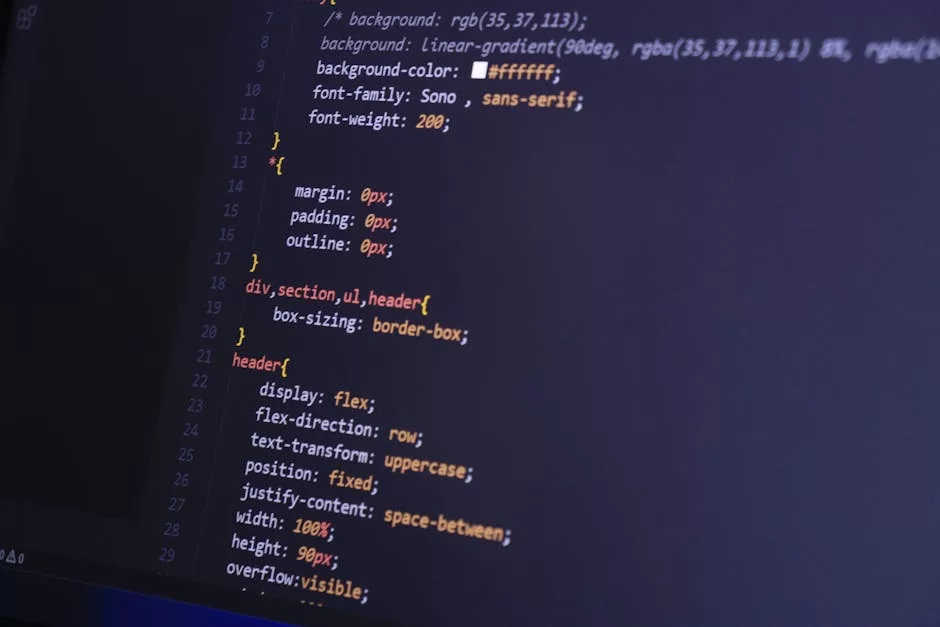
According to Kariyer.net 2026 data, front‑end developer salaries are as follows:
- Junior Front‑End Developer: $1,050 – $1,650 (0‑2 years experience)
- Mid‑Level Front‑End Developer: $1,650 – $2,550 (2‑5 years experience)
- Senior Front‑End Developer: $2,550 – $3,900 (5+ years experience)
- Full‑Stack Developer: $2,250 – $4,500 (HTML + CSS + JS + Back‑end)
- Freelance Web Developer: $450 – $3,000 per project
- UI Developer: $1,800 – $3,300
These figures apply to big cities like New York, Washington D.C., and Los Angeles. As remote work culture spreads, location differences are shrinking. Also, you can earn in US dollars on freelance platforms.
HTML Learning Roadmap: A 6‑Month Plan from Zero to Job
I recommend a 6‑month plan to learn HTML. Month 1: Learn basic tags and page structure. Practice 1 hour every day. Month 2: Improve your visual design skills with CSS.
Month 3: Move on to JavaScript basics. Grasp DOM manipulation and event handling. Month 4: Start building projects. Make a personal portfolio site. Month 5: Focus on responsive design and accessibility.
Month 6: It is time to learn a framework. Choose React or Vue and step into the modern web development world. Dozens of my students followed this plan and started job interviews after 6 months.
| Month | Topic | Goal |
|---|---|---|
| Month 1 | Basic tags and structure | Build a static page |
| Month 2 | CSS and styling | Visually appealing pages |
| Month 3 | JavaScript basics | Add interaction |
| Month 4 | Project development | Build a portfolio |
| Month 5 | Responsive & accessibility | Mobile‑friendly sites |
| Month 6 | Framework (React/Vue) | Ready to apply for jobs |
Writing Code with ChatGPT in the Age of AI: A Guide
In 2026, AI software has radically changed the coding process. Large language models like ChatGPT, Claude, and Gemini can build a page structure in seconds. However, using these tools effectively requires basic knowledge.
Personally, I see ChatGPT as an assistant, not a code writer. It cannot think for you, but it can quickly turn your thoughts into code. Understanding this fine line is very important.
Getting HTML Code from ChatGPT: Best Prompt Examples
You can get great results with the right prompt engineering. Here are the most effective prompts I use:
Prompt 1: "Create a blog homepage using semantic HTML5 tags. Include header, nav, main, article, and footer. Make it SEO‑friendly. Add the viewport meta tag for mobile responsive design."Prompt 2: "Write an accessible registration form that follows accessibility standards. Add labels to all inputs. Define ARIA roles. Use the required attribute for form validation."Prompt 3: "Code the following design with HTML and CSS: a full‑width hero section at the top, a 3‑column card layout below, and a footer at the bottom. Use Flexbox. Use a blue and white color palette."Be as specific as possible when using these prompts. You can draw inspiration from prompt templates shared in open‑source communities.
Does AI Make Learning HTML Easier? Advantages and Limits
AI tools really speed up the learning process. You can instantly look up a tag you don’t know or fix your buggy code. Also, you can ask them to explain complex structures step by step.
However, there is an important limit. AI gives you ready‑made solutions, but you cannot progress without grasping the basic logic.
In a job interview or technical exam, AI won’t be there with you. So never neglect learning.
My advice is to use AI as a mentor during the learning process. You write the code, AI checks it. It explains the mistakes and suggests alternative solutions.
SEO Compatibility with HTML: Strategies to Rank Higher in Search Engines
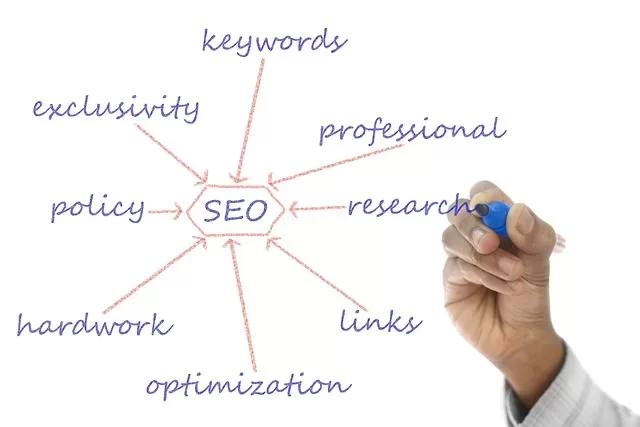
Writing SEO‑friendly code is an integral part of modern web development. The Google ranking algorithm analyzes your page structure, heading hierarchy, and meta data. A well‑structured page always has an advantage.
Core Web Vitals metrics are directly related to page speed optimization. Unnecessary tags, unoptimized images, and faulty structures hurt performance. This increases your bounce rate and hurts your ranking.
On the other hand, using semantic tags and schema markup strengthens page authority. Following W3C standards is seen as a trust signal. In summary, when all these factors come together, you rise in the rankings.
HTML Meta Tags: Optimizing Title, Description, and Viewport
Meta tags determine the information shown in search results. The title tag contains the page title, and the description contains a short summary. Both directly affect the click‑through rate.
- Title: Should be 50‑60 characters. Include the main keyword at the beginning.
- Meta Description: Ideal length 150‑160 characters. Use call‑to‑action phrases.
- Viewport: Mandatory for mobile compatibility. You must give the value width=device‑width.
- Charset: Use UTF‑8. Prevents Turkish character issues.
- Robots: Gives instructions to the search engine bot. We often use index and follow values.
- Canonical: Solves duplicate content problems.
Schema Markup and Open Graph: Getting Rich Results
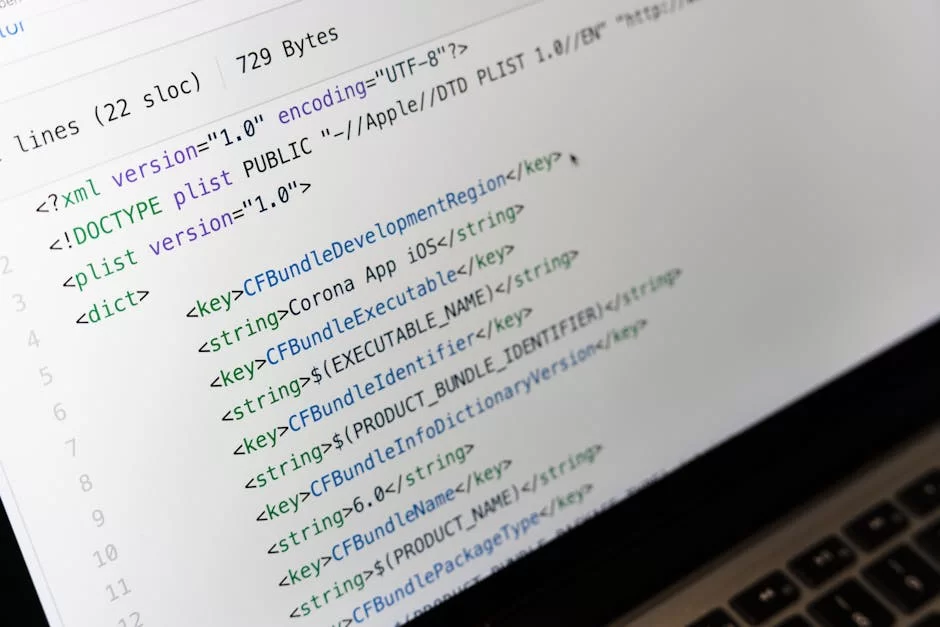
Schema markup lets you get rich snippets in search results. Information like product price, star rating, or event date appears directly in the search result. This significantly increases the click‑through rate.
Open Graph and Twitter Cards create a preview image for social media shares. When you share a blog post, these tags ensure the title, description, and image look correct.
To add schema markup, follow these steps: First, choose the appropriate type from schema.org. Then add the structured data in JSON‑LD format to the head section. Finally, validate it with Google’s Rich Results Test tool.
<script type="application/ld+json">
{
  "@context": "https://schema.org",
  "@type": "Article",
  "headline": "Article Title",
  "author": {"@type": "Person", "name": "Author Name"},
  "datePublished": "2026-01-15"
}
</script>
HTML Security: Precautions Against XSS and Common Threats
Web security is a critical topic every developer should know. Security holes in HTML can compromise user data. XSS attacks are among the most common threats.
Directly printing user‑supplied data to the page is a big mistake. Malicious users can inject script tags and steal session information. That’s why input validation and output encoding are essential.
Besides that, you take CSRF token and SQL injection precautions in form elements. Moreover, you add new security layers with an SSL certificate. Legal regulations like GDPR also require protecting user privacy.
What Is XSS (Cross‑Site Scripting)? How to Prevent It in HTML?
XSS is a security hole where an attacker injects malicious code into a page. There are three types: Stored XSS, Reflected XSS, and DOM‑based XSS. Each works differently, but the results are similar.
To prevent this attack, apply these methods: First, never trust user input. Convert all special characters into HTML entities. Second, use the Content Security Policy header.
Third, activate HttpOnly and Secure cookie flags. Fourth, use textContent instead of innerHTML. Fifth, test regularly with security scanners. These precautions protect your site significantly.
Debugging and Validation: 5 Ways to Test Your Code
Debugging is a natural part of the development process. Even the most experienced developers make mistakes. The important thing is to find and fix those mistakes quickly.
Code validation tools are lifesavers here. The W3C Validator catches missing closing tags, badly nested structures, and missing attributes. The developer tools console shows JavaScript errors in real time.
I run Lighthouse audits regularly on every project. It gives scores in four categories: performance, accessibility, best practices, and SEO. This helps me see areas for improvement clearly.
The 10 Most Common HTML Mistakes and Their Solutions
I have listed the most common mistakes I have seen in countless projects over the years:
- Forgetting the closing tag: Write a closing tag for every opening tag. I often see this mistake in nested divs.
- Wrong nesting: The last opened tag must close first. Be careful when using inline elements inside block elements.
- Not adding alt text: Always add alt text to all img tags. Actually, it is mandatory for accessibility.
- Forgetting the DOCTYPE declaration: It must be at the very top of the page. Otherwise, you will face browser compatibility issues.
- Duplicate IDs: Giving the same ID to multiple elements is a big mistake. Simply put, IDs must be unique.
- Not encoding special characters: Write characters like &, <, > as entities.
- Forgetting charset definition: If you don’t use UTF‑8, Turkish characters break.
- Using inline styles: Use external CSS files whenever possible.
- Using div instead of semantic tags: Prefer tags that carry meaning.
- Missing labels on form elements: Define a label for every input.
Authoritative Resources for HyperText Markup Language
If you want to learn more about this topic, I recommend checking out the following authoritative resources:
- MDN Web Docs — Documentation: Mozilla’s official documentation is an unmatched reference for developers of all levels. It offers up‑to‑date, comprehensive content fully aligned with W3C standards.
- Web.dev Course, on Google’s official platform, offers a thorough guide starting from scratch for beginners. It teaches semantic structure and accessibility standards with interactive examples.
- WHATWG Living Standard: The living standard document created by browser vendors. It updates daily and includes the newest features.
Most Asked Questions About the Web’s Building Block
How do you write HTML for SEO?
What new features did the fifth version of the web bring?
Can you build a mobile‑friendly site with only HTML?
Which free editors are best to start writing code?
What is semantic HTML and what does it do?
How do you publish a web page on the internet?
How do you find and fix source code errors?
How do you view the source code of a site?
How should blog writers use HTML?
What are the most used basic tags?
Conclusion: Start Learning HTML Today
In this guide, we covered everything from HTML basics to the most current topics of 2026. As you have seen, this technology is not outdated. On the contrary, it becomes more important every day.
Even though AI makes the coding process easier, having basic knowledge makes you stand out. You will feel this difference in job interviews, technical exams, and real projects. Start today; tomorrow may be too late.
There are many free resources to help you on your learning journey. Download VS Code, build your first page, and start practicing. Remember, every expert was once a beginner. I am here too, waiting for your questions.

Be the first to share your comment