

When you power on your PC, you expect the desktop in seconds. Apps should open the moment you click them. Also, game maps must load in a snap, not minutes. The core power behind these hopes is your SSD (Solid State Drive).
You no longer wait through the irritating clicks of a mechanical hard drive. The fix is a modern storage device based on semiconductor memory tech. This device lets you reach your data almost at light speed. Moreover, it has no moving parts, so it runs silently and stays very tough.
So, what exactly is this magical peripheral and what does it do? In short, an SSD is a storage unit that keeps data permanently. Namely, it uses NAND flash memory chips to store your data.
Unlike traditional HDDs, it has no spinning magnetic platter or moving read/write head. As a result, new drives fully erase the woes of old mechanical disks. Plus, you never face issues like wear, shock, or noise.
However, the behind-the-scenes story runs much deeper than you think. The market offers dozens of different form factors and interfaces, such as SATA, M.2, and NVMe. For instance, you may spot technical details like TLC, QLC, DRAM cache, TBW value, and write amplification.
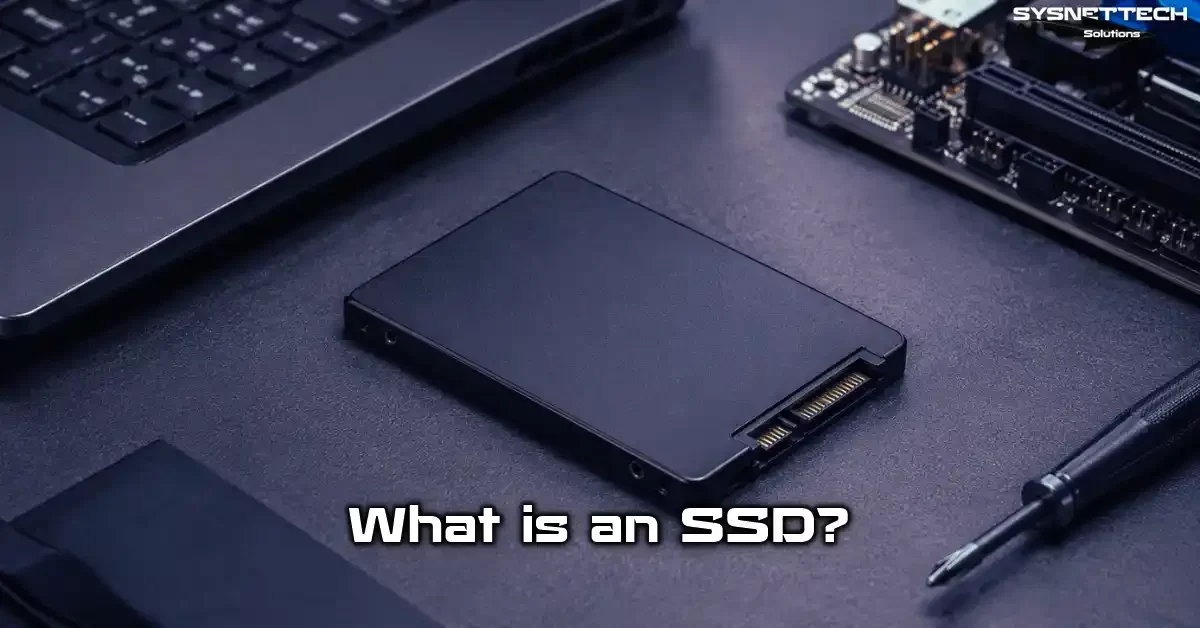
What is an SSD? The Definition and Basic Logic of a Solid State Drive
In today’s computer world, performance now hinges on storage, second only to the CPU. Years ago, we added RAM or overclocked the processor to gain speed.
Today, the biggest improvement comes from changing the storage unit. The key semiconductor storage solutions we see now have transformed our lives.
Unlike mechanical hard drives, these flash-based devices work entirely electronically. Inside, they house a chipset and millions of memory cells.
You don’t wait for a physical needle to move to the right spot. That’s why it gives you random access in microseconds, not milliseconds.
| Feature | SSD | HDD |
|---|---|---|
| Moving Parts | None | Spinning Platter + Read/Write Head |
| Latency | ~0.1 ms | ~5-10 ms |
| Maximum Speed | 12,000+ MB/s | ~150 MB/s |
| Power Consumption | 3-4 Watts | 6-8 Watts |
| Shock Resistance | Very High | Low |
The Meaning of SSD: What Solid State Drive Means
It stands for Solid State Drive. The term “solid state” means no moving mechanical parts. Much like a USB flash drive, it uses fully semiconductor-based integrated circuits.
At first, only the military and big companies used this technology. It cost a lot and capacities were very limited.
Over time, 3D NAND technology cut manufacturing costs sharply. So, by 2026, it became standard in nearly every new PC. Now people view this tech as a basic need, not a luxury.
The term solid state drive sums up the device’s working principle clearly. Instead of a moving disk and needle, it uses transistor cells that work with electrical signals.
This design is quite resistant to physical shocks. Also, it’s the main reason it runs silently and uses less power.
The Most Basic Difference Between SSD and HDD: No Moving Parts
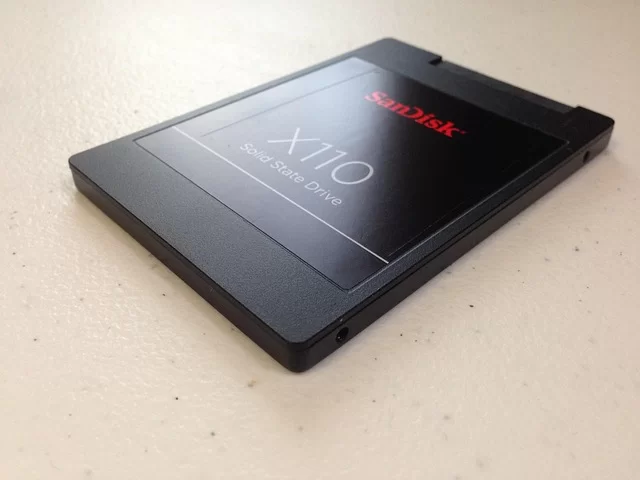
A traditional HDD writes data on magnetic platters spinning at 5400 or 7200 RPM. However, this spin speed brings physical limits with it.
The read/write head moves with millimeter precision over the platter. This mechanical design creates both latency and extreme sensitivity to shocks.
In contrast, the solid state drive processes data directly on the memory chip electrically. Even with a SATA 3 connection standard, it can reach 550 MB/s.
Via NVMe protocol over a PCIe interface, speeds of 7,000 MB/s and beyond are possible. These numbers far exceed the 150 MB/s ceiling of the fastest mechanical drive.
Power consumption is another plus. The design with no moving parts earns energy efficiency certifications.
A hard drive under full load draws 6 to 8 Watts. An NVMe drive gets by with 3 to 4 Watts. This directly boosts laptop battery life.
Plus, it works in total silence and creates no vibration. In the end, these key differences completely change your storage choice.
How an SSD Works: NAND Flash, Controller, and DRAM’s Role
The working principle of SSDs is far more complex than it looks. When you drag and drop a file, a huge chain of operations spins behind the scenes.
The system does not write data straight to the memory chips. First, a memory controller steps in. Next, this controller encrypts, compresses, or buffers the data.
The biggest mistake is thinking of SSDs as simple USB portable drives. In reality, the controller brands (Phison, Silicon Motion, Sandisk) run highly advanced software.
This software manages ECC error correction and wear leveling processes. Frankly, the controller also handles bad block management this way. That’s why you may see serious performance and lifespan gaps between two different models.
What Is NAND Flash Memory and How Is Data Stored?
NAND flash is a type of non-volatile memory that keeps data even when power cuts off. Structurally, it consists of cell arrays where transistors are connected in series.
Each cell stores data by holding a specific voltage level. SLC NAND stores 1 bit per cell, the fastest and most durable type. MLC NAND holds 2 bits, TLC holds 3 bits, and QLC holds 4 bits.
As bit density rises, cost drops, but speed and endurance fall. Developers are designing PLC NAND technology with 5 bits per cell. They are actually building this system as the technology of the future.
With 3D NAND technology, they stack cells vertically on top of each other. Therefore, this method provides even higher storage capacity. When you write data, electrons pass through the tunnel oxide layer.
In the end, you trap electrons in a section called the floating gate. Naturally, this process creates physical wear inside the system. As a result, it determines the device’s write lifespan.
- SLC NAND (Single-Level Cell): The highest endurance and speed, but extremely expensive. They use it especially in industrial and military systems.
- MLC NAND (Multi-Level Cell): Ideal for enterprise servers. Additionally, it offers a high endurance and fair price balance.
- TLC NAND (Triple-Level Cell): The standard for the everyday consumer market. Actually, it provides enough endurance for gaming and office use.
- QLC NAND (Quad-Level Cell): The lowest cost solution. Therefore, it is suitable for archive, backup, and read-intensive storage.
| NAND Type | Bits/Cell | Endurance (PE Cycles) | Cost | Use Area |
|---|---|---|---|---|
| SLC NAND | 1 | ~100,000 | Very High | Industrial, Military |
| MLC NAND | 2 | ~10,000 | High | Enterprise Server |
| TLC NAND | 3 | ~3,000 | Medium | Consumer, Gaming |
| QLC NAND | 4 | ~1,000 | Low | Archive, Backup |
The SSD Controller: The Brain of the SSD
The controller is the bridge between the operating system and the NAND chips. It directly decides where to write incoming data. Along with that, it tracks which cell is worn. In the end, it also decides when to run cleanup.
A quality controller provides low write amplification and high IOPS. A low-quality one wastes even the best NAND chips.
Among the most powerful controller models on the market is the Phison E26. Another important example is the Silicon Motion SM2508.
These next-gen controllers support PCIe Gen5 speeds. Garbage collection and TRIM command management also fall under the controller’s responsibility. Therefore, your selection criteria should include not just read and write speed, but also the controller brand.
DRAM Cache and HMB Technology: What DRAM-less SSDs Lose
The DRAM cache acts as a high-speed buffer that holds the data location map. It is a much more advanced version of the cache in classic HDDs.
An SSD with DRAM is fast in random reads and writes. Because the map data stays in DRAM, system latency stays minimal.
Budget-friendly storage solutions instead use HMB (Host Memory Buffer) technology. This technology borrows a small chunk from the system’s main RAM.
Although it’s not as fast as a DRAM cache, it cuts costs significantly. Especially models with HMB over NVMe still beat SATA SSDs by a wide margin.
So, should you buy a DRAM-less SSD? For light tasks like office work and movies, yes. But for heavy workloads like gaming or rendering, a DRAM model is a must.
Otherwise, under intense load you will see noticeable stutters and slowdowns. My advice: if your budget allows, always pick a model with DRAM cache.
- DRAM Advantages: Higher random read/write speed. Also, longer life and stable performance under pro workloads.
- HMB (DRAM-less) Advantages: Lower cost and lower power draw. Meanwhile, it suits thin laptops perfectly.
SSD Types and Interfaces: Differences Between SATA, M.2, and NVMe
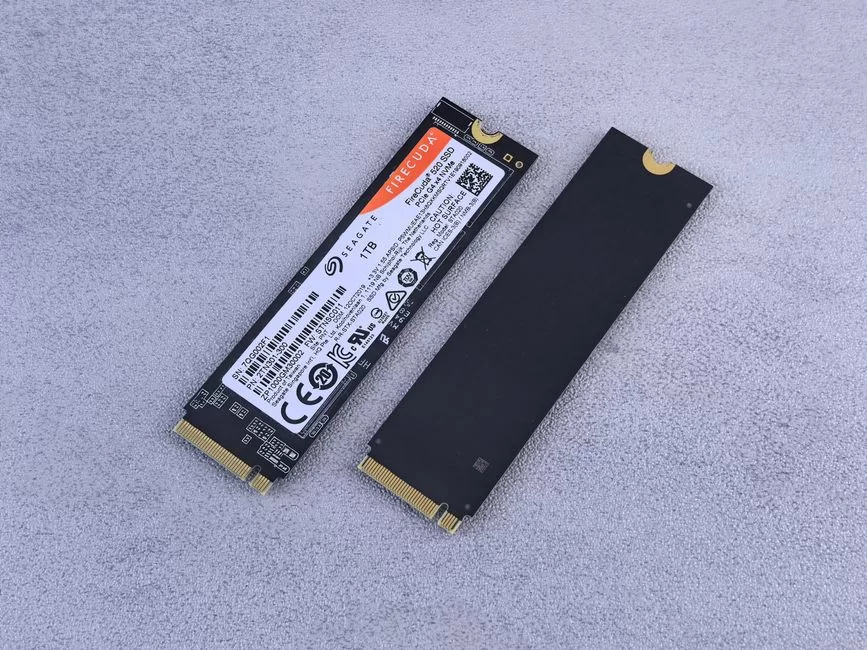
When you look at the market, you see dozens of different models and connection types. This variety is confusing, especially for beginners.
But basically, knowing the interface (SATA, PCIe) and form factor (2.5-inch, M.2) is enough. The trick is to correctly identify which slot your motherboard supports.
The first models came in the 2.5-inch form factor. This design was a direct fit for replacing laptop HDDs. Later, the M.2 2280 standard entered our lives.
You mount this small card horizontally onto the motherboard. Nowadays, the PCIe Gen 4 interface and NVMe protocol form the most popular combo. Also, motherboards and drives with PCIe Gen5 are becoming widespread.
What Is a SATA SSD? The Limits of the Traditional Interface
Engineers designed the SATA 3 connection standard years ago for mechanical hard drives. Its theoretical maximum data transfer speed is 600 MB/s.
In the real world, this value usually hovers around 550 MB/s. Semiconductor storage solutions hit a serious bottleneck with this interface because modern flash memory can deliver much more than that speed.
Despite this, SATA models remain popular. The reason is simple: affordable price and wide compatibility. You’ll find a SATA port even on a 10-year-old motherboard.
Cost per capacity is lower than NVMe models. For example, games load on a SATA 3 SSD, but don’t expect instant openings like on an NVMe.
Let me put it this way: a SATA SSD is a budget-friendly, reliable solution with a speed limit. If you need an SSD for an old laptop, SATA models are a great start. Most old devices lack an M.2 slot anyway. So this disk type may be your only choice.
What Is an M.2 SSD? Form Factor and Key Compatibility
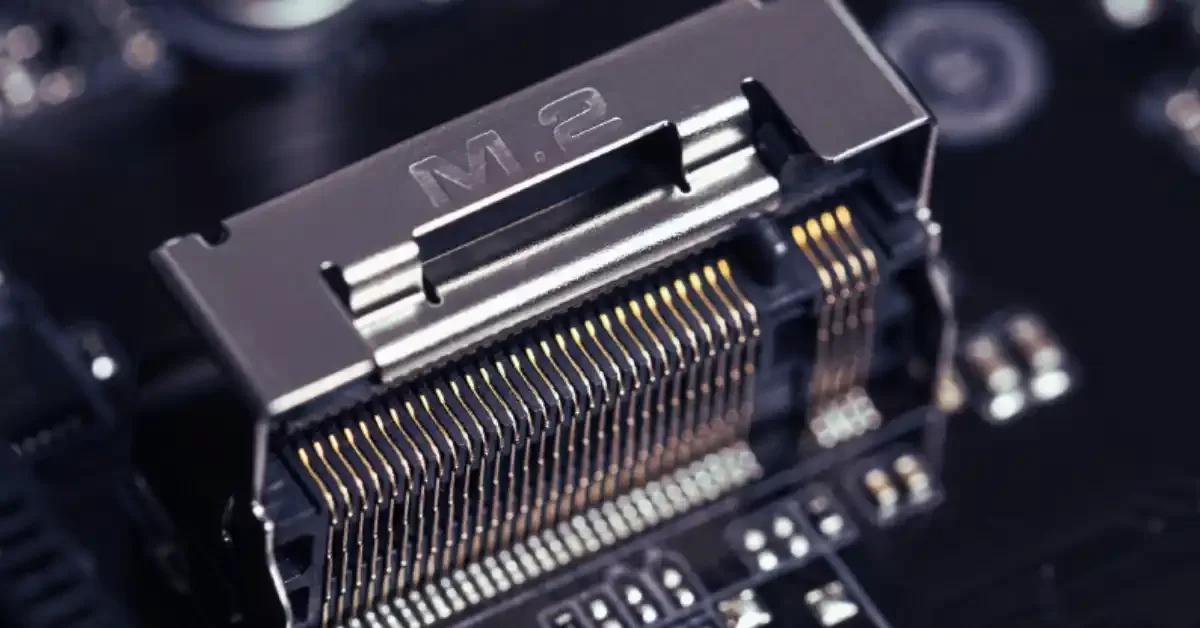
M.2 is a physical card shape, not an interface. It resembles a thin, long piece of gum. It lies horizontally on the motherboard, eliminating cable clutter.
The most common size is M.2 2280, meaning 22 mm wide and 80 mm long. Some models may also come in 2242 or 22110 sizes.
Before buying, the notch compatibility (B-Key/M-Key physical lock) is critical. SATA-based M.2 drives generally use a B-Key notch. NVMe PCIe-based M.2 drives use an M-Key notch. These two types do not physically fit each other. If you buy the wrong one, you’ll deal with a return process.
What Is NVMe SSD? The Secret of High Speed Over PCIe
NVMe (Non-Volatile Memory Express) is a communication protocol written solely for flash memory. The old AHCI protocol was optimized for mechanical disks.
NVMe connects directly to the processor via the PCIe interface. This way, it offers extremely low latency and massive IOPS values.
I always use this analogy for NVMe: If AHCI is a single-lane road, NVMe is a 4 or 8-lane highway. You can run nearly a million random read ops per second.
With a PCIe Gen 4 interface, 7,000 MB/s read speed has become standard. PCIe Gen5 pushes that figure up to 12,000 MB/s.
NVMe drives are the best for OS installation and game storage optimization. PC boot time drops to 5–7 seconds. Likewise, when people ask for SSD advice for rendering or editing, NVMe comes to mind first. But this speed brings along a heat management issue. Fortunately, we’ll detail that later.
| Interface | Form Factor | Max. Theoretical Speed | Latency | Ideal User |
|---|---|---|---|---|
| SATA 3 | 2.5″, M.2 | 550 MB/s | High | Office, Old Laptop |
| NVMe PCIe Gen3 | M.2, U.2, PCIe Card | 3,500 MB/s | Low | Gamer, Student |
| NVMe PCIe Gen4 | M.2, U.2 | 7,000 MB/s | Very Low | Content Creator |
| NVMe PCIe Gen5 | M.2 | 12,000+ MB/s | Ultra Low | Professional, Server |
7 Critical Criteria to Consider When Choosing an SSD
Making a purchase decision is like getting lost among technical details. However, a basic decision tree (purchase matrix) simplifies your task.
You must balance the motherboard slot compatibility, capacity need, and budget triangle. The items below come from my own painful wrong purchases.
Especially durability metrics like TBW warranty and wear leveling determine the device’s lifespan. Making a buy based only on speed test results is a huge mistake.
A model with a filled cache looks fast in tests, but in reality it can let you down. In reality, it can let you down in actual use. Let’s examine these criteria in order.
Capacity Selection: How Many GB or TB SSD Should I Buy?
Today’s software and games have reached enormous sizes. A few AAA games can easily fill 500 GB. So, I now recommend at least 512 GB capacity.
256 GB and below models fill up instantly after the OS and a few programs. We’ll cover how fullness affects speed later. But know this now: a full drive loses speed.
I use a 2 TB NVMe in my own PC. For backup, I picked a 1 TB portable SSD. This gives me speed and security. For capacity, use this rule: aim for twice your current usage.
- 256 GB: Only enough for the OS and basic office apps. However, you’ll hit a bottleneck within a year.
- 512 GB: A satisfying start for the system, basic programs, and 2-3 big games.
- 1 TB: Ideal for gaming, design, and content creators. It keeps you comfortable in the long run.
- 2 TB and above: A must for professional video editing, rendering, and data science.
Read/Write Speeds: Theoretical vs. Real-World Performance
The big numbers on the boxes usually refer to sequential read and sequential write performance. These values matter when copying a single large file.
However, in daily use, the OS reads thousands of tiny files at once. At this point, IOPS matters, not sequential speeds.
In daily use, the feel between a pricey NVMe and a cheap SATA SSD is small. Yes, NVMe flies when copying files. But the Windows boot time difference is only 2–3 seconds.
You notice the gap in game map load times, but FPS stays the same. So, if you only work with large files, focus on high sequential speeds.
Endurance and Lifespan: What Do TBW, DWPD, and MTBF Mean?
TBW (Terabytes Written) is the total data you can write under warranty. For example, a 600 TBW rating means you can write 600 TB to the device.
If you write 50 GB daily, it will last about 32 years. So the answer to “How long does an SSD last?” is mostly “longer than you.”
DWPD (Drive Writes Per Day) is the enterprise metric. It shows how many full overwrites you can do daily under warranty.
MTBF values reach 1.5 million hours and beyond. How do I calculate TBW on SSDs? This value reflects the wear limit set by the maker after tests. You can track the current write amount with CrystalDiskInfo.
Compatibility: Which SSD Does My Motherboard Support?
Checking motherboard SSD compatibility is the most skipped step. First, learn your motherboard model. Then examine the tech specs on the manufacturer’s website.
Check whether your M.2 slot supports SATA, NVMe, or both. Similarly, PCIe generation compatibility matters too.
How do I check laptop SSD compatibility? Carefully open the device’s bottom cover. Physically see the slot. Pay attention to the notch structure and slot length.
Some ultrabook models only have a 2242-size M.2 slot. In that case, you cannot install a 2280 model.
Brand and Model Selection: Which SSD Brands Are Reliable?
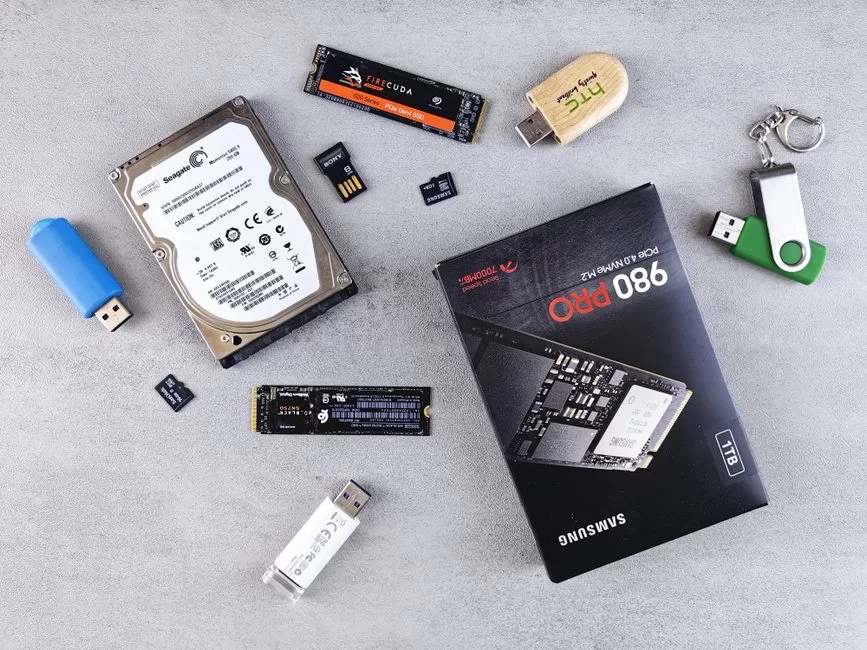
The market features leaders like Samsung, Western Digital, Kingston, Crucial, and Corsair. Independent organizations ran various tests in 2025. As a result, the Samsung 990 Pro and WD Black SN850X achieved the highest reliability scores. For budget-friendly storage solutions, the Kingston NV2 or Crucial P3 Plus are ideal.
Another notable name on the 2025 best SSD brands list is Solidigm. They are very strong on the enterprise side. My personal favorite is Samsung’s Pro series. It offers DRAM cache and high TBW. Choosing a reliable brand helps you avoid long-term data integrity problems.
- Samsung: Highest performance and reliability, Pro series leads.
- WD Black: Gaming-focused high speeds, good cooling solutions.
- Kingston: Budget-friendly NVMe options, wide product range.
- Crucial: Micron assurance, excellent price-performance.
- Solidigm: Enterprise heritage, high endurance.
Facts About SSDs Everyone Should Know
Beyond the speed and capacity everyone talks about, a deeper world awaits you. Now, we’ll dive into truths that manufacturers’ brochures don’t mention.
Cache cleaning algorithms and bad block management determine your device’s fate. If you buy an SSD and just plug it in, you can’t even use half its potential.
How Does SSD Fill Rate Affect Performance? (The 70% Rule)
In solid state drive technology, free space equals speed. As the drive fills up, the controller struggles to find empty blocks.
This situation raises the write amplification value. The system cannot write new data onto NAND cells without first erasing them. Hence, the drive constantly runs relocation and cleanup operations for new data.
In my tests, a 90% full NVMe saw write speed nearly cut in half. So, how much free space should you keep? At least 20 percent.
If you constantly write large files, 25–30% free space is ideal. If you face SSD slowdown issues, first clean up unnecessary files.
What Is Over-Provisioning? The ‘Hidden’ Reserve Space of an SSD
Over-provisioning is a hidden free area the drive reserves for itself. The controller uses this space for garbage collection and bad block management.
You see 1 TB, but physically there is 1.1 TB of NAND memory. The difference is the over-provisioning area.
Some manufacturer software lets you increase this area. For instance, Samsung Magician allows you to allocate up to 10% extra space.
This action extends the drive’s lifespan and flattens the performance drop curve. Especially in heavy-write server environments, this value is vital.
Should You Defrag an SSD? The Difference Between TRIM and Garbage Collection
Absolutely not! The answer to “Should we defrag SSDs?” is a firm no. Defrag pieces together scattered data on a mechanical disk. But flash memory already has no sequential access. Plus, this job wastes TBW write endurance for nothing.
Instead, the TRIM command kicks in. The OS notifies the controller of deleted file blocks via TRIM. Thus, the controller cleans those blocks in advance. This speeds up the next write operation.
Garbage collection is a background process. It collects and erases old and invalid data. These two are far more important for your drive’s health than defrag.
What Is Write Amplification and How Does It Affect SSD Lifespan?
You think you write 1 MB of data. Yet the controller may physically write 3–4 MB. This is due to page and block layout. That gap is write amplification.
The closer this value is to 1.0, the more efficient and longer-lasting the drive. A high ratio means NAND cells wear out unnecessarily.
To reduce write amplification, sequential writing is effective. Also, leaving over-provisioning space lowers it.
Therefore, engineers designing data center storage architectures constantly monitor this ratio. You can also track such parameters via SMART health data.
Why Is SSD Data Recovery Harder Than HDD?
The difficulty and near impossibility of data recovery is the dark side of this technology. When you delete a file on a mechanical disk, a magnetic trace remains. The system only removes the relevant index.
That’s why data recovery becomes possible. But when TRIM runs on an SSD, the system electrically resets the cells. In short, no trace stays behind.
Moreover, hardware encryption (AES) protects your data. So without the encryption key, you cannot remove and read the NAND chip. Even if you desolder the chip, you only find meaningless data.
This is a security plus, but a disaster for files deleted by mistake. Take precautions: regular backups are a must. If you ask “Can you recover data from an SSD?”, the answer is mostly “no.”
But the good news is that TRIM is usually disabled during a RAW error. So, check out our guide to RAW SSD recovery.
DirectStorage Technology: An SSD Revolution in Gaming?
DirectStorage API allows the graphics card to read data directly from the drive. Previously, the system would copy data to RAM via the CPU. As a result, that data then passed to the GPU.
Now, the system transfers data straight into VRAM. This way, game load times drop dramatically. Also, open-world games see fewer sudden stutters.
By 2026, many new games support this technology. Windows 11 is optimized for this feature. My clear advice for those asking for an SSD for gaming: get at least a PCIe Gen 4 NVMe. The difference truly feels like a generation leap. This technology is the PC reflection of the fast-loading secret in consoles.
Differences Between Enterprise and Consumer SSDs
Enterprise SSDs are designed for 24/7 operation. They have a higher DWPD value. For instance, a 3 DWPD rating lets you write the whole capacity three times a day.
These devices also include PLP (power loss protection). During sudden power cuts, capacitors kick in to save the buffered data.
Their prices are much higher than consumer models. But this is essential for data integrity and service continuity. In server endurance tests, a regular NVMe drive can die in weeks under heavy writes.
Similarly, the U.2 interface and technologies like Zoned Namespaces (ZNS) are exclusive to the enterprise world.
SSD Security and Hardware-Based Encryption
Most modern drives support AES 256-bit hardware encryption. This encryption puts no load on the CPU and is always active. You may not realize it, but your data locks at the chip level.
Thus, if you want to perform secure SSD disposal, you need physical destruction or cryptographic erase. A simple format does not make data unrecoverable. However, if hardware encryption (AES) is active, deleting the key suffices. This renders all data meaningless in seconds.
Especially in corporate laptops, this feature is a standard requirement. Sustainable SSD and green IT concepts also directly relate to these secure disposal processes.
SSD Performance Boost and Optimization Tips
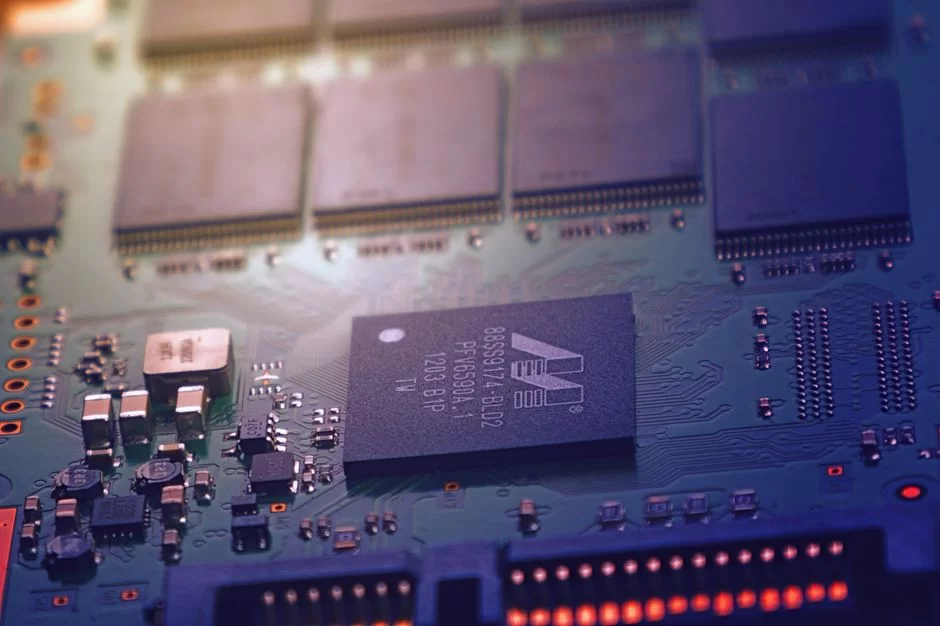
Plugging an SSD in and leaving it is like driving a Ferrari in second gear. The OS arrives with old mechanical disk habits. You must tune these settings for semiconductor memory tech. After you apply the steps below, boot time drops. Apps feel instant.
I have optimized hundreds of systems over the years. Some settings are urban myths, but Windows SSD optimization really makes a difference. For example, you don’t need to turn off the indexing service. However, enabling write-cache buffer flushing is a must. Here are the most critical OS-level settings.
Windows SSD Optimization: TRIM, Disabling Defrag, and Power Settings
First, for Windows 11 SSD optimization, open Command Prompt as admin. Type fsutil behavior query DisableDeleteNotify. If the output is 0, TRIM is on.
If not, activate it with fsutil behavior set DisableDeleteNotify 0. The TRIM command is vital for cleaning deleted blocks.
Second, open the “Defragment and Optimize” tool. You’ll notice Windows does not defrag SSDs—it only runs TRIM. Never start a manual defrag.
Finally, choose the “High Performance” power plan. Turn off PCIe Link State Power Management. This keeps your motherboard’s link with the drive at full speed.
- Run Command Prompt as admin and type
fsutil behavior set DisableDeleteNotify 0. - Press Windows key + X, go to “Disk Management,” right-click the drive, and select “Properties.”
- On the “Policies” tab, check “Enable write caching on the device.”
- In “Power Options,” activate the “High Performance” plan and set PCI Express > Link State Power Management to “Off.”
macOS and Linux SSD Optimization: TRIM and Noatime

macOS automatically manages TRIM with the APFS file system. Usually, no extra setting is needed. You can force-enable it via Terminal with sudo trimforce enable.
On the Linux side, you need to run the fstrim command weekly using a systemd timer. Activate this timer with sudo systemctl enable fstrim.timer.
Additionally, use the noatime mount option in ext4 and similar file systems. This prevents writing the last access time on every file access. Thus, you avoid unnecessary write operations.
Especially think about SSD lifespan, TBW, DWPD, and MTBF values. In short, this small tweak makes a big difference.
SSD Temperature Management: Thermal Throttling and Cooling Solutions
High-speed NVMe drives can reach 70–80°C while working. Above a certain threshold, the controller cuts speed. This event is called thermal throttling.
As a result, you face sudden performance loss in the middle of a game or render. So, the question “Is an M.2 SSD cooler necessary?” is critical.
If your motherboard lacks one, use passive cooling blocks or thermal pads. Even a cheap aluminum cooler drops temperatures by 15 degrees.
In my tests, a Gen4 drive without a cooler hit throttling limits in 5 minutes. With a cooler, that time became unlimited. Active cooling is only necessary in server environments.
- Thermal Pad: Sticks on the controller and NAND chips, conducts heat. Low cost.
- Passive Cooler Block: Aluminum or copper finned structure, spreads heat. The most effective consumer solution.
- Active Cooling: Includes a small fan, suitable for servers and heavy workstations.
Who Should Buy Which SSD? SSD Recommendations by User Profile (2026)

No single model suits all. Some just watch movies. Others render for hours. Picking based on usage stops you from wasting cash. Below, I list real-life profiles and ideal solutions. We must factor in the 2026 market. SSD buy timing decides the price-performance trade-off.
Prices have dropped to very reasonable levels in 2026. Now even the cheapest SSD recommendation offers satisfying speeds. But my favorite strategy is: a fast NVMe SSD for the OS, and a large SATA QLC drive for storage. This hybrid setup makes both your wallet and the user happy.
SSD Recommendation for Students and Daily Users
For students, budget and durability come first. 512 GB holds docs, slides, and a few films. But if you can, get an NVMe model, even a DRAM-less one. The price gap is tiny, so skip SATA.
Buying a second-hand SSD is tempting for a student budget. But remember this choice carries risk.
- Model Suggestion: Kingston NV2 512 GB NVMe PCIe Gen4.
- Backup Alternative: Crucial BX500 1 TB SATA (ideal for old laptops).
- Advice: Back up your data regularly to the cloud. Don’t rely on physical durability alone.
SSD Recommendation for Gamers and Streamers
Gamers care about map load times and DirectStorage support. Is an SSD necessary for gaming performance? In 2026, absolutely yes. Most games no longer run properly on HDDs.
Streamers play and record at the same time. This demands high write speed and endurance.
- Model Suggestion: Samsung 990 Pro 2 TB NVMe PCIe Gen4.
- For Streamers: WD Black SN850X 4 TB (high TBW and heatsink).
- For PS5: Corsair MP600 Pro LPX 1 TB. For PS5 compatible SSD advice, get models with a heatsink.
SSD Recommendation for Content Creators (Video, Graphics, 3D Render)
4K and 8K video editing means gigabytes of data flow per second. Here, the question “Should I buy a PCIe Gen5 SSD?” gains meaning. The answer: if your budget allows, yes. For rendering and editing, I recommend a dual-drive system.
- Recommended Setup: 1 TB PCIe Gen5 NVMe (Crucial T700) for OS and project files.
- Archive Storage: 4 TB SATA or QLC NVMe (Samsung 870 QVO). This is far more efficient than old tech like HDD (Hard Disk Drive).
- RAM Disk Alternative: Use the system RAM for intensive cache tasks. This eliminates write amplification issues.
Enterprise SSD Recommendation for Servers and Data Centers
In this segment, consistency and reliability trump speed. For those asking “Enterprise vs. consumer SSD: what’s the difference?”, it’s about data integrity vs. burst speed. My data scientist SSD advice is similar. For write-heavy databases, experts suggest the Solidigm D7 series, Intel Optane’s successor.
- Write-Intensive: Solidigm D7-P5520 3.84 TB U.2 (3 DWPD).
- Read-Intensive: Samsung PM1743 15.36 TB PCIe Gen5.
- Eco-Friendly: Choose models with low power use and high recycling rates, green IT certified. Find more info in our today and the technology age article.
Common Myths About SSDs (Urban Legends)
Many tips online mislead users. Due to these myths, people waste cash or damage their gear. I want to bust the three most common myths I’ve seen. Expertise means not just sharing facts. It also means fixing wrong ideas.
SSDs Have a Very Short Lifespan (False!)
This myth stems from the limited write life of first-gen drives. Today, a TLC NAND drive boasts hundreds of TBW endurance. Techreport’s famous endurance test showed drives writing up to 2 petabytes of data. That’s a figure a normal user cannot write in several lifetimes.
How do you tell if an SSD has died? That’s another topic. But in normal use, the chip lifespan expires after the technology becomes obsolete. A much bigger risk is a controller failure or a sudden power loss. Fortunately, high-end models with PLP (power loss protection) eliminate that risk to zero.
SSDs Are Completely More Reliable Than HDDs (False!)
Here is another extreme case. A mechanical hard drive warns you first. It makes strange noises before it fails, and SMART errors give you time to act.
But a solid-state drive can die instantly, especially during a power surge. Power cycling is one fix for an undetected SSD, but sometimes nothing works.
A read-only NTFS or FAT file system points to SSD failure. You will also see frequent blue screens and random freezes. Back up your data the moment you see these signs!
Otherwise, even recovery pros may be stuck. In reliability, no device is flawless. We explored this in our RAID technology piece on data safety.
SSDs Increase FPS in Games (False!)
The core hardware determining FPS (frames per second) is the graphics card and processor. A fast NVMe drive loads game assets more quickly. This reduces stutters during sudden scene changes. But your FPS counter won’t jump from 60 to 120.
DirectStorage API changes this a bit. Direct data flow to the GPU eases the CPU’s load. This particularly raises minimum FPS on CPU-bottlenecked systems. Still, an SSD does not provide a miraculous FPS boost. For that, you need to upgrade your graphics card.
- What an SSD really does for gaming: It cuts map load times. Also, it reduces open-world stutter and speeds up your system.
- What an SSD cannot do: Raise frame rate directly. For that, you need a GPU and CPU.
Authoritative Resources on SSDs
Further Reading and Authoritative Sources
In this article, we covered the basics of SSD technology. You saw how it works and its differences from HDDs. Now, for deeper knowledge, I direct you to reliable sources.
The sources I selected come from institutions that set industry standards. There are also academic publications and guides from manufacturer engineering teams. All offer the most current and verified data.
- NVM Express Official Specifications Page: You’ll find the official standards for the NVMe protocol here. It is the primary reference for command sets and advanced architecture details. Ideal for those wanting to understand how SSDs communicate.
- JEDEC Endurance Test Standard (JESD219A): This international standard defines the TBW calculation methodology. It also specifies workload classification and test scenarios. It’s the most authoritative engineering source for evaluating SSD lifespan.
- HDD Comparison Guide: This guide prepared by Amazon Web Services compares the two technologies point by point. It provides clear info on read/write speeds, latency, and endurance.
10 Critical Questions Users Most Ask About SSDs
What is an SSD (Solid State Drive)?
What is the difference between SSD and HDD?
What should I look for when buying an SSD?
Should I defrag an SSD?
How long does an SSD last and how do you calculate it?
Do SSDs increase FPS in games?
Should I buy a DRAM-less SSD?
Can you recover data from an SSD?
How do I install an M.2 SSD on a motherboard or laptop?
Does installing an SSD affect my Windows license or files?
Conclusion: Make the Right SSD Investment
In 2026, the smartest way to build or upgrade a PC is picking the right solid state drive. The performance key is no longer the processor, but the storage unit.
These devices are not just fast, they are also eco-friendly. SSDs offer low power use and long life. Therefore, their carbon footprint per use is lower than that of HDDs.
But when buying, always evaluate criteria like brand, TBW, DRAM cache, and compatibility. Instead of asking “Which are the best SSD brands?”, ask what’s best for you.
If your budget is tight, even a DRAM-less NVMe can be a lifesaver. If you have the cash, invest in PCIe Gen5 for the future.
- Define your usage scenario (office, gaming, professional production).
- Check your motherboard compatibility (M.2, SATA, PCIe generation).
- Pick at least 512 GB capacity and, if possible, with DRAM cache.
- Examine the TBW and warranty period of your chosen model.
- Always apply TRIM and cooling optimizations.
Remember, your data is your most valuable asset. Don’t entrust it to a fast but unreliable device. Regular backups and health checks save you from disaster.
The choice you make with the info in this guide will bring you smiles now and in the future. Opt for an SSD to speed up your PC and feel the difference.

Be the first to share your comment