

By 2026, TV is rapidly shifting to 4K and 8K screens. Still, HDTV remains the most common broadcast standard. Does this tech truly stay up to date? Or is it about to vanish? We built this guide to answer that exact question.
HDTV has profoundly changed home entertainment over the last 20 years. It drove the switch from analog to digital. Today, satellite platforms, cable TV operators, and web-based services still rely on this format. So understanding this idea is the first step to being a smart viewer.
Now, I will share the tech details, setup steps, and current platform comparisons with you. Additionally, I will add real field experiences to deepen the topic. I will also touch on critical points such as traps when buying used equipment and broadcast quality gaps.
Throughout the article, we will examine the HD broadcast ecosystem in the United States. We will compare the real performance of services like DirecTV, Dish Network, Xfinity, YouTube TV, and Netflix. You will also get practical info on everything from satellite dish alignment to HDMI cable choice.
If you are ready, let me take you on a journey full of technical details yet fluid. Let’s dive deep into the HDTV universe together and see the view clearly through the window of 2026!
What Is HDTV? A Full Definition of High-Definition Television
HDTV Meaning and Technical Definition: What Does High-Definition Television Mean?
HDTV stands for High-Definition Television. In short, it is a system with far more pixels than standard-definition TV. As a result, picture quality and sharpness increase noticeably.
This technology is completely unlike analog signals. It works on the digital TV broadcast principle. The system sends the image signal as numeric data. Also, it resists noise quite well. Ultimately, it offers the viewer a cinema-like viewing experience.
When the high-definition TV concept first appeared, it caused a sensation because it wiped out the blurry and grainy image of old tube screens. Now, object edges were sharp and colors much more vivid. It was truly a revolutionary step.
The HDTV standard requires certain resolution and frame rate values. The lowest resolution is 1280×720 pixels. However, the best-known and most common value is 1920×1080 pixels. We refer to these two resolutions in conjunction with progressive scan or interlaced scan methods.
In short, high-definition television is the cornerstone of modern entertainment. It is also the ancestor of today’s 4K and 8K technology. That is why it is the first concept that comes to mind when digital broadcast standards are mentioned.
What Are the Basic Technical Features of HDTV? Resolution, Aspect Ratio & Frame Rate
A few key parameters form the backbone of this format. These are resolution, aspect ratio, and frame rate. Let’s explain each one clearly and in order.
- Resolution Values: HDTV offers two main pixel counts. The first is 1280×720 (720p) and the second 1920×1080 (1080i or 1080p). These numbers are critical for screen sharpness. The higher the pixel density, the sharper the image.
- Aspect Ratio: We completely left the 4:3 format of standard-definition broadcasts. The 16:9 aspect ratio, resembling a movie screen, replaced it. In this way, we brought the widescreen experience to homes.
- Frame Rate: The broadcast standard supports 24, 25, 30, 50, or 60 full frames per second. A higher FPS value makes motion scenes much smoother. A high scan rate is vital, especially in sports matches.
- Sound Quality: Not just the image but also the sound underwent a revolution. Most HDTV broadcasts use the Dolby Digital surround sound format. So you get a multi-channel and enveloping audio experience.
- Color Depth and Contrast Ratio: It uses a much wider color space compared to standard broadcast. This means more vivid and accurate colors. Black levels improve and the contrast ratio rises noticeably.
All these parameters together produce an impressive picture standard. Viewers now perceive details much more clearly. You especially feel the difference in documentaries and cinema films.
HDTV Resolution Values: Differences Between 720p, 1080i, and 1080p
What Is the Difference Between 720p and 1080p? Progressive Scan Advantage
Both use progressive scan. However, their pixel counts are quite different. 720p offers 1280×720 resolution. On the other hand, 1080p has 1920×1080 pixels.
This difference represents more than double the pixel count. Therefore, 1080p is clearly sharper in static scenes and fine details. Users with large screen sizes notice the gap right away.
| Feature | 720p (HD Ready) | 1080p (Full HD) |
|---|---|---|
| Pixel Resolution | 1280 × 720 | 1920 × 1080 |
| Scanning Method | Progressive Scan | Progressive Scan |
| Total Pixel Count | 921,600 | 2,073,600 |
| Motion Performance | Very good (natural flow) | Excellent (natural flow) |
| Bandwidth Need | Lower | Higher |
| Ideal Use Area | Sports, fast gaming | Cinema, series, gaming |
Another key difference is bandwidth and data rate. The 1080p signal carries much more data. So it consumes your data cap faster when streaming online.
Still, the human eye does not always see the 720p vs. 1080p gap. The difference blurs on small screens or when watching from far away. Screen size and viewing distance become decisive here.
What Is the Difference Between 1080i and 1080p? Interlaced vs. Progressive Scan Comparison
Both formats deliver 1920×1080 pixels. But their scanning methods are completely different. 1080i uses interlaced scan. It shows each frame as odd and even lines one after the other.
1080p works with progressive scan. It draws each frame as a whole at once. This difference mainly appears in motion images.
- 1080i (Interlaced Scan): Sends 50 or 60 half-frames per second. It saves bandwidth. However, combing artifacts appear in fast scenes.
- 1080p (Progressive Scan): Carries 24, 25, or 30 full frames per second. The image is always complete and smooth. Plus, it causes no motion blur or combing.
- Broadcast Infrastructure: Satellite broadcasts heavily favor 1080i. Blu-ray players and game consoles use 1080p.
- File Size: For the same content, 1080p file size is larger. Yet picture quality and clarity are also equally higher.
In static camera shots or slow scenes, telling the two formats apart is hard. But watching a NASCAR race in 1080i can be frustrating. Combing lines form around the car.
Is 720p or 1080i Better for HDTV?
This question has no clear-cut answer. Everything depends on the content type you watch. Here is a step-by-step guide for making the best choice.
- Identify the content type: Is it an action movie, documentary, or live sports? 1080i is enough for static images. 720p becomes the winner when motion is intense.
- Check the broadcast source: Satellite operators usually provide 1080i. Web-based VOD platforms mostly offer 720p or 1080p options.
- Look at the TV panel technology: Old plasma or low-quality LED panels struggle with 1080i signals. Newer video processor models close the gap.
- Consider your screen size: On screens under 40 inches, 720p is very satisfying. For 50 inches and above, you should pick 1080i or 1080p.
- Final decision: For sports like NFL or NBA, 720p is smoother. For cinema, 1080i gives more detail thanks to the higher pixel count.
I also want to point out a mistake I often see. Users get stuck on 1080i just because the number is higher. Yet, in sports broadcasts, ball flicker and motion blur can be maddening. That’s why I strongly advise choosing based on content.
HDTV vs. Full HD, 4K UHD, and 8K: 2026 Comparison
What Is the Difference Between HDTV and Full HD? What Does 1920×1080 Pixels Mean?
Actually, HDTV is an umbrella term. Full HD is the top tier of that umbrella. It exactly means 1920×1080 pixel resolution. So a Full HD screen is a member of the HDTV family.
In the market, users often get confused. If a TV only says HDTV, it usually carries a 1366×768 HD Ready panel. Models labeled Full HD use a 1920×1080 panel. Knowing the difference protects you when buying.
1920×1080 pixels means 1920 horizontally and 1080 vertically. It totals about 2 million pixels. For reasonable screen sizes, this is quite sharp in terms of pixels per inch.
Today, many satellite broadcasts cannot fully reach this resolution. Quality drops because of the compression rate. Yet, you see its true potential with a pure 1080p signal from a Blu-ray player.
HDTV and 4K Differences: Which Is More Logical in 2026?
4K UHD offers 3840×2160 pixel resolution. That means four times the pixels compared to 1080p. When we compare it with 4K and 8K TV technology, we can say HDTV is now entry-level.
| Comparison Title | HDTV (1080p) | 4K UHD |
|---|---|---|
| Resolution | 1920 × 1080 | 3840 × 2160 |
| Total Pixels | ~2 Megapixels | ~8.3 Megapixels |
| Common Content | TV broadcast, satellite, YouTube | Netflix, Blu-ray 4K, gaming |
| Bandwidth Need | 5-10 Mbps | 15-25 Mbps |
| Price Range (2026) | Very affordable | Mid-to-high tier |
| Daily Use | Still enough | Future investment |
As of 2026, 4K TV prices have dropped a lot. Still, HDTV models are extremely affordable, especially on the used market. If your budget is tight or you only watch satellite, this format still makes great sense.
However, if you plan to use large screens and new-generation game consoles, you should choose 4K. As a future-proof investment, 8K is still too pricey and lacks content.
HDTV, 4K, and 8K Comparison Table: Which One to Buy?
| Feature | HDTV (Full HD) | 4K UHD | 8K UHD |
|---|---|---|---|
| Resolution | 1920×1080 | 3840×2160 | 7680×4320 |
| Pixel Count | 2 million | 8.3 million | 33.2 million |
| Recommended Screen Size | 32-55 inches | 55-85 inches | 75 inches and above |
| Content Status (2026) | Very common | Common | Very rare |
| Game Console Support | PS4, Xbox One | PS5, Xbox Series X | PS5 Pro / Xbox Series X (limited) |
| Optimal Viewing Distance | 6.5 – 8.2 feet | 3.3 – 6.5 feet | 2.6 – 4.9 feet |
| Price (2026 Average) | $180 – $450 | $420 – $1,800 | $2,500 and above |
Don’t just look at resolution when deciding. Viewing distance, panel technology, and content sources matter too. For example, if you watch a 65-inch screen from 10 feet away, your eye hardly sees the difference between 4K and HDTV. As a result, your money stays in your pocket.
The Difference Between HDTV and SDTV: Transition from Standard to High Definition
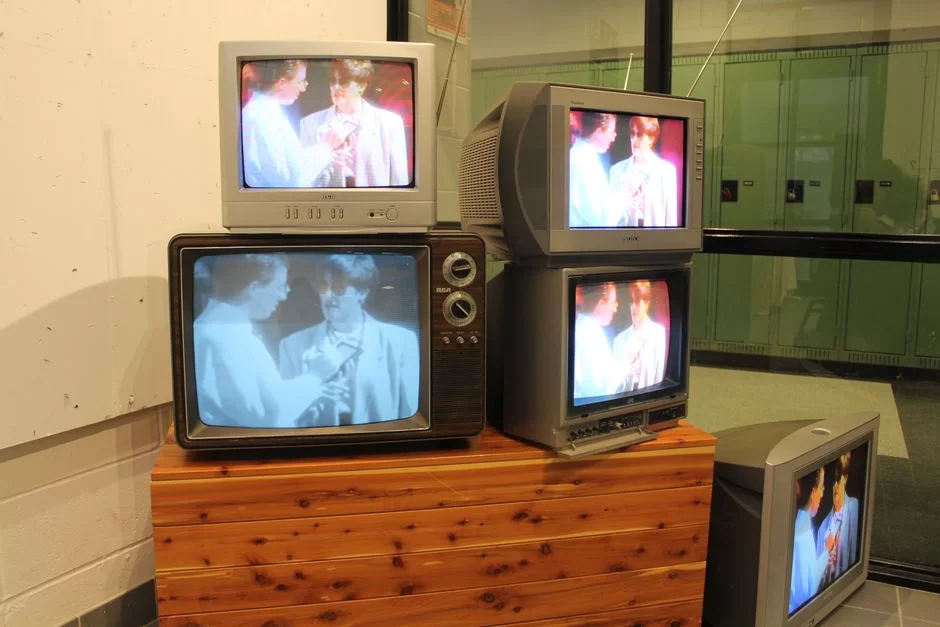
Image Difference Between HDTV and SDTV: Pixel Count and Sharpness Comparison
SDTV, or standard-definition TV, uses low resolutions like 720×576 pixels. This means almost one-fifth the pixel density of HDTV. The gap is like night and day.
- Pixel Count: SD broadcast has about 400 thousand pixels. HDTV offers at least 920 thousand, mostly 2 million pixels.
- Image Sharpness: In SDTV, text and logos are usually blurry. High-definition TV shows crystal-clear text.
- Color Vividness: Analog broadcasting is dull and noisy. Digital broadcasting offers a wider color space and contrast ratio.
- Screen Format: SD mostly comes with a 4:3 format. HDTV especially offers 16:9 widescreen as standard.
If you still watch an SD broadcast on a big screen, you see serious pixelation. Especially in sports, the football turns into a blocky mess. That is why the switch is a must.
In the old days, the PAL standard ruled in Europe. This 625-line system formed the backbone of analog broadcast. It was quite successful in color accuracy. Now we have gone digital, but we must not forget the basics. HDTV technology was built on this very heritage.
In the United States, the NTSC format was the standard. It used 525 lines and a 30 fps frame rate. It offered a slightly lower resolution than PAL. These two systems stayed apart for years. HDTV finally ended this split.
Transition from 4:3 Format to 16:9 Widescreen: What Is the 16:9 Aspect Ratio?
Old tube TVs used a nearly square screen format. This 4:3 ratio does not match the human eye’s natural field of view. The cinema industry had favored widescreen for years.
The 16:9 aspect ratio means 16 units horizontally and 9 units vertically. This geometry gives you a much more immersive viewing experience. The widescreen TV format is essential for a home theater system.
With this change, black bars started appearing around old 4:3 content, or the image was zoomed and cropped.
Today, almost all content is natively in the 16:9 format. So this problem has largely disappeared.
HDTV Broadcast Standards and Technical Infrastructure: DVB-S2, ATSC 3.0, and H.264 Codec
What Is DVB-S2? The Satellite Broadcast Standard and a Revolution in HDTV
DVB-S2 is the second-generation digital satellite broadcast standard. It is much more efficient than the old DVB-S standard. Engineers designed it especially for high-data-rate signals like HDTV.
- Data Capacity: It fits more channels on the same transponder. This is a cost advantage for platform owners.
- Error Correction: It uses stronger error correction algorithms. So it keeps signal quality even in bad weather.
- Broadcast Format: It is fully compatible with MPEG-4 AVC and H.264 codec compression. Major US satellite providers like DirecTV and Dish Network have fully switched to this standard.
- Backward Compatibility: Old DVB-S receivers do not work. You must use an HDTV receiver or a DVB-S2-supported satellite box.
Nearly all HD channels via US satellite are broadcast with DVB-S2 modulation. That is why you can’t see channels if you have an old satellite receiver. When buying a new device, look for the DVB-S2 logo on the box.
H.264 Codec and Image Compression: How Bitrate Affects Quality in HDTV
The H.264 codec is also known as MPEG-4 AVC. Thanks to high compression efficiency, it delivers high quality with low bandwidth and data rate. In fact, it is the backbone of the HDTV world.
| Compression Format | Typical Bitrate (HDTV) | Efficiency | Usage Area |
|---|---|---|---|
| MPEG-2 compression | 15-20 Mbps | Low | Old satellite broadcasts, DVD |
| H.264 (AVC) | 5-12 Mbps | High | DirecTV, Dish, local HDTV |
| H.265 (HEVC) | 3-8 Mbps | Very high | 4K broadcasts, Netflix |
The picture quality gap due to bitrate appears right here. If a channel broadcasts HDTV at 6 Mbps, color banding occurs in dark scenes. You see pixelation in fast action.
Think of two broadcasts at the same resolution. One is 10 Mbps, the other is 5 Mbps. The quality gap is visible to the eye. That is why, if you ask why DirecTV HD quality seems low, the answer is aggressive compression.
HDTV in the United States: History, Channel List, and Broadcast Platforms
When Did HDTV Start in the US? From the First ATSC Broadcasts to Today
The digital transition in the US was a landmark shift. Here is America’s HD journey step by step.
- 1996-1998: The first ATSC digital broadcasts began. The 1998 John Glenn space mission aired in HD, a turning point.
- 2000s: Major networks like ABC, NBC, CBS, and FOX launched full-time HD channels. HD became the new standard.
- 2006-2009: The Super Bowl, Olympics, and prime-time shows drove massive HDTV adoption. Cable and satellite providers expanded HD lineups.
- 2009: The full-power analog TV shutdown occurred. The country went entirely digital.
- 2010-2026: Now nearly every national and cable channel offers an HD feed. Platforms are expanding their 4K content libraries.
At the point we have reached today, over-the-air HDTV via ATSC remains the most accessible option. Being free is its biggest plus.
Which US Channels Broadcast in HDTV? 2026 Current List
The list below shows the main HD channels you can watch over the air or via platforms. This list matches the current 2026 ATSC and platform frequencies.
| Channel Name | Type | Platform | Encryption Status |
|---|---|---|---|
| ABC HD | National | ATSC / DirecTV | Free over the air |
| CBS HD | National | ATSC / Dish | Free over the air |
| NBC HD | National | ATSC / DirecTV | Free over the air |
| FOX HD | National | ATSC / Dish | Free over the air |
| ESPN HD | Sports | DirecTV, Dish, Xfinity | Encrypted |
| FOX Sports HD | Sports | DirecTV, Dish, Xfinity | Encrypted |
| CNN HD | News | DirecTV, Dish, Xfinity | Encrypted |
| HBO HD | Premium | DirecTV, Dish, Xfinity | Encrypted |
| NFL Network HD | Sports | DirecTV, Dish | Encrypted |
| NBA TV HD | Sports | DirecTV, Dish | Encrypted |
DirecTV, Dish, Xfinity, YouTube TV HD Channel List and Comparison
| Platform | HD Channel Count | Broadcast Infrastructure | Average Monthly Price (2026) | Standout Feature |
|---|---|---|---|---|
| DirecTV | 90–185+ | Satellite | $59.99 – $129.99 | NFL Sunday Ticket, sports |
| Dish Network | 190–290+ | Satellite | $60 – $120 | Hopper DVR, sports |
| Xfinity | 100+ | Cable | $55 – $125 + ~$26 broadcast fee | Internet bundle, X1 |
| YouTube TV | 100+ | Internet (IPTV) | $54.99 – $82.99 | Unlimited DVR, clean interface |
The Xfinity HD sharpness issue is often a complaint because the cable operator compresses the signal for bandwidth optimization. YouTube TV HD viewing often offers the highest bitrate via robust internet connections.
What Do You Need to Watch HDTV? Step-by-Step Setup Guide
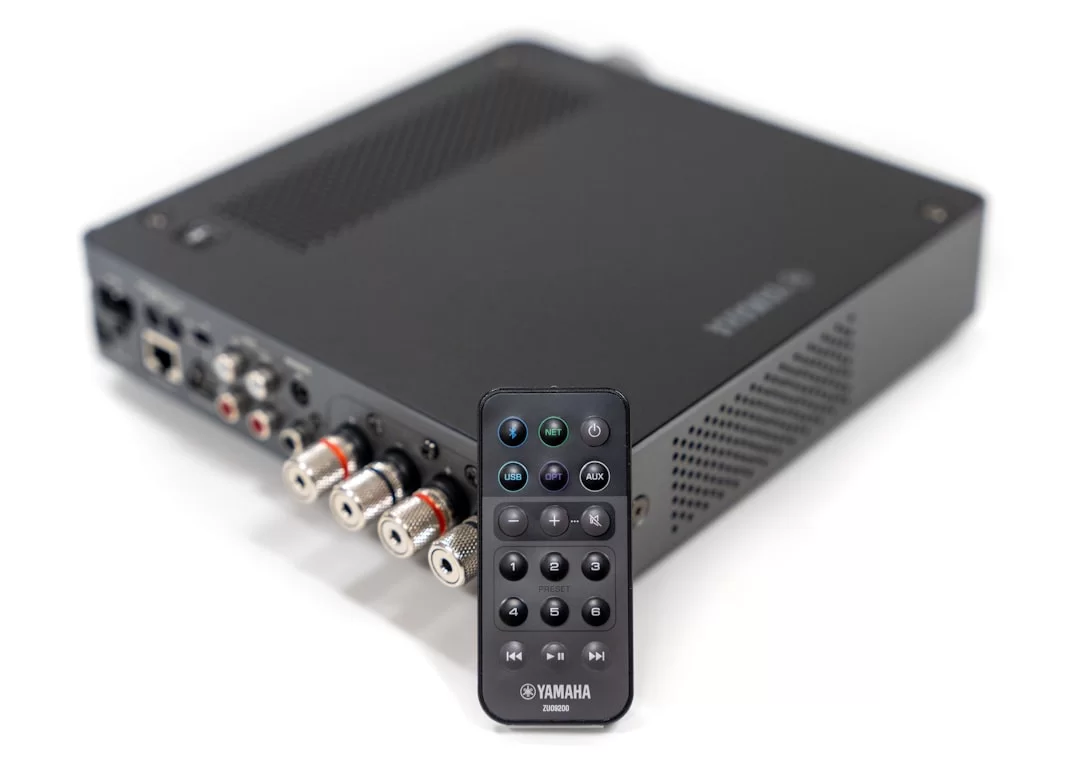
What Is an HDTV Receiver and How to Set It Up Step by Step?
An HDTV receiver decodes the digital video signal from the satellite or antenna so your TV can understand it. It is mandatory for old screens without a built-in tuner. Here are the setup steps.
- Check the box and accessories: The box, HDMI cable, remote, and power adapter must be complete.
- Make the HDMI connection: Connect the receiver to the TV via the HDMI interface. Never use the old red-white-yellow cables. They give SD quality.
- Plug in the dish or antenna cable: Screw the cable from your satellite dish or TV antenna into the LNB IN or Antenna In port on the receiver.
- Do the first-time setup: Configure language, country, and satellite (DirecTV 101°W or Dish 119°W) or local antenna settings from the device menu.
- Start automatic channel scan: Select DVB-S2 or ATSC mode. Scan all encrypted and unencrypted channels.
- Optimize image settings: Set the output resolution to 1080i or 1080p. If there is HDMI ARC or optical audio out, connect your sound system too.
After completing these steps, you can start watching comfortably. The solution for a satellite receiver not finding HD channels is usually wrong satellite selection or a weak signal.
How to Boost HDTV Signal? Dish Antenna Alignment and Over-the-Air Optimization Guide
A weak signal, especially in rainy weather, causes the broadcast to freeze or pixelate. Follow this order to improve signal quality.
- Check the dish or antenna direction: For satellite, it must point exactly to your provider’s satellite (e.g., DirecTV 101°W). For antenna, aim at local broadcast towers.
- Adjust the LNB skew (satellite): Slightly rotate the LNB clockwise to maximize signal strength.
- Use quality cable: Prefer RG6 coaxial cable. Signal loss occurs at joints.
- Get a signal meter device for dish or antenna alignment and signal strength optimization. It performs this task professionally.
- Install a line amplifier if needed. It compensates for loss over long cable distances.
While aligning the dish or antenna, open your TV’s signal menu. Meanwhile, monitor the level on your receiver. If the signal is below 70%, take corrective action.
Which HDMI Cable Is Needed for HDTV? 1.4 vs. 2.0 Comparison
| Feature | HDMI 1.4 | HDMI 2.0 |
|---|---|---|
| Maximum Resolution | 1080p @ 60Hz | 4K @ 60Hz, 1080p @ 120Hz |
| Bandwidth | 10.2 Gbps | 18 Gbps |
| HDCP Support | HDCP 1.4 | HDCP 2.2 |
| Audio Return Channel | HDMI ARC (Limited) | HDMI ARC / eARC (Full) |
| HDTV Compatibility | Fully compatible | Fully compatible and forward compatible |
If you only watch HDTV, you barely feel the difference between HDMI 1.4 and 2.0. Both cables carry a 1080p signal without issues. However, if you want future-proofing, I suggest buying HDMI 2.0.
The question of whether an HDMI cable affects HD broadcast comes up often. Don’t fall for marketing tricks like gold plating or braided jackets.
For short runs (<15 ft), any High-Speed HDMI cable works. For longer runs, signal degradation can occur – use premium certified cables or active fiber optic HDMI for distances over 15 feet. Just pay attention to HDCP protocol compatibility.
Content Sources for HDTV: Watching HD on Netflix, YouTube, Blu-ray, and VOD Platforms
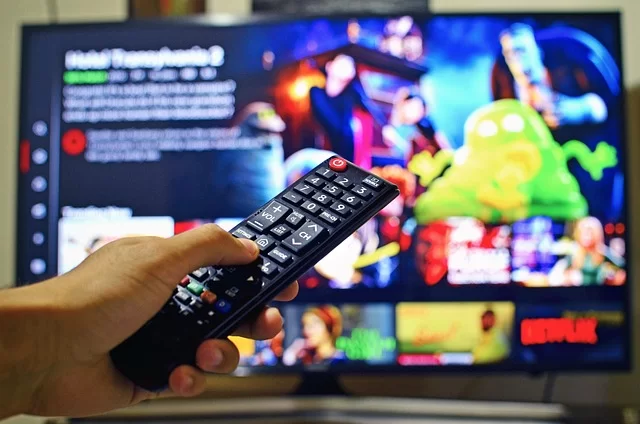
Netflix HD Hourly Data Usage and Internet Quota Calculation
Netflix and YouTube HD quality settings directly affect your data use. On Netflix, 1080p content consumes about 3 GB per hour. 720p is around 1 GB. These values change based on the platform’s auto settings.
For users with a limited data cap, these numbers are vital. Say you have a 200 GB monthly cap. If you watch Netflix HD for 2 hours a day, you use about 180 GB. Not much is left.
When calculating HD internet quota on VOD platforms, factor in the image compression rate as well. At the same resolution, Netflix uses less data than Hulu because it uses more efficient H.264 codec settings.
Netflix HD vs. Satellite HD Difference: Which Is Higher Quality?
| Feature | Netflix (Internet HD) | DirecTV (Satellite HD) |
|---|---|---|
| Compression Technology | H.264 / H.265 / AV1 | H.264 (constant bitrate) |
| Average Bitrate | 5 – 15 Mbps (adaptive) | 6 – 10 Mbps (fixed) |
| Motion Scene Quality | Adaptive, usually smooth | Pixelation if bandwidth is tight |
| Interruption Risk | Depends on internet speed | Depends on weather conditions |
| 24p Cinema Mode | Supports | Usually 50i/60i conversion |
The Netflix HD vs. satellite HD gap shows most when watching movies. Additionally, Netflix offers a true 24p cinema feel. Satellite broadcasts, however, are usually in 50i or 60i format and undergo 3:2 pulldown conversion.
On the other hand, satellite gives the lowest delay for live broadcasts. Web-based broadcasts have image lag. You risk hearing your neighbor’s touchdown cheer before you.
HDTV Content Sources: Netflix, Blu-ray, YouTube, and VOD Platforms Comparison
| Source | Max Resolution | Bitrate (HD) | Audio Format | Pluses |
|---|---|---|---|---|
| Blu-ray Disc | 1080p | 25-40 Mbps | Dolby TrueHD, DTS-HD | Lossless best quality |
| Netflix | 1080p / 4K | 5-15 Mbps | Dolby Digital Plus | Wide library, handy |
| YouTube | 1080p / 4K | 3-8 Mbps | Stereo / 5.1 | Free, endless content |
| Hulu | 1080p | 4-10 Mbps | Dolby Digital | Current season episodes |
| DirecTV | 1080i | 6-10 Mbps | Dolby Digital | Live broadcast, sports |
The peak of the HDTV viewing experience is still the Blu-ray disc player. With its uncompressed high bitrate and lossless audio, it is the king of home cinema. Yet, for convenience, Netflix and YouTube HD quality settings satisfy most users.
HDTV Buying Guide: Does It Make Sense to Buy HDTV in 2026?
HDTV Prices 2026: New and Second-Hand Market Analysis
| Segment | Screen Size | Panel Type | New Price (USD) | Second-Hand Price (USD) |
|---|---|---|---|---|
| Entry Level | 32–43 inches | LED (edge LED) | $90 – $150 | $50 – $120 |
| High-End | 50-55 inches | QLED / OLED | $600 – $1,800+ | $300 – $900 |
| Plasma (Rare) | 42-50 inches | Plasma | N/A (discontinued) | $30 – $75 |
Buying a new HDTV in 2026 is only possible in the lower segment. Mid- and high-end makers have fully switched to 4K panels. The second-hand market is very active. Yet, there is a long list of things to watch for when buying a used HDTV.
What to Look For When Buying an HDTV? 15-Item Checklist
Note this list before you go shopping. Apply each item one by one.
- Verify the resolution: Make sure it is Full HD (1920×1080 panel) and stay away from HD ready (1366×768) models.
- Check the HDMI port count: There should be at least 2 HDMI connections and enough inputs for cable types.
- Ask about HDCP compatibility: It must be HDCP 1.4 or higher. Otherwise, Netflix and Blu-ray players won’t connect.
- Learn how to do a dead pixel test: Run solid color tests to check for dead pixels on the screen.
- Find out if refresh rate matters: Pay attention that it is a true 50Hz/60Hz panel. Don’t fall for fake 100Hz values.
- Research the video processor quality: Strong engines like Sony X-Reality or Samsung Crystal processor make a difference.
- Test the input lag value: If you will game, an input lag below 30ms is a must.
- Check the backlight type (edge LED, direct LED): Direct LED gives more uniform black levels.
- Look at the energy label class: A+ and higher energy class models are better for your electric bill.
- See if it has a built-in tuner: For satellite, you need DVB-S2 support. For antenna, ATSC 1.0/3.0 tuner.
- Check the Smart TV feature: Connecting a Roku, Apple TV, or Chromecast to an old HDTV is a handy solution.
- Examine the audio output options: Optical audio out or HDMI ARC is ideal for connecting a soundbar.
- Query the warranty and invoice status: On used devices, the paperwork must be complete.
- Test for motion blur: Observe with fast-moving text or sports images if there is motion blur.
- Make sure the remote control and accessories are complete.
HDTV Viewing Distance and Screen Size: How Many Inches Should You Get?
| Screen Size (inches) | Resolution | Minimum Viewing Distance | Optimal Viewing Distance |
|---|---|---|---|
| 32 inches | 720p / 1080p | 3.9 feet | 4.9 – 6.5 feet |
| 40-43 inches | 1080p | 4.9 feet | 5.9 – 8.2 feet |
| 50-55 inches | 1080p | 5.9 feet | 7.2 – 9.8 feet |
| 60-65 inches | 1080p | 7.2 feet | 9.2 – 11.5 feet |
The optimal seating distance is key for both comfort and perceived sharpness. If you place the TV too close, pixel density bothers your eye. If you place it too far, the high resolution loses its purpose.
The human eye can distinguish the 720p vs. 1080p difference only at certain distances. For example, if you watch a 55-inch screen from 10 feet away, the debate “Is 1080p the new SD?” is meaningless. Your eye physically cannot tell those pixels apart.
Gaming, Sports & Cinema Experience on HDTV

Game Console Connection and Input Lag Optimization on HDTV
When connecting a game console, the most critical issue is the input lag value. The lower the delay, the faster you react. Milliseconds matter, especially in FPS and racing games.
- Turn on Game Mode: All modern HDTVs have this mode. It bypasses the video processor to reduce lag.
- Turn off Motion Interpolation (Soap Opera Effect): This feature adds artificial frames between scenes. It increases lag and drives you mad.
- Change the HDMI label: From the TV’s input settings, mark the connection as “PC” or “Game.” Color depth and 4:4:4 chroma subsampling become active.
- Lock the resolution: Set the console output to 1080p. The 1080p 60Hz signal is the most efficient mode for HDTV.
People often ask: Can you get 1080p 120Hz with HDMI 1.4? Yes, you can. HDMI 1.4 supports 1080p @ 120Hz, but most HDTV panels are 60Hz, so this is rarely utilized in practice.
You don’t need an extra cable or version upgrade for 120Hz. But most HDTV panels are already 60Hz, so this support means nothing for most users in practice.
Connecting Old Game Consoles to HDTV: Fixing Image Blur in Retro Games
Old consoles like PS2 and Xbox Classic output 480i or 576i signals. This low-res content looks awful on modern panels when upscaled. Here is a step-by-step blur fix guide.
- Ditch the composite cable right away: Yellow-red-white cables give the worst quality.
- Get a quality converter: Use special upscaler devices like Retrotink 2X or OSSC. They double the lines and sharpen the image.
- Use an HDMI adapter: Connect directly via an HDMI converter and cable type suitable for the console’s output.
- Set the TV manually: Set the aspect ratio to 4:3. Lower the sharpness and turn off all artificial filters.
AI-based resolution boosting methods also show promise. Devices like NVIDIA Shield use AI-enhanced sharpening to make old games look surprisingly clean. If you have the budget, this is the most effective method for fixing retro image blur.
720p or 1080i for Sports Broadcasts: Which Is Smoother? Solving Motion Blur
In sports broadcasts, ball flicker and motion blur are your biggest enemies. The cause is usually the interlaced scan method. In 1080i broadcasts, fast-moving objects look combed.
To fix this, force the 720p option from your broadcast platform. If there is no option, go into the TV’s video processor settings.
Set the motion smoothing or deinterlacing mode to “sports” or “high.” Yet, if motion interpolation goes overboard, the soap opera effect appears.
We can’t deny the 720p advantage in motion images. With 50 or 60 full frames per second progressive scan, smoothness peaks. It is a perfect match for fast sports like hockey and basketball.
True 24p Cinema Viewing on HDTV and Motion Interpolation (Soap Opera Effect)
Cinema films are shot at 24 frames per second. This natural motion flow is a feeling we have gotten used to over the years. Yet, many TVs apply motion interpolation by default. This makes the image too smooth and artificial.
- Enable Film Mode (3:2 pulldown) or Cinema Mode: When the TV detects a 24p signal, it turns off the video processor.
- For a true 24p cinema feel, set the refresh rate to 24Hz or 48Hz (a multiple of 24). This way, it shows each frame for an equal time and no judder occurs.
- Turn off all artificial filters: Zero out noise reduction, sharpness boost, and dynamic contrast features.
Motion blur already exists in cinema and is the director’s choice. Don’t let your TV interfere with it. The HDTV motion interpolation soap opera effect is a feature many film lovers hate.
Factors Affecting Picture Quality on HDTV: Bitrate, Panel Technology, and Upscaling
Bitrate Picture Quality Gap: Why Are DirecTV and Xfinity HD Sometimes Low Quality?
| Platform | Average Bitrate (HD) | Compression Quality | Seen Issues |
|---|---|---|---|
| DirecTV HD | 2.5-10 Mbps | Aggressive H.264 | Blocking in dark scenes, color banding |
| Xfinity HD | 5-7 Mbps | Very aggressive compression | Overall softness, motion blur, pixelation |
| Over-the-air ATSC | 6-10 Mbps | Standard H.264 | Relatively good, signal loss in bad weather |
| YouTube TV HD | 10-15 Mbps | Fiber optimized | Highest quality, smooth |
The reason for DirecTV HD’s low quality lies in bandwidth optimization. They lower the bitrate to fit more channels on the same transponder. This detracts from picture quality and sharpness.
The over-the-air ATSC HD signal compression rate is more generous. Free channels often provide a higher bitrate. PBS and major network affiliates do quite well here.
What Is HDTV Upscaling? Turning SD Broadcast into HD with AI Image Upscaling
Upscaling is the art of converting a low-resolution signal to a higher resolution. Your TV’s built-in upscaler handles this job. It fills in missing pixels by guessing through pixel interpolation.
- Basic Upscale: Old TVs repeated pixels. The image became blurry and artificial.
- Advanced Processor: Engines like Sony X-Reality or Samsung Crystal processor do pattern recognition. They sharpen edges and reduce noise.
- AI Image Upscaling: It uses deep learning algorithms. It recreates missing details realistically. Plus, it gives the best result for turning SD into HD.
The answer to how to watch old series on HDTV involves AI. For example, boxes like NVIDIA Shield TV Pro or Apple TV 4K use AI upscaling. This way, they clean up SD content impressively. Yet, don’t expect a miracle; they cannot create completely lost detail.
HDTV Panel Technologies: Plasma, LED, and OLED Differences
| Panel Type | Contrast Ratio | Black Level | Power Consumption | Lifespan |
|---|---|---|---|---|
| Plasma | Very high (natural) | Excellent | Very high (200-500W) | 30,000 hours |
| LED (Edge/Direct) | Medium | Weak – Medium | Low (50-100W) | 50,000+ hours |
| OLED | Infinite (pixel off) | Perfect | Low – Medium (50-200W, varies by content) | 50,000 – 100,000 hours |
Manufacturers no longer produce plasma HDTV models. However, they are abundant on the second-hand market. Picture quality still beats many LEDs. But plasma’s power use is very high. Also, you must not ignore the burn-in risk.
If you calculate the bill for an old plasma HDTV, you will find that you pay about $100-$150 more per year compared to an LED. Also, the backlight lifespan might be over; don’t take this risk.
Power Use, Eye Health, and Sound System: Unknown Facts
How Much Power Does HDTV Consume? Plasma vs. LED Electric Bill Calculation
Electricity bills have risen sharply in recent years. That’s why power use and its effect on your bill matter more now. A 43-inch LED HDTV uses about 60-70 watts on average. An old plasma of the same size easily exceeds 400 watts.
Let’s say you watch 5 hours a day. LED adds about $0.45 to the monthly bill, while plasma adds about $3. Over a year, the gap reaches serious levels. Therefore, A+ energy class HDTV models should always be your priority.
Energy-efficient HDTV models usually use edge-LED backlight type. Direct LED uses a bit more power but gives better picture quality. So choose based on your need.
Is HDTV Harmful to Eye Health? Blue Light Effect and Protection Methods
During long viewing sessions, the topic of blue light filtering and eye health protection comes up. HDTV, like other screens, emits high-energy blue light. This light suppresses melatonin and disrupts sleep patterns.
- Activate the blue light filter on your TV. Most modern models have an eye care mode.
- Set the viewing distance correctly. Sit at least 1.5 times the screen size away.
- Improve room lighting. Staring at a bright screen in the dark increases eye strain. Add a dim LED strip (bias lighting) behind the screen.
- Follow the 20-20-20 rule. Every 20 minutes, look at something 20 feet away for 20 seconds.
Panel technology also matters for your eye health. OLED panel technologies emit less harmful blue light than LEDs. They also offer flicker-free images.
HDTV Sound System: Is the Built-in Speaker Enough, or Is a Soundbar a Must?
As modern HDTVs get thinner, built-in speaker quality has dropped. Flat panels cannot produce sufficient sound quality. Dialogues especially become muffled and hard to understand.
- Daily use: It is okay for news and daytime shows.
- Movies and series: The need for a soundbar starts here. Even a basic 2.1 soundbar makes a huge difference.
- Film enthusiast: An AV receiver with optical audio out or HDMI ARC and surround virtualization is a must.
Sound quality is as key as the image. Dolby Digital surround sound format also exists on satellite broadcasts. I advise at least an entry-level soundbar to take advantage of this potential.
Technological Evolution Timeline: From the First Broadcast to 2026
When Was HDTV Invented? Chronological History from the 1930s to Today
The idea of high-definition television is far older than you think. Here is the HDTV technological evolution timeline.
- 1936: The BBC in the UK started 405-line broadcasts with mechanical scanning systems. This was a primitive HD attempt.
- 1960-1980: Japan’s NHK worked on the analog HDTV system MUSE. They targeted 1125-line resolution.
- 1990s: The first digital HDTV trials began in the US with the ATSC standard.
- 1998: The world’s first HDTV broadcast happened in the US. So the digital broadcast standard became official.
- 2004-2006: DVB-T and DVB-S2 standards spread in Europe. Later, they dropped MPEG-2 compression and switched to H.264.
- 2010-2020: Full HD and HD Ready concepts fully entered homes. As a result, satellite and cable platforms expanded.
This timeline tells a full revolution story in terms of resolution evolution. The answer to when HDTV came out spans decades of R&D.
The World’s First HDTV Broadcast and the US HD Journey
- 1998 (USA): The first digital TV broadcast officially began. John Glenn’s space mission was aired in HD.
- 2004 (Europe): The first regular HDTV channel, Euro1080, started broadcasting.
- 2006 (US): Major networks completed the switch to prime-time HD. The Super Bowl in HD became a cultural milestone.
- 2009: The US completed the full-power analog shutoff. ATSC digital broadcasting became the sole terrestrial standard.
- 2015-2020: Online services like Netflix drove a massive shift toward streaming HD and 4K.
- 2026: Now almost all content is in HD quality. 4K is becoming the standard for premium content.
HDTV’s Position in 2026 and Future Outlook
Should You Buy HDTV, 4K, or 8K? 2026 Purchase Decision Guide
| User Profile | Recommended Resolution | Reason |
|---|---|---|
| Only watches satellite or antenna channels | HDTV (Full HD) | Most broadcasts are still 1080i, 4K is unnecessary |
| Mainly uses Netflix and YouTube | 4K UHD | Platforms are rich in 4K content, prices are fair |
| New-gen game console gamer | 4K UHD (120Hz) | PS5 and Xbox Series X are 4K-focused, HDTV becomes a bottleneck |
| Limited budget, wants a small screen | HDTV (32-43 inches) | Price-performance peak |
| Movie enthusiast, builds a big home theater | 4K OLED or 8K | Large screen size and viewing distance make 4K and above a must |
The most important factor affecting your decision is content. If you mainly watch live TV and sports, the answer to “Is HDTV still valid?” is a big yes. So you don’t need to invest heavily.
What Are the Advantages and Disadvantages of HDTV?
| Advantages | Disadvantages |
|---|---|
| Prices are very low, fit any budget | New panel technologies only come with 4K |
| All broadcast platforms fully support it | Pixelation starts at big screen sizes (55+ inches) |
| Bandwidth and data rate needs are low | No new tech like HDR10 and HLG dynamic color formats |
| Power use is lower than new-gen giant screens | High frame rate and low input lag rarely coexist |
| Ideal pixel size for monitor use | Seen as a short-lived future investment |
Looking at the HDTV pros and cons list, you see the balance clearly. My answer to “Does it make sense to buy in 2026?” depends on your purpose and screen size. Especially under 50 inches and if you watch satellite, it is still the most logical choice.
Is 1080p the New SD? Can the Human Eye Tell 720p and 1080p Apart?
People passionately debate this question in tech forums. The answer is clear: 1080p is never the new SD. Yes, 4K and 8K are much sharper. Yet, 1080p is highly satisfying at certain distances and screen sizes.
Can we perceive the 720p vs. 1080p gap? According to optical resolution (arcminutes) calculations, the difference blurs beyond about 8 feet on a 55-inch screen. So if your living room is wide, your eye’s physical limit makes even 1080p vs. 4K hard to see.
That’s why don’t obsess over resolution. What really determines picture quality is bitrate, panel technology, and contrast ratio. A well-calibrated 1080p HDTV always beats a poorly set cheap 4K panel.
Further Reading Resources on HDTV
If you want to learn more about the technical standards and official references mentioned in this article, I suggest you check out the following authoritative sources.
- ITU-R BT.709: Color Space Standard for High Definition Television — This technical document set by the International Telecommunication Union is the core reference for HDTV color accuracy and image processing.
- DVB-S2 Official Standard Document — This standard published by the Digital Video Broadcasting (DVB) project contains all technical details of HDTV transmission via satellite.
- SMPTE Standards: Motion Picture and Television Engineering — This is the most respected body setting engineering standards for cinema and television tech. You can find the latest work on frame rate and scanning methods here.
FAQ About the High-Definition Broadcast World
What is HDTV and what does it mean?
What is the difference between HDTV and Full HD?
What is the difference between HDTV and 4K, which is better?
What is the difference between 720p and 1080p, which is better?
What is the difference between 1080i and 1080p, which is better?
What do I need to watch HDTV, how do I get HD broadcast?
Can an old TV show HDTV broadcast, does it make sense to switch from a tube TV to HDTV?
Does watching Netflix count as HDTV, what is the difference between Netflix HD and satellite HD?
Does it make sense to buy an HDTV in 2026, or should I go for 4K?
How to set up an HDTV receiver, what to do if it doesn’t find HD channels?
What is the difference between HDMI and HDTV, does an HDMI cable affect HD broadcast?
Can I use it as a monitor, how do I connect a game console?
Conclusion: HDTV’s Place in 2026 and a Look Ahead
We have reached the end of our journey. As you see, HDTV is still very much alive and at the center of our lives, even though we are under a 4K and 8K marketing bombardment. This mature tech continues to be the backbone of our daily TV habits.
If you are thinking of changing your TV, let your viewing habits be your priority. The situation changes if you mainly follow local antenna channels and live sports via satellite. Actually, HDTV will more than satisfy you. You don’t need to stretch your budget.
Big screens, a cinema passion, and new-gen game consoles may play a role in your life. For this reason, it is the right time to switch to 4K tech.
Prices are now at reasonable levels. Remember, the resolution evolution goes on, but the human eye’s perception limits are fixed.
As a final word, I must add this: Don’t get swept up in the screen and resolution wars. What matters is always the content. A good film, whether 1080p or 4K, manages to pull you into the story. HDTV offers more than enough canvas to tell that story.

Be the first to share your comment