

A brochure fresh from the press lands in your hands. Colors are vivid, sharpness is top-notch. The designer wants to send you the digital file. Do you want JPEG right away, or TIFF? So, this is the moment you must choose correctly.
Lawyers face a similar issue on the PACER portal. Doctors ask the same question when storing MRI scans. Map engineers handling satellite data face the same format dilemma.
At first glance, we see a world where everyone uses JPEG. So, why does this heavy, old-looking giant still live on? The answer is simple: because in every field needing losslessness, trust, and a standard, the Tagged Image File Format has no rival.
In this guide, I’ll share not just theories, but real cases I’ve faced in the field. I use the TIFF format at printing presses and in forensic IT labs. Moreover, you’ll see, step by step, how I work on medical archive servers.
If you’re ready, let’s start. When you finish this article, you’ll know exactly which format to pick and why!
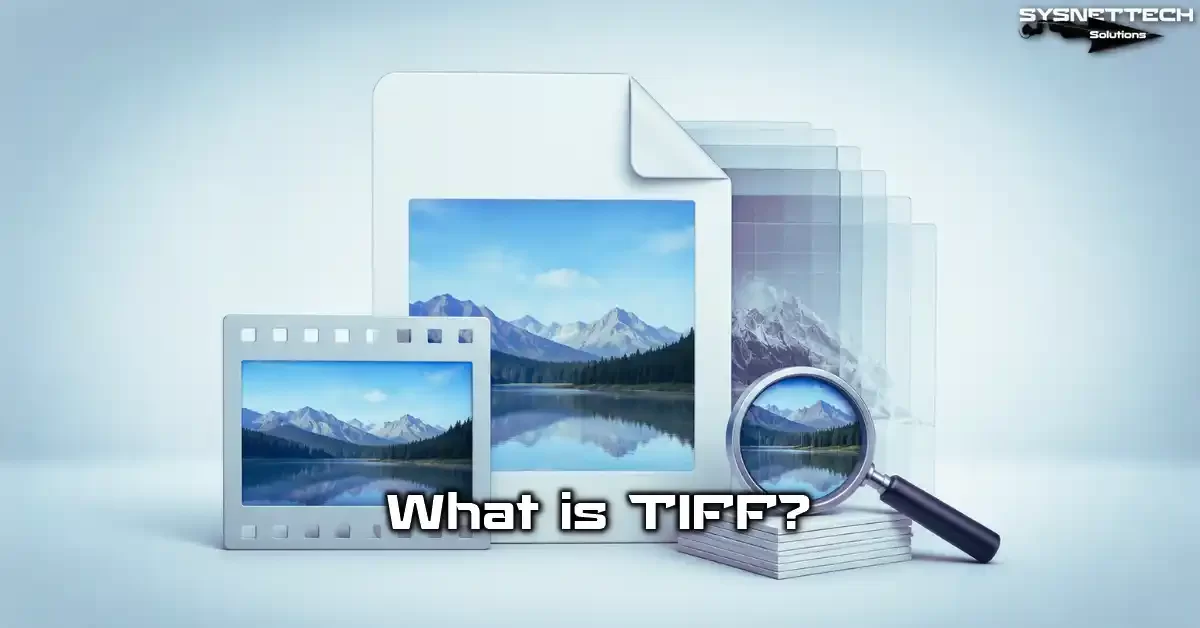
What is a TIFF File? The Digital Age’s Lossless Image Standard
Aldus Corporation created the Tagged Image File Format (TIFF) in 1986. Adobe Systems now manages it. The goal was clear: a common raster graphics format for scanner manufacturers.
To understand TIFF, you must dive into raster graphics basics. Imagine every image as a table of dots. The bitmap structure uses exactly this logic. This format enriches that table with tags, turning it into a professional tool.
Many formats have come and gone since then. Still, It remains key for print shops, hospitals, and courts because this format stores pixel data losslessly. Additionally, it supports layers, transparency, and multi-page structures.
Imagine you scan a document—a ten-page contract. With JPEG, each page becomes a separate file. Yet this raster graphics format gathers all pages under one roof. This multi-page archiving feature sets the standard in the legal world.
TIF vs. TIFF: Ending the Extension Confusion
Let me say upfront: there is no technical difference between TIF and TIFF. Both represent the same Tagged Image File Format. So why do we have two different extensions?
Old Windows versions limited file extensions to three characters. That’s why using .tif instead of .tiff was a must. Mac systems, on the other hand, always favored the four-character .tiff extension.
Today, all modern operating systems, including Windows 11, recognize both extensions. Still, some business software keeps using .tif. Official portals like PACER mainly expect the .tif extension.
You can change the extension of the same file from .tif to .tiff. The file structure stays intact because the internal IFD remains the same. This gives you practical flexibility.
Pros & Cons: When Is It a Hero, and When a Burden?
Like every format, it isn’t perfect for every scenario. Use it in the right place, and it’s a hero. In the wrong place, it’s a real burden.
Its main advantage is lossless compression. You lose no pixels when compressing. Additionally, it supports layers, alpha channels, and embedding ICC profiles. And thanks to CMYK print support, it’s ideal for print shops.
Its downside is file size. An A4 document scanned at 300 dpi can reach 25 MB. This size causes trouble for email attachments. Also, browsers can’t display this format directly. If you use it on websites, page speed optimization efforts fail completely.
In short, for professional print and storage work, TIFF is your best friend. However, for social media sharing, it’s a complete mess.
The Technical Structure & Compression Algorithms

Understanding the inner structure of this format is key to using it correctly. A superficial glance suggests it’s just a large image file. Yet a very flexible layout lies inside.
TIFF stores pixel data row by row. But unlike JPEG, it applies no mathematical transforms to this data. It saves each pixel’s color value as is. So, with lossless compression, quality never drops.
At the file’s start, you see a header. This header sets the byte order. The system then reads the file correctly. Right after comes the IFD. In fact, this is the hub of all tags.
IFD and Tags: Understanding TIFF’s DNA
IFD stands for Image File Directory. You can think of this structure as the file’s brain. Each IFD consists of tags carrying key information about the image.
A tag stores information like width, height, color depth, or compression type. There are over 70 standard tags in total. You can also define custom tags. This flexibility allows niche uses like the GeoTIFF tag structure.
Each tag has four parts: tag number, data type, data length, and value or offset. The system reads this structure to rebuild the image pixel by pixel. Thanks to this method, you can embed almost any type of data inside a TIFF.
Lossless or Lossy? All TIFF Compression Types and Usage Guide
Everyone knows TIFF as lossless. But this format also supports lossy compression. The JPEG-in-TIFF option does exactly that. So which compression type should you pick, and when?
| Compression Type | Type | File Size | Best Use |
|---|---|---|---|
| Uncompressed | None | Very Large | Temporary editing files |
| LZW | Lossless | Medium | Print, archive, graphic design |
| ZIP / Deflate | Lossless | Small-Medium | 16-bit image processing, photography |
| CCITT G4 | Lossless | Very Small | Black-and-white document scanning |
| PackBits | Lossless | Medium | Simple graphics, flat color areas |
| JPEG-in-TIFF | Lossy | Small | Preview or web distribution |
My favorite is ZIP compression. The LZW algorithm caused trouble in the past due to patent issues. Actually, ZIP works smoothly on every system. Additionally, it reduces file size more effectively.
If you work with black-and-white documents, CCITT G4 is unbeatable. It can compress a contract page to just 50 KB. This is ideal for PACER document flow standards.
File Size Calculation: How Many MB Does an A4 at 300 DPI Take?
I often hear this question from printers and lawyers. We can calculate the answer with a simple formula. First, let’s define the basic data.
An A4 paper measures 210 mm × 297 mm. At 300 dpi resolution, each inch gets 300 pixels. One inch is about 25.4 mm. So an A4 page equals roughly 2480 × 3508 pixels.
The formula is: Width × Height × Color Depth (bit) ÷ 8 = Size in bytes. For RGB color, we use 24 bits. 2480 × 3508 × 24 ÷ 8 = 26.1 MB. Yes, a single page is 26 MB!
If you use CMYK, you need to calculate with 32 bits. The result is about 34.8 MB. LZW compression usually halves this size. In that case, an A4 300 dpi page takes around 13–15 MB.
How to Open and Manage a TIFF File
Do you have a TIFF file you can’t open? You’re not alone. Windows’ default apps are sometimes not enough. Let’s look at the most practical methods for all platforms.
First, let’s accept a basic truth. You don’t need paid software to open this format. Free tools can handle all tasks too. But you must choose the right tool.
Opening TIFF on Windows 11 and macOS: Best Free Programs
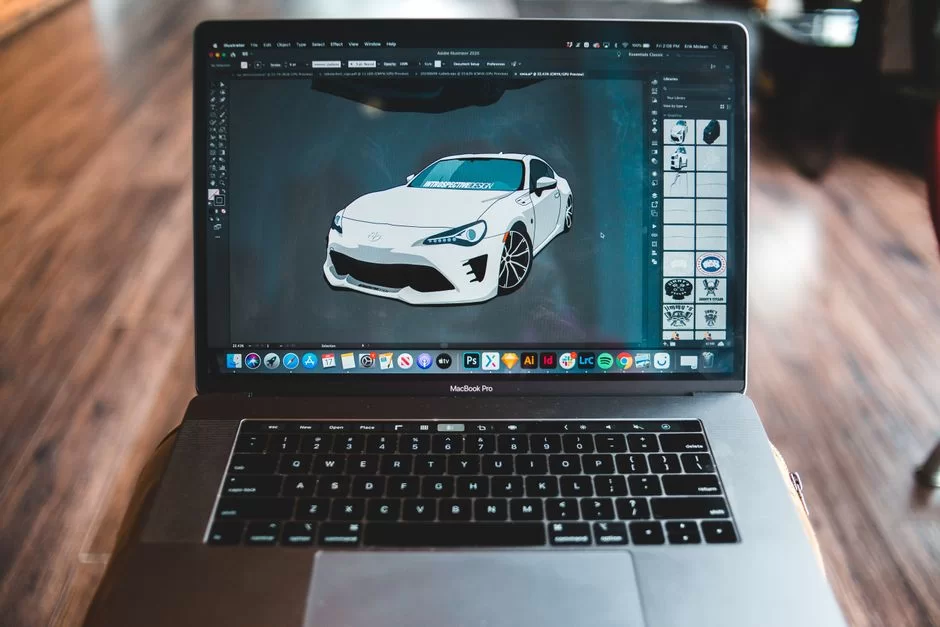
Windows 11 opens this format directly with the Photos app. However, with multi-page documents, you can’t switch between pages. That’s when you need to turn to alternatives.
- IrfanView: Lightweight, fast, and excellent multi-page TIFF support. It also allows batch conversion.
- XnView MP: Supports over 500 formats. Additionally, it offers advanced color management.
- GIMP: The best free alternative for editing layered TIFF files.
- Windows Photos: Good enough for quick previews, but limited.
For macOS users, the Preview app is sufficient. You can browse multi-page documents page by page. You can also do basic edits. It’s quite good at color profile management.
Viewing TIFF Files on iPhone, iPad, and Android
Opening TIFF on mobile devices can be frustrating. Especially on iOS, this format doesn’t open by default. But don’t worry, the solution is simple.
For iPhone and iPad, the best option is Adobe Acrobat Reader. It’s free and displays multi-page documents perfectly. As an alternative, you can also use the Documents by Readdle app.
On Android devices, Google Photos is usually enough. However, some manufacturer custom ROMs may have limited support. In that case, turn to specialized apps like Multi Tiff Viewer.
If you send a TIFF via WhatsApp, the file gets compressed. In fact, you’ll lose quality. That’s why I suggest sending critical documents by email.
TIFF Issues on PACER and Federal E-Government Sites: Definitive Solution Guide
The ‘TIFF won’t open on PACER’ issue is a lawyer’s worst nightmare. Let me explain the root cause and the definitive solution.
The problem usually has two causes. First, the file extension is not .tif, but .tiff. Second, a missing browser plugin. PACER looks for an ActiveX or Java TIFF viewer plugin on your system.
Here are the solution steps:
- Change your file extension to .tif.
- Install the PACER Editor plugin for your browser.
- Install the latest version of Java Runtime Environment.
- Turn off ActiveX filtering in your browser settings.
- Restart your system and try again.
If you face a similar issue on the federal e-government site, the solution is the same. Also, you may need to lower your browser’s security settings. This is a temporary step; revert it once done.
Guide to Converting and Editing TIFF: JPG, PDF, PNG, and More

Every TIFF file is perfect in its own ecosystem. But sometimes you need to leave this format and step into another world. Here are practical solutions for all conversion scenarios.
Step-by-Step Conversion from TIFF to JPEG, PDF, and PNG
Converting from TIFF to JPEG is the most common conversion. But here, lossy compression is applied. To keep quality, you must choose maximum quality during conversion.
On Windows, you can batch convert with IrfanView. Select all your files, press the B key, and set the target format to JPEG. Set the quality slider to 100. This way, you convert all your TIFF files at once.
To convert TIFF to PDF, Adobe Acrobat is the best option. But if you need a free alternative, I suggest PDF24 Creator, which offers proper codec support. It merges multi-page documents into a single PDF.
Be careful with PNG conversion. You can’t carry over TIFF’s CMYK support to PNG. The PNG format is limited to RGB. That’s why I don’t recommend converting from TIFF to PNG for print jobs.
Corrupt TIFF File Recovery and Repair Methods
In my years of experience, I’ve encountered countless corrupt TIFF files. The most common cause is incomplete saving or a storage error. So how do you recover a corrupt file?
First, try opening the file with GIMP. GIMP tolerates corrupt IFD structures and opens the image, at least partially. Save the opened portion immediately as a healthy copy.
If GIMP fails, switch to the command line. ImageMagick’s convert tool can repair corrupt files. Try the command: convert corrupt.tif -auto-level healthy.tif. This command resets faulty tags.
In the worst case, use specialized recovery software like Stellar Repair for Photo. These tools scan raw pixel data and rebuild the file.
Batch TIFF Processing with Command Line: Using libtiff and ImageMagick
Processing thousands of TIFF files one by one is impossible. This is where the command line comes in. The libtiff library and ImageMagick are ideal for batch work.
With libtiff and Python, you can read TIFF files, change metadata, and convert compression types. Especially during machine learning data preprocessing, this library is invaluable.
With ImageMagick, you can batch resize with one line: mogrify -resize 50% -compress LZW *.tif. This command halves all files in the folder and compresses them with LZW.
The command line also excels at managing multi-page TIFF structures. You can extract, merge, and reorder pages in seconds.
TIFF vs JPEG, PNG, RAW, HEIF, and AVIF: Which Format to Use When
When picking a format, most people rely on instinct. Yet this choice decides your project’s fate. Let’s compare TIFF with all the alternatives.
TIFF vs JPEG and PNG: Web, Social Media, and Daily Use
JPEG uses lossy compression and reduces file size. It’s ideal for the web but falls short for print. TIFF, on the other hand, is lossless but has a large file size. If you upload it to your site, your Core Web Vitals score drops.
PNG is better than TIFF for the web. Its transparency support is excellent. But it lacks CMYK support. Therefore, for print work, it is the clear winner. For daily use, JPEG is enough.
Let me offer a simple decision tree: For web and social media, use JPEG or WebP. For print and archive, choose TIFF. Never mix these two worlds.
TIFF vs RAW and PSD: The Professional Photographer’s and Designer’s Choice
RAW files contain raw data from the sensor. TIFF, on the other hand, stores processed pixel data. RAW offers more editing flexibility. However, it is more universal.
Photographers usually shoot RAW, edit, and save the result as TIFF. This workflow guarantees maximum quality. PSD, meanwhile, is Photoshop’s proprietary format. Its layer support is more advanced than TIFF’s.
Still, thanks to the ability to save TIFF with layers, dependence on PSD has decreased. Saving as TIFF keeps your layers and lets you open the file with other software. This is a big advantage for digital asset management.
Is TIFF Dying? Modern Alternatives in 2026 and Beyond (AVIF, JPEG XL)
I hear this question every year. The answer is clear: TIFF won’t die. But its use cases are shrinking. New formats like AVIF and JPEG XL are strong in lossless compression. Yet none has TIFF’s flexibility.
AVIF is great for the web. In lossless mode, it produces smaller files than TIFF. However, it lacks multi-page support and CMYK print support. JPEG XL is promising but has low adoption.
As of 2026, it remains the standard for the printing industry, medical imaging systems, and legal archives. It will keep this position in the next decade too, because no other format can match its reliability and standardization.
The Hidden World of TIFF: Niche and Critical Use Cases
Most guides describe TIFF only as a print format. Yet the hidden world of this format is much deeper. Let’s explore further.
TIFF in Forensics and Law: PACER Standard and Evidence Integrity
As a forensic imaging standard, TIFF guarantees evidence integrity. When you scan a document, it creates an exact copy of the original. That’s why courts require this format.
PACER document flow standards are entirely built on this format. Case files, contracts, and all evidentiary documents are stored as TIFF. JPEG can’t be used because lossy compression damages evidence integrity.
In a past case, I witnessed a JPEG-compressed contract where the fine print became unreadable. If the same document had been scanned as TIFF, every letter would be clear. That’s why the legal world won’t abandon it.
GeoTIFF: The Common Language of Maps, Satellites, and Drones
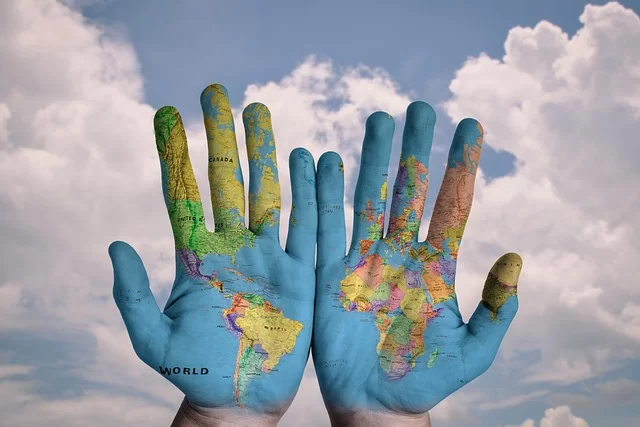
The GeoTIFF tag structure adds georeferencing information to a normal TIFF. This way, you know the image’s position on Earth with pixel precision. Satellite imagery and drone outputs are stored in this format.
Inside a GeoTIFF file, you find projection information, coordinate systems, and ground control points. GIS software reads this data to place the image on a map. Without this technology, Google Maps wouldn’t work.
The use of TIFF in mapping is so widespread that the entire industry depends on this format. Meanwhile, AVIF or WebP can never enter this field.
Medical Imaging (DICOM), Digital Pathology, and AI
The DICOM medical imaging standard stores image data in TIFF-based structures. MRI, CT, and X-ray devices use this format. Thus, they embed patient information directly into each image layer.
In digital pathology, all whole-slide images are stored with a TIFF pyramid structure. Thanks to this image pyramid, pathologists can examine the image at various zoom levels. Moreover, a single file can exceed 40 GB.
AI models also use these images. During machine learning data preprocessing, developers read pixels from TIFF. Specifically, they convert these pixels directly into tensors. The lossless structure boosts diagnostic accuracy.
TIFF Security: Virus, Macro Threat, and the CVE-2023-4863 Reality
How can an image format pose a security risk? It may sound surprising, but TIFF’s complex structure creates an attack vector for attackers.
Macro Virus and Old Threats: Can History Repeat Itself?
In the 1990s, attackers could embed macro viruses into TIFF files. These viruses exploited the image-viewing software to infect the system. Today, this attack vector is largely closed.
But old systems are still at risk. Especially on unpatched Windows XP machines, this threat remains. If your corporate archive systems run old software versions, you must exercise caution.
Let me give a clear answer to the question ‘Can a TIFF file carry a virus?’: On modern systems, it won’t directly infect you. However, this format can be a carrier for many types of malware.
2024 WebP Zero-Day (CVE-2023-4863)
CVE-2023-4863 emerged as a shocking vulnerability in 2024. This flaw was in the libwebp library and affected millions of applications. So what’s its link to TIFF?
libtiff and libwebp share the same codebase. Both share the same memory management bugs. Therefore, this vulnerability indirectly affected software that handles TIFF.
Even though browsers don’t support TIFF, server-side libraries processing these files were at risk. Systems that didn’t update in time remained vulnerable. This incident showed us that format security isn’t just at the file level.
TIFF via Email, WhatsApp, and Web: Security Risks and Quality Loss

Exercise caution when sending TIFF via email. Many corporate email servers reject attachments over 25 MB. Even a single 300 dpi page can exceed this limit.
If you send a TIFF on WhatsApp, the file automatically converts to JPEG. You’ll lose quality. On top of that, metadata is removed. That’s why you should never send critical documents via instant messaging apps.
Uploading TIFF to websites is a disaster for page speed optimization. If a image is 25 MB, page load time increases significantly. Google penalizes such practices. Always use optimized versions by converting to WebP.
Further Reading on the Tagged Image File Format
In this article, we delved deep into TIFF. For more technical details, you can refer to the authoritative sources below.
- US Library of Congress Format Description (Revision 6.0): Here you’ll find the most authoritative technical review of the format in the context of digital preservation and archiving. The Library of Congress lists TIFF 6.0 among the approved formats for long-term digital preservation of bitmap images. The library updated this page in 2024. Moreover, this source offers the most comprehensive reference on file structure, tag definitions, and compression methods.
- ISO 12234-2: Electronic Photography Standard: This is the official ISO standard for TIFF use in the photography industry. Professional camera manufacturers (such as Canon, Nikon, Sony) reference this standard for storing raw image data. TIFF/EP provides internationally valid technical specifications on color spaces, metadata, and sensor data arrangement.
- Adobe 6.0 Official Specification (PDF) – libtiff archive: Adobe Systems published this official specification document in the past. Moreover, the libtiff project currently hosts the up-to-date PDF copy. This document explains the 6.0 tag structure and compression types. Furthermore, it is the primary reference for multi-page file arrangements. Since Adobe’s original PDF is no longer on its own servers, this archive copy retains its official status.
10 Questions About the Lossless Image Format on Your Mind
Is a TIFF file better than JPEG?
Can this file carry a virus?
How to shrink a TIFF file?
Can a TIFF file be used on a website, and what’s its SEO impact?
Why won’t a TIFF file open on PACER or USA.gov?
Can you send a file via email, and is there any quality loss?
What’s the difference between TIFF and RAW, and which is better?
How to save a TIFF file with layers in Photoshop?
What is BigTIFF and when is it needed?
How to insert a TIFF file into Word?
Conclusion: To Use TIFF or Not in 2026… That Is the Question!
Let’s provide a clear summary at the end of this long journey. TIFF isn’t suitable for every job. But for some tasks, you have no choice but to use this format.
If you’re preparing a design for print, use TIFF. If you’re scanning a document for court, use this format. But, if you’re archiving medical images, use it. Also, if you’re processing satellite data, use this format.
If you’re uploading images to a website, certainly don’t use this image format. If you’re posting on social media, don’t use it. Plus, if you’re sending a quick preview via email, don’t use it either.
In short, this format hasn’t died and won’t die. It has simply settled into its niche. Now, armed with the knowledge in this guide, you can choose the right format in the right place. Remember: use the right tool for the right job, and you’ll master it.

Be the first to share your comment