

It was 2004. I built a used system for Half-Life 2. A brown slot on the motherboard caught my eye. That day, I met the Accelerated Graphics Port, the AGP slot. Since then, I have built countless systems. Additionally, I have fixed them and taken them for test runs.
Today, in 2026, this technology still beats in retro fans’ hearts. PCI Express’s predecessor paved the way for graphics speed. Above all, AGP transformed the world of motherboard slots. Its point-to-point design broke the Peripheral Component Interconnect (PCI) bus bottlenecks.
This full guide covers every detail, from basic to advanced. Which is the best AGP video card? What is AGP 8x? We will cover every topic. Moreover, I will explain the differences between AGP and PCI Express. I will also add voltage fit tips and retro gaming PC build techniques.
After you read this guide, you will know your old motherboard. You will pick the right video card. As a result, you will run your system at peak speed. Even better, you will solve nagging issues like no display with ease.
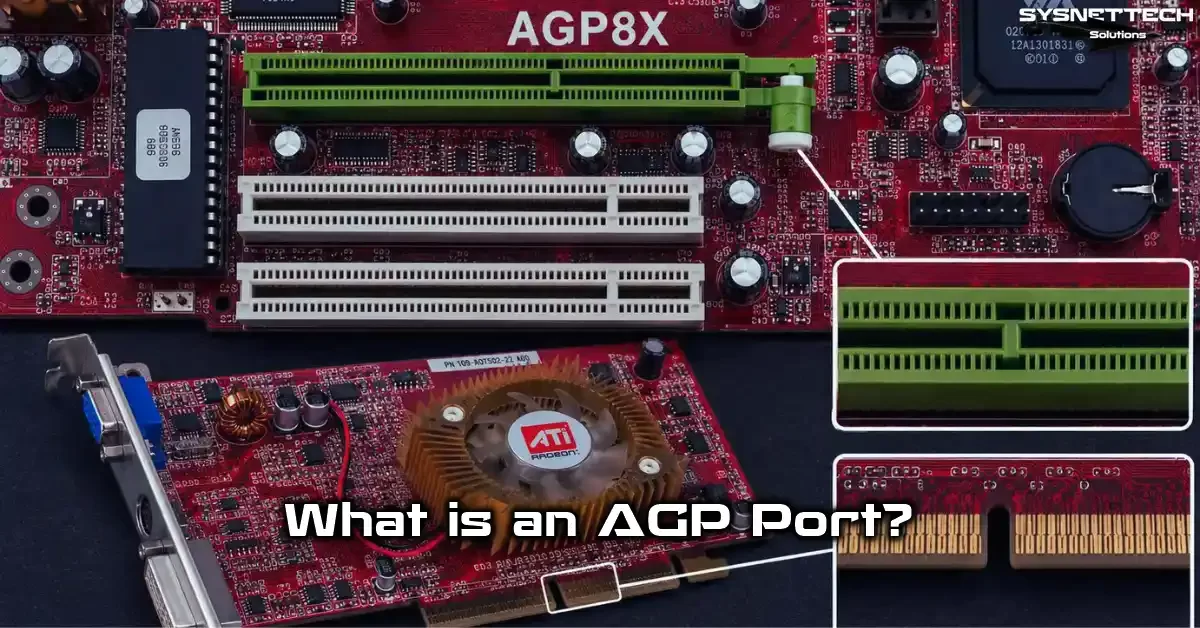
What is AGP (Accelerated Graphics Port)? A Basic Definition
In this part, I will explain this device at the most basic level. Instead of dull technical terms, I will use my practical knowledge to break it down. First of all, let us examine the full name and meaning of this interface.
AGP Expansion and Its Meaning as a Technical Port
If you ask what AGP is, the answer is clear. The term comes from the first letters of “Accelerated Graphics Port.” We can also call it the “Advanced Graphics Port” in everyday conversation.
Intel built this graphics interface in 1997. Its goal was to meet the growing needs of 3D games. The PCI bus had hit its limit. Back then, graphics cards were growing fast. Tasks like texture work and texture mapping needed huge bandwidth.
This video card connection sends data straight through the Northbridge. It is much faster than PCI for reaching system memory. The GPU and RAM communicate much faster now. As a result, game speed increases noticeably.
From a technical standpoint, this display interface is exclusively for graphics cards. You cannot plug in a sound card or a network card. Only a video card uses this slot. Besides, it sits apart from the other expansion slots on the board.
AGP History: Why Did We Need It?
In the mid-1990s, the 3D game shift began. Quake and Tomb Raider transformed the market. However, the PCI backbone of the time created a big bottleneck. Graphics card makers wanted more data flow.
All devices shared the PCI bus. The sound card, network card, and graphics card used the same line. This caused huge delays in 3D apps. Stutters inevitably occurred when large textures loaded.
Intel fixed this problem in 1997 with the 440LX chipset. It brought AGP 1.0 as a new graphics card standard. This technology was for graphics data only. No other hardware could use this line.
The first version ran at a 66 MHz bus speed. In 1x mode, it gave 266 MB/s of bandwidth. Back then, this nearly doubled the PCI speed of 133 MB/s. This gap had a major impact on the gaming world.
AGP Slot and Motherboard Fit: A Physical Spotting Guide
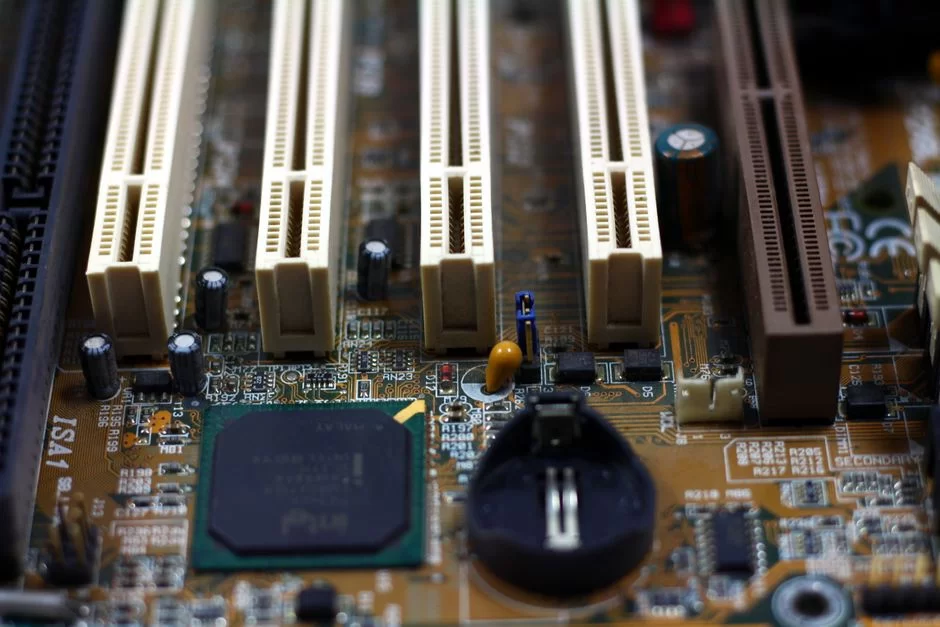
Now we will focus on physical spotting. I will show you how to tell this slot apart on a motherboard. I will also touch on key topics like voltage gaps and notch design. Additionally, I will tell you what problems come from plugging in the wrong card.
How to Spot an AGP Slot on a Motherboard (vs. PCI and PCIe)
You will recognize this slot immediately when you look at a board. It usually stands out from the rest with its brown color. It sits right next to the white PCI slots. In physical terms, it is a bit back from PCI, closer to the CPU.
It is almost impossible to confuse it with PCI Express slots. These two slots have completely different pin layouts. Also, this slot is shorter than PCIe. So, the notch spot is in a completely different location.
Let us do a physical side-by-side look. PCI slots are white and long. PCIe x16 slots are often black or blue. This graphics interface uses tones of brown. On a board, it usually sits right below the CPU socket.
This motherboard expansion slot is unique in its placement. You will spot it at first glance when you open the case. Its color sets it apart from the other white slots. Also, the PCB often has the word “AGP” printed on it.
AGP Voltage Gaps and Keying: Do Not Plug In the Wrong Card!
Voltage compatibility is the biggest concern with this technology. Plugging in the wrong card can fry your board. Therefore, you must fully understand the AGP voltage gap. Three voltage standards exist.
- 3.3 volt AGP: We saw this technology on first-generation cards. It belongs to the AGP 1.0 standard. You will find it on old 1x and 2x speed cards.
- 1.5 volt AGP slot: It came with AGP 2.0. Most 4x speed cards use this voltage. Nowadays, this is the most common type.
- 0.8V signal voltage: It hit the market with the AGP 3.0 standard. It is only for 8x cards. This is the lowest signal level.
Key notch mismatch leads to serious problems. Each voltage standard has a notch in a different spot. The AGP notch design blocks you from plugging a card into the wrong slot. Still, some users try to force past this block.
A Universal slot works with both voltage types. These slots have gaps for two different notch positions. With a Universal slot, you can plug in both 3.3V and 1.5V cards. Still, do not neglect checking the motherboard manual.
You can spot the key notch gap by looking at the grooves on the card’s bottom. Flip the card over and check the pin connections. The notch position gives you the voltage information. You can also check the official Intel AGP specifications online.
AGP Versions, Speeds, and Deep Technical Details
In this section, I will provide details on all versions and their speeds. I will also break down GART, DIME, and Sideband Addressing. If you are ready, let us start.
Differences Between AGP 1x, 2x, 4x, and 8x (Comparison Table)
Each version offers a different transfer speed and voltage. To pick the right card, you must understand these differences. The table below will show a clear side-by-side comparison.
| Feature | AGP 1x | AGP 2x | AGP 4x | AGP 8x |
|---|---|---|---|---|
| Standard | AGP 1.0 | AGP 1.0 | AGP 2.0 | AGP 3.0 |
| Bus Speed | 66 MHz | 66 MHz | 66 MHz | 66 MHz |
| Transfer Multiplier | 1x | 2x | 4x | 8x |
| Bandwidth | 266 MB/s | 533 MB/s | 1066 MB/s | 2133 MB/s |
| Signal Voltage | 3.3V | 3.3V | 1.5V | 0.8V |
| Release Year | 1997 | 1998 | 1999 | 2002 |
The bus bandwidth formula is relatively simple. You multiply the 66 MHz base speed by the multiplier value. Then you multiply by the 32-bit (4-byte) bus width. For example, for 8x you get 66 × 8 × 4 = 2133 MB/s.
As the AGP 2x/4x/8x multiplier goes up, speed also increases linearly. But in real tests, the gain is not exactly at the theoretical rate. The system bus speed and CPU power also matter. Even so, an 8x card feels significantly faster than a 4x one.
The AGP 3.0 standard is the most advanced version. Thanks to its 0.8V signal level, it uses less power. Also, signal quality is much better than on older versions. This means a more stable picture and fewer artifacts.
GART, DIME, and Sideband Addressing
The biggest difference that sets this technology apart from PCI is how it handles memory. Thanks to DIME mode, the video card uses system RAM independently. So, even if large textures do not fit in VRAM, the system runs smoothly.
DIME, or Direct Memory Execute, lets the GPU reach system memory by itself. The Graphics Address Remapping Table (GART) is the core of this process. GART shows the graphics card the memory the OS has set aside. This way, you can use system RAM as texture storage.
The AGP GART driver setup step is key. Without the GART driver, DIME mode will not work. When you install the motherboard chipset drivers, GART loads automatically. On older systems, you may need to install this driver manually.
Sideband Addressing
Sideband Addressing (SBA) is another innovative technique. By default, address and data packets travel the same line sequentially. It sends address data on its own 8-bit line. As a result, the data flow line can carry data without pause.
That is the core of Sideband Addressing. It reduces traffic on the main data path. When paired with Fast Writes, lag times drop significantly. The SBA bus also speeds up command flow from the CPU to the graphics card.
Fast Write lets the CPU write directly to the graphics card. By default, it copies data to system memory first. From there, it goes to the video card memory. This fast write mode cuts out the intermediate step. As a result, CPU usage drops.
The Graphics Address Remapping Table bridges the OS and the hardware. Thanks to this tool, scattered physical memory blocks appear as a single contiguous space to the graphics card. The GPU then uses system memory as if it were its own VRAM.
Everything You Need to Know When Buying and Using an AGP Video Card
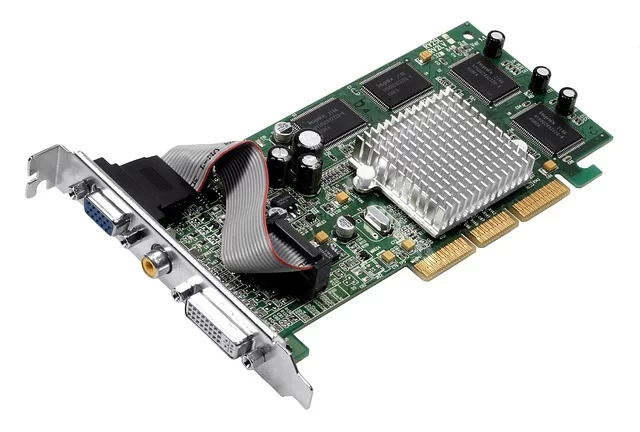
Now we focus fully on real-world buying and use tips. We start with the question of which AGP card is best. Then we will cover power hookups and repair topics.
Which Is the Best AGP Video Card? Picks Based on DirectX and Game Fit
When searching for the strongest AGP card, the answer is clear. The ATI Radeon HD 3850 AGP offers the top speed on this platform. Thanks to the Rialto bridge chip, it links a PCIe-based GPU to this interface. Additionally, it stands out with DirectX 10.1 support.
But the fastest card is not always the best pick. Older drivers work better, mainly for Windows 98 games. I shaped my AGP card tips based on your game needs. Here are the best picks by era:
- Win98 / DX7/8 games: GeForce 4 Ti 4600 or Radeon 9800 Pro is ideal. For those who seek Voodoo, the 3dfx Voodoo5 5500 AGP is a legend.
- WinXP / DX9 games: Radeon X1950 Pro or GeForce 7800 GS is superb. You get high FPS in Half-Life 2 and DOOM 3.
- Top tier / DX10: HD 3850 AGP is the undisputed king. Even if it hits a bottleneck, it is still the strongest pick.
GeForce 6 series AGP cards are still quite popular. Mainly the 6600 GT and 6800 Ultra appear frequently in the used market. Radeon 9000/X800/X1950 Pro models offer DirectX 9.0c support. In short, their Shader speeds are more than enough.
What should you watch for when buying a video card? The first rule is voltage compatibility. Find out for sure what voltage your board supports. The second key point is whether your power supply can handle it. Top-tier cards may require dual molex plugs.
Power Hookups on AGP Cards: Molex and Extra Power
A molex power hookup is essential for top-tier cards. The slot itself provides only limited power. Even the AGP Pro 110W standard falls short for some high-performance cards. That is why extra power plugs are necessary.
A GeForce 6800 Ultra or Radeon X800 XT requires one molex. The HD 3850 AGP needs two molex power plugs. A good-quality PSU is essential for powering the video card. I suggest at least a 400W quality PSU.
AGP Pro power pins push extra current for workstation cards. The standard slot has a maximum of 25W. The Pro version can provide 50W or 110W. You use this power mainly on Quadro and FireGL cards. Voltage regulator quality is critical at this point.
Step-by-Step AGP Video Card Repair and Care
Over the years, I have fixed dozens of cards. Video card repair can feel intimidating. However, if you follow the right steps, you can solve most problems.
- Safety steps: Wear an anti-static wrist strap. Do not touch cards without ESD shields. Mainly, check the ground line before you take any readings.
- Slot cleaning: Use isopropyl alcohol and a soft brush. Clean out dust and oxide from the slot. Also, gently buff the gold pins with an eraser.
- Capacitor swap: Spot any swollen or burst capacitors. Swap them with new ones of the same voltage and rating. But if you lack soldering skill, seek professional help.
- Card BIOS update: Use NVFlash or ATIFlash tools. A wrong BIOS can brick your card permanently.
- Fan and cooling mod: Old fans get loud or stop over time. Put on fresh thermal paste. Add small passive heatsinks to the bridge chip.
AGP vs. PCI Express: Behind the Scenes of the Era Change
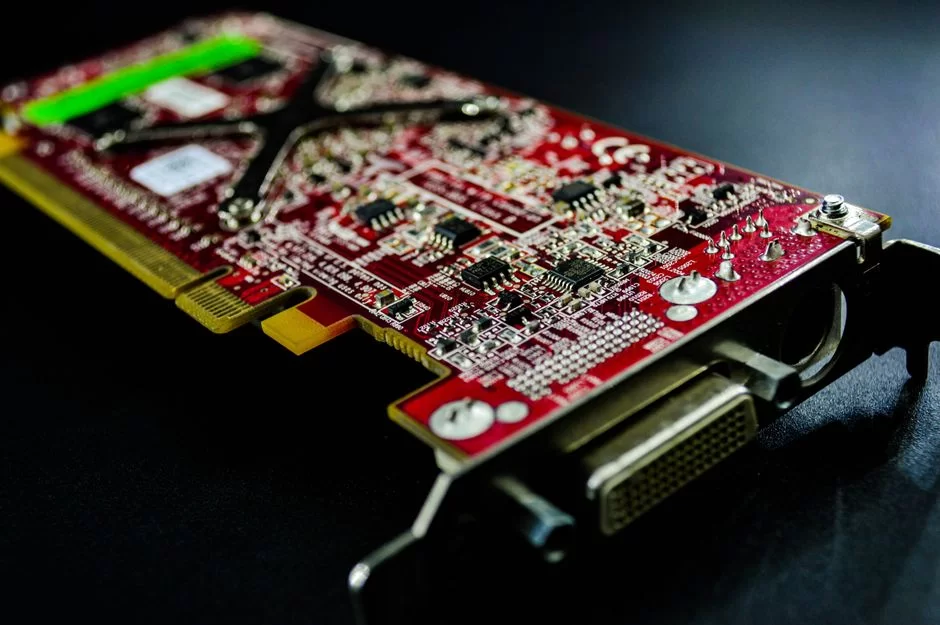
The landscape changed permanently when PCI Express arrived in 2004. In this part, I will lay out the differences between the two technologies. I will also shed light on the truth about converters and adapters.
AGP vs. PCI vs. PCI Express: Technical Side-by-Side
The bandwidth table shows the gap in the clearest way. The serial data design of PCI Express surpassed this interface. Here is the numerical comparison:
| Feature | PCI | AGP 8x | PCIe x16 1.0 | PCIe x16 3.0 |
|---|---|---|---|---|
| Bandwidth | 133 MB/s | 2133 MB/s | 4 GB/s | 16 GB/s |
| Bus Type | Shared | Point-to-Point | Point-to-Point | Point-to-Point |
| Bidirectional | No | No | Yes | Yes |
| Power Delivery | 25W | 25W | 75W | 75W |
AGP vs. PCI speed numbers produce interesting results. A PCI graphics card stutters severely in 3D games. However, an 8x card runs the same game smoothly. The bandwidth difference between them is approximately 16 times greater.
Why did this interface give way to PCI Express? The answer has many facets. First of all, PCIe offers two-way data flow. AGP only runs at high speed in one direction. Secondly, PCIe allows multi-card technology like SLI and CrossFire.
The difference between the two technologies is not just about speed. PCIe uses serial communication. This interface, on the other hand, uses parallel communication. Serial communication requires fewer pins. Additionally, PCIe also has superior signal quality.
Can You Plug a PCI Express Card into an AGP Slot? Converters and Bridge Chips
I have heard this question countless times. The answer is clear: you cannot plug it in directly. Does an AGP card fit in a PCI Express slot? No, it does not fit that way either. Pin layout and communication protocol mismatch prevent this.
Does an AGP to PCIe converter work? This question is somewhat more complex. You can find such adapters on the market. However, these converter solutions almost never work. Moreover, you experience significant signal loss during signal conversion.
A bridge chip takes a different approach. NV40 AGP bridge problems are well known. NVIDIA used these chips to fit PCIe GPUs to this interface. The Rialto bridge chip is ATI’s similar solution. These chips convert the protocol between the GPU and the slot.
If you search for a socket converter adapter, expect limited success. Passive adapters only provide a physical fit. They cannot perform the electrical conversion. That is why you often encounter the no-display problem.
AGP Pros, Cons, and Missed Chances
Every technology has its advantages and disadvantages. In this part, I will weigh the pros and cons fairly. You will see just how significant a leap it was for its time. You will also see why it was superseded.
The Groundbreaking Pros AGP Brought
You should examine this interface’s strengths carefully. The innovations it brought for its time were truly remarkable. Any user moving from a PCI card felt the difference immediately.
- Dedicated bandwidth: On PCI, all devices share the 133 MB/s line. This interface provides a fully private line of its own. No other hardware can touch this bandwidth.
- Direct memory access: Thanks to DIME mode, the graphics card uses system memory. Even if large textures do not fit in VRAM, the system runs smoothly. This was a groundbreaking move in gaming.
- High bandwidth: In 8x mode, you hit 2.1 GB/s speeds. The same-era PCI only provides 133 MB/s. The 16x difference between them directly impacts game performance.
- Point-to-point link: Unlike PCI, it connects directly to the Northbridge. Latency is kept to a minimum.
- Sideband Addressing: Address and data packets travel on separate lines. That way, the main data path never stays busy. The data flow line runs without pause.
Drawbacks and Limits
No technology is flawless. Even just looking at AGP types, you can see the limits. Here are the biggest weaknesses of this interface:
- One-way flow: High-speed data moves only from board to card. The backward speed is much lower. This causes bottlenecks in GPU compute tasks.
- Single slot support: A board holds only one slot. Multi-card technology like SLI or CrossFire is out of reach.
- Power caps: The standard slot provides only 25W. Top cards need extra power. This means more cable mess and PSU load.
- Voltage mismatches: 3.3V and 1.5V compatibility is not guaranteed. Plugging in the wrong card can lead to a burning smell from the board.
- Backward compatibility: An 8x card may not work in a 4x board. The AGP 8x/4x compatibility chart is complex. Not every combination works.
AGP in Media and Pro Use Cases
This technology was not just for games. Video capture cards and workstation solutions were also common. In this part, we will examine the professional use cases.
AGP and Video Capture Cards
AGP video capture cards were quite popular in the early 2000s. They were excellent, mainly for converting analog VHS tapes to digital. These cards held a video capture chip right next to the GPU.
The ATI All-in-Wonder series is legendary in this space. You could play games and watch TV at the same time. Along with analog signal out (VGA/D-Sub), it included a TV tuner. However, DVI-I digital output appeared on later models.
Currently, if you need a monitor adapter, choose active converters. If a DVI to HDMI converter fails, the cause is often a passive adapter. A VGA to HDMI active converter will not cause lag. Keep in mind that DVI-D cards lack HDCP support.
AGP Pro and Workstation Cards: Quadro and FireGL
What is AGP Pro? It is a standard built for workstations. Pro card features include extra power pins. Additionally, it pushes the standard slot’s 25W limit up to 50W or 110W.
NVIDIA Quadro and ATI FireGL series used this platform. Engineers designed these workstation cards specifically for CAD and 3D modeling. Pro cards used drivers that were different from game card drivers.
Dual-GPU high-power cards like the ATI Rage Fury MAXX also appeared in this era. These cards were known for their huge power draw. It was almost impossible to run them without Pro power pins. Currently, collectors pay significant sums for these cards.
The Complete Retro Gaming PC Build Guide

Now we have reached the most enjoyable part. I compiled a full section for those who want to build a 2003 or 2004 system. You will find everything, from picking the right parts to benchmark tests.
Best AGP-Era Games and Benchmark Tests
The list of the best games from that era is extensive. Playing these on the original hardware is indescribable. Here are games you can use for both nostalgia and benchmarks:
- Half-Life 2 (2004): In an FPS test, you get 60+ FPS at 1024×768 with a Radeon X800. The Source engine runs great on this platform.
- DOOM 3 (2004): Benchmark scores are heavier. You get 45-55 FPS at mid settings with a GeForce 6800 GT. The game’s pixel shader use is dense.
- Far Cry (2004): The first CryEngine version looks stunning here. You play smoothly at high settings with an X1950 Pro.
- NFS Underground 2 (2004): This is the most popular racing game of its time. It runs with ease on almost every card.
- CS 1.6 / Source: The Source version is a good test. You get high FPS even on low-end systems.
3DMark scores are also excellent for system comparisons. 3DMark2001 SE is based on DirectX 8.1. 3DMark03 has DirectX 9 tests. Always use both tools when you perform side-by-side comparisons.
BIOS and Driver Tuning
BIOS settings are key for speed. Press Delete or F2 to get into the BIOS. Go to the Advanced Chipset Features menu. Here, you will find all the settings linked to this interface.
The Aperture Size setting is a primary concern. This value sets how much system RAM the graphics card can use. The basic rule is to enter half of your total RAM. A typical value is 128 MB or 256 MB.
What is fast write? It allows the CPU to write directly to the GPU. I suggest you enable this setting in the BIOS. However, on some older cards, it can cause crashes. In that case, it is better to disable it.
Up-to-date sources for video card driver downloads are scarce. NVIDIA and AMD’s legacy driver archives are still online. For driver files, I recommend guru3d.com or archive.org. Do not neglect installing the GART driver.
SSD in an AGP System, PAE Patch, and Overclocking
SSD performance in an AGP system is surprisingly good. You can plug in an SSD with a SATA-IDE adapter. Even though Windows XP lacks TRIM support, you will notice the difference immediately. Moreover, load times decrease significantly.
The PAE patch is a lifesaver for this system. 32-bit Windows XP cannot address more than 3.25 GB of RAM by itself. With the PAE patch, you can use 4 GB or more. This patch makes a significant difference, particularly in games with large textures.
Motherboard pin-mod overclocking is for high-end users. By shorting or linking CPU pins, you push up the FSB speed. With a voltage mod, you also give the card more power. In fact, system overclock records were set using these techniques.
- SSD prep: Get a SATA-IDE adapter. Set the SSD as master. Select IDE mode in the BIOS.
- PAE patch setup: Download a trusted PAE patch. Run it as admin. Restart the PC. Check the RAM from System Properties.
- Pin-mod overclock: Study the AGP pin link chart. Touch the CPU pins with great care. One wrong link can brick the CPU permanently.
Retro Sound Feel: The Right Sound Card
AGP sound card compatibility completes the experience of a retro system. The AC97 sound chips on boards are often inadequate. A separate sound card both improves sound quality and reduces CPU load.
Creative Sound Blaster Live! and Audigy series are legendary. Thanks to EAX support, they offer a superior audio experience in games. You can install these cards into the PCI slots on your board. To avoid IRQ conflicts, configure the appropriate options in the BIOS.
If you encounter a conflict with onboard graphics, change the main display setting in the BIOS. Select the “AGP” option. That way, the built-in graphics is disabled. In short, the conflict issue is permanently resolved.
Chronic Problems and Their Sure Fixes
This part is devoted to fixing issues. I will guide you step by step through the errors users ask about most frequently. I will share the problems I encountered most often in the field and their definitive solutions.
No Display, Driver Crash: A Step-by-Step Fix
The no-display problem is the one you will encounter most frequently. The system turns on but the screen stays black. Or the screen goes dark while Windows loads. Follow these steps to solve it:
- Check physical links: Make sure the card sits right. Take it out of the slot and push it back in. Confirm it is fully seated.
- Check power links: Is the molex power plug attached? Top cards will not show a picture without extra power. PSU quality also becomes important here.
- BIOS reset: Pull the CMOS battery and wait 30 seconds. Then put the battery back in. This way, the BIOS goes back to stock settings.
- Test with a different card: If you have another working card, plug it in. If you then get a picture, the first card is at fault.
- Driver crash: Boot into safe mode. Wipe the old driver with DDU. Reinstall the chipset drivers. Then install the right video card driver.
Blue screen (BSOD) errors occur frequently as well. The IRQL_NOT_LESS_OR_EQUAL error is often driver-related. If the GART driver is faulty, you will see this error. In that case, you can fix it by updating the chipset drivers.
For artifact issues, first check the temperature. Apply new thermal paste to fix a heat problem. If a capacitor burst, a capacitor replacement is necessary. In that case, card repair is your only option.
Onboard Graphics Conflict and IRQ Problems
The most common board mismatch is the onboard graphics conflict. On some boards, the built-in graphics chip does not disable itself. In that case, it conflicts with the AGP card.
To fix this, enter the BIOS. Navigate to the Integrated Peripherals menu. Set the Onboard VGA option to “Disabled.” Under main display, select the “AGP” option. This step fully resolves the conflict.
IRQ conflict is also a classic problem on older systems. If the AGP card and sound card share the same IRQ, problems occur. In the BIOS, set “PnP OS Installed” to “No.” Change “Resources Controlled By” to “Manual.” Assign each device its own IRQ.
Shared memory issues affect performance as well. Keep the “Share Memory” setting at the lowest level in the BIOS. Shared memory is unnecessary when you use a separate card. This setting is only for onboard graphics.
In-Depth Research Sources on Graphics Bus Technology
The technical details and history of AGP are quite extensive. To understand this topic even better, you can consult the guides below. These sources provide a wide range of facts from different perspectives.
- Wikipedia – Platform-Independent Graphics Bus History: Explains AGP standard technical specifications, its advantages, and its transition to PCI Express at an encyclopedic level.
- Tom’s Hardware – A New Interface for Graphics Boosters: This article compares the 1997-era bus with PCI. It also examines the significant data flow improvement on a technical level.
- Oxford Reference – The Bridge Between System Memory and the Video Card: Summarizes how this Intel-built standard gained speed through direct memory access.
- HowStuffWorks – The Growth of Video Card Talk: Describes in simple terms how point-to-point links, free from the PCI bus, shaped image processing.
- Britannica – The Growth of Graphics Hardware Tech: Provides a concise, authoritative historical overview from its 1996 launch to the shift to PCI Express.
Everything About Accelerated Graphics Port on a Motherboard: 12 FAQs
What is AGP and what does it do?
Can I plug a PCI Express video card into an AGP slot?
What should I watch for when buying an video card?
Which is the most powerful video card?
Will an AGP 8x video card work in a 4x motherboard?
Does Windows 10/11 support an AGP video card?
What is AGP aperture size and what should I set it to?
I get no picture from my AGP card. What should I do?
What is AGP Pro?
How do I build a retro gaming PC with AGP?
Can I put an SSD in an AGP system?
Which Windows version is best for AGP?
Conclusion: Why Do We Still Talk About AGP?
Do people still use AGP today? The answer is simple. For daily use, no. But for those who want to build a retro gaming rig, yes. This technology is one of the most exciting hardware advances of the 1997-2005 era.
Why is AGP no longer used? The answer lies in PCI Express. It is faster, bidirectional, and supports multi-card setups. What do we use instead of AGP? Again, the answer is PCIe x16. In short, all modern video card models run on this standard.
For me, this platform is not just a technical topic. It represents the spirit of an era and the hard work put into these systems. Anyone who wants to experience the hardware nostalgia of the 2000s should build an AGP system.
Insert a Voodoo5 or a Radeon X1950 Pro into that brown slot. In the end, this hardware will provide joy that words cannot describe.
I hope this guide helps you bring your old system back to life. You can refer back to these sections to fix any issues you encounter. Should you buy an AGP video card? Yes, you should, as long as you match the right card with the right board.

Be the first to share your comment