

Picking a motherboard is the most critical step in building a PC. Most users focus on the CPU and graphics card. However, the real backbone of any system is the chipset on the board. This modest integrated circuit routes all data traffic.
Years of testing taught me one clear lesson. Your choice of platform chipset seals your system’s fate. A wrong pick starts a chain of bottlenecks.
Today I will walk you through the latest chipset tech for 2026. We will break down the Intel 900 series and AMD X970E platforms. Next, we will dive deep into PCIe 5.0, NPU integration, and chiplet interconnects.
I will also share my DPC latency test results. Additionally, I will explain the risks of running Windows 11 without drivers. By the end of this guide, you will choose a chipset like an expert.
What Exactly Is a Chipset on a Computer Motherboard, and What Does It Do?
A computer system is a fast world with billions of operations. The CPU, RAM, GPU, and storage drives form the core of your system. But there is one more key part. The chipset manages all the heavy data flow in perfect harmony.
Here is the classic definition. A chipset is the data bridge between the CPU and your peripherals. It handles all I/O operations for the system. Furthermore, it constantly optimizes data flow to prevent bandwidth bottlenecks.
In the past, two chips did this job. They were the northbridge and southbridge. Today, a single logic chip handles it all. Meet the Platform Controller Hub, or PCH. Consequently, this shift reduced system latency.
In short, a modern PC cannot run without a chipset. At boot, BIOS or UEFI firmware checks this unit first. All hardware setup begins after this check.
The Hidden Hero of Data Traffic: Core Chipset Tasks
Picture a system architecture. The CPU talks to RAM nonstop. The GPU sends huge texture packs to memory. Meanwhile, an NVMe SSD reads gigabytes of data per second. The chipset, or I/O controller, manages all this traffic.
This platform controller hub works in layers. First, it handles lane distribution through the PCIe root complex. Second, it manages embedded peripheral links such as USB protocol and SATA controllers. Third, it allocates DMA (Direct Memory Access) channels.
It also plays a key role in the hardware communication layer. The chipset stays synchronized with the CPU through the CXL bus and DMI link. The moment this link breaks, the system crashes.
Signal integrity is a must for system stability. The chipset intervenes right here. It equalizes the impedance of all bus paths on the board. Moreover, it prevents ECC triggers caused by reflection and noise.
It also serves as a vital storage controller. It hosts the SATA AHCI and NVMe protocol drivers. Additionally, it joins multiple disks into one logical unit via the RAID controller.
What Are Platform Controller Hub (PCH) and Fusion Controller Hub (FCH)?
Intel made a huge architectural shift in 2008. The company moved the memory controller into the CPU. This move gave birth to the Platform Controller Hub, or PCH. Now a single embedded controller runs all I/O tasks.
AMD followed a similar path with its Fusion design. It called its solution FCH, or Fusion Controller Hub. Both approaches shared the same core idea. They merged delay-sensitive units into the CPU. All other peripheral adapter tasks stayed on the PCH or FCH.
This architecture has matured today. The platform controller hub now runs the Wi-Fi 6E and Ethernet controllers. Moreover, it also manages the integrated graphics (iGPU) outputs. USB4 and Thunderbolt 4 controller support is now standard too.
It communicates with the OS through the hardware abstraction layer. Through the ACPI power protocol, it controls sleep and hibernate states. As a result, it optimizes power use.
Northbridge and Southbridge: Chipset Architecture from Past to Present
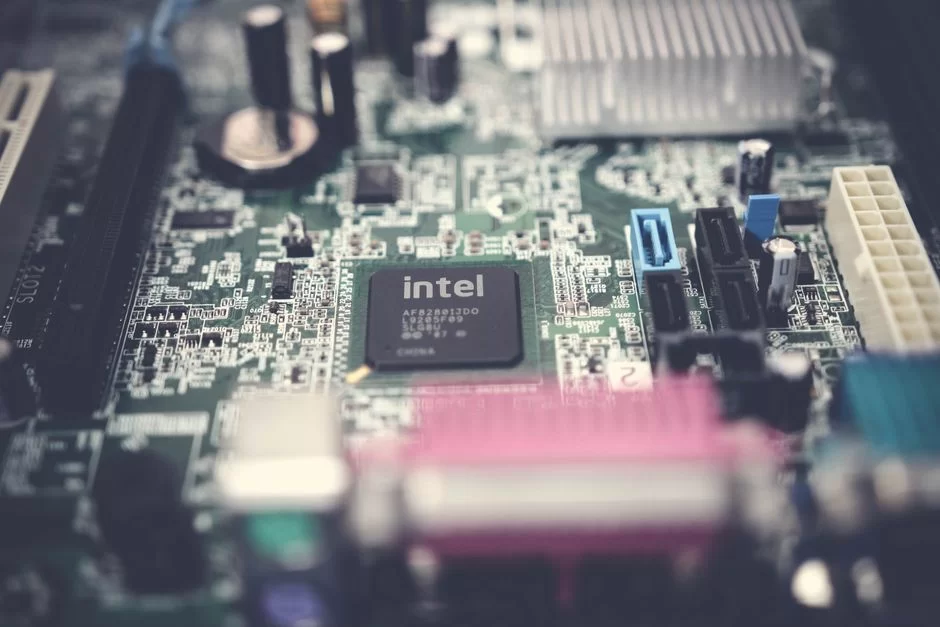
Motherboards looked very different in the early 2000s. A large heatsink sat right next to the CPU socket. Under it was the northbridge. A bit lower sat the southbridge. This two-chip setup shared all system integration work.
Over time, memory controller integration changed this setup at its core. Chip makers made bold moves to cut latency. They moved the RAM controller and PCIe lane management onto the CPU die.
This change sparked a revolution in speed. Memory latency dropped to nanosecond levels. Board designs also grew simpler. Makers gained a cost edge by using PCBs with fewer layers.
Today you see a single large chip on the board. This is the Platform Controller Hub or FCH. All bus bridge tasks now reside in one place.
Differences Between Northbridge and Southbridge
The northbridge always focused on speed. It routed memory bus traffic among the CPU, RAM, and GPU. Because of this key role, makers ran it at the highest clock rates. Consequently, the northbridge also ran the hottest.
The southbridge handled slower peripherals. It took charge of hard drives, USB, audio chip, and CMOS battery links. A special bus link sat between these two units. Intel called it the DMI interface. AMD named it HyperTransport.
| Feature | Northbridge | Southbridge |
|---|---|---|
| Connects To | CPU, RAM, GPU | HDD, USB, Audio, BIOS |
| Speed Need | Very High | Medium-Low |
| Heat Output | High (Active Cooling) | Low (Passive Cooling) |
| Status Today | Inside the CPU | Lives On as PCH/FCH |
The key gap was bus width and speed. The northbridge moved gigabytes of data per second. Meanwhile, the southbridge ran in the megabyte range. This asymmetric design was efficient for the system design.
Moving the Memory Controller to the CPU: The Performance Impact
In 2003, AMD broke all the rules with its Athlon 64 CPU. It placed the memory controller directly into the processor core. This move cut memory latency nearly in half. Intel made the same leap in 2008 with its Nehalem design.
The impact of this change was significant. CPUs no longer reached RAM through the slow northbridge path. The processor now linked directly to the memory bus. Minimum FPS in games rose by a clear margin.
Today the DDR5 memory controller sits fully inside the CPU. The system manages AMD EXPO and XMP profiles through this controller. Consequently, memory overclocking has become far more stable.
However, this integration brought a new rule. Your CPU choice now also sets your memory support. A wrong mix can stop your system from booting at all.
2026 Intel and AMD Chipset Guide: Z990, X970E, B960, and Others
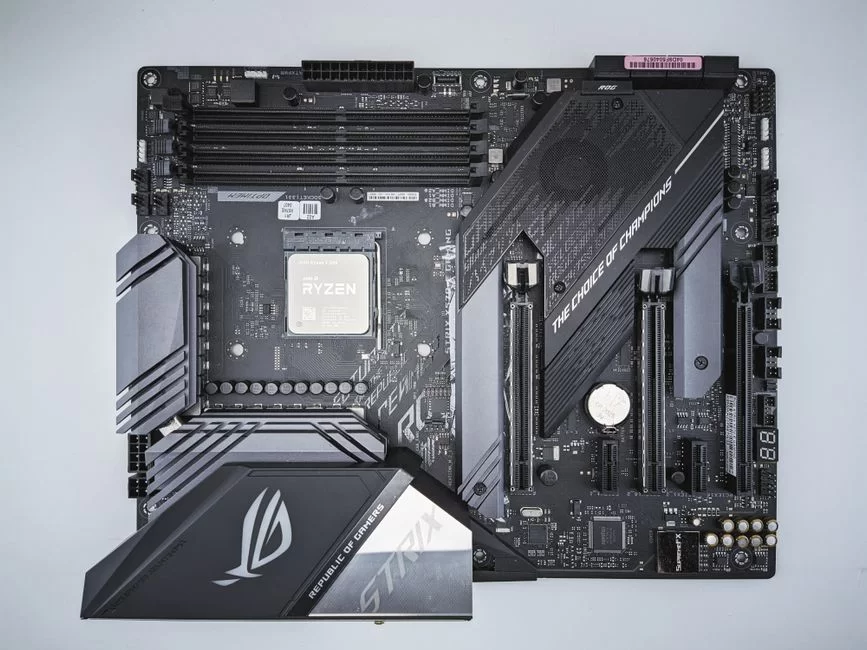
The desktop platform race is heating up in 2026. Intel readies its 900 series with a new LGA1954 socket for Nova Lake-S CPUs. AMD brings back the Promontory 21 chipset under X970E for Zen 6 chips. Both sides now focus on neural processing unit (NPU) integration.
The biggest leap this gen is AMD’s native support for CUDIMM memory modules. Expansion cards and accelerators now communicate through a memory coherence protocol. This brings server-grade features to the desktop.
VMD volume management and I/O virtualization (VT-d) are now standard too. You can now map NVMe drives directly to virtual machines. This is a significant advantage for software development environments.
Intel 900 Series: Z990, Z970, B960, and Others
The Intel Z990 is the undisputed flagship of this generation. This chip comes with a fully unlocked overclock (IA and BCLK OC). It offers a total of 48 PCIe lanes (12x PCIe 5.0 + 12x PCIe 4.0). Additionally, you get two Thunderbolt 4/USB4 ports.
The Z970 sits one step below the Z990. It supports IA overclock but lacks BCLK overclock. PCIe lanes drop to 34, with no PCIe 5.0 from the PCH (14x PCIe 4.0). This gap is most evident in multi-NVMe setups.
| Model | Overclock | PCIe Lanes (PCH) | USB4 | NPU |
|---|---|---|---|---|
| Z990 | Yes (IA + BCLK) | 48 (12x 5.0 + 12x 4.0) | 2 Ports | Yes |
| Z970 | Yes (IA Only) | 34 (14x 4.0) | 1 Port | Yes |
| B960 | RAM Only | 34 (14x 4.0) | 1 Port | No |
| H910 | None | Not in this gen | – | – |
The B960 is the most popular entry-level board chipset. Its overclock is locked. Yet its price-to-performance ratio is excellent. It is also ideal for office and home use.
For the first time in 15 years, Intel skipped an H-series chipset this gen. The Z970 and B960 have taken its place.
AMD X970E, X870E, and B850: The New AM5 Generation
Many see the AMD X970E as this year’s boldest option. Surprisingly, it will reuse the existing Promontory 21 chipset. The real upgrades are the new I/O die and CUDIMM support from Zen 6 CPUs.
The X870E enters 2026 as a mature platform. As of February 2026, many board brands already sell X870E models. It supports Ryzen 9000, 8000, and 7000 series CPUs.
The B850 chipset is the star of the mid-range. It offers full AMD-Vi and AMD Platform Security Processor features. PCIe 5.0 support comes standard. Additionally, its price is far more reasonable than the X series.
AMD improved Smart Access Memory and Resizable BAR even more this gen. The CPU can now access the GPU’s full memory in a single pass. Texture streaming stuttering vanishes as a result.
Which Chipset Is Right for Gaming, Rendering, and Entry-Level?
People ask me this frequently. The answer varies significantly based on your use case. Let’s choose the right chipset for three main profiles.
- Gaming PC: A Z990 or B850 is sufficient. The PCIe 5.0 x16 slot for the GPU is key. Overclock-ready chipsets give you more headroom.
- Rendering and Workstation: You need an X970E or Z990. Multi-NVMe RAID setups are essential for rendering. PCIe lane planning is also vital for this profile.
- Entry-Level: A B960 or B850 is ideal. Entry-level chipsets give you a price advantage. They are more than enough for daily tasks and media.
Streamers have one more detail to note. If you use an external capture card, you need extra PCIe lanes. In this case, a Z970 or X870E is a better fit.
What Is a Chipset Driver and How Do You Update It?
The hardware driver layer is the key to OS integration. A chipset driver is the most basic piece of this layer. This small software block has a direct effect on system stability.
Many users ignore this driver. But a system chip running without a driver in Windows 11 causes odd problems. USB ports may stop working. PCIe speeds may drop too.
Correct driver setup is vital for system integration. If you see no warning signs in Device Manager, do not assume all is well. Performance loss occurs silently.
How Do I Check and Update My Chipset Driver?
First, let’s check your current version. Open Device Manager and go to System Devices. There, inspect each platform controller hub entry one by one. You can find the date and version information under the Driver tab.
- Go to your board maker’s official website and search for your model.
- Find the Support or Downloads tab and select your operating system.
- Expand the Chipset Driver category. Then download the latest version.
- Run the downloaded file as an administrator and follow the setup wizard.
- Restart your system once the installation is complete. This step is necessary for the changes to take effect.
After the update, the system rebuilds its ACPI power management profiles. Power use improves as a result. System stability rises by a clear margin.
Is Updating the Chipset Driver Harmful or Required?
It is never harmful. In fact, this should be your first step after a new build. A chipset driver update does not break a stable system. Instead, it fixes hardware communication protocol errors.
Still, some edge cases exist. Beta drivers sometimes include experimental features. If you work in a production setting, stick to WHQL-signed drivers only.
Is it required? If you still use the driver from the CD that came with the board, yes it is. Makers freeze that driver at the factory date. Yet your operating system gets updates frequently.
This mismatch causes clashes at the hardware abstraction layer over time. System speed drops silently. You may be left with a slow PC and never know why.
PCIe Lane Sharing, Bottlenecks, and the Chipset
Modern motherboards work like a highway network. The PCIe bus is its main artery. Each expansion slot and M.2 socket consumes a certain number of lanes. Their total sets the limit for platform scalability.
Most users never spot a hardware resource clash. The GPU runs at low speed. Moreover, SSD read speeds drop by half. The cause is simple: a bandwidth bottleneck.
Entry-level chipsets like the B960 and B850 have a tight lane count. A bad configuration significantly degrades performance.
What Does PCIe Lane Count Mean?
PCIe lanes are separate channels inside the bus structure. Each lane carries full two-way data. PCIe 5.0 bandwidth is about 4 gigabytes per second per lane. This high speed forms the base of modern systems.
Your chipset and processor (CPU) decide the total lane count on the board. A processor provides 16 to 24 direct lanes. Meanwhile, the PCH adds another 12 to 28. Actual usable lanes depend on the maker’s design.
Let’s run a quick lane math example. A GPU card needs x16 lanes. One Gen5 NVMe SSD requires x4 lanes. A second M.2 SSD uses another x4. That fills 24 lanes in total.
What if your board only has 20 lanes? The system runs but the GPU drops to x8 mode. This has a direct impact on game speed.
M.2 SSD DMI Bottleneck and NVMe-GPU Conflict
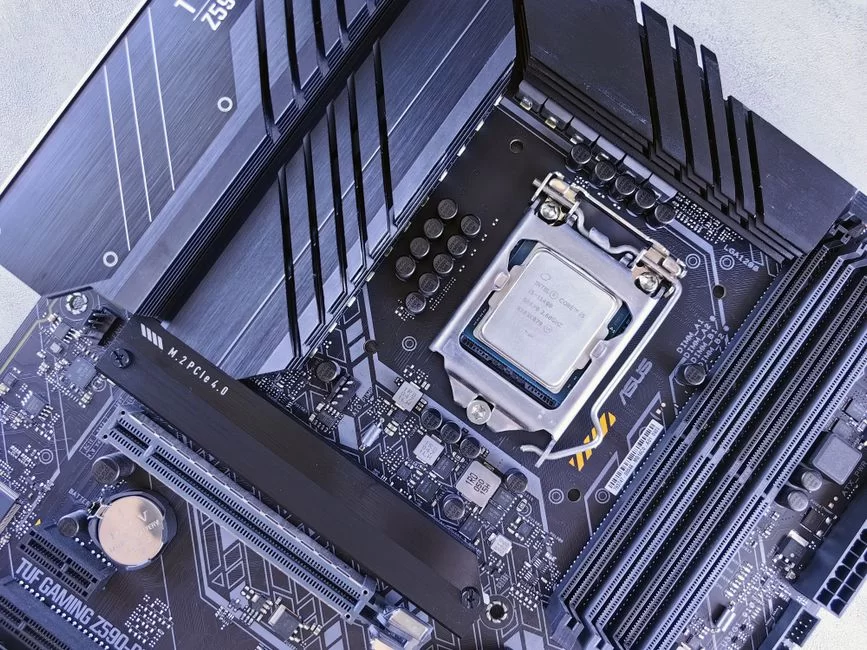
The DMI link is the vital path between CPU and chipset. Its bandwidth is capped. Z990 boards ship with DMI 5.0 x4. Meanwhile, Z970 and B960 run DMI 5.0 x2. Therefore, all PCH devices pass through this bottleneck.
Suppose you run two PCIe 4.0 NVMe SSDs through the PCH. At the same time, you transfer files to an external drive over USB4. Thermal throttling will not occur yet. Still, you will encounter a bandwidth limit.
NVMe-GPU conflicts are rarer but still possible. The board maker shares an M.2 slot with the GPU root complex. In that case, you face problems. Your dedicated graphics card will be downgraded to x8 mode.
The fix is simple. Always plug your main M.2 drive into the slot wired directly to the CPU. This slot often sits directly above or below the GPU.
Resizable BAR and Smart Access Memory
Resizable BAR is a significant advantage for PCIe lane management. In the past, the CPU read GPU memory through 256MB windows. Now that window spans the whole memory pool.
Smart Access Memory is AMD’s brand name for the same tech. Both rely on the same idea. Your chipset and BIOS must work in tandem for this feature to run. Turn on Above 4G Decoding and Resizable BAR in UEFI.
The speed gain varies by game. I have seen FPS boosts of up to 15% in some titles. Texture streaming improves most in open-world games.
Chipset and Overclocking: Limits and Settings
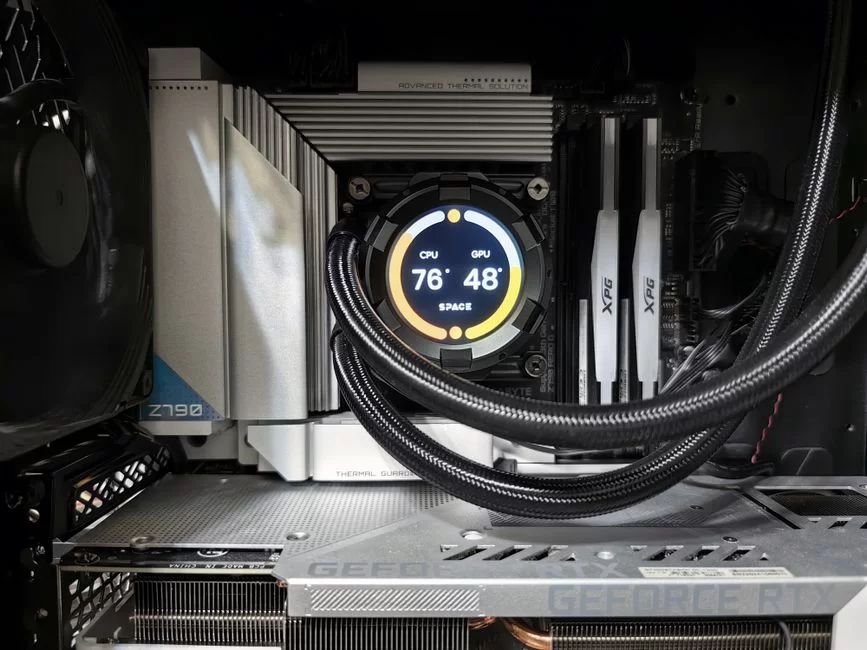
For overclocking enthusiasts, chipset choice is everything. A bad choice eliminates all your headroom. The right board chipset lets you push the limits.
Overclocking used to be just for the CPU and RAM. Now you can even boost the PCIe bus clock. This increases storage and network controller speed too.
Modern systems let you control the overclock lock via software. Intel Z series and AMD X series remove this lock.
Which Chipsets Support Overclocking?
On the Intel side, things are clearly defined. Z990 boards offer full overclock support (IA + BCLK). Z970 gives you IA overclock but not BCLK. Meanwhile, B960 and Q970 offer no CPU overclock at all.
AMD’s side is somewhat more flexible. The X970E and X870E give full support. B850 lets you overclock with some limits. Both CPU multipliers and memory overclock profiles remain available.
| Platform | Model | IA OC | BCLK OC | RAM OC |
|---|---|---|---|---|
| Intel | Z990 | Yes | Yes | Yes |
| Intel | Z970 | Yes | No | Yes |
| Intel | B960 | No | No | Yes |
| AMD | X970E | Yes | Yes | Yes (EXPO 1.2) |
| AMD | B850 | Partly | No | Yes |
When picking among overclock-ready chipsets, check the VRM and power phase design too. High-grade MOSFETs and solid cooling are essential.
What Should the Chipset Voltage Be and Overclock Limits?
Chipset voltage usually runs between 1.05V and 1.15V. The exact value depends on the board brand and model. You can increase it to around 1.25V through the BIOS (Basic Input/Output System). But at that point, TDP increases rapidly.
Let’s be clear on safe limits. Stay below 1.20V for daily use. System stability suffers above that point. Signal integrity breaks down and bus errors appear.
Overclock limits also hinge on your board’s PCB quality. Multi-layer designs handle higher clocks. Budget boards have a much lower ceiling.
Chipset Security: TPM 2.0, Intel ME, and AMD PSP
A modern system chip no longer just handles speed. Security matters just as much as performance. Windows 11’s TPM 2.0 rule emphasized this point for everyone.
Security flaws start at the hardware level. Software-only measures fall short on their own. That is why Intel and AMD integrated security processors into their chips.
Makers release security patches on a set schedule. Skipping these fixes leaves your system vulnerable.
How Does the Chipset Provide TPM 2.0 Support?
Your chipset provides TPM 2.0 support in two ways. First, there is a physical TPM header on the board. Second, the CPU has a built-in firmware TPM. Modern platforms offer both.
You need to turn on PTT or fTPM in the BIOS. This setting works in conjunction with Intel ME or AMD PSP. After you turn it on, the OS automatically detects the trusted platform module.
Can you plug a new CPU into an old chipset? This situation is complicated. The socket may fit, but you still need TPM 2.0 from the chipset. That is why older boards like Z390 or B450 lack official Windows 11 support.
Intel Management Engine and AMD Platform Security Processor
Intel ME is a tiny processor inside the CPU. It can stay active even when your PC is off. This unit handles hardware configuration and security checks.
AMD Platform Security Processor plays a similar role. This ARM-based secure zone stores encryption keys. It also prepares the AMD-Vi layer for virtualization-based security.
Both technologies draw some debate. Some users worry about the backdoor risk. However, this security layer is essential in business settings.
Chipset Cooling, Temperature, and Fault Diagnosis
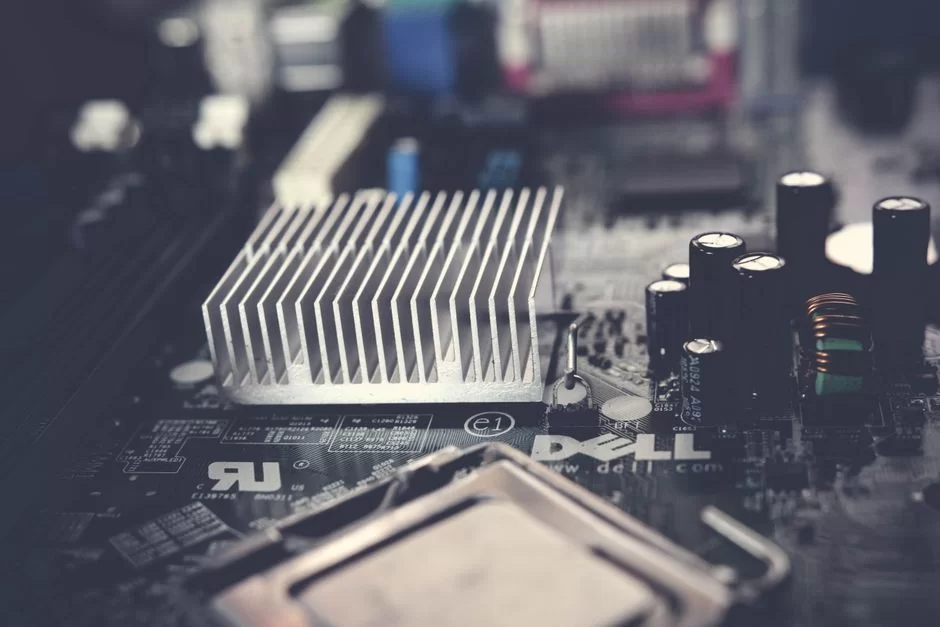
We often forget the chipset under its passive cooler. Most users ignore this part. Yet it operates intensively as a nonstop data flow controller. Heat rises rapidly under heavy NVMe loads.
When thermal throttling occurs, speed drops. The system becomes unstable and random crashes start. Regular tracking is key to detect this issue.
Never skip cooling if you want a long-lived system.
What Temperature Should the Chipset Run At and How to Cool It?
The ideal chipset temperature at idle is 35 to 45°C. Under full load, 60 to 70°C is the safe limit. Values above 80°C should raise concern. Thermal throttling starts at that point.
The Intel Z990 and Z970 chips have a maximum temperature of 113°C. That is 5°C higher than the last-gen Z890.
Chipset cooling on modern boards is passive. A large heatsink provides enough surface area. But tight cases may restrict airflow. In that case, review your case fan setup.
Thermal pads dry out and lose their adhesion over time. Replacing the pad on a three-year-old system can drop temperatures by up to 10°C. A chipset cooling refresh is easy and makes a significant difference.
You may ask what to do if your chipset fan stops. First, check if your model even has an active fan. Modern boards rarely include a chipset fan. If yours truly has one and it fails, ask for a warranty replacement.
How to Spot a Chipset Failure and Can It Be Fixed?
A chipset fault often manifests through a mix of signs. Here are the failure clues I encounter most frequently:
- USB Ports Stop Working: All ports stop functioning at once. This points to an I/O controller fault.
- SATA Drives Vanish: Even the BIOS cannot see your disks. This means the storage controller is damaged.
- PCIe Slots Fail: Your GPU and other add-in cards stop working. Additionally, system integration fails completely.
- Constant Blue Screens: WHEA_UNCORRECTABLE_ERROR errors accumulate. A hardware resource clash takes place.
- System Won’t Boot: Power flows but you never reach the POST screen. This is the most serious failure sign.
Chipset repair is possible in theory on desktop boards. BGA reballing takes expert skill. Yet its cost often approaches the price of a new board.
Laptop chipset swaps are even more complex. You must desolder the BGA socket and mount a new one. This job requires special tools and deep expertise. In most cases, a board replacement is more practical.
Chipset Latency and Measuring Performance with DPC Testing
DPC latency tracks your system’s real-time response. This value is vital for sensitive tasks like audio and video work. High DPC latency means crackling sound and choppy video.
Delays from the hardware driver layer are subtle. Users often overlook the root cause. But the culprit is often a poor data flow configuration. Or it may be an outdated driver.
How DPC Latency Testing Reveals Chipset Issues
A DPC latency test exposes board-level issues. You can easily measure this with the LatencyMon tool. Here is a step-by-step guide:
- Download and install LatencyMon free of charge.
- Close all background applications to ensure a clean test environment.
- Press the green play button. Let the test run for at least five minutes.
- Check the highest DPC routine execution time.
- Values above 1000μs point to trouble. Identify the file at the top of the driver list.
This test often flags network or storage controller drivers. The numbers drop by a significant margin after an update.
How to Improve Chipset Latency
Here are the ways to reduce latency:
- Current Drivers: Always update your chipset and network drivers. This makes the biggest difference.
- Power Plan: Switch to the High Performance profile. ACPI power management adds delay.
- C-State Control: Limit C-State transitions in the BIOS. Deep sleep states cause wake-up latency.
- MSI Mode: Turn on MSI mode for high-speed devices in Device Manager. This reduces the interrupt controller (IRQ) load.
- Clean Background: Remove applications you do not need. Each background service creates DMA traffic.
Chipsets in Mobile Devices, Phones, and Servers: SoC and Beyond
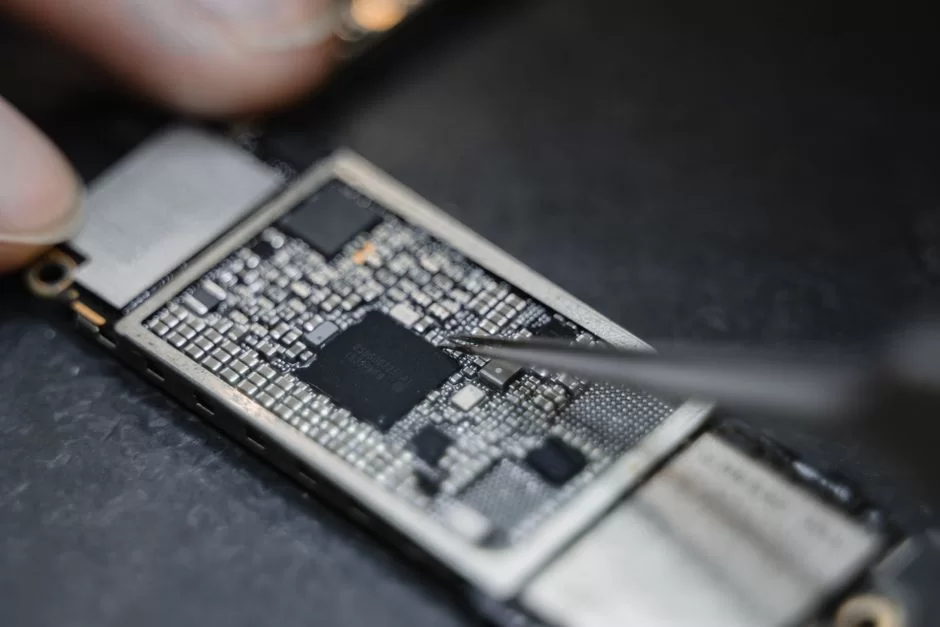
The chipset concept takes a new shape in the mobile world. Here the System on Chip (SoC) design dominates. The CPU, GPU, memory controller, and modem all merge onto one chip.
This design saves space and power. But it eliminates any chance to upgrade. The server side takes the opposite path.
You must grasp both worlds for a full picture.
Differences Between Phone Chipsets (SoC) and Computer Chipsets
Are phone and PC chipsets the same? The answer is a clear no. They are completely different. A phone SoC packs everything into one package. A desktop chipset plays a supporting role instead.
| Feature | Phone SoC | Desktop Chipset |
|---|---|---|
| CPU Location | Inside SoC | Separate Socket |
| Memory Controller | Inside SoC | Inside CPU |
| Modem | Built-in | Separate or None |
| Upgradable | Not Possible | Somewhat Possible |
| Power Use | Very Low | High |
The gap between mobile and desktop chipsets lies at the design level. Phone SoCs use the ARM instruction set. PC board chipsets serve the x86 platform instead.
Server and Workstation Chipsets
Server chipset design focuses on scale and reliability. ECC memory support is essential on these platforms. I/O virtualization (VT-d) and AMD-Vi must also work without gaps.
VMD volume management is standard on server chipsets. As a result, you can hot-swap NVMe drives inside a RAID configuration. Downtime shrinks to zero as a result.
Multi-CPU support is also unique to server chipsets. A single board may hold two or even four CPU sockets. Each chip has its own memory bus controller and PCIe root complex.
Chipsets in the AI Age: NPU Integration and Chiplet Architecture
2026 marks a turning point for the hardware world. The neural processing unit (NPU) now arrives built into the chipset.
Intel Nova Lake-S CPUs promise over 100 TOPS of AI work. This makes local large language models and real-time vision feasible.
Chiplet design fundamentally reshapes production costs. We now combine small working blocks instead of one large die. This approach is a breakthrough for platform scalability.
What Is an NPU-Integrated Chipset?
An NPU chipset carries a special neural network accelerator. This unit executes matrix math and convolution tasks at extremely high speed. It is ten times more efficient per watt than standard CPU cores.
What does this mean in real life? Webcam background blur no longer taxes your CPU. Windows Studio Effects run fully on the NPU. Language models produce local answers in seconds as a result.
This setup is quite elegant on a design level. The NPU accesses system memory directly through the DMI link. It has its own private DMA channels. Thus, it runs without disrupting the processor cache.
How Chiplet Architecture Changes Board Design
Chiplet links bring together different fab nodes. They build the CPU cores on 3nm and the I/O die on 6nm. This approach cuts costs while increasing speed.
The impact on board layout is significant. A far more complex signal routing net now sits under the CPU socket. The Infinity Fabric link spreads across the PCB to different chiplets.
This opens a new era for system integration. VRM and power phase design must be far more precise. Each chiplet has its own power zone and needs dynamic voltage control.
Chipset Generations and Backward Compatibility
Moving between generations is always painful. A new platform chipset often means a new socket. That means a board replacement, and sometimes new RAM too.
Users rightly ask if a new CPU fits an older chipset board. The answer is usually no, with a few rare exceptions. AMD is far more generous here than Intel.
Differences Between Intel Chipset Generations
Intel tends to swap sockets with each new generation. The move from 600 to 700 series kept LGA 1700. But the 800 series brought a new socket. The 900 series now arrives with LGA 1954.
The gaps between generations are not just physical. This is where chipset revisions and steppings come into play. Different revisions of the same model hold different bug fixes.
| Generation | Series | Socket | PCIe (PCH) | Memory |
|---|---|---|---|---|
| 12th-13th Gen | 600 | LGA 1700 | 4.0 | DDR5/DDR4 |
| 14th Gen | 700 | LGA 1700 | 4.0 | DDR5 |
| 15th Gen | 800 | LGA 1851 | 4.0 | DDR5 |
| 16th Gen | 900 | LGA 1954 | 5.0 | DDR5 |
AMD Chipset Evolution from AM4 to AM5
The AMD AM4 platform supported five full CPU generations. This stunning backward compatibility earned user loyalty. The AM5 platform arrived with a similar long-life promise.
They changed memory support when moving from AM4 to AM5. A DDR5 memory controller became required. They also eliminated the PGA socket and chose an LGA design.
The big chipset leap came with the X670E. This series used a dual-chip design for the first time. The X970E will surpass this with the Promontory 21 chipset and CUDIMM support.
Further In-Depth Reading on Chipsets
These sources help you better grasp the key part that routes data on your board. Each one tackles the topic from a new, trusted angle. They also show how the tech terms apply in real life.
- MakeUseOf – Motherboard Component Guide: It explores the shift from northbridge-southbridge to the modern PCH. This guide lays out the process through a historical lens.
- HP Tech Takes – Hardware Traffic Controller: This guide calls the chipset the glue of the motherboard. It also explains in depth how it directs data flow.
- Intel Support – Identifying Desktop Board Components: Official documents show you how to distinguish the naming and features of Intel desktop platform series.
- Wikipedia – Computer Architecture Term: This entry covers the data flow manager between the CPU and peripherals with a full definition.
The Hidden Hero of the Motherboard: Top 10 Most Asked Questions About Chipsets
What is a chipset in simple terms?
What happens if I don’t update my chipset driver?
How should I choose between Intel and AMD platform chipsets?
Does the chipset affect gaming performance?
How can I tell if my chipset has failed?
Is a phone’s system chip the same as a computer chipset?
Can you repair a chipset?
What should I do for chipset cooling?
Can I swap my chipset?
What do platform controller revision and steppings mean?
Conclusion: What to Look for When Picking a Chipset (Summary Table)
Choosing the right platform is the key to long-term satisfaction. A bad chipset choice forces you to keep upgrading. But the right choice gives you years of smooth use.
Check this summary table before you make your final decision. It lays out all the key factors at once.
| Criteria | Recommended Chipset | Description |
|---|---|---|
| Gaming Focus | Z990 / B850 | Strong PCIe 5.0 support and low DPC latency. |
| Rendering / Workstation | X970E / Z990 | Multi-NVMe and high memory bandwidth. |
| Office / Home Use | B960 / B850 | Great value and low power draw. |
| Overclock Fan | Z990 / X970E | Fully unlocked OC and solid VRM. |
| Windows 11 Ready | Z990 / B850 and up | TPM 2.0 chipset support and Secure Boot. |
| Future Proof | PCIe 5.0 Models | Bus design stays current for at least five years. |
Remember, system design functions as a whole. CPU and chipset harmony is vital. Socket match alone is not enough.
Also consider your memory, storage, and add-in cards in this plan. Choose wisely and years of reliable PC performance will follow.

Be the first to share your comment