

Today, computers are very important, and the operating system makes them work. One of the best-known operating systems ever is Microsoft Windows. In this article, we will look at exactly what Windows Vista, which was released in 2006, is.
We will discuss what it can do, the different versions available, and the features that make it special. Let us begin and learn more about this operating system that was once very popular.
What is the Microsoft Windows Vista Operating System?
Microsoft developed Windows Vista as computer software. This software helps you track your information better. It also makes items on your computer easier to access. As a result, it lets you work more efficiently.
In this operating system, developers create top-level apps for users. They called this version Longhorn. However, Microsoft now focuses on what users want and how they use it.
Microsoft offers new guides for technology and user experience to make Vista compatible. These guides help developers implement new ideas effectively.
The Windows Vista Family
If you want to browse the internet, it is perfect for sorting large amounts of data at home. Whether you are a professional or simply someone who loves to work with scientific applications, it is suitable. It works for anyone who uses a computer. They made this system to make computer use more convenient.
Microsoft made six different versions of Windows Vista to meet different people’s needs. Each version was made for a certain type of person.
At that time, Microsoft had six versions of Windows XP. However, they needed to think about how people actually used their computers. They focused more on making XP work with different types of computer hardware.
For example, there is XP Pro Tablet PC Edition, which understands laptops and your handwriting. There is also Center Edition, which turns your computer into an entertainment center. It works well with advanced 64-bit processors.
However, Vista does more. It connects to your TV, understands handwriting, entertains you, and keeps your computer safe with 64-bit power. XP does not have all these features.
What Are the Windows Vista Versions?
The six versions of Vista are designed to fit the way you want to use your computer:
1. Business
It does not matter how big or small your company is. The Business version of the operating system offers many benefits. You control your computers at an advanced level. You make them safer. It helps everyone work well. It also enables different devices and systems to connect smoothly.
2. Enterprise
Microsoft made the Enterprise version for large companies with complex computer systems. It helps them spend less money on IT. Moreover, it keeps data safe.
3. Home Premium
Home Premium gives you everything you need on your computer, no matter what you do. Whether you send email, browse the internet, watch movies, or track your spending, it meets your needs. It has many valuable features that help you use your computer more effectively.
4. Home Basic
Home Basic is for people who use a computer at home and want it to work well and stay safe. It is very simple and has just what you need. The key is to make your computer run well and keep your data safe without additional trouble.
5. Ultimate
The Ultimate version is the best because it has everything you need for work, entertainment, and home use. It comes with many different features that make it the best choice. Whether you work, travel, or rest, Ultimate is with you.
6. Starter
Starter is the easiest way to start using the operating system, especially in places where technology is still growing. It was designed to make it possible for people to use a computer for the first time. It comes with extra tools and training that help you use it well. This makes it very easy to use, especially if you are new to PCs.
User Experience
Vista helps you view items efficiently. It also lets you find and organize them. As a result, you can use your PC effectively. Microsoft designed Vista to help you control your device experience more quickly.
Vista looks different from older versions of Windows. As a result, it becomes easier to focus on what is on your screen. You do not have to open everything. It also offers tools that help you see your desktop more clearly.
You can find files and programs quickly, see which windows are open, and use dialog boxes more easily.
Ease of Use
When you use this operating system, you will notice some familiar elements, such as the Start menu. However, it is now even better. It is faster, looks more modern, and helps you find items more easily than before.
In the Start menu, there is a new feature called Quick Search that helps you find and open items on your computer quickly. When you type a word or phrase, it finds the right file.
The new Start menu also makes it easier to see all apps on your computer. It does not slow down your device. It shows all programs in a full list. As a result, you open any app faster than before.
File Explorer and Browser
The new web browser in Windows Vista is reliable and easy to use. It helps you work with files on your computer more effectively.
This browser gives you more control and makes working with files easy. Whether you search for photos and documents or use Control Panel, it is easy and stable.
The new Document Explorer helps you work with files quickly. The Live Icon feature lets you find files faster.
In this operating system, the browser helps you find data quickly. You can use Quick Search to find files at once. The Navigation pane lets you organize your folders.
Command Bars show only the most critical tasks for the files you select.
With new Live Icons, you can preview documents, photos, or music albums. This makes it easier to find what you need.
In the new Control Panel, you can also type keywords to find the right system settings quickly.
Windows Aero
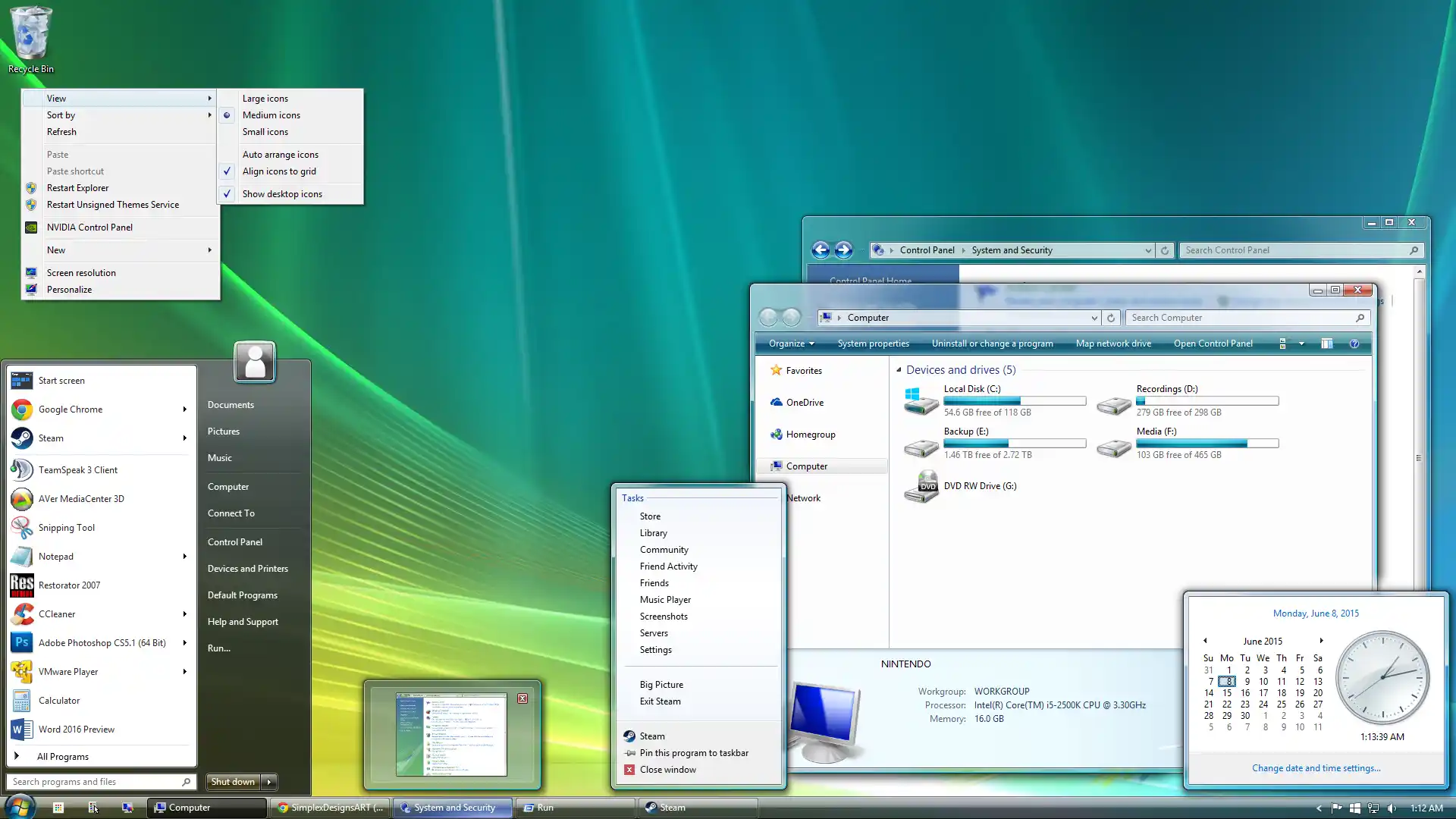
It is the first system that can change its look based on your computer’s capabilities.
If your computer meets the minimum requirements, you get the Vista Basic look with all the basic features.
The Aero feature adds impressive visual effects, such as see-through windows that make objects look attractive.
Aero makes everything look better. It also runs more smoothly. As a result, it gives Windows users a polished and safe experience.
Taskbar Thumbnails
When you move your mouse over an item on the taskbar, a small picture opens. It shows what is in that window.
This small icon shows what the window contains, such as a document, picture, video, or program. It also helps you see what is happening in the window at a glance.
To see these thumbnails, move your mouse over items on the taskbar.
Flip 3D
The new Flip feature helps you manage your open windows easily. Instead of seeing only icons and plain names, you see thumbnails of each window.
These pictures make it easier to find the window you want, especially if you have many similar windows open.
With Flip 3D, you can use your mouse scroll wheel to move through your open windows quickly. Then select the window you want to work in.
Home
Vista makes it easy to get work done and have fun on your device. It is more stable, more secure, and faster.
With this operating system, you can complete your tasks faster. The new look and improved search help you find items on your computer.
For fun, you can watch live TV and recorded shows right on your computer. You can also access all your photos, music, movies, and videos from other computers in your home. You can even access them from your Xbox 360.
Work Experience
Microsoft designed the Vista system for every kind of business. Your business can be big or small.
By managing and keeping computers secure, it helps businesses operate more efficiently and save money. It is useful for every job.
It also makes it easy for devices to connect to other systems, such as networks. As a result, you can find information and stay organized. This helps people work more effectively on their computers.
What Are the Windows Vista Features?
- Redesigned Look: It has a new look called Aero that uses sleek graphics.
- Improved Graphics: It uses a unique graphics technology called XAML and DirectX to render graphics.
- New Technology: The software communicates with the computer in a new way called WinFX.
- Antivirus Support: It helps antivirus programs work better.
- DVD Burning: You can burn DVDs without extra software.
- Command Line: It has a quick way to give the computer commands.
- Web Browser: It comes with a new version of Internet Explorer.
- RSS Reader: It has a built-in tool to read news feeds.
- System Restore: If something goes wrong, you can go back to a prior state quickly.
- Unified Communication: It has a way for programs to communicate with each other more effectively.
- Antispyware: It protects against spyware programs.
- Media Center: It includes a program to watch TV and video.
- Email Program: There is a new email program called Windows Live Mail Desktop.
- Sidebar: There is a bar on the side of the screen that holds small programs called gadgets.
- Encryption: It has a tool to protect your data if your computer is lost.
- User Control: New users do not get full control over the computer on their own.
- Media Player: It comes with a new version of Media Player, but in Europe you can also get a version without it.
- Copy Protection: It has a system to stop piracy by limiting some features if it detects a pirated copy.
How Is Windows Vista Different from XP?
This operating system was an important update that came after XP and excited many people. They launched this operating system in 2006, and it is safer than XP. It also looks more appealing and is easier to use.
In this section, let us look at the main differences between Vista and XP. For example, how do they look? Is system security sufficient? How does data transfer security work on networks? This will help you understand which one suits you.
| Feature | Windows Vista | Windows XP |
|---|---|---|
| User Interface | Aero Glass, Sidebar, Live Thumbnails, Search Bar | Luna Theme, No Sidebar, No Live Thumbnails, No Search Bar |
| Security | User Account Control, Windows Defender, BitLocker Drive Encryption | No UAC, No Windows Defender, No BitLocker |
| Network | Network Center, Improved Wireless Networking | No Network Center, Basic Wireless Networking |
| Multimedia | Media Center, DVD Maker | No Media Center, No DVD Maker |
| Performance | Resource Heavy, Requires Advanced Tech Hardware | Less Resource Heavy, Runs on Lower-Quality Hardware |
| Compatibility | Limited Compatibility | High Compatibility with Old Software |
| Price | Expensive | Budget-Friendly |
FAQ About Windows Vista
What hardware features should my computer have to run Windows Vista?
Will my old programs and printer work with this operating system?
How can I protect my files when I move from Windows XP to Windows Vista?
I cannot turn on the Aero interface in Windows Vista. What could be the reason?
Which version of Windows Vista best fits my needs?
How can I know in advance if my computer can handle this version?
How can I turn off the constant User Account Control warnings in Windows Vista?
Which settings should I change to boost performance on this operating system?
Can I upgrade to Windows 7 on a Vista computer without reformatting?
I get an ‘unidentified network’ error when I set up a network connection; how do I fix it?
Conclusion
In summary, Microsoft Windows Vista aimed to improve computer use for everyone. Users had six versions to choose from. Thus, they could choose the right version for fun, work, or daily use.
It brought new technology and ways to see and organize items on your computer. It made finding items and using your device easier. Even though Microsoft no longer supports Windows Vista, its impact on how operating systems work still matters.
Windows has come a long way since Vista. Today, Windows 10 is much more mature. Windows 10’s modern features take Vista’s original vision even further. To be clear, you need to look at both systems side by side to truly see how far the OS has evolved.

Be the first to share your comment