

We will talk about one of the most controversial operating systems in computer history. Microsoft announced a new home-user version in 2000 to replace Windows 98. This version would be the last member of the Windows 9x family. However, no one guessed that this operating system would generate so much discussion.
Users faced a big dilemma at that time. Windows 98 SE ran quite stably. On the other hand, the new version came with media tools and system protection features. So, many people held back from upgrading. In the end, the problems that followed showed just how right that doubt was.
In this article, we will examine this operating system in technical depth. We will cover its architecture, system requirements, and why it failed. Also, we will share how to run it today and how to optimize it. Drawing on my real field experience, we will get to the root of the problems.
Rest assured, you will find critical details about this system that most sources online skip. For example, we will show how to set up Vcache and why it is vital. Therefore, whether you read for nostalgia or technical curiosity, this guide will add considerable value for you.
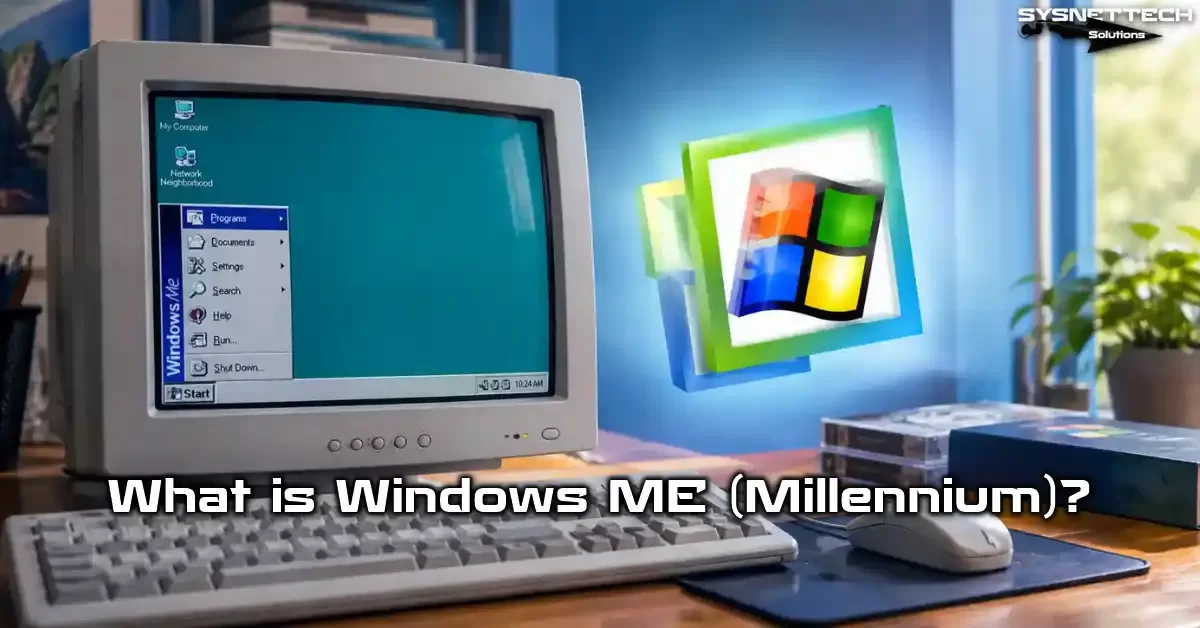
What Is Windows ME? Definition and Architecture Position of Millennium Edition
Let’s start from the very beginning. The ME operating system was a build Microsoft launched in 2000. This version, short for Millennium Edition, was the last release of the Windows 9x line. Plus, it had a design aimed at home users.
Microsoft pitched this version as the direct heir to Windows 98. However, Windows 2000 had also taken its place on shelves at the same time. This created an odd split that addressed two different user groups. Microsoft pushed Millennium Edition for home users and Windows 2000 for business.
So what was the main goal of this OS? In short, it was to boost the multimedia experience and make system upkeep easy. Microsoft placed heavy focus on digital media tools and automatic updates. Sadly, a huge gap grew between these goals and real-world performance.
Windows ME Defined: The Last Member of the MS-DOS-Based Windows 9x Family
Millennium Edition was built on an MS-DOS-based structure. This feature set it sharply apart from Windows 2000, which used the Windows NT kernel. This system had a hybrid build. In this build, 16-bit and 32-bit code ran side by side.
Microsoft largely limited real-mode MS-DOS access in this version. The goal was to cut boot time and boost system stability. But this decision led to many old programs and hardware drivers not working. As a result, it badly hurt backward compatibility.
This operating system went down in history as the last member of the Windows 9x family. Microsoft switched to the NT kernel in all later consumer versions. This shift proved that the NT-based architecture was the long-term winner.
For this reason, you must know the family tree first to understand this system. Windows 95’s place in the computer world continued with Windows 98 and Windows 98 SE. The last stop was this controversial version.
Windows ME’s 16/32-Bit Hybrid Kernel Architecture: VMM32.VXD and Kernel32.dll
Now let’s dig a bit deeper into technical detail. The ME OS had a monolithic kernel design. The hybrid architecture housed 16-bit and 32-bit code together. This build brought both flexibility and fragility. At the heart of the system, the virtual machine manager, or VMM, did its job.
The VMM32.VXD file was a compressed archive of the virtual machine manager and core drivers. This file handled memory management and interrupt tasks. This part also coordinated switches between protected mode and real mode.
Kernel32.dll, meanwhile, provided the core functions of the Win32 API. Apps turned to this library for file tasks and memory allocation. But the interplay of 16-bit and 32-bit code often caused trouble.
This hybrid build led to system resources running out fast. When GDI resources and user resources hit a set limit, the system crashed. This also laid the base for the problem known as DLL Hell.
Windows Millennium Release Date, Development Process, and RTM Build 3000
Let’s look at the development process. After Windows 98, Microsoft started work on a new consumer version. At first, the project had a different name. The team planned to build it on the NT kernel. But the team postponed this goal because of time limits.
Microsoft sent this operating system to manufacturing on June 19, 2000. It set the RTM build number as 4.90.3000. The retail launch date was September 14, 2000. This date fell about seven months after Windows 2000 hit the market.
The development process moved quite fast. Microsoft ported some parts from Windows 2000 to this version. Features like System File Protection and System Restore were the most important of these ports. But this rushed approach also brought stability issues.
A small group tested the beta builds before they reached end users. The team found some issues in these tests but had no time to fix them. So, the version that hit the market was still not mature.
So, was this version the last member of the Windows 9x family? Yes, it sure was. Microsoft moved all consumer versions to the NT kernel with Windows XP. Thus, the MS-DOS-based Windows era officially ended.
What Are Windows ME (Millennium) Features? Technical Details from System Restore to UPnP
Let’s get to the new features this OS offers. Microsoft focused on tools that would make life easy for home users. System Restore, System File Protection, and advanced media tools stood out here. On the other hand, some features fell short of hopes.
This version had key upgrades over Windows 98 SE. Microsoft broadened USB support and better integrated ACPI power management. Also, Microsoft bundled Internet Explorer 5.5, Windows Media Player 7, and DirectX 7.0a.
But most of these features drained system resources faster. Hardware clashes and driver conflicts added to the load from the new features. As a result, a drop in performance became unavoidable.
How Does Windows ME System Restore Work? The Shadow Copy Mechanism
System Restore was one of the most talked-about features of this version. This tool made backup copies of system files and registry keys on its own. When users hit a problem, they could roll the system back to an earlier date.
So, how did this mechanism work? Let’s walk through it step by step:
- Creating a restore point: The system made a restore point on its own at set intervals.
- Taking a shadow copy: The system stored chosen files as compressed shadow copies.
- Tracking and filtering: The system left user docs and digital photos out of the watch list. This kept personal data safe.
- Restoring the system: When a user reported a problem, the wizard kicked in.
- Picking from a calendar: Users could choose the restore point they wanted on a calendar.
- Rolling back system state: The system restored files and settings from the chosen point.
- Rebooting: The system restarted on its own when the task finished.
Microsoft offered this feature in such a broad way for the first time in a Windows version. System Restore lived on in later Windows versions too. In fact, a similar mechanism even exists in today’s Windows 10 and Windows 11.
But there is one point you need to watch. System Restore used a big chunk of disk space. On machines with low disk space, this led to performance problems.
What Is Windows ME System File Protection (SFP)? The Link Between SFC and DLL Hell
System File Protection was a defense mechanism built to fight the DLL Hell problem. This feature blocked overwrites of critical system files. When an app tried to change a system library, SFP stepped in.
Microsoft had actually built this tech for Windows 2000. The system, ported to this version, kept a copy of the original files. When a file changed or got deleted, SFP restored the backup on its own.
So what was its link to SFC? The System File Checker worked as part of SFP. Users could start a system scan by running the sfc command from the command line. This scan checked the integrity of all protected files.
Sadly, this protection system was not 100% effective. Some registry cleaners and file managers could bypass the guard. Also, driver conflicts crashed the system in cases SFP did not foresee.
Windows ME USB Mass Storage and ACPI Power Management Support
On USB support, this version gave clear gains over Windows 98 SE. It packed built-in drivers for USB mass storage devices. Thanks to this, the version detected USB sticks and external disks more easily.
| Feature | Windows 98 SE | Windows ME |
|---|---|---|
| USB Mass Storage Support | Limited (driver needed) | Built-in support |
| USB Hub Support | Basic level | Extended |
| ACPI Power Management | Partial support | Full integration |
| Hibernation | Not supported | Supported |
| Sleep Mode | Limited with APM | ACPI-based |
ACPI power management was one of the biggest infrastructure gains in this version. Features like hibernation and sleep mode now ran more reliably. But we often saw ACPI clashes on old hardware.
These clashes made the system shut down or fail to boot out of the blue. AGP graphics cards and sound cards, above all, could clash with ACPI. This was one of the main causes of the shutdown bugs users often complained about.
Windows Movie Maker 1.0, WMP7, IE 5.5, and DirectX 7.0a Features
Media tools were among the most striking new features of this version. Microsoft wanted to meet the digital video editing needs of home users. The tools added to the package for this goal were:
- Windows Movie Maker 1.0: A basic video editing tool. Users could cut and join clips from a digital camera.
- Windows Media Player 7: It had a fresh UI and better codec support. It also packed CD burning and device sync.
- Internet Explorer 5.5: A browser with better print preview and stronger CSS support. With Web View, Explorer windows could look like web pages.
- DirectX 7.0a: An updated graphics API for games and multimedia apps. It had gains in Direct3D and DirectSound parts.
- Windows Image Acquisition (WIA): A new architecture for digital camera and scanner integration. Thanks to WIA, image transfer became smoother.
These tools looked great in theory. In practice, though, they drained system resources hard. Movie Maker, above all, filled up memory fast during video work. This led to system freezes.
Windows Millennium System Requirements: Minimum, Recommended, and RAM Limit
Now let’s look at the hardware side. We will go over the minimum and recommended setups needed to run this operating system. Also, we will share critical details on the RAM limit.
What Are the Minimum System Requirements for ME?
Microsoft set quite modest minimum requirements for this version. But these values, while good on paper, fell short in practice. Here are the official minimum system requirements:
| Component | Minimum Requirement |
|---|---|
| Processor | Pentium 150 MHz |
| RAM | 32 MB |
| Disk Space | 320 MB |
| CD-ROM Drive | Required |
| Floppy Drive | 3.5-inch (for setup) |
| Display | VGA (640×480) |
As you can see, the minimum requirements were quite low. But running this system with 32 MB of RAM turned into torture. The system always used disk paging, and performance hit rock bottom.
Windows ME Recommended System Requirements and Real Performance
So what did you really need? The recommended system requirements were quite far from the minimum values. Here is the setup I suggest based on my field experience:
| Component | Recommended Requirement | For Real Performance |
|---|---|---|
| Processor | Pentium II 300 MHz | Pentium III 500 MHz+ |
| RAM | 64 MB | 128 MB – 256 MB |
| Disk Space | 2 GB | 4 GB+ |
| Display | SVGA (800×600) | 1024×768, 16-bit color |
Even at the recommended system requirements, the operating system ran unstably at times. For example, on a PC with 128 MB of RAM, resources ran out fast when you opened a few apps at once. So, for real performance, you needed to go up to 256 MB of RAM.
But there was a problem here. This OS caused serious issues with more than 512 MB of RAM. So why? Because the Windows 9x kernel had limits on memory addressing. The Vcache mechanism could not manage memory above 512 MB well.
How Much RAM Does Windows ME Support? The 512 MB Limit and Vcache Fix
Let’s get to one of the most critical topics. This operating system, by design, supported up to 512 MB of RAM. But this limit was not a hardware limit; it was a software limit.
What happened when you put in more than 512 MB of RAM? The system did not see part of the memory or addressed it incorrectly. This led to random blue screen errors and system crashes. Luckily, you could fix this problem with a simple System.ini setting.
Here is the Vcache setup step by step:
- Open the System.ini file: Run the
msconfigcommand or open theSystem.inifile with Notepad. - Find the Vcache section: Look for the
[vcache]header in the file. If it is missing, add the header yourself. - Enter the MaxFileCache value: Add the line
MaxFileCache=524288under the header. This value equals 512 MB. - Set the MinFileCache value: You can also add the line
MinFileCache=4096as an option. - Save the file: Save the System.ini file and restart the PC.
- Check the result: After the system boots, check whether it sees all the RAM.
This setting capped the memory use of Vcache. This way, setups up to 1 GB of RAM could run with more stability. Still, more than 512 MB of RAM was not ideal for this OS.
Why Did Windows ME Fail? The Technical Root of Its Stability Problems
Now let’s get to the most crucial question. Why did this operating system get such a bad name? The answer lies in a mix of a few technical and strategic mistakes.
Why Was Real-Mode MS-DOS Removed? IO.SYS and COMMAND.COM Limits
Microsoft removed real-mode MS-DOS access almost fully in this version. The goal was to cut boot time and boost system stability. But this decision badly hurt backward compatibility.
So how did Microsoft apply this change? The IO.SYS and COMMAND.COM files still existed, but Microsoft limited their roles. Users could no longer boot the PC straight into MS-DOS mode. As a result, they could not run BIOS updates or old DOS programs.
Real-mode MS-DOS was vital for some hardware drivers. Sound cards and network cards, above all, needed real-mode drivers. When Microsoft pulled this access, driver clashes became unavoidable.
Microsoft offered a virtual space called the DOS box to fix this problem. But this space could not fully give the real MS-DOS feel. Many old games and programs did not work due to this limit.
Windows ME Blue Screen (BSOD) Errors: Codes, VxD Clashes, and GDI Leaks
Blue screen errors had become the fate of this operating system. Users often ran into the blue screen of death. At the root of these errors were VxD driver clashes and GDI resource leaks.
Here are the most common BSOD error codes and fixes:
| Error Code | Meaning | Possible Fix |
|---|---|---|
| 0E | Page fault | Run a RAM test, check the Vcache setting |
| 0D | General protection fault | Driver update or removal |
| VMM32 | Virtual machine manager error | Edit virtual memory settings |
| KERNEL32 | Kernel library error | Repair system files |
| EXPLORER | Shell error | Clean startup items with msconfig |
The VxD driver model was the core problem of the Windows 9x family. These drivers ran at kernel level, and when they made a mistake, they crashed the whole system. The Windows Driver Model, though, had solved this problem on NT-based systems.
GDI resources managed graphics interface objects. These resources had a small pool and ran out fast when a leak happened. So when resources ran out, screen drawing broke or the system froze.
DLL Hell and System Resource Drain: The Cost of the 16/32-Bit Hybrid Architecture
DLL Hell was a chronic problem of the Windows 9x family. Different apps asked for different versions of the same DLL file. On top of that, the system did not know which version to use, and clashes started.
This operating system brought in the System File Protection feature to fix this problem. But this guard only covered files in the Windows folder. Users could still change DLLs in app folders with free rein.
The system resource problem was even more critical. The system gave out user and GDI resources from fixed-size pools. Each new window or menu took a share from these pools. When resources ran out, starting a new app became impossible.
Running 16-bit and 32-bit code side by side made memory management complex. 16-bit apps shared a common memory space. When one app messed up this space, all other 16-bit apps felt it.
The Strategic Mistake of Launching the Same Year as Windows 2000
Microsoft launched two different operating systems in the same year. Windows 2000 was aimed at business and built on the NT kernel. Microsoft designed this version for home users and made it MS-DOS-based.
This strategy confused users. On one side was stable and safe Windows 2000. On the other side was this system struggling with problems. Users did not know which one to pick.
What’s more, the NT kernel of Windows 2000 had compatibility issues with games and old hardware. So, Microsoft steered home users to this version. But this push led them to an even bigger letdown.
The development process of Windows XP also kept going during this time. Microsoft worked to adapt the NT kernel for home users. This version would serve as a bridge in the transition period. Yet it turned into a hurdle instead.
Windows ME vs Windows 98 vs Windows 2000 vs Windows XP: A Full Comparison
Now let’s compare this operating system with its peers. Let’s lay out the differences between it and Windows 98, Windows 2000, and Windows XP.
Differences Between Windows ME and Windows 98: USB, ACPI, and MS-DOS Support
The differences between these two versions changed the user experience right away. Here is the comparison table:
| Feature | Windows 98 SE | Windows ME |
|---|---|---|
| Kernel Architecture | MS-DOS-based | MS-DOS-based (limited) |
| Real-Mode MS-DOS | Supported | Limited access |
| USB Mass Storage | External driver needed | Built-in support |
| ACPI Power Management | Partial | Fully integrated |
| System Restore | None | Yes |
| System File Protection | None | Yes |
| Movie Maker | None | Yes |
| Stability | High | Low |
As you can see, this version brought many new features. But Microsoft added these features at the cost of stability. Windows 98 SE offered fewer features but was far more reliable.
So which one was better? The answer to this question depended on your use case. For gamers, Windows 98 SE had the edge thanks to real MS-DOS support. For those into multimedia, this version offered tools like Movie Maker.
But in general use, Windows 98 SE was the clear winner. Users saw this truth fast. So, many people refused to move to the new version.
Windows ME vs Windows 2000: Why Did the NT Kernel Win?
These two operating systems stood for different views. While this version carried on the MS-DOS legacy, Windows 2000 showed the power of the NT kernel.
The biggest plus of the NT kernel was stability. Each app ran in its own virtual address space. When one app crashed, the rest did not feel it. This was not possible on the Windows 9x family.
On security too, Windows 2000 was the clear winner. The NT kernel had a far more mature setup for user accounts and file permissions. This version, though, offered only basic user management.
But Windows 2000 had weak spots too. It fell short on game support and old hardware. So, it was not ideal for home users. Microsoft filled this gap with Windows XP.
The Difference Between Windows ME and Windows XP and the XP Transition
Microsoft launched Windows XP in 2001 as the heir to this OS. XP was the first version to bring the NT kernel to home users. This shift sealed the end of this version.
The biggest plus of XP was that it was both stable and compatible. It merged the trust of the NT kernel with the broad software support of Windows 9x. Also, it brought a big visual change.
For users, the move to XP usually went smoothly. But some old hardware had a hard time finding XP drivers. Still, XP won user trust fast.
Microsoft fully ended support for this version in 2006. After this date, Microsoft gave no security updates or patch support. Microsoft urged users to move to XP or newer versions.
Windows ME Performance Optimization: Speeding Up a Slow System and Fixing Errors
If you run this operating system today, performance problems are a given. Luckily, you can speed up the system with some optimization steps. Here are tips based on my field experience.
Why Does Windows ME Run Slow? The Root of Its Performance Problems
There is more than one cause of the drop in performance. First of all, system resources are small and run out fast. The system gives out GDI and user resources from fixed pools. When these pools fill up, the system slows down and crashes.
Second, the Vcache mechanism works with poor gains. When set up incorrectly with more than 512 MB of RAM, the system hits the disk all the time. This drives performance into the ground.
Third, there are needless processes running in the background. This operating system starts many services on its own. These services drain system resources and cause slowdowns.
Speed-Up Tips: msconfig Boot Optimization
Cleaning up startup items is the most effective way to boost performance. Here is the msconfig optimization step by step:
- Open msconfig: Pick the Run command from the Start menu and type
msconfig. - Go to the Startup tab: In the window that opens, click the Startup tab.
- Disable needless items: Check the programs that run at boot but that you do not need.
- Check services: On the Services tab, turn off needless Windows services.
- Save changes: Click the OK button and restart the system.
- Check the result: You will see a shorter boot time and a faster system response.
These steps cut boot time significantly. Also, needless background processes free up system resources. This way, apps open faster and the system runs smoothly.
Windows ME Vcache and Memory Management Optimization: System.ini Settings
The Vcache setting sits at the heart of memory management. When set up correctly, system performance goes up considerably. Here is Vcache optimization through System.ini:
- Open the System.ini file: Open the
C:\Windows\System.inifile with Notepad. - Find the [vcache] section: Look for this header in the file. If it is missing, add it.
- Set the MaxFileCache value: Enter a value equal to half your RAM amount. For example, type
MaxFileCache=262144for 512 MB of RAM. - Set the MinFileCache value: Add the line
MinFileCache=4096. - Edit the [386Enh] section: Add the line
MinSPs=12in this section to raise the system page size. - Save the file: Save the System.ini file and restart the system.
These settings optimize the memory use of Vcache. Also, they cut crashes by improving system page management. The gap is clear, above all, on systems with 256 MB or more of RAM.
Windows ME BSOD Error Codes and GDI Resource Leak Fixes
Blue screen errors are like the fate of this operating system. But you can cut these errors down with some fixes. Here are common error codes and fix tips:
| Error Code | Cause | Fix |
|---|---|---|
| 0E | Page fault, memory problem | Edit the Vcache setting, run a RAM test |
| 0D | Driver clash | Remove the last driver you loaded |
| VMM32 | Virtual machine error | Raise the MinSPs value |
| KERNEL32 | Kernel library error | Repair system files |
| GDI32 | GDI resource drain | Watch with a resource meter |
The GDI resource leak is one of the most sneaky problems. The resource meter tool tracks the use of GDI and user resources. With this tool, you can spot which app drains resources.
When resources fall to a critical level, you must restart the system. Otherwise, screen drawing breaks and the system stops responding. So, I suggest you keep the resource meter open at all times.
Windows ME Security Holes, Support Window, and Use Today
The security state of this OS is sad by today’s standards. Microsoft fully ended support in 2006. Since that date, Microsoft has put out no security updates.
Security Holes and Patch State After 2006
When Microsoft ended support, many critical security holes stayed unpatched. Here are some of the most dangerous holes:
- MS06-015: A critical remote code execution hole in Windows Explorer. Microsoft put out no patch for this system for this hole.
- SMB protocol holes: Holes that let attackers take over a system over a network.
- Internet Explorer holes: Microsoft did not port IE 5.5 and 6 patches to this version.
- UPnP holes: Security gaps in the Universal Plug and Play protocol.
Microsoft put out no patch to close these holes. That’s because applying architecture changes to old systems had become impossible. So, users had to protect themselves with firewalls and antivirus software.
When Did Windows ME Support End? July 11, 2006
Microsoft ended mainstream support for this operating system on December 31, 2003. Extended support ended on July 11, 2006. From this date on, Microsoft gave no security updates or tech support.
Ending support was an unavoidable decision. Microsoft wanted to steer its resources to next-gen operating systems. Windows XP and later versions were built on the NT kernel and were far safer.
For users, this date was a turning point. Keeping this system in daily use now carried serious security risks. Attackers could take over an online machine in minutes.
But some users kept using this system for nostalgia or special software support. These users usually ran the system on an isolated network or in a virtual machine.
Is Windows ME Still Used Today? Running Modern Software with KernelEx
Using this operating system on a main machine today does not make much sense. But the retro computer group keeps this system alive in virtual machines or on old hardware.
KernelEx is one of the most important tools of this group. This software expands 9x kernel libraries. This way, you can run some modern apps written for Windows 2000 and XP.
Here is KernelEx setup and use:
- Download KernelEx: Get the KernelEx setup file from a trusted source.
- Start the setup: Follow the setup wizard to load KernelEx.
- Set the compatibility mode: To run a modern app, right-click and open the Properties menu.
- Use the KernelEx tab: On the compatibility tab, pick the right Windows version for the app.
- Add DLL files: If needed, copy missing DLL files to the KernelEx folder.
- Test the app: Save the settings and run the app.
Thanks to KernelEx, you can even run modern apps like the VLC media player. But this method guarantees no 100% compatibility. Some apps may still not work.
Today, the safest path for those who want to try this operating system is to use a virtual machine. Emulators like VirtualBox, VMware, or PCem offer this experience in a safe way.
Little-Known Facts About Windows ME: Neptune, Odyssey, and Canceled Features
Interesting stories lie behind the scenes of this operating system. Microsoft was actually working on a far bolder project. But time limits and strategic decisions threw this vision off track.
What Is the Link Between Windows ME and the Neptune and Odyssey Projects?
Microsoft started a project called Neptune in 1999. This project aimed to build a home user operating system based on the NT kernel. Neptune was based on Windows 2000 and aimed to offer fresh interfaces like Activity Centers.
Microsoft also ran the Odyssey project in parallel. Odyssey would be the next NT version aimed at business. But in early 2000, Microsoft made the decision to merge these two projects. The new project that came out carried the code name Whistler.
The Whistler project finally came to life as Windows XP. Neptune’s Activity Centers idea inspired the task-based interface in XP. But Neptune’s original vision never fully came true.
So where did this OS fit in? It was actually a stopgap designed to hold the market until Neptune came. But when Microsoft canceled Neptune, this version stayed on stage longer.
Windows ME Canceled Features: Activity Centers, Active Desktop, and HTML-Based Help
Many features were planned for this operating system but got canceled. Here are the most striking ones:
- Activity Centers: A feature that gathered user tasks in a central interface. It came from the Neptune project and would offer a task-based experience.
- Active Desktop: A feature to show web content right on the desktop. It was in Windows 98, but Microsoft limited it in this version.
- HTML-Based Help System: A feature to offer help files in HTML format. Microsoft applied it in part, but it never hit full potential.
- Personalized Menu: A Start menu that adapted to user habits. It fully came to life in Windows XP.
- Child Accounts and Parental Controls: Advanced user management planned for family use. But it stayed at a basic level.
The cancellation of these features weakened the potential of this version to be a fresh build. As Microsoft moved its resources to the Whistler project, work on this operating system slowed down.
Why Did Windows ME Get No Service Pack? Build 3000 and Strategic Reasons
The ME OS never got an official Service Pack. Yet versions like Windows 98 SE, Windows 2000, and Windows XP put out many Service Packs. So why?
There were a few strategic reasons for this. First of all, Microsoft saw this version as a stopgap. Windows XP development moved fast, and Microsoft had shifted resources there.
Second, Microsoft could not fix the core architecture problems of this OS with a Service Pack. The 16/32-bit hybrid build, the VxD driver model, and memory management issues needed deep changes. These changes meant a move to the NT kernel.
Third, user feedback was quite bad. Microsoft judged that more investment in this version would bring low return. So, it chose to focus on Windows XP.
In the end, this version hit the market as Build 3000, and Microsoft never updated it. This shook user trust even more. Many people chose to go back to Windows 98 SE or move to Windows 2000.
Windows ME Operating System and Its Technical Background
But studying the technical base of this version is quite important. At the same time, the new features the system brings are striking. Also, these sources will guide you.
- Wikipedia – Microsoft OS Development: This page explains the development stages and core architecture traits of consumer versions in detail. Also, it covers the technical hurdles and fixes of the era in depth.
- BetaWiki – Old Build Archive and Technical Notes: This reference doc lists the build numbers of the final version and changes in system parts. At the same time, it gives users deep details on the internal code names from the development stage.
- Microsoft News Center – Release to Manufacturing Announcement: This official archive doc holds details from the period when the software reached the manufacturing stage. Also, it shares the first technical vision focused on media tools and home networking from an official source.
FAQ About Windows ME
What is Windows ME and what does it do?
Why did the Millennium operating system fail?
How much RAM does the ME system support?
The system runs slow, how do I speed it up?
Which is better, Windows ME or Windows 98?
Did a Service Pack come out for Millennium?
Is it linked to the Neptune project?
Conclusion: Windows ME’s Legacy and the End of the Windows 9x Family
This operating system marks the close of an era. The MS-DOS-based Windows run ended with this version. But this close was not quite grand.
Why Is Windows ME an OS That Should Not Be Forgotten?
ME system failed in many ways, but it led the way for some key new features. System Restore and System File Protection lived on in later Windows versions. Movie Maker stayed as Windows’ standard video editing tool for years.
Also, Millennium Edition showed that the move to the NT kernel was unavoidable. The failure of this version made Microsoft move to the NT architecture faster. As a result, it has a share, even if indirect, in the success of Windows XP.
For the retro computing community, this operating system offers a nostalgic experience. Thanks to virtual machines and emulators, we can keep this experience alive in a safe way. Plus, tools like KernelEx boost compatibility with modern software.
Lessons to Learn: The Unavoidable Move to the NT Kernel
The story of the ME system holds many lessons. First of all, strategic decisions that ignore user needs lead to failure. Microsoft designed this version for home users, but stability issues undermined this goal.
Second, stopgaps often turn into lasting problems. Microsoft thought of this version for the transition period. But this process turned into a letdown for users.
Third, you pay technical debt sooner or later. The MS-DOS-based kernel was not compatible with modern hardware and software. This is why the move to the NT kernel was an unavoidable need.
When we look back today, we see that this OS was the end of the Windows 9x family. This end was a sign of a new start. The NT kernel became the future of Windows. Windows 10 and Windows 11 carry on this legacy.

Be the first to share your comment