

The Telnet protocol can remotely manage network devices or computers. It works over LAN or WAN. It remains popular today. People used it when the Internet launched in 1969.
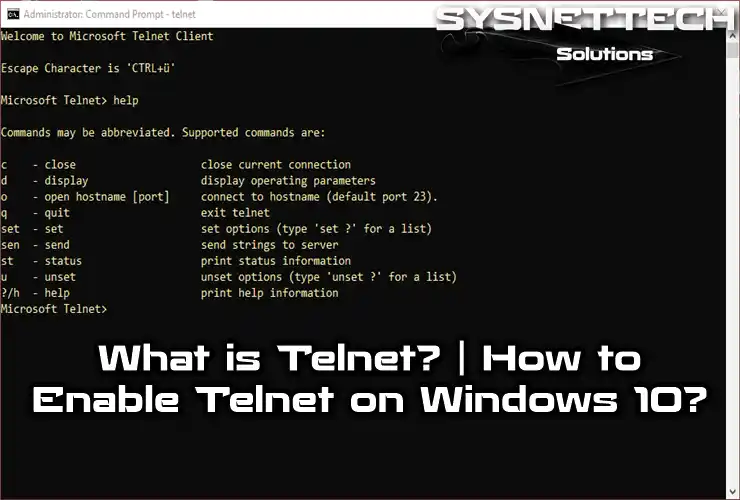
What is Telnet? What Does It Mean Exactly?
Telnet is an abbreviation of “teletype network,” “terminal network,” or “telecommunications network.”
TELecommunication NETwork, or Telnet, is one of the oldest tools on the Internet. In fact, it goes back to the time of ARPANET. Telnet helps a computer connect to another computer far away on the network. Moreover, it makes your computer act like a terminal connected to a distant computer.
All you need is a Telnet client. Think of a client as a unique program. It makes your computer act like an old-style terminal. However, it now works with the Internet via TCP/IP.
Introduction to Telnet Protocol
Telnet is like a unique language that lets computers talk to each other on the Internet. It helps terminals connect and chat with a command interpreter on the server. Telnet sends data like messages. A simple system checks everything.
This method helps you set up faraway computers. Imagine setting up a Cisco router with a special cable. After that, you can do the setup work from a faraway computer. You can work on the same network or a different one. You don’t have to be right next to the device.
This is a simple method that other internet tools use, like FTP or email. It does not handle identity verification. Other programs handle that job.
But it is not a super safe way to send information. Anyone on the way can read what you send. When you connect a faraway computer to a server, it uses Port 23.
Apart from some extra choices and rules, this method is fundamental. It sends bytes of information in a line. When it sends the 255th byte, the next one acts like a command. RFC 854 describes this Telnet method in detail.
How Does Telnet Work?
When you use Telnet, remember that its Client can work in two ways: Command mode and regular use mode. In Command mode, you can give specific commands. They control connections and disconnections.
These commands include:
- CLOSE: Closes the Telnet connection to the remote computer. Then it returns to command mode or closes the application.
- QUIT: Sign out of the Telnet session. If you connect to a remote computer, this command closes the connection. Then it closes the application.
- SET ECHO: If you cannot see what you type, this command corrects it. It also fixes double characters.
- OPEN: This command establishes a connection to a remote computer.
When our tool is in normal mode, it acts like a keyboard that talks to another computer. Each key you press goes to the faraway device. Your screen shows the reply from that device.
To switch from normal mode to command mode, press the escape character. For example, use QUIT to end the session. Then you enter command mode. Press Enter to return to normal mode.
Telnet is only for text and doesn’t have pictures. But it’s helpful in fixing problems on a computer from far away. You don’t need to be there in person. People also use it to check information, like books, on machines connected to the Internet.
Apart from these uses, people commonly used Telnet to log in to UNIX machines. You can still use it with the SSH version today. Many users with accounts on the machine could connect, log in, and work on that machine. This was a common way of working with UNIX systems.
Protocol Connection Details
With all that said, the first thing Telnet does on a faraway system is to connect or “login.” The program on your computer talks to the other computer. It starts discussing how they will work together. To do this, you have to share some basic information with the program:
- Name: Refers to the server’s IP Address numerically or URL form—for example, 192.168.0.1.
- Port Number: Specifies the service you want to access on the server. An address with a port number allows access to a specific service. The default port is 23. It commonly connects to a user access account. During connection, you can add the number after the name. The program may also use a separate box.
- Terminal Type: Terminal identification forms a contract between client and server. It defines specific features and queues. Thus, a virtual terminal works regardless of the physical terminal. From the customer’s view, you do identification in two parts.
- a: The client program shows it. It acts as a particular virtual terminal.
- b: It sets the type of terminal we will use on the server. You send this string to the host during connection negotiation.
- Login: Some services do not require a login or password.
- Password: The password authenticates the user. You can enter your email address for general services that accept guests (visiting users).
- Log-Off: Log out before you interrupt the physical connection. Do not leave a session open indefinitely. It consumes system resources. The concrete form depends on the system. Some systems show the disconnect word with a welcome message. Usually, it is one of these:
Common commands include BYE, LOGOFF, LOGOUT, QUIT, END, EXIT, and STOP. Use CLOSE first; then the escape sequence. Use ABORT with the escape sequence only as a last resort.
Using Telnet on Unix and Windows
Both Unix and Windows have their own Telnet client called Telnet.exe. If you’re using Windows, you can find it in the C:\Windows directory. This program includes a helpful file called Telnet.chm. It contains all the details you need.
Usually, people use Telnet to connect to big computers. For example, they connect to machines at companies, universities, or research centers. These are often Unix machines. It is not meant to connect to your neighbor’s computer over the Internet. Other tools do that. People use Telnet for various reasons. Researchers continue their work away from home. Users request a service on a computer you can access this way.
It is important to note that you won’t connect to a regular PC. You connect to giant machines with many users. For security, the system administrator grants access through an access account. This account comes with conditions.
For example, you can connect at certain times. You can use specific directories. You may write or just read. Moreover, you can save a limited amount of information. To identify users, you use a name (nickname) and a secret code (password).
Knowing how to use Telnet on a remote computer is crucial after connecting. It is not helpful to connect to a faraway machine if you don’t know the Operating System. You also need to know the program you will use at least a little bit.
Telnet Security Cases
Telnet isn’t the best choice for modern systems because of three essential security reasons:
- People have found many weaknesses in Telnet over the years. Some still exist. Therefore, it is not safe for general use.
- Telnet does not protect the information it sends. For example, passwords stay exposed. An attacker can easily see and save what you send. Later, they can misuse it.
- Telnet lacks a secure way for two computers to talk. It cannot ensure privacy. This lack of protection makes it risky.
SSH Issues
The main issue is security. When you use Telnet, usernames and passwords travel as plain text. They are not hidden or protected. Thus, someone watching internet traffic can easily see and grab them. Then they can access the computers.
To fix this problem, SSH came into the picture a few years ago. It gained popularity because it’s like a safer version of Telnet. With SSH, you can encrypt all communication between computers. It acts like a secret code. It keeps everything private during session setup.
Where is Telnet Not Used?
Telnet is not a good choice when you need security. This is especially true on the Internet. The information you send is not hidden or protected.
Imagine you use Telnet between two computers. If someone gets close to network devices, like routers or switches, they can quickly grab the information. Tools like tcpdump and Wireshark make it quick to see connection and password details.
Because of these problems, people stopped using Telnet and started using a safer option called SSH. SSH appeared in 1995. It does everything Telnet does, but it adds strong encryption to keep your data secure.
Experts in computer security, like the SANS Institute and members of the Linux newsgroup, say you should avoid using Telnet for remote connections in regular situations.
When Telnet first appeared in 1969, Internet users were mainly in academic and research places. Security wasn’t a big worry there. Only in the 90s, when internet use grew a lot, did people start caring more about security.
Using Telnet on networks with internet access can be risky. More people have internet access now. Some might try to break into other people’s servers. So, we generally do not recommend it.
Nowadays
Today, people use Telnet to connect to BBSs (Bulletin Board Systems). People initially accessed these using a modem and a phone line. To connect to a BBS through Telnet, your computer needs ANSI graphics and file transfer methods. ANSI graphics are standard in BBS. File transfer methods like ZModem help you send and receive files. You can transfer programs, games, or messages.
There are specific programs, called Telnet clients, that can do this. Some of them include mTelnet!, NetRunner, Putty, and Zoc.
You can set up and control all kinds of network devices using Telnet with the TCP/IP protocol. But when you use Telnet, your data is not secure. You send it as clear text. That means it is not protected. Instead of Telnet, many people prefer using the SSH protocol over the network for a safer experience.
How to Use Telnet?
To use Telnet, first enable it on the target computer. Once you allow it, connect from another computer via Command Prompt. Use TCP port 23.
Telnet setup has two parts: the server and the client. If you set up a server, also install the client service. Then connect to it from a distance.
Now, let’s see how to use Telnet in Windows 10. This article guides you on connecting to an active Telnet Server. You will connect to an ADSL Router after enabling the Telnet Client.
How to Enable Telnet on Windows 10
You can easily enable and use it on Microsoft Win XP, Vista, 7, 8, 8.1, and 10 operating systems.
Follow the steps below to activate/install the Telnet Client.
Step 1
Right-click on the Start menu, and then click Programs and Features.

Step 2
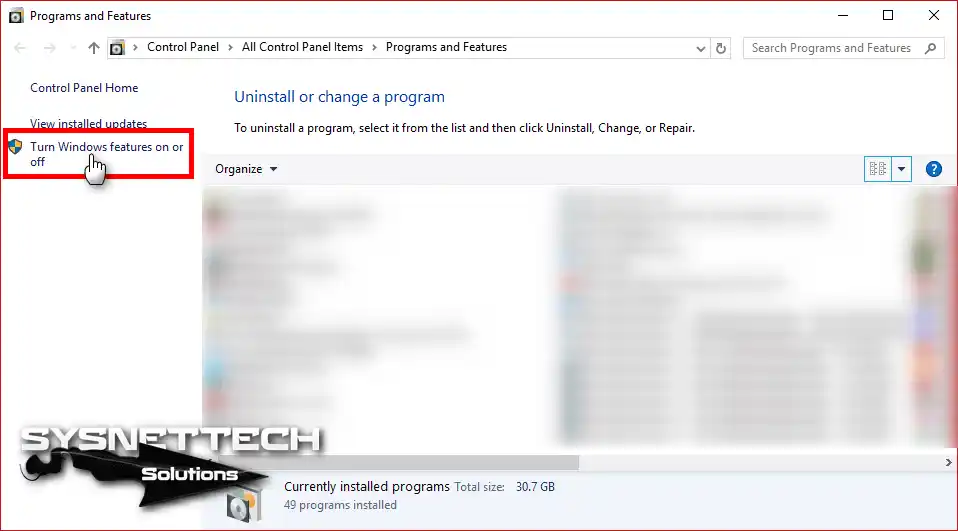
In the Programs and Features, click Turn Windows features on or off.
Step 3
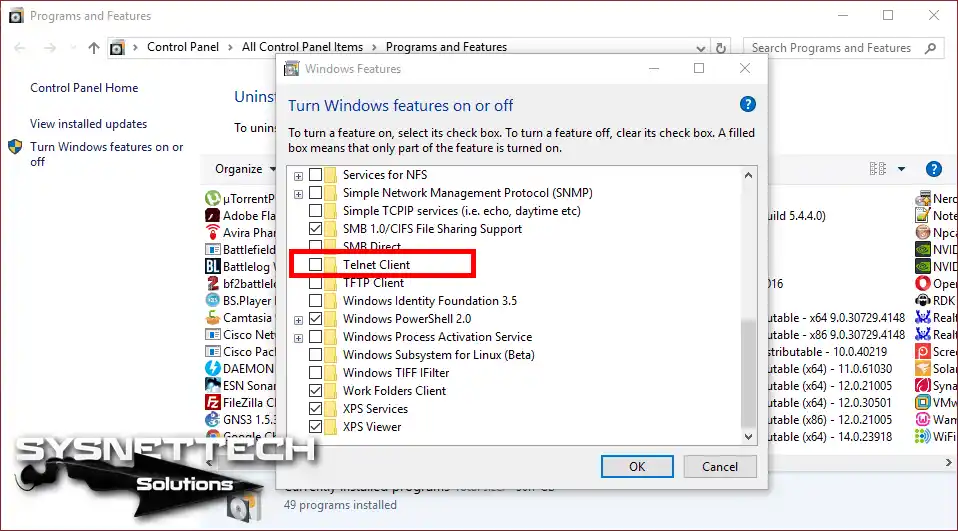
When the Windows features open or close window opens, select the Telnet Client option.
Step 4
After selecting the Client option, press the OK button.

Step 5
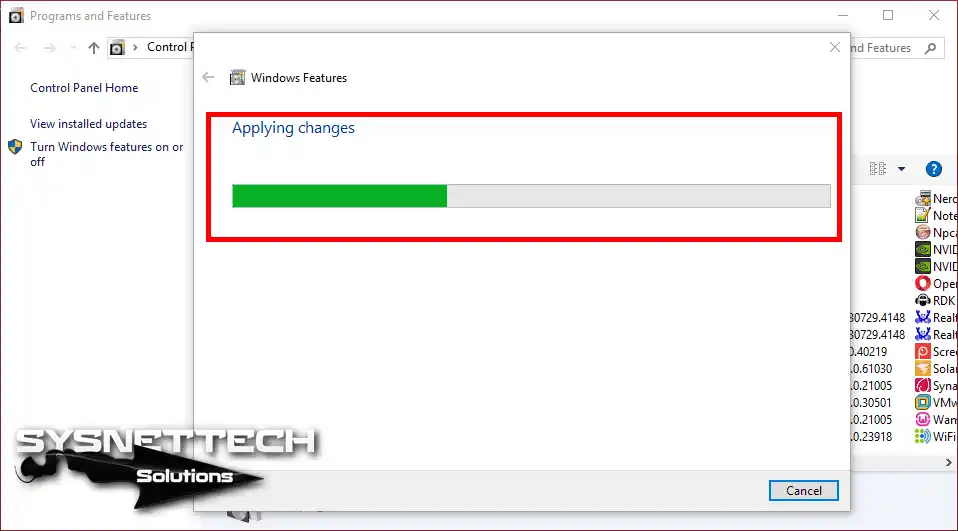
Applying changes to your system …
Step 6
After installing the service, click on the Close button.
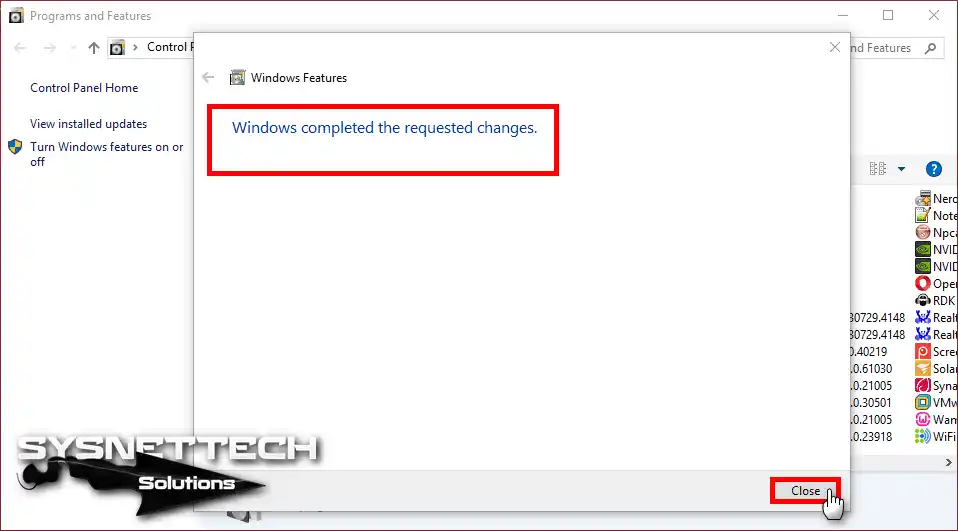
Step 7
Press Windows Key + R together to open Run. Type “cmd,” and press Enter. After the CMD prompt opens, type “telnet” and press Enter. This starts the service.
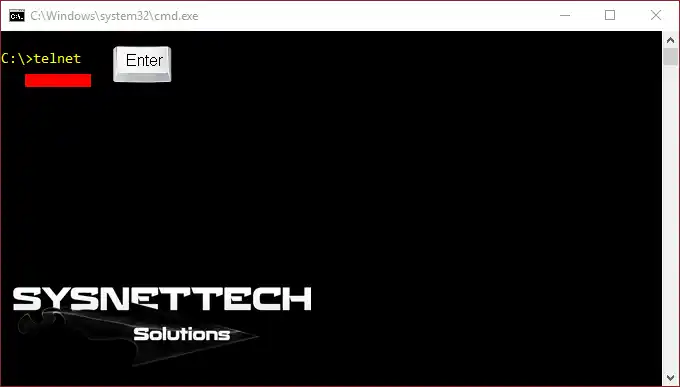
Step 8
After you see the welcome message, you can see that it works successfully.
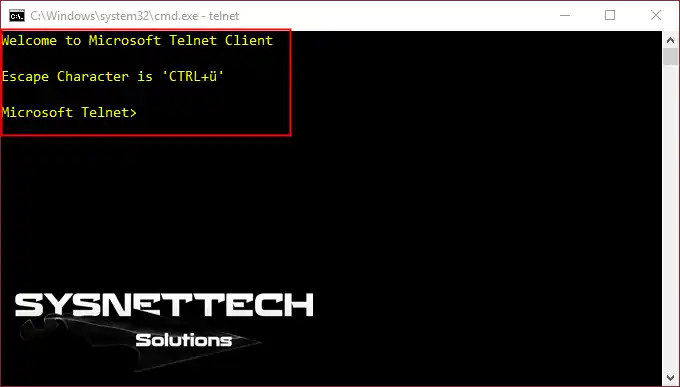
Step 9
Now, type O (o) at the CMD prompt. This connects you to the ADSL Router on the local network. Then press Enter.
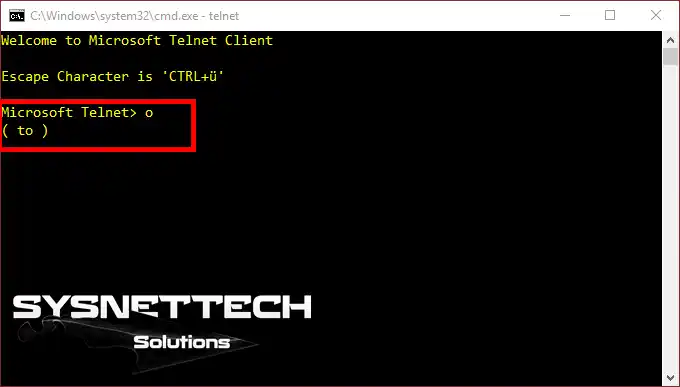
Step 10
Type your default gateway IP address to access the ADSL Modem and press Enter.

Step 11
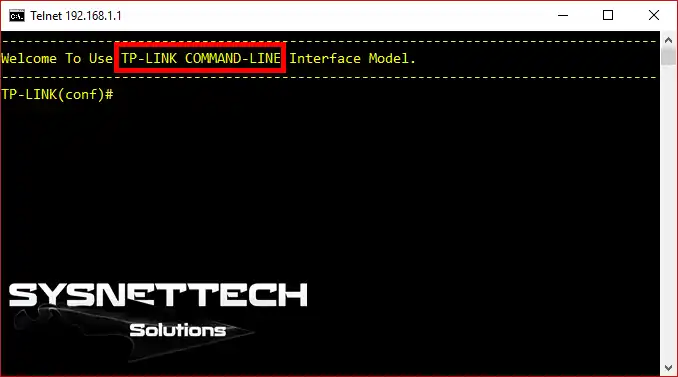
Look at the image below. It shows a successful connection to an ADSL router via CMD.
How to Enable it using CMD
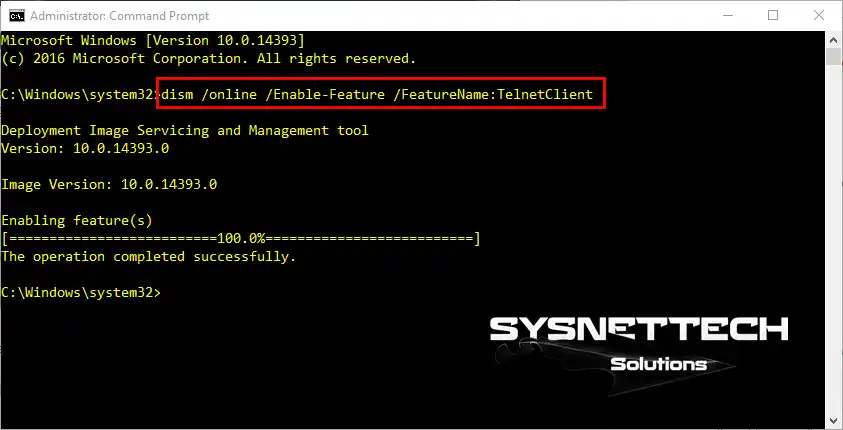
You can also enable this service from the CMD command prompt. You can turn it on or off there.
Use the DISM command on CMD to activate the Client. Execute the command below to install Telnet with CMD on Windows.
dism /online /Enable-Feature /FeatureName:TelnetClient
How to Disable it using CMD
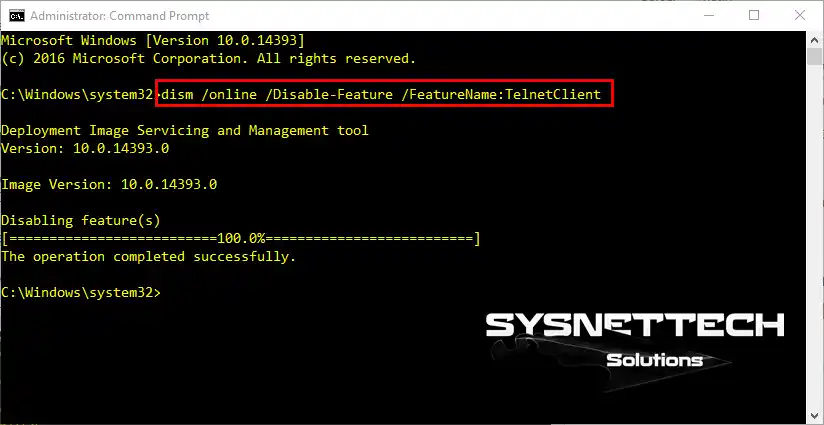
Use the following command to disable/remove Telnet.
dism /online /Disable-Feature /FeatureName:TelnetClient
Video
Frequently Asked Questions About Telnet
Is Telnet still used today?
What is the biggest difference between Telnet and SSH?
How do you enable Telnet on Windows 11?
Which port does it use?
If Telnet is not secure, why is it still taught?
Can I connect to a website?
Conclusion
In this article, we defined the Telnet protocol. You use it to manage remote devices in Windows. Then we enabled it. Thanks for following us!

Be the first to share your comment