

Actually, buying two graphics cards and linking them in one system was once a strong dream. Today, that dream has mostly faded into history. But users still ask about SLI (Scalable Link Interface).
Old cards got cheaper on the second-hand market. Besides, some users still want to combine two cards’ power. But reality often differs from the ads.
This guide clearly explains the SLI setup, performance gains, and current status. Also, I cover VRAM reality, bottlenecks, and cost planning.
I offer field notes for users of used GTX 1080 Ti or GTX 1070 cards. So you won’t waste money, and you’ll decide fast.
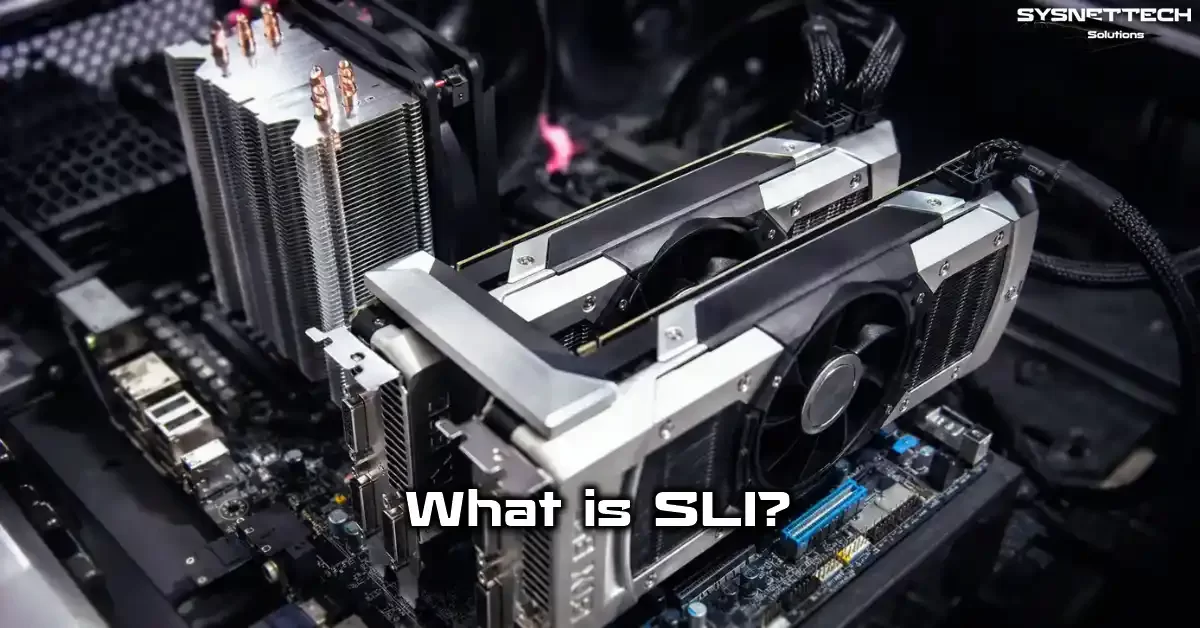
What is SLI (Scalable Link Interface)? Definition, Full Form, and Technology History
First of all, let’s start with the roots of SLI. We’ll look at its full form, definition, and origin story. This way, the technical topics ahead make more sense for you.
SLI Full Form and Technical Definition
SLI stands for Scalable Link Interface. In Turkish, that phrase becomes Ölçeklenebilir Bağlantı Arayüzü. However, that translation is rare in daily use.
This technology lets you connect multiple NVIDIA GeForce graphics cards in one system. The goal is to boost game performance. Therefore, multi-GPU computing logic comes into play.
NVIDIA creates this link using a special bridge. Also, the driver provides support through game profiles. However, software support has always been critical.
Game engine compatibility matters here. If a game doesn’t support multi-GPU tech, the second card sits idle. Therefore, hardware alone isn’t enough.
SLI setups were a prestige symbol in the desktop computer hardware world for years. Today, single powerful cards have largely taken their place. Nevertheless, SLI appears in second-hand systems.
SLI Tech History: From 3dfx Voodoo2 to NVIDIA
In fact, SLI dates back to 1998. 3dfx Voodoo2 cards used Scan Line Interleave. This method split the screen into horizontal lines.
Each card processed half of the image. Therefore, two cards delivered serious performance gains. Even so, 3dfx’s bankruptcy disrupted this technology.
Next, NVIDIA acquired 3dfx and gained that knowledge. In 2004, the company announced a new PCI Express-based SLI. This time, the goal was a scalable link over the graphics card bus.
Of course, NVIDIA SLI caused great excitement. Users loved the idea of combining two graphics cards. Also, hardware magazines kept publishing tests.
| Period | Development | Result |
|---|---|---|
| 1998 | 3dfx Voodoo2 SLI | First dual GPU attempt |
| 2004 | NVIDIA PCI Express SLI | New generation multi-GPU |
| 2016 | HB bridge | High bandwidth |
| 2020 | Profiles ended | Game support declined |
In fact, SLI was still popular during Maxwell and Pascal. Besides, the 4K gaming push strained the cards. However, driver optimization grew harder each year.
As a result, with Turing and Ampere, NVIDIA changed strategy. The company shifted to NVLink for professional workloads. On the consumer gaming side, SLI support dropped significantly.
SLI Working Principles and Render Modes
An SLI setup isn’t just about installing two cards. You must understand how the cards work together. Otherwise, your performance hopes will fall flat.
In fact, NVIDIA uses several render modes in this system. They include Alternate Frame Rendering, Split Frame Rendering, and SLI Anti-Aliasing. Each one has strengths and weaknesses.
What Is Alternate Frame Rendering (AFR)?
For example, Alternate Frame Rendering is the most common mode. In this mode, one card processes a single frame. The other card prepares the next frame.
So cards share the workload frame by frame. This boosts frame rate. However, frame timing issues can appear.
Note that synchronization between the two cards becomes critical. If graphics card sync is weak, you feel micro-stutter. This ruins smoothness.
In fact, frame buffer management matters here. A game needs data from the previous frame. AFR has to copy that data between the two cards.
So you won’t see the same scaling in every game. Sometimes, you even get negative scaling. In short, two cards can run slower than one.
Split Frame Rendering (SFR) and Anti-Aliasing Mode
To be clear, Split Frame Rendering divides the screen into vertical or horizontal parts. Each card processes one region. This method is less common than AFR.
SFR offers more balanced load distribution in some games. However, the geometric load may not be equal. As a result, you lose efficiency.
Instead, Anti-Aliasing takes a different approach. In this mode, each card processes the same frame. However, one card uses a different sampling pattern.
To sum up, you get better image quality. Before the temporal anti-aliasing era, this mode helped. Today, users rarely prefer it.
In fact, the driver automatically chooses between AFR and SFR. You can force these modes through NVIDIA Control Panel. However, you won’t get stability in every game.
Frame Pacing, Micro-Stutter, and Input Lag Issues
In fact, a dual graphics card setup can produce high FPS. However, high FPS doesn’t always mean smoothness. Frame pacing quality steps in here.
To be clear, frame pacing is the even distribution of frames over time. If two cards produce frames at different speeds, you feel stutter on screen. We call this issue micro-stuttering.
In fact, micro-stutter seriously hurts game feel. You may see a high frame rate, but the image isn’t smooth.
Input lag also increases during this process. The cards pass frames to each other. In short, delay times rise.
In fact, NVIDIA released some driver updates to reduce this issue. Nevertheless, consistency never matched a single card. Meanwhile, the problem grew worse in low frame rate ranges.
Hardware Requirements for SLI Setup
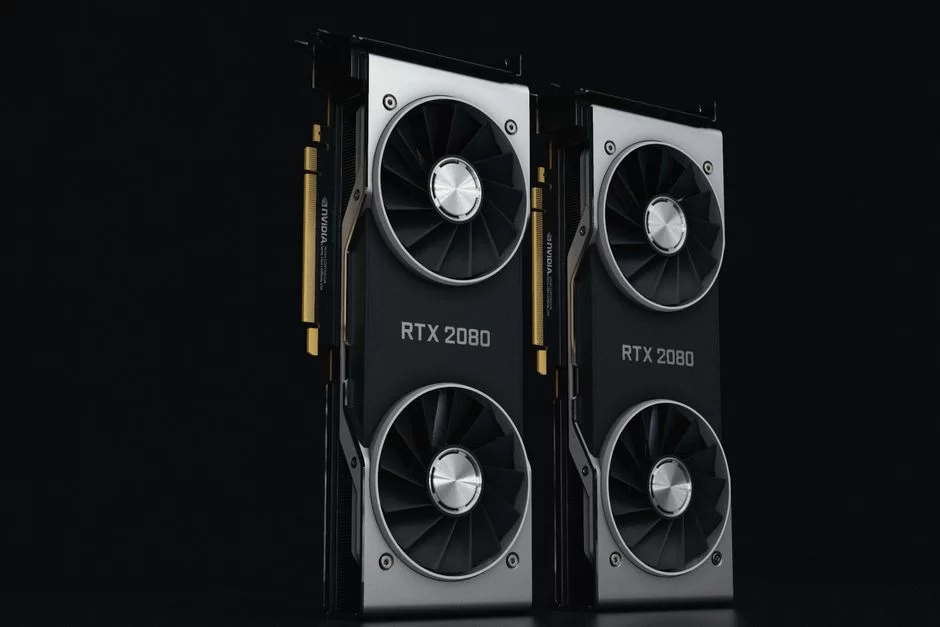
Installing two graphics cards requires serious hardware planning. You can’t install cards randomly. Also, not every motherboard supports this technology.
To be clear, below I explain the motherboard, graphics card, bridge, and power supply requirements. This way, you can build a compatible system.
SLI-Compatible Motherboards and PCIe Slot Layout
For dual graphics cards, the motherboard must carry SLI certification. This certificate shows the maker ran the needed tests. However, it alone isn’t enough.
The motherboard needs at least two PCIe x16 slots. These slots look long in physical size. However, their electrical speeds may differ.
Most motherboards drop to x8 x8 mode when you install two cards. Therefore, a PCIe lane bottleneck comes into play. Some high-end motherboards offer full x16 x16.
| Platform | Example Chipset | SLI Support |
|---|---|---|
| Intel | Z97, X99, Z370 | Usually yes |
| AMD | X570, TRX40 | Some models |
| Current Intel | Z790 | Limited or none |
| Current AMD | X670E | Limited or none |
In fact, you should check the motherboard chipset features. The chipset support list guides you. This way, you won’t buy the wrong board.
Also, M.2 NVMe PCIe conflict matters. On some boards, the second M.2 slot shares PCIe lanes. This reduces graphics card bus bandwidth.
SLI-Compatible Graphics Cards and Compatibility Rules
In an SLI setup, the two cards must use the same GPU architecture. For example, you can pair two GTX 1080 Ti cards. However, a GTX 1080 won’t work with a GTX 1070.
Also, the memory size must match. Cards with the same chip but different brands usually pair up. However, the system clocks them down to the lower card.
| Series | SLI Support | Example Cards |
|---|---|---|
| GeForce 900 | Yes | GTX 970, GTX 980 Ti |
| GeForce 10 | Yes | GTX 1070, GTX 1080 Ti |
| RTX 20 | NVLink-based | RTX 2080 Ti |
| RTX 30 | Only RTX 3090 | With NVLink |
| RTX 40 | No | RTX 4060, RTX 4090 |
Our graphics card selection guide sums up basic compatibility. Nevertheless, you should check NVIDIA’s official list. Old-generation card profiles are limited.
To optimize GPU clock speed, match the two cards. If you overclock, manage this process carefully. Otherwise, you’ll ruin system stability.
SLI Bridge, HB Bridge, and Connection Steps
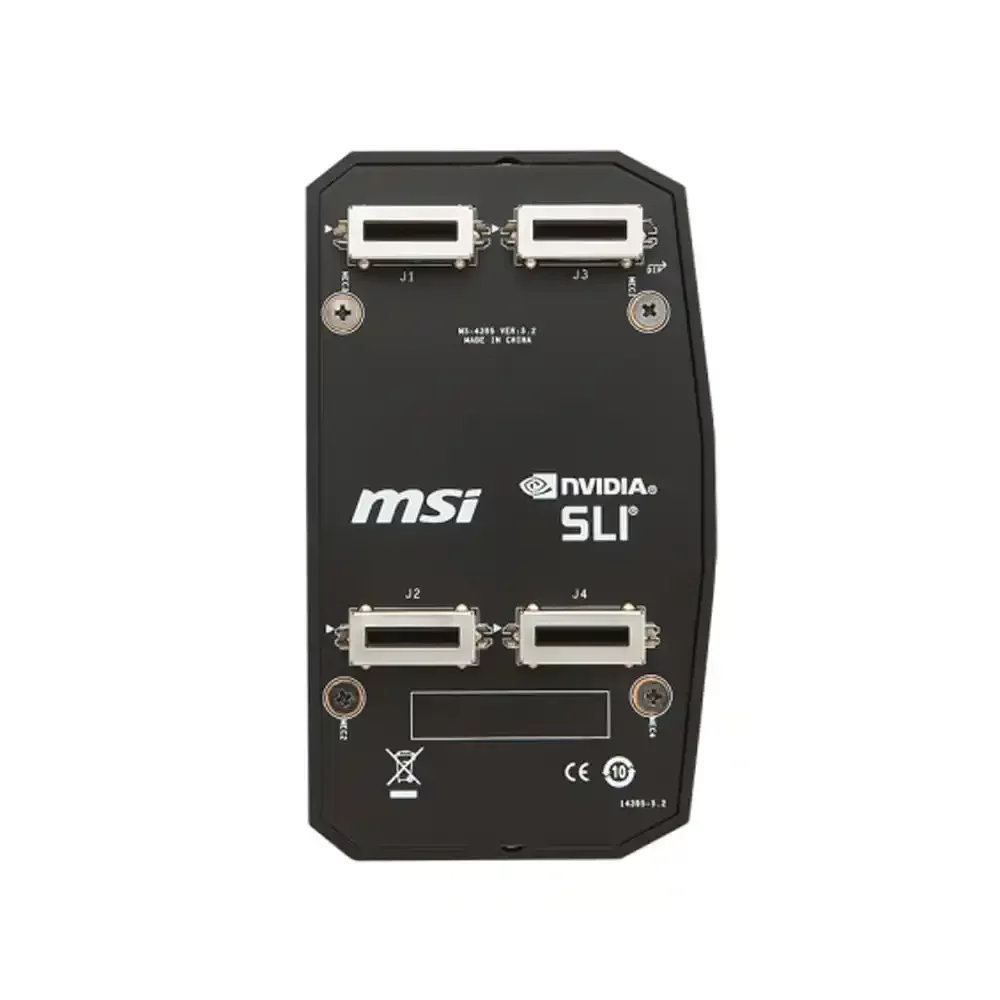
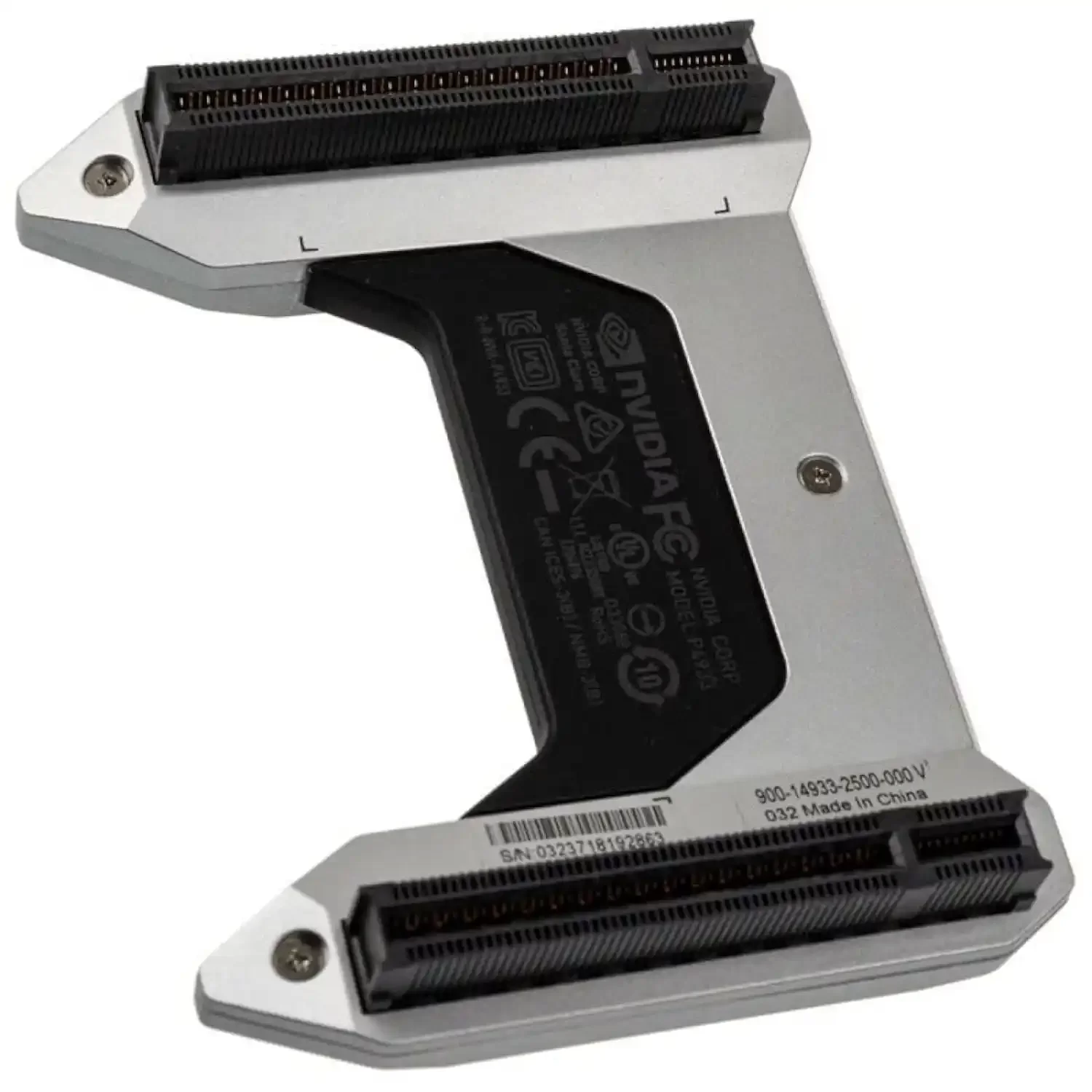
First of all, you use an SLI bridge to connect the cards. You attach this bridge to the connectors on the top edge of the cards. Old flexible bridges offer low bandwidth.
In fact, the High Bandwidth (HB) SLI bridge is more advanced. It provides the data transfer rate needed for high-resolution gaming. You use this bridge on Pascal and later cards.
Next, here is the setup order:
- First, turn off your PC.
- Install the two cards into the PCIe slots.
- Seat the SLI bridge on the top points.
- Connect the power cables correctly.
- Power on the system and install the driver.
In fact, the bridge pin layout usually has two connection groups. These pins carry high-speed data between cards and do not transfer power.
To be clear, if you wonder where to attach the SLI cable, the answer is simple. You attach it to the gold contact points on the top of the cards. If you connect it the wrong way, the system won’t boot.
Power Supply and Thermal Requirements
Two graphics cards draw serious power. Therefore, you must calculate PSU wattage. Otherwise, the system becomes unstable.
In short, the general rule is this:
- Two mid-range cards need 750W.
- For two high-end cards, I recommend over 1000W.
- An 80 Plus Gold PSU should be the minimum standard.
- Choose models with multiple 12V rails.
In fact, you should add up the thermal design power values. Two cards often exceed 400W in TDP. Peak power draw goes even higher.
| Scenario | Recommended PSU | Efficiency |
|---|---|---|
| GTX 1070 SLI | 750W Gold | Enough |
| GTX 1080 Ti SLI | 1000W Gold | Comfortable |
| RTX 2080 Ti NVLink | 1200W Platinum | Ideal |
Also, thermal needs matter just as much as power. The top card absorbs heat from the lower card. This creates a temperature gap.
As a result, optimizing case airflow is essential. In fact, the top card’s fan noise increases. Therefore, you should use quality fans.
How Do You Set Up SLI? Step-by-Step Guide
First of all, I now move to the practical setup. If you follow these steps in order, the system boots. However, you must stay patient at each step.
Hardware Prep and SLI Bridge Installation
First of all, prepare all the parts. Two compatible cards, a bridge, a PSU, and a screwdriver are enough. Also, keep the motherboard manual nearby.
- Remove the case side panel.
- Open the PCIe slot latches.
- Install the first card in the top x16 slot.
- Install the second card in the lower slot.
- Screw in the cards.
- Seat the SLI bridge on the contact points.
In fact, when installing the bridge, don’t damage the cards. Light pressure is enough. If you misalign it, the pins bend.
Also, power supply pin connections are critical. Connect the PCIe power cable each card needs. A weak connection can cause the card to shut down.
If you use the same chip from different brands, compatibility is usually good. However, some cards have different PCB designs. In this case, the bridge spacing may not fit.
Enabling SLI in NVIDIA Control Panel
Once the hardware is ready, you move to the software side. Next, install the latest driver. Finally, open the NVIDIA Control Panel app.
- Right-click the desktop and open NVIDIA Control Panel.
- Go to 3D Settings and select the SLI, Surround, PhysX tab.
- Check Enable SLI and click Apply.
In fact, the screen may briefly go black. This is normal. At this point, your system reconfigures graphics card sync.
Next, you should verify with GPU-Z. The program shows both cards are active. Also, it helps you monitor GPU status.
How do you know if SLI is on or off? You see it in the NVIDIA Control Panel indicator. Also, in-game frame rate gains give a hint.
SLI Not Working and Driver Profiles
To be clear, sometimes SLI doesn’t work even when everything is correct. This happens because of driver conflicts or wrong profiles. Next, reinstall the driver cleanly.
Next, check the game’s support list. If the game has no SLI profile, you can’t use the second card. Therefore, game profile management becomes critical.
In fact, you can create custom profiles with NVIDIA Inspector. This tool still helps with old game profiles. However, success isn’t guaranteed in every game.
In fact, the SLI compatibility bit flag blocks dual GPU use in some games. You can change it with NVIDIA Inspector, but this is risky.
In fact, in my experience, you get the best results in pre-2016 games. These games support DirectX 11 SLI. Newer games often disappoint.
Performance Reality: FPS, VRAM, and Scaling
In fact, users most want to know about performance gains. Do two cards truly double the speed? The short answer is no.
Now I explain real percentage ranges and VRAM behavior. Also, I analyze bottlenecks by resolution.
How Much Does SLI Improve Performance? Real Percentage Range
SLI’s performance varies from game to game. In a well-optimized game, you see a 70 to 90 percent gain. However, the average gain is often 30 to 60 percent.
In fact, the SLI 2x performance myth isn’t fully true. Twice the gain is possible only in synthetic tests. Real games bring driver optimization challenges.
| Game Type | Expected Gain | Note |
|---|---|---|
| Old DX11 game | 60-90% | Good profile |
| Modern DX11 game | 30-50% | Partial support |
| DX12 mGPU game | 0-30% | Developer-dependent |
| No profile | Zero or negative | Second card passive |
The SLI efficiency ratio is gain divided by card count. For example, an 80 percent gain means 40 percent efficiency for two cards. This ratio is weak economically.
To be clear, the answer to whether SLI boosts FPS is yes. However, this gain doesn’t always improve playability. In fact, micro-stutter sabotages smoothness.
Does VRAM Combine? The Memory Cloning Truth
In fact, in an SLI setup, VRAM does not combine. Each card stores the same data in its own memory. We call this VRAM cloning.
Therefore, when you use two 8 GB cards, total usable memory stays 8 GB. Does VRAM increase with SLI? No. This is a common user mistake.
With DirectX 12 Explicit Multi-GPU, memory sharing may be possible. If the developer enables direct GPU memory access, cards can hold different data. However, this support is very rare.
Two cards may offer an advantage in memory bandwidth. However, you can’t double the bus bandwidth. The cards share PCIe lanes.
SLI Bottlenecks and 4K/1440p/1080p Test Results
In fact, resolution plays a big role in an SLI setup. 1080p gaming often creates a CPU bottleneck. In this case, you can’t fully use the second card.
1440p gaming is a more balanced scenario. Nevertheless, a single powerful card is more consistent in most games. 4K gaming has historically suited SLI best.
| Resolution | Bottleneck Risk | SLI Gain |
|---|---|---|
| 1080p | High | Low |
| 1440p | Medium | Medium |
| 4K | Low | High |
The SLI 1080p bottleneck analysis shows this. Even a strong CPU can’t feed two cards. As a result, your frame production rate fluctuates.
In past years, SLI had a big advantage in 4K gaming. You could try 4K ultra settings with a GTX 1080 Ti. However, a single RTX 4080 or 4090 makes more sense today.
SLI vs CrossFire vs Single GPU vs NVLink
To be clear, anyone considering SLI should also evaluate alternatives. Now let’s compare AMD CrossFire, a single powerful card, and NVLink.
Differences Between SLI and AMD CrossFire
In fact, SLI is NVIDIA’s multi-GPU technology. CrossFire handles a similar task on AMD cards. Both use two or more cards.
However, the working details differ: AMD CrossFire doesn’t need a bridge on some cards. Additionally, it moves data over PCI Express.
Meanwhile, SLI requires special bridge hardware. This link provides higher bandwidth, and flexibility is lower.
| Feature | SLI | CrossFire |
|---|---|---|
| Manufacturer | NVIDIA | AMD |
| Bridge | Usually required | Missing on some models |
| Support status | Ended | Largely ended |
| Software | Profile-based | Profile-based |
In fact, over time, the differences between SLI and CrossFire lost importance. Both technologies lost game developer interest. Today we count both as old tech.
SLI vs Single Powerful GPU: Price Performance
Buying one powerful card instead of two almost always makes sense. A single card delivers the same power with fewer issues. Also, power use and heat management are easier.
Instead of two used GTX 1080 Ti cards, you can buy one RTX 3080. The price may be similar, but the game experience is far more stable.
| Option | Advantage | Disadvantage |
|---|---|---|
| Two GTX 1080 Ti cards | High FPS in old games | High power, micro-stutter |
| Single RTX 3080 | Stable, DLSS support | Second-hand market volatile |
| Single RX 6800 XT | High VRAM | Weak ray tracing |
In price-performance tests, a single GPU beats SLI. Additionally, electricity costs drop. For building a used PC, a single card is healthier.
SLI vs NVLink: Which Is Better?
You can view NVLink as an advanced form of SLI. However, the architecture differs. NVLink offers direct high bandwidth between cards.
The SLI bridge is a narrower data path. NVLink provides much faster communication. Therefore, we prefer NVLink for professional GPU computing.
In fact, cards like the RTX 2080 Ti and RTX 3090 include NVLink. You can also boost game performance with these cards. However, game support remains limited.
The answer to which is better—SLI or NVLink—is clear. Technically, NVLink is superior. However, for gamers, both are dead.
Is SLI Worth It Today?
Meanwhile, in 2026, SLI has fallen off the radar. However, there is activity in the second-hand market. Let’s examine current support status and costs.
NVIDIA SLI End-of-Life Timeline and Driver Support
NVIDIA announced its SLI support plan years ago. Driver version 456.71 ended new SLI profiles. Also, the company released this version in 2020.
After that date, NVIDIA offered no official profiles for new games. Users had to make do with old profiles. Therefore, SLI was already weak by 2024.
By 2025, the situation turned fully nostalgic. Reports show users run this tech only on old systems. Users still install new drivers. However, these drivers don’t improve new games.
To be clear, let me give a clear answer to whether NVIDIA canceled SLI. Yes, NVIDIA openly announced and effectively killed this technology on the gaming side.
Is There SLI Support in RTX 30 and RTX 40 Series?
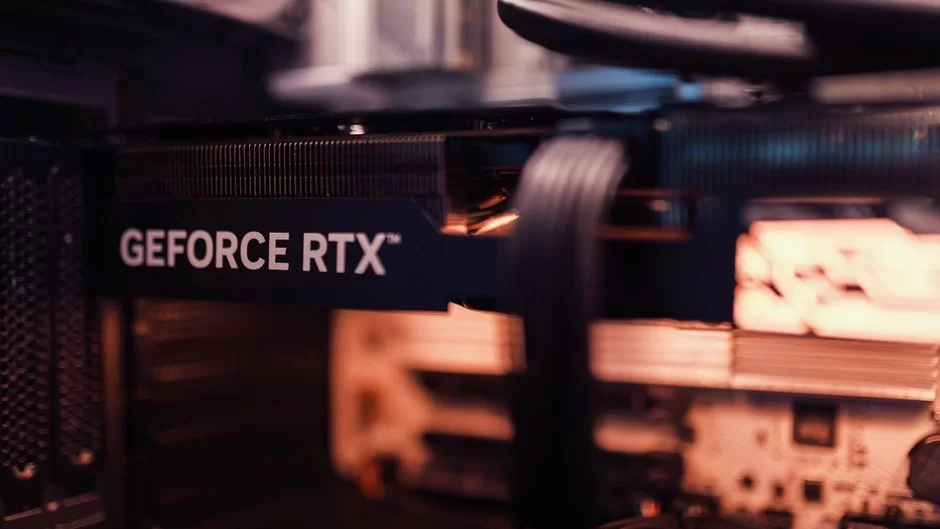
In fact, in the RTX 30 series, SLI support is almost nonexistent. Only the NVIDIA GeForce RTX 3090 offers NVLink. Its gaming benefit is limited too.
In the RTX 40 series, there is no SLI or NVLink. Does the RTX 4060 support SLI? Absolutely not. Also, the RTX 4090 has no SLI link.
In fact, with Ada Lovelace, NVIDIA fully abandoned consumer multi-GPU. The company shifted energy to one big GPU and AI frame generation. This strategy is far more efficient for gaming.
| Series | Model | NVLink/SLI |
|---|---|---|
| RTX 30 | RTX 3090 | NVLink yes |
| RTX 30 | RTX 3080 | None |
| RTX 40 | RTX 4090 | None |
| RTX 40 | RTX 4060 | None |
The reason RTX cards lack SLI is simple. Game developers optimize engines for a single GPU. Also, two cards cost a lot in power and heat.
SLI Setup Cost in the Second-Hand Market
The SLI second-hand market became quite inexpensive by 2026. You can easily find GTX 1070 and GTX 1080 Ti models. However, cheap doesn’t always mean sensible.
| Component | Estimated Price | Risk |
|---|---|---|
| GTX 1070 x2 | $240–$300 | Medium |
| GTX 1080 Ti x2 | $420–$540 | High |
| 1000W Gold PSU | $120–$180 | Low |
| SLI motherboard | $90–$210 | High |
Also, when calculating SLI setup cost, add electricity use too. A two-card system seriously raises your yearly bill. It also adds thermal maintenance costs. With the same budget, you can buy one used RTX 3080 or RX 6800 XT. These cards are newer, cooler, and more stable.
SLI Problems and Solutions: Thermal, Power, and PCIe Bottlenecks
In fact, SLI systems have various issues. If you build one without knowing them, you’ll get a headache.
Micro-Stutter and Frame Pacing Solutions
Micro-stutter is the best-known issue of dual graphics card setups. Luckily, you can reduce it with some methods. However, eliminating it fully is hard.
- Update the game’s SLI profile with NVIDIA Inspector.
- Turn on V-Sync or Adaptive Sync.
- Set a fixed frame rate limit.
- Lower the second card’s clock speed.
- Use frame pacing software.
Limiting frame rate helps with SLI frame pacing input lag. This way, frames flow more evenly. However, the delay still exceeds that of a single card.
Instead of Alternate Frame Rendering, try Split Frame Rendering. In some games, this mode produces less stutter. However, image quality differences may appear.
SLI Heat Issues and Case Airflow
In fact, when two cards stack, the top card gets very hot. It sucks in the lower card’s hot air. This leads to thermal throttling.
The SLI top card thermal gap sometimes hits 20 degrees. This gap shortens the card’s life. Also, fan noise becomes unbearable.
A blower-style cooler works better in this scenario. It pushes hot air out of the case. Meanwhile, an open-air cooler spreads heat inside the case.
- Add strong intake fans to the front panel.
- Place exhaust fans at the top and rear.
- Leave at least one empty slot between the cards.
- Don’t skip refreshing the thermal paste.
- Verify case airflow with a smoke test.
For SLI systems, the best case cooling is a positive pressure design. This reduces dust intake. So you protect graphics card efficiency.
PCIe Lane Sharing and M.2 NVMe Conflict
In fact, an SLI system uses up PCIe lanes heavily. Motherboards usually give two cards x8 x8 lanes. This creates a PCIe lane bottleneck.
x8 x8 SLI performance is lower than x16 x16 mode on a motherboard. The difference is around 5 percent in most games. However, it widens in some high-bandwidth scenes.
On top of that, M.2 NVMe PCIe conflict adds to the trouble. If you fill the second M.2 slot, some boards disable the second PCIe slot. In this case, SLI goes offline.
PCIe 3.0 bandwidth is enough for old SLI cards. These old cards don’t use PCIe 4.0 or PCIe 5.0 bandwidth. Therefore, moving to a new platform gives no benefit.
SLI Alternatives and Professional Use
To be clear, what do you use instead of SLI? That question matters more today. Alternatives offer different choices for gamers and professionals.
DirectX 12 Explicit Multi-GPU and Vulkan mGPU
DirectX 12 Explicit Multi-GPU needs no SLI bridge. The game developer manages each GPU’s memory access. So you get better scaling in theory.
This method, called Explicit Multi-Adapter, even allows cards from different brands. However, developers rarely use this feature. It creates extra work.
Vulkan multi-GPU support follows a similar path. Nevertheless, support exists in very few games. Therefore, it offers hope but isn’t practical.
You often ask if DirectX 12 SLI support ended. Yes, traditional SLI profiles ended. However, the Explicit Multi-GPU path remains open.
What Do You Use Instead of SLI? Single GPU, DLSS, and NVLink
Today, the smartest choice is a single powerful GPU. A single card gives more consistent frame times in games. Also, it uses less power.
DLSS 3 frame generation is a smart way to boost performance. This tech uses AI to create new frames. So you don’t need a second card.
Ray tracing plus DLSS makes a big difference in modern games. It’s ideal for 4K gaming and high resolutions. Nevertheless, don’t forget to adjust in-game settings.
| Alternative | Advantage | Fit |
|---|---|---|
| Single GPU | Stable, low power | Everyone |
| DLSS | High FPS, low cost | RTX cards |
| NVLink | Professional workload | Workstation |
To sum up, I emphasize the single GPU price-performance point again. A single GPU always wins. The gap never closes when you count game support.
NVLink and Multi-GPU Use in Workstations
In fact, in the professional world, multiple GPUs still offer advantages. Render acceleration, machine learning, and scientific computing are examples. This is where NVLink comes in.
NVIDIA RTX A6000 NVLink or Quadro RTX A cards process large models together. NVLink provides direct GPU memory access and high data transfer speed. So you use the memory of two cards more effectively.
In fact, multi-GPU computing saves serious time in GPU rendering apps. CUDA core sync splits the scene. This is more efficient than gaming-side AFR logic.
SLI workstation use was limited in the past. Today, manufacturers left this space to NVLink and pro series. So gamers and professionals have separate solutions.
Reliable Info Sources for Multi-GPU Systems
Multi-GPU systems have a rather complex structure. However, the right sources can help you understand this technology deeply. Also, the list below will guide you.
- NVIDIA – Official Help and Configuration Guide: This official page explains how two or more graphics cards work in parallel. It also clearly covers the needed hardware links and software settings.
- StorageReview – Multi-GPU Evolution in Gaming and AI: In fact, the article examines how multi-GPU tech changed in the past. It especially explains the impact on games and AI.
- Wikipedia – Historical Development of Parallel Graphics Processing: The Wikipedia page tells the story from 3dfx to NVIDIA. Therefore, it documents major architecture changes and milestones in detail.
- Arch Linux Wiki – GPU Configuration on Linux: Arch Wiki explains different display modes on Linux systems. Above all, it details the settings needed for multi-card setups.
Dual Graphics Card Technology FAQ
What is SLI and what does its full form mean?
How do you set up this dual graphics card link?
Does VRAM combine or increase in a dual GPU setup?
What percentage performance gain can you expect?
Does this multi-GPU tech still make sense today? Is it still used in 2026?
Which graphics cards support SLI mode?
What is the difference between AMD CrossFire and NVIDIA’s SLI?
Can you make a dual-card gaming link with RTX 4090?
How many watts of PSU do you need for a dual GPU setup?
Does it make sense to build a used dual GPU system?
Conclusion: Should You Build SLI or Buy a Single GPU?
In fact, building an SLI gaming system today is only for special enthusiasts. For general users, a single powerful GPU wins without debate. Game support, power use, and thermal management are better on one card.
Nevertheless, SLI can be fun for old games and nostalgia systems. However, this fun needs serious maintenance and patience.
Who Should Still Consider It?
To be clear, you can still consider SLI for only three groups: first, nostalgic users who want to play old DX11 games at high resolution; second, enthusiasts who run hardware experiments.
Third, people who already own a compatible second card may consider it. If the extra cost is low, you can try it. However, I absolutely don’t recommend building an SLI system from scratch.
To sum up, my final word is this: SLI faded into history, but its lessons remain valid. Hardware isn’t everything; software and optimization always win.

Be the first to share your comment