

Picking a graphics processing unit can be expensive. In 2026, games and AI workloads need serious power. This guide helps you choose the right GPU.
I draw on my field tests and sensor data. You get technical basics and practical buying tips. I have tested desktop and laptop hardware for years. Tools like MSI Afterburner and HWiNFO track my temperatures. So I will share real-world cases.
We will also look at current architectures and price trends. This way you can pick what fits your budget. Ready? Let’s start.
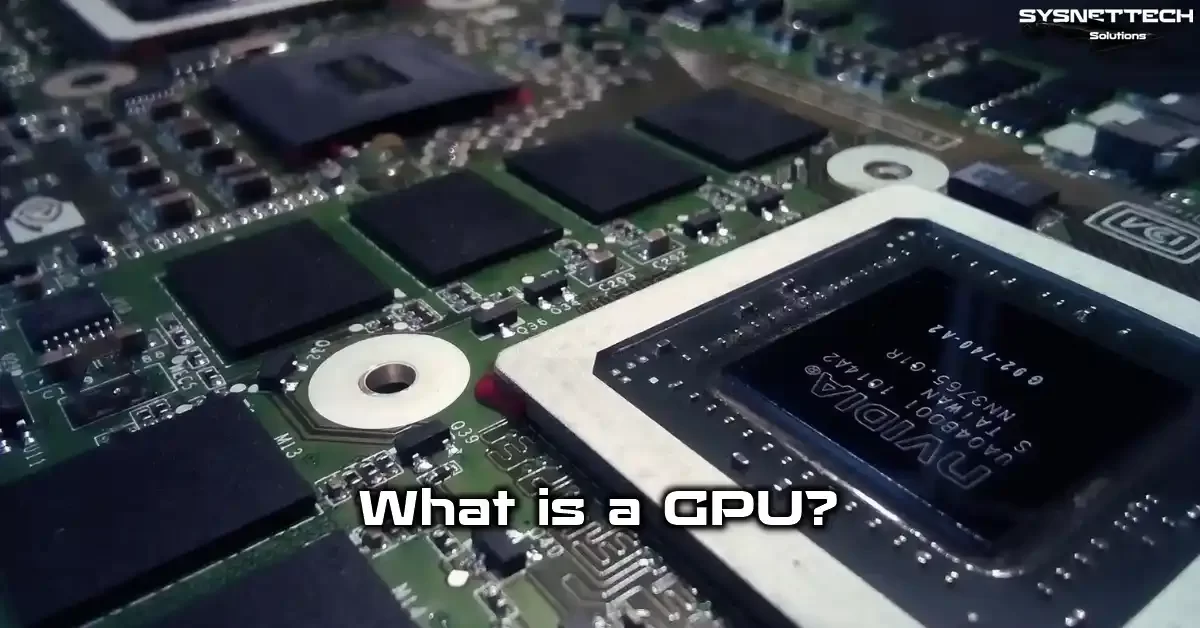
What is a GPU? Definition, Full Form, and Basic Task
The term GPU stands for Graphics Processing Unit. In English, we call it a graphics processing unit.
This chip holds billions of transistors. It builds images and handles parallel math. Above all, it sets frame rates in games.
NVIDIA, AMD, and Intel race in this field. Each firm uses a different architecture. Still, the core logic stays the same.
A graphics processor runs thousands of cores at once. That lets it solve complex math fast. So it acts as the brain of a graphics card.
What Does GPU Mean? The Difference Between a Graphics Card and a GPU
Most users mix up these two terms. Yet a graphics card holds many parts, including the GPU. On it, you find VRAM, a cooler, and power circuits.
So a graphics card and a GPU are not the same component. The difference matters. A graphics processing unit is the chip on the card.
For example, when you buy an NVIDIA GeForce RTX 5070, you get the whole card. But the graphics chip on it does the real work. So the GPU is one component.
So the term graphics card covers a wider piece of hardware. Knowing this difference gives you an edge in tech talks.
What Does a GPU Do? Real-World Use Cases
Manufacturers do not make this part for games alone. It appears in many areas of daily life. Plus, its impact keeps growing.
- Gaming: Gives high frame rates and rich graphics.
- Video editing: Cuts render time.
- AI: Speeds up training and inference tasks.
- Architecture: Runs 3D modeling tools smoothly.
- Scientific computing: Helps in climate models and genetic studies.
Crypto mining also draws on this chip’s power. But that use shook the market hard. As of 2026, mining demand swings up and down.
In short, a graphics processing unit is a must-have part of a modern computer. Maybe you use an office PC. Maybe you run a professional workstation. Either way, you need this hardware.
How Does a GPU Work? Architecture and Basic Components
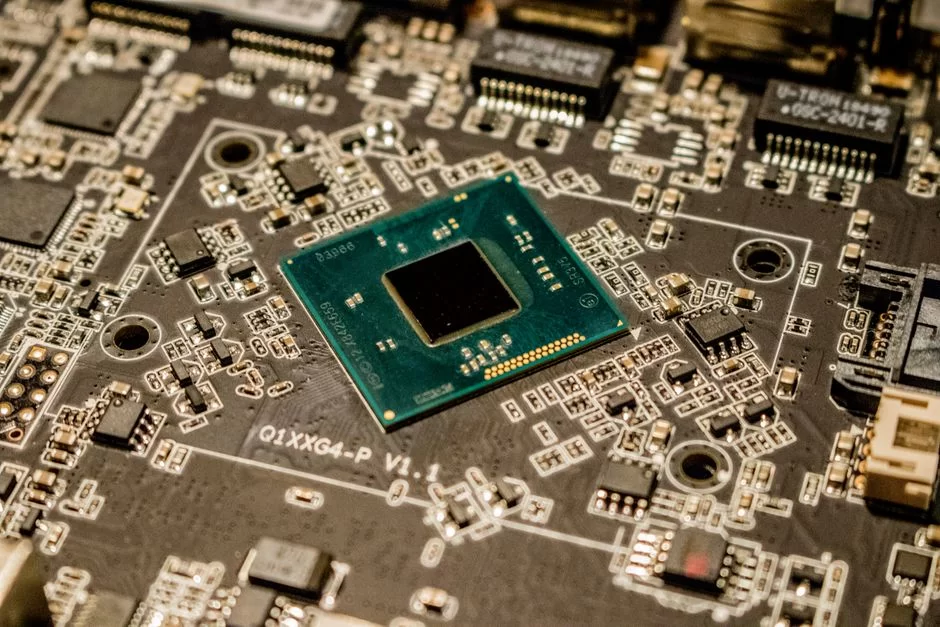
What Is GPU Architecture? SM, CU, Cores, and Clock Speed
A GPU consists of thousands of tiny cores. These cores work in parallel. That lets it calculate many pixels at once.
In NVIDIA architectures, this block is called a Streaming Multiprocessor (SM). AMD uses the term Compute Unit (CU). Intel Arc follows a similar path with Xe cores.
Each SM or CU holds many shader units. These units handle color, light, and geometry math. So clock speed also shapes performance.
For example, as boost clock rises, processing speed climbs. But power draw rises at the same rate. You must balance these two.
What Do CUDA, Tensor, RT, ROP, TMU, and L2 Cache Do?
Modern graphics processors contain several units. Each one takes on a different task. Knowing them helps you choose well.
- CUDA Cores: NVIDIA’s general-purpose compute units.
- Tensor Cores: Speed up AI matrix multiplications.
- RT Cores: Handle ray tracing math.
- ROP: Render Output Unit writes pixel output to the frame buffer.
- TMU: Texture Mapping Unit samples and filters textures.
- L2 Cache: Provides fast access to frequent data.
On top of that, the memory controller sits inside the chip. This makes VRAM traffic more efficient. So the balance of these units sets performance.
GPU FP32, FP16, INT8, TFLOPS, and Matrix Math
These chips do math at different precision levels. FP32 is the standard floating-point format. Game graphics rely heavily on FP32.
But AI workloads prefer lower precision. FP16 and INT8 run much faster on Tensor Cores. This also boosts energy efficiency.
TFLOPS shows trillions of floating-point operations per second. High TFLOPS points to a powerful graphics processor. Yet architecture gaps can make this number misleading.
For example, two GPUs can share the same TFLOPS value. But their real game performance may differ widely. So approach synthetic tests with care.
Differences Between GPU and CPU
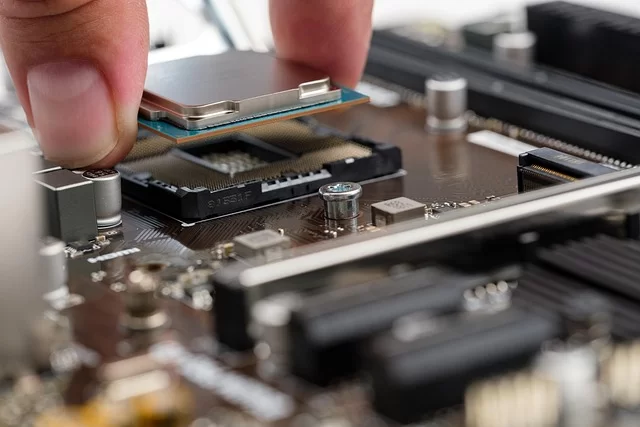
CPU vs GPU: Core Design, Latency, and Workload Differences
A CPU (Central Processing Unit) has a few powerful cores. Each core processes complex tasks in order. Low latency is its priority.
Meanwhile, a GPU packs thousands of simple cores. These cores run at the same time. High throughput is its specialty.
So a CPU excels at serial tasks. A graphics processor wins at parallel jobs. This basic difference determines how tasks are split.
| Feature | CPU | GPU |
|---|---|---|
| Core Count | 8–24 | Thousands |
| Latency | Low | High |
| Workload | Serial | Parallel |
| Task | General purpose | Graphics and compute |
This table summarizes the core split between the two parts. Of course, both are essential for a system. Without one, the other cannot deliver full speed.
GPU or CPU for Rendering? Video Editing and Data Processing
Rendering works in two ways. CPU-based rendering calculates each frame in order. This method is slow but very stable.
GPU-based rendering uses thousands of cores. That way, it finishes the same scene much faster. But memory capacity can become a limit.
For video editing, a hybrid approach stands out. The editing app hands encoding to the graphics processor. For example, NVENC or AMF units add speed.
Comparing GPU, NPU, and TPU
Today, AI accelerators are spreading. An NPU (Neural Processing Unit) is integrated into laptop processors. It handles inference tasks at low power.
A TPU (Tensor Processing Unit) is a special chip that Google uses in its cloud servers. It focuses only on tensor operations. For this reason, it is very efficient during training runs.
By contrast, a GPU handles both graphics and general compute. So it offers a more flexible setup. This flexibility makes it ideal for gamers and content creators.
In short, all three serve different goals. They cannot fully replace each other. Your workload decides which one you need in your system.
GPU Types: Integrated, Discrete, External, and Mobile GPU
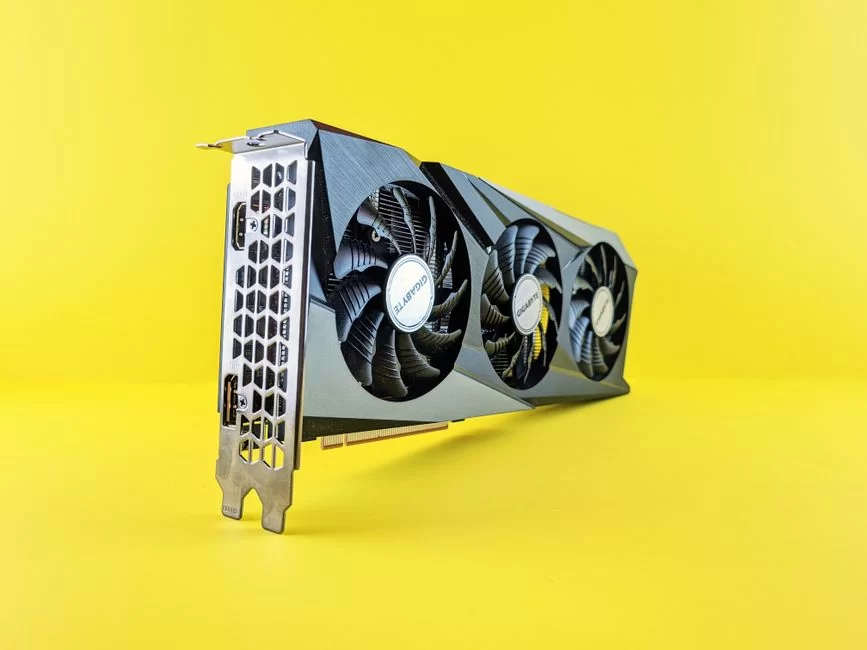
What Are Integrated GPU, iGPU, APU, and SoC Integrated Graphics?
Integrated graphics live inside the processor. They need no separate card. That cuts cost and power draw.
Intel’s processors often include this unit. AMD uses chips it calls APUs. These chips pack a strong graphics processor.
SoC (System on Chip) designs appear in smartphones and tablets. Here, CPU, GPU, and NPU merge on one die. The memory controller also joins them.
Integrated graphics are fine for office work and media use. But they struggle in heavy games. Because they use shared memory, performance is limited.
Discrete GPU vs External GPU (eGPU) and Thunderbolt Performance Loss
A discrete GPU mounts in a PCIe slot on the motherboard. It has its own VRAM and cooler. So it delivers top performance.
An external GPU sits inside an enclosure. You attach it to a laptop via Thunderbolt. This gives portable devices desktop-level power.
But with a Thunderbolt eGPU, you lose some performance. Bus bottlenecks cause a 10% to 20% loss. Still, it beats integrated graphics by a wide margin.
| Feature | Discrete GPU | External GPU (eGPU) |
|---|---|---|
| Connection | PCIe slot | Thunderbolt |
| Performance | Full | 80–90% |
| Portability | Low | High |
| Cost | Medium | High |
Laptop GPU vs Desktop GPU: TGP, TBP, and Max-Q Differences
Laptop graphics processors differ from desktop models. Even with the same name, their power limits are lower. As a result, performance gaps appear.
TGP (Total Graphics Power) shows a laptop GPU’s maximum power draw. TBP (Total Board Power) is a similar value on AMD’s side. Max-Q refers to low-power designs.
For example, a desktop RTX 5070 can draw 250 watts. The laptop model with the same name caps out at 100 watts. This clearly impacts frame rate.
So when buying a laptop, check not only the model but also its TGP. Manufacturers share this information in the technical specifications.
GPU Hardware Specs & Technical Parameters
What Is VRAM? Differences Between GDDR6, GDDR6X, and HBM
VRAM is the special memory a graphics processor uses. Textures, frame buffers, and geometry data live here. Too little VRAM causes stutters.
GDDR6 is the most common memory type today. It offers high speed and fair cost. GDDR6X provides even more bandwidth.
HBM memory stacks vertically next to the chip. This gives you a very wide data path. But it costs a lot and mainly appears in workstations.
| Memory Type | Bandwidth | Use Case |
|---|---|---|
| GDDR6 | Medium | Mid-range cards |
| GDDR6X | High | High-end cards |
| HBM2/HBM3 | Very high | Workstations and data centers |
GPU Memory Interface: 128-Bit, 192-Bit, and 256-Bit Differences
The memory interface is the data path between the GPU and VRAM. A higher bit value moves more data.
You see a 128-bit interface in entry-level cards. A 256-bit path is common in high-end models. Meanwhile, a 384-bit interface belongs to flagship cards.
Besides, the memory interface directly shapes bandwidth. At high resolutions, this gap grows clearer. So 4K gamers should seek a wide interface.
GPU Memory Bandwidth Calculation and Its Impact on Performance
Memory bandwidth is the amount of data moved per second. To calculate it, you multiply three values. The formula is:
Bandwidth = Effective Memory Speed × Interface Width / 8
Think of a card with 18 Gbps speed and a 256-bit interface. The math works like this: 18 × 256 / 8 = 576 GB/s. This value plays a key role in game performance.
If bandwidth is low, the GPU waits for data. That stretches frame time and causes stutters. So watch both core power and bandwidth.
GPU Clock Speeds, TGP, TDP, and TBP Differences
Clock speed shows how many million cycles a GPU runs per second. Base clock is the value that always runs. Boost clock is the highest point under load.
TGP states the total power draw of NVIDIA laptop cards. TDP is the thermal design power for desktop parts. TBP is AMD’s term for total board power.
These values define your cooling and power supply needs. A card with a high TGP produces more heat. That makes a good cooler a must.
Plus, the power limit also affects card performance. Manufacturers may sell two models with the same chip at different TGP levels. Your case airflow determines which one to choose.
Selection Guide: How to Choose the Right GPU by Use Case
Choosing a GPU for Gaming: 1080p, 1440p, 4K, and Ray Tracing Goals
First, pick your target resolution. Next, set your refresh rate goal. These two factors shape your budget.
- 1080p 60Hz: Entry-level cards are enough.
- 1080p 144Hz+: Mid-range models work well.
- 1440p 144Hz: Upper mid-range cards are needed.
- 4K 60Hz: A flagship-class GPU is required.
- Ray tracing on: DLSS or FSR support is a must.
Ray tracing technology reduces performance significantly. Upscaling technology becomes very important. For instance, DLSS 3 and FSR 3 add frame generation.
Someone aiming for 4K should buy a card with 16 GB of VRAM. Otherwise, they hit memory bottlenecks in new games. That ruins the experience.
Choosing a GPU for Video Editing, 3D Modeling, and Rendering
Content creators use different selection criteria. Here, not just game performance but also CUDA or OpenCL support matters.
- Adobe Premiere: NVIDIA NVENC and AMD AMF speed it up.
- DaVinci Resolve: High VRAM matters.
- Blender: NVIDIA cards excel with OptiX and CUDA.
- 3ds Max: A strong GPU gives a smooth viewport.
- V-Ray: RT cores cut render time.
Moreover, 3D modeling needs many cores. Memory bandwidth also shapes scene complexity. You can even pick workstation cards.
But consumer cards also work for most jobs. In particular, RTX 5070 and higher models deliver great results in professional work.
Is an Integrated GPU Enough for Office Use?
For office apps, integrated graphics are more than enough. Tasks like Excel, Word, and a web browser need very little power. So you do not need a separate card.
Plus, an integrated GPU stretches battery life thanks to low power draw. For laptop users, this is a significant advantage. So an external GPU makes no sense for office work.
But check the ports if you plan a multi-monitor setup. Modern integrated graphics easily drive three displays.
Best GPU Models and Price-Performance Picks
Many models are on the market in 2026. I can list the best picks by budget as follows:
- Entry-level: NVIDIA RTX 5050, AMD RX 8600
- Mid-range: NVIDIA RTX 5060 Ti, AMD RX 8700 XT
- High-end: NVIDIA RTX 5070, AMD RX 8800 XT
- Flagship: NVIDIA RTX 5090, AMD RX 8900 XTX
For price-to-performance, mid-range cards make the most sense. They offer an ideal balance for 1440p games. You can also check the used market.
But compare current prices before buying. In the US, exchange rates and taxes affect prices heavily.
NVIDIA, AMD, and Intel GPU Comparison
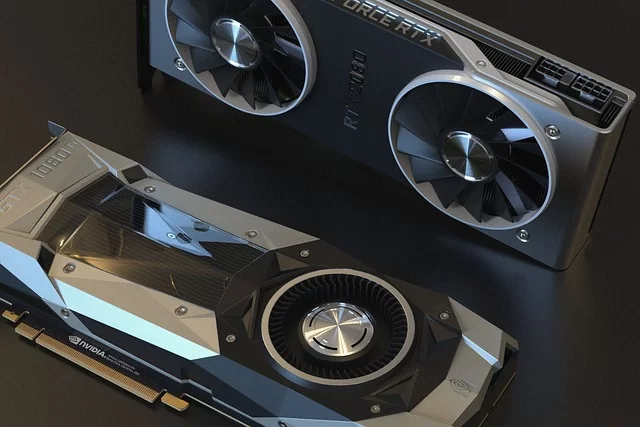
NVIDIA GeForce: CUDA, RT, and Tensor Ecosystem
Of course, NVIDIA has led the graphics market for years. The GeForce series is very popular among gamers. So, the main reason for its popularity is a strong software ecosystem.
The CUDA platform makes development much easier. Developers optimize scientific and rendering apps for CUDA. Plus, RT cores speed up ray tracing.
Tensor cores power DLSS. That lets you get high image quality from low resolutions. In short, NVIDIA is a strong choice across the board.
AMD Radeon: RDNA, Infinity Cache, and Price Advantage
AMD competes with aggressive pricing. RDNA excels at energy efficiency. Also, Infinity Cache cuts memory latency.
Radeon cards often cost less than NVIDIA models with the same performance. That makes them ideal for budget-friendly builds. Plus, FSR is open source.
But a lack of CUDA support creates issues in some professional apps. Still, AMD makes great sense for game-focused users.
Intel Arc GPU: XeSS, AV1, and Driver Maturity
Intel entered the market late with its Arc series. Early on, it had driver issues. But by 2026, it has made huge progress.
Arc cards stand out with a hardware AV1 encoder. Streamers find this feature very valuable. Also, XeSS upscaling delivers strong results.
Prices are competitive too. Arc cards offer tempting options mainly at entry and mid levels. But driver tuning in older games can still be weak.
GPU Performance Metrics and Test Methods
What Are FPS, Frame Time, and 1% Low FPS?
FPS is the number of frames shown per second. High FPS gives you a smooth game feel. But average FPS alone is not enough.
Frame time is how long each frame takes to build. The ideal value is 16.7 ms or lower. Sudden spikes create a choppy feel.
1% low FPS is the average of the worst frames. If this value is low, you feel micro stutters while playing. In tests, check both average and 1% low values.
How to Benchmark a GPU: 3DMark, FurMark, Unigine, and OCCT
Benchmarks measure card performance. You can use a few free tools for this. Here is the step-by-step method:
- Run the 3DMark Time Spy test.
- Compare the result with an online database.
- Run a stress test with FurMark.
- Watch temperature and stability.
- Test graphics quality with Unigine Heaven or Superposition.
- Check memory errors with OCCT.
These tests reveal the card’s real power. They also help you spot faults. I suggest running them regularly.
How to Detect GPU Usage and Bottlenecks
If GPU usage sits above 95% during a game, the card runs at full power. That is a good sign. But low usage may signal a bottleneck.
A bottleneck means the CPU cannot feed the GPU fast enough. Use HWiNFO or MSI Afterburner to spot it. Watch both components’ usage while you play.
- If GPU usage is 90%+ and CPU usage is low, you are fine.
- If GPU usage is under 70% and CPU is 100%, you have a CPU bottleneck.
- If both are low, a software issue may exist.
Build a balanced system to avoid bottlenecks. For instance, do not pair a strong GPU with a weak CPU. Also, raising resolution reduces bottlenecking.
Thermal Management, Cooling, and Power Limits
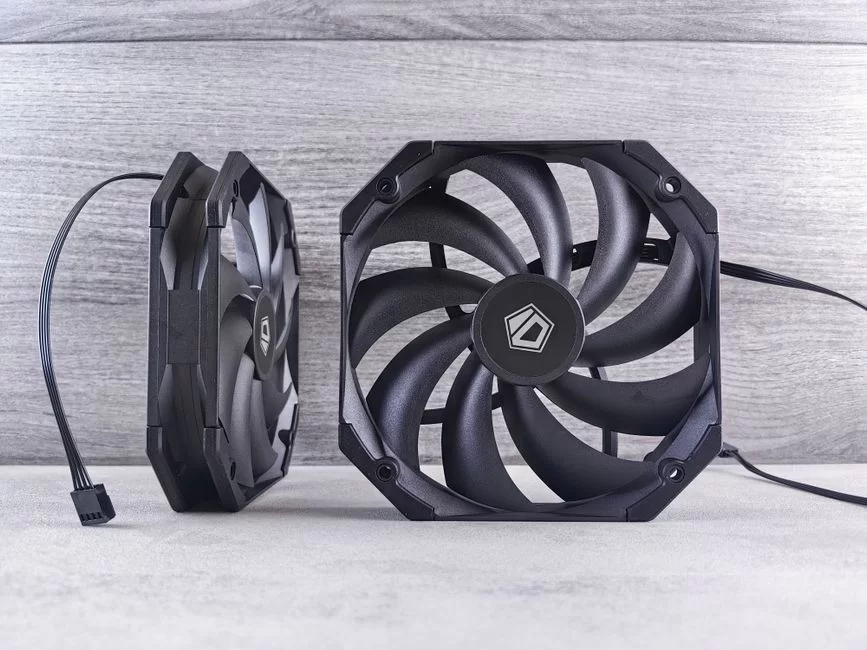
Temperature Limits: What Should GPU, Hotspot, and VRAM Read?
Temperatures are critical for card health. Under load, the GPU should sit between 158°F and 185°F. If you ask whether 185°F is normal, I would call it borderline.
The hotspot temperature marks the chip’s warmest point. This value usually runs 18°F to 27°F higher. Above 221°F is dangerous.
VRAM should stay below 203°F. GDDR6X memory tends to run hot. So check it often.
| Component | Safe Range | Danger Zone |
|---|---|---|
| GPU | 140–185°F | 194°F+ |
| Hotspot | 158–203°F | 221°F+ |
| VRAM | 158–203°F | 212°F+ |
Thermal Throttling, Fan Curve, and Zero Fan Mode
Thermal throttling is when a chip slows down to protect itself. It kicks in when the heat limit is crossed. This causes a performance drop.
A fan curve sets fan speed based on temperature. You can tune this curve with MSI Afterburner. A more aggressive curve lowers heat.
Zero fan mode stops the fan at low load. This gives you quiet operation. But at high heat, the fan suddenly spins and noise rises.
Set your fan curve with these steps:
- Open MSI Afterburner.
- Go to the Fan tab.
- Enable a custom curve.
- Set fan speed to 20% at 104°F, 70% at 158°F, and 100% at 185°F.
- Save your settings.
Overclock, Undervolt, and Power Limit Tuning
Overclocking raises the chip’s clock speed. That earns you extra performance. But power draw and heat also climb.
Undervolting lowers voltage. It produces less heat at the same clock speed. This method extends card life and reduces noise.
The power limit is the maximum wattage a card can draw. Raising it helps overclocking. But your PSU must supply enough power.
Follow these steps to overclock:
- In Afterburner, raise the core clock by 50 MHz.
- Run a test.
- If stable, add another 50 MHz.
- Pull back if you see artifacts.
- Watch the temperature.
Air Cooling vs Liquid Cooling, Thermal Paste, and Fan Care
Air cooling is the most common solution. Heat pipes and fans keep the chip cool. It costs little and is easy to maintain.
Liquid cooling works even better. It uses a water block, pump, and radiator. On high-power cards, it drops temperatures sharply.
| Criteria | Air Cooling | Liquid Cooling |
|---|---|---|
| Cost | Low | High |
| Performance | Good | Very good |
| Maintenance | Easy | Hard |
| Noise | Medium | Low |
Thermal paste dries over time. You should renew it every 2–3 years. Also, clean the fans and heat pipes regularly.
Fan life depends on usage conditions. Dust and high heat wear down fan bearings. So pay attention to case airflow.
GPU Installation, Drivers, and Maintenance
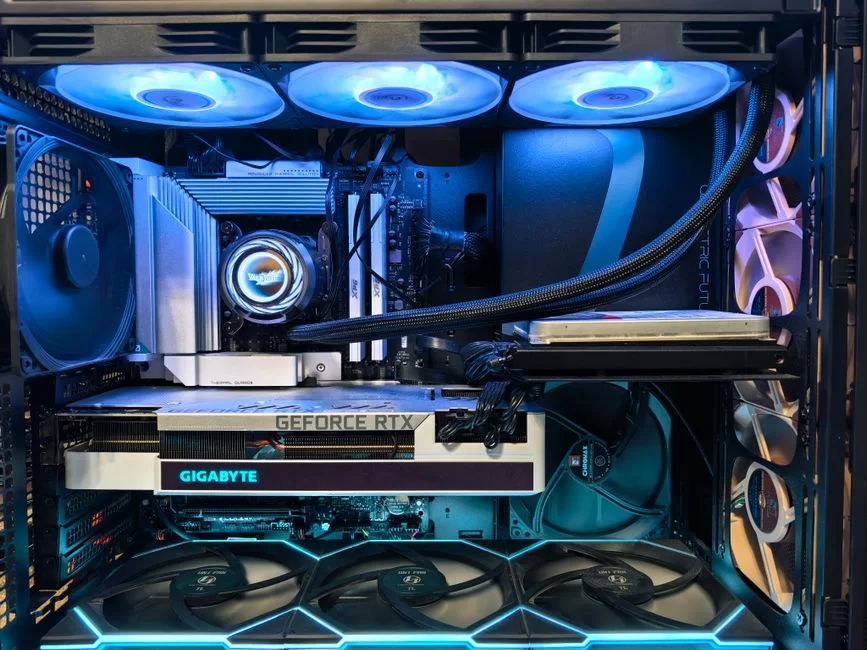
How to Install a GPU in a PCIe Slot: Case, PSU, and Support Bracket Fit
Check your case size before installing the card. High-end models are especially long. Also, your PSU must provide enough power.
Here are the installation steps:
- Turn off the computer and pull the power cable.
- Open the side panel of the case.
- Find the right PCIe slot.
- Remove the rear slot covers.
- Seat the card and lock it in.
- Connect the power cables.
- Secure the card with a support bracket.
- Plug in the monitor and start the system.
Some new cards use a 12VHPWR connector. Make sure this cable sits fully in place. A loose connection causes heat.
How to Update GPU Drivers: Clean Install with DDU
Drivers let the graphics processor talk to software. Old drivers cause performance drops. So update them often.
DDU (Display Driver Uninstaller) removes old drivers fully. This removes the risk of conflicts. Use it mainly when switching brands.
Clean installation steps:
- Download the DDU program.
- Boot into safe mode.
- Select the NVIDIA or AMD driver.
- Click the clean and restart option.
- Download the new driver from the official site.
- Finish the setup.
GPU Health Checks, BIOS, and RMA Process
You can monitor card health with GPU-Z and HWiNFO. Check temperature, fan speed, and voltage values. Unusual readings may signal a fault.
GPU BIOS stores the card’s basic settings. You rarely need updates. But a bad vBIOS flash can brick the card. Be very careful.
The RMA process covers faults under warranty. Contact the store where you bought the product. Testing usually takes a few weeks.
Out-of-warranty cards still have third-party repair options. But the cost can be high. Also, read the insurance and warranty terms first.
Used GPU Guide and Mining Risks
The used market offers budget-friendly options. But it also carries risks. Here is what you must check:
- Inspect the card’s physical condition.
- Check that the fans spin properly.
- Ask for the warranty document.
- Verify the invoice and serial number.
- Research the seller’s reputation.
- Do not buy without testing.
If possible, meet the seller in person. Test the card in your own system. That way, you avoid surprises.
How to Spot a Mined GPU: Test Programs
Follow these steps to detect a card used for mining:
- Look for dust and signs of oxidation.
- Check the fan bearings for wear.
- Inspect the BIOS version with GPU-Z.
- Test for any drift from stock clock speeds.
- Run a 30-minute stress test with FurMark.
- Watch for memory errors in HWiNFO.
- Run a VRAM test with OCCT.
These tests give you a sense of the card’s health. Abnormal heat or crashes point to a risky card. So stay cautious.
How Did Crypto Mining Affect GPU Prices?
The crypto craze sent prices soaring between 2020 and 2022. Miners bought up all the stock. Gamers could not find cards.
In later years, demand fell and prices settled. But the AI boom in 2026 created a similar effect. Data centers boosted demand for gaming cards again.
These cycles make the market unpredictable. Do not rush to buy; follow prices. Sometimes it pays to wait for a new launch.
GPU Technologies and Software Features
DLSS, FSR, and XeSS: Upscaling and Frame Generation Differences
These three technologies build a high-resolution image from low resolutions. This boosts performance. But they use different approaches.
- DLSS: Runs on NVIDIA tensor cores.
- FSR: AMD’s open-source solution.
- XeSS: Intel’s method, based on both hardware and software.
Frame generation inserts synthetic frames between real ones. DLSS 3 and FSR 3 support this feature. As a result, you nearly double frame rate.
But you may notice more input lag. NVIDIA Reflex and AMD Anti-Lag reduce this issue. In the end, use these tools together.
G-Sync, FreeSync, V-Sync, and Low Latency Modes
V-Sync locks frame rate to the monitor’s refresh rate. It fixes screen tearing but adds lag.
G-Sync and FreeSync provide variable refresh rates. That removes tearing and keeps lag low. NVIDIA cards support G-Sync, while AMD cards support FreeSync.
Low latency modes cut in-game response time. Developers built NVIDIA Reflex and AMD Anti-Lag for this reason. They are essential for competitive players.
ReBAR, Smart Access Memory, PCIe 4.0, and 5.0 Differences
Resizable BAR (ReBAR) lets the CPU access the full GPU memory. This improves performance in some games. Smart Access Memory is AMD’s name for this feature.
PCIe 4.0 delivers double the bandwidth of the prior generation. Also, PCIe 5.0 doubles that again. But the game performance impact is usually small.
Still, new-generation cards work with PCIe 5.0. Make sure your motherboard supports it. Also, enable ReBAR in the BIOS setup screen.
HDMI 2.1, DisplayPort 2.0, HDR, and 10-Bit Color Support
Monitor connections affect image quality. HDMI 2.1 supports 4K at 120Hz and 8K at 60Hz. It also offers variable refresh rates.
DisplayPort 2.0 gives you even more bandwidth. That makes it ideal for 8K at 120Hz or multi-monitor setups. Plus, DSC compression enables even higher resolutions.
HDR and 10-bit color depth produce richer images. But you need a compatible monitor and cable. Also, set the color options correctly in Windows.
GPU Workstation, GPGPU, and AI Uses
GPU Compute with CUDA, ROCm, and Tensor Cores
GPGPU means using a graphics processor for general compute. NVIDIA’s CUDA platform leads this field. Many scientific tools speed up with CUDA.
AMD’s ROCm platform is an open-source alternative. It is used mainly in Linux environments. But application support is still limited.
Tensor Cores accelerate matrix multiplications significantly. AI training and inference rely on these units. For this reason, modern GPUs form the base of AI servers.
Render Engines: Blender, V-Ray, and Octane
Blender offers the Cycles and Eevee engines. GPU rendering cuts render time sharply. OptiX support gives NVIDIA cards a big edge.
V-Ray is common in architectural visualization. RT cores speed up ray tracing. This saves designers time.
Octane is a fully GPU-based engine. It needs high VRAM and a strong card. For complex scenes, 24 GB or more of memory is recommended.
Video Encoding: NVENC, AMF, AV1, and Streaming
NVENC is the hardware encoder on NVIDIA cards. When you stream with OBS, it lowers CPU load. That keeps game performance intact.
AMF is AMD’s equivalent technology. It is also known as VCE. But it has come close to NVENC in quality.
An AV1 encoder offers high quality at lower bandwidth. New-generation cards include hardware support. This is a significant advantage for streamers.
GPU Buying Guide
How Much Do GPUs Cost? US Price Dynamics
In the US, GPU prices depend on tariffs and taxes. As of 2026, entry-level cards cost about $150 to $300. Mid-range models cost $450 to $900, while high-end ones exceed $1,200.
But these numbers change constantly. Import fees and sales tax push prices up. Also, stock levels create swings.
Above all, compare multiple stores before buying. Track deals. Also, consider importing from abroad.
Case, PSU, Monitor Fit, and Yearly Electricity Cost
Measure your case clearance before buying. Card length and width must fit. Also, make sure your PSU wattage is enough.
Yearly power cost depends on the card’s draw. For example, a 250-watt card used 4 hours a day uses 30 kWh a month. That costs about $2 to $3 a month under a US electricity plan.
Monitor fit matters too. A 4K screen needs a strong GPU. Likewise, a 144Hz refresh rate demands high FPS.
Warranty, RMA, and Used Market Safety
In the US, distributor warranties matter. Import-guaranteed products may cost less. But RMA can take a long time.
Stick to trusted platforms in the used market. Check the seller’s rating and reviews. If possible, ask for pay-on-delivery or a test option.
Repairs on out-of-warranty cards are expensive. So prefer boxed, invoiced, and warrantied products. In the long run, this saves you money.
GPU Guide: 12 Frequently Asked Questions
What is a GPU?
What is the difference between a GPU and a CPU?
Are a graphics card and a GPU the same?
What should the GPU temperature be?
Is 185°F normal for a GPU?
What happens if GPU usage reaches 100% in games?
How do I recognize a GPU bottleneck?
Does GPU overclocking shorten its lifespan?
How do I recognize a GPU with a mining history?
Which GPU should I buy for 4K gaming?
What is the normal GPU VRAM temperature?
What should I consider when buying a GPU?
Deep Dive into Graphics Processing Technology
Graphics processors play a key role across games and AI. But you need advanced content to understand the underlying architecture. Plus, industry leaders’ insights give you a full view.
- Intel – CPU vs GPU Differences: Explains the key architecture gaps between a processor and a graphics chip. Focus on parallel compute and serial work here.
- IBM – GPU History and Working Principle: Covers how graphics processors developed and how they work. It also details their transformative role in AI and machine learning.
- Lenovo – GPU Architecture Nuances: Details the functions of shaders, texturing units, and dedicated memory.
Conclusion and Summary: 2026 GPU Guide
Summary of Key Decision Criteria for GPU Selection
| Criteria | Recommended Value | Why It Matters |
|---|---|---|
| Use Case | Gaming, work, office | Defines the right segment |
| Resolution | 1080p, 1440p, 4K | Sets power needs |
| VRAM | At least 8 GB, ideal 12+ GB | Low memory causes stutters |
| Power Draw | Matches PSU | For system stability |
| Budget | Price-performance balance | Prevents overspending |
| Brand Ecosystem | NVIDIA, AMD, Intel | Shapes software support |
Final Tips for Choosing the Right GPU
Finally, keep these tips in mind:
- First define your needs, then set a budget.
- If you only play games, mid-range cards are enough.
- If you create content, prioritize VRAM.
- Do not ignore your power supply and case airflow.
- Always test before buying used.
- Track prices and do not rush.
- Use current drivers.
- Regular care extends card life.
With the info in this guide, you can pick the right graphics processor. I hope it helps you. See you on your next hardware adventure.

Be the first to share your comment