

I can almost hear that sharp whine in data center racks. A 15K RPM SAS disk scans millions of sectors per second. This mechanical hum is the music of a true enthusiast. This sound opens the door to a world unlike a typical desktop drive.
I recall your first step into enterprise storage. You pick up a server disk and look at its connector. One question forms in your mind. Why won’t this part fit a normal motherboard? The answer is simple. This hardware is an engineering marvel, beyond consumer class.
In this guide, I share homelab scenarios I tested and set up. Some of them drove me crazy. We’ll talk about everything from hardware architecture to protocol depth. Plus, we’ll cover second-hand buying tips and real-world performance tests.
The text you hold reflects the latest 2026 data. I studied Backblaze’s latest field reports, Seagate Exos and WD Gold datasheets. I also mixed in my own test results.
Ready to feel that cool server room air? Then let’s roll up our sleeves and dive deep into the Serial Attached SCSI universe.
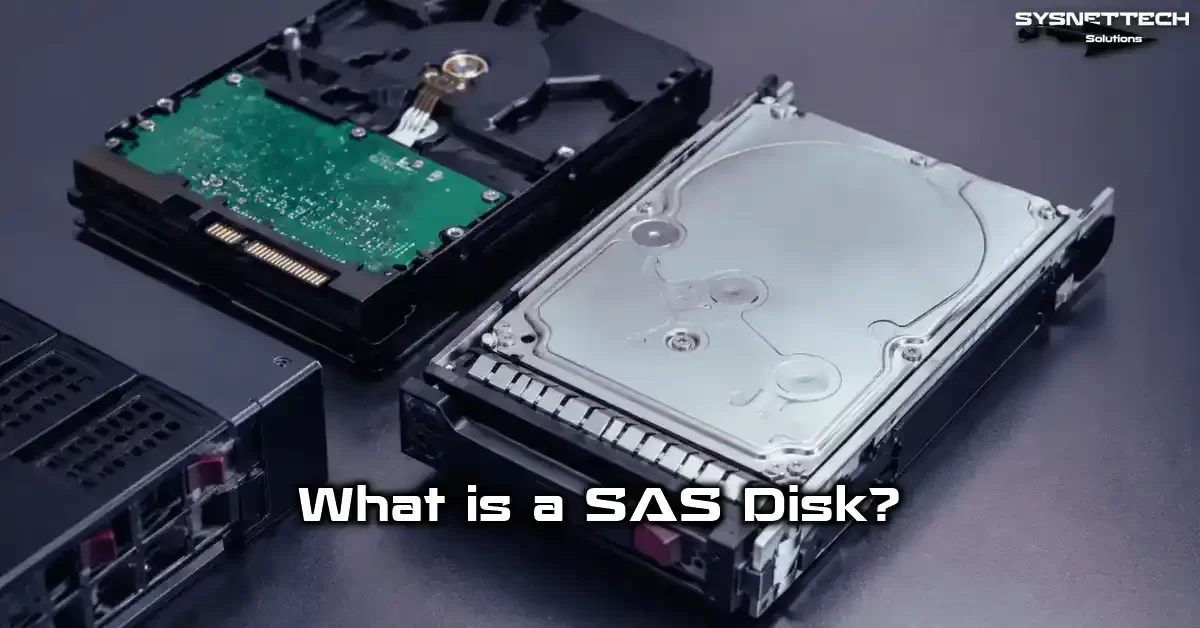
What Is a SAS Disk? A Hardware-Based Definition and 2026 Update
SAS stands for Serial Attached SCSI. This protocol is a point-to-point data bus developed for server-class storage units.
At its core, it uses the Small Computer System Interface command set. But it abandoned the parallel bus and switched to serial communication, creating a revolution.
A SAS disk you hold today carries decades of enterprise storage heritage. Engineers designed these devices on the SCSI architectural model. That’s why they stand out as true data center disks. They also have 24/7 duty cycle certification for critical applications.
Let’s summarize the main tasks of this device:
- Build a high-speed bridge between the OS and the physical storage medium.
- Provide advanced queue management and dual-port disk architecture.
- Ensure data integrity with end-to-end verification.
- Allow simultaneous reads and writes via full-duplex communication.
Today, they come in two main form factors: SAS HDD and SAS SSD. Both speak the same protocol, but their physical architectures are completely different.
The first uses magnetic platters and an actuator arm. The other moves data with NAND cells and DRAM cache.
From SCSI to SAS: Bus Evolution and Hardware Architecture
Think of 1980s data centers: a world full of huge parallel SCSI cables, terminating resistors, and ID conflicts. Back then, you could connect 8 or 16 devices to a SCSI chain. You had to manually assign a unique ID to each device.
Then, in the early 2000s, a revolution took place. Engineers kept the SCSI command set but changed the physical layer completely.
This strategic move triggered the birth of the Serial Attached SCSI standard. The table below summarizes the key differences between the two architectures:
| Feature | Parallel SCSI | Serial Attached SCSI |
|---|---|---|
| Bus type | Shared parallel | Point-to-point serial |
| Max devices | 8 or 16 | Thousands (with expander) |
| Cable length | Short (meters) | Longer (up to 10 meters) |
| Signal interference | High | Low |
| Bandwidth | Limited | Grows exponentially |
The new architecture introduces wide port technology. So you multiply bandwidth.
The journey started with SAS-1 at 3 Gbps. It passed SAS-2 6 Gbps and SAS-3 12 Gbps. Today, SAS-4 reaches 22.5 Gbps.
Every generation kept full backward compatibility. So you can plug a brand-new disk into a 15-year-old SAS HBA and it works.
Today’s data center storage architecture stands at the peak of this evolution. In SAN (Storage Area Network) and DAS (Direct-Attached Storage) topologies, the SAS backbone is essential.
Internal Hardware Architecture of SAS Disks: From Magnetic Platter to SSD Cell
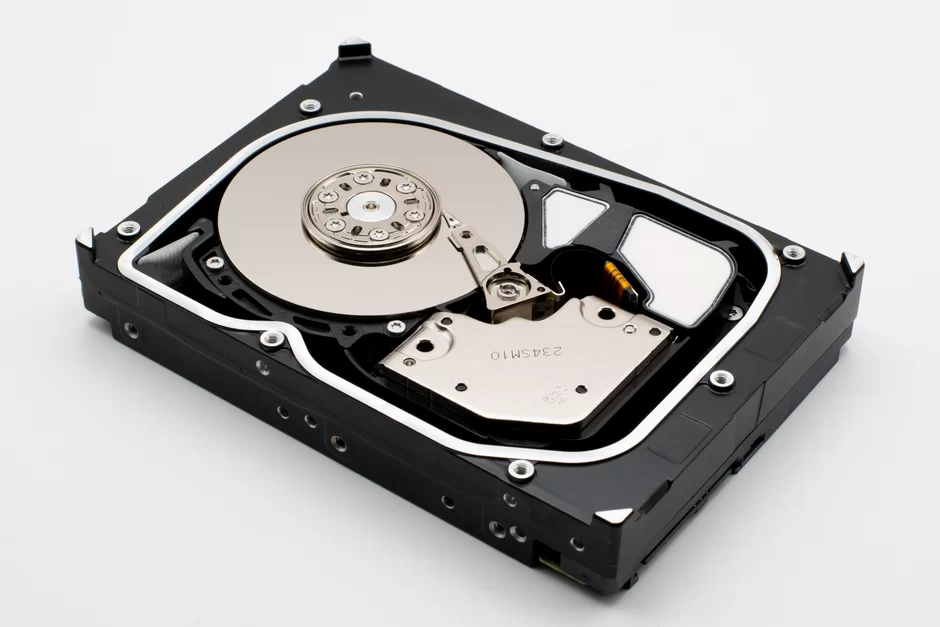
When you open a disk’s cover, the scene inside reveals its class right away. The difference between consumer and enterprise disks is not just the label. Engineers carefully select and tune each part for much heavier workloads.
In this section, we will look at two different worlds side by side. We will compare the mechanical precision of spinning platters with the electronic elegance of silicon chips.
SAS HDD and SAS SSD hardware speak the same protocol. But their physical worlds are completely separate.
Magnetic Platter, Actuator Arm, and Voice Coil Motor: The Basics of HDD Performance
A SAS HDD contains one or more magnetic platters. These platters spin continuously at high speeds such as 10K RPM or 15K RPM. Here are the key hardware components that make this high performance possible:
- Magnetic platters: Store data with high sector density and narrow track width.
- Actuator arm: Moves the read/write head with micron accuracy via the voice coil motor.
- Voice coil motor: Moves the read/write head quickly across the platter.
- Cache buffer: Caches frequently accessed data with 128 MB or 256 MB DRAM.
- Advanced ECC: Provides a comprehensive error correction code on every sector.
- Vibration tolerance: Uses special damping materials and adaptive algorithms.
These parts explain a key difference. So you see why 15K RPM disks are tougher than desktop disks. Especially in multi-disk server chassis, vibration compensation is vital.
NAND, DRAM Cache, and Wear-Leveling Hardware in SAS SSDs
On the new generation SSD side, things change completely. There are no moving parts, no magnetic platters. Instead, you find NAND flash memory chips, a powerful controller, and usually DRAM cache. The standout features of this architecture are:
- Enterprise write intensity (DWPD): Allows writing the full disk capacity 1, 3, or even 10 times daily.
- TBW lifespan: Offers durability far beyond consumer SSDs.
- Wear leveling: Spreads write operations evenly across NAND cells.
- Over-provisioning: Keeps extra capacity reserves for failed cells.
- Queue depth: Handles hundreds of concurrent I/O requests with 256 or higher NCQ depth.
- End-to-end data verification: Ensures data passes integrity checks from the host to the NAND cell.
These features turn SAS SSDs into a critical solution, especially for heavy write loads and financial transactions. Because latency is in microseconds, they revolutionize database server performance.
SAS Protocol Depth: PHY Layer, Link, and Port Structure
When you go down to the protocol level, the SAS universe becomes truly fascinating. Most users just look at the connector and say, “It looks like SATA.”
But the unseen part is a highly sophisticated communication structure built on a layered architecture.
The table below shows the basic components and functions of this layered architecture:
| Layer | Basic Function | Standout Feature |
|---|---|---|
| SAS PHY layer | Physical signaling, 8b/10b or 128b/150b encoding | Forward Error Correction (FEC) |
| Link layer | Addressing, flow control, speed negotiation | Reliable connection |
| Port layer | Logical port, SAS addressing | Wide port (multi-lane) |
| Transport layer | Packaging application data | SSP, STP, SMP protocols |
These layers give the SAS topology the flexibility to manage thousands of devices. Also, full-duplex communication and signaling play a key role. So the bus works at maximum efficiency in both directions.
How Do the PHY, Link, and Port Layers Work?
The SAS PHY layer is the lowest level. It manages the raw bit stream using techniques such as 8b/10b or 128b/150b encoding. The system recreates corrupted bits on the receiver side using Forward Error Correction. Here are the details of each layer:
- PHY layer: Converts electrical pulses to bits, extracts the clock signal, and preserves signal integrity.
- Link layer: Establishes a reliable link between two devices, manages addressing frames, and checks errors.
- Port layer: Assigns a unique SAS address, manages the wide port structure, and combines multiple physical links into a single logical connection.
The system defines the relationship between the SAS initiator (usually an HBA) and the SAS target through these layers. Even when a SAS expander is in between, each link keeps working with point-to-point logic.
SSP, STP, and SMP: The SAS Protocol Trio
The Serial Attached SCSI protocol runs over three different transport protocols. In short, the table below explains their roles:
| Protocol | Full Name | Role |
|---|---|---|
| SSP | Serial SCSI Protocol | Carries the SCSI command set, handles reads/writes/queries, supports multipath I/O. |
| STP | Serial ATA Tunneling Protocol | Tunnels SATA commands over SAS infrastructure, provides SATA disk compatibility. |
| SMP | Serial Management Protocol | Handles management functions, SAS zoning, device discovery, and topology management. |
Thanks to this trio, you can use both SAS and SATA disks on the same physical infrastructure. You can also use SAS zoning. This lets you isolate access among disk groups in large environments.
SAS Connectors, Cables, and Signal Integrity: The Physical Connection Guide
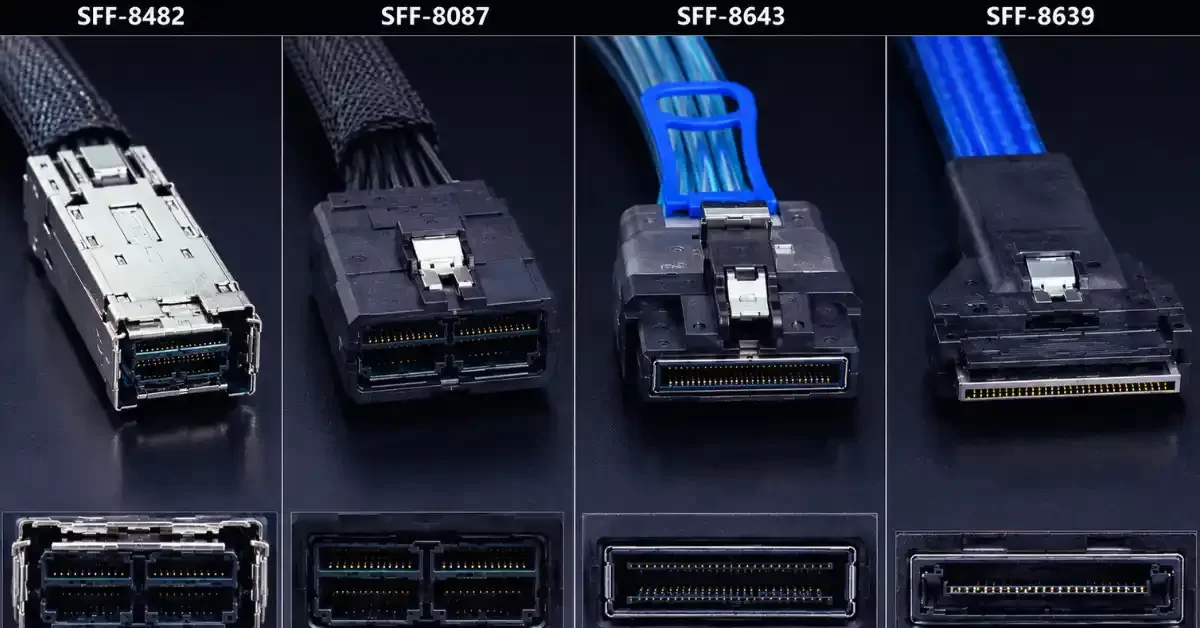
The world of physical connections is a minefield for beginners. A wrong cable choice can make the entire system unusable.
Worse, trying to force an incompatible connector causes physical damage. The table below compares the most common SAS connectors:
| Connector | Other Name | Max Speed | Lane Count | Typical Use |
|---|---|---|---|---|
| SFF-8482 | SAS disk connector | 12 Gbps (SAS-3) | Single disk | Disk-side connection |
| SFF-8087 | Mini SAS | 6 Gbps | 4 lanes | Internal backplane |
| SFF-8643 | Mini SAS HD | 24 Gbps (SAS-4) | 4 lanes | Modern internal connection |
| SFF-8639 | U.2 interface | PCIe 4.0 x4 + SAS | 4 PCIe + SAS | NVMe/SAS hybrid slot |
The SFF committee carefully defined each of these standards. Especially when choosing SAS 12 Gbps cables, signal integrity is critical. Moreover, low-quality cables cause data loss at high frequencies.
SFF-8482 vs SATA Connector: Why Don’t They Fit Together?
To understand the difference between SFF-8482 and SATA connectors, see the comparison below:
- Physical bridge: The SAS connector has solid plastic between the data and power sections. SATA has a gap. This difference physically prevents incorrect insertion.
- Signal voltage: The SAS controller uses higher voltage. This voltage can damage SATA electronics. Also, the physical barrier eliminates this risk.
- Dual-port pins: SFF-8482 has extra pins for dual-port disk support. On the other hand, SATA lacks this feature.
- Compatibility: You can plug a SATA disk into a SAS backplane (via STP tunneling). But you cannot plug a SAS disk into a SATA controller.
This asymmetric compatibility is a deliberate design choice by manufacturers. If you aim to use a SAS disk in a desktop, you must get a SAS HBA. But adapter cables usually don’t work.
Mini SAS HD (SFF-8643) and U.2 (SFF-8639) Connection Standards
Mini SAS HD (SFF-8643) is the most common connector in modern storage systems. It combines four SAS lanes into one compact structure. Its key advantages are:
- Offers a smaller form factor that saves space in dense server chassis.
- Maintains high signal integrity for SAS-3 12 Gbps and SAS-4 24G generations.
- Supports higher frequencies as the successor to SFF-8087.
- Provides the option to connect to external units via the SFF-8088 external version.
The SFF-8639 or U.2 interface offers completely different flexibility. You can plug both a SAS SSD and an NVMe SSD into the same physical slot.
This hybrid design enables easy transitions between storage tiers in data centers. SFF-8644 is the external Mini SAS HD connection standard.
SAS Disks and RAID: TLER, Dual-Port, and Nonstop Operation Hardware
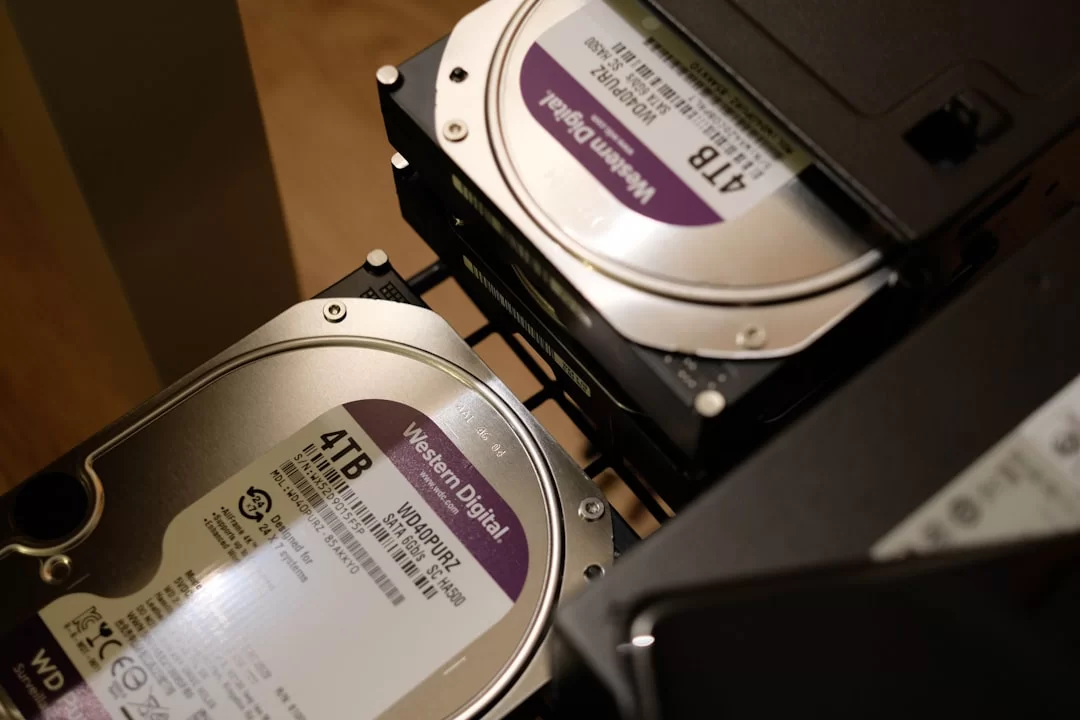
The RAID world is where SAS disks truly shine. When you put an ordinary desktop disk into a RAID array, sooner or later you’ll have a headache. The array marks the disk as faulty and drops it.
But manufacturers design SAS disks specifically for these scenarios. Below, you’ll find recommended SAS configurations by RAID level:
- RAID 0: High bandwidth, no redundancy; ideal for temporary data with SAS SSD.
- RAID 1: Mirroring, high read performance; especially suitable for OS disks.
- RAID 5: Capacity efficiency with parity; use with SAS HDD for read-heavy workloads.
- RAID 6: Dual parity, high security; preferred for large-capacity archive servers.
- RAID 10: Mirroring and striping, highest performance and security. I highly recommend this setup for databases.
In a hardware RAID setup, the controller offers ECC memory support. Also, an internal battery backup unit safely protects your write cache. Without these components, data loss is inevitable during a sudden power failure.
TLER/ERC: The Secret to Disk Survival in RAID
Time-Limited Error Recovery (TLER/ERC) is one of the most critical features of SAS disks. Let’s examine how this mechanism works step by step:
- When a disk encounters a read error, it starts its self-repair process.
- TLER usually limits this process to 7 seconds. When time runs out, the disk gives up. It reports the error to the RAID controller.
- The RAID controller rebuilds the same data from other disks via parity or mirror.
- Desktop disks, on the other hand, struggle for minutes. Meanwhile, the controller assumes the disk is faulty and drops it from the array.
- Thanks to TLER, this misunderstanding does not happen, and array stability stays intact.
The error recovery time is a configurable parameter at the firmware level. Most enterprise disks come with 7 seconds by default.
However, this period is ideal for parity-based arrays such as RAID 5 and RAID 6. For RAID 10, you can easily tolerate a slightly longer time.
Dual-Port and MPIO for Hardware Redundancy
The dual-port disk architecture is one of the most powerful weapons in the SAS world. We can list its advantages as follows:
- A single disk can connect to two different controllers simultaneously.
- In a failover scenario, if one controller fails, the other takes over instantly.
- Multipath I/O (MPIO) support manages the backup path at the OS level.
- When the active path breaks, MPIO seamlessly switches traffic to the backup path.
- Combined with a hot-swap bay, this architecture lets you swap disks while the system runs.
This architecture is vital, especially in SAN environments. An admin can even update the firmware of one controller while keeping the system running.
But this redundancy comes at a cost. Dual-port disks are more expensive and need a compatible backplane.
SAS, SATA, and NVMe Hardware Comparison: Physical and Protocol Differences
Choosing among the three big players in storage is often confusing. Each technology represents a different philosophy, a different engineering approach. The table below provides a clear comparison at the hardware level:
| Feature | SAS | SATA | NVMe (U.2) |
|---|---|---|---|
| Protocol | SCSI command set | AHCI protocol | NVMe (PCIe) |
| Duplex | Full duplex | Half duplex | Full duplex |
| Command queue | 256+ | 32 | 64K queues, 64K commands |
| Dual port | Yes | No | Limited (NVMe-MI) |
| Max HDD speed | 15K RPM | 7200 RPM | None (SSD) |
| Latency | Low (µs on SSD) | Medium | Lowest (µs) |
| Bandwidth | 24 Gbps (SAS-4) | 6 Gbps | 7+ GB/s (PCIe 4.0 x4) |
This table clarifies which technology excels in which scenario. If your workload demands high IOPS and low latency, NVMe is the undisputed leader.
But if you need dual-port redundancy and mature SCSI management tools, SAS still has no rival. SATA keeps its throne in cold storage with its cost per GB advantage.
What Are the Main Hardware Differences Between SAS and SATA Disks?
The best way to understand the differences is to compare them layer by layer. So, the list below summarizes the key distinctions observed at the hardware level:
- Protocol: SAS uses the SCSI command set. SATA works via the AHCI protocol. However, the SCSI command set is far more comprehensive.
- Signal voltage: SAS signals operate at higher voltage levels. This preserves signal integrity over longer cables.
- Full-duplex: SAS can read and write at the same time. SATA, on the other hand, is half-duplex. But it allows only one-way data flow at a time.
- Command queue depth: SAS disks offer 256 or higher NCQ depth. For SATA, this value is usually limited to 32.
- Dual-port support: You can connect SAS disks to two separate controllers. SATA disks, especially, have only a single port.
- Rotational speed: SAS HDDs offer 10K or 15K RPM options. SATA HDDs, however, are typically 5400 or 7200 RPM.
- MTBF: SAS disks come with MTBF values of 2 million hours or more. SATA disks typically range between 1–1.5 million hours.
The practical reflection of these differences is quite clear. In database servers, SAS SSDs deliver exceptional random read/write performance.
For instance, you get at least 2–3 times higher IOPS with SAS SSDs compared to SATA SSDs. SAS SSDs can sustain this performance 24/7. SATA SSDs, under heavy write loads, lose performance over time.
SAS SSD vs NVMe SSD: The Hardware Battle in U.2 Form
Now, let’s get to today’s most heated debate. SAS SSD or NVMe SSD? Both technologies can use the U.2 form factor. The table below compares these two giants:
| Criterion | SAS SSD | NVMe SSD (U.2) |
|---|---|---|
| Interface | SAS-3/SAS-4 | PCIe 3.0/4.0 x4 |
| Max bandwidth | ~2.4 GB/s | ~7.5 GB/s |
| Latency | ~100 µs | ~10-20 µs |
| Dual-port redundancy | Native support | Complex (NVMe-MI) |
| Management | SCSI command set, SMP | NVMe-MI, new ecosystem |
| Price (per GB) | Higher | Competitive |
| Ideal use | Mission-critical, redundant systems | Workloads requiring maximum performance |
In an enterprise environment, when comparing NVMe vs SAS SSD, you must consider Total Cost of Ownership (TCO).
NVMe is faster, but the infrastructure cost is higher. SAS, however, integrates easily into existing setups.
By switching from 15K SAS disks to SAS SSDs, you get a huge performance leap. Moreover, you don’t need to change the infrastructure.
SAS Disk Selection Criteria: Hardware Compatibility and Performance Calculations
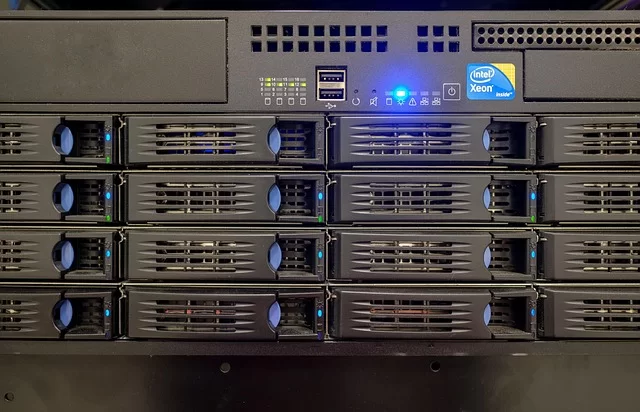
Choosing the right disk requires much more than looking at capacity and price tags. A wrong choice leads to a system full of bottlenecks and unnecessary costs.
The checklist below will guide you through the selection process:
- Workload profile: Random or sequential? Read or write heavy?
- Capacity and DWPD/TBW requirements.
- Bandwidth and IOPS targets.
- HBA and backplane compatibility.
- Power budget and cooling capacity.
- Budget and total cost of ownership (TCO).
After evaluating these factors, you can move on to technical calculations. IOPS and latency analysis form the basis of proper capacity planning.
SAS Disk IOPS Values and Latency Calculation
IOPS calculation is the cornerstone of storage performance planning. Here is the basic formula and its explanation for mechanical disks:
- Formula: IOPS = 1 / (average seek time + average latency)
- For 15K RPM: latency ~2 ms, seek ~3.5 ms → theoretical IOPS ~180. Practically, around 200 with queue depth.
- For 10K RPM: latency ~3 ms, seek ~4 ms → theoretical IOPS ~140.
- For SAS SSD: latency in microseconds, over 100K IOPS random read, 30K–80K IOPS write.
- Workload effect: Read/write ratio, block size, and access pattern greatly change results.
Let’s recall the table summarizing typical IOPS values:
| Disk Type | Random Read IOPS | Random Write IOPS | Latency (Average) |
|---|---|---|---|
| 15K SAS HDD | 180-210 | 180-210 | 5-6 ms |
| 10K SAS HDD | 140-160 | 140-160 | 7-8 ms |
| SAS SSD (Read Optimized) | 100,000+ | 30,000+ | 100-200 µs |
| SAS SSD (Mixed Load) | 80,000+ | 60,000+ | 150-300 µs |
These values vary according to manufacturer specifications and workload profile. You can use this table as a starting point for your own projects.
SAS HBA Selection: IT Mode vs IR Mode and PCIe Lane Requirements
The SAS HBA (Host Bus Adapter) is the heart of the whole system. A wrong card choice can cut your disks’ performance in half. Here are the steps to pick the right card:
- Determine the number and type of disks you’ll use.
- Decide whether you want IT mode or IR mode. I recommend IT mode for homelab.
- Calculate the maximum bandwidth the card supports. PCIe 3.0 x8 offers 8 GB/s theoretical bandwidth.
- Prefer reliable chips such as the LSI 9300, 9400, or 9500 series.
- Research the card’s firmware version and the ability to switch IT/IR mode.
- Consider power consumption and cooling requirements.
On the used market, LSI 9207-8i and 9300-8i cards are still popular. These cards offer SAS-3 12 Gbps support and work flawlessly in IT mode. Their prices are also quite reasonable.
SAS Disks in the Homelab: Real-World Testing with 15K RPM HDD and SAS SSD
Theory is nice, but real-world tests reveal everything. This section is based entirely on measurements I made in my personal homelab. I spent days testing with a sound level meter, thermal camera, and power meter.
I used different models in these tests. Notably, the Seagate Exos 15E900 15K RPM HDD and the Samsung PM1653 SAS SSD stood out.
I performed all measurements in a controlled environment with the same HBA and backplane. Results may not exactly match the specifications on paper.
Installing a SAS Disk in a Desktop: Step-by-Step Hardware Setup
Installing a SAS disk in a desktop requires a few extra steps. You can’t just connect it to the motherboard like a regular SATA drive. But with the right gear, the process is quite simple. Here’s what you need to do step by step:
- Get a compatible SAS HBA. An LSI 9207-8i or 9300-8i is a good start.
- Plug the card into a suitable PCIe slot on your motherboard. So, choose an x8 or x16 slot.
- Connect an SFF-8087 or SFF-8643 Mini SAS HD cable to the card.
- Plug the other end into the SAS disk backplane or directly into an SFF-8482 adapter.
- Insert the disk into the bay and connect the power.
- Start the system and enter the HBA’s BIOS to verify the disks.
- Install the necessary drivers on the operating system.
Let me touch on a critical point about SAS disk and motherboard compatibility. Your motherboard just needs to support the HBA.
The disk doesn’t need to connect directly to the motherboard. All communication goes through the HBA. Therefore, you can use a SAS disk even on an old motherboard.
Noise, Temperature, and Power Consumption Test Results
I measured three different disks under the same conditions in my test setup. I took measurements from a distance of 10 inches, at a room temperature of 72°F, in an open case. On the other way, I took power readings directly from the disk power line.
Here are the comparative test results:
| Disk Model | Idle Noise (dBA) | Load Noise (dBA) | Idle Temp (°F) | Load Temp (°F) | Idle Power (W) | Load Power (W) |
|---|---|---|---|---|---|---|
| Seagate Exos 15E900 (15K HDD) | 38 | 48 | 95 | 118 | 7.2 | 12.5 |
| WD Gold 10K HDD | 32 | 42 | 90 | 108 | 5.8 | 9.8 |
| Samsung PM1653 SAS SSD | 0 | 0 | 86 | 100 | 3.5 | 7.2 |
| Seagate IronWolf SATA (7200 RPM) | 28 | 34 | 86 | 100 | 4.8 | 7.8 |
The noise level results even surprised me. The 15K disk produced a full 48 dBA under load. This level becomes quite disturbing in a quiet room.
If you plan to use a 15K disk at home, definitely consider a sound-dampening case. Otherwise, you might ruin your relationship with your spouse or roommates.
On the SAS SSD side, the situation is the opposite. With no moving parts, there is zero mechanical noise. Power consumption is also noticeably lower than mechanical HDDs. Moreover, heat dissipation is more manageable.
Performance Comparison in TrueNAS, Plex, and VMware ESXi
I tested the same disks on three popular platforms that are commonly used in homelabs. I created real workloads on TrueNAS Scale, Plex Media Server, and VMware ESXi 8. Then, I applied the same test scenarios for each platform.
Below, you’ll find the standout results by platform:
- TrueNAS (ZFS RAID 10, 4x 15K HDD): Sequential read 800 MB/s, random read 800 IOPS.
- TrueNAS (ZFS RAID 10, 4x SAS SSD): Sequential read 2.2 GB/s, random read 85,000 IOPS.
- Plex (4 simultaneous 4K streams): 15K HDDs never stuttered; switching to SSD shortened start times.
- VMware ESXi (10 VMs): Noticeable latency (15 ms) on the HDD pool, sub-2ms latency on the SSD pool.
I can summarize my SAS disk performance test results as follows. For video editing performance, an SSD is a must. The same goes for database servers.
But for Plex, file servers, or backup targets, HDDs are perfectly sufficient.
Hardware Health Check When Buying Used SAS Disks
The used enterprise disk market is a real goldmine for savvy buyers. At the same time, it’s a minefield for the careless. Now, I’ll walk you through my health check routine. I’ve developed it over the years, step by step.
The most critical point in buying refurbished drives is reading the disk’s history. SMART data tells us the entire life story of a disk. We just need to know how to read this language.
Also, let’s examine parameters such as SAS disk power-on hours and bad sector threshold. Additionally, let’s learn how to interpret the unrecoverable error rate together.
Critical SMART Attributes and SAS Disk Health Test Programs
SAS disk SMART attributes are more comprehensive than SATA. The list below shows the most critical parameters you need to check:
- Power-on hours: HDDs over 50,000 hours are risky. For SSDs, 30,000 hours is the upper limit.
- Reallocated sector count: Any non-zero value demands attention. Don’t buy a disk with more than 10 reallocations.
- Unrecoverable error rate (URE): The raw value must be zero. If not, the disk risks data loss.
- Reallocation threshold: Never buy disks approaching the manufacturer threshold.
- Annual failure rate (AFR): Compare the manufacturer AFR with Backblaze field data.
Here are the programs you can use for these checks. On Linux, the smartctl command is the most reliable tool.
On Windows, you can use HD Sentinel or Victoria. The manufacturer’s own tools (SeaTools, WD Dashboard) also support SAS disks.
SAS Disk Firmware Update and 4Kn/512e Format Conversion
Updating SAS disk firmware is critical for stability and performance.
Manufacturers release bug fixes and performance improvements over time. Outdated firmware can especially cause incompatibility with new HBA cards.
Firmware update steps vary by manufacturer. Here is the general path you should follow:
- Download the correct firmware file for your disk model from the manufacturer’s website.
- Prepare a bootable USB drive or run the update tool from within the OS.
- Back up all your data. Firmware updates are risky.
- Run the update tool and select the target disk.
- Do not shut down or reset the system until the process is complete.
Sector size (512e/4Kn) format conversion becomes important, especially when working with older operating systems. 512e disks present 4K physical sectors as 512-byte logical block addressing (LBA). 4Kn disks use a direct 4K sector size.
To change the sector size, you use a low-level format on the SAS disk. This process erases all data and reconfigures the sectors. Before starting the format, make sure you have backed up your data.
SAS Disk Data Recovery: Failure Signs and the Professional Process
Data recovery is one of the most stressful topics in storage. When it comes to SAS disks, this process is more complex and costlier.
Now, I’ll tell you how to spot early warning signs and how to prepare for the professional process.
Remember, in cases needing lab intervention, amateur recovery attempts usually make the situation worse.
Opening the disk, swapping heads, or tinkering with the PCB can cause permanent data loss.
How to Recognize a SAS Disk Failure? Early Warning Signs
SAS disk failures usually aren’t sudden. The disk provides warning signs; you just need to know how to listen. Here are the main signs to watch for:
- Abnormal sounds: Repeated clicking, scraping, or metallic ringing indicate mechanical failure.
- Increased latency: If response times stretch under the same load, there’s a disk problem.
- SMART warnings: A rising bad sector count or exhausting spare sectors are critical alerts.
- Filesystem errors: Frequent fsck/chkdsk triggers point to a disk issue.
- Detection issues: If the disk appears and disappears, it could be a controller or power problem.
- RAID array drop: If the disk drops from the array despite TLER, there’s a physical fault.
When you see any of these signs, back up immediately. Continuing to use the disk multiplies the risk of data loss. Especially if you hear mechanical noises, shut down the disk at once. Then take it to a professional.
How Much Does SAS Disk Data Recovery Cost? Process Steps
SAS disk data recovery cost varies by failure type and disk model. As of 2026, prices in the US are in the following ranges:
Logical failure (deleted files, corrupted filesystem) runs $45–$150. Mechanical failure (head replacement, motor failure) falls in the $150–$600 range. In severe physical damage cases, the price can go up to $900.
The professional recovery process follows these steps:
- Initial inspection and fault diagnosis. The lab evaluates the disk’s condition at no cost.
- They inform you about the amount of recoverable data and the cost.
- If you approve, they open the disk in a cleanroom environment.
- They perform necessary part replacements, such as head assembly transfer from a donor disk.
- Once the disk runs temporarily, they take a sector-by-sector image.
- They rebuild the filesystem from the raw disk image.
- They copy the recovered data to a new disk and deliver it to you.
SAS Disk Prices and Total Cost of Ownership (TCO) 2026
SAS disk prices are always higher than consumer products. But there are solid engineering reasons behind this price gap. Now, I’ll present current market data and long-term cost analysis.
TCO calculation includes much more than just the purchase price. You must also factor in energy use, cooling costs, failure rates, and replacement expenses.
Current SAS Disk Prices in the US (2026)
As of 2026, new and used SAS disk prices in the US are in the following ranges:
- New 15K SAS HDD (600 GB): Around $330. Ideal for high-performance servers.
- New 10K SAS HDD (1.2 TB): $480. Offers balanced performance and capacity.
- Used 15K SAS HDD (600 GB): $24–$105. A budget-friendly homelab solution.
- New SAS SSD (1.92 TB, 1 DWPD): $900–$1,950. For mission-critical applications.
- New SAS SSD (3.84 TB, 3 DWPD): $3,600–$4,800. Suitable for heavy write loads.
- Used SAS SSD (800 GB): $105–$300. Can be a bargain for careful buyers.
These prices fluctuate with exchange rates and supply chains. The answer to why SAS disks are expensive is hidden in this list.
A new SAS SSD costs 3–5 times more than a consumer disk. But its durability and warranty are proportionally higher.
SAS Disk TCO Simulation: 5-Year Real Cost
The table below shows a 5-year TCO simulation for an 8-disk RAID 10 array. Calculations are based on 2026 US electricity prices (average $0.12/kWh) and a typical data center PUE of 1.5.
| Cost Item | 8x SATA SSD (1.92 TB) | 8x SAS SSD (1.92 TB) | 8x 15K SAS HDD (600 GB) |
|---|---|---|---|
| Initial purchase cost | $10,080 | $14,640 (mid-range) | $2,880 (new) / $1,320 (used) |
| 5-year energy ($0.144/kWh) | ~$303 | ~$1,011 (14W) / ~$507 (7W) | ~$708 |
| Cooling (PUE 1.5) | ~$152 | ~$506 (14W) / ~$254 (7W) | ~$354 |
| Estimated disk replacements | 0-1 disk | 0 disk | 2-3 disks |
| Replacement cost | ~$1,260 | $0 | ~$720–$1,080 (new) ~$330–$495 (used) |
| 5-year TOTAL TCO | ~$11,795 | ~$16,157 (14W) / ~$15,401 (7W) | ~$4,662–$5,382 (new) ~$3,102–$3,822 (used) |
This table shows us a very clear truth. Used SAS HDDs offer the lowest TCO. However, SAS SSDs, with zero disk replacements and low energy use, become advantageous in the long term. The SATA SSD version, though attractive upfront, carries high replacement risk.
Further Reading on Serial Attached SCSI Disks
These resources examine the Serial Attached SCSI disk architecture in depth. They are also reliable content prepared by authoritative institutions.
However, each focuses on a different area of expertise.
- SNIA – Serial Attached SCSI Overview: The storage networking authority SNIA describes the architecture of this interface. It also details dual-port support and expander scalability.
- TechTarget – Serial Attached SCSI Solid-State Drives: Examines Serial Attached SCSI SSD structures. It also covers their differences from SATA and server use cases extensively.
- SNIA – Technology Roadmap for Serial Attached SCSI: Shows the 24G and 24G+ standards for this interface. It also presents new features like command timeout limits and config assist.
- StorageNewsletter – Roadmap Updates from SNIA: SNIA updates this interface. It also summarizes roadmap innovations such as command timeout limits, logical depopulation, and SSD support.
- T10 Committee – SCSI-3 Architecture Model: Technically defines the architecture and addressing of the SCSI command set. This set is the foundation of the storage protocol. Additionally, it is the official standards reference.
FAQ About Server-Class SAS Storage
What is a SAS disk and what does it do?
What are the hardware differences between SAS and SATA disks?
Can these drives be used at home, plugged into a desktop case?
Why are enterprise storage units more expensive?
Are server disks suitable for gaming and video editing?
How do you connect a SAS disk to a motherboard, and which card is needed?
What should I look for when buying a used server disk?
What is the difference between a SAS disk and NVMe?
What is the real lifespan of enterprise HDDs and SSDs, and what does MTBF mean?
How to fix a drive that doesn’t show up in Disk Management?
Conclusion: Which SAS Disk Is Right for Which User?
Now you have all the technical knowledge to make a smart choice. To wrap up, you can base your pick on these three profiles.
- Homelab enthusiast, tight budget: Used 10K or 15K SAS HDD. Low cost per GB, high performance. If you can tolerate the noise, you won’t regret this option.
- Enterprise database admin: Switch to SAS SSD. The dramatic drop in latency directly boosts application performance. Pick a model with a high DWPD value.
- New data center infrastructure: Evaluate U.2 NVMe and SAS options together. If bandwidth is critical, NVMe wins. If dual-port redundancy and a mature ecosystem matter, SAS tips the scale.
As a final word, I want to stress this. The right storage choice is not just about specifications. You must know your workload and factor in growth forecasts. Also, realistically assessing your budget matters as much as any IOPS calculation.

Be the first to share your comment