

In the mid-2000s, a format war shook home cinema. Huge firms fought over next-gen optical discs to replace DVD. HD-DVD lost that war.
Today, tech fans find it a nostalgic curiosity. But it went beyond that. For hardware enthusiasts and collectors, these discs hold great value. Their blue laser makes them digital time capsules.
But to truly grasp this format today, you need more than its specs. You must know why it left the market. You should also learn the strategic errors behind it. Additionally, the hardware nuances that add value. In addition, hooking up an HD-DVD drive to a PC becomes a real hardware archaeology trip.
This guide will not just give you theory. I will show you how to use this hardware in 2026. I will also explain how to recover your data. Moreover, I will detail step by step how to treat it as an investment. With tips from my own experience, we will explore the behind-the-scenes of this retro tech hobby gear.
Without further ado, let us start this journey full of memories and engineering marvels. If you are ready, we are beaming to the most thrilling era of format wars!

What is HD-DVD? High Definition DVD Basics
What Does HD DVD Mean? Its Expansion and Purpose
HD-DVD stands for “High Definition Digital Versatile Disc.” So, it means High Definition Digital Versatile Disc.
Simply put, standard DVDs were not enough for 1080p. So, it became a strong candidate for that shift. We also know this optical media as the Toshiba format. It aimed to bring a whole new level to home cinema.
Its goal was clear: to go past the 4.7 GB limit of red-laser DVDs. Next-gen HD content needed far more space. So, engineers used a blue laser with a 405 nm wavelength. They fit much more data onto the same disc size. In addition, this switch did not force big changes to DVD factories.
Here, a critical strategic edge came into play. Existing DVD lines could make this new disc with small tweaks. That gave it a big cost weapon against rivals. Indeed, the DVD Forum officially approved this format.
So, why did this device gather dust in history? The answer lies not in tech flaws but in complex market dynamics and studio politics. Yet one thing is certain: its tech base was highly impressive for its time.
A DVD Forum-Approved Standard: Toshiba HD-DVD History
Toshiba, the main force behind this format, showed first prototypes in 2003. Getting official backing from DVD Forum built strong trust. In fact, this approval made it the rightful heir to DVD. After all, DVD Forum was the same body that created standard DVD.
The first standalone player, Toshiba HD-A1, hit shelves in April 2006. It made a strong impression with its tech specs. However, a fierce fight with rival Blu-ray was already underway. Notably, Microsoft’s introduction of the Xbox 360 HD-DVD drive briefly shifted the balance.
Even so, on February 19, 2008, Toshiba announced its withdrawal. The shortest answer to HD-DVD’s demise is Warner Bros’ sudden decision.
The studio went fully Blu-ray. This choice had a domino effect. It quickly pushed other studios to the Blu-ray camp. Looking back, the Toshiba HD DVD format war is one of tech history’s most instructive losses.
HD-DVD Technical Specs: Hardware Architecture and Capacity Details
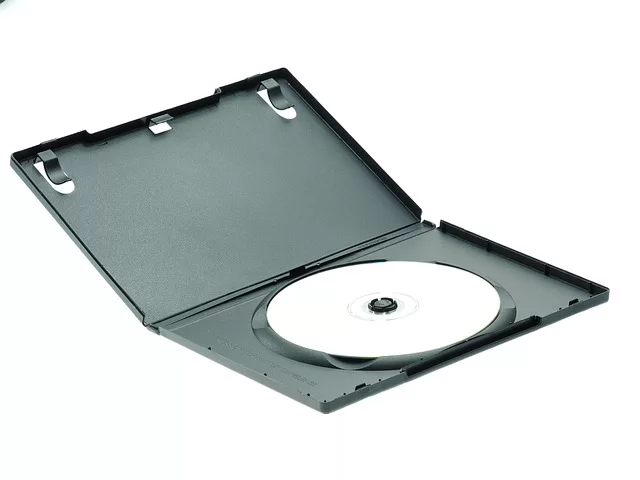
This format’s hardware architecture is a great start for grasping today’s optical storage tech. Its laser build, lens system, and data layers hold fascinating engineering details. Now let us lay out those technical bits.
HD DVD Capacity: How Many GB? Single, Dual, and Triple-Layer Discs
Storage capacity was this optical media’s most vital trait. A standard single-layer disc held 15 GB of data. A dual-layer disc reached a full 30 GB. Moreover, Toshiba engineers built a 51 GB triple-layer prototype in the lab.
However, they never launched that 51 GB disc as a product. So, most players cannot read those high-capacity discs. Still, the prototype proved the format could in theory rival Blu-ray’s 50 GB level.
The table below clearly shows the capacity gaps:
| Disc Type | Layer Count | Data Capacity |
|---|---|---|
| HD DVD Single Layer | 1 | 15 GB |
| HD DVD Dual Layer | 2 | 30 GB |
| HD DVD Triple Layer (Prototype) | 3 | 51 GB |
| Standard DVD (For Comparison) | 2 | 8.5 GB |
As you see in the table, these 15 GB discs were quite lacking. Indeed, they clearly fell behind Blu-ray’s 25 GB. That was the biggest drawback in the HD DVD vs Blu-ray battle.
Blue Laser Tech: 405 nm Wavelength and 0.65 Numerical Aperture
The core rule of optical storage: A shorter laser wavelength means higher data density. This Toshiba format does not rely on the red 650 nm laser of DVDs. Instead, it uses a much tighter 405 nm beam. That let engineers etch far smaller data pits onto the same area.
Another key parameter is numerical aperture. It shows how tightly the lens can focus the laser. They set this value at 0.65 for this device. That was lower than the rival’s 0.85 lens. But the lower NA made the disc far more resistant to scratches and dust.
Here, HD DVD’s protective layer thickness matters. The disc’s outer layer was exactly 0.6 mm thick. That meant the same physical build as a standard DVD. So makers could easily convert existing DVD lines. On the other hand, Blu-ray’s 0.1 mm layer made production harder and hiked costs.
HD-DVD Audio and Video Codecs: Dolby TrueHD, DTS-HD, and VC-1
Audio and video quality was one of this media’s strongest points. They used three main codecs for video compression. Here are those codecs and their advantages:
- VC-1 Video Codec: Microsoft built this codec. It was based on WMV9. It offered excellent efficiency at low bitrates. Studios encoded many first-gen films with it.
- MPEG-4 AVC (H.264): Today’s most popular codec. It gave the highest picture quality on this optical disc. Moreover, it had an edge over VC-1 in complex scenes.
- MPEG-2: This old codec from DVDs saw some use at high bitrates. But they rarely chose it because it ate too much space.
On the audio side, the capabilities were truly impressive. This device supported lossless audio formats. Here are the HD DVD audio formats:
- Dolby TrueHD: It offered studio-grade lossless sound. The bitrate could change on the fly.
- DTS-HD Master Audio: It was no different from its rival. It was also a lossless, extremely high-quality audio codec. They provided it as an option.
- Dolby Digital Plus: A lossy yet very efficient codec. It provided mandatory support for all players.
In particular, Dolby TrueHD and DTS-HD Master Audio were priceless for home theater fans. However, a question arises: Was DTS mandatory on HD-DVD? No, DTS-HD was not required. They offered it as an optional feature. Yet even today, HD DVD sound quality feels quite satisfying thanks to Dolby TrueHD.
HD-DVD and Blu-ray Format War: The Factors That Picked the Winner and Loser
We witnessed one of tech history’s cruelest fights. Just like the VHS vs Betamax rivalry, consumers faced uncertainty once again. Which format would survive? So, why did one win? Now let us reveal the answer in full detail.
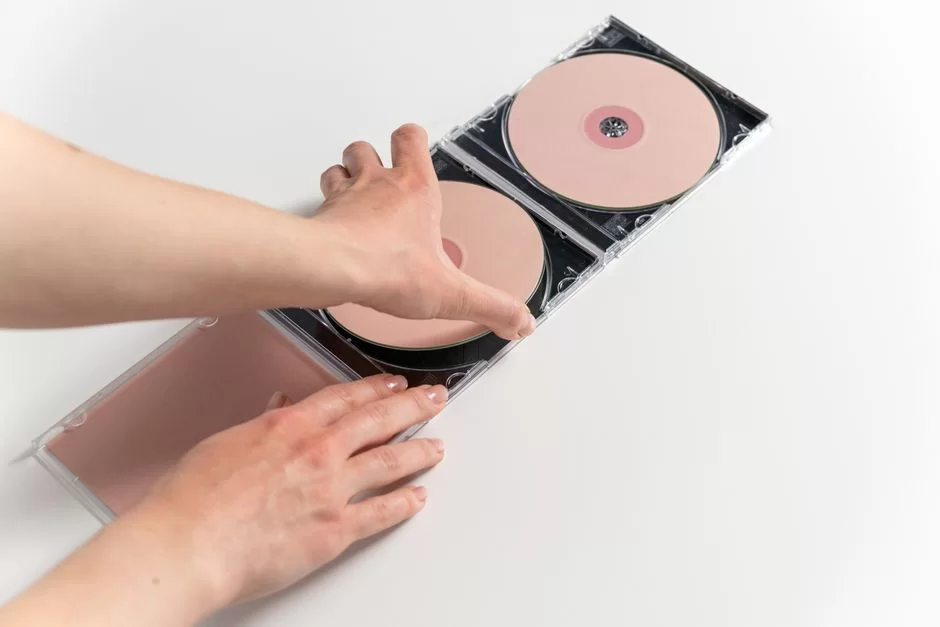
HD DVD vs Blu-ray Physical Hardware Differences
The gap between the two rivals went beyond software or marketing. Physical hardware differences directly shaped production costs and durability. They also reflected radically different engineering choices. A table will make these differences much clearer:
| Feature | HD-DVD | Blu-ray |
|---|---|---|
| Laser Wavelength | 405 nm | 405 nm |
| Numerical Aperture (NA) | 0.65 | 0.85 |
| Protective Layer | 0.6 mm | 0.1 mm |
| Single-Layer Capacity | 15 GB | 25 GB |
| Dual-Layer Capacity | 30 GB | 50 GB |
| Max Video Bitrate | 29.4 Mbps | 40 Mbps |
| Region Lock | None | Yes (A,B,C) |
| Hard Coating Mandatory | Optional | Mandatory (Durabis) |
As you can tell from the table, the most critical technical split lay in capacity and region lock. Did HD-DVD offer region-free playback? The answer is a definite yes.
This format worked worldwide with no region code blocks at all. That gave movie fans great flexibility.
But lower data read speed degraded picture quality. Also, the lower max bitrate reduced quality in long films.
Moreover, if you wonder whether HD DVD discs required a hard coating, the answer is no. That also made discs more prone to scratches.
Why HD DVD Lost: Studio Decisions and the PS3 Effect
Why did HD-DVD fail? It is impossible to name a single cause. Yet the biggest blow came from Warner Bros studio.
On January 4, 2008, just before CES, Warner said it would release all films only on Blu-ray. This choice instantly flipped the war’s balance.
Warner Bros’ shift to Blu-ray was the turning point that sealed the war’s fate. A few months earlier, Paramount had moved to the HD DVD side with a huge cash incentive.
But Warner’s exit swung market share to 70% in Blu-ray’s favor right away. Right after, Netflix also said it would rent only Blu-ray.
We cannot ignore the PlayStation 3 factor either. Sony built a Blu-ray player right into the PS3. It slyly placed a Trojan horse in millions of homes. Users unknowingly owned a Blu-ray player.
In contrast, the Xbox 360 HD-DVD drive stayed external and optional. So, it never reached the same scale.
Moreover, why did not HD-DVD catch on in the US? The answer lies in similar dynamics. The US market quickly followed studio decisions. Retailers swiftly switched to Blu-ray technology.
In the end, on February 19, 2008, Toshiba officially admitted defeat. How did the format war end? Studios and hardware makers collectively chose Blu-ray.
The VHS-Betamax Parallel: Does History Repeat Itself?
Those who track tech history instantly spot the parallel between the HD-DVD war and the VHS-Betamax rivalry. Just like Betamax, there was a format that was more practical and manufacturer-friendly. Yet just like VHS, the rival format built partnerships to rule the market.
Betamax stayed a closed ecosystem in Sony’s hands. JVC, on the other hand, licensed VHS to many makers.
Here too, Sony pushed Blu-ray into homes via the PS3 while Toshiba stood alone. In both wars, tech superiority did not decide the winner—access to content and channels did.
However, one key difference existed. Betamax lived on for years in pro broadcasting (Betacam). This Toshiba format, though, fully became obsolete.
Still, looking back, the device’s region-free nature stands out. In addition, its fit with DVD lines makes it more appealing to collectors. That is a curious twist of history.
Connecting HD-DVD Hardware to Modern Computers
You have an old drive. You want to run it on a modern PC. That is a real hardware archaeology task. But do not worry. With the right gear and some patience, it turns into a fun project. Here is the step-by-step hookup and driver guide.
How to Connect an HD DVD Reader to a Computer: Using an IDE-SATA Adapter
Internal HD-DVD drives made for PCs almost always use the old IDE (PATA) interface. Today’s motherboards, though, lack that wide, gray-cable port.
So, you must use an IDE-SATA adapter. These small adapters let you plug your old drive into a modern SATA port.
Let us follow the hookup process step by step:
- Set the Jumper: Move the jumper on the drive’s back to “Master.” Cable Select (CS) often causes issues.
- Attach the IDE-SATA Adapter: Firmly seat the adapter onto the drive’s IDE pins. Then connect the SATA data and power cables.
- Mount in the Case: Use a standard 5.25-inch optical drive bay for the HD-DVD mount. Then secure the drive with screws.
- BIOS Check: Start the system. Enter the BIOS to see if the drive gets detected.
After these steps, the operating system phase begins. You can opt for an external Xbox 360 drive or a USB-enclosed model as a peripheral. But remember, the most stable performance comes from an internal connection.
HD DVD Drive Driver for Windows 11 and Firmware Update
Windows 11 offers no built-in driver for this old hardware. Yet do not worry; the system detects it as a standard optical disc drive.
The real challenge is reading the UDF 2.50 file system and playing movies. You must install the needed codecs and software. So, how do you manage this process? Let us list the steps:
- Get the Drive Recognized: Connect the drive to the computer. Windows auto-detects it as a “CD-ROM Drive.” If you see an exclamation mark in Device Manager, uninstall the drive and reboot.
- Update HD-DVD Drive Firmware: Find the latest firmware from Toshiba’s archive or trusted forums. This update is vital for 30 GB dual-layer compatibility. Also, some drives can in theory read triple-layer discs. But that is quite rare.
- Install the UDF 2.50 Driver: To read this format’s file system, you need a UDF 2.50 driver. Some third-party tools can provide this function.
After these steps, you can view the disc contents in File Explorer. Yet you still need media player software to play films. That is where powerful tools come into play.
Xbox 360 External HD-DVD Drive: PC Use and Hardware Compatibility
The external HD DVD drive Microsoft made for the Xbox 360 is one of the most sought-after pieces of hardware for collectors.
This USB device, which came in beige or black, is a true engineering gem. So, can you use it on a PC today? Absolutely yes.
When you plug the external drive into a Windows 11 computer, the system detects it. It also directly sees it as a standard USB optical drive. On top of that, you need no extra drivers.
So, is HD-DVD compatible with Xbox 360? Answer: though console-specific, it works well on a PC. Xbox 360 HD DVD offers excellent Windows compatibility. Because of this, the device turns into one of the most valuable retro tech hobby items.
However, I must point out one hardware compatibility snag. The drive reads data, but you cannot play films directly in Windows Media Player. The reason is missing codecs and AACS-128bit decryption tools.
Therefore, you should turn to the digital transfer methods in the next section. Still, as a plain data reader, this device is a candidate for the most appealing desk accessory.
Guide to Digitally Transferring HD-DVD Films and Data
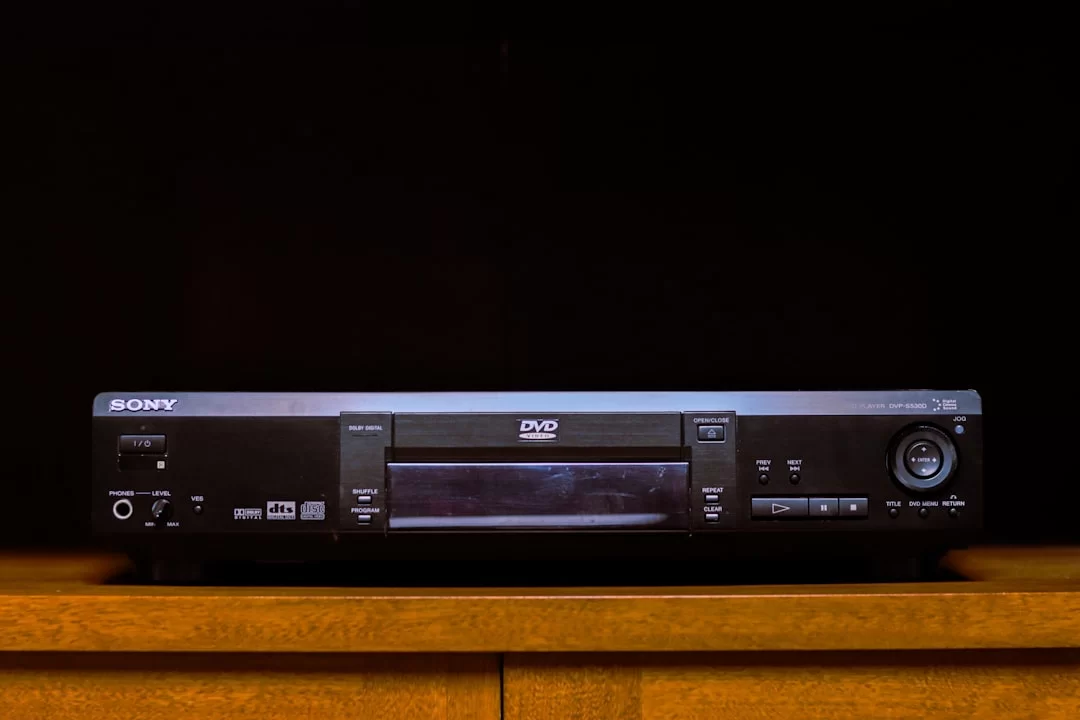
Moving physical media to digital form is the smartest way to preserve it. Also, laser diodes lose strength over time and discs rot.
In short, you must use the right software to save your films or data. Here are field-tested methods.
How to Transfer HD DVD Films with MakeMKV: Step-by-Step Guide
How do you digitize HD DVD films? The most practical solution is MakeMKV. This program bypasses the disc’s encryption. It copies the content into a single MKV container. In addition, the beta version is completely free. Let us follow the steps together:
- Install the Software: Download the latest version from MakeMKV’s official site. Get the beta key from the forum and paste it in.
- Scan the Disc: Insert your film disc into the drive. MakeMKV scans it. It lists the main movie and extras.
- Choose the Content: Usually, the title with the biggest file size is the main movie. Especially mark your dub and subtitle choices.
- Start Copying: Pick a target folder and click the “Make MKV” button. The software instantly bypasses AACS-128bit encryption.
This method gives the cleanest result for transferring an HD-DVD disc to a computer. But you may get read errors on some damaged discs. We will talk about what to do in that case shortly.
AnyDVD HD and How to Bypass the AACS Encryption System
How does the AACS encryption system protect discs? Each disc has a unique encryption key embedded inside. This key forms a handshake protocol between the player and the disc.
But in 2007, the famous AACS key 09 F9 code leaked online. It completely shattered that protective wall. That event is one of the most absurd moments in digital rights history.
AnyDVD HD runs silently in the background on your system. The moment you insert a disc, it decrypts the protection in real time. That way, all programs see the disc as unprotected. This software is invaluable, especially in HD-DVD data recovery scenarios.
So, why do I mention both MakeMKV and AnyDVD? Because some rare discs get stuck in MakeMKV.
Then AnyDVD’s decryption engine comes to your rescue. After the disc is decrypted, you can directly copy the files. That is why pro archivists use this method most often.
UDF File System and Data Recovery Programs
When the disc’s physical structure starts to fail, the situation becomes complicated. This optical media uses the UDF 2.50 file system. Standard recovery tools may not recognize it.
Luckily, we have specialized old optical media recovery programs for this job. Here are the tools I find most effective:
- IsoBuster: The king of optical media recovery. It reads raw data by skipping bad sectors. It fully supports UDF 2.50. Moreover, it keeps pulling data even if the drive freezes.
- CDRoller: Very good at finding lost sections on HD DVD discs. It can handle light surface scratches.
- ddrescue (Linux): Perfect for hardware-level recovery. It takes a raw image of the disc. It skips bad blocks. Then you mount that image on a virtual drive.
Thanks to these tools, you can recover most of the data on your archive discs. But if disc rot has begun, read errors are unavoidable. That is why you must perform these data recovery steps before you lose the discs entirely.
HD-DVD Collecting and Nostalgic Value: 2026 Market Analysis
Physical media collecting is more popular than ever in 2026. This format, with the mystic aura of the losing side, is now an expensive hobby. So, what should you invest in and what should you watch out for?
The Rarest HD DVD Films and Current Collector Values
Some films on this optical disc attained high collector values because they were produced in limited numbers. Especially at the start of 2008, when the format said goodbye, companies pressed very few of these discs. Here are the rarest HD-DVD films and their estimated values:
- Deadlands 2: Trapped (2008): A true cult horror film. It came out just before the format got shelved. Likely fewer than 1,000 copies were pressed. Today a sealed copy easily finds $500.
- The Lookout (Disney): One of the rare works pressed during Disney’s brief support. It finds buyers between $150 and $250 on the secondhand market.
- Twilight Zone: The Movie: A limited edition pressed only in Europe. A clean copy is around $100.
- King of California (2007): They produced very few, like independent works. It’s a sought-after piece among collectors.
HD-DVD collection value depends entirely on the film’s rarity and disc condition. But the general view is that this format provides a much cheaper alternative.
You can still find many common films for under $5. That fact answers affirmatively to the question: Is HD-DVD collecting worth it?
Should You Buy Secondhand HD-DVD? What to Check When Buying Players and Drives
Should you buy secondhand HD-DVD? Of course you can. But it is a challenging endeavor. You must be extra careful, especially when buying a player. Here is an experience-proven checklist:
- Laser Diode Health: This is the biggest risk. Ask the seller for a video of the drive reading a dual-layer disc, because a drive that easily reads a single layer may struggle with a dual layer.
- IDE vs SATA vs USB: If buying an internal drive, choose SATA over IDE. For external, the Xbox 360 HD-DVD USB drive is the most sensible pick.
- Firmware Version: Toshiba’s first-gen players won’t open many discs without current firmware. On the other hand, make sure the device’s firmware is up to date.
- Disc Rot: When buying films, hold the disc up to the light. If you see pinhole-like spots or browning at the edges, don’t pay for it.
By paying attention to these points, you can lay a solid foundation for physical media archiving. Remember, these devices are no longer made. So, every working drive is an investment vehicle for an HD-DVD hardware collection.
Building a Computer Hardware Archive
Do not think of these drives only for watching movies. They can also serve as an impressive digital time capsule.
Writable models are rare, but you can still read archives with read-only drives. So, how do you start a computer hardware archive project?
First, you should build a solid collection of backward-compatible drives. Mount this drive into an old case that has a 5.25-inch optical drive bay.
That way, you get a special reading station. This station gives you great flexibility for running old optical drives on a PC.
Next, imagine writing your important digital data onto these discs. Today, a USB flash drive can fail within 10 years.
But a proper optical disc kept in a light-proof box preserves your data for decades. You can view this as an external peripheral hardware strategy. Also, because these drives are read-only, virus infection is impossible.
Disc Care, Disc Rot, and Hardware Repair
Your collection’s biggest enemy is time. Physical media dies silently if not stored under the right conditions. Now let us talk about the signs and the steps you can take.
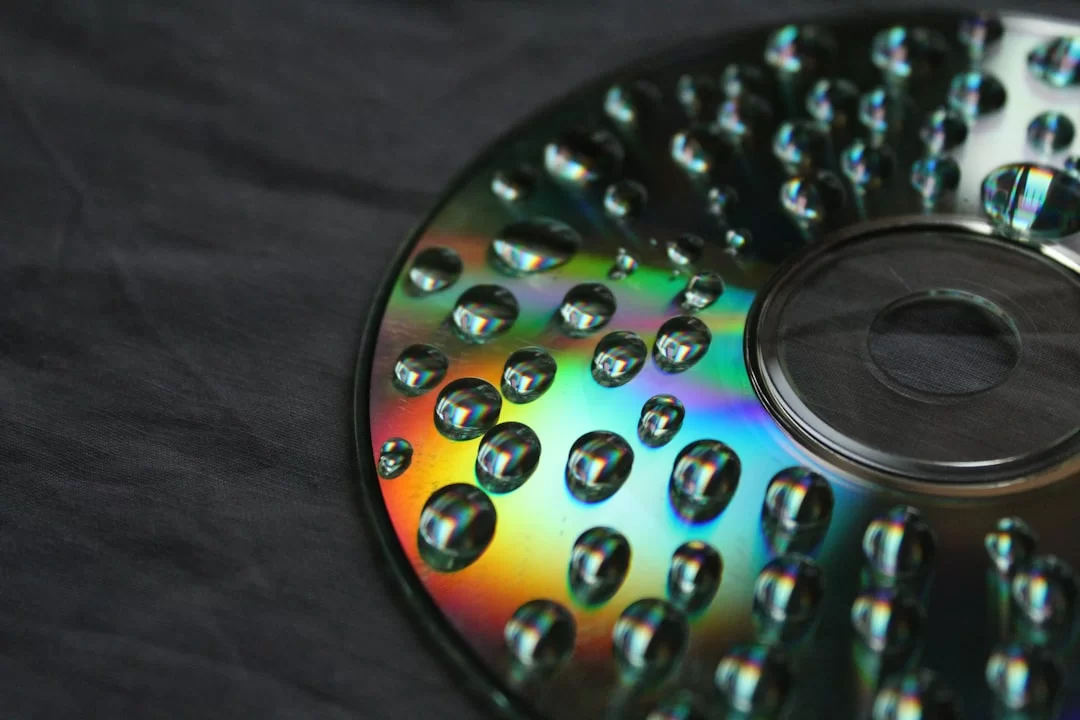
How to Spot and Prevent HD-DVD Disc Rot
Disc rot happens when moisture or air seeps between the protective layers. The reflective aluminum layer oxidizes. To spot it, hold the disc up to bright light.
If you see bright pinhole-like spots in the data layer or bronzing at the edges, rot has begun. That is how you recognize HD-DVD disc rot.
You cannot fully stop this process, but you can seriously slow it down. How do you prevent HD-DVD disc rot? Here are my essential tips:
- Humidity Control: Keep discs in a 40%-50% relative humidity range. But don’t put them in plastic bags—that creates vapor.
- Temperature Balance: 15-20 °C is ideal. Keep them away from attics or basements that get very hot or cold.
- Vertical Storage: Don’t stack discs horizontally on top of each other. Most importantly, store the cases upright like books.
Also, storing discs in their original cases gives extra protection. But glue residue that sticks to cardboard sleeves can transfer to the disc. So, checking and cleaning discs regularly keeps them alive in the long run.
HD-DVD Lens Cleaning and Optical Reader Motor Failure Fixes
The most common hardware issues are a dusty lens or dried-out rail grease. If the drive spins the disc but will not read it, target the lens first. Let us go step by step:
- Preparation: Unplug the drive and open its cover. Ground yourself against static electricity.
- Lens Cleaning: Lightly dampen a cotton swab with isopropyl alcohol. Wipe the lens with gentle, circular motions. But do not use dry cotton or compressed air.
- Rail Lubrication: The metal rails the laser head moves on may be dry or dirty. Put one drop of silicone-based grease on these rails. Then manually move the head back and forth a few times.
- Test: Reassemble the drive and try it. If the problem continues, you may need an HD-DVD laser diode replacement. That job requires advanced soldering skill.
This simple maintenance routine often brings your drive back to life. But remember, the mechanical parts of these optical drives wear out over time. Yet if the motor does not spin at all or you hear a clicking noise, the situation is serious.
HD DVD and Blu-ray: Technical Comparison and the Format War
To understand the backstory of this rivalry, obtaining accurate information matters. This selection successfully illuminates the technical and commercial sides of the format. The articles below will help you grasp the topic deeply.
- CNET – The Two Giant Rivals of the War Compared: This guide evaluates capacity, cost, and industry support between the optical formats from a technical angle.
- Digital Trends – Anatomy of a Tech War: In this piece, they handle market dynamics and consumer behavior as factors that determined the format’s fate.
- The Verge – The Strategic Role of Game Consoles: It puts Sony’s PS3 move under the microscope and shows how it shifted the power balance in the optical market.
- IGN – After the Format War: It provides a wide review of the losing format’s final period, paired with consumer trends and maker decisions.
- Engadget – The Official Farewell and Aftermath: It conveys the industry echoes after Toshiba’s move in a chronological and analytic tone.
The 10 Most Asked Questions About HD-DVD
What is HD DVD?
What is the difference between HD DVD and Blu-ray?
Why did HD DVD fail?
How many GB is an HD DVD capacity?
Do HD-DVD players read Blu-ray discs?
How can we play our discs today?
Did HD DVD offer region-free playback?
Does an HD-DVD drive read normal DVDs?
How do you spot HD-DVD disc rot?
Is HD DVD collecting worth it?
Conclusion: HD DVD’s Place in Optical Storage History and Its Legacy for the Future
What Replaced HD DVD? Is It Still Used Today?
This tech fully gave way to Blu-ray and digital streaming platforms. Is HD-DVD still used today? For mainstream buyers, the answer is a resounding no.
But a niche community actively keeps it alive for collecting and archiving. So in a way, it is the favorite of digital amateur archaeologists.
This format taught us an expensive lesson. It showed how helpless technical merit can be against market strategies.
Even region-free playback and low production costs lost their meaning in the content war. People recall this device as one of tech history’s most dramatic losers.
HDi Interactive Layer: The Forgotten Web-Based Menu System
This format’s most underrated legacy is the HDi interactive menu system. Microsoft developed this tech. It was based on XML and ECMAScript.
Unlike Blu-ray, it did not need a heavy virtual machine like Java. What is the HDi interactive layer? The simplest definition: the art of making movie menus with web tech.
Thanks to this system, directors could give live commentary while the film played. Also, it was possible to offer trailers that updated via an internet link.
In the BD-Java vs iHD comparison, iHD offered a much faster and cheaper development process. But once the format vanished, this smart platform also became history.
Today, you can experience these interactive menus only on old hardware. That is one of the tech world’s most bitter ironies.

Be the first to share your comment