

In this article, I will explain Netacad’s free network tool. I will show how to install Cisco Packet Tracer 9.0. We will also look at how to use this strong program.
This guide is for people getting ready for Cisco exams. I prepared it for users of Debian 13 Trixie. It also talks about every needed part and setup.
Also, you will learn how to move around the simulation tool’s interface. You will also see how to build different network topologies. Then, you will know more about using the test tools.
This will help you know more about networks. By using helpful tips in this text, you can get the most from it. So, reaching your test goals will be simpler!
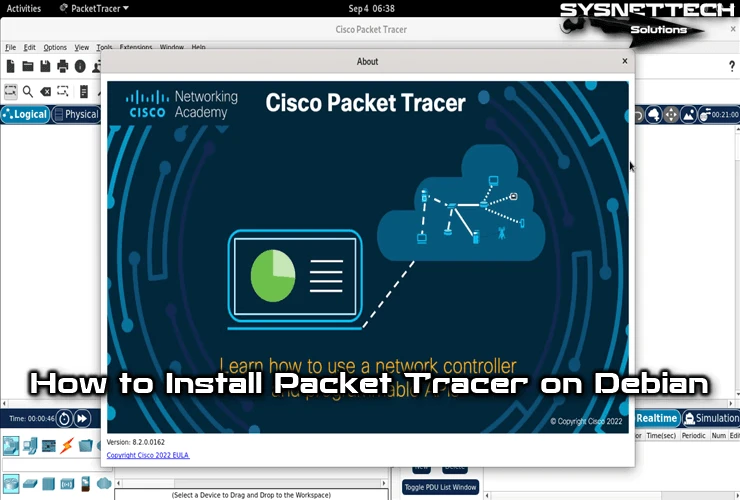
How to Prepare for Cisco Exams on a Debian PC
Cisco Packet Tracer (PT) is a free tool for network learners. First, you can get this program now and then use a virtual network environment. Also, you can use every rule from the exam syllabus.
I want to say that PT is not just for Cisco exams. It is also for people who wish to get better at networking. Most of all, new starters use this program.
The newest Cisco network tool is 9.0. The Net Academy has added lots of new things. First, sign up on the NetAcad site. Then, you can get version 9.0.x. Last, you can put it on Windows, Linux, or Mac.
First, you need to get the deb file for Linux. Next, you can set up the Cisco simulator tool on your Debian 13 machine. Now, we can begin using the Cisco network program.
How to Set Up Packet Tracer Version 9.0 on a Debian PC
The first step is to get the virtual networking tool after you sign up with Netacad. The Cisco program works on Windows, Linux, or Mac.
You can also get it without signing up. If so, you can see our guide called “Download Packet Tracer.” There, you can find both new and old copies.
1. Download Packet Tracer from NetAcad
Step 1
First, open your computer’s web browser. Then, type netacad.com in the address bar and press Enter to open the page. Then, click the “Log In” button in the top right corner.

Step 2
First, type the email you used to sign up for Netacad. Then, type your password and press the “Log In” button.
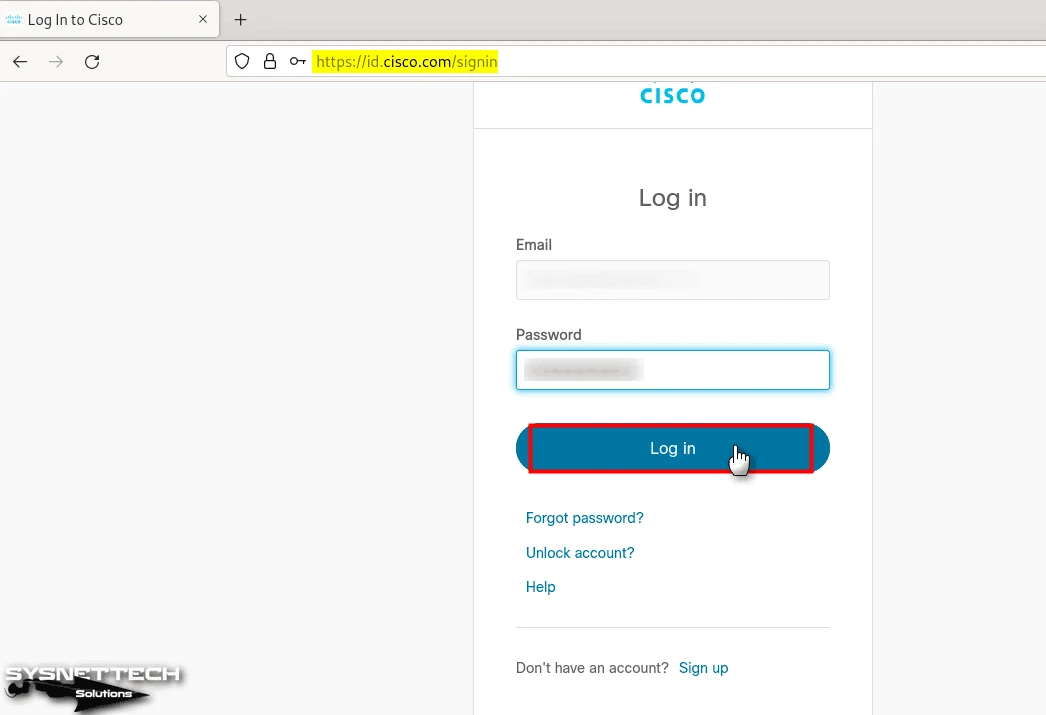
Step 3
First, go to the Learning Portal page. Next, find “Resources” in the menu. Then, click “Download Packet Tracer.”
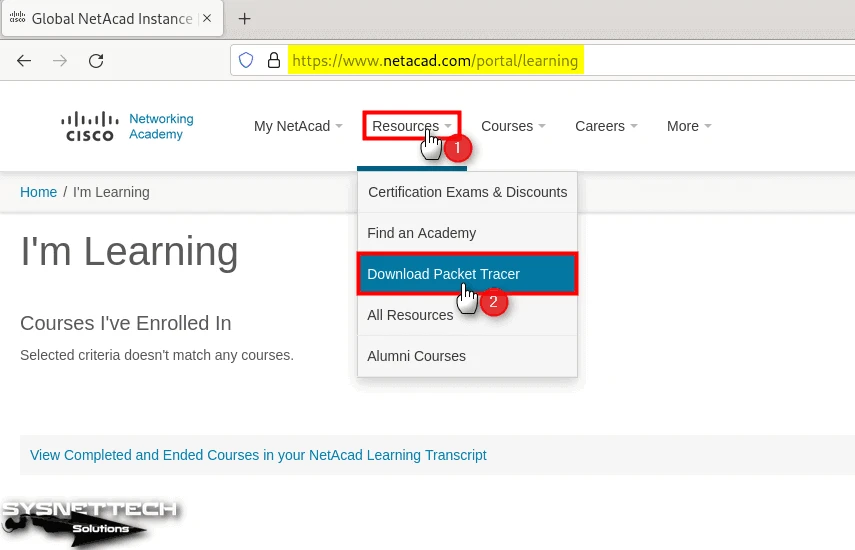
Step 4
First, check the software updates on the download page. Then, check the system needs.
To install Debian on your PC, find the “Ubuntu Desktop Version 9.0 English” heading. Then, click the “64 Bit Download” link. Finally, save the deb package to your computer.
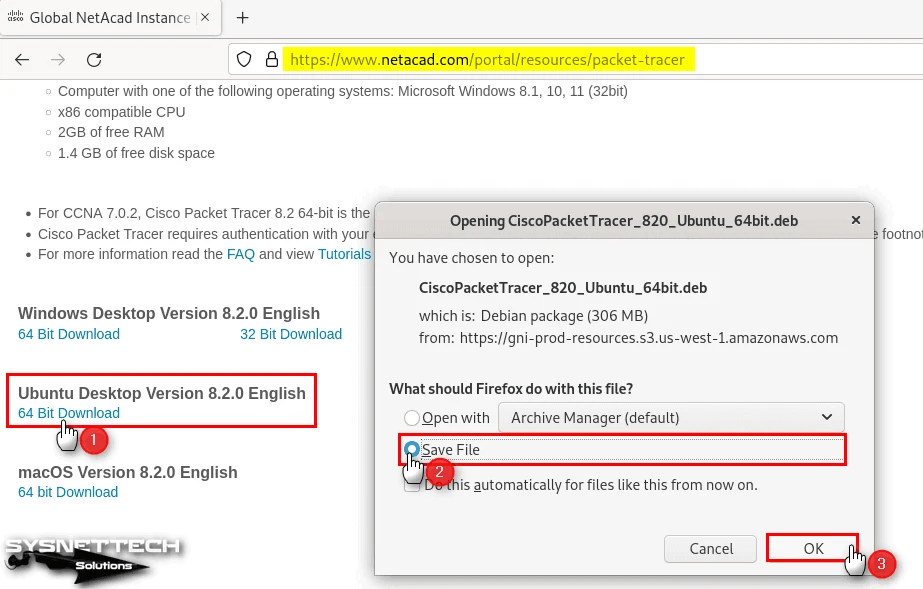
2. Install the Packet Tracer Simulator
Step 1
Now, get the PacketTracer.deb file and launch it in Terminal. Next, navigate to your downloads folder with the command “cd ~/Downloads.” From there, use the “ls” command to view the directory contents.
First, you need to install deb packages on Debian with dpkg. So, run the command “sudo dpkg -i CiscoPacketTracer_820_Ubuntu_64bit.deb” in the console. Finally, enter your root password and press Enter.
cd ~/Downloads
sudo dpkg -i CiscoPacketTracer_820_Ubuntu_64bit.deb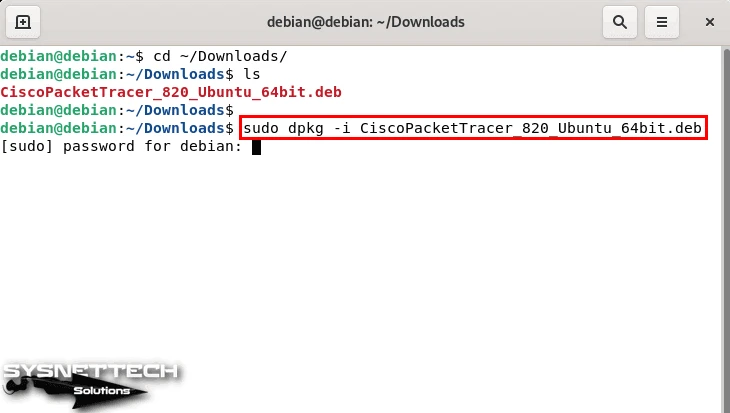
Step 2
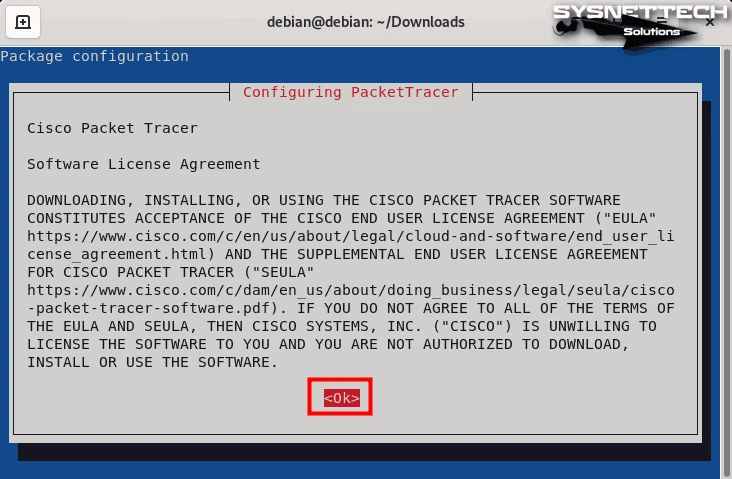
Next, you will see the “Configuring PT” box. Here, please read the rules. Then, pick OK and push Enter to say yes.
Step 3
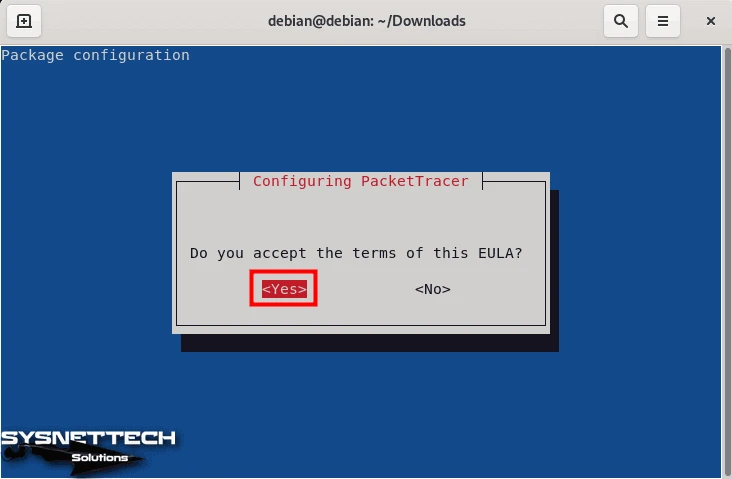
First, say yes to PT’s rules. Next, move over the ‘Yes’ choice, and last, push the Enter key.
Step 4
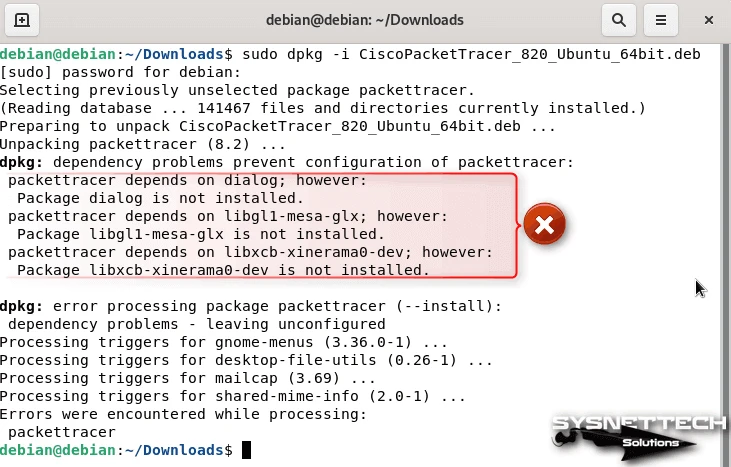
Some needed parts might be missing when you set it up. First, you must add these packages. Then, you can run Packet Tracer on your Debian computer just fine.
Step 5
First, we will add the needed packages for the Cisco simulator. To do it, use the order “sudo apt install -f” in the command box. Then, say yes to the new parts by pushing Y and Enter.
sudo apt install -f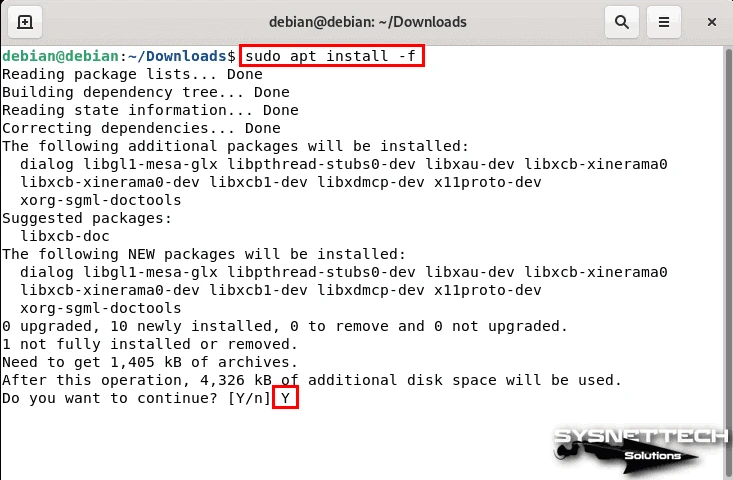
2. Run the Cisco Network Simulator
Step 1
What you have done now is prepare the additional packages for your system. Here, use the “packettracer” command to run the program.
packettracer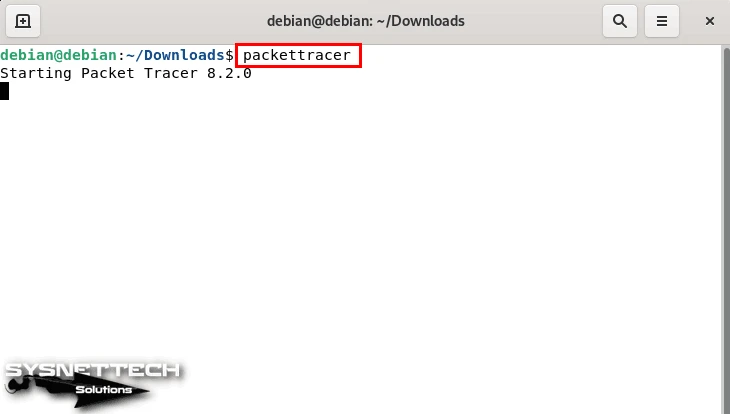
Step 2
You will see the group use parts each time you open the Cisco simulator tool. If you are okay with this part being on, click “Yes.”
This will turn on the group use part. It will let all people use it efficiently, so no one needs to set it up again every time.
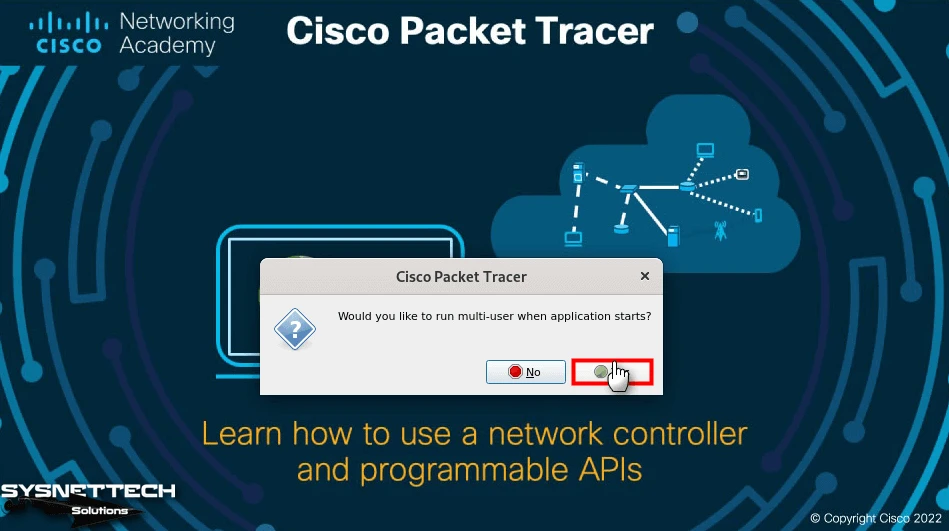
Step 3
When you start the Cisco networking software, you first see a sign-in page. Right after, pick the “Networking Academy” choice to begin. This will take you to the page where you type your login details.
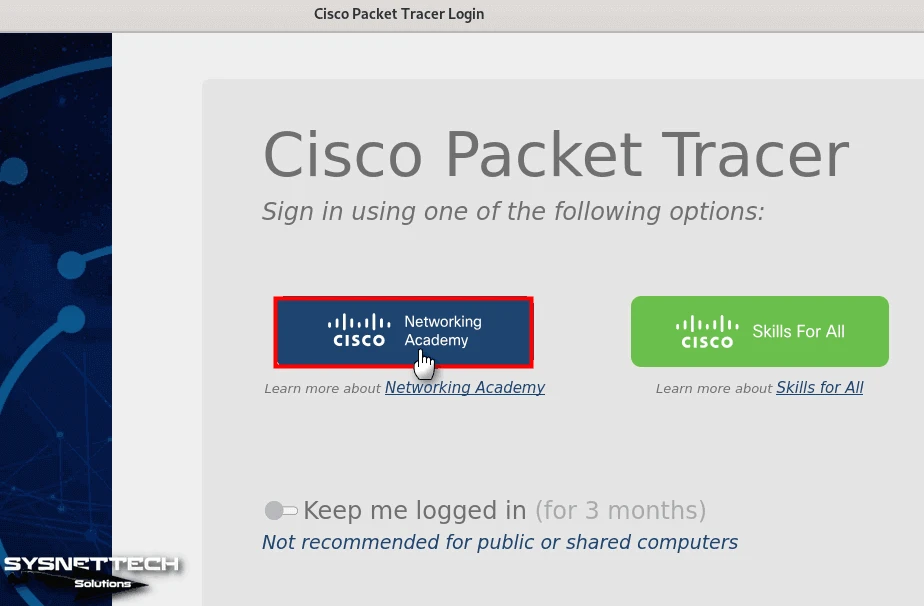
Step 4
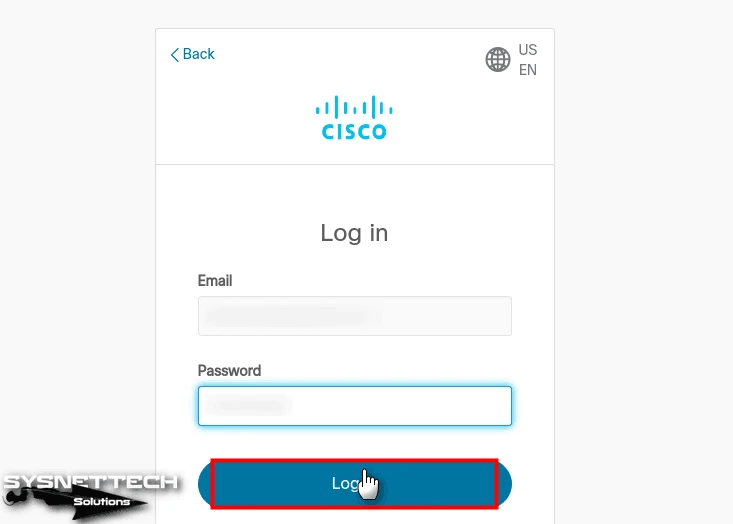
Type your Netacad account details in the right boxes. Now, click the “Log In” button to start the session. This will let you into the program’s main.
Step 5
Now that you have opened Packet Tracer on Debian 13, you can begin getting ready for your Cisco exams!
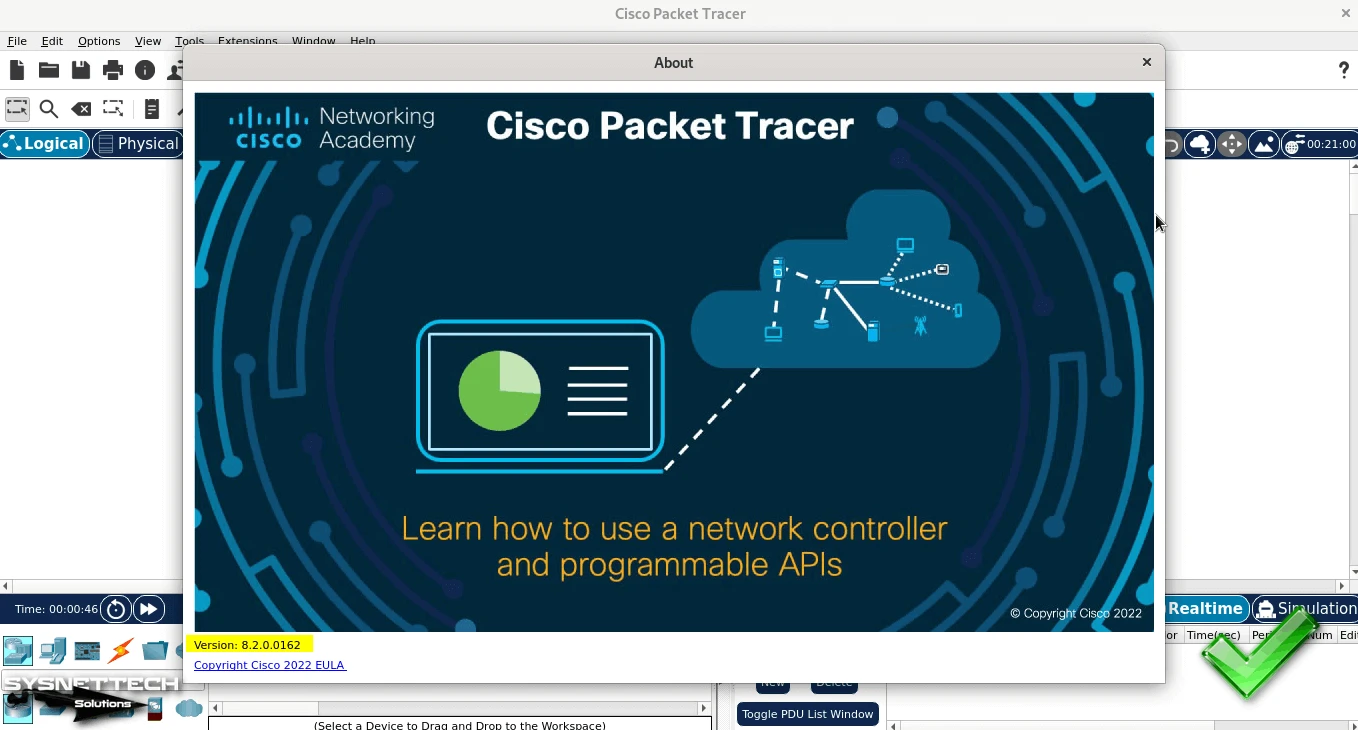
Next, go to the “Help” section at the top. Then, pick the “About” choice from the list that shows. This will let you quickly see what version of the tool you have.
How to Create a Cisco Topology on Debian
After you finish putting the Cisco simulation on your PC, you will sign in to the program. Now, you can begin getting ready for your network tests.
For example, I think you should take time to learn the screen layout first. Then, you can know how to set up devices by trying different tools.
I also recommend that you test the simulation modes. Also, try the fixing tools. Then, you can build topologies by making different network scenarios.
Another idea is to try protocols by using the Router and Switch tools. This will make your knowledge of these programs stronger and also help you get better at fixing issues.
Now we are ready, and the Cisco simulator tool is working well. Let’s make a sample topology!
1. Create a Logical Topology in Packet Tracer
Step 1
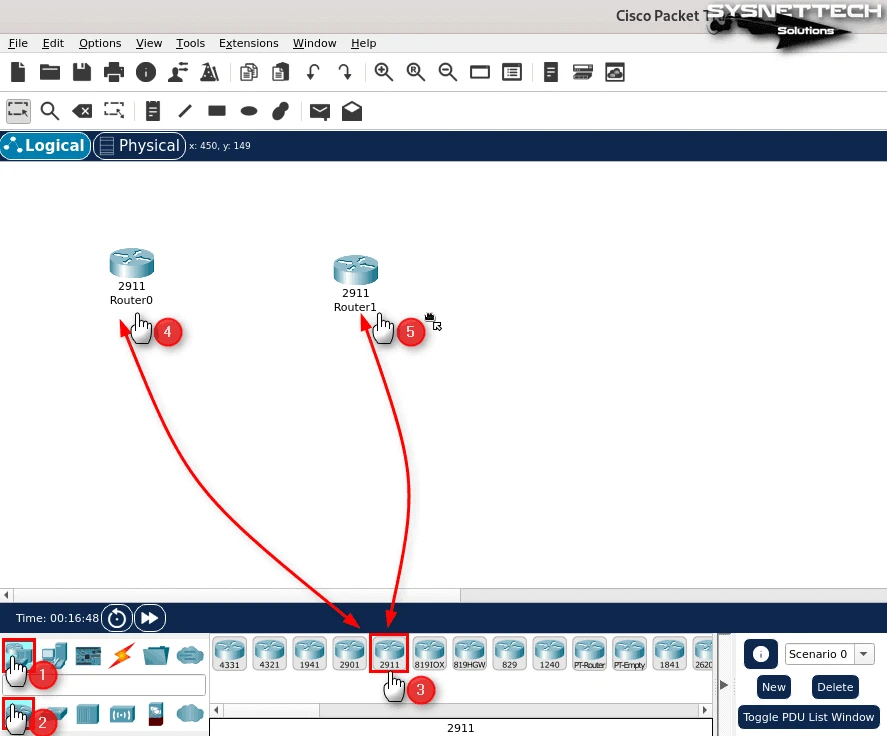
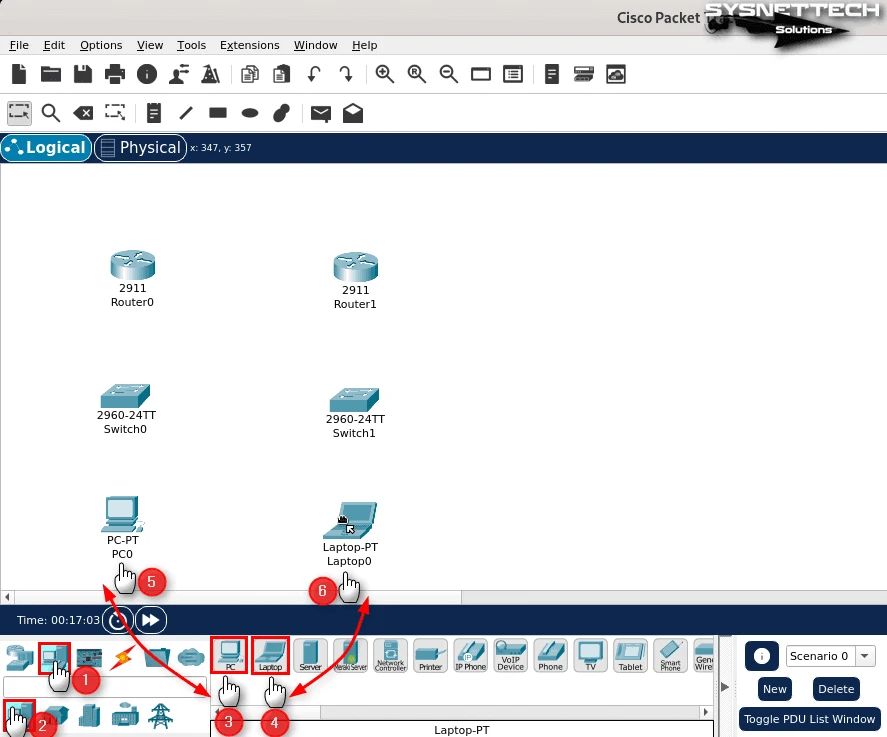
After you open PT, go to the Logical. There, pick the Router group from the Devices panel list on the left. Now, click and pull two 2911-type Routers into the work area.
Step 2
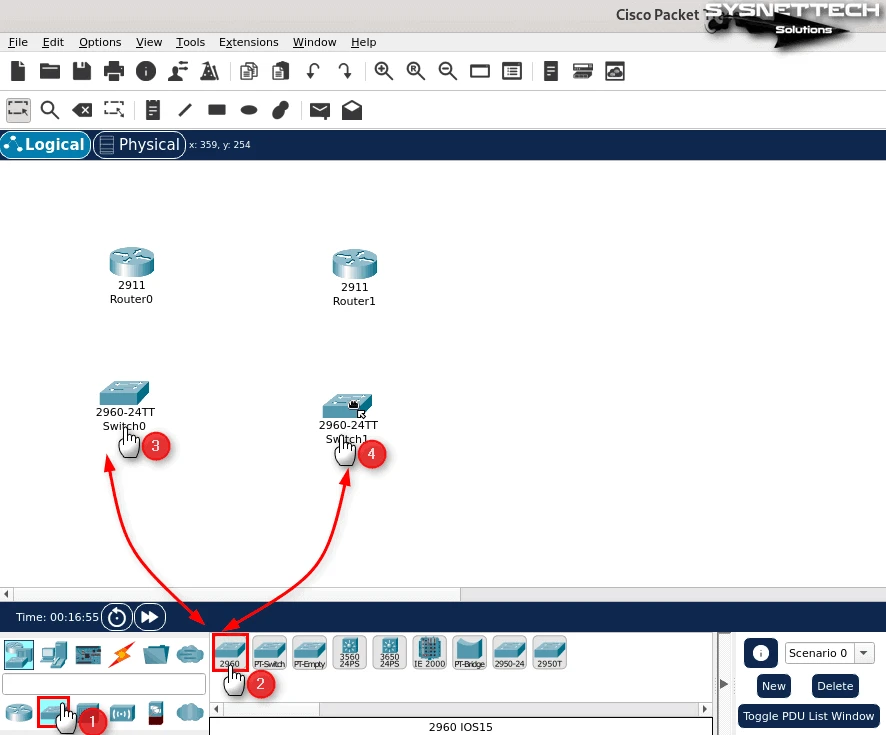
On the Tools list, first press the “Switch” picture. This will show many of the Switch types. Right after, pick the L2 2960 type and pull two tools into the work area.
Step 3
First, pick the “Computers” group from the tools list on the left. From here, pull one desk computer into the work area. Also, put a laptop from the same group.
2. Wire the Network Devices
Step 1
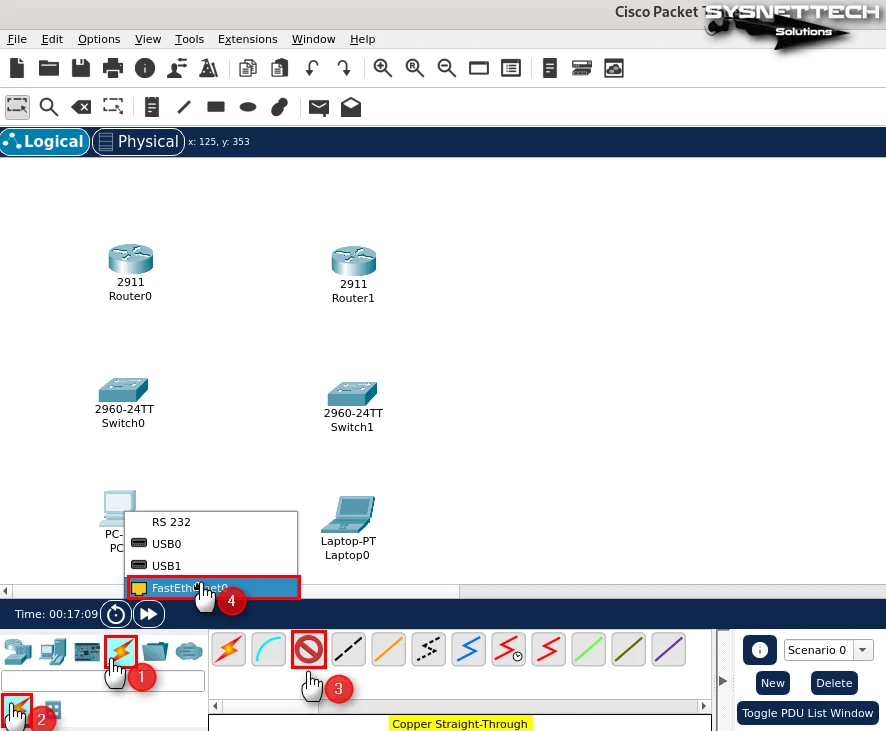
First, you have made your logical network layout. Now, under the Tools list, pick the “Wires > Copper Straight” wire kind. You can now start linking all tools one after another.
First, connect one end of the straight cable to the PC’s FastEthernet port. On the other hand, plug the other end of the cable into an empty FastEthernet port on the Switch.
Step 2
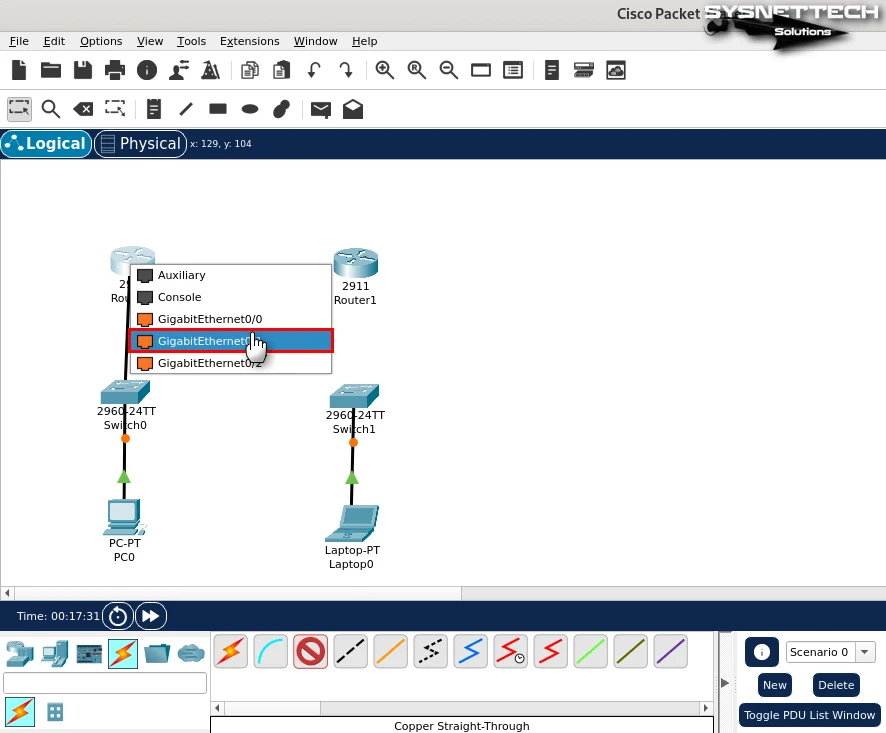
I say you should use Gigabit ports for very fast links on your network. So, plug one end of the cable into the GigabitEthernet port on the Switch. Connect the other end to the GigabitEthernet port on the Router.
This will give you a high-speed link following FastEthernet.
Step 3
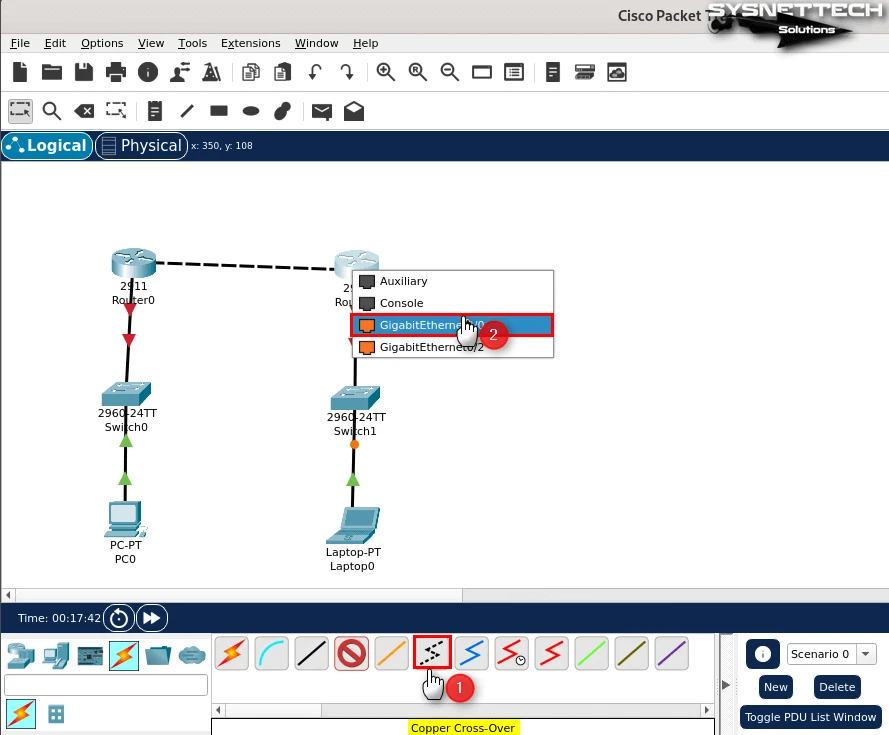
First, pick the “Copper Cross-Over” wire type from the cabling list. Then, put one end of the wire into the GigabitEthernet port on the Router.
Next, join the other end to the port on your other one. So, you will make a straight link between the devices.
3. Assign IP Addresses to PCs
Step 1
First, click on the PC in the workspace. Then, go to the “Desktop” tab in the window that opens. Next, pick the “IP Configuration” box.
From here, assign an IP address as shown in the image by selecting the “Static” IP option.
IPv4 Address: 192.168.1.10
Subnet Mask: 255.255.255.0
Default Gateway: 192.168.1.1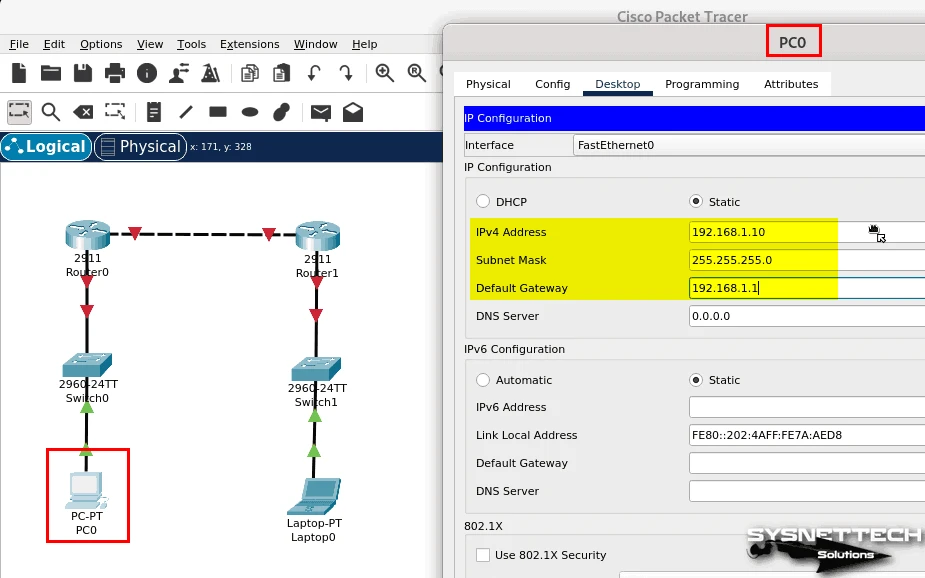
Step 2
First, click two times on the Laptop PC. As in the previous step, enter the static IP, subnet mask, and default gateway from the “Desktop” tab.
IPv4 Address: 192.168.3.10
Subnet Mask: 255.255.255.0
Default Gateway: 192.168.3.1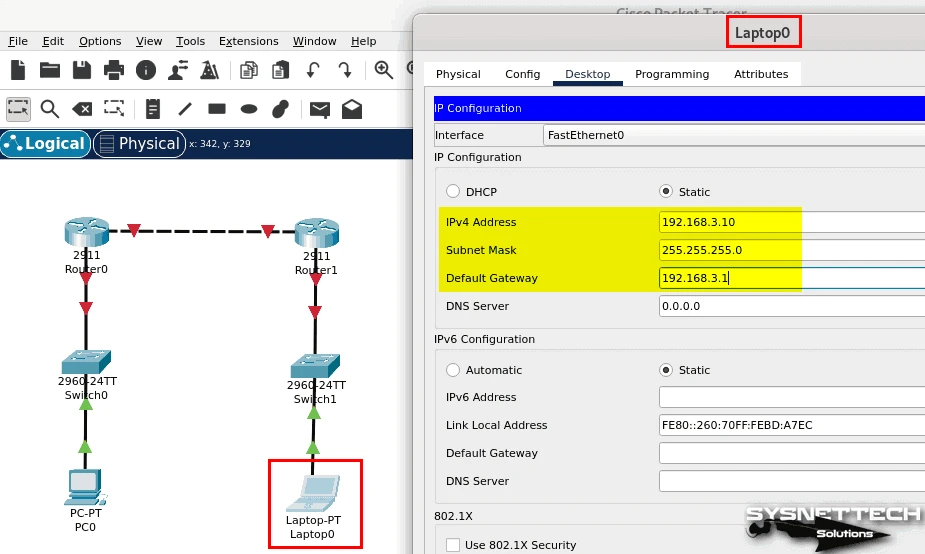
4. Assign IP Addresses to Cisco Routers
Step 1
To set up Router0, first open the CLI console. Start setting up the GigabitEthernet0/0. To do it, type the “configure terminal” command. Then type “interface GigabitEthernet0/0.”
To put in an IP, use the “ip address [IP] [Net Mask]” command. Also, type “no shutdown” to start the port. Do the same steps for the Gigabit port 0/1.
Router> en
Router# conf t
Router(config)# interface gigabitethernet 0/1
Router(config-if)# ip address 192.168.1.1 255.255.255.0
Router(config-if)# no shutdown
Router(config-if)# exit
Router(config)# interface gigabitethernet 0/0
Router(config-if)# ip address 192.168.2.1 255.255.255.0
Router(config-if)# no shutdown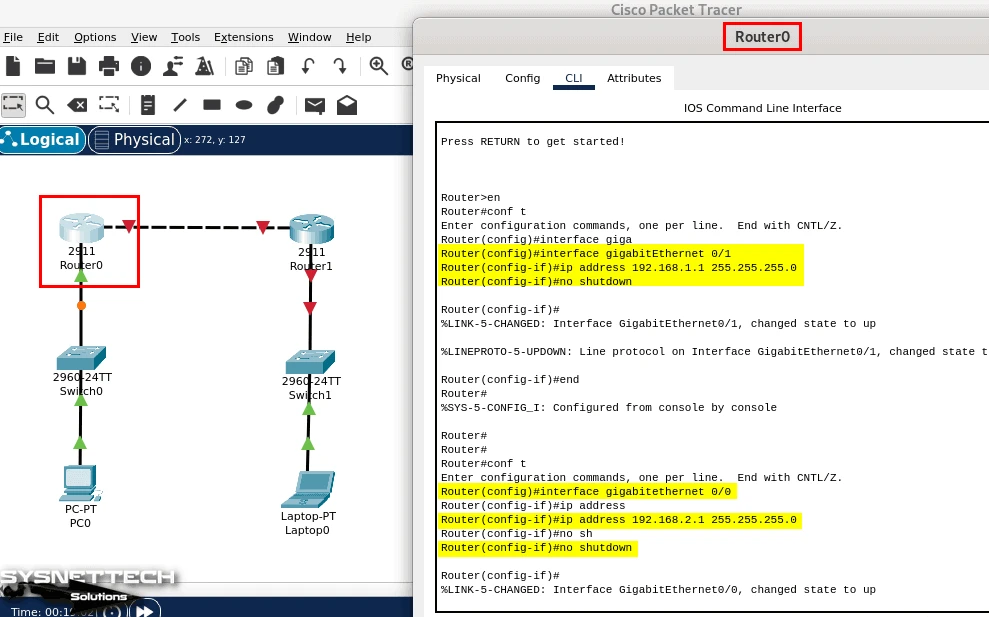
Step 2
Now, open the CLI screen on Router1. Like before, set up the working GigabitEthernet ports.
Router> en
Router# conf t
Router(config)# interface gigabitethernet 0/1
Router(config-if)# ip address 192.168.3.1 255.255.255.0
Router(config-if)# no shutdown
Router(config-if)# exit
Router(config)# interface gigabitethernet 0/0
Router(config-if)# ip address 192.168.2.2 255.255.255.0
Router(config-if)# no shutdown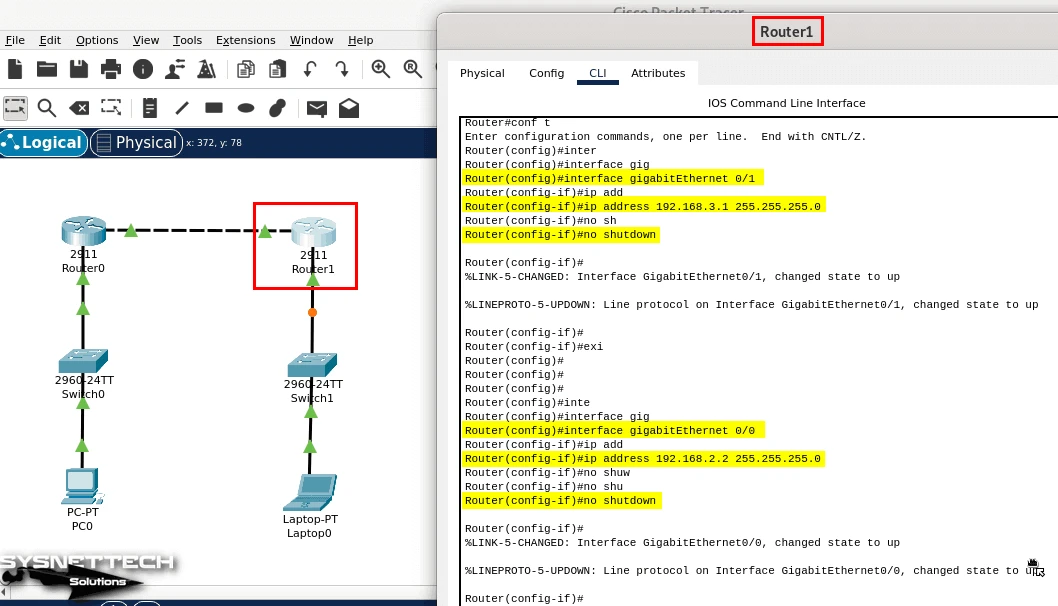
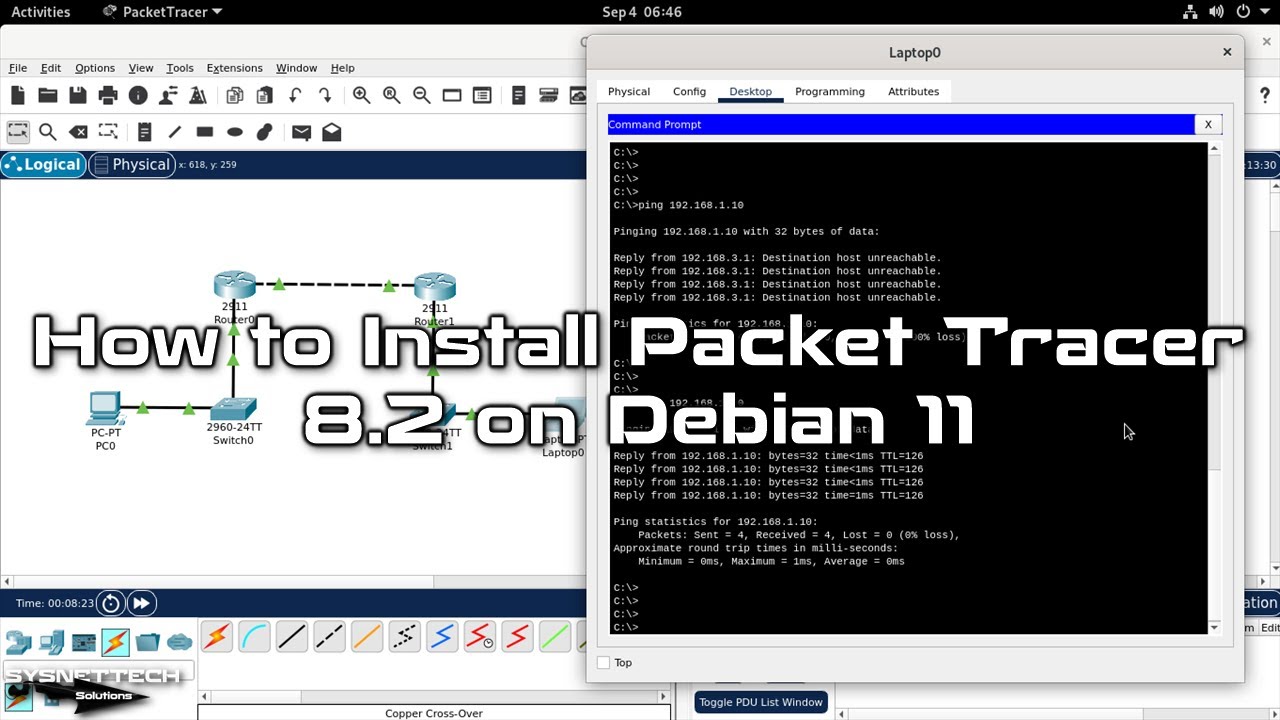
5. Perform a Ping Test Between Two Networks
Step 1
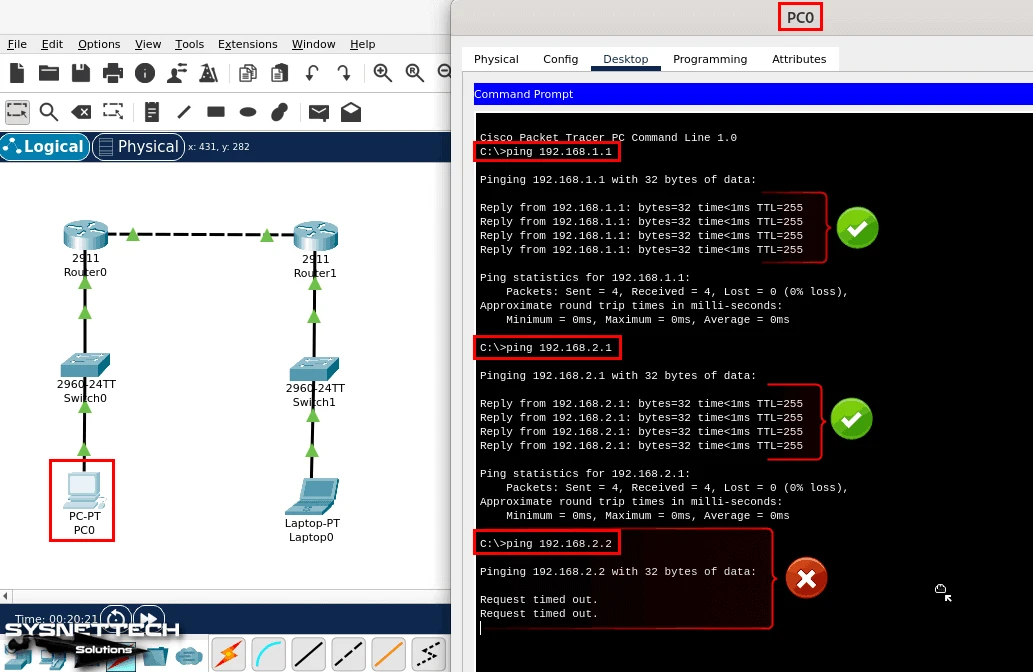
First, ping the default gateway from PC0. Next, test Router0’s Gig0/0 interface. Ultimately, you will see that the link is working well.
But if you ping Router1’s Gig0/0 port, the test will not work. This is because there is no routing protocol between the routers right now.
Step 2
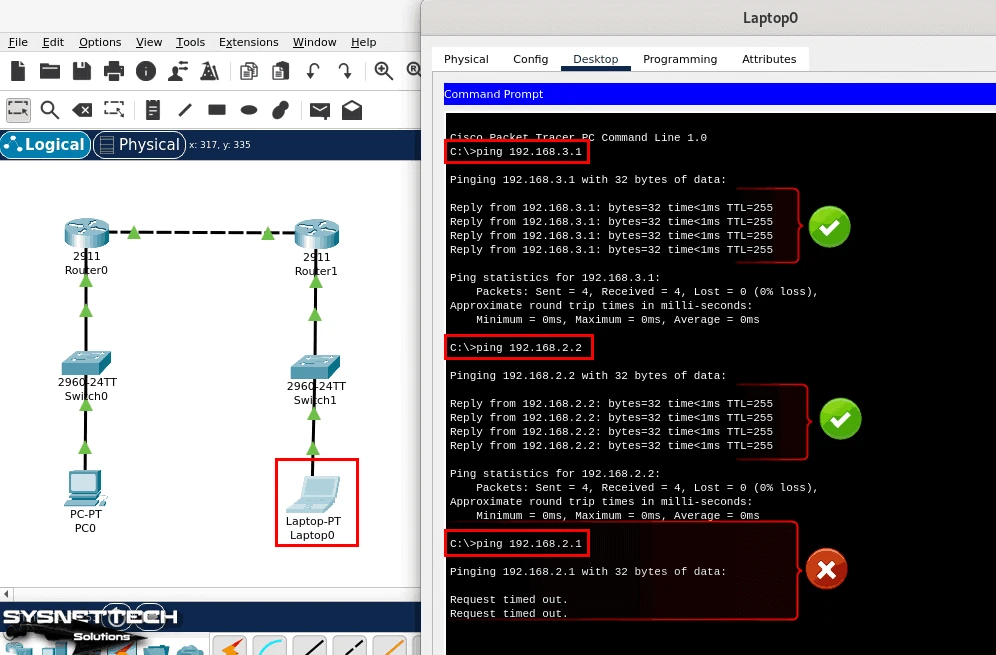
Similarly, try pinging the 192.168.1.0/24 network from Laptop0. That is, you will also fail so that you won’t get any results.
6. Enable Routing Protocol on Routers
Step 1
You should pick a routing protocol based on the sample network topology. For example, you can use EIGRP, IGRP, RIPv1/v2, or OSPF.
Let’s configure OSPF for this topology. First, execute the following commands in sequence at the CLI command prompt on Router0:
Router>en
Router# conf t
Router(config)# router ospf 1
Router(config-router)# network 192.168.1.0 0.0.0.255 area 0
Router(config-router)# network 192.168.2.0 0.0.0.255 area 0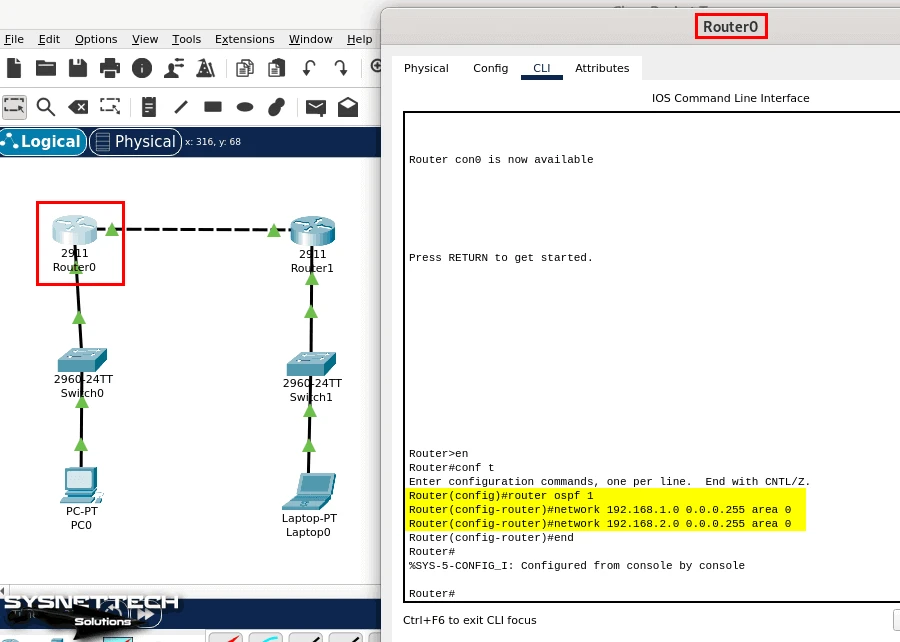
Step 2
Now, you must also enable OSPF on Router1. Therefore, log in to your device’s CLI and run the relevant commands via the CLI.
Router>en
Router# conf t
Router(config)# router ospf 1
Router(config-router)# network 192.168.3.0 0.0.0.255 area 0
Router(config-router)# network 192.168.2.0 0.0.0.255 area 0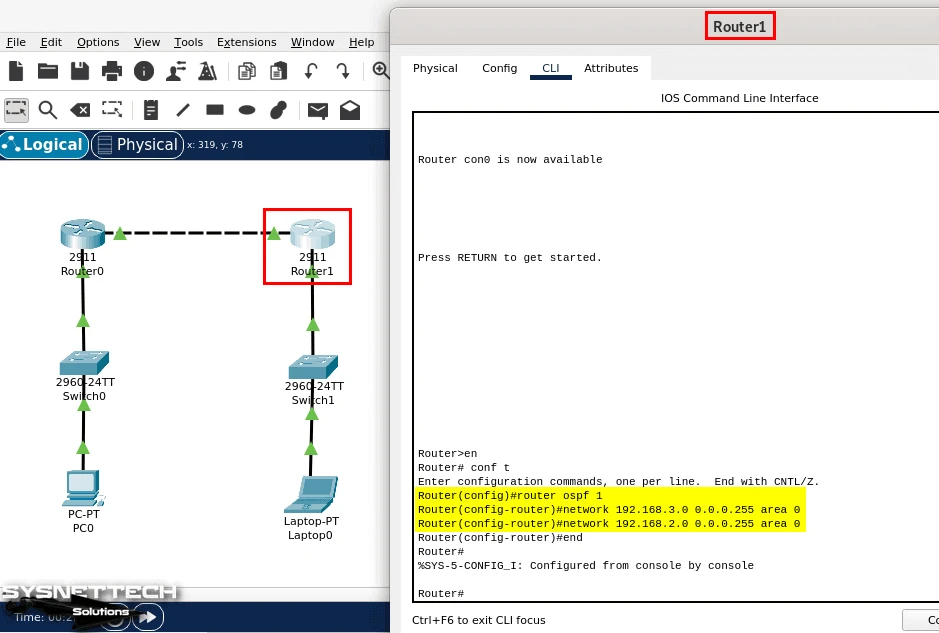
Step 3
After configuring OSPF on Packet Tracer, check the link. First, ping the laptop from the PC to see if the network traffic is working correctly.
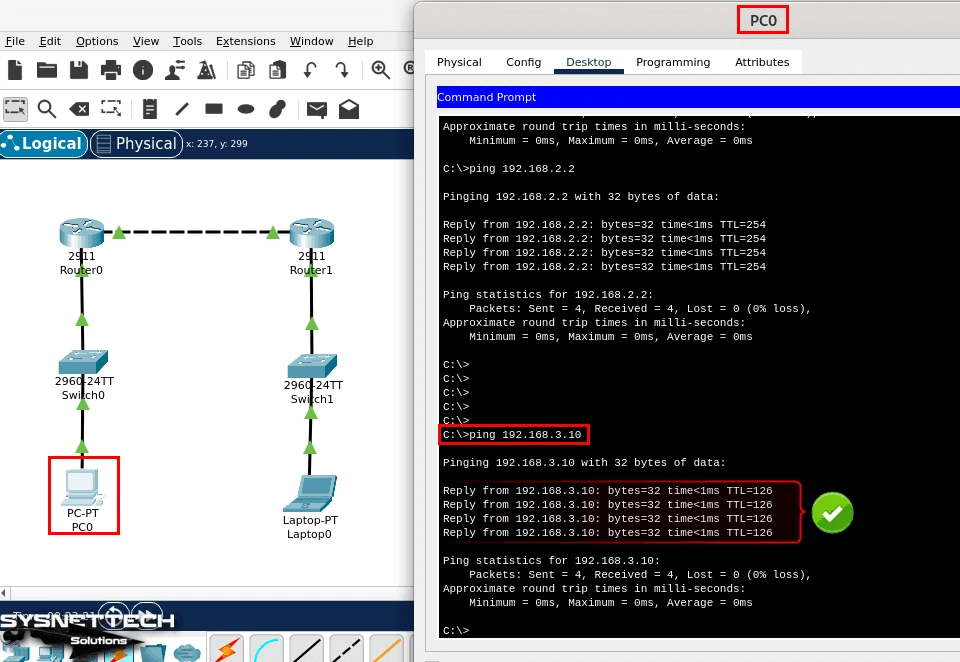
Step 4
After the last step, send a ping from the laptop to the PC. So, you will see that the network talk is working as it should.
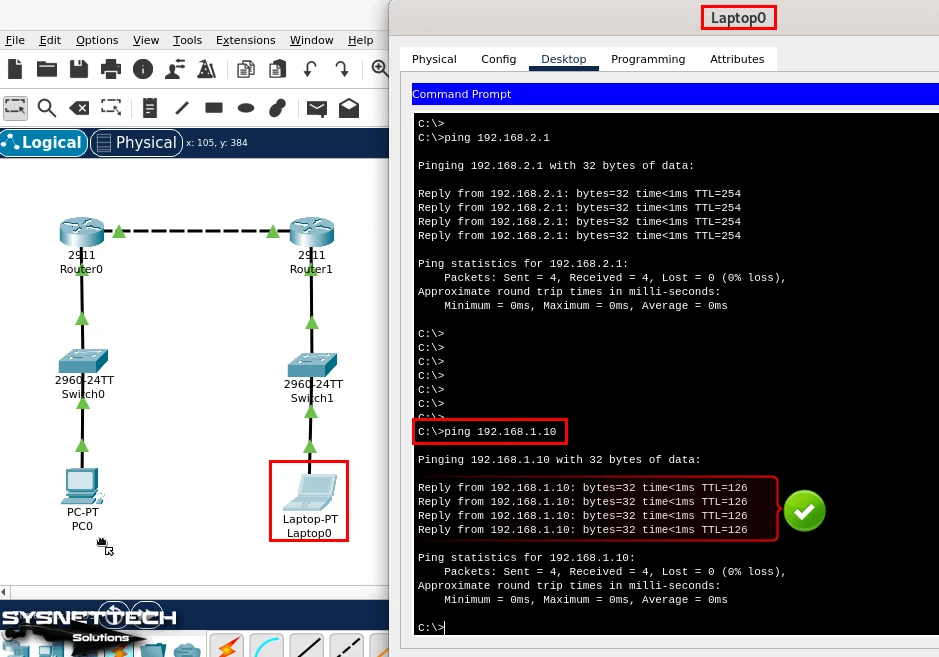
How to Uninstall Packet Tracer from Debian
You may want to uninstall Packet Tracer from your Debian OS. You may have different reasons for doing so. For example, you may be planning to switch to a more advanced network simulator.
However, do not miss a key step before you remove the program. Make sure to save all your project files. Then, you can take the Cisco software off your PC just fine.
Steps:
Step 1
First, open the command box on your Debian system. Then, you must run a special order to take off the Cisco simulator.
Type “sudo apt remove packettracer” into the command line. Then, press “Y” and Enter to say yes to the job.
sudo apt remove packettracer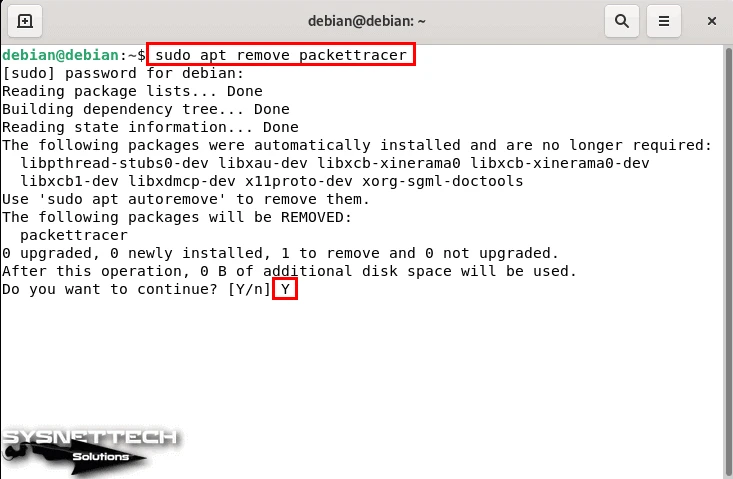
Step 2
As a first step, you should run an order to clear out unused packages. Type “sudo apt autoclean && sudo apt autoremove” into the command screen. Last, say yes to the job to erase unused files from your Debian.
sudo apt autoclean && sudo apt autoremove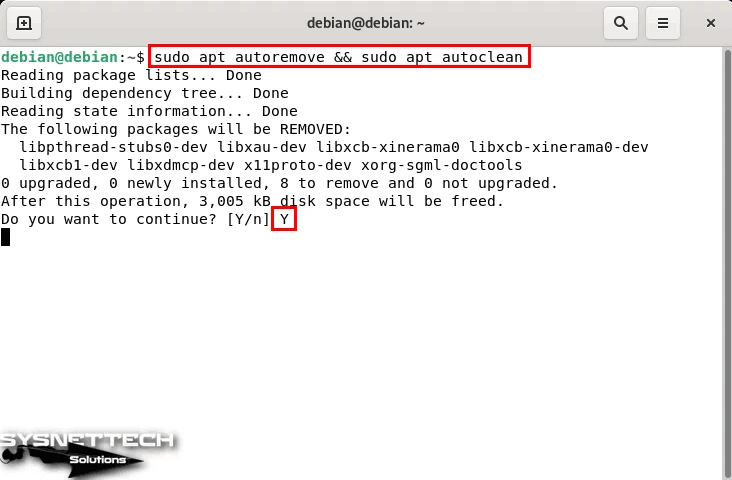
Cisco Network Simulator YouTube Training Video
In this video, I showed how to run the Cisco network tool on your Debian PC. Also, you will see how to use the interface and try its many features. This will help you get better at networking by watching.
In short, getting ready for Cisco tests will be simpler. So, please remember to follow our channel for more news about network tools!
Installing Older Versions of Cisco Software
Packet Tracer 7.2.2 Installation
- First, open the command box and then change the rights so the file can run. To do this, use the order “chmod +x PacketTracer-7.2.2-ubuntu-setup.run.”
chmod +x PacketTracer-7.2.2-ubuntu-setup.run
- Next, type the order needed to begin the setup. Type “./PacketTracer-7.2.2-ubuntu-setup.run” into the command area. Then, follow the steps given by the setup helper.
./PacketTracer-7.2.2-ubuntu-setup.run
- Cisco used .tar.gz files in old copies of PT. But it has now made the setup easier for Linux users. So, it gives out .run files with a GUI setup screen in new copies. Now, just press the “Next” button to keep going.
- You can use the standard path /opt/pt in the Setup Place box. So, keep going without changing anything.
- At this step, you must accept the license agreement. Check the “I accept the license” box and continue.
- You have reached the final step. On the Ready to Install screen, press the Install button. This will start the installation of the Cisco network software.
- Type your password to prove who you are. Right after, press the OK button to finish the job.
- Wait while the Cisco simulator software is installed. Click Finish when the wizard reports that the installation is complete.
Fixing the Libpng12-0 Error for PT 7.2.2
- When putting tools on Linux, extra parts are sometimes needed. For example, you might not be able to use Packet Tracer. If you see a libpng problem, you must fix it. First, get the libpng12-0 part, and then add it. So, you will carefully fix the problem step by step.
wget https://ftp.us.debian.org/debian/pool/main/libp/libpng/libpng12-0_1.2.50-2+deb8u3_amd64.deb
- Put in the libpng package by typing this command in the terminal.
dpkg -i libpng12-0_1.2.50-2+deb8u3_amd64.deb
- If you see a multiarch problem, you must also add this package. You can put the needed part on your Debian computer by using this order.
sudo apt-get install multiarch-support
- After putting in the multiarch package, try adding libpng again. But you might see the same problem. Then, you must move the “libpng12.so.0” file. Place a copy in the /opt/pt/bin/ folder.
(Reading database ... 157517 files and directories currently installed.) Preparing to unpack libpng12-0_1.2.50-2+deb8u3_amd64.deb ... Unpacking libpng12-0:amd64 (1.2.50-2+deb8u3) ... dpkg: error processing archive libpng12-0_1.2.50-2+deb8u3_amd64.deb (--install): unable to install new version of '/usr/lib/x86_64-linux-gnu/libpng12.so.0': No such file or directory Errors were encountered while processing: libpng12-0_1.2.50-2+deb8u3_amd64.deb
- First, you need to extract the .deb package into a folder. Here, you should find the libpng12.so.0 file. Next, copy this file to the /opt/pt/bin/ folder. You can use PT just fine by typing these commands.
mkdir cpt; dpkg -x libpng12-0_1.2.50-2+deb8u3_amd64.deb ./cptcp ./cpt/lib/x86_64-linux-gnu/libpng12.so.0 /opt/pt/bin/packettracer
- If PT does not begin, you might see a problem. Then, a part is often not there. For example, you might need to add the libqt5webkit5 part. To do this, open the command box and type the order below.
Starting Packet Tracer 7.2.2 /usr/local/bin/packettracer: line 8: 2219 Aborted ./PacketTracer7 "$@" > /dev/null 2>&1sudo apt-get install libqt5webkit5
- After adding the Libqt5webkit5 package, you can start the tool. Type “packettracer” into the command box to see the Cisco program open.
- Type your account details in the Cisco sign-in box. Then, press the “User Login” button. Or, if you want to go on as a visitor, you can pick “Guest Login.”
- Look at Packet Tracer to see if the setup worked. For the version number, click About in the Help list.
Creating a Desktop Shortcut
Making shortcuts in Windows is very simple. But this job is not the same on Linux computers. For example, making a desktop link in Debian or Ubuntu might look hard.
To create a desktop shortcut in Debian, you need a .desktop file. That is, you need to edit the “programname.desktop” file. For this task, you can use a text editor, for example, gedit.
Let’s make a desktop link for the Cisco network design tool in Debian with the order below.
cp /opt/pt/bin/Cisco-PacketTracer.desktop /home/user/Desktop/chmod +x Cisco-PacketTracer.desktop
Making a Start Menu Shortcut
Shortcuts for some programs installed on Linux platforms are not automatically added to the start menu. Therefore, you can create a new desktop shortcut and add it to the Start Menu.
To create a start menu shortcut for PT, you need to run the following command.
cp Cisco-PacketTracer.desktop /usr/share/applications
Packet Tracer 7.2 Installation
- Open the command box and use the correct order to change the sources.list file. Now, use the order “sudo nano /etc/apt/sources.list.” Put the needed web addresses in the source list, save it by pressing CTRL+X, type yes by Y, and push Enter.
deb https://ftp.us.debian.org/debian jessie maindeb https://ftp.us.debian.org/debian stretch maindeb https://deb.debian.org/debian unstable main
- After editing the Sources.list file, proceed to the next step. Enter the command “sudo apt-get update” so that the package manager can retrieve the latest data.
sudo apt-get update
- First, make a new directory with the mkdir command. Move the PacketTracer72.tar.gz file to this folder. Finally, extract the file inside the end folder.
mkdir CPT72tar -xvzf Packet\ Tracer\ 7.2.1\ for\ Linux\ 64\ bit.tar.gz -C CPT72/
- Enter the CPT72 folder, then run the ./install command to start the installation.
./install
- Right after the download is OK, try the “packettracer” order in the console. If the tool does not start, try another way. First, go to the folder using the “cd /opt/pt/bin/” order. Here, use the “./PacketTracer7” order.
cd /opt/pt/bin/./PacketTracer7
- To fix this error, you must first install the libpng package. Therefore, run the command “sudo apt-get install libpng12-0.”
sudo apt-get install libpng12-0
- If you try to open the tool again and see the error “/libcrypto.so.1.0.0: no version information available (required by ./PacketTracer7)”, you must add it. To fix this, use the order “sudo apt-get install libssl1.0.0” and you will solve the issue.
sudo apt-get install libssl1.0.0
- Now, you need to copy the libcrypto file. To do this, run the command “cp -i /usr/lib/x86_64-linux-gnu/libcrypto.so.1.0.0 /opt/pt/bin/”. The system will then ask for confirmation. Press Enter after confirming with “Y” to overwrite the file.
cp -i /usr/lib/x86_64-linux-gnu/libcrypto.so.1.0.0 /opt/pt/bin/cp: overwrite '/opt/pt/bin/libcrypto.so.1.0.0'? Y
- Finally, you must add the needed dependencies. To do this, run the command “sudo apt-get install libqt5webkit5”. This step will ensure that Packet Tracer 7.2.1 runs smoothly.
sudo apt-get install libqt5webkit5
- You can now start the Packet Tracer tool with no problems!
Packet Tracer 7.1 Installation
If you try to put on the old copy, PT 7.1, you might see a problem. You will see the libQt5WebKitWidgets.so.5 error. But, to fix this, I say you should add these needed parts one by one.
apt-get install qtmultimedia5-devapt-get install libqt5webkit5-dbgapt-get install libqt5script5apt-get install libqt5scripttools5
Finally, the libpng package you got with wget might not work. Then, there is another way to fix it. Get the right part from the link I gave and put it on by hand.
Installing Old Versions – Video
| Debian / PT Version | YouTube Video | Slide |
|---|---|---|
| 9/7.1.1 | Watch | – |
| 9/7.2.1 | Watch | View |
| 10 / 7.2.2 | Watch | View |
| 11 / 8.1.1 | Watch | View |
| 11/8.2.0 (NEW) | Watch | – |
Frequently Asked Questions (FAQ) About Debian & Packet Tracer
- What are the system requirements for Packet Tracer?
- After getting PT, how do I install it?
- What should I do if Packet Tracer does not start or crashes?
Conclusion
In short, Cisco Packet Tracer 9.0 is a valuable tool for network workers. It is also helpful for students getting ready for Cisco Routing and Switching tests.
By following the steps I created, you can install the software on Debian 13 Trixie. This lets you start making a flexible and realistic virtual network.
This strong simulation tool helps you learn basic networking ideas. Also, it builds your fundamental skills by giving hands-on practice.
Whether you make a simple network or try advanced features, PT makes learning simple. It also raises your confidence by improving your networking skills. Plus, its easy design gives you a hands-on learning space.
Now that you know how to install Packet Tracer on Debian, you can start learning Cisco skills. Also, this step helps your networking career and gives you new chances.
For people who want to install Cisco Packet Tracer on Ubuntu, the steps are very close to Debian 13 Trixie. But make sure to see our guide to learn the Ubuntu installation details. In short, our complete guide shows you the installation and helps you gain experience.

2 People Shared Their Experience
Thank you very much.
And fuck you packettracer, GNS3 is much better than packet fucking tracer do no load
Hi, thanks for this tutorial. Could you do a tutorial on how to install both packettracer 7.3 and gns3 on Debian 10 stable?