

VMware Unlocker is a patch tool. You create macOS virtual machines on VMware Workstation and vSphere ESXi. This tool unlocks Apple guest OS support that VMware disables by default. This removes the macOS lock at the hypervisor layer. As a result, you can run macOS alongside your current Windows or Linux VMs.
Here is the odd part: it is 2026, and we still talk about this tool. The team has also marked the project as complete. You may therefore have many questions. If you wonder whether it still works or was dropped long ago, you are not alone.
We will cover release 4.2.8 details from DrDonk’s official repository. We will also discuss the OC4VM option. In addition, you will see Windows, Linux, and ESXi setup steps. I outline key points from error fixes to legal risks. First, you should know this: the tool is not a magic wand. If you know its limits, it will not disappoint you.
In the past, we performed this task with handmade binary patches. Now we do it with one click. However, VMware moved macOS support to the deprecated level. That changed the situation. You must know the key details when you use this tool in 2026. ESXi is where things become more complex.
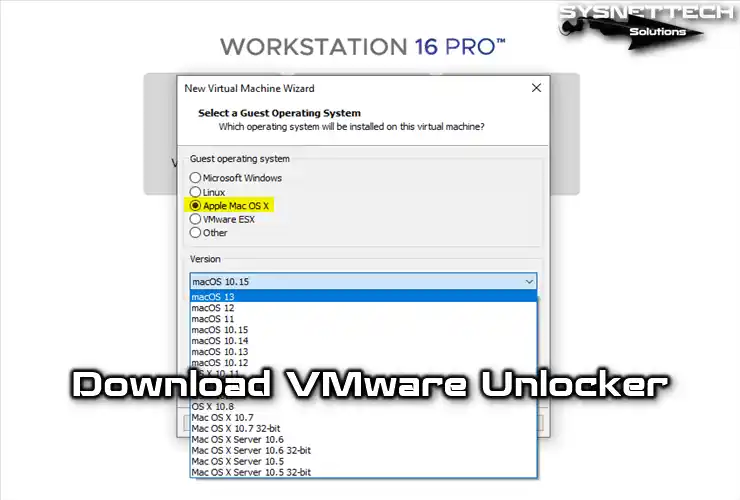
Using VMware Unlocker to Run macOS
You create virtual machines with VMware or Oracle VM VirtualBox. This lets you install Apple operating systems on your physical computer. You can also use these virtual systems without trouble. As a result, you can try different operating systems on one computer.
VMware Workstation offers advanced virtualization. First, you can run more than one virtual operating system with this software. But suppose you built a virtual machine with Workstation 14, 15, 16, or 17. In that case, you usually do not see the macOS option because these tools do not offer Mac OS X support by default. Still, you can run an Apple virtual machine through special tricks.
For example, you want to run macOS on VMware Workstation Pro or Player. At this point, you first need a patch tool. This tool is known as VMware Unlocker. With it, you install an Apple OS in your virtual machine. In short, you can run macOS alongside your current Windows or Linux VMs.
You do not use this app only for VMware Workstation & Player. You also use it with ESXi and vSphere. However, VMware fully ended official support in ESXi 8.0 and later. Things are therefore more complex for ESXi users. Still, you can find a workaround with community scripts.
What Does VMware Unlocker Patch at a Technical Level?
To understand what this tool does, you must look at two core parts. The first part is the vmware-vmx file. This file controls the boot process of the virtual machine. The patch flips flags that allow the macOS kernel (xnu kernel) to boot.
The second part is the vmwarebase.dll file or its Linux counterpart libvmwarebase.so. This file checks the guest OS list when you create a new virtual machine. Plus, the patch adds the Apple macOS option to this list.
The tool also edits the virtual SMC chip emulation. The SMC chip on real Mac hardware checks the macOS hardware ID. Without that emulation, macOS setup will not proceed. In addition, board-id spoofing and the AppleSMBIOS patch take effect. The tool performs all these steps through binary patching.
What macOS Unlocker CANNOT Do: Clear Limits
Knowing the limits of this tool is essential so that you are not disappointed. The official documentation lists what it cannot do. Here is that list:
- It cannot add AMD CPU support: AMD needs extra kernel patches. Unlocker alone will not run macOS on AMD Ryzen.
- It cannot add support for new macOS releases: macOS 27 Golden Gate dropped Intel support. The Intel virtual macOS chain has therefore ended.
- It cannot offer paravirtual Apple GPU support: 3D acceleration and Metal performance remain limited. You are limited to the VMware SVGA driver.
- It cannot give official support on ESXi 8 and later: VMware fully ended macOS support with ESXi 8.0. Unlocker only offers a community fix here.
- It does not run on Apple Silicon (ARM): The patch is for x86 only. M1/M2/M3 Macs need a different approach.
Did DrDonk Finish the Project or Drop It? Official Statement
The official source gives a clear answer to this question. DrDonk’s GitHub README file states that the Unlocker project is now complete. However, that does not mean it was abandoned. On the contrary, it shows that the project reached its goal.
According to the official statement, three key points stand out. First, the tool still works fully. It also supports the latest VMware 26H1 release.
Second, VMware moved macOS support to the deprecated level, so we do not expect code changes. Third, macOS 27 Golden Gate dropped Intel support; we have therefore reached the end for future macOS releases.
In short, the team did not abandon the project but froze it. The community still provides support. The tool will keep working for the foreseeable future. You can use it with confidence. However, do not expect new features.
Must-Have System Needs for macOS Unlocker
VMware Workstation and Player lock the macOS installation option by default. VMware Unlocker addresses this limitation. It adds macOS support, so you can build a reliable Apple virtual machine.
I advise you to check the system requirements before you start. This check is essential for a smooth experience. It helps you prevent likely issues quickly and avoid wasted time.
System Needs
The table below summarizes the components you need for macOS Unlocker. It also lists the features you need for a fast macOS virtual machine.
| Need Type | Exact Needs and Details |
|---|---|
| ✅ VMware Product | VMware Workstation Pro/Player (11–17 and 25H2/26H1 builds) or VMware Fusion (for macOS hosts). |
| ✅ Host OS | A clean Windows 10 or 11 install (64 bit). Linux distros also work. |
| 🖥️ CPU | Intel or AMD 64 bit chip. Turn on Intel VT-x or AMD-V in BIOS/UEFI. |
| 💾 RAM | 8 GB RAM at the least. Give the macOS VM enough memory so the host PC runs well. So I advise 16 GB or more. |
| 💿 Storage | At least 50–60 GB of free disk space. macOS and apps take up a lot of room. For that reason, I strongly advise an SSD or NVMe disk. |
| 🔐 Rights | You will not hit issues with admin rights. For ESXi, you must use root access and SSH. |
Key Note for AMD CPU Users
macOS is for the Intel architecture. You must therefore take extra steps on an AMD CPU. In short, Unlocker is often not enough. First, edit the .vmx file of your VM. Then add CPUID lines to mimic an Intel CPU.
If you have an AMD CPU, add special code to the .vmx file, as follows:
- On AMD systems, add these lines to your VM’s .vmx file:
cpuid.0.eax = "0000:0000:0000:0000:0000:0000:0000:1011"
cpuid.0.ebx = "0111:0101:0110:1110:0110:0101:0100:0111"
cpuid.0.ecx = "0110:1100:0110:0101:0111:0100:0110:1110"
cpuid.0.edx = "0100:1001:0110:0101:0110:1110:0110:1001"- You may also need these extended CPUID masks:
cpuid.1.eax = "0000:0000:0000:0001:0000:0110:0111:0001"
cpuid.1.ebx = "0000:0010:0000:0001:0000:1000:0000:0000"
cpuid.1.ecx = "0000:0000:0000:0000:0000:0000:0000:0001"
cpuid.1.edx = "0000:0111:1000:1011:1010:1011:1111:1011"- Some users report success with this simple approach:
cpuid.1.edx = "0000:0010:0000:1000:0000:1000:0000:0000"
cpuid.1.ecx = "0000:0000:0000:0000:0000:0000:0000:0000"Download VMware Unlocker 4.2.8: Release Choice and Safety Check
As of 2026, the newest release is 4.2.8. This build was released on May 14, 2026. Unlike prior builds, it fixes the registry change in 25H2 and later. If you run Windows 11 25H2, you should use this build.
Use the official GitHub Releases page for the download. Files obtained from third-party sites carry risk. Trust only DrDonk’s official repository. On the page, you will find the unlocker428.zip and unlocker428.tar.gz files. Choose the ZIP file for Windows and the tar.gz file for Linux.
What’s New in VMware Unlocker 4.2.8: The 25H2+ Registry Fix
The only new item in build 4.2.8 is support for the Windows 11 25H2 and later registry change. Microsoft moved the path of some registry keys with the 25H2 update. Old Unlocker builds could not read this path, so the patch failed.
With this fix, you can run without trouble on new Windows builds such as 25H2 and 26H1. If you run an older Windows build, 4.2.7 also works. Still, I advise you to choose the newest build because the registry fix does not break backward compatibility.
4.2.7 VMware Tools Safety Update: VMSA-2023-0024 and the CVE Link
Build 4.2.7 was released on November 1, 2023. The build included an important security update. VMware disclosed a VMware Tools flaw through the VMSA-2023-0024 advisory. This flaw was recorded as CVE-2023-34059. The bug led to file descriptor drain in the vmware-user-suid-wrapper component.
DrDonk updated the VMware Tools ISO files in 4.2.7 to close this flaw. If you use old VMware Tools in the macOS guest, this flaw affects you too. You must therefore use 4.2.7 or a higher build. You can also obtain VMware Tools from the official VMware site. However, the updated ISO in the Unlocker pack makes setup easy.
Keeping the VMware Tools pack updated matters for security. Old ISO files remain vulnerable to the CVE-2023-34059 flaw. To be clear, an updated build does not solve the issue on its own. We created a separate guide for installing VMware Tools on a macOS VM. If you follow the setup order, you will not encounter issues.
Keep in mind that this flaw affected not only macOS guests but also Windows and Linux guests. The update was therefore essential for all platforms. If you run 4.2.8, this security fix is included in the pack.
The flaw also affects all guests, not just macOS. Windows and Linux VMs also need updated Tools. The VMware Tools download page therefore provides the updated pack for each platform.
Download from GitHub Releases and SHA256 Checksum Check
For a safe setup, download from the source code repository or the official release. Here is the step-by-step process:
- Go to the official page: Open https://github.com/DrDonk/unlocker/releases. Find the latest build, 4.2.8.
- Choose the right file: Download unlocker428.zip for Windows and unlocker428.tar.gz for Linux.
- Obtain the SHA256 checksum: Copy the SHA256 value on the release page. This value proves file integrity.
- Compute the checksum: On Windows, run
Get-FileHash .\unlocker428.zip -Algorithm SHA256. On Linux, usesha256sum unlocker428.tar.gz. - Compare: Your computed value must match the value on GitHub. If it differs, delete the file and download it again.
- Unpack the archive: Use 7-Zip on Windows. On Linux, run
tar xzvf unlocker428.tar.gz.
All VMware Unlocker Builds: Download Guide from 4.2.8 to 2.1.1
Most users download only the newest build. However, in some cases, you need an old build—for example, if you run an old VMware Workstation or encounter a compatibility issue on a new build. In this section, I list all builds for Workstation/Player and ESXi so that you can choose the build that best fits your needs.
Unlocker Builds for Workstation and Player (4.x and 3.x)
In this section, I list all Unlocker builds for Workstation and Player in two tables. The first table covers the current 4.x line, and the second covers the old 3.x and 2.x line. You can therefore find the build you need much faster.
4.x Builds (Current Line)
The 4.x line is the modern Unlocker family that DrDonk wrote in Go. These builds were made for Workstation 16 and later and Player 16 and later. In addition, from 4.2.7 onward, the VMware Tools security update is included in the pack.
| Build | Release Date | Target VMware Build | Top Feature | Download |
|---|---|---|---|---|
| 4.2.8 | 05/14/2026 | Workstation 16–26H1, Player 16–25H2 | 25H2+ registry fix. The newest and recommended build. | Download |
| 4.2.7 | 11/01/2023 | Workstation 16–17, Player 16–17 | VMSA-2023-0024 / CVE-2023-34059 security update. | Download |
| 4.2.6 | 03/03/2023 | Workstation 16–17, Player 16–17 | Template VMs removed, macOS recovery VMDK tool added. | Download |
| 4.2.5 | 02/06/2023 | Workstation 16–17, Player 16–17 | dumpsmc tool, SMC tag fix, tar.gz distro for Linux. | Download |
| 4.2.4 | 12/21/2022 | Workstation 16–17, Player 16–17 | Template tweaks, webcam disable switch. | Download |
| 4.2.3 | 09/21/2022 | Workstation 16–17, Player 16–17 | VMware Tools 12.1.0 (last official Tools for macOS). | Download |
| 4.2.2 | 07/30/2022 | Workstation 16–17, Player 16–17 | darwin.iso 12.0.6, relock service restart fix. | Download |
| 4.2.1 | 06/03/2022 | Workstation 16–17, Player 16–17 | ISO removal message fix, darwin.iso 12.0.5. | Download |
| 4.2.0 | 05/13/2022 | Workstation 16–17, Player 16–17 | Split of unlock.exe / relock.exe / check.exe, admin manifest. | Download |
3.x and 2.x Builds (Old Line)
The 3.x line is the Python-based Unlocker family that Paolo-projects created. These builds suit Workstation 11–15 and Player 7–15. Build 3.0.2 could also run on ESXi 7.0 U1. As for 2.1.1, it applies only to very old systems.
| Build | Target VMware Build | Top Feature | Download |
|---|---|---|---|
| 3.0.5 | Workstation 11–15, Player 7–15 | Paolo-projects’ last build. Embedded Python 3.9 Win64. | Download |
| 3.0.4 | Workstation 11–15, Player 7–15 | Tools URL fix, python3 call on Linux. | Download |
| 3.0.3 | Workstation 11–15, Player 7–15 | auto-unlocker tip on Windows, build step for Linux. | Download |
| 3.0.2 | Workstation 11–15, Player 7–15 | ESXi 7.0 U1 fix (also used on the ESXi side). | Download |
| 2.1.1 | Workstation 11–14, Player 7–14 | Old Python-based build. For old systems only. | Download |
Unlocker Builds for ESXi (4.x, 3.x, and 2.x)
On ESXi, the situation is quite different from Workstation. VMware fully ended macOS guest OS support with ESXi 8.0. There is therefore no official Unlocker build for ESXi now.
However, the community continues to make packs for ESXi 6.5 through 7.0 U3. The table below shows the main builds for ESXi.
| Pack / Build | Target ESXi Build | State | Note | Download / Source |
|---|---|---|---|---|
| esxi-unlocker-4 (community) | ESXi 7.0 U3 | Community support | A community follow-up to DrDonk’s esxi-unlocker. vmx and libvmkctl patches for ESXi 7.0 U3. | GitHub |
| 3.0.3 | ESXi 6.5, 6.7, 7.0 U1 | Archive / community | Python-based. vmx and libvmkctl patches. Check via esxi-smctest.sh. | GitHub |
| 3.0.2 | ESXi 6.5, 6.7, 7.0 U1 | Archive | ESXi 7.0 U1 fix. Found in many forks. | GitHub |
| 3.0.1 | ESXi 7.0 | Archive | First fix for ESXi 7.0. | Community forks |
| 3.0.0 | ESXi 6.5, 6.7 | Archive | First ESXi 3.x build. Needs Python 3. | Community forks |
| 2.0.9 | ESXi 6.5 | Archive | Added ESXi 6.5 support. No unlocker boot option. | Old forums |
VMware Unlocker Build Match Table: Workstation 11 to 26H1, Player 7 to 25H2
To know which build to download, check the compatibility matrix. The table below pairs VMware product builds with Unlocker builds. People also call this table the build match matrix.
| VMware Product | Build Range | Recommended Unlocker | Support State |
|---|---|---|---|
| Workstation Pro | 11 – 15 | Unlocker 3.x | Full support (old) |
| Workstation Player | 7 – 15 | Unlocker 3.x | Full support (old) |
| Workstation Pro | 16 – 17.6 | Unlocker 4.2.8 | Full support |
| Workstation Pro | 25H2 – 26H1 | Unlocker 4.2.8 | Full support |
| Workstation Player | 16 – 17 | Unlocker 4.2.8 | Full support |
| Workstation Player | 25H2 | Unlocker 4.2.8 | Full support |
| ESXi | 6.5 – 7.0 U3 | esxi-unlocker 3.x / 4 (community) | Limited / community |
| ESXi | 8.0+ | No official support | Support ended |
VMware Workstation 11–15 and Player 7–15: The Unlocker 3 Era
You can still use the Unlocker 3 family for old builds. In particular, 3.0.5 is the most mature build of this era. Paolo-projects created this build; it is Python-based and includes an embedded Python package. The build offers broad support for Workstation 11–15 and Player 7–15.
However, there is one point you must note. Unlocker 3 does not support 25H2 and later Windows registry changes. If you use old VMware builds on new Windows, you may encounter issues. In addition, 3.0.5 lacks the VMware Tools security update. For that reason, you remain vulnerable to the VMSA-2023-0024 flaw.
Workstation 16–26H1 and Player 16–25H2: Unlocker 4.2.8 Scope
For modern VMware builds, Unlocker 4.2.8 is the only choice. DrDonk wrote this build in Go; it needs no external runtime. The build runs on Windows, Linux, and macOS hosts. It covers the Workstation 16–26H1 and Player 16–25H2 range.
The main benefit of 4.2.8 is that it includes the 25H2+ registry fix. The VMware Tools security update is also included in the pack. It is therefore the best choice for compatibility and security. Even if you run Workstation 17.5 Pro, you can use this build with confidence.
3.0.5 or 4.2.8? Decision Rules
When you choose between these two builds, check these rules:
- VMware build: If you run Workstation 16 and later, choose 4.2.8. On 15 and earlier, 3.0.5 still works.
- Windows build: On 25H2 or 26H1, 4.2.8 is required. On 23H2 and earlier, 3.0.5 also works.
- Security: For VMSA-2023-0024, 4.2.7 and later are required. 3.0.5 lags in security.
- Python dependency: 3.0.5 needs Python; 4.2.8 does not. For a bare-bones setup, 4.2.8 is more convenient.
- Future compatibility: 4.2.8 receives active maintenance (last update 2026). As for 3.0.5, it is frozen.
In short, always choose 4.2.8 for a new setup. If 3.0.5 is on an old system and you have no urgent security concern, do not rush. However, I advise you to move to 4.2.8 in the long run.
VMware Unlocker Setup
I must give an important warning before we move to setup. VMware Workstation or Player must be fully closed during the patch. If vmware-vmx processes remain running in the background, the patch fails. Open Task Manager and end all VMware processes. Also, stop the VMware Authorization Service and VMware NAT Service.
1. Install Unlocker on Windows
Download the correct build for your Windows PC from the button above. For Unlocker setup on Windows 11 & 10, close Workstation. If you do not close it, you will receive an error during installation; so close it. Workstation must not run in the background. Check all tasks in Task Manager.
Once you quit the app, unpack the .zip file you downloaded into a folder. Then go to the windows folder inside that folder to start setup on Windows. There, find the unlock.exe file. Continue with Right Click / Run as Admin.
unlock.exe  ⇒ Applies the patch
relock.exe  ⇒ Removes the patch
check.exe   ⇒ Checks patch state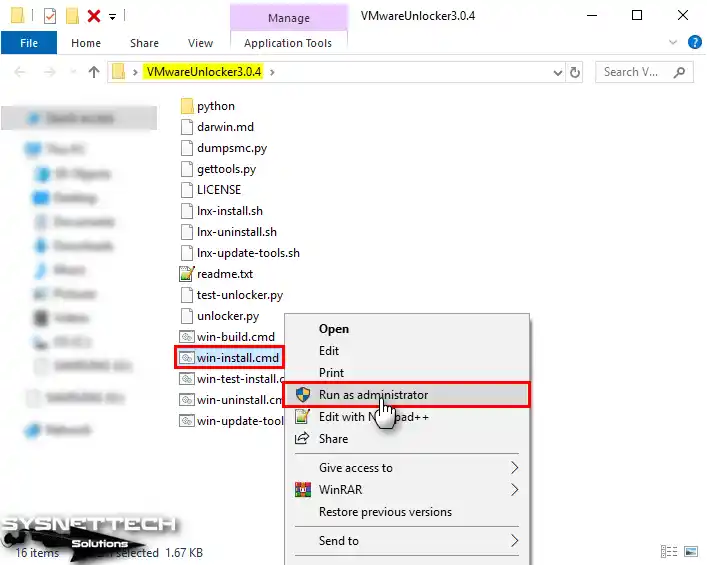
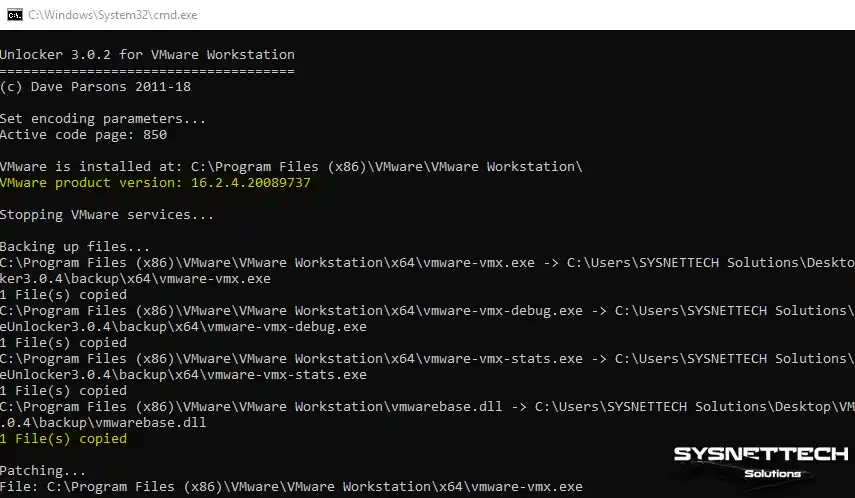
When you run the unlock.exe file, a command prompt opens. The patch application setup starts automatically. When you see the Patching… message, the task is in progress. When setup ends, run VMware Workstation. Click Create a New Virtual Machine to see the Apple OS X option. You can then start macOS setup right away.
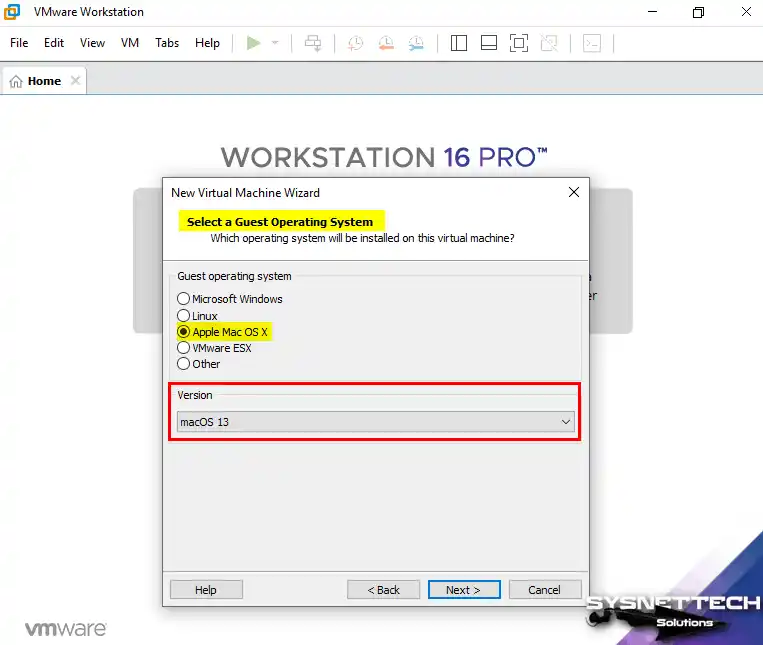
Continue to the Select a Guest Operating System window. You will see the Apple Mac OS X option as in the image below. After that, you set up macOS with VMware.
2. Install Unlocker on Linux
Suppose you use a Linux distribution such as Ubuntu, Linux Mint, or Debian. On these systems, you may also want to run macOS.
With VMware Unlocker, you can build a macOS VM on Linux. To do so, go to the linux directory in the folder. Run the unlock file there. At the end of this task, you will see the Mac OS X option.
On Linux too, close VMware Workstation. Also, stop the related services. Open a terminal and run these commands:
sudo /etc/init.d/vmware start
sudo /etc/init.d/vmware stop
sudo /etc/init.d/vmware restart
On Linux, open Terminal and switch to the root user. In Terminal, set the file permissions with the chmod +x unlock relock check command. Then apply the patch with the sudo ./unlock command.
unlock  ⇒ Applies the patch
relock  ⇒ Rolls the patch back
check   ⇒ Checks patch state
3. Unlocker Setup on ESXi: Datastore, SSH, and install.sh
ESXi setup involves far more steps than Workstation and Linux. First, you must use a compatible ESXi build. The community supports ESXi 6.5, 6.7, and 7.0 U3.
On ESXi 8.0 and later, VMware fully removed official macOS support. This method is therefore unsupported. Still, you can try it, but you must accept the risks.
The first step is to enable SSH access on the ESXi host. Enable SSH through vSphere Client or DCUI. Then upload the Unlocker pack (esxi-unlocker-xxx.tgz) to a datastore. Use a tool such as scp or WinSCP. Put the file in the datastore root directory or a temporary folder.
Log in to the ESXi host via SSH. Go to the directory on the datastore. Unpack the archive with this command:
tar xzvf esxi-unlocker-xxx.tgzThen run the setup script:
./esxi-install.shWhen setup ends, reboot the host:
rebootBootModuleConfig.sh --verbose --remove=unlocker.tgz or ./esxi-uninstall.sh.To check that setup succeeded, run the esxi-smctest.sh script. You should see smcPresent = true in the output. This shows that the SMC emulation is enabled.
esxi-smctest.shIf you want to disable the patch temporarily, add the nounlocker parameter to the ESXi boot options. This helps during debugging.
ESXi 8 and Later: Did VMware Pull macOS Support, and What Does Deprecated Mean?
This question is especially important for ESXi users. VMware marked macOS guest OS support as deprecated in the ESXi 8.0 release notes. However, the real situation is somewhat different. In 8.0, VMware simply ignored macOS. This was not a slow phase-out but a direct removal from the support list.
According to the VMware Compatibility Guide, macOS was at the Deprecated level in ESXi 7.0. In ESXi 8.0, it moved fully to the Terminated level.
In short, VMware does not officially support the macOS guest OS on ESXi 8.0 and later. Still, you can find a workaround with community scripts. However, you should know that it is not official and carries risk.
What Does VMware macOS Deprecated Mean? The Gap Between Support Levels
VMware support levels come in three groups: Supported, Deprecated, and Terminated. Deprecated still works, but it gets no new features and will be removed in the future. Terminated means there is no official support now, so do not use it.
The situation for macOS was as follows: VMware moved it to the deprecated level in ESXi 7.0. In ESXi 8.0, it moved it to the terminated level. VMware therefore no longer provides bug fixes, security patches, or technical support for the macOS guest OS. In this case, you should use other platforms in enterprise environments.
| Support Level | Meaning | VMware Stance |
|---|---|---|
| Supported | Full support | Gives bug fixes and security patches |
| Deprecated | Being phased out | Works but gets no new features |
| Terminated | Ended | No official support, do not use |
Can You Still Run a macOS Guest OS on ESXi 8?
Technically, “maybe” is the best answer. The esxi-unlocker scripts that the community created work to some degree on ESXi 8.0. However, this method is not official, and you will encounter many issues. For example, VMware Tools may not install, vmxnet3 may not work well, or the system may be unstable.
In addition, on ESXi 8.0 U3 and later, some community scripts became completely unusable. I therefore do not advise using this method in a production environment. You can try it in a home lab or test setup. However, you must accept the risk of data loss. After macOS 27 Golden Gate, Intel support is gone; we have reached the end of this path.
VMware Unlocker vs OC4VM: Which to Pick, and When?
DrDonk’s README file names an option called OC4VM. What is the difference between these two paths? Which one best fits your situation? In this section, I examine both methods.
What Is OC4VM and How Does It Work? An OpenCore-Based Path With No Patching
OC4VM means OpenCore for VMware. OpenCore is a popular boot manager in the Hackintosh world. OC4VM turns this bootloader into a package designed for VMware. Instead of patching VMware binaries, it runs the macOS boot process through OpenCore.
The main benefit of this path is that it does not change VMware files. You therefore make no binary patch to vmware-vmx or vmwarebase.dll. Instead, you boot the virtual machine with the opencore.iso and macos.vmdk files in the OC4VM package. OC4VM also provides AMD CPU support. That is one thing Unlocker cannot do.
With the config.plist setup of OC4VM, you control kernel patches, kext injections, and NVRAM tweaks. That gives you a more flexible patch. However, OC4VM does not support ESXi. It runs on Workstation and Fusion only.
Rule-Based Face-Off: AMD Support, Patch Need, ESXi Match, Freshness
| Criterion | VMware Unlocker | OC4VM |
|---|---|---|
| AMD CPU support | No (requires extra patches) | Yes (AMD template available) |
| VMware patching | Required (binary patch) | Not required (OpenCore boot) |
| ESXi compatibility | Limited via community scripts | Not supported |
| Workstation compatibility | 16–26H1 | 17.6 and 25H2 |
| Currency | 4.2.8 (May 2026) | Active development |
| Setup complexity | Low | Moderate (template copy) |
| macOS Recovery | Supported | Supported |
When you choose, consider these points. If you use an AMD Ryzen or AM5 board, OC4VM is the only choice because Unlocker cannot add support for AMD CPUs.
If you must run macOS on ESXi, neither path is official. However, community scripts are more common on the Unlocker side. If you use only an Intel CPU and Workstation, Unlocker is simpler and faster.
Is VMware Unlocker Safe or a Virus? False Positive, Source Build, and Legal Risks
One of the most frequently asked questions about this tool is safety. The fear of a virus in the file you downloaded is quite normal. However, most antivirus flags are false positives. Still, there are points where you must be careful.
Why Does Windows Defender Throw a False Positive? Go Language and No Code Signing
DrDonk wrote Unlocker in the Go programming language. Antivirus apps often flag binaries built with Go as suspicious because Go binaries link statically and are not code-signed. Windows Defender may quarantine an unsigned file that edits system files.
Even the official Go FAQ page discusses this issue. Antivirus firms tend to flag Go binaries as false positives. If you see a Defender flag when you download Unlocker, do not panic. You can add the file to the allowlist. However, first make sure you have run the SHA256 check.
Safe Setup via Source Build and SHA256 Check
The safest path is to build from source code. However, this is not practical for everyone. It requires a Go compiler and technical knowledge. Still, let me show the steps:
- Install Go: Download Go 1.21 or later from go.dev.
- Clone the repository: Run
git clone https://github.com/DrDonk/unlocker.git. - Build: Go to the project directory and run
go build. - Check the binary: Use the executable created after the build.
If you cannot build from source code, at least run the SHA256 check. This ensures that the file you downloaded matches the official build. Do not download from third-party sites. GitHub Releases is always the safest source.
Is VMware Unlocker Legal? Apple EULA Section 2.2 and Firm Risks
Now for the most sensitive part. The Apple EULA permits macOS to run only on Apple-branded hardware. Section 2.2 of the EULA permits macOS virtualization only on Apple hardware. Running a macOS VM on a Windows or Linux host is therefore a license violation.
In practice, individual users rarely face legal action for this rule. However, the situation is different in enterprise environments. If a license audit finds a violation, you may face serious fines. It also creates risk for the organization’s virtualization policy. In production use, you should choose Apple hardware or cloud macOS services.
VMware Unlocker Error Fixes: macOS Choice Missing, install.sh Hanging, vmware-vmx Access Error
I gathered the most common setup errors and their fixes in this section. Most of these errors come from a patch you did not apply correctly or from leftover files.
Apple macOS Choice Missing: Patch Left Out or a Left-Over File
The most common issue is that the macOS option does not appear even when the patch completes successfully. Three main causes may explain this. First, you did not run the patch with admin rights. Second, the VMware build and the Unlocker build do not match. Third, a leftover .unlocker file from a prior patch remains.
As a fix, first check the patch state with the check.exe or ./check command. If you receive an “Already patched” message and see no option, delete the hidden .unlocker file in the VMware folder. Then apply the patch again. Also, make sure VMware Workstation is fully closed.
- Run as admin: Open cmd.exe as admin and start unlock.exe from there.
- Check build compatibility: Use 4.2.8 for Workstation 17.5 and later.
- Delete the leftover file: Remove the hidden .unlocker file in the VMware setup directory.
- Disable antivirus temporarily: Disable Defender real-time protection.
‘Already patched’ Error and a Clean Rollback with relock.exe
The “vmware installation you specified is already patched” error shows that you applied a patch before. For a new patch, you must first roll back the current patch. Run the relock.exe (Windows) or ./relock (Linux) command as admin.
The relock task brings VMware files back to their original state. Then restart the VMware services. Next, apply the Unlocker build you want again. If relock also fails, you must remove VMware and install it again. For that reason, I advise you to make a backup before the patch.
relock.exe ⇒ Removes the patch, brings the first files backvmware-vmx Access Error and vmwarebase.dll Patch Error
The vmware-vmx access denied error usually indicates that VMware tasks are still running. You must end all VMware tasks before you apply the patch. Open Task Manager and find tasks such as vmware-vmx, vmware, and vmware-authd, and stop them. Also, stop the VMware services.
The vmwarebase.dll patch error often appears if the file is read-only or an antivirus locks the file. Clear the read-only flag of the DLL file in the VMware setup directory. Disable the antivirus temporarily. Then run the patch again. If the issue persists, run VMware as admin and try once more.
Trusted Sources for the macOS Unlocker Tool
The sources below are for those who want to explore the official and technical details of the points in this guide. Each one is a trusted document in the VMware and Apple world.
- DrDonk/unlocker GitHub Repository: The main source for official source code and release notes.
- VMSA-2023-0024 Security Advisory: The official notice of the VMware Tools flaw and the builds it affects.
- OC4VM GitHub Repository: Documentation and templates for the OpenCore-based VMware macOS option.
- ESXi Unlocker 4 (Community): The Unlocker package the community maintains for ESXi 7.0 U3.
FAQ About VMware macOS Unlocker
Which steps should I follow to set up VMware Unlocker, and are admin rights required?
This tool appears as a virus in some antivirus applications; is it really safe?
Which VMware Workstation and Player builds does it work with?
Can I use it to run a macOS virtual machine on ESXi servers too?
If the macOS option does not appear after I apply Unlocker, how do I fix the issue?
When this patch fails, which other tools or methods can I try?
What changes does build 4.2.8 bring over prior builds?
How do I remove the patch I installed and restore VMware to its original state?
Can I do macOS virtualization with this tool on Apple Silicon (M1/M2) Macs?
Which tweaks do you advise to boost the speed of a virtual macOS?
Bottom Line: Is VMware Unlocker Still the Top Pick in 2026? Build, Setup, and Risk Sum
Ultimately, VMware Unlocker is a must-have tool. It lets you run macOS on VMware. It runs on Workstation, Player, or ESXi. First, follow the setup steps I outlined. That way, you can get past VMware limits with ease. Then you can continue your work in a virtual space with macOS features.
Yes, it is still the top choice. However, it is a top choice with conditions. If you use an Intel CPU and Workstation 16–26H1, this tool does the job quickly. Build 4.2.8 appears safe with the 25H2+ registry fix and the VMware Tools security update.
However, if you use AMD or run ESXi 8 or later, turn to other options. Consider options such as OC4VM or community scripts. Also, the Intel virtual macOS chain ended with macOS 27 Golden Gate. If you plan a long-term path, you must plan for Apple Silicon or cloud macOS.
In fact, this method gives developers, testing professionals, and enthusiasts real power. Now they can try the Apple OS too. They can test their projects in a macOS environment without extra cost.
Last, do not skip choosing the right build. Always check your application and system specifications. That way, you get the best virtualization experience.
Finally, never ignore the legal risks. Your odds of trouble in a home test setup are low. However, in enterprise use, an Apple EULA breach leads to serious consequences. Use this guide as a starting point. Always perform your own risk assessment.

40 People Shared Their Experience
Thank you very useful!
You’re welcome! Also thank you for your comment!
unable to install on ubuntu host, at booting stage from iso system restart when the progress bar reaches half.
Hi tolqabaqci
Do you know if is possible to fix the multi display visualizzation for macosx vmware?
thank you in advance
i have installed the win-install.cmd and still i am not able to see the Apple menu on VMware to install MAC OS I have enabled the VT in Bios .
You need to close VMware Workstation before you click Win-install.cmd. Did you notice that?
When will we get an update that works with VM Ware 15.5.0
Create a boot ISO from Catalina app store download on macOS from a terminal window:
cd ~
mkdir TempInstall
cd TempInstall
Mount the InstallESD.dmg installer included in the Install macOS Catalina.app installer to the /Volumes/Catalina mount point:
hdiutil attach /Applications/Install\ macOS\ Catalina.app/Contents/SharedSupport/InstallESD.dmg -noverify -mountpoint /Volumes/CatTemp
Create a blank disk image of 7316 Mb located in the current directory:
hdiutil create -o ./CatalinaBase.cdr -size 7316m -layout SPUD -fs HFS+J
Mount the CatalinaBase.cdr.dmg image to the install_build mount point:
hdiutil attach ./CatalinaBase.cdr.dmg -noverify -mountpoint /Volumes/install_build
Restore the disk image to the install_build directory you have created before:
asr restore -source /Applications/Install\ macOS\ Catalina.app/Contents/SharedSupport/BaseSystem.dmg -target /Volumes/install_build -noprompt –noverify -erase
Remove the Packages directory with all containing files:
rm -rf /Volumes/macOS\ Base\ System/System/Installation/Packages
Create a new empty directory instead of the previously deleted one:
mkdir -p /Volumes/macOS\ Base\ System/System/Installation/Packages
Copy the installation packages:
cp -R /Volumes/CatTemp/Packages/* /Volumes/macOS\ Base\ System/System/Installation/Packages/
Unmount disks from the directories:
hdiutil detach /Volumes/macOS\ Base\ System/
hdiutil detach /Volumes/CatTemp/
Rename the CatalinaBase.cdr.dmg file to the BaseSystem.dmg file
mv ./CatalinaBase.cdr.dmg ./BaseSystem.dmg
Create a blank disk image of 8965 Mb located in the current directory:
hdiutil create -o ./Catalina.cdr -size 8965m -layout SPUD -fs HFS+J
Mount the cdr.dmg image to the install_build directory:
hdiutil attach ./Catalina.cdr.dmg -noverify -mountpoint /Volumes/install_build
Restore the disk image to the install_build directory:
asr restore -source /Applications/Install\ macOS\ Catalina.app/Contents/SharedSupport/BaseSystem.dmg -target /Volumes/install_build -noprompt –noverify -erase
Copy the BaseSystem.dmg image to the “OS X Base System” directory:
cp ./BaseSystem.dmg /Volumes/macOS\ Base\ System/
Unmount the “OS X Base System” directory:
hdiutil detach /Volumes/macOS\ Base\ System/
Convert the cdr.dmg image to the iso image. You can use a location with enough free space that is convenient for you.
hdiutil convert ./Catalina.cdr.dmg -format UDTO -o ./Catalina.iso
Rename the Catalina.iso.cdr file to the Catalina.iso file and move it to your desktop for more convenience.
mv ./Catalina.iso.cdr ~/Desktop/Catalina.iso
If everything is OK, remove the cdr.dmg file:
rm ./Catalina.cdr.dmg
UPDATED Procedure for Catalina 10.15.1: New image sizes are necessary, pay attention to the OLD/NEW comments below. It’s a shame that this site prevents copy and paste, so type the commands carefully!
sudo -s
cd ~
mkdir TempInstall
cd TempInstall
Mount the InstallESD.dmg installer included in the Install macOS Catalina.app installer to the /Volumes/Catalina mount point:
hdiutil attach /Applications/Install\ macOS\ Catalina.app/Contents/SharedSupport/InstallESD.dmg -noverify -mountpoint /Volumes/CatTemp
Create a blank disk image of 8940 Mb located in the current directory:
OLD 10.15.0
hdiutil create -o ./CatalinaBase.cdr -size 7316m -layout SPUD -fs HFS+J
NEW 10.15.1
hdiutil create -o ./CatalinaBase.cdr -size 8940m -layout SPUD -fs HFS+J
Mount the CatalinaBase.cdr.dmg image to the install_build mount point:
hdiutil attach ./CatalinaBase.cdr.dmg -noverify -mountpoint /Volumes/install_build
Restore the disk image to the install_build directory you have created before:
asr restore -source /Applications/Install\ macOS\ Catalina.app/Contents/SharedSupport/BaseSystem.dmg -target /Volumes/install_build -noprompt –noverify -erase
Remove the Packages directory with all containing files:
rm -rf /Volumes/macOS\ Base\ System/System/Installation/Packages
Create a new empty directory instead of the previously deleted one:
mkdir -p /Volumes/macOS\ Base\ System/System/Installation/Packages
Copy the installation packages:
cp -R /Volumes/CatTemp/Packages/* /Volumes/macOS\ Base\ System/System/Installation/Packages/
Unmount disks from the directories:
hdiutil detach /Volumes/macOS\ Base\ System/
hdiutil detach /Volumes/CatTemp/
Rename the CatalinaBase.cdr.dmg file to the BaseSystem.dmg file
mv ./CatalinaBase.cdr.dmg ./BaseSystem.dmg
Create a blank disk image of 9965 Mb located in the current directory:
OLD 10.15.0
hdiutil create -o ./Catalina.cdr -size 8965m -layout SPUD -fs HFS+J
NEW 10.15.1
hdiutil create -o ./Catalina.cdr -size 9965m -layout SPUD -fs HFS+J
Mount the cdr.dmg image to the install_build directory:
hdiutil attach ./Catalina.cdr.dmg -noverify -mountpoint /Volumes/install_build
Restore the disk image to the install_build directory:
asr restore -source /Applications/Install\ macOS\ Catalina.app/Contents/SharedSupport/BaseSystem.dmg -target /Volumes/install_build -noprompt –noverify -erase
Copy the BaseSystem.dmg image to the “macOS Base System” directory:
cp ./BaseSystem.dmg /Volumes/macOS\ Base\ System/
Unmount the “macOS Base System” directory:
hdiutil detach /Volumes/macOS\ Base\ System/
Convert the cdr.dmg image to the iso image. You must use a location with enough free space and is convenient for you.
hdiutil convert ./Catalina.cdr.dmg -format UDTO -o ./Catalina.iso
Rename the Catalina.iso.cdr file to the Catalina.iso file and move it to your desktop for convenience.
mv ./Catalina.iso.cdr ~/Desktop/Catalina.iso
If everything is OK, cleanup the working files:
rm ./Catalina.cdr.dmg
rm ./BaseSystem.dmg
Hi, Unlocker still not work with VMWARE 15.5.0, it failed when running gettolls.exe – (when trying download the darwin iso files) ..
issue running on Kubuntu 19.10 and Workstation 15.5.2. when running the install script, it doesnt make the changes on Workstation and fails to connect/download the tools and give python errors
Hi Tolqa,
firstly, let me thanks and appreciate your great work and sharing knowledge. I have two quick question here.
1. Is there any tested EXSI Unlocker which work on ESXI 6.0 Build 3380124? if yes please share the link?
2. To maximize screen resolution, what is a true working solution if any ?
Hello there. Thanks for your nice comment.
I have created a Patch that can work in ESXi 6.0 version for you. Download it to your server and install it here. If it works, please inform me.
>
You can browse this article to solve the screen resolution problem.
I ran the win-installer like you said, and it looks like it runs fine but then I open VMworkstation pro and I don’t see the Mac OS option.
Any Ideas, I even closed all vm running apps from Task manager and nothing. Same outcome.
Why can’t I paste text here???
The unlocker script fails on 15.5.2.15785246
In the end of script, throws this error: file could not be opened successfully. Failed to execute script gettools.
No se encuentra el archivo: darwin*.*
Finished
But the VMWare stills unpatched.
Anyone know how to uninstall the Unlocker tool off a ESXI server?
None of these work any longer. There is no interest in this issue, so none of the authors care to aid in resolving it. Just buy a mac mini.
First of all,
Last poster, it’s nice to see you come out in the open, but frankly, what you do in the privacy of your home is not our concern.
I’ve just installed the old esxi unlocker 2.1.1 on esxi 6.7u3 and have installed MacOS Sierra and MacOS Mojave succesfully as vm’s.
It works.
Shane, look at the esxi unlocker readme file or even in the extracted directory where you punt the installer, you will see an uninstaller there.
Looking and reading the readme.txt is FAR quicker then posting on a website and waiting for someone to look for you.
The installer scrips is called “esxi-install.sh” and suprise, the uninstall script is called “esxi-uninstall.sh”.
Thanks for your feedback, Marco Polo!
Yes, you are right, “esxi-uninstall.sh” command must be executed to uninstall the unlocker.
I am having a problem in the command line ( after run as admin) it is not retrieving Darwin tools
i am getting this message:
File ” gettools.py”, line 159, in
main ()
File “gettools.py”, line 112, in main
tar=tarfile.open(convertpath(dest+’/tools;com.vmware.fusion.tools.darwin.zip.tar’),’r’)
File ” tarfile.py”, line 1680, in open
tarfile.ReadError: file could not be open successfully
[11876] Failed to execute script gettools
File not found – darwin*.*
0 files copied
Any help with that?
Thanks
same error for both version of the unlocker( 2.1.1 and 3.0.2). I am using VMware workstation 15.5.6
Hello Tolga! That 6.0 version what you shared at april 20 is working with my esxi build 5050593? I can install Catalina?
Thank you for your work!
The macOS Unlocker tool has been updated. Please try the new version. If it doesn’t work, use this tool on ESXi and send me feedback.
Having the same issue as @Bruno
Same error, The Tools for VMware are not in the same location. I cannot get them. This thread is dead.
It worked thanks
You’re welcome!
erreur le systeme n’a pas trouver la cle ou la valeur de registre speciffié que ce que je dois faire?
Réparez votre logiciel VMware Workstation et réessayez.
Hi there,
each version opens after right-click – run as admin- for a blink of a second and closes immediatly without any change in vmware.
Do i have to update or change settings in the enviroment (python, etc?)
Is this working with windows 7?
VMware was closed
Thanks in advance for your help & answers!
How can I do this for VMware Fusion 12 on MacOS?
I want to install Mac OS 10.4.11 into Fusion to run on Macbook Retina 15″…
You can install macOS on a MacBook using the Fusion software. You do not need the unlocker program.
MERCI POUR VOTRE AIDE.
LA VERSION 3.0.3 A FONCTINNEE PARFAICTEMENT POUR MON VWARE 16.2.2
Will this work on VMWare WS Player 16? I quit trying two months ago. Are you sure this is worth to try, again?
It works fine, you can try it.
I followed the instructions but I keep receiving the error “CPU has been disabled by the guest operating system”. Linux VMWare 16
Hi,
It doesn’t work on VMware Workstation Pro. 16.2.5
Thank you for this guide! I have a problem: after correctly creating the Mac OS 14 VM, I have selected the ISO as the dvd as stated in the tutorial. However, the VM cannot start from there, it bring me to the boot menu of the “PC” .
What can I do?
Finally a working one on Wx64 VMWare WS Player 16 with High Sierra, v3.0.5.
Thx for the info. Kudos to Paolo.
Unfortunately doesn’t work on version 25H2 any more.
Missing entry point prevents startup.