

In this article, I will first tell you what SLAT (Second Level Address Translation) is. This feature helps to handle memory for virtual machines. So, we mainly use it in virtual computer setups.
Next, we will show you how to check if a processor has SLAT. We will talk about tools and ways to do this check.
I think that knowing the new facts better will be very useful for you. Why? Because you will help your VMs work much faster.
Key Requirements for Hyper-V Performance: SLAT and System Specifications
SLAT, or Second Level Address Translation, is very important for Hyper-V. This Microsoft virtual system needs it to work well. This need started with Windows 8. It is key to making virtual systems faster and more efficient.
To use Hyper-V well, users must have at least 4 GB of RAM. This memory helps run many virtual machines without significant slowdowns.
Also, the system must be 64-bit. This matters because Hyper-V uses the power of a 64-bit design. This helps it manage memory better. It can also run bigger and more complex apps than 32-bit systems. Plus, the processor must have its support. This feature is usually in new CPUs made for virtual use.
In short, using SLAT support with a 64-bit system is vital. Also, having enough RAM is needed. These parts help Hyper-V work well. As a result, they give a stable system for running virtual PC and apps.
What is SLAT in the Processor?
It is a part of the new Intel and AMD computer chips. It helps with memory in virtual computers, mainly on Hyper-V. This tool lets the system handle virtual memory well.
Because of this, it makes it easier for the system to change virtual addresses to physical ones. It is needed for VMs to work well. It lowers the extra work required for address changes, which helps everything run better.
In the world of Intel chips, SLAT is called EPT. EPT means Extended Page Table. This part helps Intel chips handle virtual address spaces well.
At the same time, AMD has a like part called RVI. RVI means Rapid Virtualization Indexing. It also makes jobs for virtualization work better.
New Intel chips, like the Core i3, i5, i7, and i9, have it. This part makes them much better for using guest machines.
But older chips like the Core 2 Duo group might not have it. So, users should check if their older computer parts have it. This is very important if they want to use software for virtualization.
Checking Whether the Processor Has the SLAT Feature
To verify if your computer’s brain is SLAT-capable, you can use two convenient tools:
- CoreInfo: This tool gives you full details about your CPU. It tells you if SLAT is available. Microsoft makes it so that you can trust it.
- Intel Processor Identification Utility: This tool gives you a lot of information about Intel CPUs. It includes SLAT support and helps you check the details.
Also, to learn more about a CPU’s second-level address translation, look at the official Intel website. There, you can find a lot of papers about processor parts and details. This helps you understand what different models can do.
In the end, knowing about SLAT is very important for anyone using virtual computers. It has a significant effect on speed and how well virtual systems work.
Now it’s time to check whether your processor has this feature. If so, you can speed up the process by following these 2 steps.
1. Check Using CoreInfo
To find out if your computer supports SLAT, use CoreInfo. First, get the CoreInfo program from its official website or a safe place.
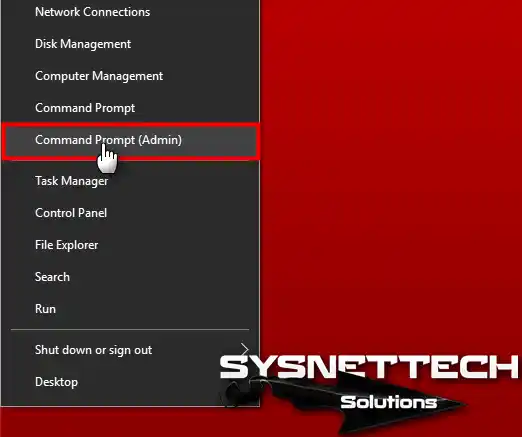
Then, find the file you saved on your computer. Before you use CoreInfo, open the Command Prompt as an admin. To do this, look for “CMD” in the Start menu.
Then, right-click the Command Prompt icon and pick “Run as administrator.” This lets you use commands that need high-level access.
After the Command Screen window is open, go to the folder where you put the CoreInfo program. When you are in the correct folder, type the command to run CoreInfo. Make sure to add any needed details to look for its support.
In the end, the results will tell you if your computer’s brain supports SLAT. In short, this detail is essential for managing virtual machines.
After you have opened the Command Prompt, type D:. Then, press Enter to change to the D drive. This drive holds the CoreInfo program. Now, you can get to the files you need to check your system.
To look for this support, type the command coreinfo.exe -v in the CMD. This command displays a complete list of your computer’s core components. It will show you if S-L-A-T is available.
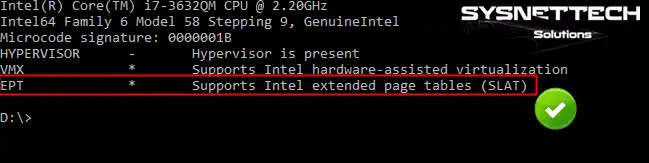
Find the line that says “Supports Intel Extended Page Tables (SLAT)”. This line will tell if it is on or off. In the end, be sure you ran the Command area as an admin for correct information.
coreinfo.exe –v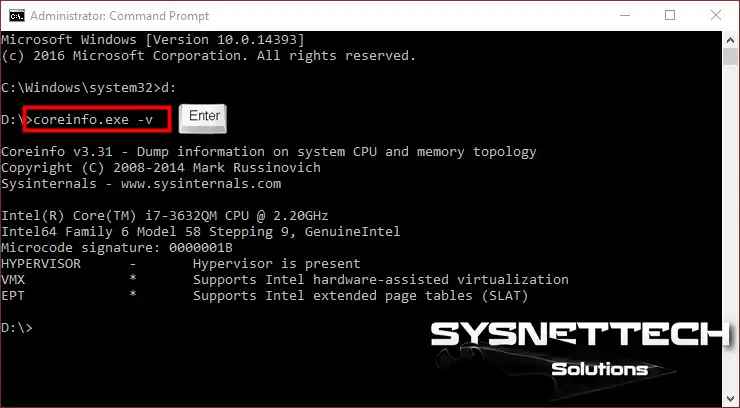
To see if your processor supports this feature, check the results carefully. Look for signs or labels that show this support.
Knowing if it is supported is key if you want to use Hyper-V VMs. Sop, it makes them faster and uses system resources better.
2. Use the Intel Processor Identification Utility
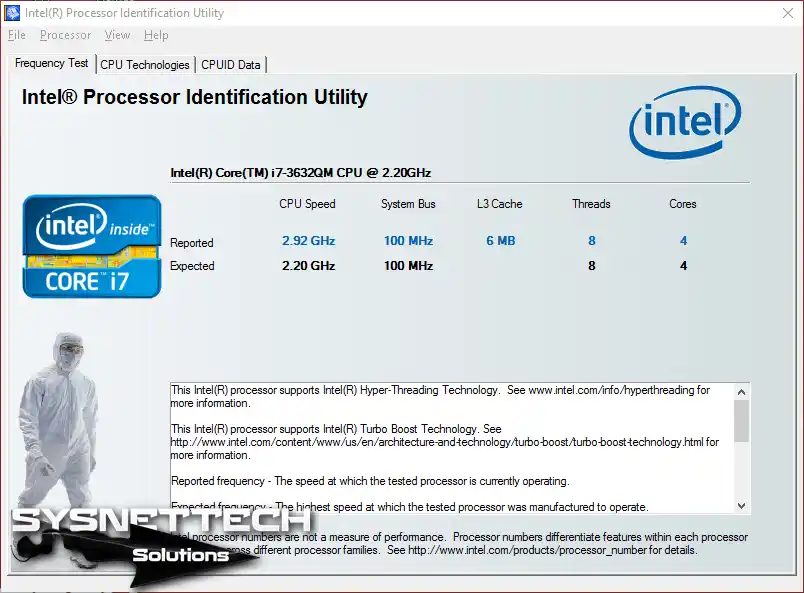
The Intel Processor Check Tool is a free program by Microsoft. It checks what an Intel CPU can do. This tool lets you see details about your processor.
When you use the tool, you can find key information about your CPU. For instance, it shows the running speed, clock rate, and cache memory.
Additionally, it reveals essential design facts, like core count and virtual machine support. That is, this information is necessary for running multiple systems or programs at once.
Moreover, the tool provides a short list of CPU technologies. This list highlights features like Intel Turbo Boost, Hyper-Threading, and Secure Boot. After using this tool, you can check for SLAT support. This feature is crucial for virtual PC performance.
To begin, get the Intel Processor Check Tool from Intel’s link. Follow the simple setup steps to install it on your PC.
Once installed, a start-up screen appears. This screen clearly lists your CPU details. Thus, you can make informed decisions about your computer’s speed and improvements.
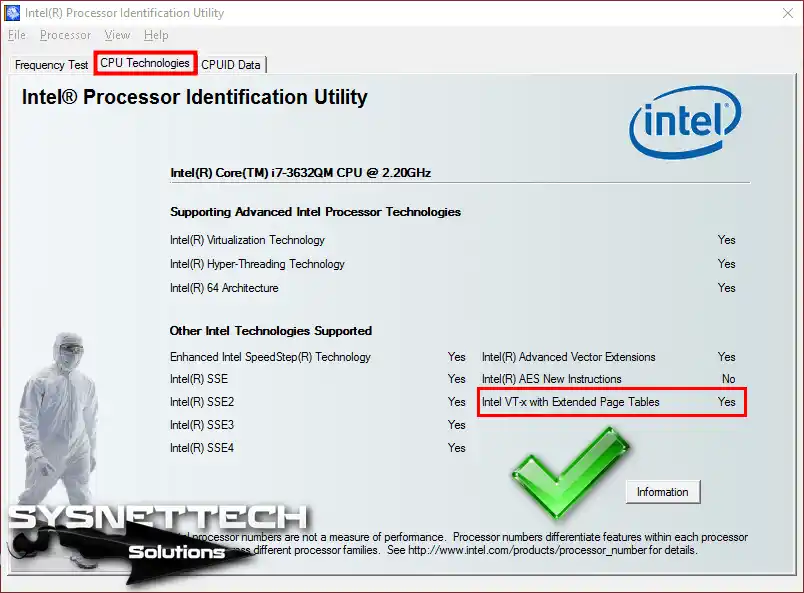
Now, launch the Intel CPU Identification Utility. Then, go to the “CPU Technologies” tab. Here, you can see the ways your computer’s CPU, that is, virtualization technologies.
Look specifically for the entry “Intel VT-x with Extended Page Tables.” If this feature is marked “Y,” you can understand that it is active.
If yes, you can now handle memory better for VMs. But if you see an “N” instead, it means the part is disabled. Then, you might not get the best speed for virtualization.
How to Check SLAT Requirement Support for Hyper-V ⇒ Video
I strongly suggest watching the guide video I made for CoreInfo and the Intel CPU Tool. This way, you can learn how to use these tools correctly.
Also, it helps you understand your computer and check how well your machine is working.
Furthermore, I would be glad if you subscribed to our YouTube channel. This way, with your support, we can continue to create better videos!
Frequently Asked Questions (FAQ) About CPU SLAT
- What is SLAT, and why is it important?
- How can I see if my CPU supports SLAT?
- I don’t see SLAT support in my system?
- Can I use Hyper-V without SLAT?
Conclusion
To sum up, SLAT is something you must have for Hyper-V software. In truth, this shows what new computer CPUs can do with guest OSes. Now, more and more companies are putting their faith in virtual systems.
Because of this, knowing what computer parts you need is vital. One of these required parts is SLAT. This lets us handle memory better on our host PC, which makes it faster.
Also, we make a faster and safer space for a virtual environment. This tool lets you handle difficult jobs better. So, it helps things grow by cutting down on wait time. These points are critical in today’s quick-moving work world.
Also, companies work to get the most from their computer parts. Here, SLAT is excellent for getting the full value from virtualization.
We can safely keep our virtual PCs apart. Thus, it lets a business run many systems on one real server without making it less safe or steady.
As ways to make VMs improve, tech workers must also keep up to date. This information helps to be sure that the PC parts chosen will fit what is needed later.
Anyone thinking about using Hyper-V should check that their computer parts support SLAT. Buying a computer brain that has this feature gives you a much better result.
If you have checked that your PC’s processor supports SLAT, good! You can now use virtual OSes on your host. First, read our guide called “Installing Hyper-V on a Windows PC.” This will let you easily set up Microsoft’s great VM software.

Be the first to share your comment