

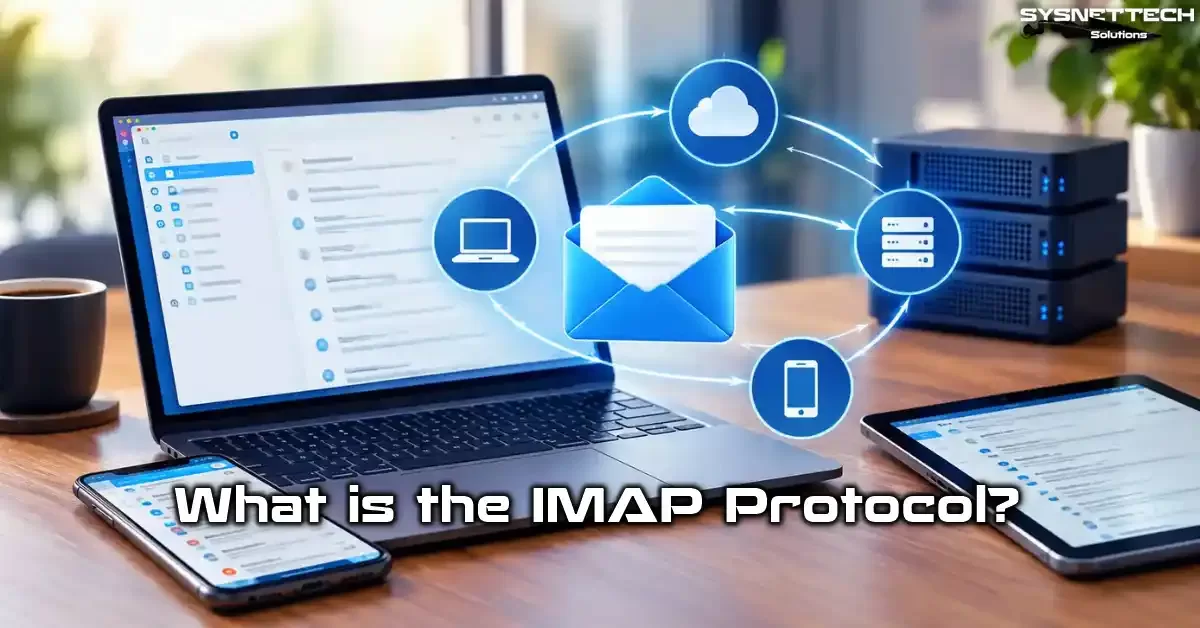
Picture an email reaching your inbox from your phone, computer, or tablet at the same time. When you delete a message you have read, that message vanishes on all devices. When you move it to a folder, that message appears in the same spot everywhere. In short, this is not magic. Behind this sync wonder sits the IMAP protocol.
Internet Message Access Protocol keeps your emails on the server. It grants remote access from every device. Simply put, this protocol is an application layer protocol. In short, this protocol works like the central nervous system of the email world. When you grasp it, you gain command over the whole flow behind your mailbox.
It defines the communication language between a mail server and an email client. Older protocols like POP3 pull email down and delete it from the server, while this protocol builds a two-way link. As a result, your emails stay safe on the server, and you only see a copy on your local device. On top of that, the system updates read status, folder structure, labels, and search results across all your devices at the same time.
The biggest strength of this protocol is its structure, which rests on a client-server model. Your email app connects to the server, proves its identity, and starts work on the mailbox it selects. If the connection drops during these tasks, the client can resume from where it left off when it reconnects. This kind of resilience makes it the must-have standard of the business world.
IMAP Definition and Full Form: What is Internet Message Access Protocol?
The full form of this protocol is Internet Message Access Protocol. The acronym IMAP is formed from the first letters of those words.
Its main job is to let an email client read, edit, and manage messages on a remote mail server. It is classified as an email retrieval protocol, since it shows incoming messages to the client. SMTP takes on the sending task.
It rests on a client-server model. The email client connects to the server with credentials such as a username and password or an OAuth token. Once a connection is made, the server shows the client a list of mailboxes it may access.
When the client selects a mailbox, it requests only the headers or the parts it wants from that folder. This way, it uses bandwidth efficiently without pulling the whole email.
The clearest trait of this protocol is that it keeps the mailbox on the server. That is, it does not pull your emails down to your computer and delete them. Instead, you work on the main copy on the server. This approach is critical for modern multi-device sync. Marking a message as read shows on all devices at once.
IMAP History: Mark Crispin, Stanford, and IMAP2 to IMAP4rev2
The roots of this protocol go back to the mid-1980s, to Stanford University. Mark Crispin was working on a way to grant remote access to mailboxes at the time. The first version, IMAP2, became a standard in 1988 with RFC 1064.
In those days, POP3 was popular, but POP3 rested on the logic of pulling emails down and deleting them from the server. Crispin’s vision was far ahead of its time: keep the mailbox on the server and show it to the client as if it were a local folder.
In the 1990s, the IMAP3 attempt failed. But with IMAP4 (RFC 1730), released in 1994, the protocol began to mature. In 2003, the team released RFC 3501. This document defined the version known as IMAP4rev1. On top of that, this version became the de facto standard for twenty years. It still runs on millions of servers today.
In 2021, IMAP4rev2 arrived with RFC 9051. This new version made many extensions standard, built on top of IMAP4rev1. It also cleaned up unnecessary complications in the protocol and matched modern needs. So, as of 2026, IMAP4rev2 has become the primary target in new versions.
| Version | RFC | Year | Key Feature |
|---|---|---|---|
| IMAP2 | RFC 1064 | 1988 | First remote mailbox access |
| IMAP4 | RFC 1730 | 1994 | Folder management and flags |
| IMAP4rev1 | RFC 3501 | 2003 | Wide extension support, de facto standard |
| IMAP4rev2 | RFC 9051 | 2021 | Built-in extensions, simplified structure |
Which Layer of the OSI Model Does IMAP Work On?
IMAP works on the Application Layer, and the OSI seven-layer model makes this clear. Application layer protocols serve the end user immediately. They also define the communication rules that network apps need. Protocols such as HTTP, FTP, SMTP, and the DNS system also sit on this layer.
This protocol uses the TCP (Transmission Control Protocol) service from the Transport Layer below for data transfer. TCP provides a connection-oriented and reliable transport. This way, email messages reach the target without loss or corruption.
The client and server set up the TCP connection with a three-way handshake. Then the IMAP protocol on the application layer takes over.
At the network layer, IP (Internet Protocol) comes in. Packets route over IPv4 or IPv6 addresses. So, to grasp this protocol means to grasp how the TCP/IP protocol family works as a whole.
In short, the transport layer provides reliability. The network layer does the addressing. The application layer does the real email tasks.
How Does IMAP Work? The Anatomy of the Client-Server Model
When you open an email client and add your account, a set of complex tasks runs in the background. The client sets up a TCP connection to the incoming email server.
The client usually sets up this connection on port 143 or 993. Then the server sends a greeting. The client runs the CAPABILITY command to ask about its capabilities.
The server lists the commands and extensions it supports. This list may include capabilities such as IMAP4rev1, IDLE, and STARTTLS. After the client receives this information, it moves to the authentication stage.
Then it identifies itself to the server with a username and password or an OAuth token. If the check passes, the session moves to a state called Authenticated State.
Now the client can use the LIST command to list mailboxes. It runs the SELECT command to select the Inbox. The server reports the message count in the chosen mailbox and the next UID value.
The client uses the FETCH command to retrieve the headers of new messages. All these tasks proceed within a defined session management framework inside the client-server model.
IMAP Session States: Non-Authenticated, Authenticated, Selected, and Logout
When a connection is made, the client has not yet proven its identity. This stage is called Non-Authenticated State. In this state, the client can run only a small set of commands such as CAPABILITY, NOOP, STARTTLS, and LOGIN. The server does not allow mailbox tasks that require authentication.
When authentication succeeds, the session moves to Authenticated State. Now the client can list, create, or delete mailboxes. But the client has not yet selected a specific mailbox.
When the client selects a mailbox with the SELECT or EXAMINE command, it moves to Selected State. In this state, the client can use message-level commands such as FETCH, STORE, SEARCH, and EXPUNGE.
When tasks end, the client sends the LOGOUT command. The server closes the session with a BYE reply and ends the connection. This stage is called Logout State.
This four-state structure shows that the protocol is a stateful protocol. Throughout the session, the server tracks which stage the client is in.
| State | Allowed Commands | Description |
|---|---|---|
| Non-Authenticated | CAPABILITY, NOOP, STARTTLS, LOGIN, AUTHENTICATE | Before authentication |
| Authenticated | LIST, CREATE, DELETE, RENAME, SUBSCRIBE | Authenticated, folder tasks allowed |
| Selected | FETCH, STORE, SEARCH, COPY, EXPUNGE | A mailbox has been selected |
| Logout | None | Session closed |
Basic IMAP Commands: CAPABILITY, LOGIN, SELECT, FETCH, STORE, EXPUNGE
To grasp the daily work of the protocol, you must know the basic commands. These commands form the building blocks of the communication between client and server. Here are the most used commands and their functions:
- CAPABILITY: Asks the server what capabilities and extensions it supports. In short, the client learns which features it can use with this command.
- LOGIN: Authenticates with a username and password. Simple but weak on security, so modern systems have replaced it with the AUTHENTICATE command.
- SELECT: Selects the named mailbox in read-write mode. The server returns the message count and UID information for the chosen mailbox.
- EXAMINE: Like the SELECT command, but opens the mailbox in read-only mode. The client cannot change messages.
- FETCH: Retrieves certain parts of messages in the chosen mailbox. So it asks for the header, body, attachments, or a specific MIME part.
- STORE: Changes the flags of messages. It manages flags such as \Seen, \Answered, \Flagged, and \Deleted with this command.
- EXPUNGE: Permanently deletes messages with the \Deleted flag. This command cannot be undone, so you must use it with care.
- SEARCH: Looks for messages that match the defined rules. That is, it can use filters such as sender, subject, date, and size.
- COPY: Copies messages to another mailbox. This way, it preserves their UID values.
- LOGOUT: Ends the session and closes the connection.
How to Connect to an IMAP Server with OpenSSL and Telnet
Seeing how a server replies boosts your troubleshooting skills. You can make a manual connection with Telnet or OpenSSL s_client. This method lets you watch the raw flow of the protocol. It is invaluable for finding authentication errors above all.
First, use Telnet to try a connection without a password. In your terminal, run the command telnet mail.yourserver.com 143. The server will send a greeting and an OK reply. Then you can ask about capabilities by typing a1 CAPABILITY. In reply, you will see the extensions the server supports.
For a connection with a password, use the OpenSSL s_client tool. With the command openssl s_client -connect mail.yourserver.com:993 -crlf, you can set up a TLS tunnel connection. After the connection is up, try the command a2 LOGIN username password. If the server gives an OK reply, authentication worked. If you get an error, look at the details of the NO or BAD reply.
openssl s_client -connect imap.gmail.com:993 -crlf
* OK [CAPABILITY IMAP4rev1] Gmail IMAP ready
a1 LOGIN user@gmail.com password
a1 NO [AUTHENTICATIONFAILED] Invalid credentials
Such manual tests reveal errors that automatic clients hide. For example, you can test this way whether your server is vulnerable to a STARTTLS stripping attack. You can also spot certificate errors or port blocks quickly.
IMAP Extensions and Advanced Features: IDLE, CONDSTORE, QRESYNC, and More
Developers have enriched the base protocol over the years with many extensions. They built these extensions to boost speed. On top of that, they aimed to speed up sync and improve the user experience.
Today, modern email clients support most of these extensions. So, understanding them is the key to tuning your business email setup.
One of the most important extensions is IDLE. It provides real-time alerts and lets the server notify the client immediately.
CONDSTORE and QRESYNC maximize sync speed. SORT, THREAD, and ESEARCH speed up server-side search and sort tasks. Each one addresses a different need.
IMAP IDLE (RFC 2177): Real-Time Push Alert System
In the old model, the email client connects to the server at set intervals and asks if there are new messages. This is called polling, and it wastes bandwidth.
The IDLE extension reverses this model. The client sends an IDLE command to the server and keeps the connection open. When a new message arrives or a change occurs, the server sends a notification to the client immediately.
This system gives a real-time push alert experience. It also boosts battery life on mobile devices, because the client does not poll all the time.
On desktop clients, new emails appear almost immediately. The client usually resends the IDLE connection every 29 minutes. RFC 2177 suggests this interval. On top of that, servers may end the connection after this time.
Modern clients such as Thunderbird for Android enable the IDLE feature by default when you add a new account. Users see this as “push” and do not have to deal with settings.
In business settings, you must consider the server’s simultaneous IDLE connection limit. An open socket per mailbox can drain server resources.
imap_idle_notify_interval setting on servers such as Dovecot. Otherwise, you may struggle with memory and socket limits.CONDSTORE and QRESYNC: Boosting Sync Speed to the Max
The CONDSTORE (RFC 7162) extension offers conditional store tasks. Each message has a change sequence number (mod-sequence). The client updates a flag only if it changed after a certain sequence number. This way, it stops unnecessary network traffic. It boosts speed significantly on slow connections above all.
QRESYNC (RFC 5162) provides fast re-sync. The client asks which messages have been added, deleted, or changed since the last sync.
The server sends only the changes and does not scan the whole mailbox from scratch. This is transformative on mobile devices and in low-bandwidth settings.
| Feature | CONDSTORE (RFC 7162) | QRESYNC (RFC 5162) |
|---|---|---|
| Purpose | Conditional flag update | Fast re-sync |
| Key Idea | Mod-sequence number | Change log |
| Gain | Stops unnecessary network traffic | Does not re-scan the whole mailbox |
| Use Case | Flag consistency | Mobile and low bandwidth |
SORT, THREAD, and ESEARCH: Server-Side Search and Sort Tuning
The base SEARCH command of this protocol lets you do server-side search. The client sends complex filters, and the server returns only the UIDs that match. This way, the whole mailbox does not download to the client. Server-side search boosts speed significantly in large mailboxes.
The SORT extension (RFC 5256) sorts search results on the server. The client can ask it to sort results by date, sender, subject, or size. At the end, the THREAD extension groups messages into conversation threads. This feature is key to providing a thread view in email clients.
The ESEARCH (RFC 4731) extension returns search results in a more efficient form. It combines many SEARCH commands into one request. It can also return results in forms such as MIN, MAX, ALL, or COUNT. This is ideal for server-side filtering and reports.
- SORT: Sorts on the server and returns sorted results to the client.
- THREAD: Groups messages into conversation threads.
- ESEARCH: Returns search results in an optimized form.
- SEARCH: Does server-side search and returns matching UIDs.
- FILTER: Applies server-side filter rules.
IMAP and POP3 Difference: Which One Should You Pick?

When you set up your email account, two choices come up: POP3 or IMAP. This choice shapes how you manage your emails and from how many devices you access them.
POP3 is an old protocol that pulls emails down from the server and usually deletes them. The IMAP protocol, on the other hand, keeps the mailbox on the server and provides two-way sync.
If you read email from a single device and server storage is limited, POP3 may do the job. But most users today switch between phone, tablet, and computer. In this case, IMAP wins without a doubt. Features such as server-side search, folder management, and flag sync exist only in this protocol.
8 Key Differences Between IMAP and POP3
Understanding the differences between these two protocols is key to making the right call. Here is a side-by-side look:
| Criterion | IMAP | POP3 |
|---|---|---|
| Storage Location | Stays on the server | Pulled to the local device |
| Sync | Two-way, all devices | One-way, one device only |
| Folder Support | Server-side folders | Local folders |
| Flag Sync | Yes (\Seen, \Flagged) | No |
| Search | Server-side | Local |
| Bandwidth | Header and body can download separately | The whole message downloads |
| Multi-Device | Supports it | Does not support it |
| Server Quota | Limited by storage limit | Takes no space on the server |
As you can see from this table, multi-device sync is the area where this protocol is the strongest. POP3, on the other hand, stands out for its ease of use and for requiring no server storage. But modern email habits have shifted in favor of this protocol.
IMAP or POP3? A Scenario-Based Decision Guide
Which protocol you pick depends on your use case. Find the one that fits you from the cases below:
- If you use one device and server storage is limited: POP3 may make sense. Emails stay on your device. The server also cleans itself.
- If you switch between phone, tablet, and computer: IMAP is the only right pick. Read status, folders, and flags stay in sync.
- If you use a business account and want central backup: with IMAP, server-side archiving and eDiscovery are possible.
- If you need to work offline and have no internet: with POP3, emails are already local. But offline mode also exists on IMAP.
- If you use modern providers such as Gmail or Outlook.com: these providers already suggest IMAP and usually support POP3 in a limited way.
As of 2026, Google and Microsoft have deprioritized POP3 support. But they still support IMAP with modern authentication. This shows the broad trend of the field.
IMAP Port Numbers: What Is the Difference Between 143 and 993?
When you connect to a mail server, choosing the right port number is critical. A wrong port leads to a connection timeout error or a security hole.
So, two port numbers are standard for IMAP: 143 and 993. Both have their own use cases.
Port 143 was originally not encrypted. But in the modern world, encryption starts on this port with the STARTTLS command. Port 993, on the other hand, is protected by SSL/TLS encryption from the start. Today, port 993 has become the default choice for security.
IMAP Port 143: Standard Port and STARTTLS
IANA defines port 143 as a well-known port set aside for this protocol. Developers originally designed this port for cleartext communication.
But today, most servers support the STARTTLS command on this port. After the client connects, it sends the STARTTLS command and then opens an encrypted tunnel.
This approach is called explicit TLS. That is, the client asks for encryption in the clear after the connection is made. If the server does not support STARTTLS, the connection continues as cleartext. This creates a security risk. So, in modern setups, you choose port 993 over port 143.
Still, some old systems or internal network setups keep using port 143. In this case, you must make sure STARTTLS is required. Otherwise, your login data travels the network as cleartext.
IMAP Port 993: SSL/TLS Encrypted (IMAPS)
IANA set aside port 993 for the SSL/TLS version of this protocol. This version is also known as IMAPS.
The TLS handshake starts the moment the client makes the connection. Then it encrypts all communication. TLS encryption is a natural part of the connection. The client does not need to request it separately.
Port 993 has become the de facto standard for this protocol today. Gmail, Outlook.com, Yandex Mail, and other major providers recommend this port. They use modern encryption protocols such as TLS 1.2 or TLS 1.3. This way, they protect data privacy and integrity at the highest level.
Port 993 is essential in cloud-based email setups above all. Microsoft 365 and Google Workspace have fully dropped basic authentication. But now they accept connections only through port 993 with OAuth 2.0. This clearly shows which way security standards have shifted.
Should I Use IMAP Port 143 or 993? Decision Rules
To make the call, consider the rules below:
- If security is your top goal: use port 993. The connection is encrypted from the start and is safe from attacks such as STARTTLS stripping.
- If compatibility is your top goal: if you work with an old server, you may need to use port 143 with STARTTLS.
- If you have a business policy: most business security policies require port 993. In particular, they often block port 143 at the firewall level.
- If you use a mobile device: port 993 drains less battery and makes a faster connection.
- If bandwidth is limited: both ports give similar speed. But port 993 uses a bit more data due to the TLS handshake.
As of 2026, the industry standard is clear: port 993 and TLS 1.3. If you still use port 143 without STARTTLS, you must update your setup immediately.
IMAP Security: SSL/TLS, STARTTLS, and Modern Authentication
Email security is one of the most important topics in the business world. Developers have added many security layers to this protocol over the years. But a wrong setup can make all these safeguards useless. Now we will examine the security mechanisms of this protocol and the threats you may face.
SSL/TLS encryption provides data privacy. STARTTLS, on the other hand, encrypts an existing connection. OAuth 2.0 and XOAUTH2 are modern authentication methods. Basic authentication, on the other hand, is now gone. Setting up all these parts correctly is the foundation of a secure email setup.
What Are IMAP SSL/TLS and STARTTLS? The Difference Between Them
SSL/TLS is a protocol that provides encryption at the transport layer. In this protocol, there are two different encryption approaches: implicit TLS and explicit TLS.
Implicit TLS creates an encrypted connection immediately over port 993. Explicit TLS, on the other hand, starts encryption with the STARTTLS command over port 143.
STARTTLS upgrades an existing cleartext connection. The client sends the STARTTLS command, and if the server agrees, the TLS handshake starts.
But this method is vulnerable to a STARTTLS stripping attack. An attacker can block the server’s STARTTLS capability and make the connection stay cleartext.
Implicit TLS, on the other hand, creates an encrypted connection from the start. There is no need for a STARTTLS command; the TLS handshake is the first step of the connection. So, it is safe from a STARTTLS stripping attack. In modern setups, you must choose implicit TLS (port 993).
| Feature | STARTTLS (Explicit TLS) | Implicit TLS (993) |
|---|---|---|
| Port | 143 | 993 |
| Encryption Start | After command | At connection time |
| Security | STARTTLS stripping risk | Safer |
| Use | Old systems | Modern standard |
What Is the STARTTLS Stripping Attack (CVE-2020-37248) and How Do You Stop It?
STARTTLS stripping is a man-in-the-middle attack. An attacker positions himself between the client and server and hides the server’s STARTTLS capability.
The client thinks the server does not support STARTTLS and continues with a cleartext connection. This way, the attacker can read the username, password, and email body.
CVE-2020-37248 is a STARTTLS stripping vulnerability found in OfflineIMAP versions before 8.0.3. OfflineIMAP trusted the server’s STARTTLS capability before authentication.
An attacker could exploit this trust and disable TLS encryption. The security team flagged this vulnerability in 2020, but released the patch in 2026.
To guard against this attack, take these steps:
- Use implicit TLS: connect over port 993. Above all, do not trust STARTTLS at all.
- Update your client software: if you use OfflineIMAP, upgrade to version 8.0.3 or higher.
- Make certificate checks mandatory: check the server certificate against a CA.
- Apply HSTS-like policies: enforce a TLS requirement with mechanisms such as MTA-STS and DANE.
- Monitor the network: check with Wireshark packet analysis whether the STARTTLS command is blocked.
IMAP OAuth 2.0 and XOAUTH2: Why Was Basic Authentication Shut Down?
Basic authentication relies on sending the username and password to the server encoded with base64. Base64 is not encryption but an encoding method. So, you can read the password in the clear on the network. For this reason, Google and Microsoft fully dropped basic authentication during 2025-2026.
Google turned off basic authentication in Gmail accounts as of March 14, 2025. CalDAV, CardDAV, this protocol, SMTP, and POP3 no longer work with old passwords. Microsoft, on the other hand, fully shut down basic authentication in Exchange Online on April 30, 2026. Now they support only OAuth 2.0.
XOAUTH2 sends OAuth 2.0 access tokens to the server through the SASL mechanism. The client sends a bearer token instead of a username and password. This token is valid for a limited time. The client can also renew it. This way, the password never travels the network. It also works with MFA and 2FA.
a1 AUTHENTICATE XOAUTH2 dXNlcj11c2VyQGdtYWlsLmNvbQlhdXRoPUJlYXJlciB5YTI5LnZGOWRmdDRxbVRjMk52
* OK Success
To set up OAuth 2.0, take these steps:
- Register your app: create an OAuth client in Google Cloud Console or Azure AD.
- Set the scopes: request the needed rights such as
https://mail.google.com/. - Get an access token: send the user to the authentication flow and obtain a token.
- Connect with XOAUTH2: use the token in the AUTHENTICATE command.
- Renew the token: when it expires, obtain a new access token with a refresh token.
As of 2026, many providers have dropped the app password method. Google provides app password support only for some old clients for a limited time. But in the long run, the only true path is OAuth 2.0.
IMAP Sync: UID, UIDVALIDITY, and the Multi-Device Logic
The strongest side of this protocol is multi-device sync. An email you read on your phone shows as read on your computer too. A message you move to a folder appears in the same spot on all devices. Behind this sync sit concepts such as UID and UIDVALIDITY.
UID (Unique Identifier) is a unique number given to each message. This number never changes within a mailbox. So, the client knows for sure which message received which task.
UIDVALIDITY, on the other hand, is a value that defines the validity period of these UIDs. If the server recreates the mailbox, UIDVALIDITY changes.
What Are IMAP UID and UIDVALIDITY? The Foundation of Sync
An email client stores messages that come from the server in a local database. For each message, it treats the UID value on the server as the source of truth. So, it can sync changes you make while offline to the server when you reconnect. UID is the primary key of this match.
UIDVALIDITY is a unique version number of the mailbox. If the server deletes the mailbox and recreates it, or if it changes the UID assignment scheme, the UIDVALIDITY value changes.
When the client detects this change, it voids its local cache and re-syncs all messages. Otherwise, incorrect matches may form.
This system guarantees the stability of sync. For example, UIDVALIDITY changes when a user moves a mailbox or when a server backup is restored.
The client notes this state and re-syncs securely. A UIDVALIDITY error usually occurs when this value changes in a way you did not expect.
IMAP Emails Do Not Sync: Common Causes and Fixes
Your emails not syncing is a maddening experience. Usually, it has a few common causes. Here is a step-by-step troubleshooting guide:
- Authentication error: the OAuth token may have expired. So, remove the account in your client and add it back.
- Connection timeout: a firewall may block port 993. Talk to your network administrator.
- UIDVALIDITY change: if the server changed the UIDVALIDITY value, the client does a full sync. This task can take a while.
- Quota full: your mailbox may have hit the storage limit. So, check the server quota.
- Client bug: update your email app or clear the cache.
- Network lag: a slow network connection slows down sync. In the meantime, switch to Wi-Fi or use mobile data.
Above all in 2026, the most common issue is an OAuth token expiring. Since Google and Microsoft dropped basic authentication, old clients constantly give an authentication error. In this case, you need to update the client or move to a client that supports OAuth.
What Are IMAP Offline (Disconnected) Mode and Online Mode?
IMAP offers three different operating modes: online, offline, and disconnected. In online mode, the client connects to the server all the time. All tasks show on the server immediately. This mode provides the most current data but requires a connection all the time.
In offline mode, the client uses a local cache. You can read, write replies to, and delete your emails even with no internet connection.
The client syncs these changes to the server when a connection is made. This mode is ideal for those who travel or have spotty internet.
Disconnected mode, on the other hand, is when the client disconnects from the server but keeps working with local data. The client tries to reconnect.
When it works, it syncs the changes. This mode appears briefly during network issues. Your email client usually shifts between these modes on its own.
IMAP Error Codes and Troubleshooting: OK, NO, BAD, BYE, PREAUTH
Errors are bound to happen in the communication between server and client. This protocol reports errors with standard reply codes. Grasping these codes lets you find issues quickly. OK, NO, BAD, BYE, and PREAUTH are the most common reply codes.
OK indicates the task succeeded. NO means the task was denied; usually there is a rights or quota issue. BAD indicates a syntax error.
BYE tells you the server wants to close the connection. PREAUTH, on the other hand, indicates the connection is already authenticated. Reading these codes correctly is the foundation of the troubleshooting process.
IMAP Status Replies: What Do OK, NO, BAD, PREAUTH, and BYE Mean?
The server returns a status reply to each command. These replies tell you the result of the task. Here are the meanings of these replies:
- OK: The server completed the command successfully. Then it performed the task.
- NO: The command was denied. It usually occurs due to rights, quota, or policy limits.
- BAD: The command syntax is wrong or the server does not recognize the command. This state indicates a protocol breach.
- BYE: The server closes the connection. The server usually sends this reply when it ends a session or shuts down.
- PREAUTH: The connection is already authenticated. The client does not need to LOGIN again.
The server sends these replies with a tag. For example, in the reply a1 OK LOGIN completed, a1 is the tag. Tags let the client match which reply corresponds to which command. This structure is part of the stateful nature of the protocol.
| Reply | Meaning | Possible Cause |
|---|---|---|
| OK | Success | Task completed |
| NO | Denied | Rights, quota, policy |
| BAD | Syntax error | Wrong command form |
| BYE | Connection closing | Session end, server shutdown |
| PREAUTH | Pre-verified | Authentication skipped |
Common IMAP Errors and Fixes: Authentication, Connection, and Certificate Errors
Here are common errors you may face and their fixes:
- Authentication error: the OAuth token has expired or is not valid. So, reauthorize the client.
- Connection error: cannot reach the server. The port may be blocked or the server is offline.
- Certificate error: the server certificate is not valid or has expired. In this case, update the CA certificate.
- SSL/TLS error: the encryption protocol does not match. At this stage, use TLS 1.2 or higher.
- Connection timeout: the network is slow or a firewall blocks it. Try a different network.
- Port blocked: a business firewall blocks port 143 or 993. Talk to your administrator.
As of 2026, the most common error is an authentication error. Since Google and Microsoft dropped basic authentication, old clients constantly give a NO [AUTHENTICATIONFAILED] error. The fix is to update the client to a version that supports OAuth 2.0.
IMAP Traffic Analysis with Wireshark and OpenSSL s_client
Analyzing network traffic is key for troubleshooting and security checks. Wireshark provides packet-level review. OpenSSL s_client, on the other hand, lets you test encrypted connections. With these tools, you can observe in depth how this protocol works.
Capture traffic on port 143 with Wireshark. Type tcp.port == 143 as a filter. If you use STARTTLS, an attacker cannot read traffic after encryption. But you can see commands and replies before encryption. This helps you grasp the authentication flow.
Connect to port 993 with OpenSSL s_client. Review the certificate chain, cipher suites, and TLS version. The command openssl s_client -connect mail.yourserver.com:993 -crlf -showcerts gives you all the details. If there is a certificate error, you can spot it quickly with this command.
openssl s_client -connect mail.yourserver.com:993 -crlf -showcerts
CONNECTED(00000003)
depth=2 C = US, O = DigiCert Inc, CN = DigiCert Global Root CA
verify return:1
depth=1 C = US, O = DigiCert Inc, CN = DigiCert TLS RSA SHA256 2020 CA1
verify return:1
depth=0 C = US, O = Example Inc., CN = mail.yourserver.com
verify return:1
These checks are invaluable for finding security vulnerabilities. For example, you can test whether your server is vulnerable to a STARTTLS stripping attack. You can also spot weak cipher algorithms by checking the TLS version and cipher suites.
IMAP Server and Client Software: Dovecot, Cyrus, Thunderbird, and More
There are many server and client programs that support the IMAP protocol. On the server side, Dovecot, Cyrus IMAP, Courier, and UW-IMAP stand out. On the client side, Thunderbird, Outlook, Apple Mail, K-9 Mail, and Mutt are popular. Each has strengths and weaknesses.
Choosing the right software shapes the speed and security of your email setup. At business scale, Dovecot stands out for its light weight and stability. Cyrus IMAP, on the other hand, is chosen in large-scale setups. On the client side, Thunderbird draws the eye with its open source design and rich extension support.
Server Software Comparison: Dovecot, Cyrus IMAP, Courier, UW-IMAP, and Zimbra
Understanding the differences between server programs shapes your setup decisions. Here is a side-by-side look:
| Software | Speed | Scalability | Ease of Maintenance | Key Feature |
|---|---|---|---|---|
| Dovecot | High | Excellent | Easy | Light, fast, modern |
| Cyrus IMAP | Medium | Good | Hard | Business features |
| Courier | Medium | Medium | Medium | Old but stable |
| UW-IMAP | Low | Low | Easy | Simplicity |
| Zimbra | High | Good | Medium | Built-in groupware |
Dovecot is the most popular open source server as of 2026. It stands out for its light build, high speed, and easy setup. Cyrus IMAP is heavier and more complex but used in large business settings. Zimbra, on the other hand, brings email, calendar, and contacts under one roof.
For personal use or small firms, Dovecot is by far the best choice. In large business setups, on the other hand, you can weigh Zimbra or Cyrus. But the number of firms that switch from Cyrus to Dovecot grows every day.
Client Software: Thunderbird, Outlook, Apple Mail, K-9 Mail, and Mutt
Client programs shape the user experience immediately. Thunderbird stands out for its open source design and rich features. Outlook is the essential tool of the business world. Apple Mail works seamlessly in the macOS and iOS world. K-9 Mail is popular on Android. Mutt, on the other hand, is the choice of terminal enthusiasts.
Thunderbird provides a modern experience with IDLE support and OAuth 2.0 compatibility. Outlook is the standard in business settings thanks to Microsoft 365 integration.
Apple Mail syncs seamlessly with iCloud and other accounts. K-9 Mail is an open source and customizable Android client.
Client choice depends on your OS and usage habits. On Windows, you can use Thunderbird or Outlook. On macOS, you can choose Apple Mail. On Linux, you can try Mutt or Thunderbird.
On Android, you can choose K-9 Mail. On iOS, you can use Apple Mail. They all support this protocol, but their extension support and speed differ.
- Thunderbird: Open source, rich extension support, IDLE and OAuth 2.0 compatibility.
- Outlook: Business standard, Microsoft 365 integration.
- Apple Mail: Seamless in the macOS and iOS world.
- K-9 Mail: Open source and customizable on Android.
- Mutt: Terminal-based, light and fast.
- eM Client: Modern interface and calendar integration on Windows.
Server-Side Search and Filtering: SEARCH, SORT, and THREAD Commands
Server-side search boosts speed in large mailboxes. The client sends a search query to the server instead of pulling all messages.
The server returns the UIDs of messages that match. This way, only the messages in question download. SEARCH, SORT, and THREAD commands perform this task.
The SEARCH command searches by criteria such as header, sender, date, and size. Plus, the SORT command sorts results on the server. The THREAD command, on the other hand, groups messages into conversation threads. These commands are the foundational tools for server-side filtering and folder work.
- SEARCH: Searches with keys such as FROM, SUBJECT, SINCE, UNSEEN, HEADER, TEXT, BODY.
- SORT: Sorts with criteria such as ARRIVAL, CC, DATE, FROM, SIZE, SUBJECT, TO.
- THREAD: Creates conversation groups with ORDEREDSUBJECT or REFERENCES algorithms.
- ESEARCH: Returns search results in MIN, MAX, ALL, COUNT form.
- FILTER: Applies server-side filter rules.
Server-side search conserves bandwidth above all on mobile devices. It also boosts battery life. In business settings, on the other hand, it is key for legal hold and eDiscovery. So, in modern email setups, you must enable the server-side search feature.
Speed and Bandwidth Tuning
The speed of your email server shapes the user experience immediately. Slow sync, late alerts, and high bandwidth use are maddening.
Luckily, this protocol offers many mechanisms for speed tuning. Connection pooling, IDLE, QRESYNC, and caching strategies are at the top of the list.
With the right setup, you can use server resources efficiently, cut network traffic, and boost user satisfaction. Above all in business settings, these tweaks are critical when you serve thousands of users.
What Is IMAP Connection Pooling? Boosting Speed with a Connection Pool
Connection pooling is a technique to reuse many client connections. The client reuses existing connections from a pool instead of making a new connection each time. This eliminates costly tasks such as the TCP handshake and TLS handshake. It boosts speed significantly in high-traffic servers above all.
To create a connection pool, take these steps:
- Set the pool size: determine the optimal size based on the number of simultaneous users.
- Create connections ahead of time: open a set number of connections when the app starts.
- Reuse connections: take from the pool instead of opening a new connection for each request.
- Close idle connections: end connections that remain unused for a set time.
- Perform health checks: make sure the connections in the pool are live.
Dovecot provides built-in connection pooling support. With the mail_max_userip_connections setting, you can control the maximum connection count per user. If you keep this setting too low, clients cannot connect. If you keep it too high, server resources run out.
Bandwidth Tuning: IDLE, QRESYNC, and Caching Strategies
Bandwidth tuning is especially important for mobile users. Here are the strategies you can use:
- Use IDLE: get new message alerts with IDLE instead of polling. This eliminates unnecessary polls.
- Enable QRESYNC: sync only the changes, do not re-scan the whole mailbox.
- Cache data: store frequently used messages in a local location.
- Pull headers separately: use BODY.PEEK[] in the FETCH command to retrieve only headers.
- Select MIME parts: do not automatically pull attachments; pull them when the user requests them.
- Use COMPRESS: compress data with the COMPRESS extension.
These strategies can cut bandwidth use by up to 50%. This savings is especially important on mobile networks and satellite connections. It also boosts battery life and improves the user experience.
Firewall/Proxy Setup: Port Routing and Reverse Proxy
Firewall and proxy setup is essential for a business email setup. You must open the ports needed for this protocol and route them securely. Here is a step-by-step guide:
- Open the needed ports: allow ports 143 and 993. Open port 143 only if STARTTLS is required.
- Configure port routing: route connections from the outside to the internal server.
- Use a reverse proxy: terminate TLS on the proxy, and communicate without encryption on the internal network.
- Add a load balancer: spread the load across more than one server for high uptime.
- Add IDS/IPS rules: detect and block unusual traffic.
- Enable logging: log connection attempts and review them.
When you use a reverse proxy, do not forget to pass the X-Forwarded-For header. Otherwise, you lose the client IP addresses.
Also, if you terminate TLS on the proxy, I suggest you use encryption on the internal network too. A zero-trust setup calls for not trusting internal network traffic either.
IMAP4rev2 (RFC 9051) and Modern Protocol Comparison: JMAP, Exchange, ActiveSync
Email protocols change constantly. IMAP4rev2 is the most current version of this protocol. Pundits hail JMAP as the protocol of the future. The business world, on the other hand, uses Exchange, ActiveSync, and MAPI on a wide scale. Each has strengths and weaknesses.
As of 2026, many servers have begun to support IMAP4rev2. JMAP, on the other hand, is still in the adoption stage.
In business settings, Exchange and ActiveSync still hold a strong position. But as the shift to open standards grows, the position of this protocol will grow firmer.
What Is IMAP4rev2? Differences from IMAP4rev1 and RFC 9051 News
RFC 9051 defines IMAP4rev2 as the most current version. The team built this version on top of IMAP4rev1 (RFC 3501). But developers made many extensions standard. This way, client and server compatibility grew. The team also cleaned up unnecessary complications in the protocol.
IMAP4rev2 makes extensions such as ENABLE, UTF8=ACCEPT, LITERAL+, IDLE, and UNSELECT standard. On top of that, it makes extensions such as UIDPLUS, MOVE, ESEARCH, SEARCHRES, and SASL-IR mandatory.
This means all IMAP4rev2 servers must support these features. Clients no longer have to look for these features in a capability query.
| Feature | IMAP4rev1 (RFC 3501) | IMAP4rev2 (RFC 9051) |
|---|---|---|
| ENABLE | Extension (optional) | Mandatory |
| UTF8=ACCEPT | Extension | Mandatory |
| LITERAL+ | Extension | Mandatory |
| IDLE | Extension | Mandatory |
| UIDPLUS | Extension | Mandatory |
| MOVE | Extension | Mandatory |
IMAP4rev2 also provides 63-bit message size support. This makes it easy to handle messages with very large attachments. Thanks to UTF8=ACCEPT, you can use UTF-8 characters in mailbox names. This is a major step for users around the world.
IMAP vs JMAP: Which Is the Email Protocol of the Future?
JMAP (JSON Meta Application Protocol) is a modern protocol based on HTTP and JSON. It was built to replace the IMAP protocol. It is simpler, faster, and more efficient. In addition, it includes calendar and contact management. This way, there is no need for separate protocols such as CalDAV and CardDAV.
JMAP drains 2-3 times less battery than this protocol. It also has a specification 5 times smaller. Since it works over HTTP/WebSocket, it integrates easily with current infrastructure (nginx, Cloudflare, WAF). With a single HTTP request, you can perform more than one task.
| Feature | IMAP | JMAP |
|---|---|---|
| Transport Protocol | TCP (custom) | HTTP/WebSocket |
| Data Format | Text-based | JSON |
| Push Alert | IDLE (29 min limit) | EventSource/WebPush |
| Battery Drain | High | 2-3 times less |
| Bandwidth | 2.9 MB (28k messages) | 13.1 KB (28k messages) |
| Specification Size | 272k words | 51k words |
JMAP is especially valuable on mobile devices and in low-bandwidth settings. But it is still in the adoption stage.
Thunderbird provides JMAP support as a test as of 2026. The position of this protocol in the business world, on the other hand, will stay firm for many more years.
IMAP vs Exchange vs ActiveSync vs MAPI: Business Email Protocols
The business world uses different email protocols. Exchange is Microsoft’s own protocol. Microsoft built the ActiveSync (EAS) protocol for mobile devices. MAPI, on the other hand, is the local protocol of Outlook. Each has advantages and disadvantages.
Exchange provides rich features: calendar, contacts, tasks, and notes. ActiveSync provides sync with Exchange on mobile devices. MAPI provides access to all Outlook features but works only on Windows. This protocol, on the other hand, is platform-independent and works with every client.
| Protocol | Platform | Calendar/Contacts | Push | Use Case |
|---|---|---|---|---|
| IMAP | Platform-independent | CalDAV/CardDAV | IDLE | Broad use |
| Exchange | Microsoft | Built-in | Yes | Business |
| ActiveSync | Mobile | Built-in | Yes | Mobile business |
| MAPI | Windows | Built-in | Yes | Outlook desktop |
This protocol uses CalDAV and CardDAV protocols to sync calendar and contacts. Exchange and ActiveSync, on the other hand, manage this data as a whole. In business settings, Exchange still holds a strong position. But Google Workspace and other cloud setups choose this protocol.
Email Settings: Gmail, Outlook, Thunderbird, and Mobile Setup
Setting up your email account in a client may look complex at first glance. But when you know the right settings, this task takes minutes. For Gmail, Outlook, Thunderbird, and mobile devices, I will walk you through these protocol settings step by step. As of 2026, these settings require OAuth 2.0.
Keep in mind: Google and Microsoft dropped basic authentication. Now you cannot connect directly with a password. Make sure your client supports OAuth 2.0. Modern clients make this flow automatic and ask you only to log in through a browser.
Gmail IMAP Settings: How Do You Enable and Set It Up?
To enable this protocol in Gmail, take these steps:
- Log in to Gmail: log in to your Gmail account from a web browser.
- Open settings: click the gear icon at the top right and select “See all settings.”
- Go to the Forwarding and POP/IMAP tab: find this section among the tabs at the top.
- Enable IMAP: check the “Enable IMAP access” option.
- Save changes: click the “Save Changes” button at the bottom of the page.
Then set up the client settings:
- Incoming server: imap.gmail.com
- Port: 993
- Encryption: SSL/TLS
- Authentication: OAuth 2.0
- Outgoing server: smtp.gmail.com
- Outgoing port: 465 (SSL) or 587 (STARTTLS)
Google fully dropped basic authentication as of 2025. So, if your client does not support OAuth 2.0, you cannot connect. Modern clients such as Thunderbird, Outlook, and Apple Mail support OAuth 2.0.
Outlook IMAP Settings: Server Addresses and Port Setup
To set up your Outlook.com or Microsoft 365 account in a client, do the following:
- Open your client: Outlook, Thunderbird, or another email app.
- Select Add Account: enter your email address and display name.
- Select manual setup: if auto setup fails, use the manual option.
- Enter the server information: use the values in the table below.
- Log in with OAuth 2.0: log in with your Microsoft account in a browser.
| Setting | Value |
|---|---|
| Incoming server | outlook.office365.com |
| Incoming port | 993 |
| Incoming encryption | SSL/TLS |
| Outgoing server | smtp.office365.com |
| Outgoing port | 587 |
| Outgoing encryption | STARTTLS |
| Authentication | OAuth 2.0 |
Microsoft fully shut down basic authentication in Exchange Online as of April 30, 2026. Now the firm supports only OAuth 2.0. Outlook 2016 and later versions support OAuth 2.0. So, users must update old versions.
Thunderbird, Apple Mail, and Android IMAP Setup
First, to add an account to Thunderbird:
- Open Thunderbird: click the “New Account” option.
- Enter your email address: enter your name, email, and password.
- Wait for auto setup: Thunderbird detects server settings automatically.
- Select IMAP: mark IMAP as the account type.
- Log in with OAuth 2.0: log in to your account in a browser.
To add an account in Apple Mail:
- Open System Settings: go to the Internet Accounts section.
- Add an email account: enter your email address and password.
- Select the server type: select IMAP.
- Enter the server information: type the incoming and outgoing server names.
- Save: review the settings and save.
To add an account in Android with K-9 Mail or the Gmail app:
- Open Settings > Accounts > Add Account: select the Other option.
- Enter your email address: select manual setup.
- Select IMAP: mark IMAP as the incoming server type.
- Enter the server information: set the server, port, and encryption settings.
- Log in with OAuth 2.0: log in to your account in a browser.
On mobile devices, IDLE support boosts battery life. Clients such as K-9 Mail and FairEmail support IDLE. This way, new emails arrive as alerts immediately.
Advanced Sources to Understand the IMAP4 Protocol in More Depth
We offer advanced sources to understand the IMAP4 protocol in more depth. These sources also include technical details and application examples. With that said, they let you gain current information.
- IETF – Internet Message Access Protocol Version 4 Document: The full standard document that includes the technical definition of the IMAP4rev1 protocol, the command structure, server replies, and mailbox tasks.
- Microsoft Learn – Protocol Overview: Provides a technical overview that explains the client-server model of IMAP4, mailbox access methods, and its benefits in multi-device scenarios.
- Mailtrap – A Deep Look at the Protocol: A current guide that explains the working logic of IMAP, its comparison with POP3, server types, and hands-on testing methods with examples.
FAQ About IMAP Security, Ports, and Extensions
Is IMAP safe? How safe are my emails on the server?
What is the IMAP port? Should I use 143 or 993?
Why do my emails keep getting deleted in my IMAP account?
What is the difference between IMAP and SMTP?
Does IMAP sync calendar and contacts?
What is IMAP4rev2 and how does it differ from IMAP4rev1?
What are IMAP extensions and what do they do?
Conclusion and Strategic Summary: Grasping and Setting Up IMAP Correctly
The IMAP protocol is the foundation of modern email communication. Grasping and setting it up correctly brings major gains at both the personal and business level. Now you know how your emails sit on the server, how they sync across devices, and how their security is maintained.
Keep in mind: as of 2026, basic authentication is gone. OAuth 2.0 and TLS 1.3 are now the standard. Setting up this protocol correctly is not just a technical requirement but also a security necessity. You can build a solid foundation by taking these steps.
7 Key Steps for the Correct Setup
- Use OAuth 2.0: drop basic authentication permanently. So, update all your clients to versions that support OAuth 2.0.
- Choose implicit TLS (993): create an encrypted connection instead of STARTTLS. This provides protection against STARTTLS stripping attacks.
- Require TLS 1.3: disable old TLS versions. Allow only TLS 1.2 and higher.
- Check the server certificate: do not accept self-signed certificates. In addition, use certificates signed by a CA.
- Enable IDLE: use the IDLE extension for real-time push alerts. This optimizes battery life and bandwidth.
- Set up connection pooling: create a connection pool to use server resources efficiently.
- Perform checks on a set schedule: take steps against STARTTLS stripping, credential stuffing, and brute force attacks.
Business Decision Guide: IMAP, Exchange, or JMAP?
Which protocol should you choose for your business email setup? Here are the decision rules:
| Criterion | IMAP | Exchange | JMAP |
|---|---|---|---|
| Platform Freedom | Excellent | Low | Excellent |
| Calendar/Contacts | Separate protocol | Built-in | Built-in |
| Cost | Low | High | Low |
| Maturity | Very high | Very high | Medium |
| Future | Stable | Stable | Rising |
Small and mid-size firms find this protocol ideal for its low cost and platform freedom. Large business setups, on the other hand, may choose Exchange or Microsoft 365. JMAP, on the other hand, is still in the growth stage but shows promise.
The Future: Predictions for 2026 and Beyond
IMAP is still the backbone of email access as of 2026. But modern alternatives such as JMAP are on the rise. I expect JMAP to spread in the years to come. But the position of this protocol in the business world will stay firm for at least ten more years.
AI-backed email management is on the rise. So, the server-side search capabilities of this protocol gain more importance.
Server-side filtering and sorting provide key input for AI integration. So, the role of IMAP will grow by shifting, not just by shrinking.
As a result, understanding, setting up, and securing this protocol is the foundational skill of every email admin. I hope this guide has been a reliable compass for you on this path.

Be the first to share your comment