
We need to know and understand the process of booting a Cisco Router in the network. This data is crucial, especially for us, network and PC experts. Also, if we know the stages of the boot process, we can solve problems better and efficiently.
In this article, I will clarify the stages of the boot process step by step. In short, the first stage is the POST test. After that, the routing device finds and loads the IOS. Then, the configuration file comes into play and loads the settings. Let’s begin right now and look at the details!
How to Boot a Cisco Router?
The boot process of a Router is like the hardware test or POST process done on computers. The Cisco Router works or starts up in three separate steps.
These stages occur quickly, and the device opens. If there is any problem during the opening, it will give an error, and the routing device will not open. Or it will enter Setup Mode when it cannot find the initial file.

Step 1: Router POST Testing and Bootstrap Initialization
When the Router is powered on, the first thing that happens is to start the POST and Bootstrap.
First, the POST process will start, and the device hardware will be tested. If it finds no errors, it will load Bootstrap.
Step 2: Locate and Load IOS During Boot
In the second step, the Cisco Router runs Bootstrap and searches for the location of the IOS, finds it, and loads it into RAM.
It first searches for the IOS software in its Flash memory. If it cannot find it there, it searches for a TFTP server in the network environment, and if it finds it, it tries to load the IOS. If it connects to the TFTP and still cannot find the IOS, it loads the initial config file.
By default, it loads the IOS software from its own Flash Disk. You are able to set a different place as the main one in place of the Flash Disk.
Step 3: Locate and Run the Startup Configuration File
After the second step, the Router loads the IOS software. Then, Bootstrap looks for a startup-config file in NVRAM. If it does not find one, it enters setup mode. In this mode, it creates a new startup file.
If the bootloader finds this file, it copies it directly to RAM.
The startup file saves all of the rules for the Cisco device. It keeps the port setups, the routing information, and the console passwords. The device needs these settings. So, it makes sure the Router works well.
What Settings Does a Cisco Router’s Initial Configuration File Contain?
A Cisco device’s first setup file keeps all of its previous rules. This means it has the port setups, the paths for traffic, and the login info. On top of that, it also has the safety and entry control setups.
- Router’s Port Setups
The first file has the setup for every port. It also holds items like IP numbers, subnet masks, and descriptions.
- Routing Information
Static routes and dynamic routing protocols are part of the file. Also, other routing-related details, like route maps and access lists, are in there too.
- Console Password
The password you set for your Router’s console port is also in this file. That is, the password lets you get into the control screen.
- Security and Access Control Configs
This file contains ACLs, firewall rules, and VPN setups. In short, security settings help manage web traffic and keep things safe.
- DHCP and NAT Configurations
If the routing device has IP assignment or NAT configurations, the file also stores them.
- Quality of Service (QoS)
QoS policies, traffic shaping, and prioritization are in this file. If you have these things, you will optimize your network traffic.
- SNMP and Management
The file has SNMP setups that let it be watched, and also other management choices.
- Time and Date
The file has the time sync, time zone, and daylight saving time changes.
So, the first setup file gathers the device’s details. Then, using this data, the Cisco device turns itself on.
What is a Startup-Config File?
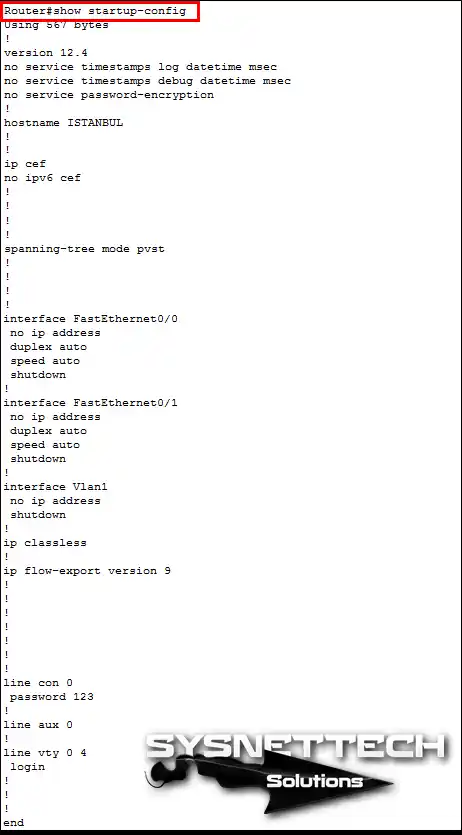
The Startup-Config file is a setup file kept in NVRAM (non-volatile RAM). Even if you turn off the Cisco device, the startup setup file stays in NVRAM.
What is a Running-Config File?
When the Router turns on, it uses the startup-config file. This happens because no changes have been made yet. But when you save your choices, they go into the running setup file. So, these settings show all the new things you did to the device.
When you turn the equipment off and on, the running-config file will now be loaded into NVRAM.
For example, you lost the password for a user account you made on the Router. Here, you can change the setup file to startup-config to create a new password. In this way, you start your device with the initial configuration settings.
Let’s say you did not save all the changes you made to your equipment for the running-config. At this point, when you restart your device, all your settings will be lost.

Saving Settings & Configurations Made on the Router
After you set up your Cisco Router for your network, you must save all the choices. You can do this by using the copy running-config startup-config order in privileged mode.
Routing Device Working Logic
The uptime of a Cisco device consists of four phases;
- POST Testing and Bootstrap Initialization
- Locating and Loading the IOS
- Locating and Running the Startup Configuration File
- Router Setup Mode

What Information Does the Show Version Command Display?
- IOS Version
- Boot Version
- IOS File
- CPU and Model
- RAM Size
- Number and Types of Interfaces
- NVRAM Size
- Flash Size
- Configuration Record

What Happens If a Cisco Router Encounters an Error During the Boot and Post-Testing Phase?
The Cisco device may receive an error during the POST test and boot phase. In this case, the Router cannot proceed to the next steps of the boot process.
Also, the Power On Self Test (POST) checks for hardware problems. If the POST process detects a problem during the test, the Router stops. So, it shows a problem message or helpful details. This information shows you which hardware is causing the problem.
In such cases, we need to fix the hardware error first. By hardware error, I mean it can be in the interfaces, modules, or memory. In other words, we need to replace these broken or faulty parts.
Afterward, when we have solved the problem, we need to power on our Router again. At this stage, if our device passes the POST test, the boot continues. Then, it finds and loads the IOS software. And finally, it runs the initial config file.
How to Boot a Cisco Router? ⇒ Video
You can learn more about how a Cisco device starts. See our helpful YouTube training video to know the main ideas. Here, I explain the simple steps used in this system clearly.
In short, you will discover how the boot process starts the system. Plus, you will make links and set up the network space.
Make sure you join our YouTube channel for more helpful facts and lessons. This way, you can enjoy expert training that will increase your knowledge in networking and related fields!
Frequently Asked Questions (FAQ) About the Cisco Boot Process
- What are the first steps in the Cisco Router boot process?
- Where does the Router look for the IOS image?
- What happens if it cannot find a valid iOS image?
- Can I skip the boot process?
- How does the Cisco Router pick the configuration file to use?
Conclusion
As a result, the Cisco Router boot order, or stages, does not change. This method is the same in both new and old versions. If you work with network equipment, you need to know these.
Also, if we understand the intricacies of the boot sequence, we make it easier to manage. For example, IT professionals can better manage Routers and solve problems.
To handle and set up your Cisco Router well, you must also know its modes. In each mode, you have permission to access specific commands. For a detailed summary of these modes, refer to our guide, “Cisco Router Modes and CLI Commands.” There, you will enhance your ability to use your Router and meet your network needs!

TolgaBagci
Hi, I'm Tolga, a computer expert with 20 years of experience. I help fix computer issues with things like hardware, systems, networks, virtualization, servers, and operating systems. Check out my website for helpful info, and feel free to ask me anything. Keep yourself in the loop about the newest technologies!