

In this article, we will increase the performance of Linux Mint virtual machines running on Oracle VM VirtualBox. But how do you say it? Here’s the answer: Guest Additions installation.
Whether you are using Linux Mint 19, 20, or 21 on a computer with Windows 10 & 11 installed on your host PC, you need to install Guest Additions. This package increases the efficiency of your virtual environment. This means you unlock a better graphics experience, improved mouse cursor, and file sharing.
How to Build Guest Additions for Linux Mint 17, 18, 19, 20, or 21 on the VirtualBox Virtualization Software
To use the virtual machines you have installed on VirtualBox with better performance and to exchange files with your physical computer, you need to install Guest Additions.
When you install Windows or Linux operating systems with VirtualBox, after enabling Guest Additions, you can use USB 3.0 devices properly, and you can also use your virtual machine as Full Screen.
What Are the Benefits of Guest Additions?
Thanks to this software, which is required for Linux or Windows VMs, you can use host devices such as USB in your virtual systems and increase the VM’s stability. We can consider more advantages in the list below;
- You can automatically change your VM’s screen resolution settings.
- You can facilitate transitions between the host and your virtual system with enhanced mouse pointer performance.
- You can enable copy-paste and drag-drop features for faster file or data transfer.
- With improved graphics performance, you can use applications or games in your virtual system faster by turning on 2D and 3D acceleration.
- You can automatically install drivers for sound, network, and other devices.
- You can enable your virtual operating system’s health and performance counters and monitor them more professionally.
How to Install Guest Additions for Linux Mint Virtual Machine
You can install guest plugins without any problem by following the steps below on any Linux Mint version running on Oracle virtualization software.
Step 1
Run the Mint virtual machine and click Devices / Insert Guest Additions CD image from the tool menu of the Oracle program.

Step 2
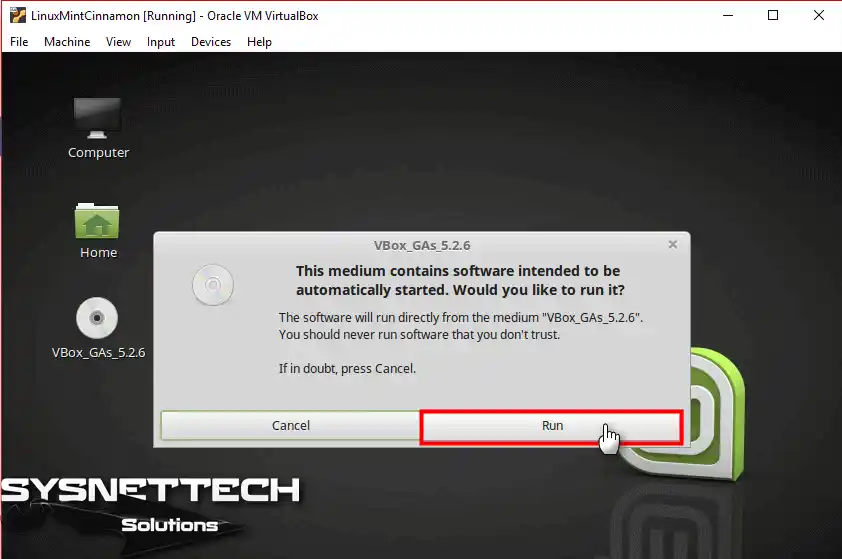
As soon as the Guest Additions CD image is mounted on your virtual system, a warning window will pop up, and if you trust the software, click the Run button.
Step 3
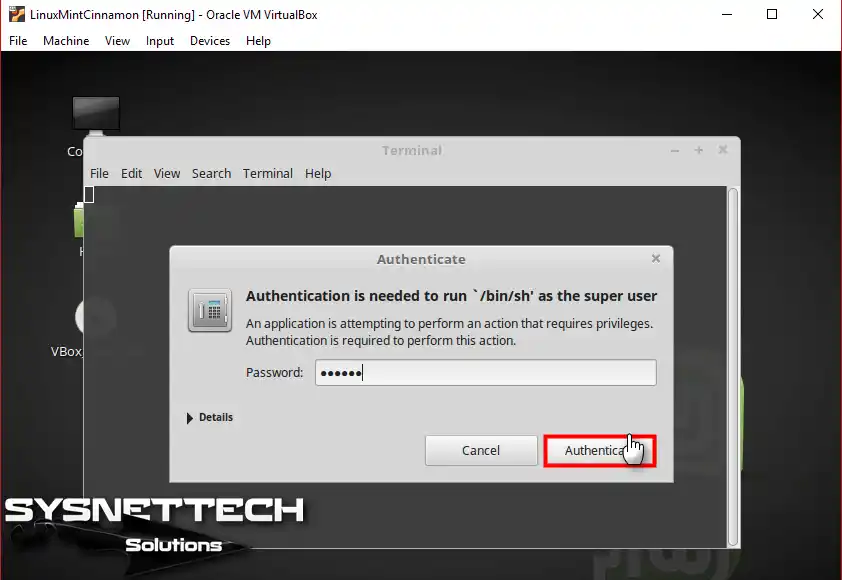
To confirm the ability to run GA software with Root authority, type your Root password in the pop-up window and click Authenticate.
Step 4
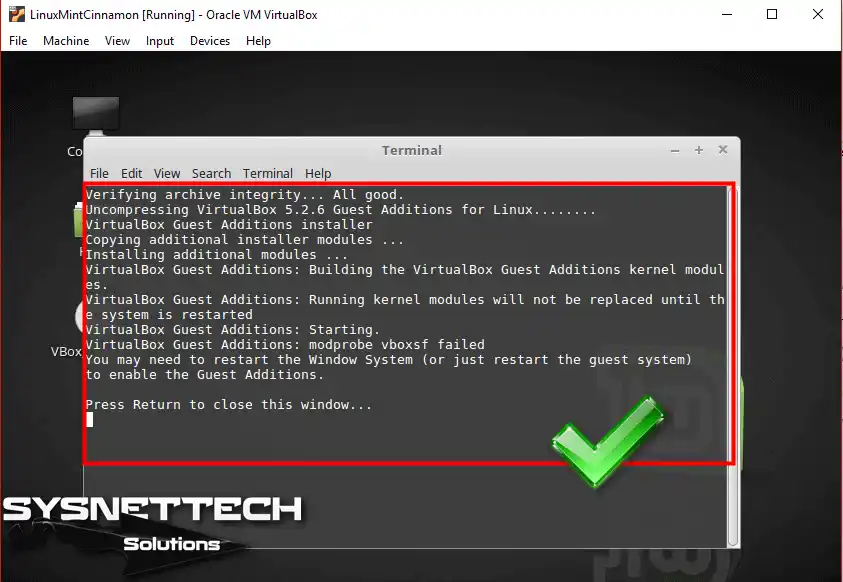
Wait while the drivers of the Mint guest machine, namely the Guest Additions package, are installed.
Step 5
After configuring Linux Mint with GA, you can change your VM’s screen resolution to whatever you want.

Video
Conclusion
As a result, adding Guest Additions to your Linux Mint virtual machine is vital for performance and efficiency. You can install these tools on your virtual machine by following the exact steps I explained. Thus, you can improve your virtual and physical systems without any problems.
What I mean by optimization is that you can perform operations such as improved graphics performance and file transfer. In other words, you introduce the hardware of your host computer to the VM. In short, do not forget to install the Guest package on your guest machines to benefit from all the advantages of VirtualBox!

Be the first to share your comment