
This article will examine how to resolve the “Windows Protection Error” that occurs when attempting to install older Windows systems, such as Windows 95, 98, or 2000, using Oracle VM VirtualBox or VMware Workstation virtualization programs on a computer with virtualization capabilities enabled.
How to Solve Windows Protection Error When Running Windows 95, 98, 2000, or ME with VirtualBox / VMware
With Oracle VM VirtualBox or VMware Workstation virtualization programs, you may encounter Windows Protection Error while installing an old operating system, Windows 95, or other systems on your host computer, virtual machine, or later.
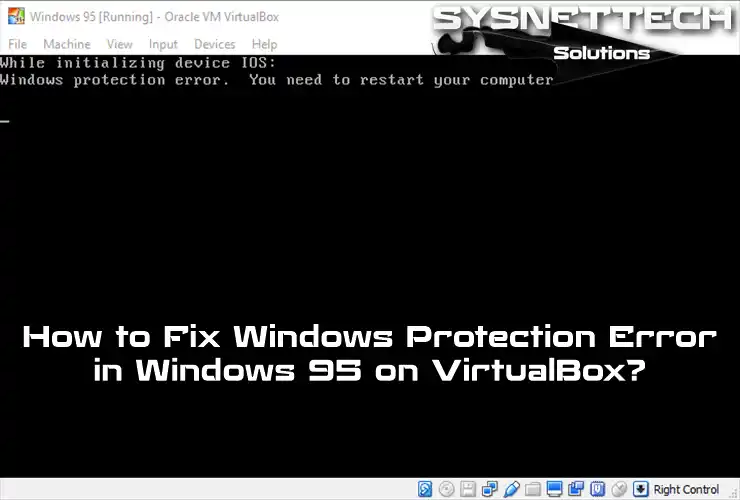
When you start the system immediately after installing Windows 95 or restart the virtual machine to finish the final stages of installation, you are likely to get an error: “While initializing device OS: Windows Protection Error. You need to restart your computer.”
What Causes Protection Error?
Incompatible hardware drivers, wrong ISO files, unsupported hardware, or startup applications can usually cause a Protection Error.
- Virtual Machine Configuration: You may have needed to set the virtual hardware settings of your guest machine correctly to support an older operating system, such as Windows 95. In particular, it can be caused by memory, processor count, or incorrect disk configuration.
- Memory Limitations: Since Win95 has a different structure from modern operating systems regarding memory management, the amount of memory you assign to your VM may prevent your system from running and cause a “Protection Error.”
- Virtual Disk Drive Issues: Older Windows systems use a different structure to recognize and manage hard disk drives. Therefore, driver incompatibilities or errors can prevent your system from working correctly.
- Hardware Incompatibilities: You may encounter problems such as hardware incompatibility, which is one of the essential items, and protection errors related to the hardware of your host computer. There may be differences in your physical PC, depending on whether it uses old or new technology. Therefore, some virtual machine software may have limitations in supporting and running older operating systems.
Based on our experience with Windows protection failures, for example, we have encountered processor frequency errors when running Windows nostalgia systems on a computer with a new-generation Intel processor. Some Patch software is available to fix such problems. On the contrary, you can run old systems more efficiently on a PC with a mid-generation processor, even without Patch software.
How to Troubleshoot Protection Errors in Windows Nostalgia Systems
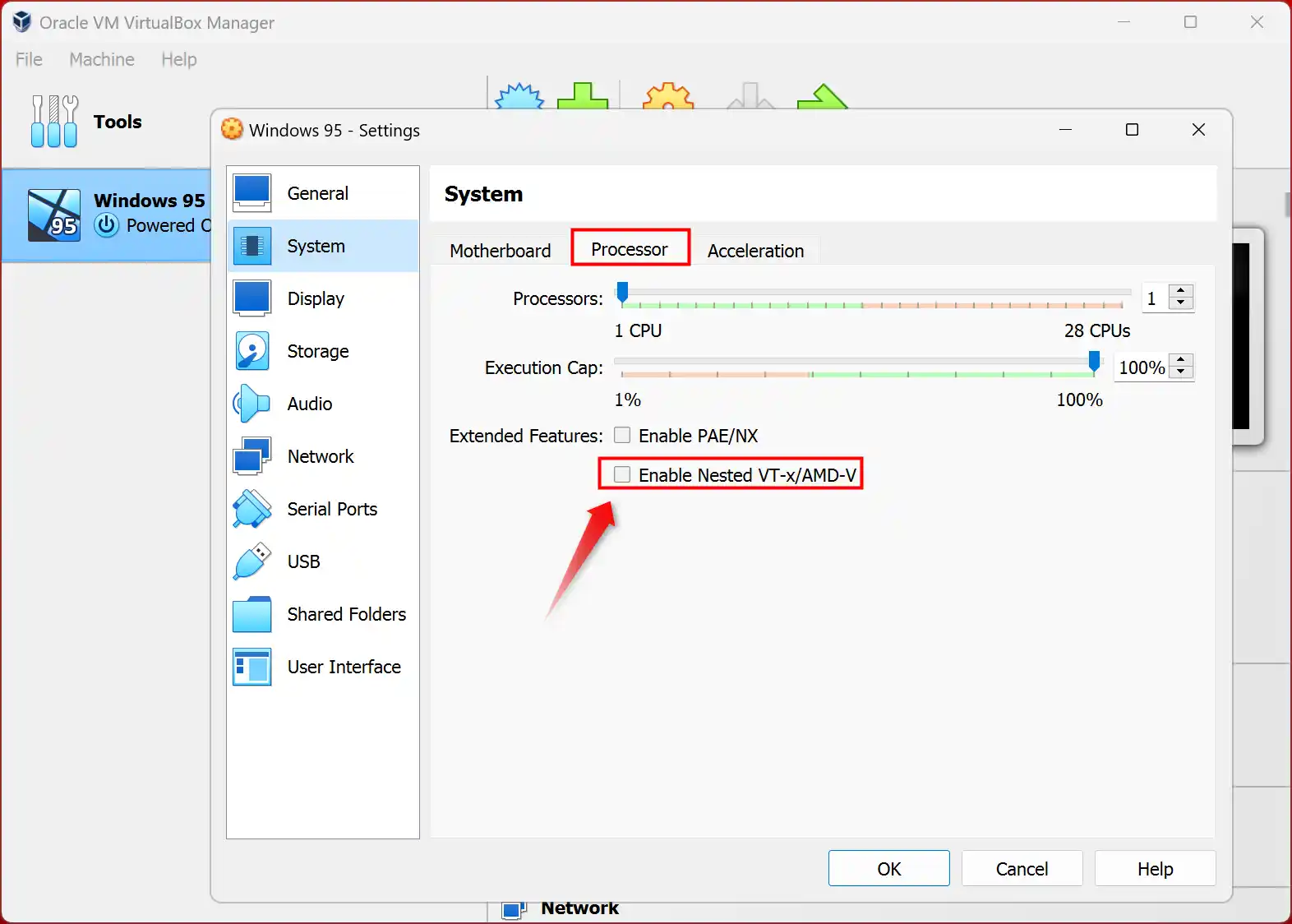
Sometimes, when you experience issues with running legacy systems, or even Oracle software on different computers, you can resolve the protection fault simply by disabling the VT-x/AMD-V feature.
Step 1: Disable VT-X/AMD-V Feature
When installing Windows 95 in VirtualBox or VMware software, one of the first things to do if you encounter a Protection Error, as shown in the image below, is to turn off the virtualization feature.
First, try to avoid this error by disabling the VT-x feature and completely shutting down your guest system. To do this, click X, select Power off the machine from the Close Virtual Machine window that opens, and click OK.
View the settings of your Windows guest machine and uncheck the Enable VT-x/AMD-V option from the Hardware Virtualization settings in the Acceleration tab in the right panel of the System section.
Step 2: Change the Memory Amount
Do not assign a size larger than the supported limit to your virtual system, as older Windows systems have limited memory. For example, a 4 GB RAM size may cause your VM not to work correctly. Therefore, the appropriate RAM size for older operating systems is 256 or 512 MB.

Step 3: Use Another ISO File
ISO files obtained from various websites on the Internet may require repair. We highly recommend acquiring the installation media from a trustworthy source to ensure a secure installation process.

Step 4: Set the USB Controller to 1.1
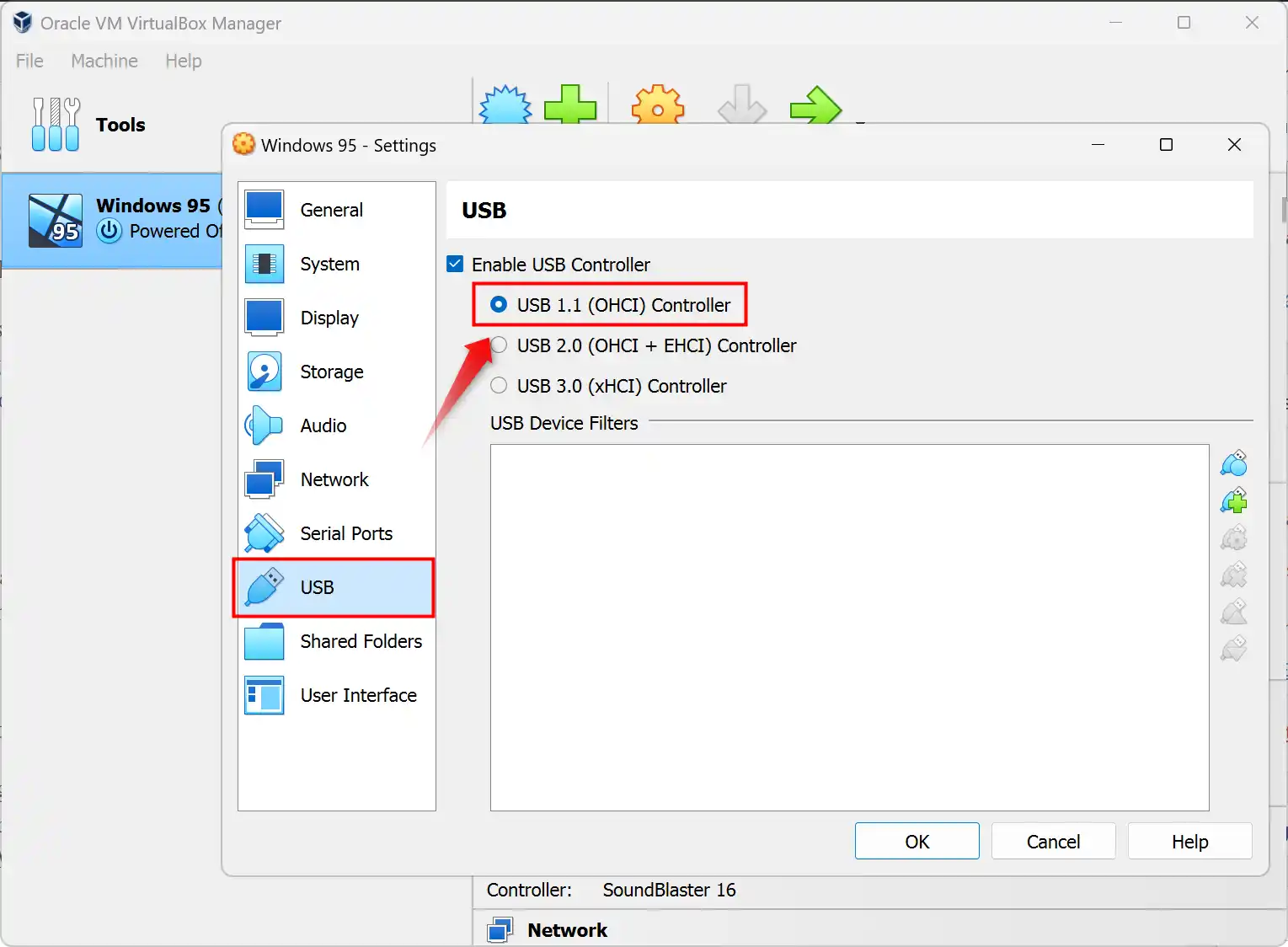
As mentioned earlier, it is essential to thoroughly examine the configuration of your virtual computer, as it may not be fully compatible with contemporary technologies. For example, they do not support USB 3.0 as Microsoft developed the Windows 95 or 98 systems years ago. We also recommend setting the USB version number to 1.1 on your virtual machine (VM).
Step 5: Reduce Virtual Disk Size
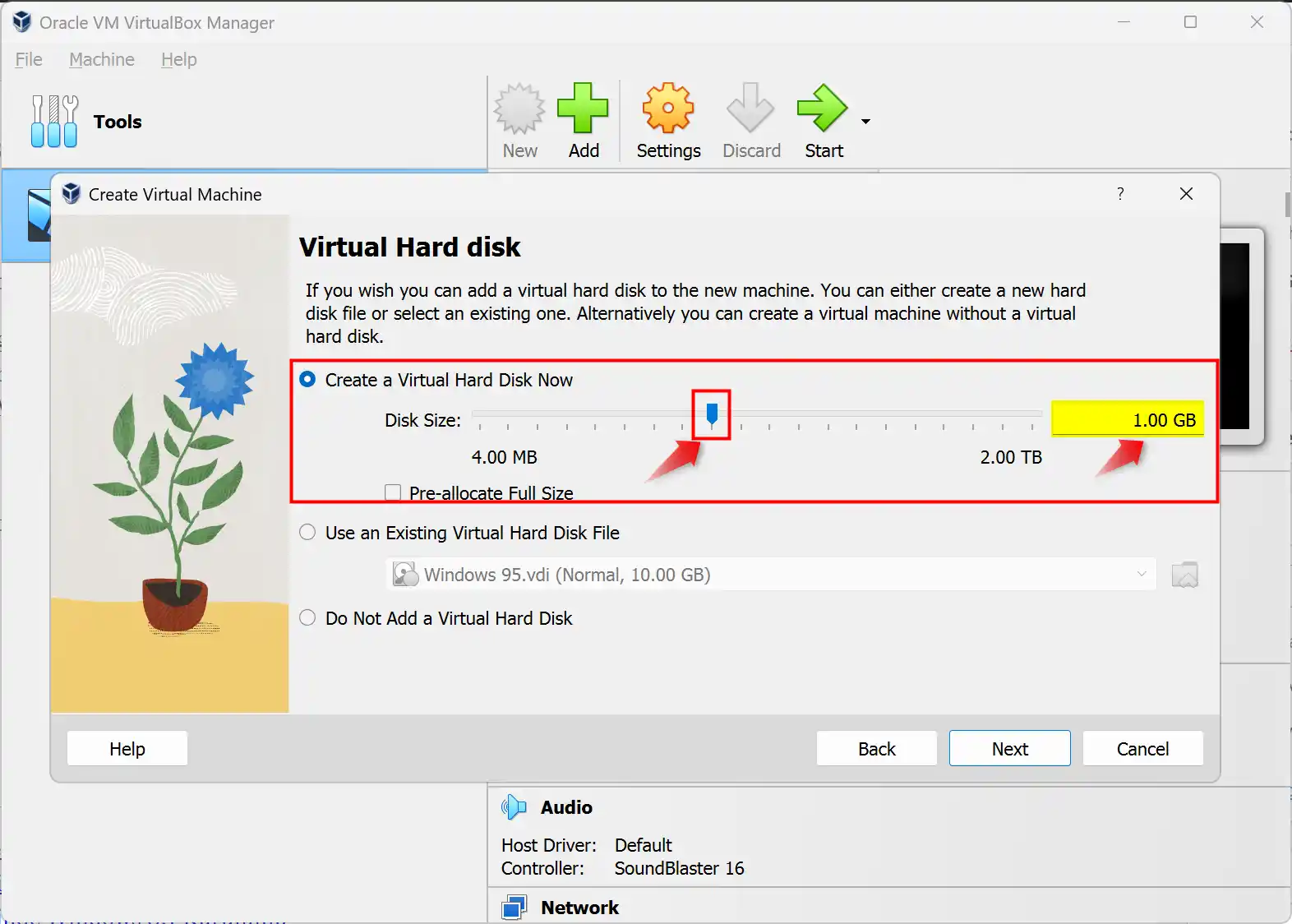
Older Windows systems need less disk space because the system files are relatively scarce. Therefore, it’s unreasonable to configure a disk size of 100GB for an older system. You may also encounter the Windows Protection Error in these situations. If you prepare a new Windows 95 in the Virtual PC wizard, set the disk size to 1 or 2 GB to avoid errors.
Step 6: Disable All 32-bit Protect-Mode Disk Drives
Even if you have installed your system, a protection failure may occur occasionally. Still, another method that can be tried to eliminate this problem is to enable the “Disable all 32-bit protect-mode disk drivers” option.
To enable this option, open System Properties / Performance / File System settings and select “Disable all 32-bit protect-mode disk drivers” in the Troubleshooting tab of the File System Properties window and save the settings.

Conclusion
As a result, we can run older Windows systems such as Windows 95, 98, or 2000 in virtual environments. However, there may be occasional issues with virtualization programs, such as Oracle VM VirtualBox or VMware Workstation. For example, encountering “Windows Protection Error” is quite annoying.
However, you can fix this problem by carefully adjusting the virtual machine configurations. Moreover, when disabling certain features, it is essential to consider hardware and file compatibility.
The methods I described in this article are definitely effective. So you can still enjoy older operating systems without encountering protection errors.
If you want to install Windows 95 with VirtualBox, be sure to check out our guide. Because with the error you encounter in this guide, you can make a more trouble-free installation. Thus, you can successfully run old Windows systems in a virtual environment.

TolgaBagci
Hi, I'm Tolga, a computer expert with 20 years of experience. I help fix computer issues with things like hardware, systems, networks, virtualization, servers, and operating systems. Check out my website for helpful info, and feel free to ask me anything. Keep yourself in the loop about the newest technologies!
Hi, Ive tried what you suggested, but with no luck.
I am running VirtualBox 5.2.30
on a iMac running 10.13.4 (High Sierra)
Using Win95_OSR25.ISO
1 Starting Windows 95
2 Start up menu
3 While initializing device IOS: Windows protection error. you need to restart your computer.
I cant get any further
Thanks
Mark
Greetings Mark,
I find that you have to first turn off the Enable Nested Paging option, then you can turn off the Enable VT-X option. If you try turning off the Enable VT-x option first, you will get an invalid setting error and the settings will not save.
terry can you help me I get that windows protection error using windows 95 and VMware station looked every were for VT-X option hard disk
I am on VirtualBox 6.1.16 and can’t find the option.
same here
For newer vBox systems:
Paravirtualization Interface: => Set to “Legacy”
At Hardware Virtualization => Disable “Enable Nested Paging” option
By virtualbox 6.1.36 setting ‘legacy’ for the paravirtualization and disabling ‘nested paging’ is no longer enough, win95 continues to throw the windows protection error. It even does it in safe mode. No fix as yet… the methods above don’t work 🙁 well, it is a 27 year old OS
I have had success if I reduce the CPU speed for the VM in Settings > System Processor (tab) Execution Cap > 25%. It seems to make a difference to leave mouse / keyboard focus inside the VM if I needed to place it in there during Win95 startup (ie: if I have interacted with a Wind95 boot menu). A CPU value of 25% seems to be the highest I can go with my setup. My VirtualBox version is 6.1.26 r145957 in case that matters.
using virtual box 7.0. I see the options your talking about but they are greyed out and will not change