

Think of a digital doc and the first name that pops up is PDF. Invoices, contracts, school theses, e-books, and so much more… Each day you work with this file type, whether you know it or not.
So what makes this format so vital? Why pick PDF over a Word doc or a plain JPEG shot?
Right here is where I step in. I have spent years in this field. I have solved every PDF issue you can think of in corporate projects. Furthermore, I fix them in one-on-one consults. This guide is my gift to you. You have found the right spot if you are tired of shallow web posts.
Truth be told, you will not just learn “what is PDF” here. You will also peek behind the curtain at code feats and safety walls. Furthermore, you will see its wild 2026 status.
Ready? Let us launch into the depths of this portable doc format at light speed.
What Is PDF and What Are Its Core Traits?
People see it as the shared tongue of the digital world. However, it has a surprisingly rich and smart build. In this part, we will explain the format. Also, we will show the unique lines that set it apart.
PDF Expansion: Portable Document Format and Its Meaning
Let us start from the deepest end, with its name. It is a short form built from the first letters of “Portable Document Format.”
When we unpack it, we get exactly what the name says. The word “portable” plays the key role.
See, this term points not just to a file you can move on a USB stick. It points to a build that works free from any single platform.
So a portable file always looks the same. You can open it on a new iPhone, a 10-year-old Windows PC, or a Linux host.
Fonts do not slip. Pics stay crisp. Page flow stands firm. This fixed layout trait is the core thing that made the format a world standard.
The name behind this format is Adobe Inc. Led by John Warnock, they pushed this dream out and, in truth, brought the digital paper concept to life. Still today, this digital paper logic is peerless at keeping the first shape safe.
Platform-Agnostic and Fixed Layout Trait
One of the biggest plagues in the software world is match-up glitches. A slide deck that looks great on one PC can turn into a mess on a new device. It has happened to us all.
PDF exists to stop this chaos. Thanks to its device‑agnostic core, the doc looks the same on its original screen. Furthermore, it looks identical on the recipient’s screen.
This point is vital for legal texts and official forms. If an ink spot on a deal slip moves even a hair, the whole doc could be void.
Thankfully, it wipes out all these risks. It gives the user pure trust.
On the flip side, this trait brings a certain stiffness, too. To tweak a PDF is hard, much like trying to fix a printed page.
But this flaw, in truth, turns into a plus for doc safety. To mess with a PDF without a right to do so needs skill and the right tools.
File Extension and MIME Type: .pdf and application/pdf
Let us look at a more tech part. How do file systems spot this digital print?
When you save a PDF file, the name ends with “.pdf”. This three-letter tag tells the OS, “You need to open this file with a PDF viewer.”
On the web, things work a bit on a new track. Your web browser pulls data from a host. Therefore, it checks a tag called the MIME type to know the data kind.
For this, this tag is application/pdf. When your browser sees this code, it offers to show the file in the tab. Nevertheless, it does not just save it.
These two small but key points come from it being an open norm. If the format were a closed box, such a vast group of tools would not have embraced it.
In the end, it shows itself with no fuss, both in local stores and in web flow.
The Past of the PDF Format: From The Camelot Project to ISO 32000
Behind each great find is a simple but nagging snag. The birth tale of PDF began just like that.
In the early ’90s, showing a doc made on one PC seemed far-fetched. Furthermore, displaying it the same way on a new PC felt like a pipe dream. This quest pushed Adobe coders into action.
The Camelot Project and John Warnock’s Dream (1991)
Adobe co-founder and math whiz John Warnock was stuck on this snag. In 1991, he launched a hush-hush quest called “The Camelot Project.”
His aim was clear: build a system where a doc would look the exact same, no matter the printer or screen.
At that time, Adobe had a strong page paint tongue called PostScript. Warnock aimed to take what PostScript could do. Furthermore, he shaped it into a light, mobile form for the end user.
What he sought to build was, in truth, a “digital paper” in the virtual world.
The project set bold goals. Consequently, it took its name from Camelot’s dream realm in the King Arthur myth. This name represents a world where everything works smoothly and without faults.
And in truth, The Camelot Project was the first step in the e-doc shift we now use each day.
Adobe Acrobat 1.0 and the Early Years (1993-2000)
They began to reap the fruits of the project in 1993. Adobe put out Acrobat 1.0.
But things did not go so well at first. The tool came with a price tag. Plus, to pull such a heavy file on the slow web of the time was pure pain. To be frank, PDF did not catch fire right away.
The turn came when Adobe made a smart play. They began to give the Acrobat file reader out for free.
As if that was not enough, the U.S. tax office (IRS) choose PDF to share tax forms. This move meant the format got a nod from the state, and it sparked a snowball effect.
Toward the end of the ’90s, the web boom helped PDF spread. Now folks could view digital docs straight on a web page with a browser plug-in.
This trait made the user feel a world of change for the good. Then it made PDF a must for store and share tasks.
ISO 32000 Norm and the Path to an Open Format (2008)
For long years, it stayed a locked tech held by Adobe. But for a format to be world-wide, no single firm can hold the keys.
With this truth in mind, Adobe took a huge leap in 2008. It handed PDF 1.7 to the world norms body (ISO).
From this hand-off, the ISO 32000 norm was born. This was the formal seal that it was now an open format.
Thanks to this, any code shop can now make tools to craft or tweak PDFs. They need no yes from Adobe.
The path to a norm made the format even more hot for state desks and big firms.
Now they had a pledge. Specifically, their e-docs would remain readable in 50 years. So this trust sped up PDF shift and store jobs.
PDF 2.0 and New Steps (2017 to Now)
Tech does not pause. In 2017, the PDF world stepped into a new age with 2.0 (ISO 32000-2).
This fresh drop got a full re-do. It had to keep pace with new web tools and fight back at fresh safety threats. The new, sharp lock codes and reach tools drew the eye.
By 2026, PDF is no more just a still doc. With AI-driven aids, we can turn these files into sound shows you can stream.
What’s more, we can build charts from the data inside on the fly. This makes it plain how live and fresh the format still is.
In short, the spark lit at The Camelot Project now lights a huge world. Therefore, you can share, sign, and store billions of PDFs in trust. This code shift might just be one of the top tales of digital change in our past.
The Tech Core of the PDF Format: What Goes On Inside?
When you pop a PDF open, you see a flat, plain page. But behind the scenes, a wild and dense band plays on.
Now let us dive into the tech bits your eyes can’t catch, but your gear works hard to run.
A Base Built on PostScript and an Object Model
The base of PDF rests on a page paint tongue called PostScript, which Adobe built first. PostScript is a code tongue that tells a printer how to draw each page.
But PostScript was too fat to move with ease. PDF took the draw skills from PostScript and shaped them into just a show-and-tell (display) mode.
Peer inside a PDF’s guts. Specifically, developers use objects that branch out like a tree.
Thanks to these things, each part in the file (text, line art, pic) sits in a free block. This block build speeds up page loads and keeps harm small if the file breaks.
To be more exact, this build lets PDF work in a way that is poles apart from HTML, the base of web pages. HTML gives a flow that bends, while it works with fixed spots. In other words, the X-Y points of a text box are set in stone and never budge.
Vector Data, Raster Data, and Text Layers
By its own make, PDF is a mixed beast. It can hold both line art and pic grids. Line art is made of lines and curves drawn with math rules. So logos or fonts stay razor sharp, no matter how much you zoom; they do not break into dots.
However, you might add a photo or a scanned page. Consequently, you store this image as a grid of dots.
We know this grid type from JPEG or PNG files. Its look ties to its dot count; zoom too far and it gets soft. So, it melts these two data kinds in one pot with real skill.
Plus, the text in the file sits as a new layer laid on top of the pic. This lets you hunt for words in the doc or copy text out. If this layer were not there, the PDF would be just a pile of flat pics.
Font Embedding and Meta Data Care
This is where the magic and the big snag meet. The key to “Why did this font not break on the next PC?” is the font embed trait.
When you craft a PDF, the glyph maps of the fonts you pick get tucked right in the file. Therefore, the recipient sees your exact text layout. However, their computer might lack that specific font.
Still, this bulks up the file a bit. Some tools, to shrink things down, skip the embed and just point to a font.
This is a dicey path; If the next PC lacks that font, the system swaps in a whole new font. Consequently, the whole flow wrecks.
On top of that, a PDF is not just a flat look. It has a space for meta data, facts about the doc.
The name of the scribe, the date made, and key search words all live here. Search bots and digital store systems use this meta info to sort files.
File Squash Tricks (Flate, JPEG2000, JBIG2)
PDF files can take up a ton of room at times. If they hold crisp, rich pics, you can’t even shoot them by e-mail. To fix this, it pulls from a set of sharp file squash tricks.
For text and line art, it tends to use Flate (a ZIP-like, lossless squash). For shots, it rolls out JPEG or JPEG2000.
JPEG2000 is a fresh codec that packs the same clear look in a tinier space than plain JPEG. For black-and-white scanned sheets, it calls on the JBIG2 trick. It can squeeze reams of text down to just a few bytes.
The key to the trick is this: PDF build tools examine each part on a page—text, shot, or draw—individually. Consequently, they choose the best squash mode for each part. Thanks to this smart tune-up, even a thick e‑book stays compact. In short, it remains at a size you can take.
What Is PDF Used For? Broad Use Cases
Now we know what PDF is and how it runs. But where, in day-to-day life, do we put this format to work?
The response is so plain: Just about all spots. It soaks through our lives to the point we miss it most times.
PDF in the World of Work and at State Desks
The back bone of the firm world is, with no doubt, PDF. Just think: You receive the digital bill at month’s end. Additionally, you pull the bank slip from your bank app. Moreover, you sign a work deal.
Each one is in PDF form. This is because strict rules exist. Therefore, you cannot change their original format.
State desks have made PDF a must, too. If you file a plea to a state hall in e-form, the type will most like be this format.
This way, you block the theft of facts from the doc at a late time. On the flip side, you keep the legal weight of the sheet safe.
Plus, in-house check paths use PDF a lot. We can lock a bid file that needs nods so no one tweaks it. Then we send it out just to get an e-sign and a nod.
You see, this flow is the best way to guard the firm’s own mind and trace the check path.
We are in a time where e-state links have spread this wide. For this cause, the skills to shift and sign PDFs are now a chunk of plain PC skills.
PDF in the School and Scholarly World
The school tribe is one of the most strict when it comes to share of known facts. Think of a time you write a school thesis. The edge gaps, the source list flow, the chart count…
You can leave none of these to chance. That is just why schools take thesis hand-ins in PDF mode.
In the same way, class notes and e-books most times show up as PDFs. A pupil can read the PDF the professor shares. Also, the pupil can jot notes with a pen on a pad. Furthermore, the pupil can print it out. In both modes, the page flow and the learn feel stay the same.
World-wide science prints and works are, with scant few cases, PDFs. Thanks to this, a brain can find a work from 1995. Thus, the brain can read it just as the scribe did. This plays a key role in the flow of science facts through the years.
Resumes and Digital Showreels in PDF
One of the most nerve-wrack points in a job hunt is the shoot-off of your CV.
What if you shoot a Word file to the HR lead? If the patch is off, your neat two-page sheet can turn into a three-page mess. Consequently, they see loose text on their end. This leaves a bad stamp, far from a pro look.
Thankful, the path out of this dread is plain: save your CV as a PDF, no doubt. This way, no matter what gear the boss boots up, they will see your crisp, clean, well-set scheme. This small point can push you one step past the rest in the hire race.
The same case holds for graphic minds or folks who build. When you give a digital showreel—a file of work bits—in PDF mode, it looks professional. Therefore, it stays compact and lean in size.
On top of that, the PDF merge trait lets you pack a bunch of your jobs in one file. To shoot it off is then a breeze.
E-Cat, Flyer, and Sales Stuff in PDF
The sales world rests on a strong look. When you shape an e-cat, each page has its own flow.
That flow is built with deep thought to boost the pull of the goods. Using these as website images looks bad. So, it stops search bots from reading the text.
This portable document is worth its weight in gold here. You can drop in knobs, links, and even clips to craft a touch-and-feel digital doc.
Guests can grab your catalog and browse offline. Subsequently, they can tap a product to visit your website.
Most of all in B2B sales, deep good flyers and tech spec sheets come in PDF form. The potential guest saves the file in their own stash. Consequently, they can pull it up easily whenever needed. This is a touch that shoots your brand’s pro stamp through the roof.
How to Open, Craft, and Tweak PDF? (Step-by-Step Walk)
We are past the deep thought part. Now we step into the do part, the guts. If you ask, “Fine, you lay it out well, but what do I do with this PDF file?” then this chunk is just for you.
Open and View PDF with Adobe Acrobat Reader
The most widespread and trusted way to open a PDF is using Adobe Acrobat Reader. Additionally, it is free and comes from Adobe Inc.
Since it comes from the hands of the format’s own dad, you hit not a speck of match-up strife. The set-up is a breeze and it stays mum in the back.
Acrobat file look tool does not just show. You can pick and lift text, hunt through the doc, and fill some blank fields.
Plus, the read mode tunes the page so your eyes don’t ache. If you are a kid who hits the books late at night, this trait is your life-saver.
As a stand-in, most all web browsers now (like Google Chrome, Edge, Firefox) have a built-in PDF show tool.
When you tap a link, the browser pops it in the tab. This is great for a fast glance but not as fast as Acrobat for fat, dense files.
On hand-held gear, the case is no diff. Both the iOS and the Android run space can show PDF as a base trait.
You can, with no need for an extra app, pop and check a bill from your e-mail right then.
Craft PDF in Microsoft Office and Google Docs
To craft a PDF is not the tough chore it may seem. In truth, you most like make PDFs each day with no clue.
The best-known way is to tap “Save As” while you toil in Microsoft Word, Excel, or PowerPoint. The blink you pick it from the file type drop-down, your doc shifts to PDF right there.
One spot to eye while this runs: the “Options” knob. Tap it to add PDF/A fit or to tune the doc. If you plan to shoot the file to a print house, you must tick the high print qual box.
If you lean on Google Docs or Google Sheets, the flow is even more slick. Just trace the path “File > Download > PDF Document (.pdf)” from the top bar. With cloud-based PDF craft, you can nail this task, no need for an office suite on your own gear.
Free vs. Paid PDF Tweak Tools — A Side-by-Side Look
Now for the part that sparks the most buzz: the tweak. By its own core, PDF fights change. But it is not a closed door. The world has scores of tools for this. So, the one you pick rests on your need and your cash pot.
The chart down low pits the most hot PDF tweak tools for your eye:
| Trait / Tool | Adobe Acrobat Pro | Smallpdf / iLovePDF | LibreOffice Draw |
|---|---|---|---|
| Price | Paid (Sub) | Part-Free | All-Free |
| Platform | Windows, macOS | Web Browser | Windows, macOS, Linux |
| Text Tweak | Flaw-free | Bound | Mid-Grade |
| PDF Sign | Sharp E-Sign | Plain Draw Sign | No |
| OCR (Opt Char Spot) | Yes (Top Notch) | Yes, in Paid Ver | No |
The chart shows that editing PDFs for work, such as touching up deals, matters. However, no tool can replace Adobe Acrobat Pro. If you just need to swap a word now and then, use free web aids. That is, they will do the job and then some.
If you explore the free-code sphere, you can use tools like LibreOffice Draw or Inkscape. Plus, these tools pull off simple tweaks with good form.
Merge, Squash, and Shift PDF Chores
On the day-to-day, the next hot needs are to merge and to squash.
Say you must send 10 scans as one file. In place of a blast of e-mails, you can use a PDF merge aid. So one neat file saves ticks for you and the one who gets it.
In the same way, a PDF squash can save the day when you must stay in e-mail size bounds. The web aids drop the dot-count of pics a tad, which chops the file bulk a lot. As you do this, you can pick a qual spot like “High” or “Screen Shot.”
Shift chores are a whole new globe. The aids that turn a PDF to Word (.docx) have hit a shock peak in the past few years, backed by AI might.
Now you can move from PDF to Word and still keep your grids and row flow. You can shift a PDF to JPEG or PNG. So, you can toss it up on a web page for all.
PDF Safety Traits: Lock Codes, Signs, and Blot Out
In 2026, data care is not a nice-to-have; it is a must. The PDF form gives its users a Swiss knife in this zone.
Now I will show you how to shield your docs from prying eyes and those who mean harm.
Passcode Guard and Right Blocks to Shield What’s Inside

To put a passcode shield on a PDF is like stashing it in a safe. To pop it, one must punch in the code you set.
Thanks to this feature, unauthorized people cannot open your deal slips or secret bids. In short, these files remain completely safe without the code.
But the guard PDF gives is not just a pop-code. There is a more slick trick called a right block.
With this, the user can pop the doc but can’t lift the text, can’t print, and can’t tweak. Shops that sell e-books use this to fight the thieves.
The fresh drops use the AES-256 lock norm. This gives a guard wall at war-room grade. If a rogue tries to break your code, the job, with all our tech now, would take eons.
Of course, the weak spot here is the code word; if you set “123456”, the best lock in the world is no use.
To sum up, when you need to keep what’s in a doc safe, the guard wall stands quite firm.
E-Sign and Seal to Prove Truth
The wet ink sign of our world is the e-sign or code sign. PDF form gives a prime base to tuck this sign right in the doc.
When you code-sign a doc, you put an eye-blind stamp on it. If a dot in the doc shifts post-sign, the stamp breaks.
This trait vows the whole and the can’t-deny part of the doc. One can’t claim, “I did not sign this deal.” Most of all, one can’t charge, “The doc was fudged post-sign.” So banks, claim desks, and law teams put their full faith in code sign tech.
What’s more, you do not need a spendy USB stick for this. With Adobe Acrobat, you can create a free code-self. Moreover, you can share docs in a tight trust loop with your peers.
Yet for true state work, you need a qual e-seal from a law-bound source.
Blot Out: To Hide Hush Bits for Good
This is one of the least known, but may be the coolest, PDF tricks. A blot-out is like the thick black bar a spy group draws on a tip. But the code blot’s stand-out is that you can’t turn it back.
Lots of folks draw a black box to hide a hush fact in a PDF (like a SSN). This is a green move and full of risk.
To lift that black box or grab the text it hides is child’s play. The blot tool, though, wipes that whole spot from the file and lays a flat black block on top.
This way, the one who gets the doc can’t touch that fact, no how. When court logs, health sheets, or trade truths get a share, this trait is a must.
To be blunt, a desk clerk who doesn’t know how to blot risks the firm. Therefore, the firm could face a costly fine for a data spill.
PDF Guard and DRM Paths
Past the stock lock, you can use DRM (Code Rights Rule) fixes. Specifically, the fixes apply mainly to e-books sold for cash and closed tells.
These locks snap the PDF so it pops just on one set gear or in one sole app. Plus, the doc’s life can have a clock; say, the file wipes its own self in 30 days.
Big firms tend to pick these modes. The cause? Once a stock code is cracked, the file stands bare.
But a DRM-guard file, code right or not, must phone home to a host to check who asks. This is the top way to keep the reins past the first share.
To wrap it all, PDF goes past a plain look tool. It is a slick keep at the height of its guard. When you wield the right aids, you can share your code goods with full ease of mind.
PDF Norms: PDF/A, PDF/X, PDF/E, PDF/UA, PDF/VT
The word PDF must not just bring desk docs to mind. For the diff needs of diff fields, you can find a full set of PDF sub-norms. In this chunk, we will scope out the ones that count the most.
PDF/A: The Long-Haul Digital Store Norm

What is the life span of a digital sheet? Try to pop a Word file you wrote 10 years past; the chance you meet font faults and busted grids is high.
PDF/A is here to fix just this. This norm vows that a doc can be popped the same in 50 or 100 years.
How does it pull this off? PDF/A rules that each thing in the doc must stand on its own two feet. So all the fonts you pick must be tucked in the file. No calls to the out-side or Javascript code can run. Plus, all the shade guides sit right in the file.
For law desks, book halls, and state stacks, PDF/A is the one must-have. A bill stored now will pop with no fuss in the year 2076, thanks to PDF/A. This is a change-the-game pledge for the long life of code facts.
PDF/X: The Print and Art Norm
You shape a flyer and shoot it to the print shop. But the shades on the print are a far cry from what you saw on your screen. This dread fades from view with the PDF/X norm. PDF/X is tweaked for art and print work at its core.
This norm is strict on shade maps (CMYK/Spot shades), font tucks, and bleed or crop bounds. So it vows these specs are baked in the file. It stops low-dot pics from use, too, which vows a clean print.
Print shops love PDF/X files. Specifically, they know these files are ready for the press. So do-overs that eat up ticks shrink to near nil. For art minds, PDF/X is a guard sheet that speeds the work flow.
PDF/E: Skill and Tech Doc Specs
Folk who draft and build deal with CAD plots and 3D shapes of vast bulk. To share such tech spec docs with a stock document is near a no-go. The PDF/E (Skill) norm grew just to fill this tight spot.
This shape can store big print draws in stack sets. When you open the PDF, you can toggle layers. Also, you can turn on or off the wire plan. Furthermore, you can toggle the flow or shell plan. It can tuck 3D shapes right in the file, too. Furthermore, the next side can spin the plot full round to peer at it.
Most of all, at a build spot, the site lead is not apt to know fat CAD tools. Thanks to PDF/E, you can view the densest plans with a plain PDF viewer. Furthermore, you can build the plan right there on the ground.
PDF/UA and PDF/VT: Reach for All and Shift-Spot Print
The PDF/UA (Reach for All) norm aims at those who have lost their sight. It gives the base for screen-read tools to spell out a PDF doc with ease. This norm requires authors to tag heads, lists, and grids in a logical reading order.
This build, called a Tagged PDF, helps blind users navigate. Therefore, they can leap from head to head to find their way. On top of that, they can hear the facts in the cells of a grid, one by one. In a lot of lands, state desks must put out PDFs that fit the PDF/UA rule by law.
On the far side, the PDF/VT (Shift and Task Print) norm is for one-off mass print runs. Like a bank that prints a card slip just for each of its own guests. This norm ensures the shift bits (name, sum due) print quickly on a huge stack. Therefore, the output contains no flaws.
A Deep Side-by-Side of PDF and Other Shape Types
Each job has its right tool. PDF is a great shape, but is it the best pick at all times?
Now I will weigh it with the other big shape types to help you make the right call.
PDF vs Word (.docx): Tweak Ease vs. Look Trust
The clash of these two is the big bout of the digital desk. So when should you pick each one? The grid down low gives a clear line:
| Check Point | Word (.docx) | |
|---|---|---|
| Tweak Ease | Tough (Needs prime tools) | So Easy (Its own home turf) |
| Look Stick | Flaw-free (Fixed scheme) | Risky (Breaks with patch/gear shift) |
| Safety | Top-End (Lock code, seal) | Low (Can shift with ease) |
| File Bulk | Shift (Can tune it) | In the main, more slight |
| Work as a Pack | Weak (Can leave mark notes) | Strong (Live group tweak) |
In a nut, if your team will work on a doc as a pack, pick Word. But once the doc hits its last look and must be shot off, ship it as a PDF. This is the gold, un-spoke rule of pro life.
PDF vs JPEG/PNG/TIFF: Doc or Snapshot?
This face-off is a bit like a test of an earth ball to a space ship. The cause is that JPEG and PNG are grid-shot (pic) shape types. PDF is a doc shape. The big split shows up in the skill to touch text.
You can’t grab words from a JPEG file. When you zoom, the dots puff out. Yet in a PDF, the text stays as line art, each point and line sharp.
Plus, OCR (Opt Char Spot) lets you turn a scanned snap file into a doc. Plus, you can then search inside it.
But you can share a chart image on a web page. So, JPEG or PNG work well. Each spot does not pre-show a mobile doc shape as a pure snap. So, for look work with scant words, you can lean on snap shape types. For docs, though, PDF is the sole right way.
PDF vs EPUB: What’s Best for E-Prints?
For those who love to read e-books, this side-by-side holds great weight. It has a stiff scheme; the block on page 25 stays in that same spot, time and time.
EPUB is a shape that flows back; when you bump the font scale, the words re-thread to fit your screen.
This deep cleft sets the use case. You must use this tool for school books or complex layouts. Specifically, precise page schemes require it.
EPUB gives you a much smoother read. This is especially true for long, plain text books.
On small screens like phones, reading a PDF forces you to drag left‑right often. Consequently, this can quickly wear you out.
EPUB streams like a web page. So in the world of e-prints, both shapes have made a firm stand.
Top-End PDF Tricks: Forms, Rich Media, and Touch Flow
Most users see PDF as a flat, dead tree page. Yet it holds a huge world of force packed in.
PDF Blanks: Fill-In Fields and Fact Snag
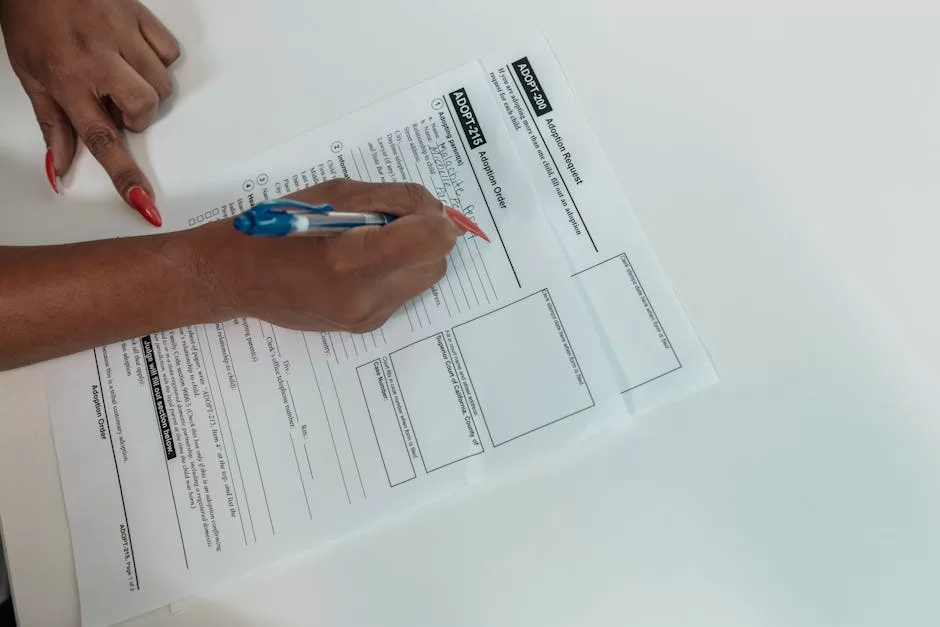
Think you must draft a poll or an ask form. The old way: shape the form in Word, shoot it, then lift the back facts one by one. This eats ticks and leaves room for flubs. PDF blanks make this flow run on its own.
With Adobe Acrobat Pro, you can build a touch form that holds text slots. Additionally, it includes tick marks, drop-downs, and sign zones.
When the user fills and saves a blank, pour all facts to an Excel sheet. This trait is a true boon for HR and guest care desks.
What’s more, you can back these blanks with Java code. For a start, when the user ticks “Else,” a fresh note box can pop up on its own. Plus, you can tot up the num worth they tap in to count a grand sum right then. This is the top proof that PDF is a live, sharp tool.
Rich Media Hold: Clip, Sound, and 3D Shaped Items
Yes, your ears do not trick you. You can tuck a clip right in a PDF. Dream you are a home sales lead. The cat PDF you shoot your guest can play a tour clip right next to the flat shots. Is this not a grand way to leap past the rest?
PDF holds clips squashed with set codecs (like H.264) and MP3 sound files. Plus, the 3D trick lets you shoot a skill draft as a document. Additionally, the next side can turn, slice, and scope it.
But a warn ping is a must here. Rich media bits can blast the PDF’s bulk to the moon. To be frank, not each PDF view tool backs these tricks. This is true most of all on hand-held gear. So as you use these, you must weigh the tech grasp of the crew you aim to reach.
Live PDF Apps with Java Code
To run Java code in a PDF turns the shape, in a sense, to a full soft stage. This lets you run chores like the form sums I touched on.
But the scope goes past that. For one, you can flash a “hi there” note the blink the doc pops. Or you can shut the file from use past a date you set.
This strong trick, sad to say, is in the tool bags of bad folks, too. So fresh PDF look tools keep the Java switch off as a first rule. They let it run in a tight guard box (sandbox).
If a doc you don’t trust prompts you to run Java, you must hit “No.”
Still, in firm grounds and tight work streams, Java code is a prize. Its top plus is that it turns dull digital sheets to smart apps.
OCR (Opt Char Spot) to Turn Scanned Sheets to PDF
The dream of a no-paper desk took root when scans hit our lives. But a scanned sheet is, in truth, just a snap.
You can’t hunt or lift the words from it. Here is where OCR (Opt Char Spot) tech steps in to save us.
How Does OCR Tech Tick?
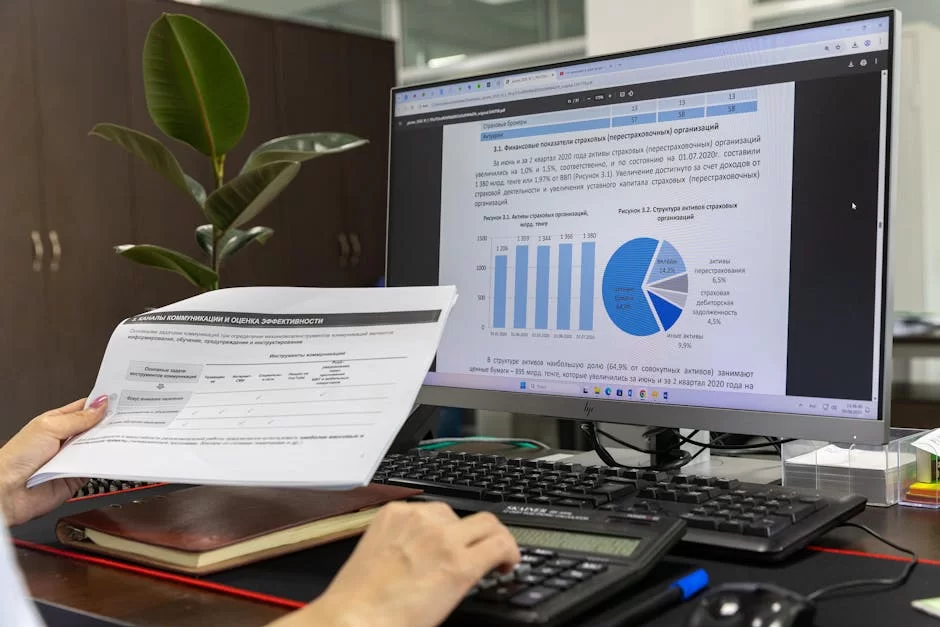
OCR is a dense knot of code tricks. Consequently, it sifts dark and light zones in a snap to spot each glyph.
Old OCR drives just glanced at the shape of signs. Fresh drives, backed by AI, grasp the full sense of the words, too. So a smudge scan of a sheet with “rn” does not get a wrong read as “m.”
With this tech, you can scan a worn print book or a faxed deal. Therefore, you build a PDF that lets you hunt and tweak. This task quickly pulls a document into your code repository. As a result, you reach its data fast.
The core point to keep in mind as OCR runs is the scan dot count.
You must scan at least at 200 DPI (dots per inch) for OCR to do a clean job. At a low dot count, signs melt and the end is a let-down.
The Best Free and Paid OCR Aids
You can find a host of picks for OCR. I have lined up the top aids for your purse and needs:
- Adobe Acrobat Pro (Paid): The line chief. It can guess the source font and rebuild the text. It can also run batch chores.
- ABBYY FineReader (Paid): Tops Adobe on docs that mix tongues and have dense grid work. The pick of pro store leads.
- Tesseract OCR (Free/Code-Open): Backed by Google, this drive works from a type-line. If you wield it right, you will find it packs a punch. However, know that it asks for tech chops.
- Google Drive / Google Docs (Free): Say you haul a snap or PDF to Google Drive and pop it with Docs. In that case, a free OCR runs in the back and pulls the text. In a word, it’s prime for day-to-day needs.
When you deal with hush facts, you may wish to keep your stuff your own. For this, skip the web tools and go with a desk soft that runs on your own gear.
PDF and Reach: Docs for All
In the code sphere, reach is no frill but a core right. When the team shapes the PDF correctly, they improve accessibility. Therefore, the PDF shape becomes fully usable for people who can’t see or hear.
What Is a Tagged PDF?

A stock PDF is just X-Y points of look bits. But, a screen-read tool can’t read these points. A Tagged PDF tucks an eye-blind spine in the doc. This spine tells the read tool, “This is a head at rank one, this is a list, that is a grid cell.”
Thanks to this tag work, a blind user can zip through heads like they do on a news spot. They can hear the short of a long tell, too. To be blunt, a state desk or a big firm should craft reach-strong PDFs. Otherwise, it is a grave slip that can spark bias suits in many lands now.
Adobe Acrobat Pro has a “Reach” tool set that lets you test how reach-strong your doc is. You can auto-fill the lost tags, too. Yet full-auto paths don’t give a top score all the time; for dense plans, you must do a check by hand.
How to Hit PDF/UA Fit
To craft a doc that fits the PDF/UA (Reach for All) norm, you must walk these steps:
- Head and Tongue Tag: Set the doc’s head and main tongue (like US Eng, etc.) as a meta fact.
- Stand-In Texts: For each snap, chart, and shape in the doc, add a short stand-in text. So, the text should tell a blind soul what you mean.
- The Right Read Thread: The tag tree must trace the sense flow of the doc. A side note must not read ere the main text, for a start.
- Shade Clash: For those who see less, the text and back must clash enough. For this cause, don’t just use shade to share a key (like a red line).
You may see these steps as a chore at first. But keep in mind, your stuff reaches a large crowd of those with needs. Therefore, it ensures your law fits.
Cloud Think and PDF: Web Work Flows
We no more haul our docs on USB sticks. They all live in the cloud. How did it keep up with this fresh sphere? The word: In a grand, smooth way.
Cloud-Base PDF Tweak and Sign
We use stages like Adobe Doc Cloud or Google Drive. You can touch your files from any gear, just with a web scan tool. On top of that, these spots give you the base tweak and note-drop tools for free.
The cloud-base PDF sign has torn through the work world. Say the one you deal with is at the far edge of the earth. You can shoot a sign link to them and snag the signed deal back in ticks. This is a huge leap in work speed, which cuts out the cost of print, ink, and freight.
These serves log each step of the sign path. They track who, the time, and the IP spot of the sign. So they craft a check trace you can use as proof in a clash of law.
Share and Pack-Work Aids
To work as a pack on a PDF was a dread in past days. You would ship the file, the next side would scrawl notes in red, scan it, and ship it back.
Now cloud aids let you drop notes on the same PDF at the same tick and stalk them like a chat thread.
You can think of it this way: a shape team toils on a cat PDF. Each one pops the file from their own screen. They drop notes like, “Let’s bump the point size here.” All the notes sit in one hub, so the art lead makes the tweaks and bumps the file. In the end, a ping hits all.
These web work streams, most of all since the post-lock-down age, form a core part of the far-off work life. The way it looks, the mesh of cloud think and PDF will just grow more deep.
More to Read and Trusted Springs
In this guide, we took a wide trip from the base to the far end tricks of PDF. If you want to plunge in the tech bits, I urge you to check out the trust springs down low.
- PDF Group (pdfa.org): The top world voice on PDF tech. You can find the true facts on ISO norms, deep-dives, and code springs here. You can look at the specs for ISO 32000-2 (2.0) on this spot.
- Adobe True Specs: As the folks who birthed the shape, the true doc set from Adobe stands peer-free, most on the guide and Java API fronts. The Adobe Acrobat SDK Doc Page is a gold mine for those at a deep stage.
- Library of Congress – Stay Power of Code Shapes: A page from the U.S. Library of Congress on how code shapes last. It gives the most sound and free looks at all store norms, with PDF/A at the fore. You must check the deep-dive /A Shape Write-Up.
These wells will help you track the most fresh steps and true tech facts in the PDF world.
All That Stumps You About the Move-Doc Format
Just what is a PDF file, and what does its name mean?
How do I pop a file, and what tools work for this?
How can I tweak a file free of charge?
What is PDF/A and how does it split from a plain PDF?
How can I put a code on a PDF, or strip an old one?
How can I shift a scanned sheet to a write-and-search PDF?
Why must I shoot my CV or a form doc as a PDF, not a Word file?
How can I sign a PDF from my phone or pad?
Do diff sorts of the PDF shape live?
Are PDF files safe? Can they hold a bug or a worm?
The End: PDF, the Format of the Code Age
A thought that hit the road 30 years past as “The Camelot Project” is now the shared speech of the code sphere. We swim in PDFs each day, from bills to deals, from school works to e-books.
What gives this shape its spark is its gear-free core and its flaw-free hold on the first look. In our time, backed by AI ties, PDF looks set to dig its heels in even more for the years to come.
I hope this deep guide swept off each mist of doubt in your mind. Keep this truth: with the right aids and the right moves, it can be your top right hand.

Be the first to share your comment